> ## Documentation Index
> Fetch the complete documentation index at: https://docs.comfy.org/llms.txt
> Use this file to discover all available pages before exploring further.
# Comfy Cloud MCP
> Use Comfy Cloud from Claude Code and Claude Desktop through the Comfy Cloud MCP server — generate images, video, audio, and 3D, search models and nodes, and run workflows.
This is a **Comfy Cloud** feature and is only available in the cloud version. To learn more about Comfy Cloud, see [Comfy Cloud](/get_started/cloud).
## Overview
The **Comfy Cloud MCP server** connects AI agents to [Comfy Cloud](https://cloud.comfy.org) over the [Model Context Protocol](https://modelcontextprotocol.io). Once connected, you can generate images, video, audio, and 3D, search models, nodes, and templates, and run ComfyUI workflows — all from a chat with your agent.
Support is currently scoped to **Claude Code** and **Claude Desktop**, which sign in with **OAuth** — a one-time browser sign-in. Support for more clients is coming.
## Install
Pick your client:
Install the plugin — connection and commands in one step.
Add a custom connector in the app, then sign in.
### Claude Code
Install the **comfy-cloud** plugin — it adds the MCP connection and the slash commands in one step.
```
/plugin marketplace add Comfy-Org/comfy-skills
```
```
/plugin install comfy-cloud@comfy-skills
```
Run `/mcp`, select **comfy-cloud** → **Authenticate**. Your browser opens to sign in, and tokens refresh automatically.
The plugin adds these slash commands:
| Command | What it does |
| -------------------------------- | ----------------------------------- |
| `/comfy-cloud:generate-image` | Generate, edit, or modify an image |
| `/comfy-cloud:generate-video` | Generate, edit, or extend a video |
| `/comfy-cloud:generate-audio` | Generate audio |
| `/comfy-cloud:generate-3d` | Generate a 3D model |
| `/comfy-cloud:remove-background` | Remove the background from an image |
| `/comfy-cloud:upscale-image` | Upscale an image |
| `/comfy-cloud:search-models` | Search available models |
| `/comfy-cloud:search-nodes` | Search for nodes |
| `/comfy-cloud:search-templates` | Find pre-built workflows |
| `/comfy-cloud:help` | See what you can do |
Add the server directly (no slash commands):
```bash theme={null}
claude mcp add --transport http comfy-cloud https://cloud.comfy.org/mcp
```
Then run `/mcp`, select **comfy-cloud** → **Authenticate**. Add `-s user` to make it available in all your projects.
### Claude Desktop
Claude Desktop adds Comfy Cloud as a **custom connector** through its UI, then runs the OAuth sign-in.
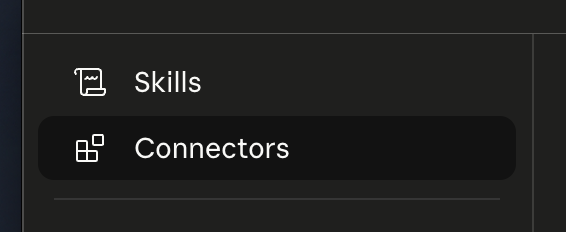
In Claude Desktop, open **Customize**, then choose **Connectors**.
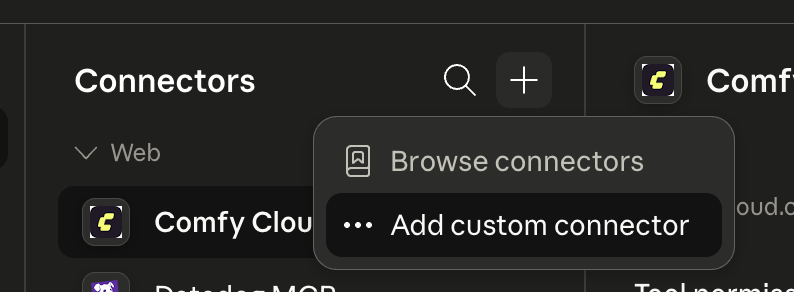
 Click the **+** button, then choose **Add custom connector**.
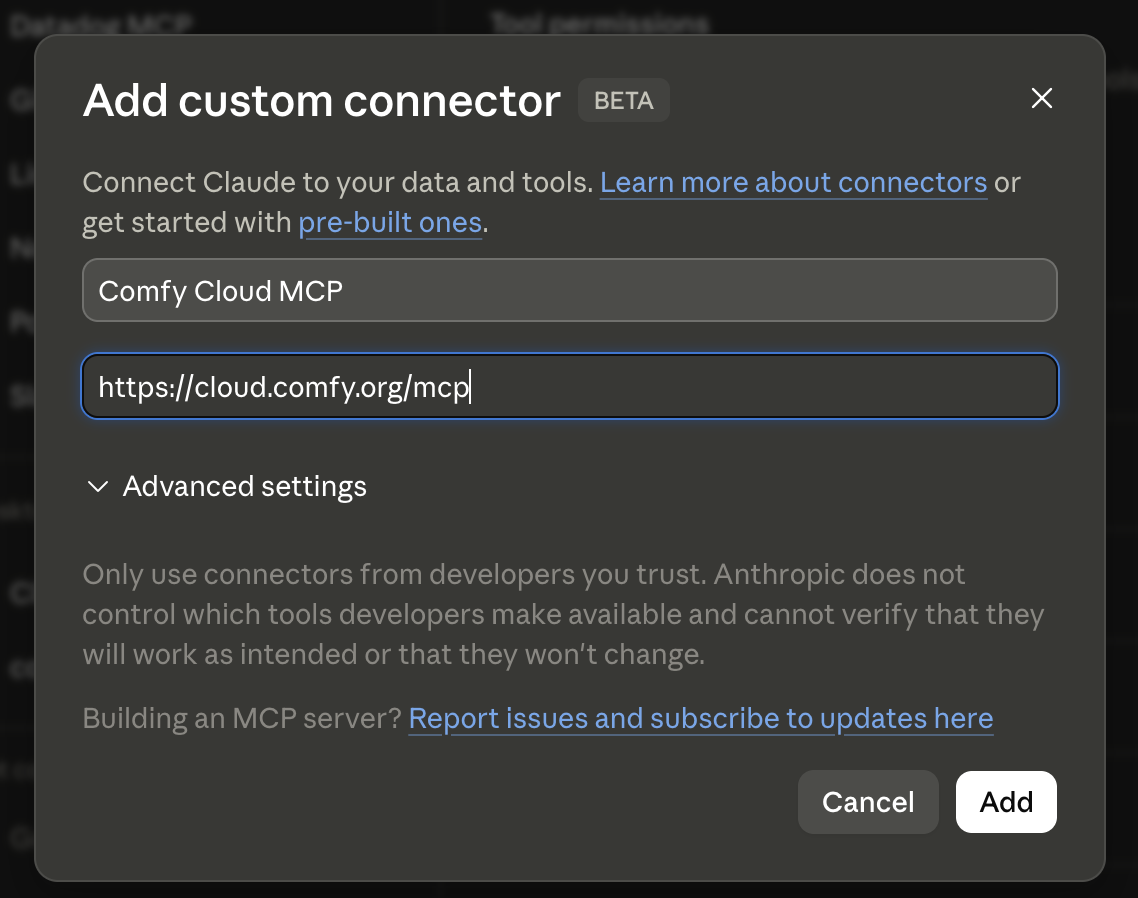
 Name it anything (for example, *Comfy Cloud*) and set the **Remote MCP server URL** to:
```
https://cloud.comfy.org/mcp
```
Name it anything (for example, *Comfy Cloud*) and set the **Remote MCP server URL** to:
```
https://cloud.comfy.org/mcp
```
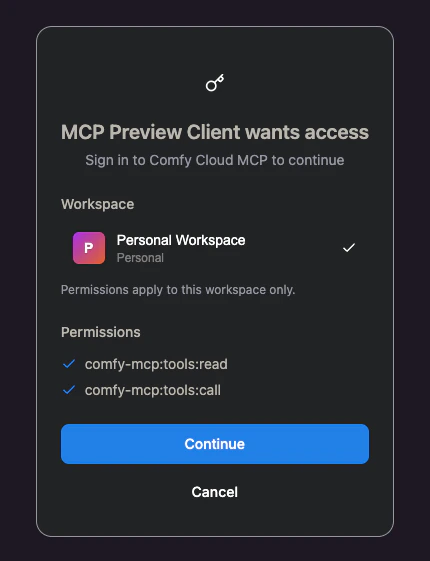
 Click **Add**, then sign in through Claude Desktop when prompted. You are connected.
 ### Headless / CI (API key)
Claude Code and Claude Desktop use OAuth, so you do not need an API key. For **headless or CI** setups where no browser is available, authenticate with an API key instead:
Go to [platform.comfy.org/profile/api-keys](https://platform.comfy.org/profile/api-keys), click **New API Key**, and copy it (it starts with `comfyui-`).
```bash theme={null}
claude mcp add --transport http comfy-cloud https://cloud.comfy.org/mcp -H "X-API-Key: comfyui-…"
```
## FAQ
Claude Code and Claude Desktop today, both signing in with OAuth. Support for more clients is coming.
Not for Claude Code or Claude Desktop — they use OAuth. An API key is only needed for headless or CI setups with no browser.
No. The slash commands ship in the Claude Code plugin. Claude Desktop connects to the same MCP server (so the tools work — just ask in plain language), but it doesn't support Claude Code plugins or slash commands.
In Claude Code, run `/mcp`, select **comfy-cloud**, and choose **Authenticate**. In Claude Desktop, reopen the connector from **Customize → Connectors** and trigger sign-in.
### Headless / CI (API key)
Claude Code and Claude Desktop use OAuth, so you do not need an API key. For **headless or CI** setups where no browser is available, authenticate with an API key instead:
Go to [platform.comfy.org/profile/api-keys](https://platform.comfy.org/profile/api-keys), click **New API Key**, and copy it (it starts with `comfyui-`).
```bash theme={null}
claude mcp add --transport http comfy-cloud https://cloud.comfy.org/mcp -H "X-API-Key: comfyui-…"
```
## FAQ
Claude Code and Claude Desktop today, both signing in with OAuth. Support for more clients is coming.
Not for Claude Code or Claude Desktop — they use OAuth. An API key is only needed for headless or CI setups with no browser.
No. The slash commands ship in the Claude Code plugin. Claude Desktop connects to the same MCP server (so the tools work — just ask in plain language), but it doesn't support Claude Code plugins or slash commands.
In Claude Code, run `/mcp`, select **comfy-cloud**, and choose **Authenticate**. In Claude Desktop, reopen the connector from **Customize → Connectors** and trigger sign-in.