> ## Documentation Index
> Fetch the complete documentation index at: https://docs.comfy.org/llms.txt
> Use this file to discover all available pages before exploring further.
# Canny - ComfyUI Built-in Node Documentation
> Complete documentation for the Canny node in ComfyUI. Learn its inputs, outputs, parameters and usage.
Extract all edge lines from photos, like using a pen to outline a photo, drawing out the contours and detail boundaries of objects.
## Working Principle
Imagine you are an artist who needs to use a pen to outline a photo. The Canny node acts like an intelligent assistant, helping you decide where to draw lines (edges) and where not to.
This process is like a screening job:
* **High threshold** is the "must draw line standard": only very obvious and clear contour lines will be drawn, such as facial contours of people and building frames
* **Low threshold** is the "definitely don't draw line standard": edges that are too weak will be ignored to avoid drawing noise and meaningless lines
* **Middle area**: edges between the two standards will be drawn together if they connect to "must draw lines", but won't be drawn if they are isolated
The final output is a black and white image, where white parts are detected edge lines and black parts are areas without edges.
## Inputs
| Parameter Name | Data Type | Input Type | Default | Range | Function Description |
| ---------------- | --------- | ---------- | ------- | --------- | --------------------------------------------------------------------------------------------------------------- |
| `image` | IMAGE | Input | - | - | Original photo that needs edge extraction |
| `low_threshold` | FLOAT | Widget | 0.4 | 0.01-0.99 | Low threshold, determines how weak edges to ignore. Lower values preserve more details but may produce noise |
| `high_threshold` | FLOAT | Widget | 0.8 | 0.01-0.99 | High threshold, determines how strong edges to preserve. Higher values only keep the most obvious contour lines |
## Outputs
| Output Name | Data Type | Description |
| ----------- | --------- | ----------------------------------------------------------------------------------------------- |
| `image` | IMAGE | Black and white edge image, white lines are detected edges, black areas are parts without edges |
## Parameter Comparison

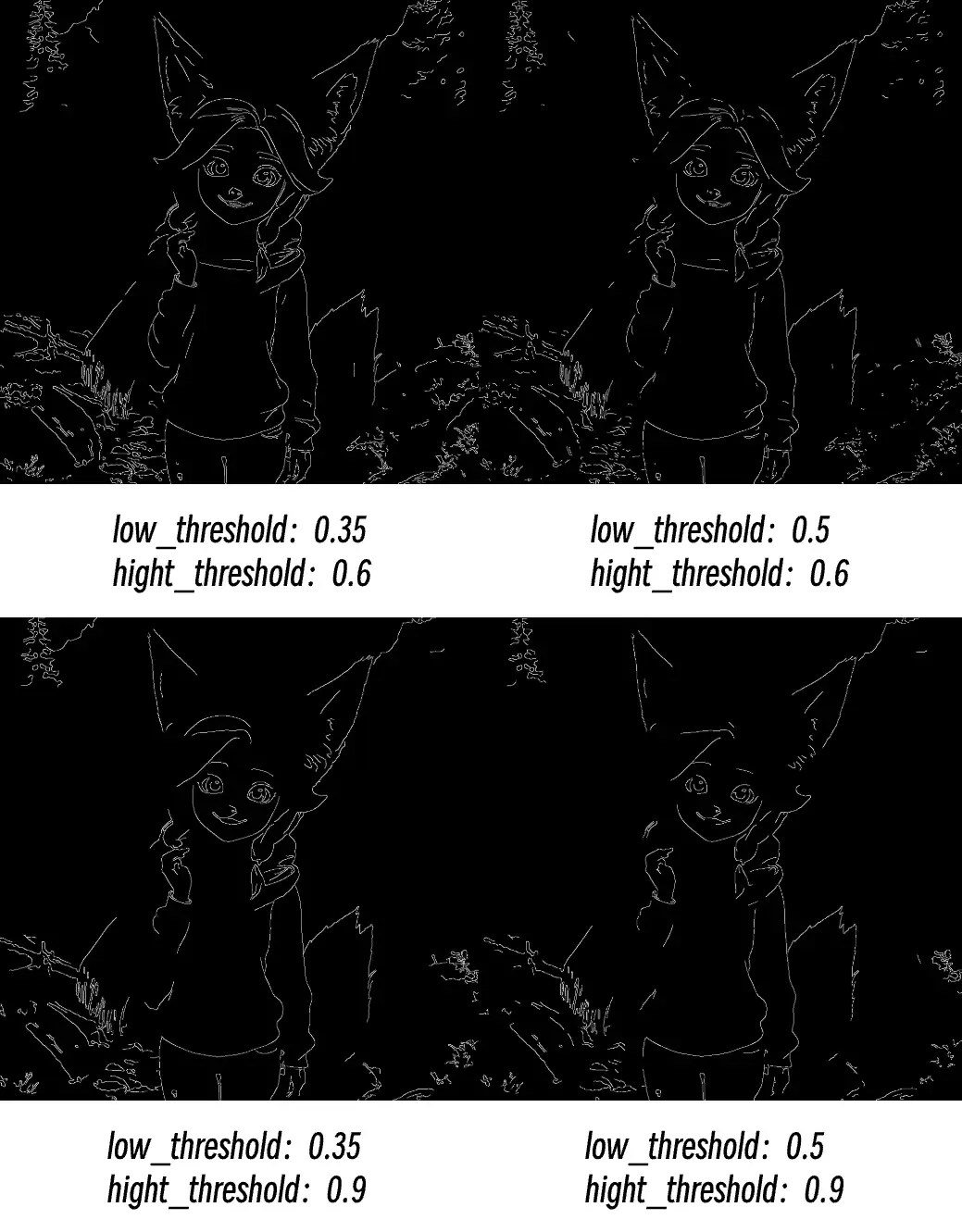 **Common Issues:**
* Broken edges: Try lowering high threshold
* Too much noise: Raise low threshold
* Missing important details: Lower low threshold
* Edges too rough: Check input image quality and resolution
**Common Issues:**
* Broken edges: Try lowering high threshold
* Too much noise: Raise low threshold
* Missing important details: Lower low threshold
* Edges too rough: Check input image quality and resolution