> ## Documentation Index
> Fetch the complete documentation index at: https://docs.comfy.org/llms.txt
> Use this file to discover all available pages before exploring further.
# Load3DAnimation - ComfyUI Built-in Node Documentation
> Complete documentation for the Load3DAnimation node in ComfyUI. Learn its inputs, outputs, parameters and usage.
The Load3DAnimation node is a core node for loading and processing 3D model files. When loading the node, it automatically retrieves available 3D resources from `ComfyUI/input/3d/`. You can also upload supported 3D files for preview using the upload function.
> * Most of the functions of this node are the same as the Load 3D node, but this node supports loading models with animations, and you can preview the corresponding animations in the node.
> * The content of this documentation is the same as the Load3D node, because except for animation preview and playback, their capabilities are identical.
**Supported Formats**
Currently, this node supports multiple 3D file formats, including `.gltf`, `.glb`, `.obj`, `.fbx`, and `.stl`.
**3D Node Preferences**
Some related preferences for 3D nodes can be configured in ComfyUI's settings menu. Please refer to the following documentation for corresponding settings:
[Settings Menu](https://docs.comfy.org/interface/settings/3d)
Besides regular node outputs, Load3D has lots of 3D view-related settings in the canvas menu.
## Inputs
| Parameter Name | Type | Description | Default | Range |
| -------------- | -------------- | --------------------------------------------------------------------------------------------- | ------- | ----------------- |
| model\_file | File Selection | 3D model file path, supports upload, defaults to reading model files from `ComfyUI/input/3d/` | - | Supported formats |
| width | INT | Canvas rendering width | 1024 | 1-4096 |
| height | INT | Canvas rendering height | 1024 | 1-4096 |
## Outputs
| Parameter Name | Data Type | Description |
| ---------------- | -------------- | ---------------------------------------------------------------------------------------------- |
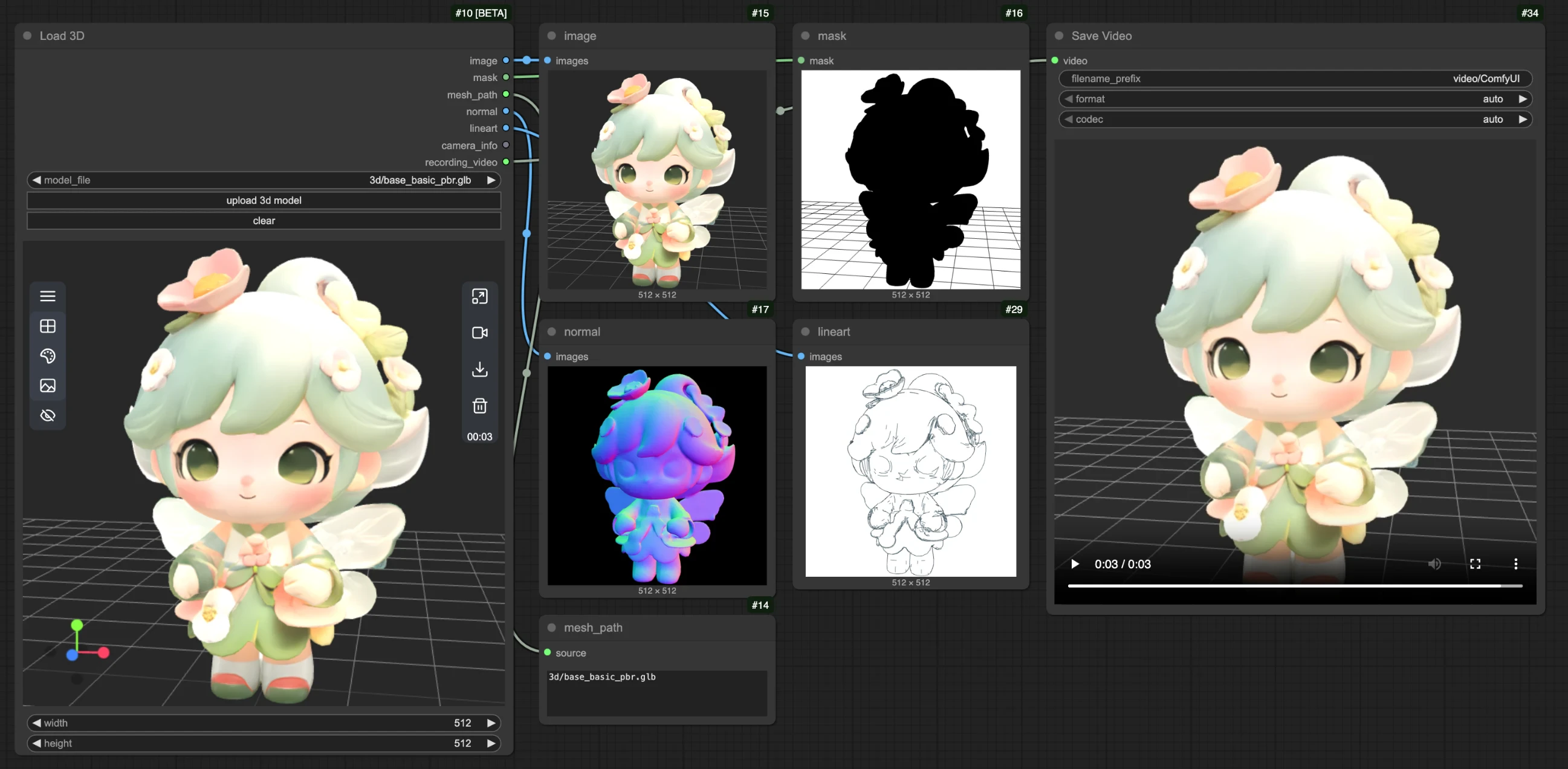
| image | IMAGE | Canvas rendered image |
| mask | MASK | Mask containing current model position |
| mesh\_path | STRING | Model file path |
| normal | IMAGE | Normal map |
| lineart | IMAGE | Line art image output, corresponding `edge_threshold` can be adjusted in the canvas model menu |
| camera\_info | LOAD3D\_CAMERA | Camera information |
| recording\_video | VIDEO | Recorded video (only when recording exists) |
All the outputs preview:
## Canvas Area Description
The Load3D node's Canvas area contains numerous view operations, including:
* Preview view settings (grid, background color, preview view)
* Camera control: Control FOV, camera type
* Global illumination intensity: Adjust lighting intensity
* Video recording: Record and export videos
* Model export: Supports `GLB`, `OBJ`, `STL` formats
* And more
1. Contains multiple menus and hidden menus of the Load 3D node
2. Menu for `resizing preview window` and `canvas video recording`
3. 3D view operation axis
4. Preview thumbnail
5. Preview size settings, scale preview view display by setting dimensions and then resizing window
### 1. View Operations
View control operations:
* Left-click + drag: Rotate the view
* Right-click + drag: Pan the view
* Middle wheel scroll or middle-click + drag: Zoom in/out
* Coordinate axis: Switch views
### 2. Left Menu Functions
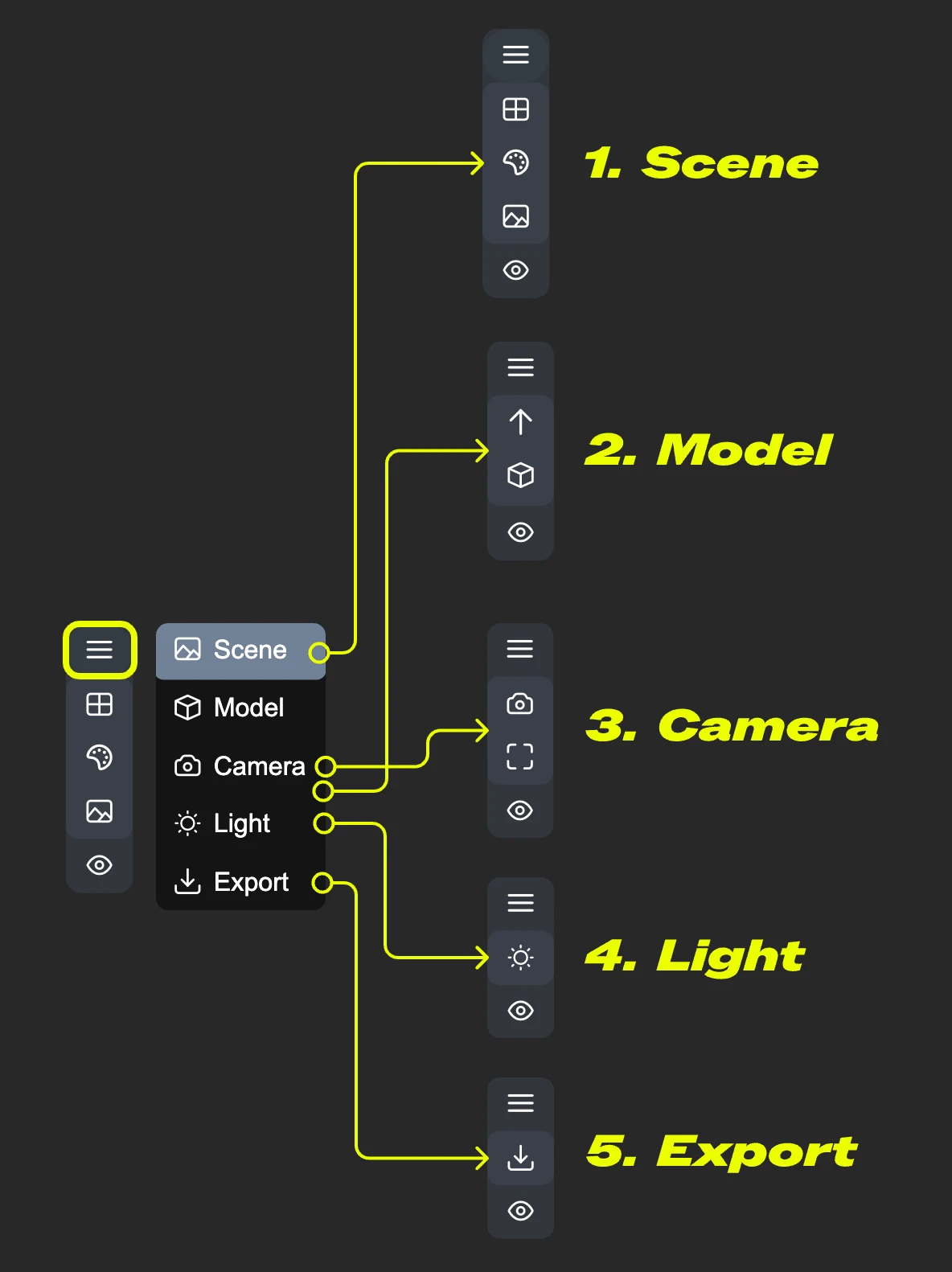
In the canvas, some settings are hidden in the menu. Click the menu button to expand different menus
* 1. Scene: Contains preview window grid, background color, preview settings
* 2. Model: Model rendering mode, texture materials, up direction settings
* 3. Camera: Switch between orthographic and perspective views, and set the perspective angle size
* 4. Light: Scene global illumination intensity
* 5. Export: Export model to other formats (GLB, OBJ, STL)
#### Scene
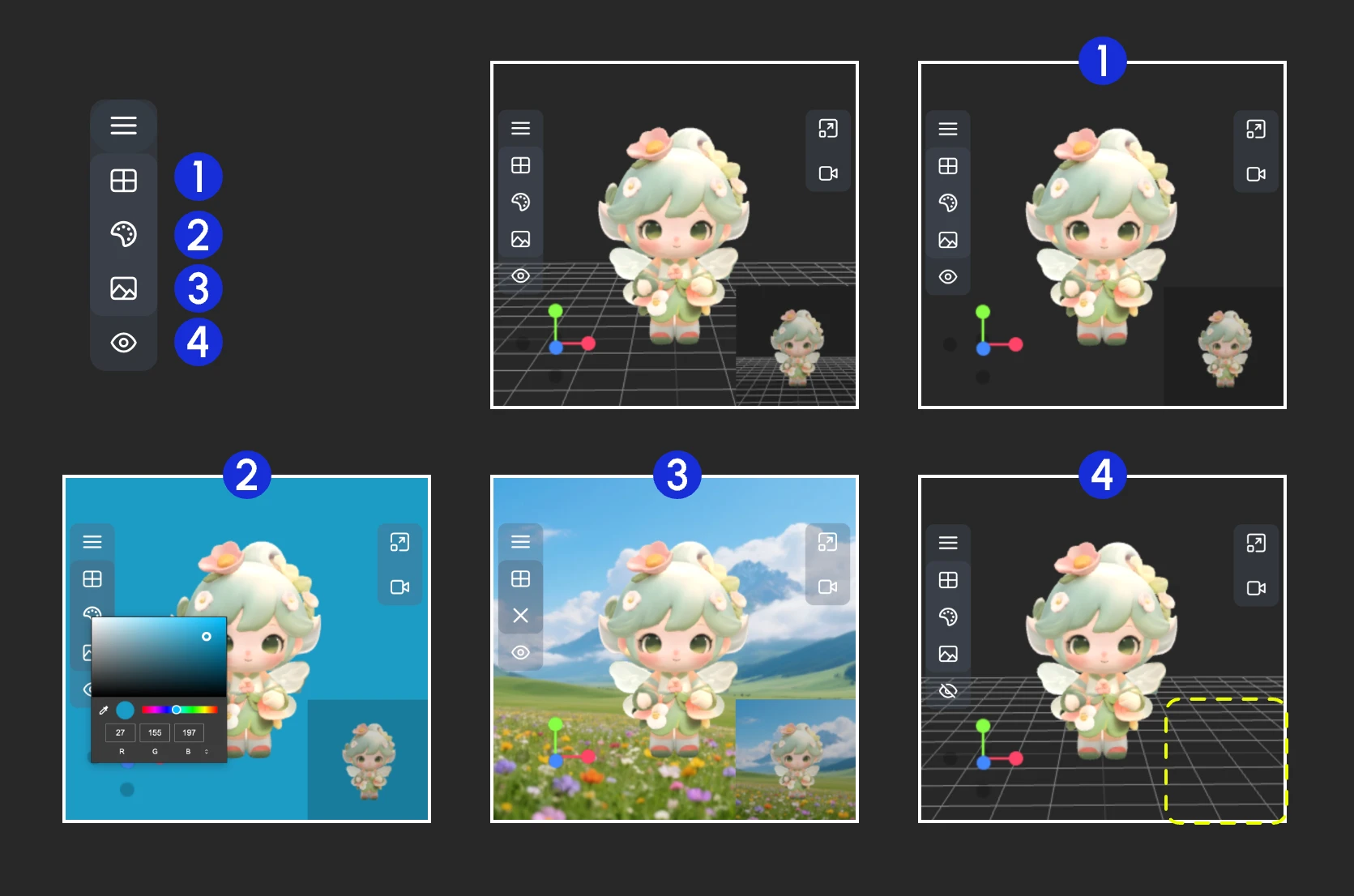
The Scene menu provides some basic scene setting functions
1. Show/Hide grid
2. Set background color
3. Click to upload a background image
4. Hide the preview
#### Model
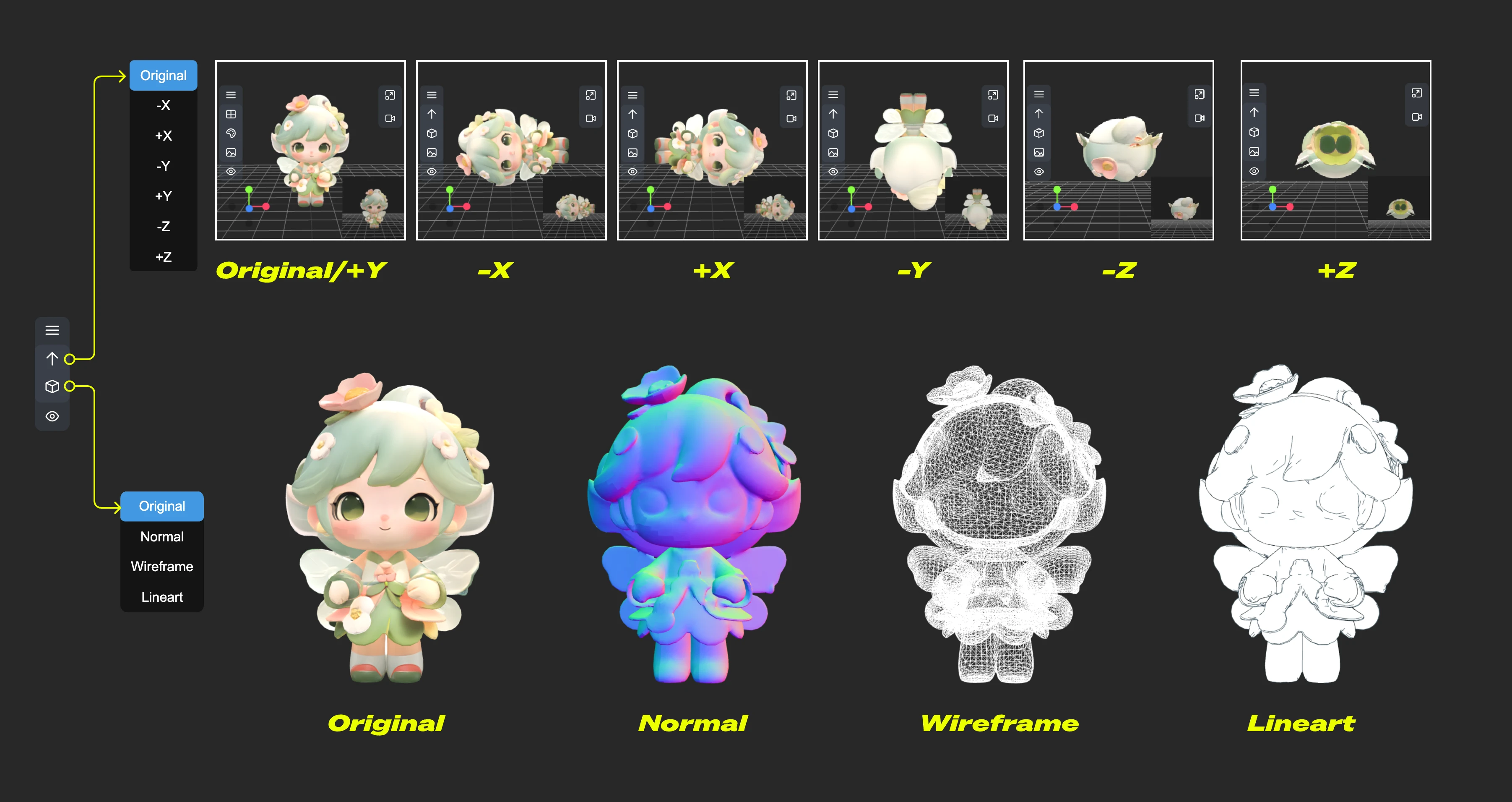
The Model menu provides some model-related functions
1. **Up direction**: Determine which axis is the up direction for the model
2. **Material mode**: Switch model rendering modes - Original, Normal, Wireframe, Lineart
#### Camera
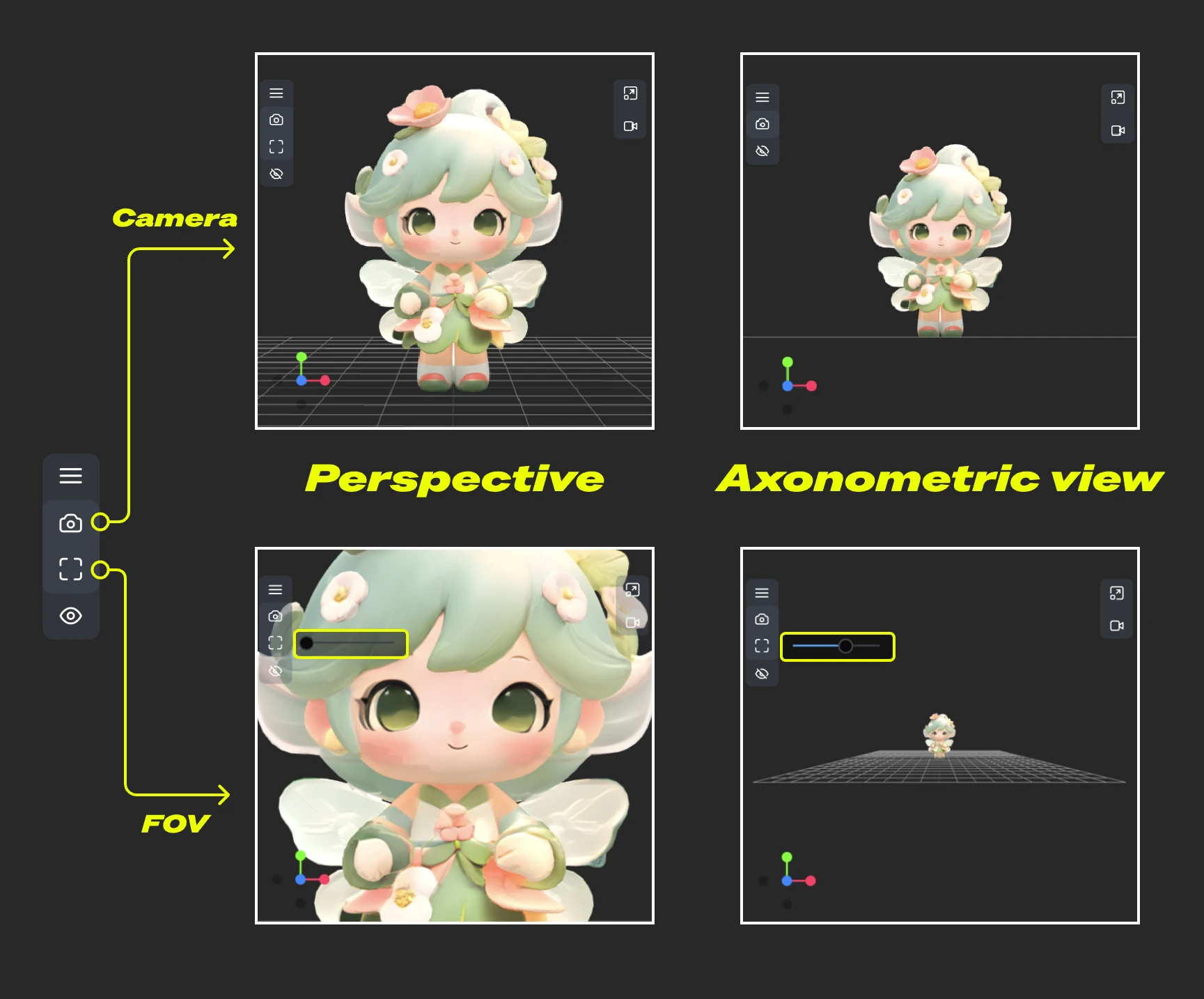
This menu provides switching between orthographic and perspective views, and perspective angle size settings
1. **Camera**: Quickly switch between orthographic and orthographic views
2. **FOV**: Adjust FOV angle
#### Light
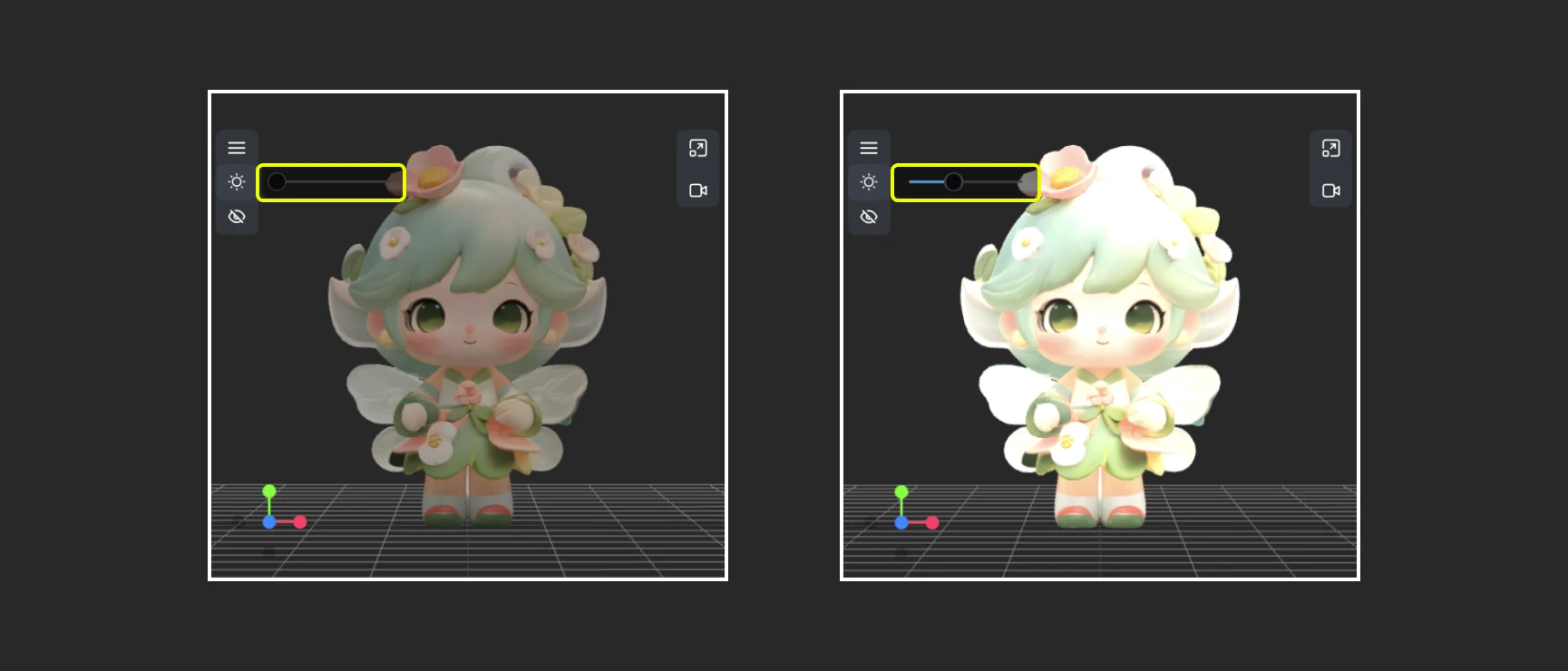
Through this menu, you can quickly adjust the scene's global illumination intensity
#### Export
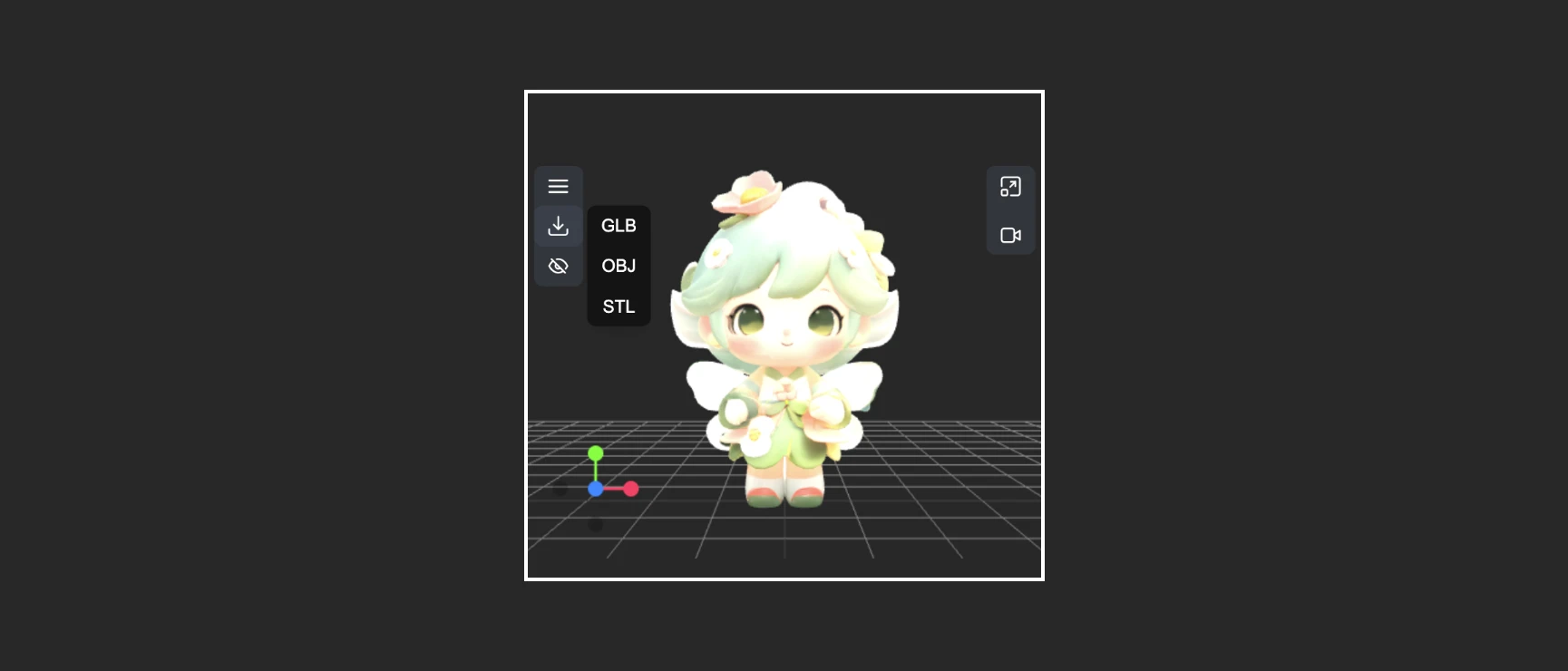
This menu provides the ability to quickly convert and export model formats
### 3. Right Menu Functions
The right menu has two main functions:
1. **Reset view ratio**: After clicking the button, the view will adjust the canvas rendering area ratio according to the set width and height
2. **Video recording**: Allows you to record current 3D view operations as video, allows import, and can be output as `recording_video` to subsequent nodes
 ## Canvas Area Description
The Load3D node's Canvas area contains numerous view operations, including:
* Preview view settings (grid, background color, preview view)
* Camera control: Control FOV, camera type
* Global illumination intensity: Adjust lighting intensity
* Video recording: Record and export videos
* Model export: Supports `GLB`, `OBJ`, `STL` formats
* And more
## Canvas Area Description
The Load3D node's Canvas area contains numerous view operations, including:
* Preview view settings (grid, background color, preview view)
* Camera control: Control FOV, camera type
* Global illumination intensity: Adjust lighting intensity
* Video recording: Record and export videos
* Model export: Supports `GLB`, `OBJ`, `STL` formats
* And more
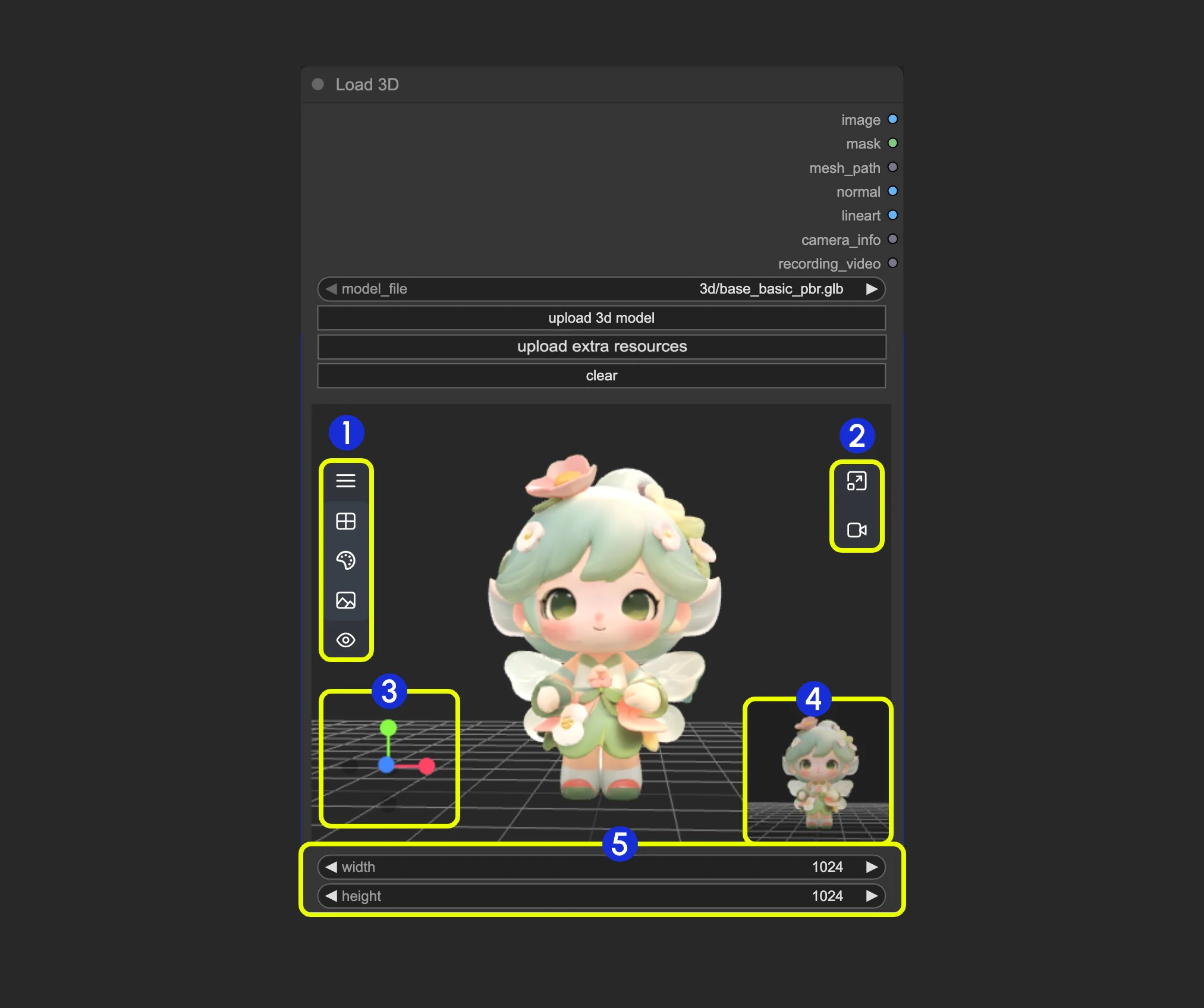 1. Contains multiple menus and hidden menus of the Load 3D node
2. Menu for `resizing preview window` and `canvas video recording`
3. 3D view operation axis
4. Preview thumbnail
5. Preview size settings, scale preview view display by setting dimensions and then resizing window
### 1. View Operations
View control operations:
* Left-click + drag: Rotate the view
* Right-click + drag: Pan the view
* Middle wheel scroll or middle-click + drag: Zoom in/out
* Coordinate axis: Switch views
### 2. Left Menu Functions

In the canvas, some settings are hidden in the menu. Click the menu button to expand different menus
* 1. Scene: Contains preview window grid, background color, preview settings
* 2. Model: Model rendering mode, texture materials, up direction settings
* 3. Camera: Switch between orthographic and perspective views, and set the perspective angle size
* 4. Light: Scene global illumination intensity
* 5. Export: Export model to other formats (GLB, OBJ, STL)
#### Scene

The Scene menu provides some basic scene setting functions
1. Show/Hide grid
2. Set background color
3. Click to upload a background image
4. Hide the preview
#### Model

The Model menu provides some model-related functions
1. **Up direction**: Determine which axis is the up direction for the model
2. **Material mode**: Switch model rendering modes - Original, Normal, Wireframe, Lineart
#### Camera

This menu provides switching between orthographic and perspective views, and perspective angle size settings
1. **Camera**: Quickly switch between orthographic and orthographic views
2. **FOV**: Adjust FOV angle
#### Light

Through this menu, you can quickly adjust the scene's global illumination intensity
#### Export

This menu provides the ability to quickly convert and export model formats
### 3. Right Menu Functions
The right menu has two main functions:
1. **Reset view ratio**: After clicking the button, the view will adjust the canvas rendering area ratio according to the set width and height
2. **Video recording**: Allows you to record current 3D view operations as video, allows import, and can be output as `recording_video` to subsequent nodes
1. Contains multiple menus and hidden menus of the Load 3D node
2. Menu for `resizing preview window` and `canvas video recording`
3. 3D view operation axis
4. Preview thumbnail
5. Preview size settings, scale preview view display by setting dimensions and then resizing window
### 1. View Operations
View control operations:
* Left-click + drag: Rotate the view
* Right-click + drag: Pan the view
* Middle wheel scroll or middle-click + drag: Zoom in/out
* Coordinate axis: Switch views
### 2. Left Menu Functions

In the canvas, some settings are hidden in the menu. Click the menu button to expand different menus
* 1. Scene: Contains preview window grid, background color, preview settings
* 2. Model: Model rendering mode, texture materials, up direction settings
* 3. Camera: Switch between orthographic and perspective views, and set the perspective angle size
* 4. Light: Scene global illumination intensity
* 5. Export: Export model to other formats (GLB, OBJ, STL)
#### Scene

The Scene menu provides some basic scene setting functions
1. Show/Hide grid
2. Set background color
3. Click to upload a background image
4. Hide the preview
#### Model

The Model menu provides some model-related functions
1. **Up direction**: Determine which axis is the up direction for the model
2. **Material mode**: Switch model rendering modes - Original, Normal, Wireframe, Lineart
#### Camera

This menu provides switching between orthographic and perspective views, and perspective angle size settings
1. **Camera**: Quickly switch between orthographic and orthographic views
2. **FOV**: Adjust FOV angle
#### Light

Through this menu, you can quickly adjust the scene's global illumination intensity
#### Export

This menu provides the ability to quickly convert and export model formats
### 3. Right Menu Functions
The right menu has two main functions:
1. **Reset view ratio**: After clicking the button, the view will adjust the canvas rendering area ratio according to the set width and height
2. **Video recording**: Allows you to record current 3D view operations as video, allows import, and can be output as `recording_video` to subsequent nodes