> ## Documentation Index
> Fetch the complete documentation index at: https://docs.comfy.org/llms.txt
> Use this file to discover all available pages before exploring further.
# Preview3D - ComfyUI Built-in Node Documentation
> Complete documentation for the Preview3D node in ComfyUI. Learn its inputs, outputs, parameters and usage.
Preview3D node is mainly used to preview 3D model outputs. This node takes two inputs: one is the `camera_info` from the Load3D node, and the other is the path to the 3D model file. The model file path must be located in the `ComfyUI/output` folder.
**Supported Formats**
Currently, this node supports multiple 3D file formats, including `.gltf`, `.glb`, `.obj`, `.fbx`, and `.stl`.
**3D Node Preferences**
Some related preferences for 3D nodes can be configured in ComfyUI's settings menu. Please refer to the following documentation for corresponding settings:
[Settings Menu](https://docs.comfy.org/interface/settings/3d)
## Inputs
| Parameter Name | Type | Description |
| -------------- | -------------- | --------------------------------------- |
| camera\_info | LOAD3D\_CAMERA | Camera information |
| model\_file | LOAD3D\_CAMERA | Model file path under `ComfyUI/output/` |
## Canvas Area Description
Currently, the 3D-related nodes in the ComfyUI frontend share the same canvas component, so their basic operations are mostly consistent except for some functional differences.
> The following content and interface are mainly based on the Load3D node. Please refer to the actual node interface for specific features.
The Canvas area includes various view operations, such as:
* Preview view settings (grid, background color, preview view)
* Camera control: FOV, camera type
* Global illumination intensity: adjust lighting
* Model export: supports `GLB`, `OBJ`, `STL` formats
* etc.
1. Contains multiple menus and hidden menus of the Load 3D node
2. 3D view operation axis
### 1. View Operations
View control operations:
* Left-click + drag: Rotate the view
* Right-click + drag: Pan the view
* Middle wheel scroll or middle-click + drag: Zoom in/out
* Coordinate axis: Switch views
### 2. Left Menu Functions
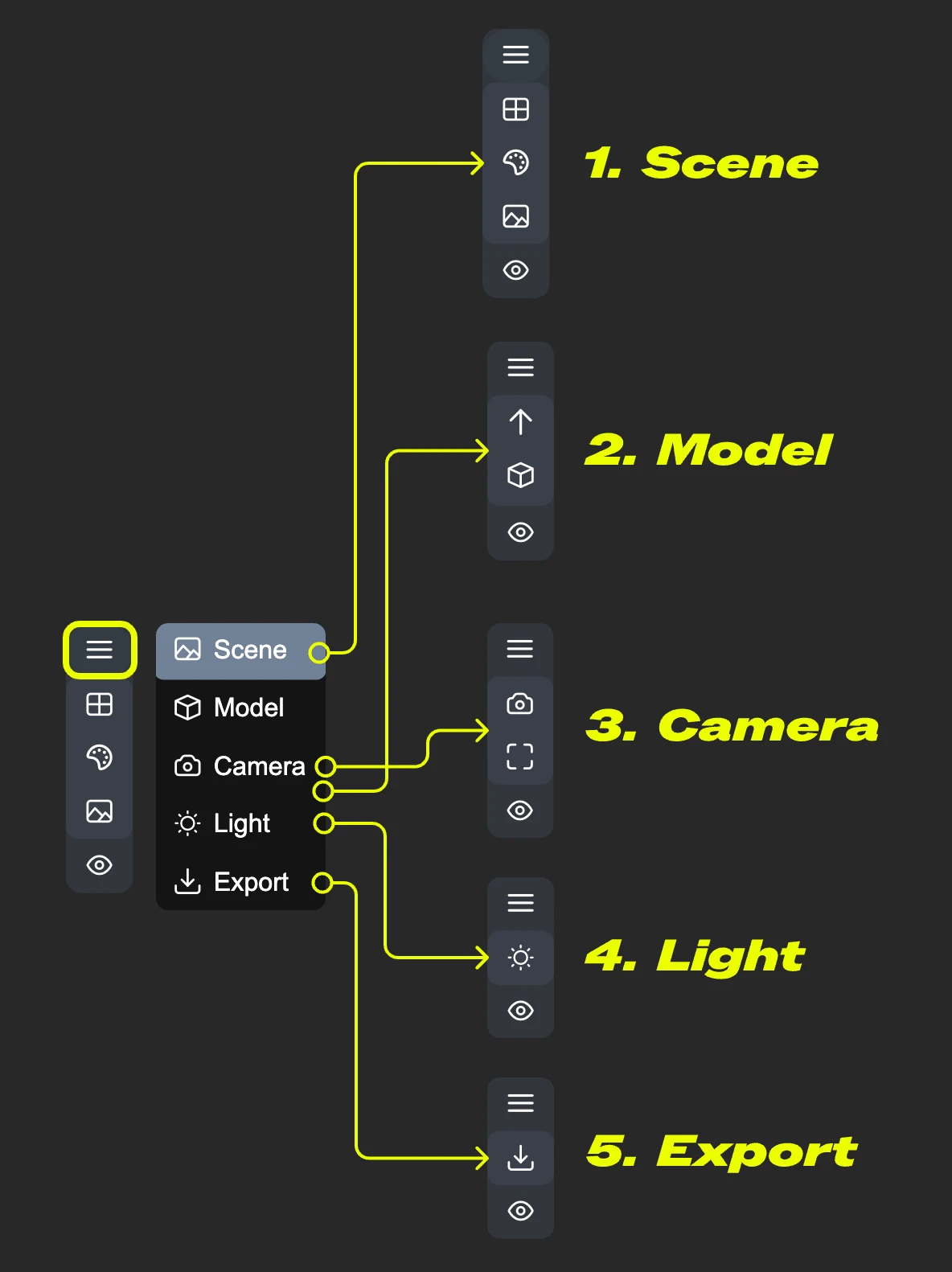
In the preview area, some view operation menus are hidden in the menu. Click the menu button to expand different menus.
* 1. Scene: Contains preview window grid, background color, thumbnail settings
* 2. Model: Model rendering mode, texture material, up direction settings
* 3. Camera: Switch between orthographic and perspective views, set perspective angle
* 4. Light: Scene global illumination intensity
* 5. Export: Export model to other formats (GLB, OBJ, STL)
#### Scene
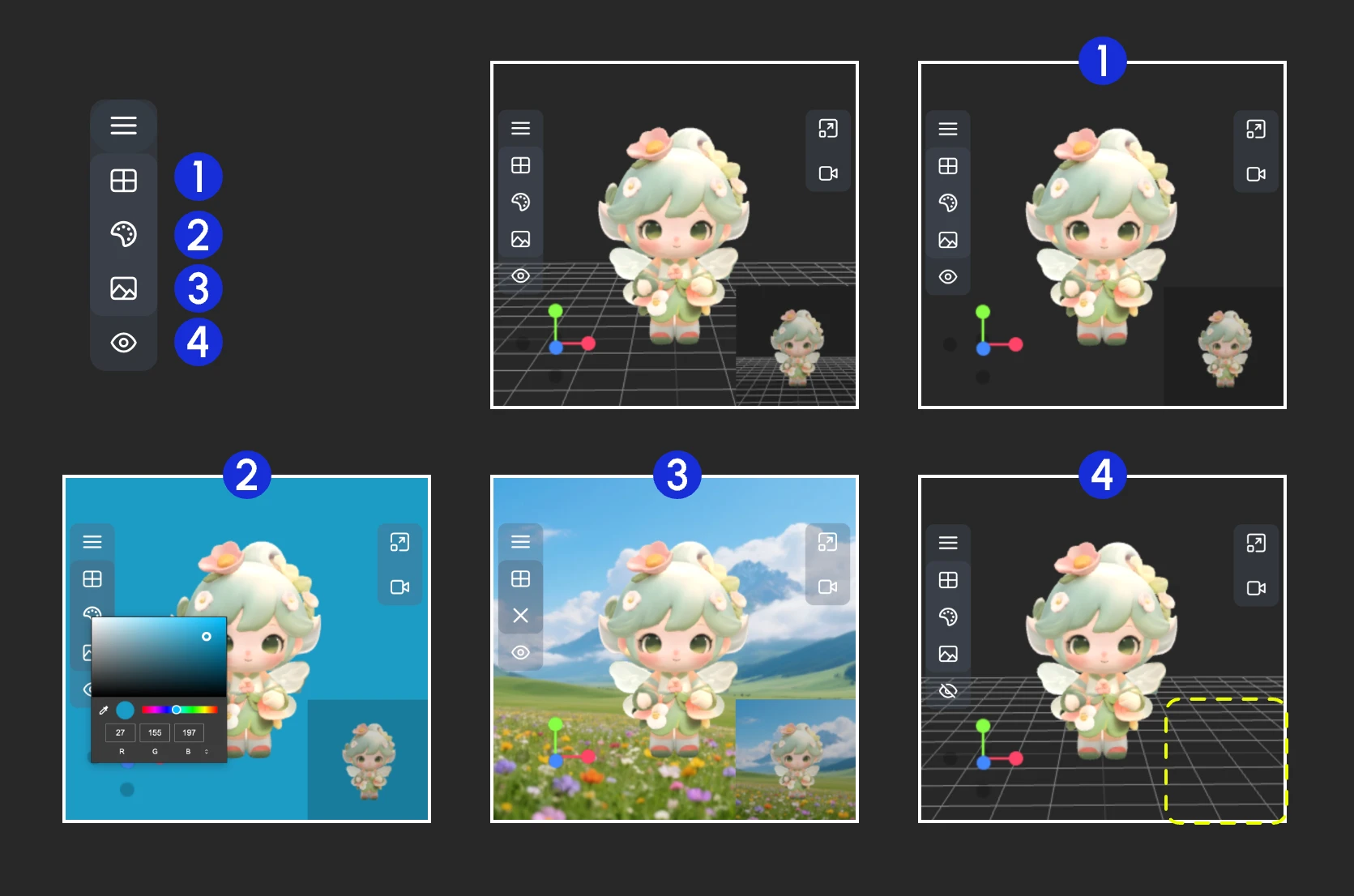
The Scene menu provides some basic scene setting functions:
1. Show/Hide grid
2. Set background color
3. Click to upload a background image
4. Hide preview thumbnail
#### Model
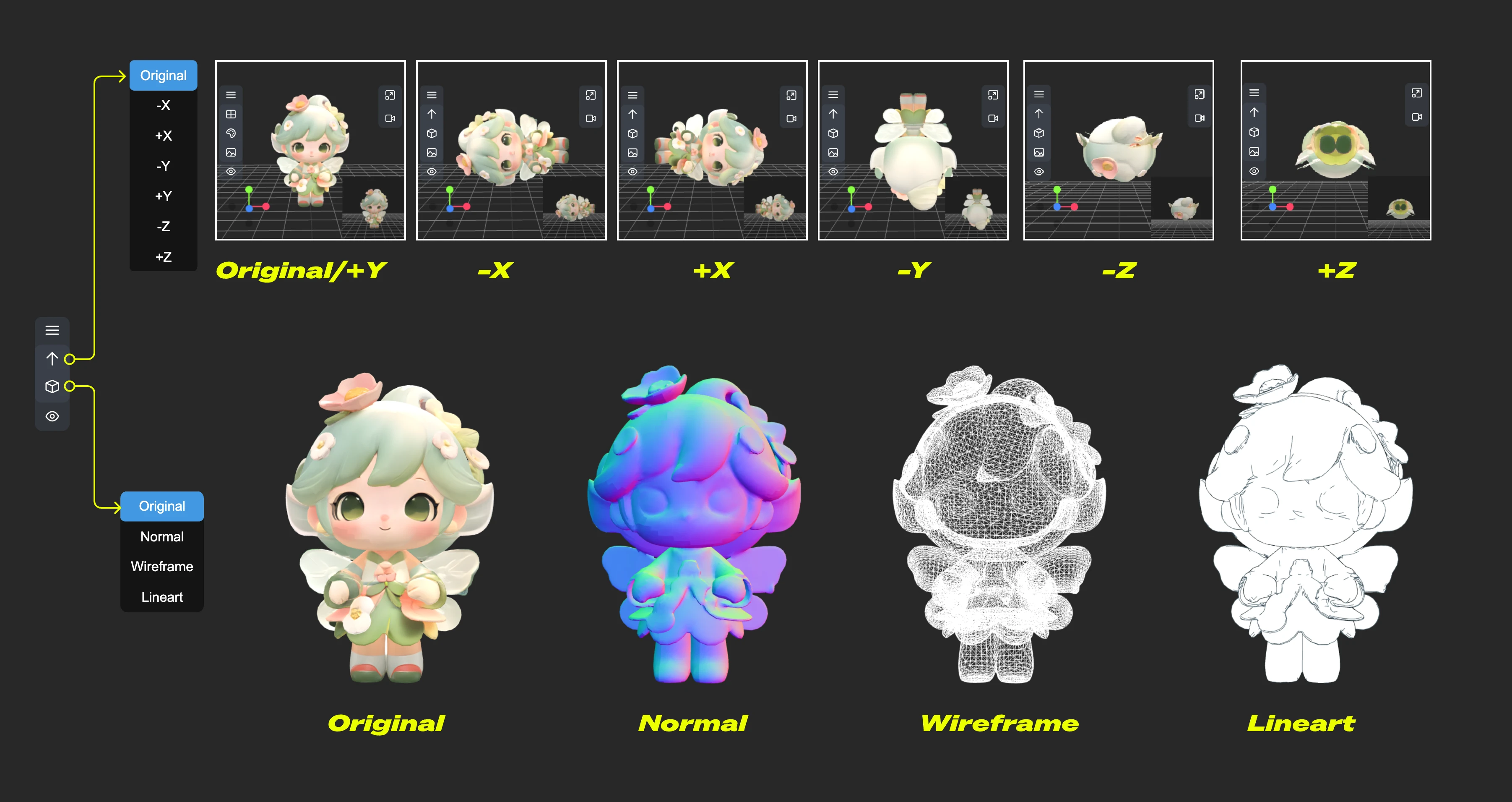
The Model menu provides some model-related functions:
1. **Up direction**: Determine which axis is the up direction for the model
2. **Material mode**: Switch model rendering modes - Original, Normal, Wireframe, Lineart
#### Camera
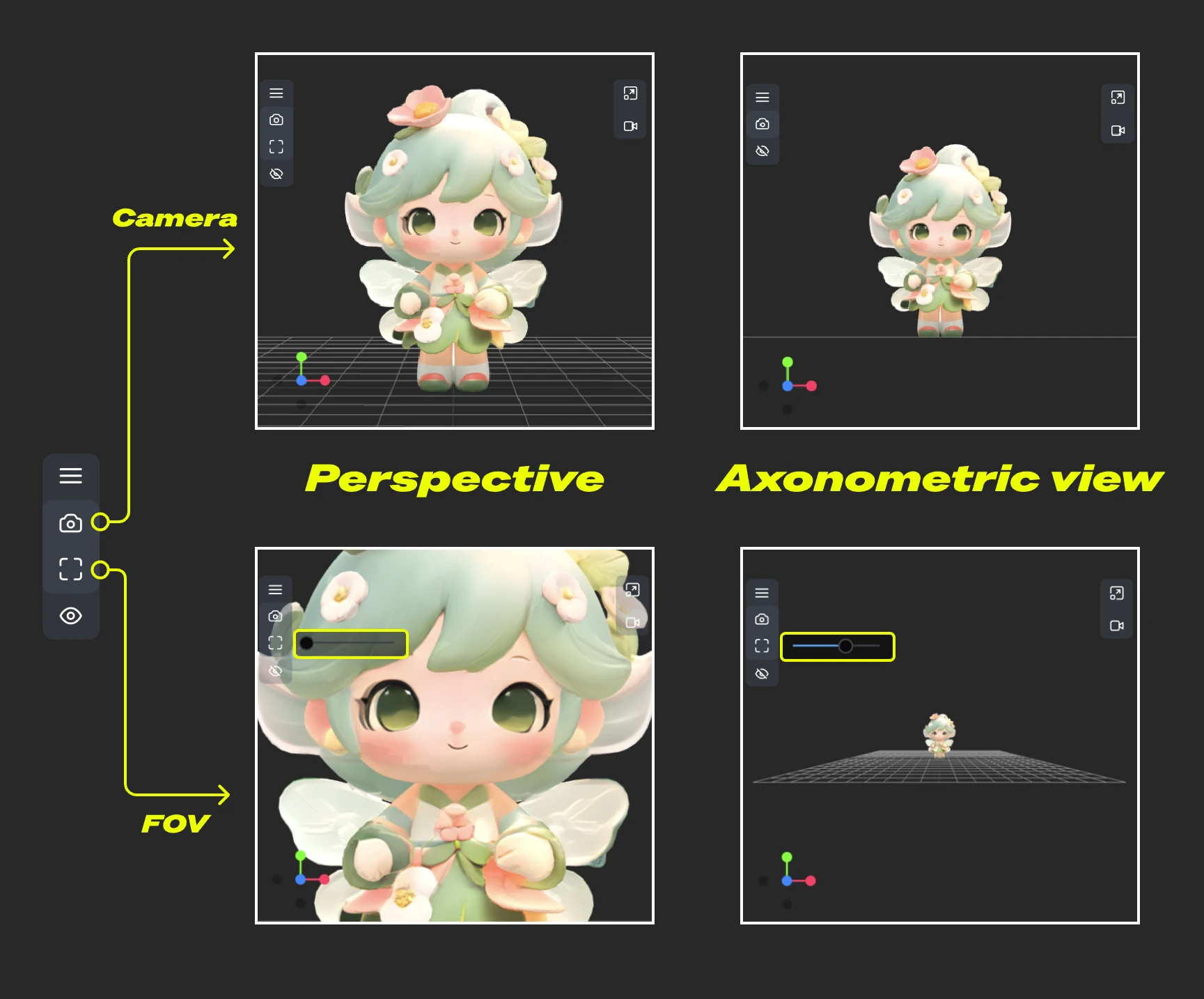
This menu provides switching between orthographic and perspective views, and perspective angle size settings:
1. **Camera**: Quickly switch between orthographic and perspective views
2. **FOV**: Adjust FOV angle
#### Light
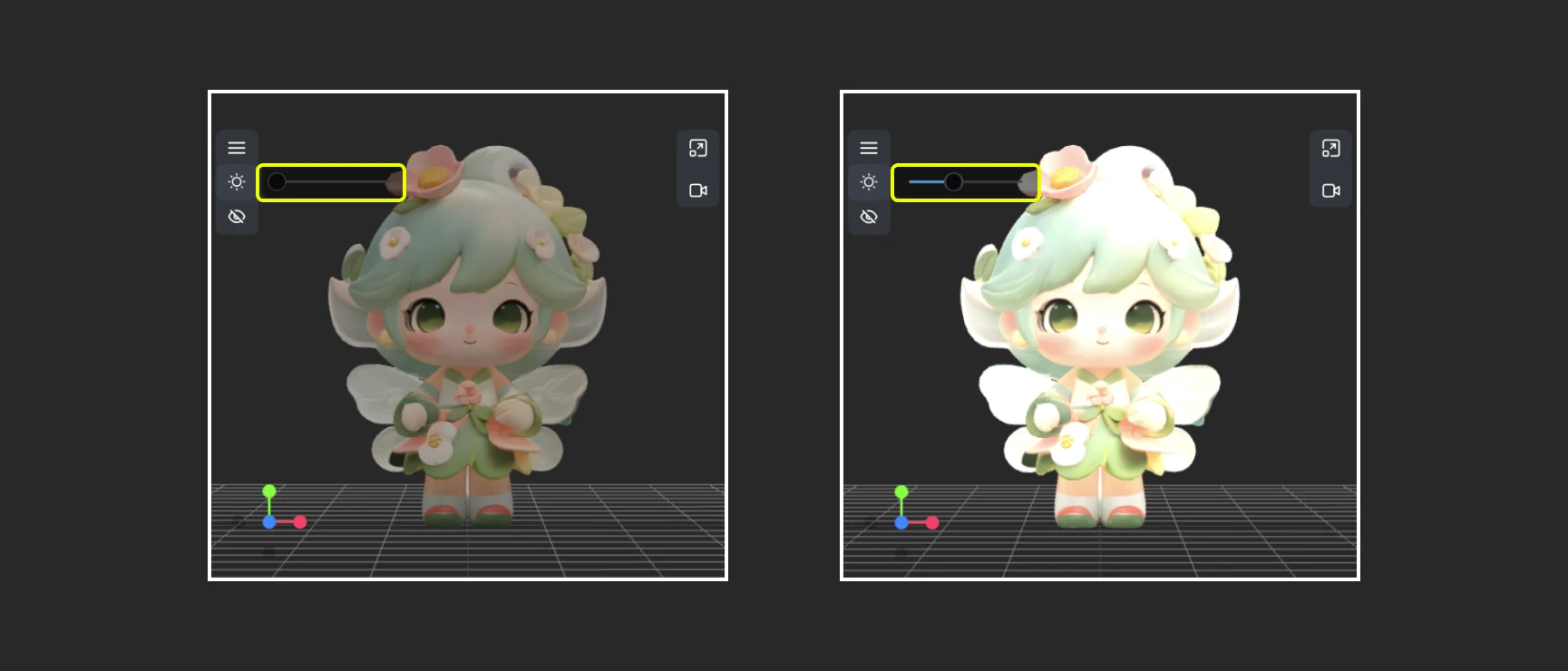
Through this menu, you can quickly adjust the scene's global illumination intensity
#### Export
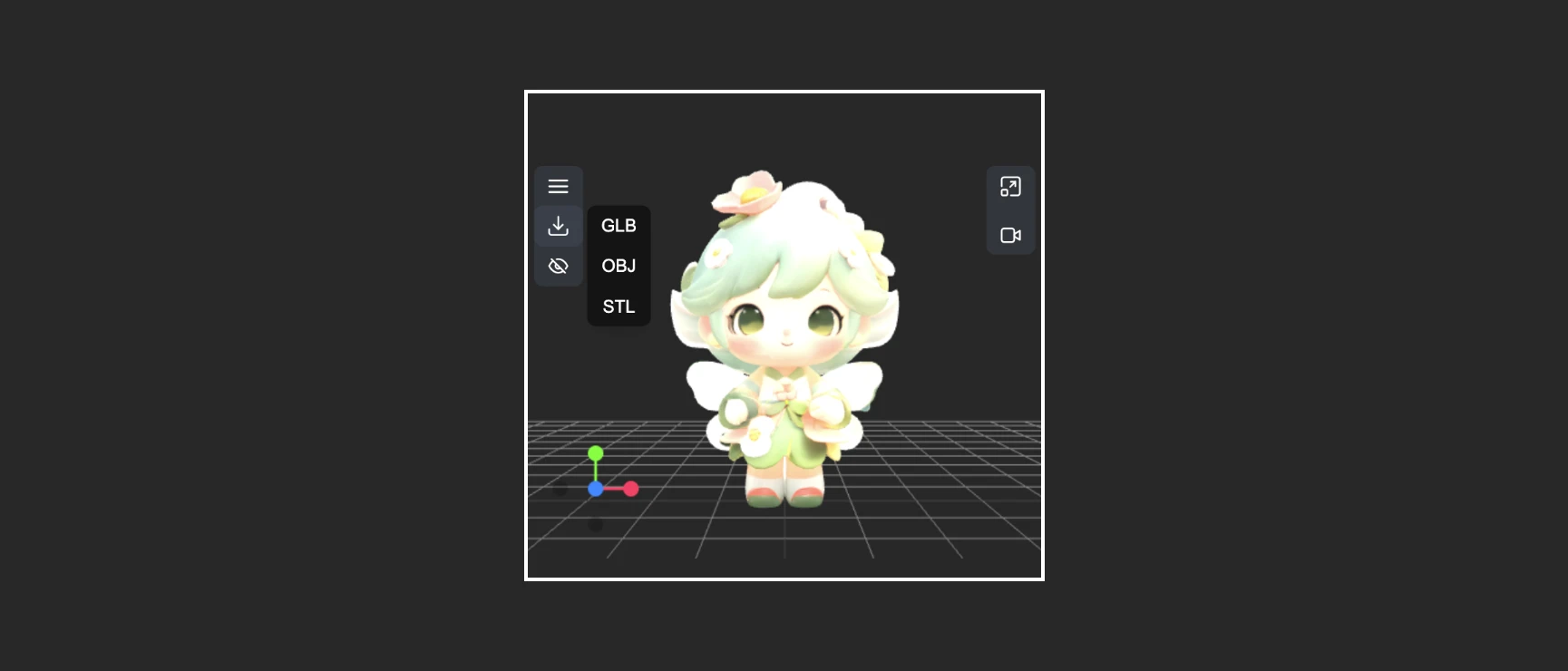
This menu provides the ability to quickly convert and export model formats
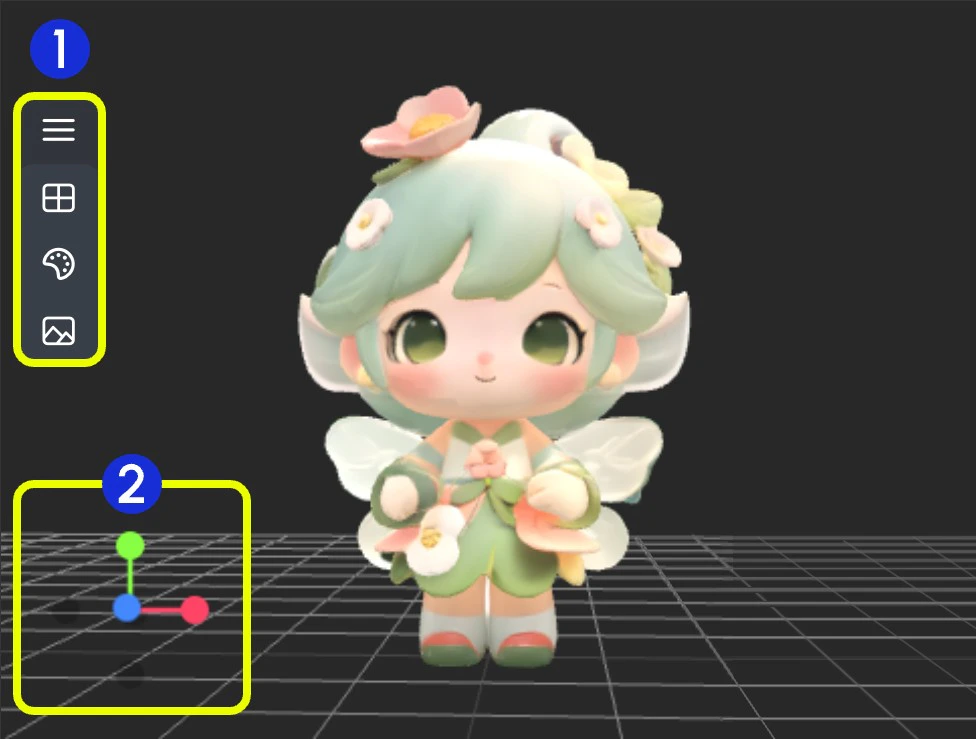 1. Contains multiple menus and hidden menus of the Load 3D node
2. 3D view operation axis
### 1. View Operations
View control operations:
* Left-click + drag: Rotate the view
* Right-click + drag: Pan the view
* Middle wheel scroll or middle-click + drag: Zoom in/out
* Coordinate axis: Switch views
### 2. Left Menu Functions

In the preview area, some view operation menus are hidden in the menu. Click the menu button to expand different menus.
* 1. Scene: Contains preview window grid, background color, thumbnail settings
* 2. Model: Model rendering mode, texture material, up direction settings
* 3. Camera: Switch between orthographic and perspective views, set perspective angle
* 4. Light: Scene global illumination intensity
* 5. Export: Export model to other formats (GLB, OBJ, STL)
#### Scene

The Scene menu provides some basic scene setting functions:
1. Show/Hide grid
2. Set background color
3. Click to upload a background image
4. Hide preview thumbnail
#### Model

The Model menu provides some model-related functions:
1. **Up direction**: Determine which axis is the up direction for the model
2. **Material mode**: Switch model rendering modes - Original, Normal, Wireframe, Lineart
#### Camera

This menu provides switching between orthographic and perspective views, and perspective angle size settings:
1. **Camera**: Quickly switch between orthographic and perspective views
2. **FOV**: Adjust FOV angle
#### Light

Through this menu, you can quickly adjust the scene's global illumination intensity
#### Export

This menu provides the ability to quickly convert and export model formats
1. Contains multiple menus and hidden menus of the Load 3D node
2. 3D view operation axis
### 1. View Operations
View control operations:
* Left-click + drag: Rotate the view
* Right-click + drag: Pan the view
* Middle wheel scroll or middle-click + drag: Zoom in/out
* Coordinate axis: Switch views
### 2. Left Menu Functions

In the preview area, some view operation menus are hidden in the menu. Click the menu button to expand different menus.
* 1. Scene: Contains preview window grid, background color, thumbnail settings
* 2. Model: Model rendering mode, texture material, up direction settings
* 3. Camera: Switch between orthographic and perspective views, set perspective angle
* 4. Light: Scene global illumination intensity
* 5. Export: Export model to other formats (GLB, OBJ, STL)
#### Scene

The Scene menu provides some basic scene setting functions:
1. Show/Hide grid
2. Set background color
3. Click to upload a background image
4. Hide preview thumbnail
#### Model

The Model menu provides some model-related functions:
1. **Up direction**: Determine which axis is the up direction for the model
2. **Material mode**: Switch model rendering modes - Original, Normal, Wireframe, Lineart
#### Camera

This menu provides switching between orthographic and perspective views, and perspective angle size settings:
1. **Camera**: Quickly switch between orthographic and perspective views
2. **FOV**: Adjust FOV angle
#### Light

Through this menu, you can quickly adjust the scene's global illumination intensity
#### Export

This menu provides the ability to quickly convert and export model formats