> ## Documentation Index
> Fetch the complete documentation index at: https://docs.comfy.org/llms.txt
> Use this file to discover all available pages before exploring further.
# Import models
> Learn how to import models from Civitai and Hugging Face to Comfy Cloud
This is a **Comfy Cloud** feature and is only available in the cloud version. To learn more about Comfy Cloud, see [Comfy Cloud](/get_started/cloud).
## Overview
Comfy Cloud allows you to import models directly from Civitai and Hugging Face. This feature is available for users with a **Creator** subscription or higher.
## Requirements
* **Subscription**: Creator tier or above
* **Supported sources**: Civitai and Hugging Face
## How to import models
### 1. Access the import feature
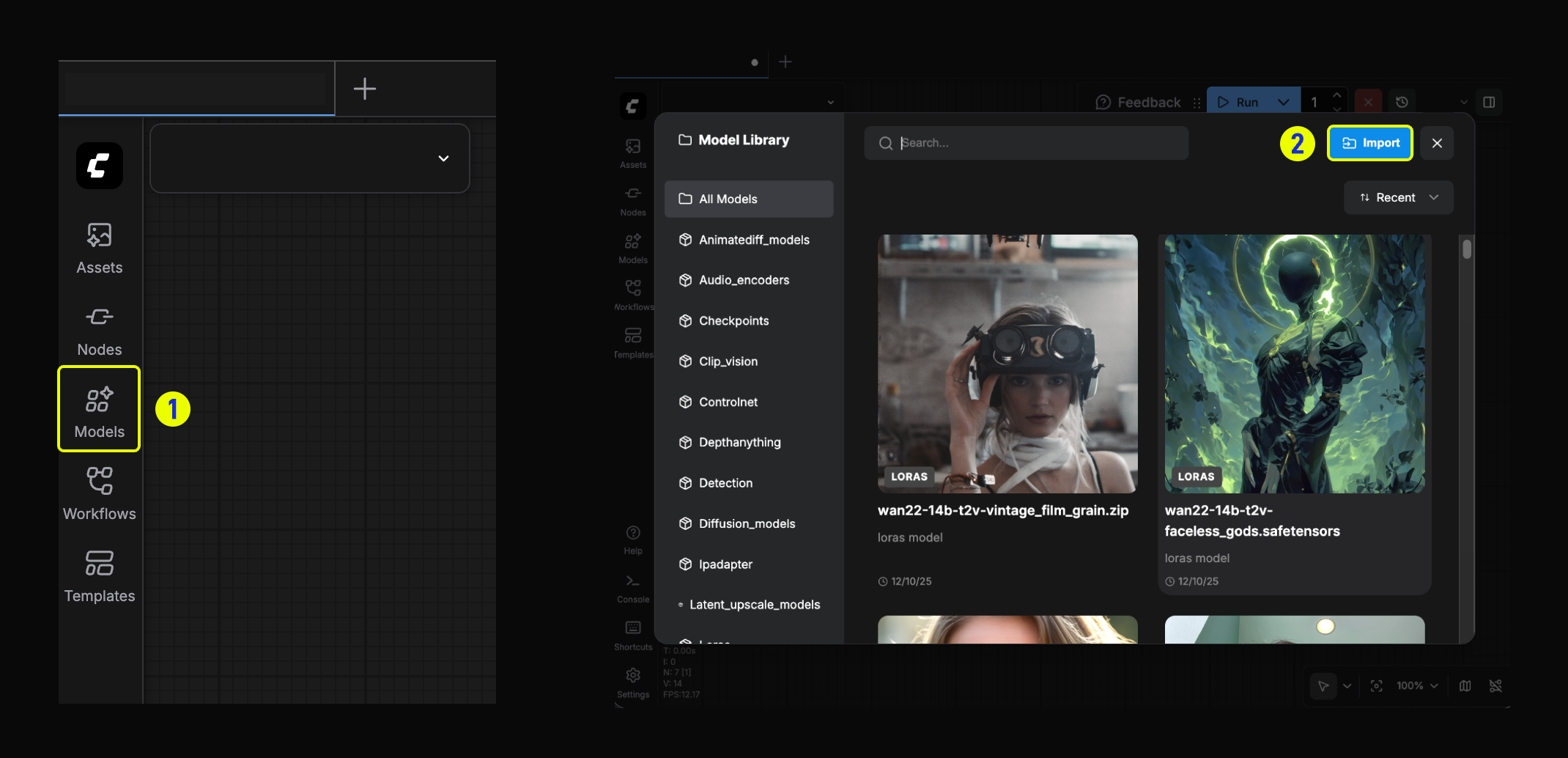 1. Click the **Models** button in the left sidebar to open the Model Library.
2. In the Model Library modal, click the **Import** button.
### 2. Paste the link
1. Paste the model link you obtained from Hugging Face or Civitai.
1. Click the **Models** button in the left sidebar to open the Model Library.
2. In the Model Library modal, click the **Import** button.
### 2. Paste the link
1. Paste the model link you obtained from Hugging Face or Civitai.
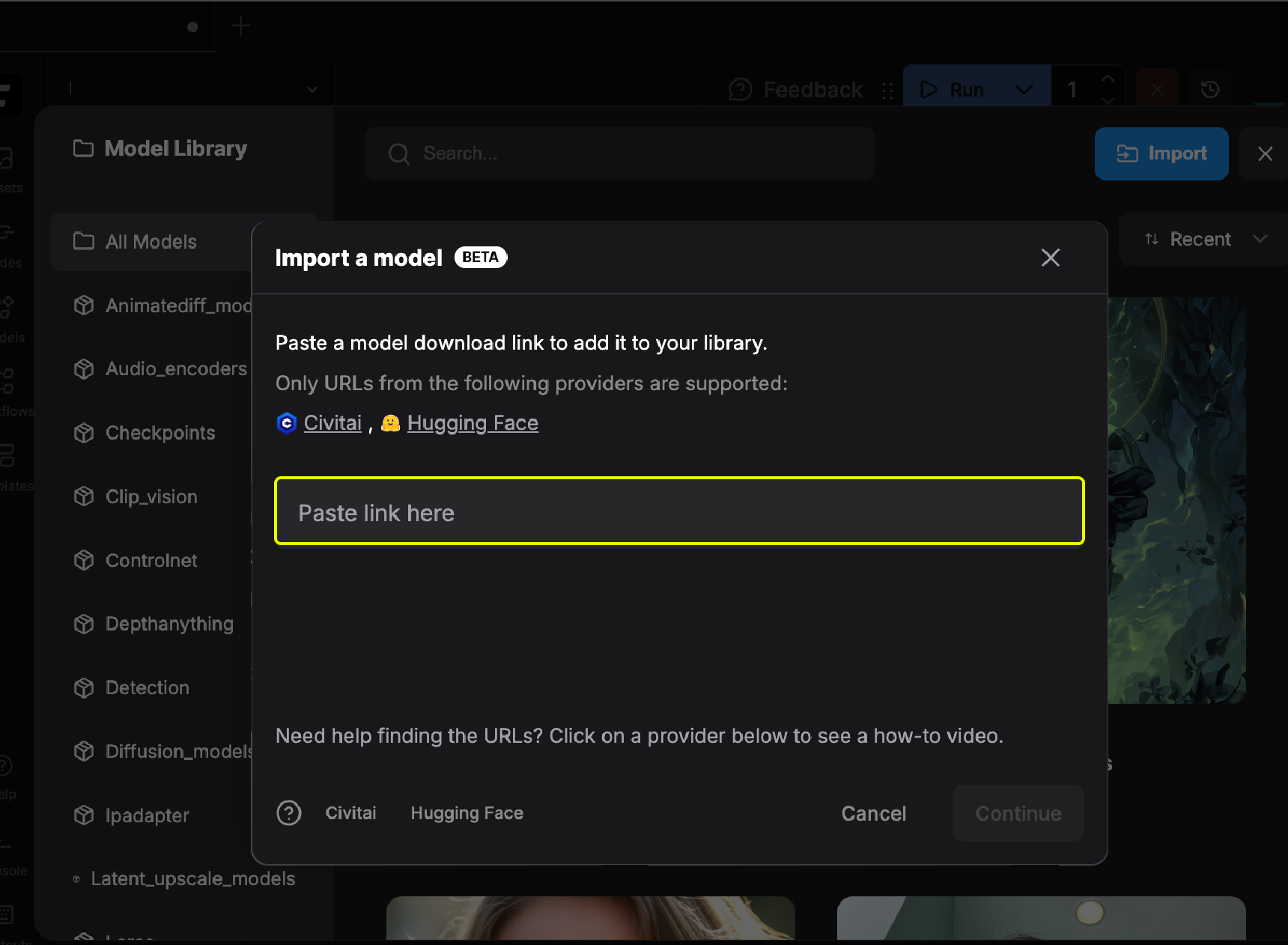 2. If the link is valid, you will see a confirmation indicator and can click the `Continue` button to proceed.
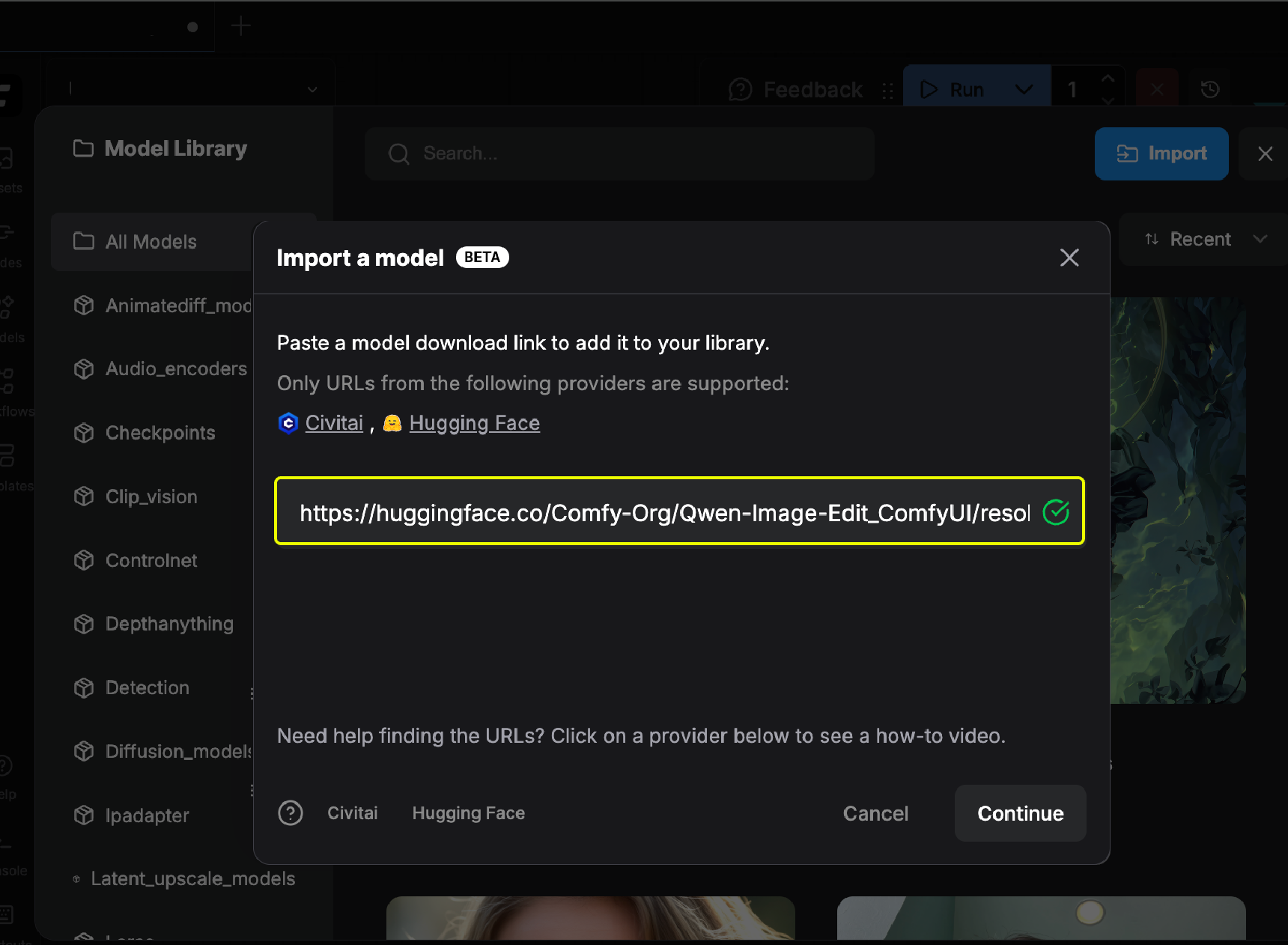 3. Select the model type and target folder.
 4. Wait for the model to finish downloading.
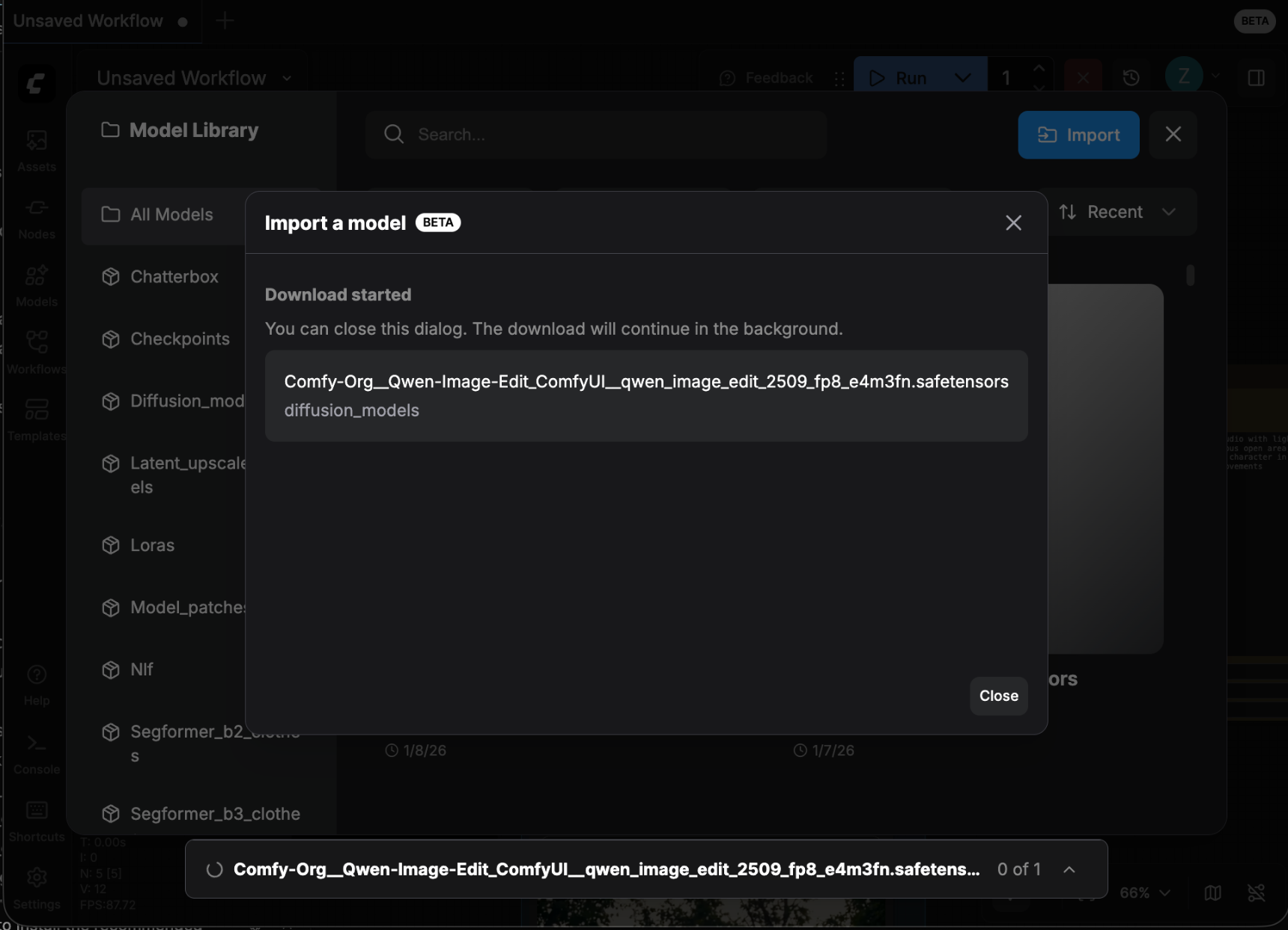 5. Once downloaded, you can find the model in your Model Library.
## How to view imported models
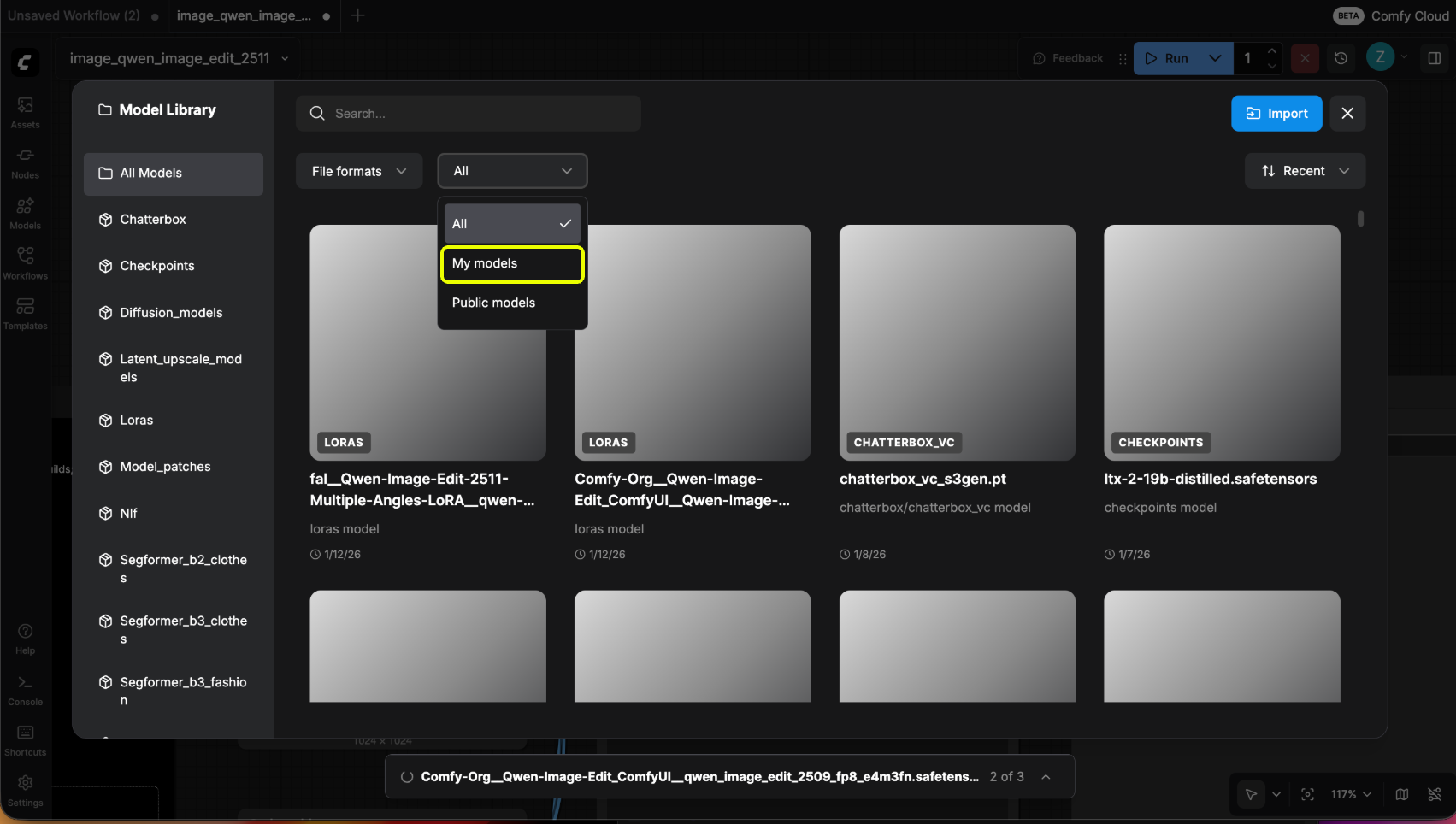
In the Model Library, select "My Models" in the dropdown filter to filter out the models you imported.
5. Once downloaded, you can find the model in your Model Library.
## How to view imported models
In the Model Library, select "My Models" in the dropdown filter to filter out the models you imported.
 ## How to get model import links
### 1. Get link from Civitai
1. Go to [Civitai](https://civitai.com/) and find the model you want to import.
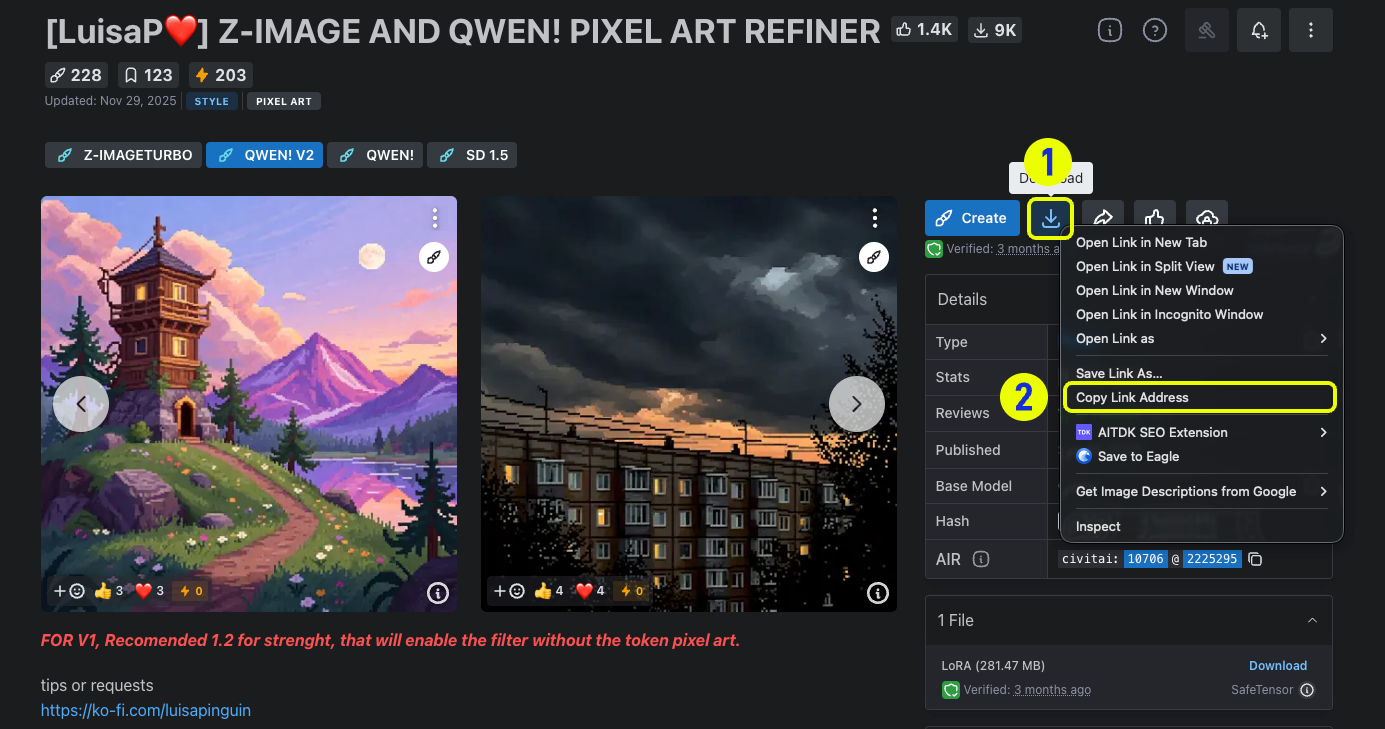
2. Right-click the download button and select "Copy link address" to get the model download link.
## How to get model import links
### 1. Get link from Civitai
1. Go to [Civitai](https://civitai.com/) and find the model you want to import.
2. Right-click the download button and select "Copy link address" to get the model download link.
 ### 2. Get link from Hugging Face
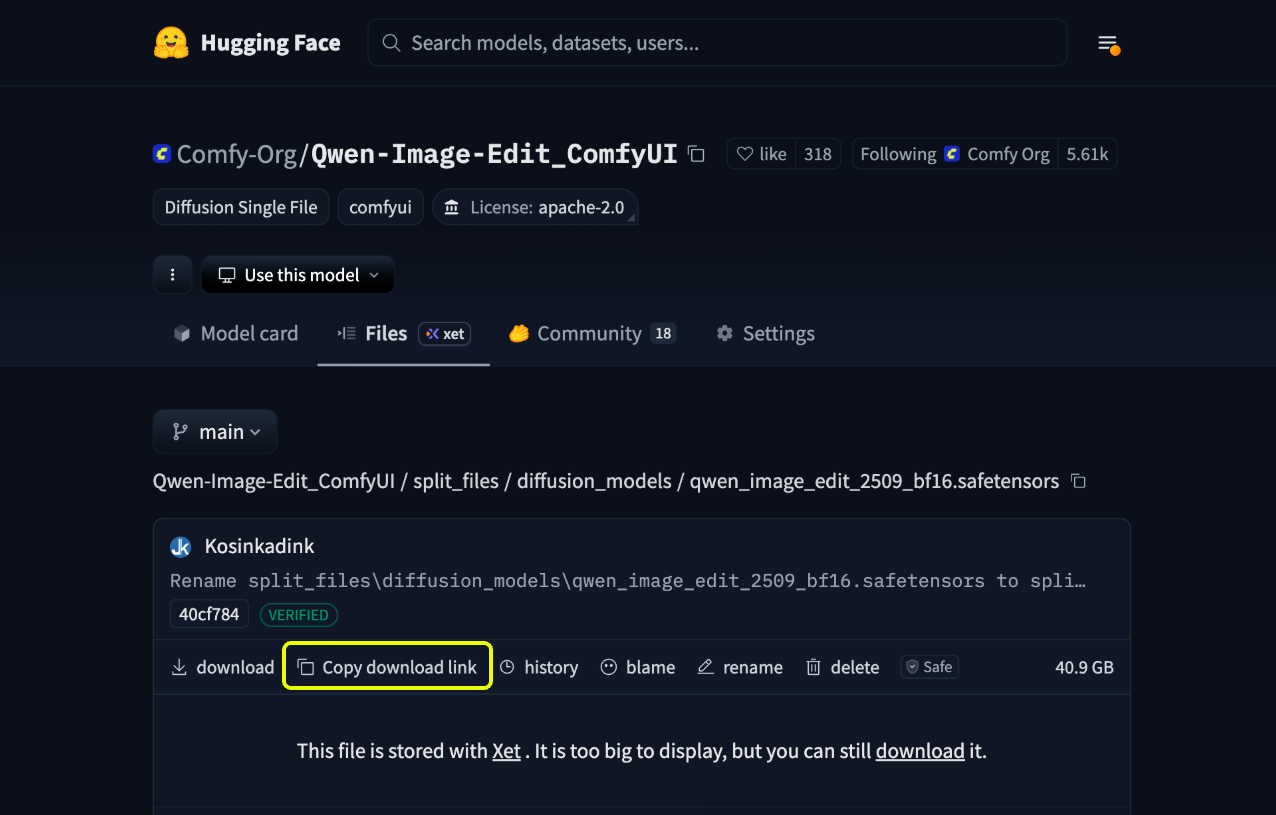
1. Go to [Hugging Face](https://huggingface.co/) and find the model repository you want to import.
2. Navigate to the model files page. Supported formats are typically ".safetensor" or ".sft" files. Click on the specific model name to enter its detail page.
### 2. Get link from Hugging Face
1. Go to [Hugging Face](https://huggingface.co/) and find the model repository you want to import.
2. Navigate to the model files page. Supported formats are typically ".safetensor" or ".sft" files. Click on the specific model name to enter its detail page.
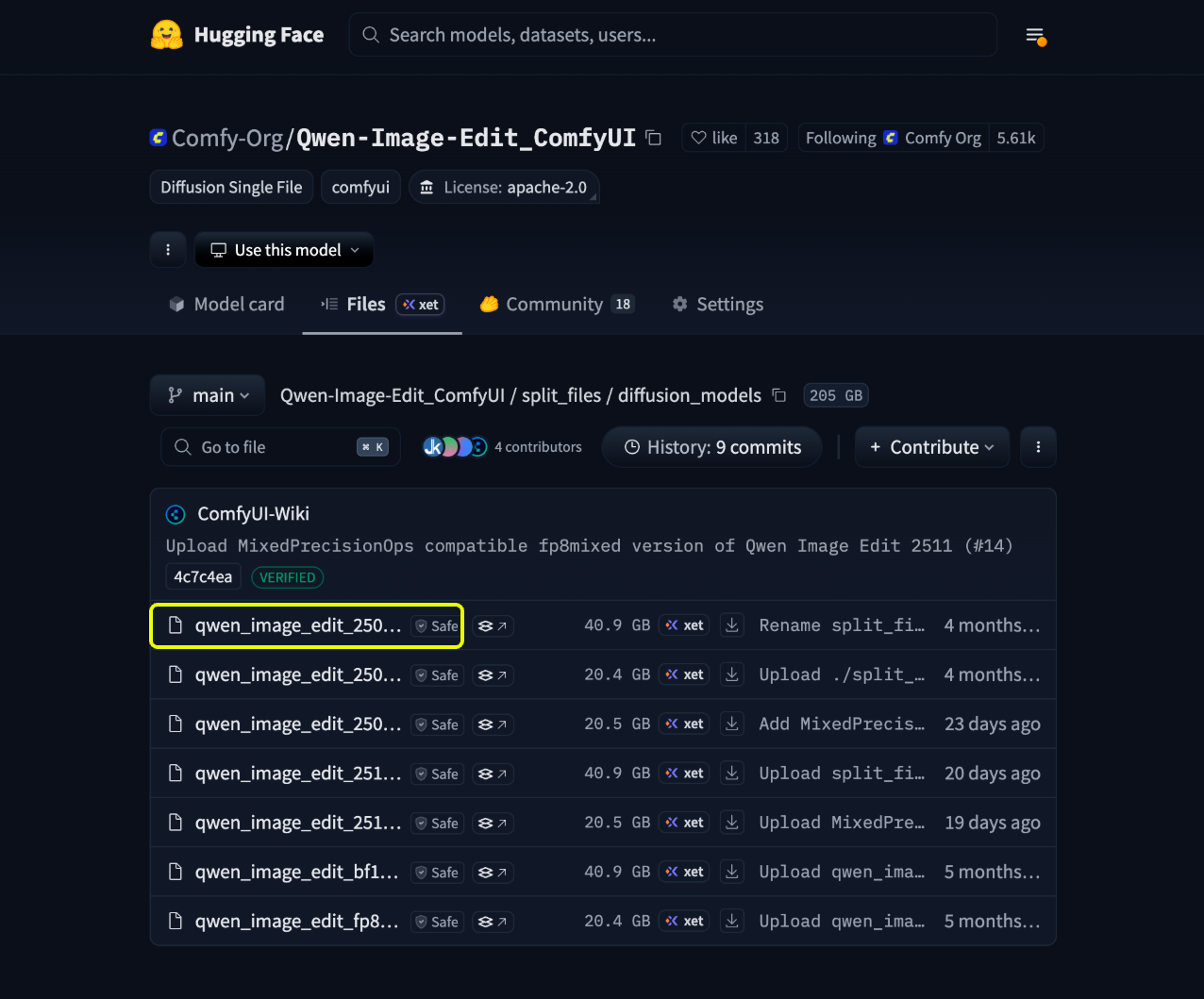 3. On the detail page, click the `Copy Download Link` button to get the model download link.
 ## Import private models
If you want to import private models from Hugging Face or Civitai, you need to configure your API keys first.
### 1. Generate your API keys
First, you need to generate API keys from the respective platforms:
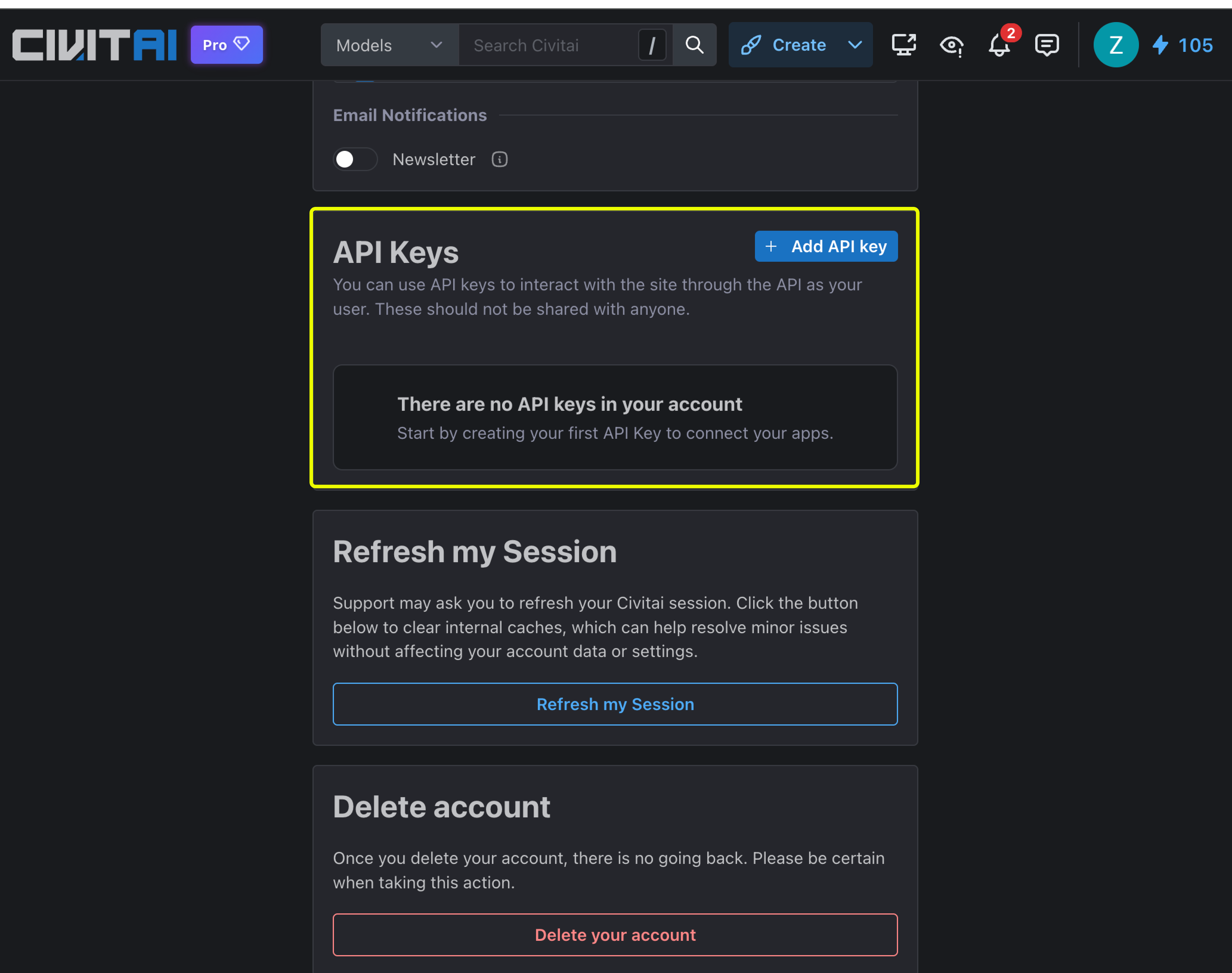
1. Log in to Civitai and visit [https://civitai.com/user/account](https://civitai.com/user/account).
2. Generate your API key in the account settings.
## Import private models
If you want to import private models from Hugging Face or Civitai, you need to configure your API keys first.
### 1. Generate your API keys
First, you need to generate API keys from the respective platforms:
1. Log in to Civitai and visit [https://civitai.com/user/account](https://civitai.com/user/account).
2. Generate your API key in the account settings.
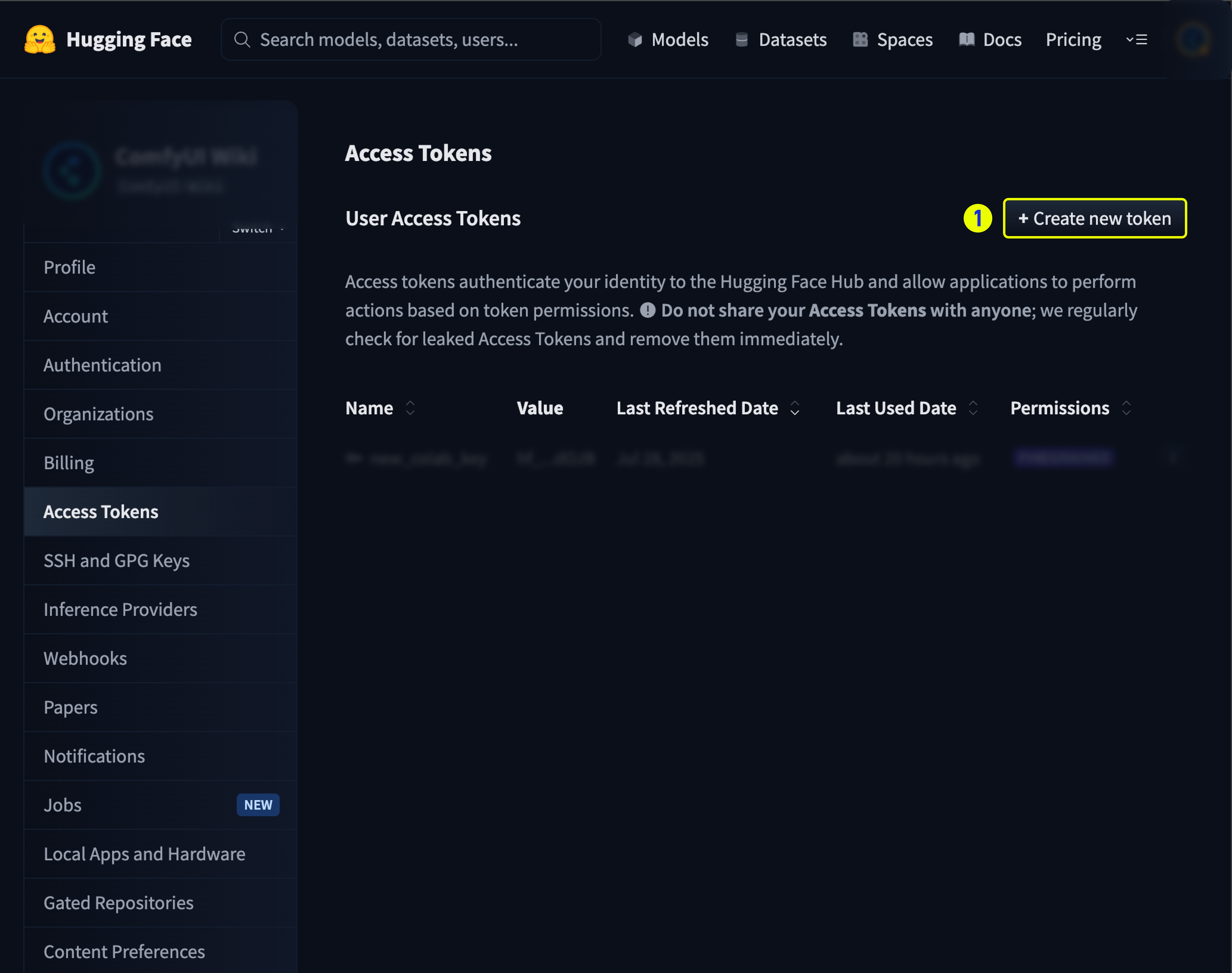
 1. Visit [https://huggingface.co/settings/tokens](https://huggingface.co/settings/tokens).
2. Generate your API token.
1. Visit [https://huggingface.co/settings/tokens](https://huggingface.co/settings/tokens).
2. Generate your API token.
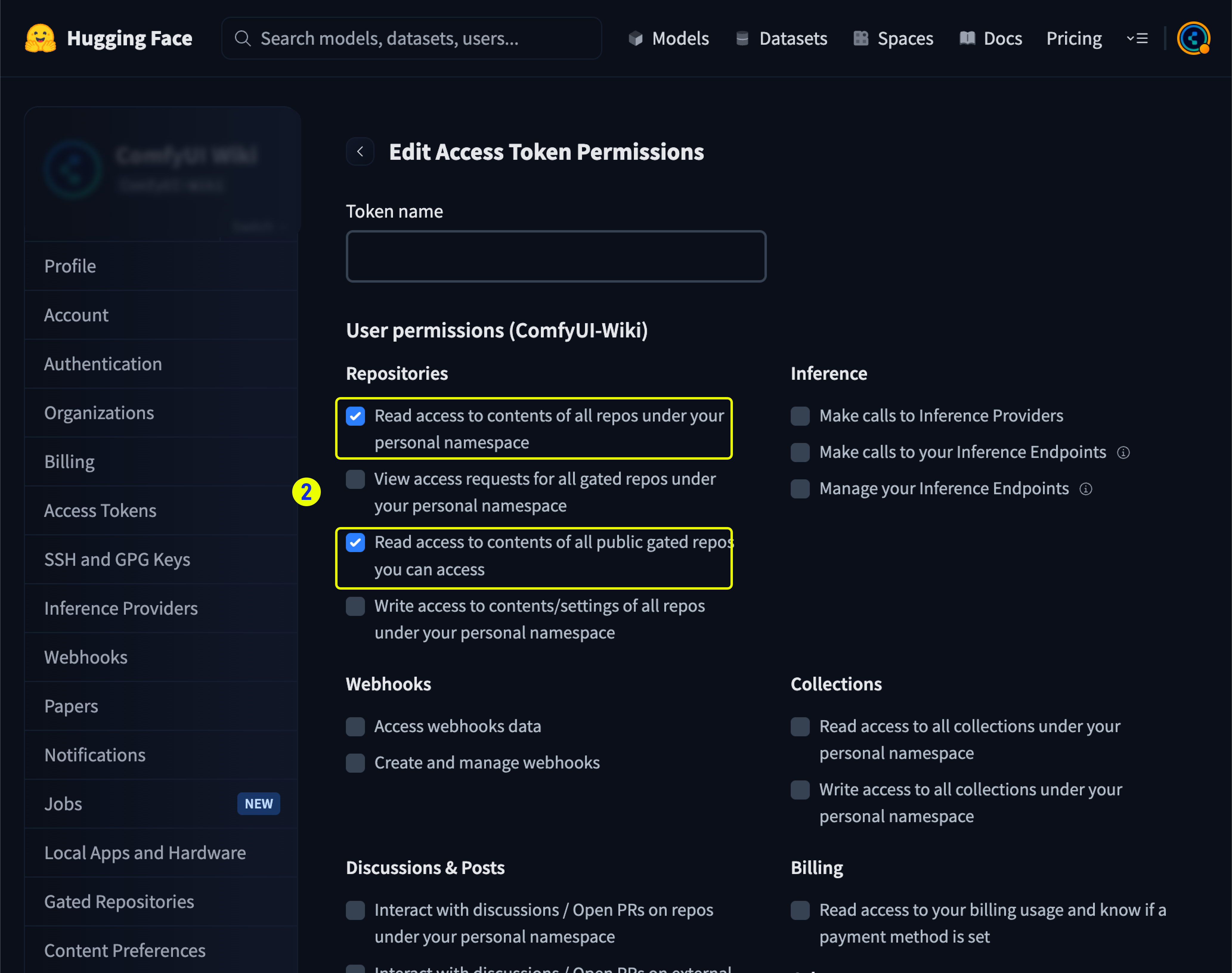
 3. Make sure your token has read access to the repositories containing the private models you want to import.
 ### 2. Save your API keys
1. Go to [Comfy Cloud Settings](https://cloud.comfy.org) and navigate to the **Secrets** section.
### 2. Save your API keys
1. Go to [Comfy Cloud Settings](https://cloud.comfy.org) and navigate to the **Secrets** section.
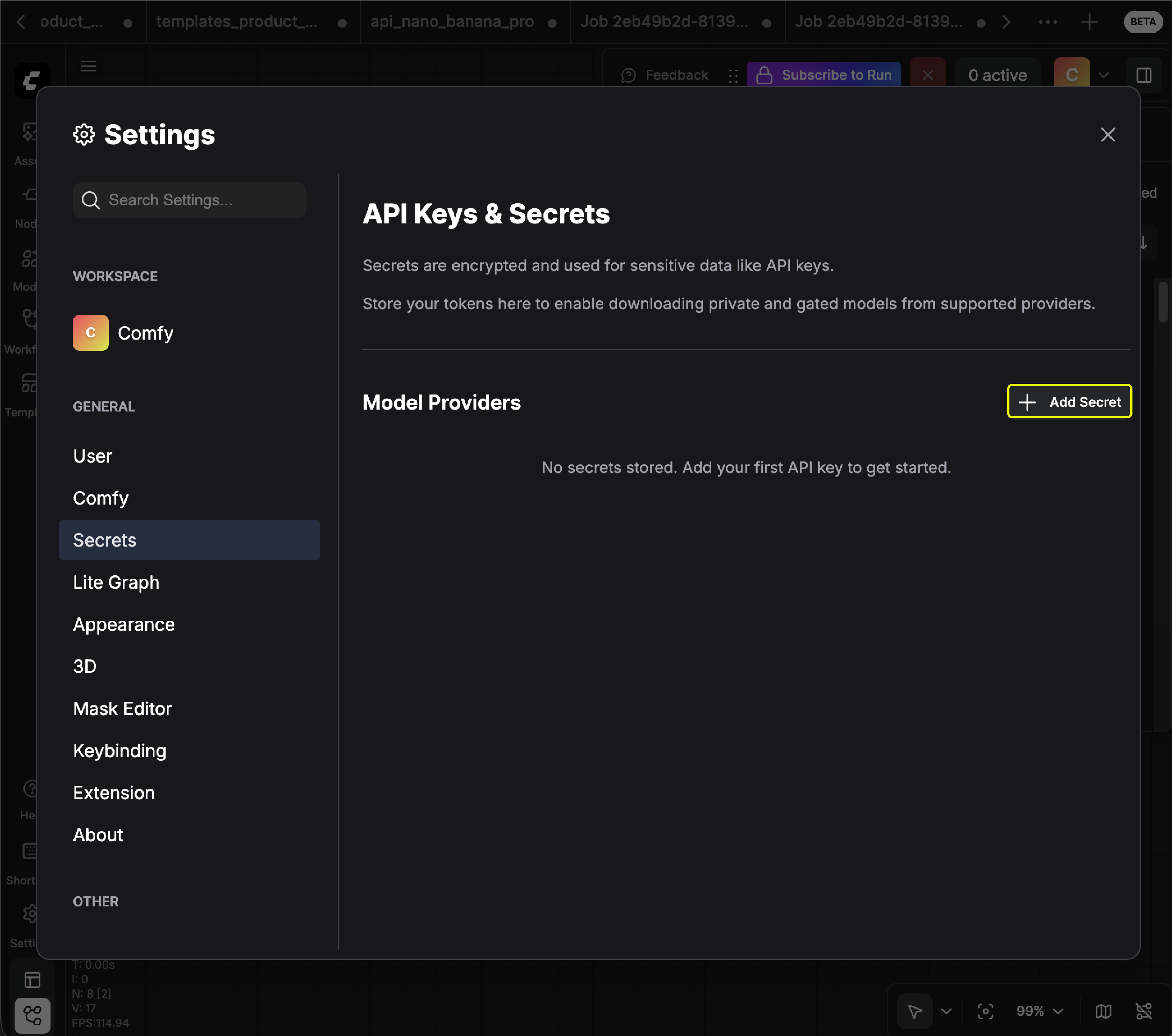 2. Click to add your API keys (you can name the key anything you like):
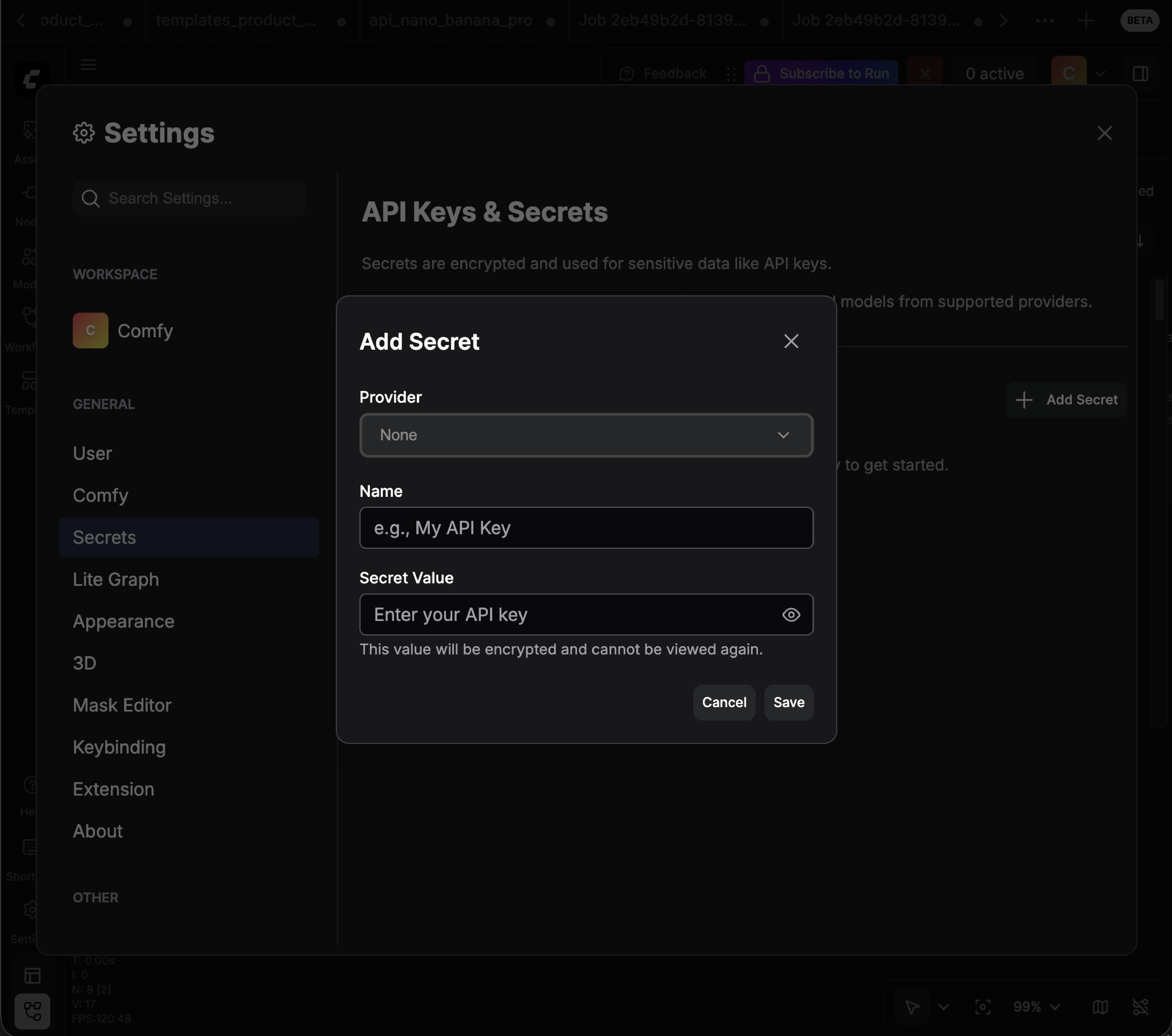 3. Make sure your API keys have access permissions to the private models you want to import.
### 3. Import the private model
Once your API keys are configured, you can import private models using the same process as public models:
1. Get the model link from Hugging Face or Civitai.
2. Paste the link in the import modal.
3. The system will automatically use your saved API keys to access the private model.
Make sure your API key has the necessary permissions to access the specific private model you want to import.
## FAQ
Yes. Only **safetensor** file types are supported. There is effectively no file size limit (up to 100GB).
Models you import are **private to you**. Only you can see the models in your library.
Currently, you need to upload the model to a **public Hugging Face or Civitai repository** first, then import from those platforms.
No. You will need to combine chunked model files into one file before importing.
This feature is available for **Creator** and **Pro** plans only.
No. This is a **Cloud-only** feature.
Yes. You can delete models you imported. Note that models uploaded by the Comfy internal team cannot be deleted.
3. Make sure your API keys have access permissions to the private models you want to import.
### 3. Import the private model
Once your API keys are configured, you can import private models using the same process as public models:
1. Get the model link from Hugging Face or Civitai.
2. Paste the link in the import modal.
3. The system will automatically use your saved API keys to access the private model.
Make sure your API key has the necessary permissions to access the specific private model you want to import.
## FAQ
Yes. Only **safetensor** file types are supported. There is effectively no file size limit (up to 100GB).
Models you import are **private to you**. Only you can see the models in your library.
Currently, you need to upload the model to a **public Hugging Face or Civitai repository** first, then import from those platforms.
No. You will need to combine chunked model files into one file before importing.
This feature is available for **Creator** and **Pro** plans only.
No. This is a **Cloud-only** feature.
Yes. You can delete models you imported. Note that models uploaded by the Comfy internal team cannot be deleted.