> ## Documentation Index
> Fetch the complete documentation index at: https://docs.comfy.org/llms.txt
> Use this file to discover all available pages before exploring further.
# Share workflows
> Learn how to share your Comfy Cloud workflows with others via shareable links
This is a **Comfy Cloud** feature and is only available in the cloud version. To learn more about Comfy Cloud, see [Comfy Cloud](/get_started/cloud).
## Overview
Comfy Cloud allows you to share your workflows with others by generating a shareable link. Recipients can view the workflow along with all its inputs, outputs, and any assets referenced in the workflow.
**Shared links include your workflow assets.** Anyone with the link can see not only the workflow layout but also media used in it—such as uploaded images, masks, and other files tied to nodes. Do not share links for workflows that contain private or sensitive content.
## How to share a workflow
Create and finalize the workflow you want to share in Comfy Cloud.
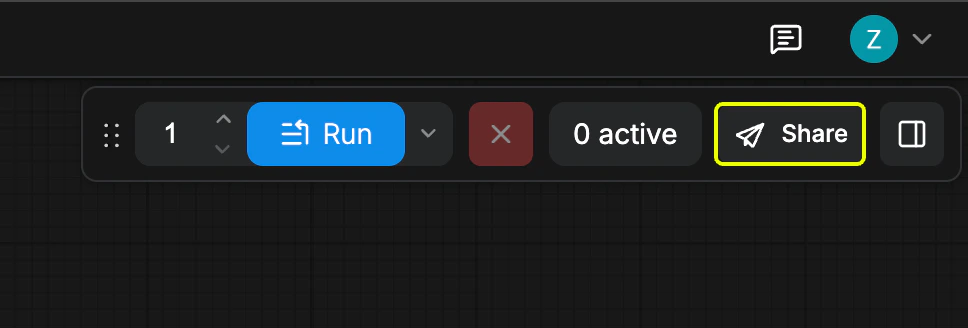
In the top-right corner of the workflow page, click the **Share** button.
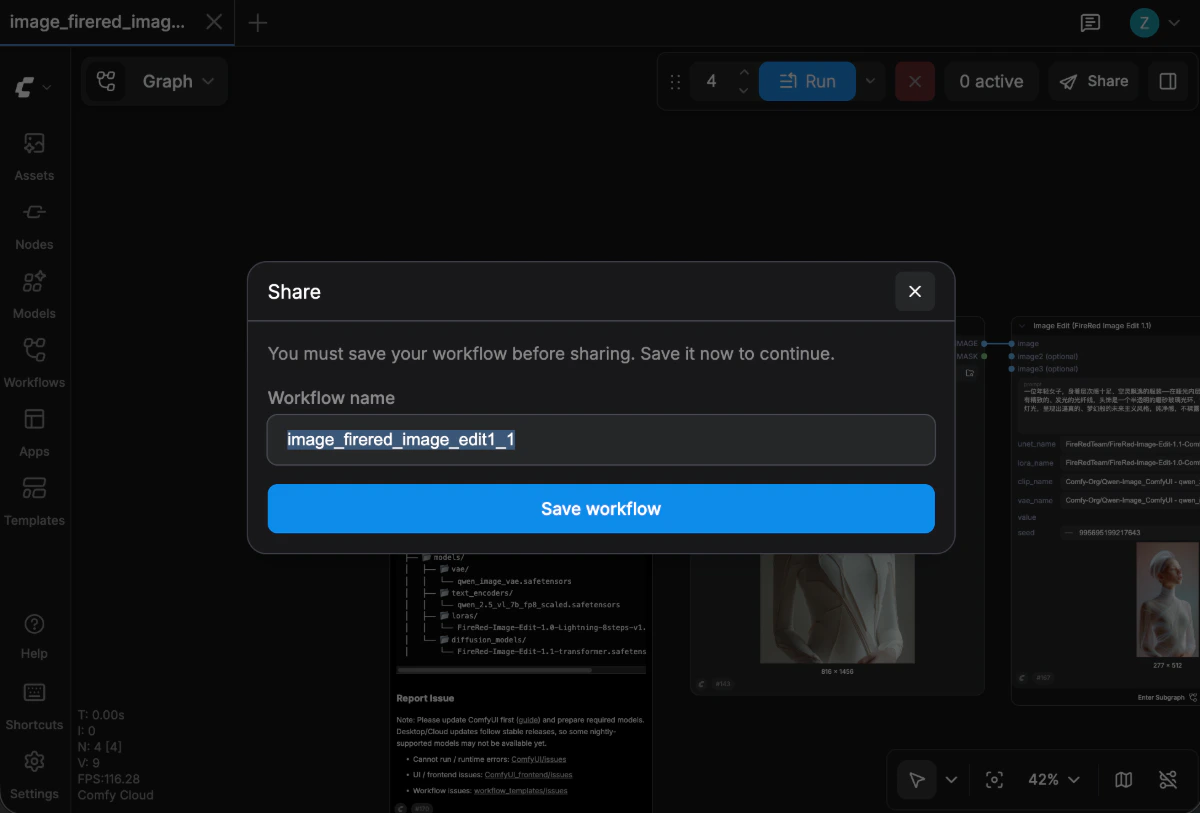
 If your workflow has not been saved yet, you will be prompted to enter a filename and save it before sharing.
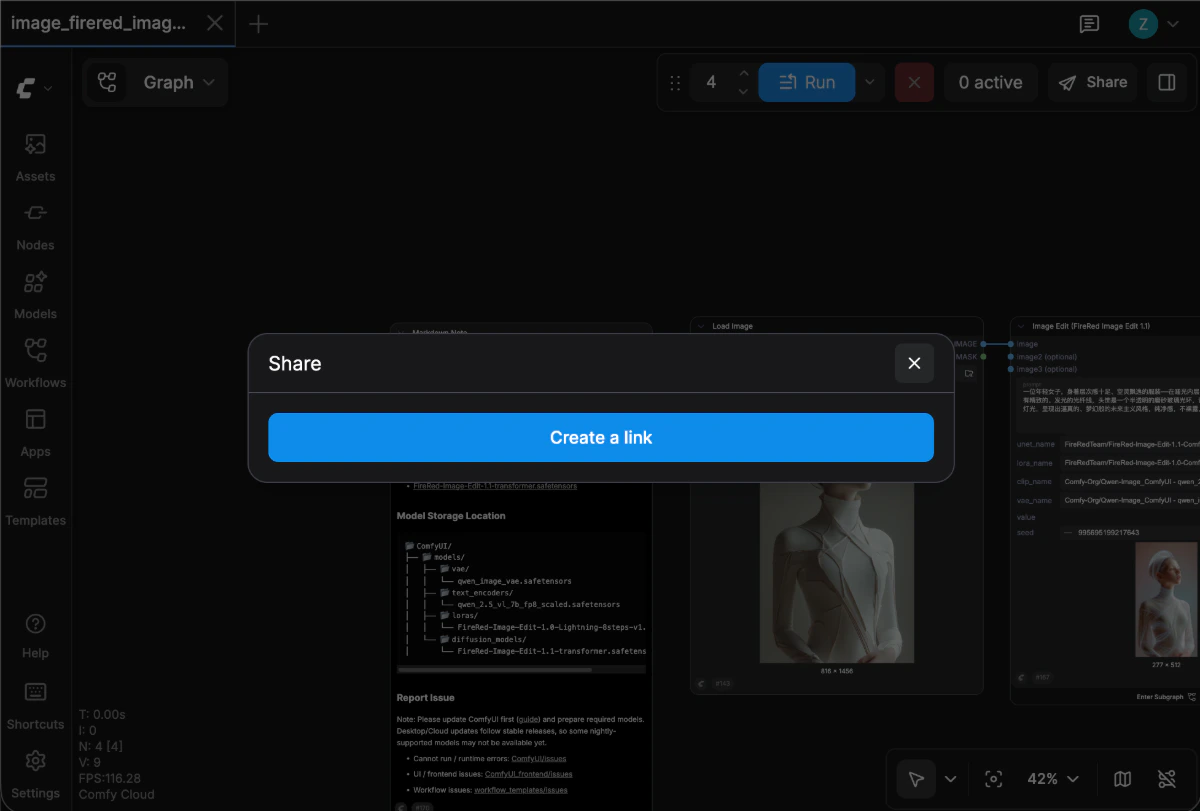
 After saving, click **Create a link** to generate a shareable link. The link includes the workflow, its inputs and outputs, and the assets used in the graph.
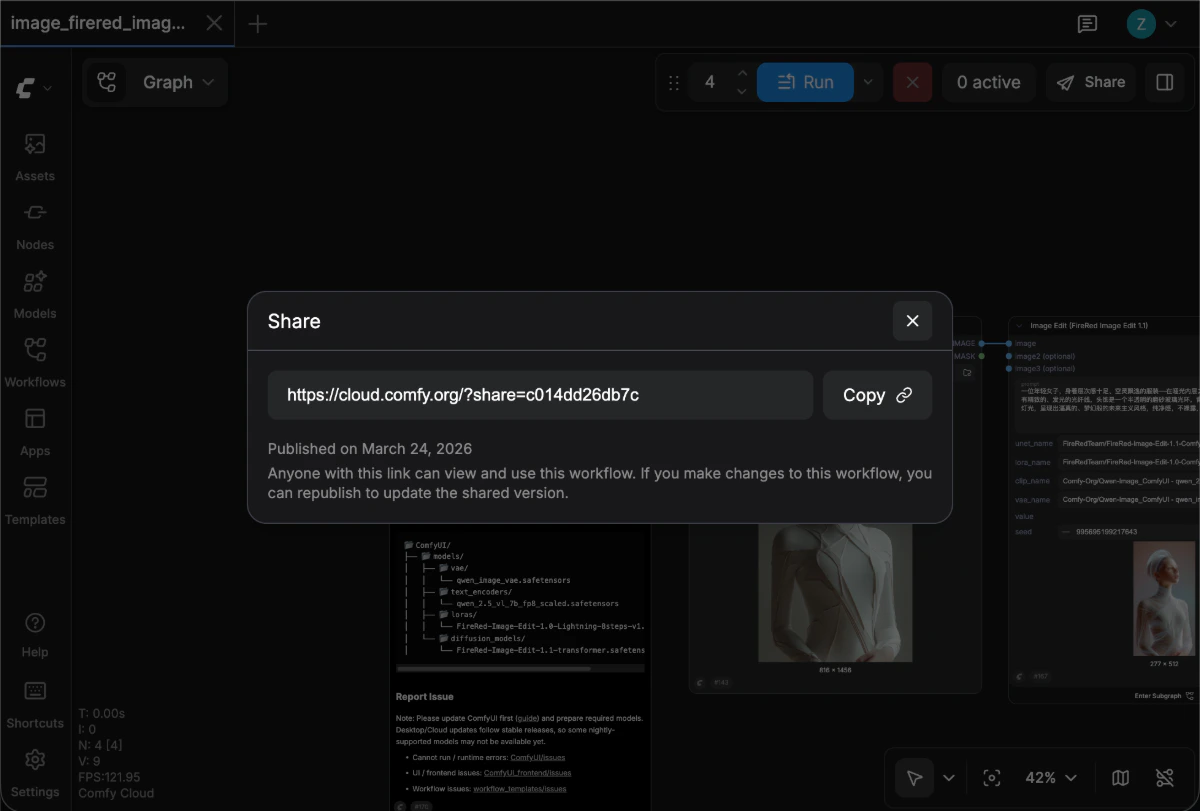
 Once the link is generated, copy it and send it to anyone you want to share the workflow with.
 ## Update a shared workflow
If you make changes to a workflow that has already been shared:
1. Save the updated workflow.
2. Click the **Share** button again.
3. Select **Update** to refresh the existing shared link with your latest changes.
## Update a shared workflow
If you make changes to a workflow that has already been shared:
1. Save the updated workflow.
2. Click the **Share** button again.
3. Select **Update** to refresh the existing shared link with your latest changes.
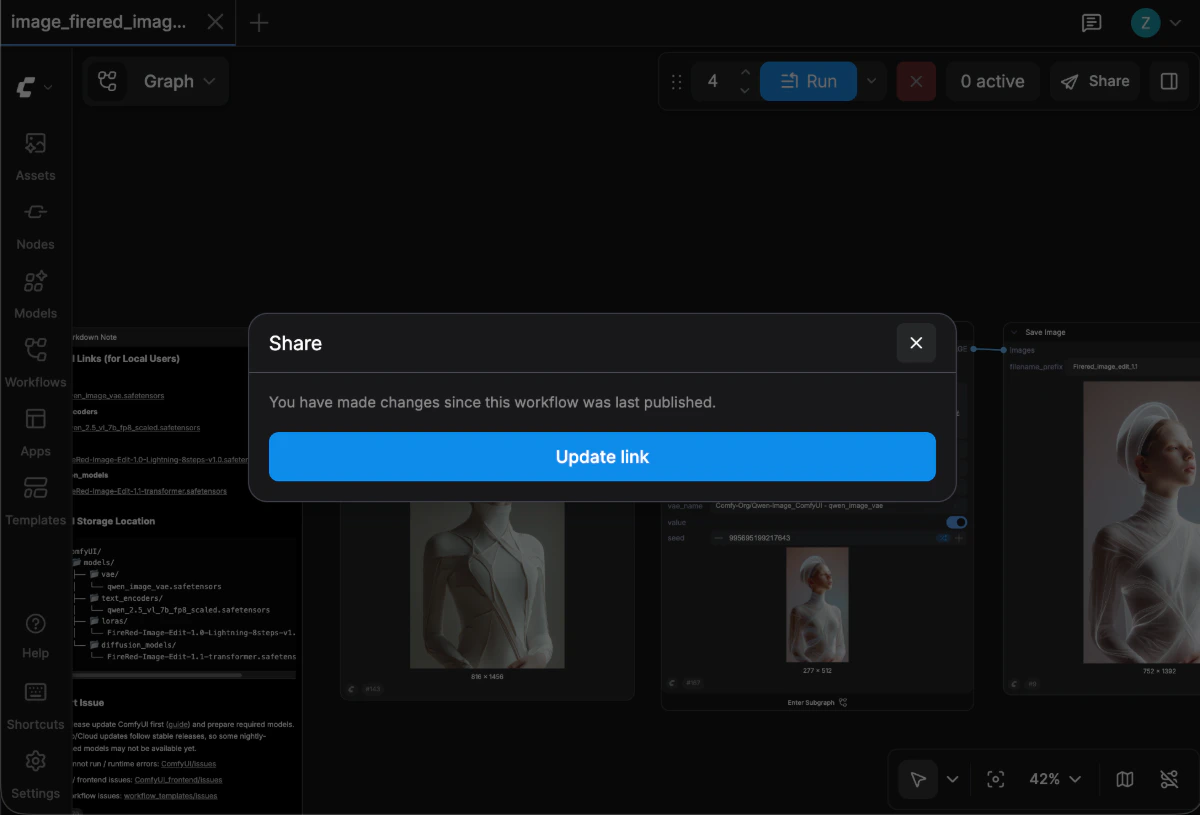 The original link will automatically reflect the updated workflow content. Recipients using the same link will see the latest version.