> ## Documentation Index
> Fetch the complete documentation index at: https://docs.comfy.org/llms.txt
> Use this file to discover all available pages before exploring further.
# Comfy Cloud workspaces: teams and members
> Create and manage Comfy Cloud workspaces: create a team workspace, invite members, set roles and permissions, and share files, workflows, and credits.
This is a **Comfy Cloud** feature and is only available in the cloud version. To learn more about Comfy Cloud, see [Comfy Cloud](/get_started/cloud).
## Overview
A workspace is the account boundary for your Comfy Cloud work. Workflows, uploaded files, outputs, and credits belong to the workspace rather than to a single user, so switching workspaces switches which files you see and which credits your runs spend.
Every user gets a **Personal** workspace. To work with other people, create a **Team** workspace and invite them.
If someone invited you to a team workspace, you do not need to create anything: open the invitation email, sign in with the address it was sent to, and switch to that workspace. See [Switch workspaces](#switch-workspaces).
## Personal and Team workspaces
| Type | What it is |
| ------------ | -------------------------------------------------------------------------------------------------------------------------------- |
| **Personal** | Created automatically for every user, with a single seat. Only you can access it. It cannot be deleted, and you cannot leave it. |
| **Team** | A shared workspace that you create or are invited to. Members see the workspace's files and share its credits. |
Creating a team workspace is free. To invite people, the workspace needs seats: a workspace that is not on a Team plan has one seat, which belongs to its owner. Team plans include a seat for each member.
## What is separate per workspace
Each workspace keeps its own:
* **Files and outputs**: uploads, generated images, jobs, and history
* **Workflows**: the workflow library you see in that workspace
* **Plan and credits**: its own subscription and credit balance
* **People**: members, roles, and pending invitations
* **Access**: workspace API keys, and, on Enterprise workspaces, the partner models members can run
Switching workspaces switches all of these at once, and nothing is copied between workspaces automatically.
## Create a team workspace
Click your profile picture in the top right corner.
Click your workspace name in the menu. The list shows every workspace you belong to, with your role in it.
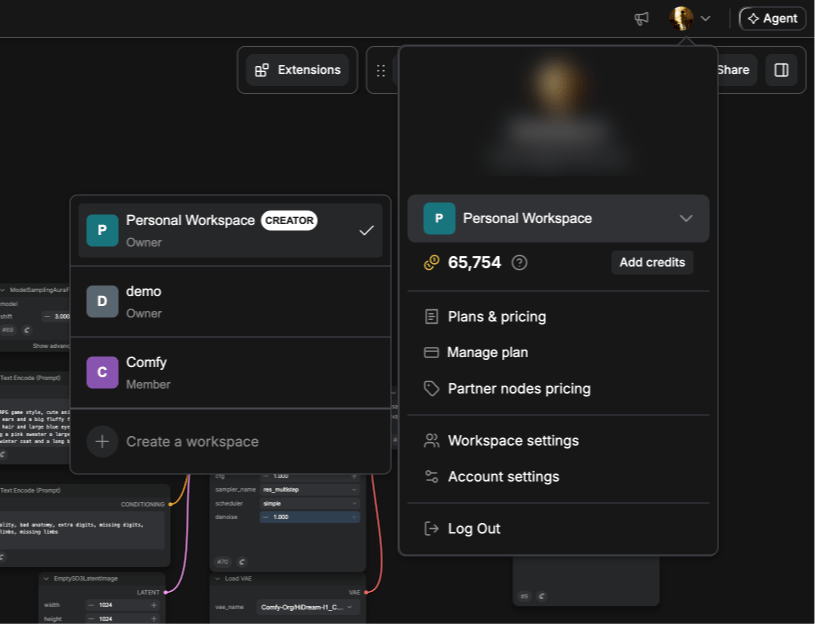 Click **Create a workspace** at the bottom of the list.
Enter a name and click **Create**. Names are 1 to 50 characters long, must start with a letter or number, and can contain letters, numbers, spaces and the characters `- _ ' . , ( ) & +`.
Click **Create a workspace** at the bottom of the list.
Enter a name and click **Create**. Names are 1 to 50 characters long, must start with a letter or number, and can contain letters, numbers, spaces and the characters `- _ ' . , ( ) & +`.
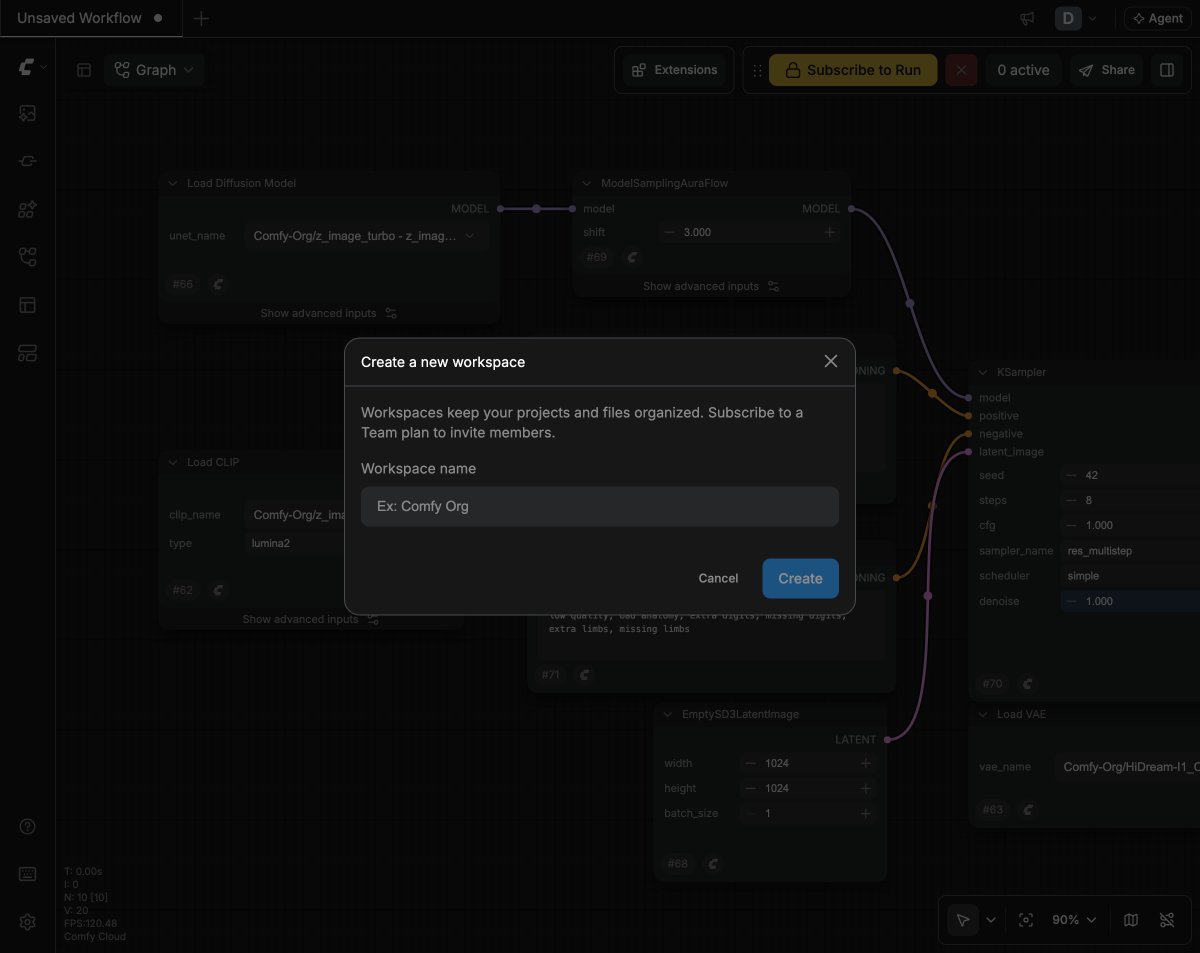 Comfy Cloud switches you to the new workspace and reloads the page.
You can own up to **10 workspaces** in total, including your Personal workspace. There is no limit on how many workspaces you can join as a member.
To open your workspace list directly, add `?create_workspace=1` to the Comfy Cloud URL, for example `https://cloud.comfy.org/?create_workspace=1`. It opens the team workspaces dialog, which lists your workspaces and has a **New workspace** field and a **Create workspace** button.
## Invite members
Only workspace owners can invite members. Team plans include a seat for each member, and the **Members** tab shows how many seats are in use, for example `3 of 20 members`. Pending invitations count toward that limit.
Comfy Cloud switches you to the new workspace and reloads the page.
You can own up to **10 workspaces** in total, including your Personal workspace. There is no limit on how many workspaces you can join as a member.
To open your workspace list directly, add `?create_workspace=1` to the Comfy Cloud URL, for example `https://cloud.comfy.org/?create_workspace=1`. It opens the team workspaces dialog, which lists your workspaces and has a **New workspace** field and a **Create workspace** button.
## Invite members
Only workspace owners can invite members. Team plans include a seat for each member, and the **Members** tab shows how many seats are in use, for example `3 of 20 members`. Pending invitations count toward that limit.
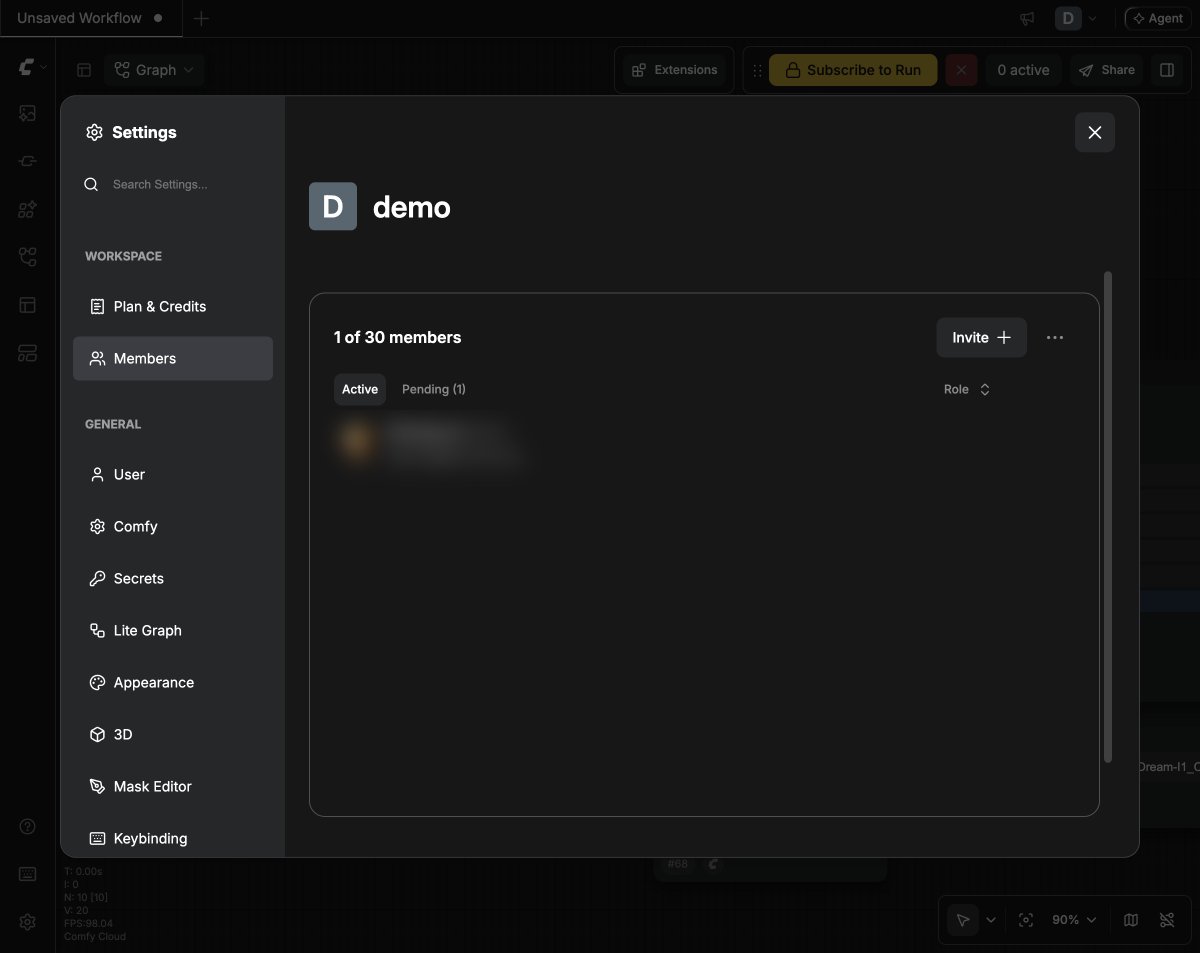 To invite members:
In the profile menu, click **Workspace settings**.
Select **Members**.
Click **Invite**, type one or more email addresses separated by commas, then click **Invite** in the dialog.
To invite members:
In the profile menu, click **Workspace settings**.
Select **Members**.
Click **Invite**, type one or more email addresses separated by commas, then click **Invite** in the dialog.
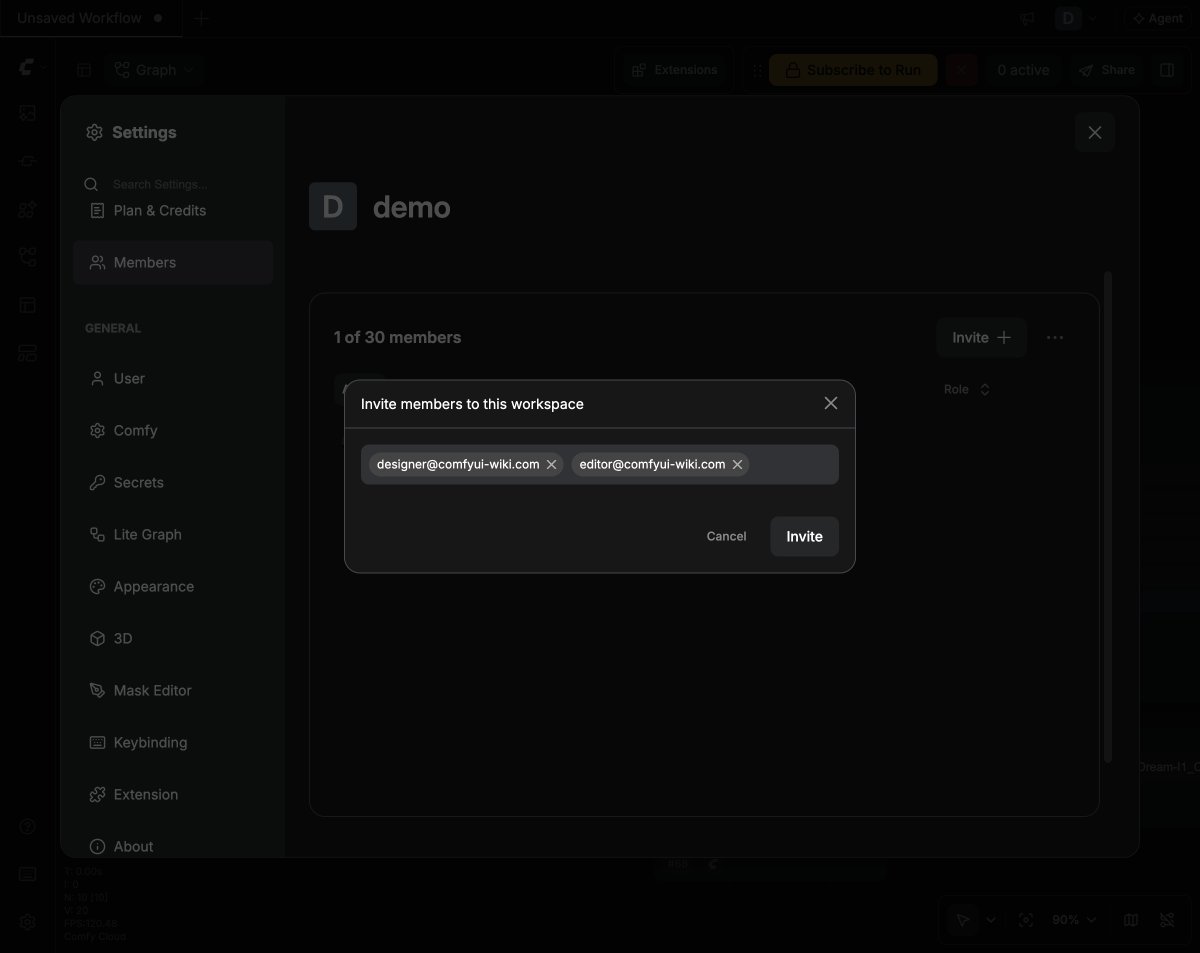 If **Invite** does not open the dialog, the workspace has no free seat. A workspace that is not on a Team plan has one seat, and a full team shows a maximum-members tooltip. Open **Plan & Credits** and upgrade to a Team plan, or contact us about Enterprise if you need more members.
Comfy Cloud emails each person a link to join. The invitation is tied to the address it was sent to, so the recipient has to sign in, or create an account, with that same address. If they are not signed in when they open the link, they are asked to sign in first, and the invitation is applied afterwards.
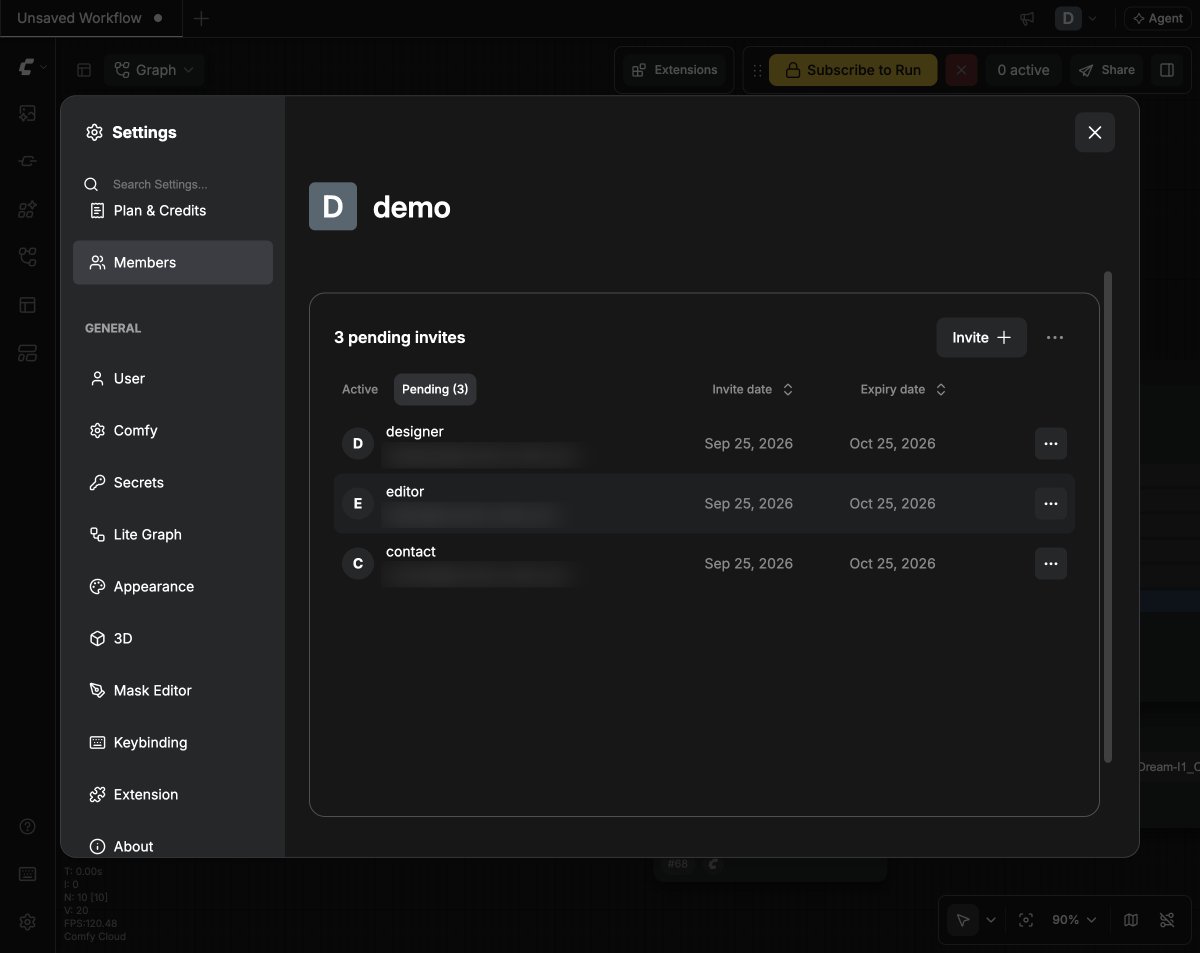
Invitations that have not been accepted yet appear in the **Pending** tab of the Members section, with their expiry date. Owners see this tab; members only see the list of people who have already joined. From there an owner can:
* **Copy invite link**: share the link directly instead of waiting for the email
* **Resend invite**: send the email again with a fresh link
* **Cancel invite**: revoke the invitation
Invitations expire 30 days after they are sent.
If **Invite** does not open the dialog, the workspace has no free seat. A workspace that is not on a Team plan has one seat, and a full team shows a maximum-members tooltip. Open **Plan & Credits** and upgrade to a Team plan, or contact us about Enterprise if you need more members.
Comfy Cloud emails each person a link to join. The invitation is tied to the address it was sent to, so the recipient has to sign in, or create an account, with that same address. If they are not signed in when they open the link, they are asked to sign in first, and the invitation is applied afterwards.
Invitations that have not been accepted yet appear in the **Pending** tab of the Members section, with their expiry date. Owners see this tab; members only see the list of people who have already joined. From there an owner can:
* **Copy invite link**: share the link directly instead of waiting for the email
* **Resend invite**: send the email again with a fresh link
* **Cancel invite**: revoke the invitation
Invitations expire 30 days after they are sent.
 ## Roles and permissions
| Role | Can do |
| ---------- | ------------------------------------------------------------------------------------------------------------------------------------------------------ |
| **Owner** | Invite and remove members, change roles, rename or delete the workspace, and manage the workspace plan and credits. |
| **Member** | Run workflows in the workspace and view the member list. Cannot invite members, see pending invitations, change workspace settings, or manage billing. |
Owners can change a member's role from the Members section, which is how you promote a member to owner or demote an owner back to member. A workspace always keeps at least one owner, so the last remaining owner cannot be demoted or removed. Some messages in Comfy Cloud call the owner the workspace admin; they are the same role.
Members can open **Workspace settings** and see the workspace's plan and member list, but they cannot change anything there. When an owner removes a member, that person loses access to the workspace's files and workflows, the seat is freed, and any workspace API keys they created stop working. Members cannot remove themselves; they leave the workspace instead.
## Manage a workspace
Open **Workspace settings** from the profile menu. The **Workspace** group in the settings dialog has these sections:
* **Plan & Credits**: the workspace plan, credit balance, and top-ups. Only the owner can change these.
* **Members**: the member list, roles, and pending invitations. Pending invitations are visible to owners.
* **Partner Models**: shown to workspace owners. Restricting which provider models members can run is an Enterprise plan feature. Turn off **Allow all partner models** to choose which providers and models members can run; models added later stay disabled until you enable them. Changes can take up to 10 minutes to apply across the workspace.
The menu in the Members section lets owners:
* **Edit workspace details**: rename the workspace
* **Delete Workspace**: available once the workspace has no active subscription. See [Delete a team workspace](#delete-a-team-workspace).
* **Leave Workspace**: leave a team workspace. You cannot leave a workspace if you are its only owner.
## Roles and permissions
| Role | Can do |
| ---------- | ------------------------------------------------------------------------------------------------------------------------------------------------------ |
| **Owner** | Invite and remove members, change roles, rename or delete the workspace, and manage the workspace plan and credits. |
| **Member** | Run workflows in the workspace and view the member list. Cannot invite members, see pending invitations, change workspace settings, or manage billing. |
Owners can change a member's role from the Members section, which is how you promote a member to owner or demote an owner back to member. A workspace always keeps at least one owner, so the last remaining owner cannot be demoted or removed. Some messages in Comfy Cloud call the owner the workspace admin; they are the same role.
Members can open **Workspace settings** and see the workspace's plan and member list, but they cannot change anything there. When an owner removes a member, that person loses access to the workspace's files and workflows, the seat is freed, and any workspace API keys they created stop working. Members cannot remove themselves; they leave the workspace instead.
## Manage a workspace
Open **Workspace settings** from the profile menu. The **Workspace** group in the settings dialog has these sections:
* **Plan & Credits**: the workspace plan, credit balance, and top-ups. Only the owner can change these.
* **Members**: the member list, roles, and pending invitations. Pending invitations are visible to owners.
* **Partner Models**: shown to workspace owners. Restricting which provider models members can run is an Enterprise plan feature. Turn off **Allow all partner models** to choose which providers and models members can run; models added later stay disabled until you enable them. Changes can take up to 10 minutes to apply across the workspace.
The menu in the Members section lets owners:
* **Edit workspace details**: rename the workspace
* **Delete Workspace**: available once the workspace has no active subscription. See [Delete a team workspace](#delete-a-team-workspace).
* **Leave Workspace**: leave a team workspace. You cannot leave a workspace if you are its only owner.
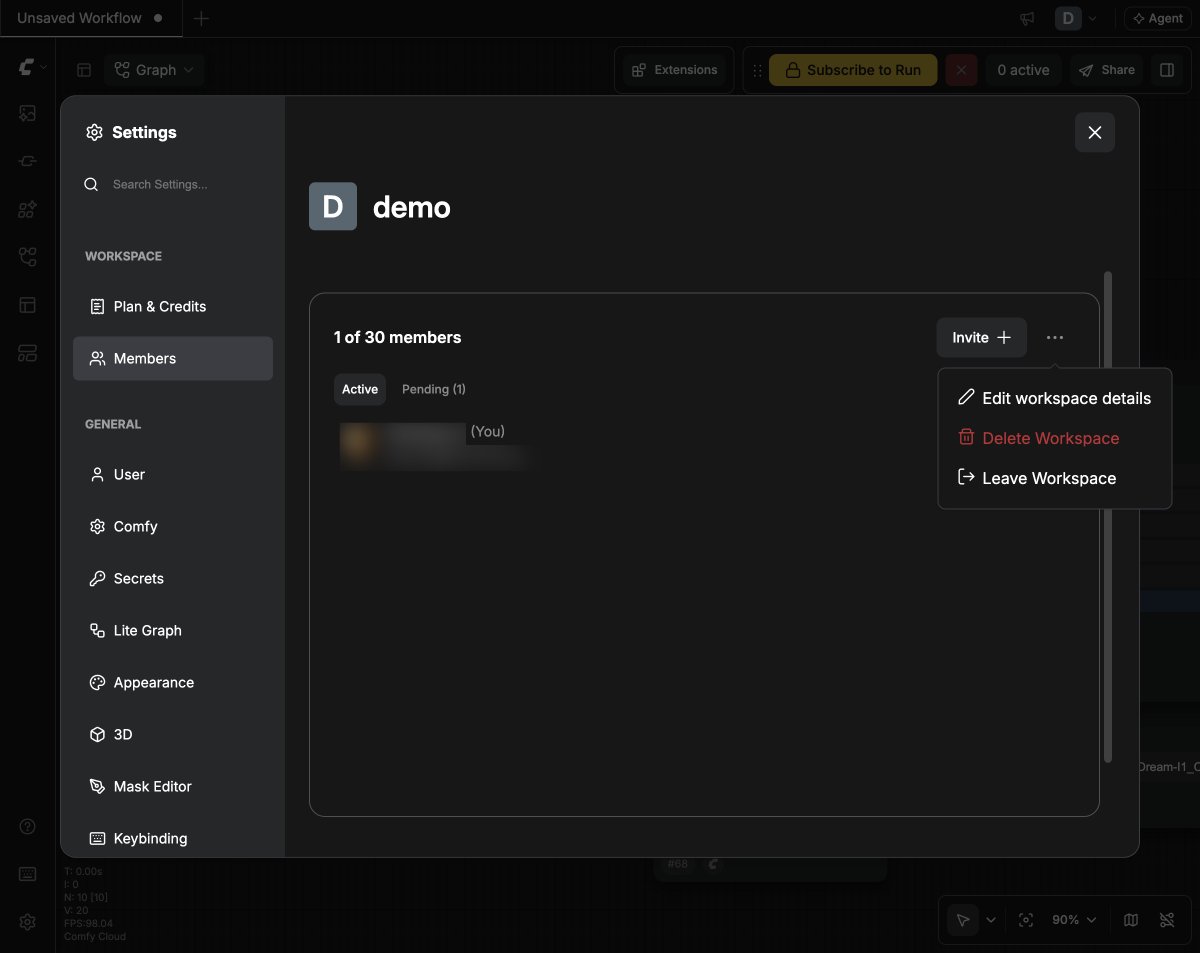 Members see this menu too, but only the **Leave Workspace** item.
### Delete a team workspace
Only the owner of a team workspace can delete it, and the workspace must not have an active subscription. Deleting a workspace is permanent: unused credits and unsaved assets are lost, and the workspace cannot be recovered. Your Personal workspace cannot be deleted, and Enterprise workspaces are managed with our sales team.
In **Workspace settings** → **Plan & Credits**, open the three-dot menu and select **Cancel plan**. If the workspace has no subscription, skip this step.
In **Workspace settings** → **Members**, open the three-dot menu and select **Delete Workspace**, then confirm in the dialog.
## Switch workspaces
1. Open the profile menu.
2. Click your workspace name to open the workspace list.
3. Select the workspace you want to work in.
Members see this menu too, but only the **Leave Workspace** item.
### Delete a team workspace
Only the owner of a team workspace can delete it, and the workspace must not have an active subscription. Deleting a workspace is permanent: unused credits and unsaved assets are lost, and the workspace cannot be recovered. Your Personal workspace cannot be deleted, and Enterprise workspaces are managed with our sales team.
In **Workspace settings** → **Plan & Credits**, open the three-dot menu and select **Cancel plan**. If the workspace has no subscription, skip this step.
In **Workspace settings** → **Members**, open the three-dot menu and select **Delete Workspace**, then confirm in the dialog.
## Switch workspaces
1. Open the profile menu.
2. Click your workspace name to open the workspace list.
3. Select the workspace you want to work in.
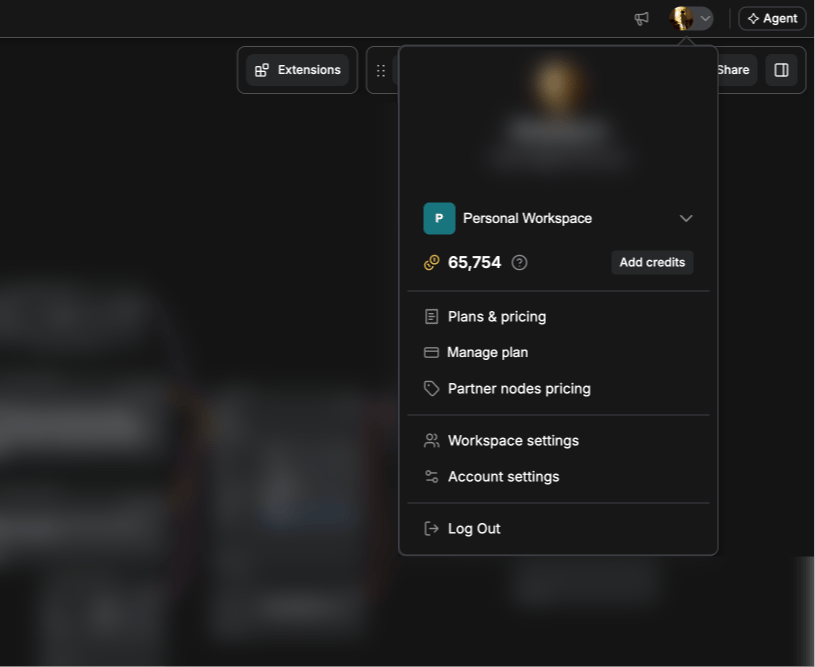 Comfy Cloud reloads the page on the selected workspace, and remembers it the next time you sign in.
| URL parameter | Action |
| --------------------- | ------------------------------------------------------------------------------------------- |
| `?create_workspace=1` | Opens your workspace list, with a **New workspace** field and a **Create workspace** button |
| `?invite=TOKEN` | Accepts a workspace invitation |
## How workspaces are billed
Plans and credits belong to the workspace, not to individual accounts.
**Personal workspaces** use your own plan, and you are the only person who spends its credits.
**Team workspaces** use a credit subscription that the owner sets up:
* The owner chooses the workspace's monthly credit amount in **Choose a Plan** (**For Teams**) with the credit slider. The price follows the amount you choose, and a larger commitment lowers the effective rate. Each billing period refills the pool with that amount.
* Yearly commitments cost less than monthly, and the workspace receives the whole year of credits up front.
* Members are not billed individually, and adding or removing members does not change the price. The plan includes the workspace's seats. If you need more members than the plan includes, contact us about Enterprise.
* Every member runs against the same credit pool.
* Subscription credits are spent before top-up credits, and top-up credits stay valid for 12 months.
* Changing the workspace to a personal plan removes all other members immediately, so move any shared work before you switch.
See [Comfy Cloud pricing](https://www.comfy.org/cloud/pricing) for current rates and discounts, [Subscribe to Comfy Cloud](/support/subscription/subscribing) to set up a team plan, and [Change your Comfy Cloud plan](/support/subscription/changing-plan) for plan changes.
## FAQ
Yes. You can own up to 10 workspaces in total, including your Personal workspace, and you can be a member of as many workspaces as you are invited to.
No. Members are not billed individually: runs in the workspace use the workspace's credits, which the workspace owner manages.
Ask the workspace owner to use **Resend invite**, or to send you a **Copy invite link** from the **Pending** tab in the Members section. Invitations expire 30 days after they are sent, so an older invitation may need to be sent again.
No. Your Personal workspace is permanent and serves as your default workspace.
No. Personal workspaces have a single seat and no member management.
The workspace disappears from your workspace list and you lose access to its files and workflows. Any workspace API keys you created for it stop working. Your Personal workspace and its contents are not affected.
Members cannot run workflows until the owner adds credits. The same applies when the workspace's subscription is inactive, or a payment fails: ask the workspace owner to fix the plan or payment method.
The workspace still has an active subscription. Cancel it first with **Cancel plan** in **Plan & Credits**, then delete the workspace. **Delete Workspace** becomes available as soon as the plan is cancelled, so you do not have to wait for the billing period to end. Personal workspaces cannot be deleted at all, and Enterprise workspaces are ended through our sales team.
No. Deleting a workspace is permanent.
Comfy Cloud reloads the page on the selected workspace, and remembers it the next time you sign in.
| URL parameter | Action |
| --------------------- | ------------------------------------------------------------------------------------------- |
| `?create_workspace=1` | Opens your workspace list, with a **New workspace** field and a **Create workspace** button |
| `?invite=TOKEN` | Accepts a workspace invitation |
## How workspaces are billed
Plans and credits belong to the workspace, not to individual accounts.
**Personal workspaces** use your own plan, and you are the only person who spends its credits.
**Team workspaces** use a credit subscription that the owner sets up:
* The owner chooses the workspace's monthly credit amount in **Choose a Plan** (**For Teams**) with the credit slider. The price follows the amount you choose, and a larger commitment lowers the effective rate. Each billing period refills the pool with that amount.
* Yearly commitments cost less than monthly, and the workspace receives the whole year of credits up front.
* Members are not billed individually, and adding or removing members does not change the price. The plan includes the workspace's seats. If you need more members than the plan includes, contact us about Enterprise.
* Every member runs against the same credit pool.
* Subscription credits are spent before top-up credits, and top-up credits stay valid for 12 months.
* Changing the workspace to a personal plan removes all other members immediately, so move any shared work before you switch.
See [Comfy Cloud pricing](https://www.comfy.org/cloud/pricing) for current rates and discounts, [Subscribe to Comfy Cloud](/support/subscription/subscribing) to set up a team plan, and [Change your Comfy Cloud plan](/support/subscription/changing-plan) for plan changes.
## FAQ
Yes. You can own up to 10 workspaces in total, including your Personal workspace, and you can be a member of as many workspaces as you are invited to.
No. Members are not billed individually: runs in the workspace use the workspace's credits, which the workspace owner manages.
Ask the workspace owner to use **Resend invite**, or to send you a **Copy invite link** from the **Pending** tab in the Members section. Invitations expire 30 days after they are sent, so an older invitation may need to be sent again.
No. Your Personal workspace is permanent and serves as your default workspace.
No. Personal workspaces have a single seat and no member management.
The workspace disappears from your workspace list and you lose access to its files and workflows. Any workspace API keys you created for it stop working. Your Personal workspace and its contents are not affected.
Members cannot run workflows until the owner adds credits. The same applies when the workspace's subscription is inactive, or a payment fails: ask the workspace owner to fix the plan or payment method.
The workspace still has an active subscription. Cancel it first with **Cancel plan** in **Plan & Credits**, then delete the workspace. **Delete Workspace** becomes available as soon as the plan is cancelled, so you do not have to wait for the billing period to end. Personal workspaces cannot be deleted at all, and Enterprise workspaces are ended through our sales team.
No. Deleting a workspace is permanent.