> ## Documentation Index
> Fetch the complete documentation index at: https://docs.comfy.org/llms.txt
> Use this file to discover all available pages before exploring further.
# Getting an API Key
> Learn how to create and manage your Comfy Platform API Key for accessing Cloud APIs, Partner Nodes, and more.
An API Key is your credential for accessing Comfy Platform services, including:
* [Cloud API](/development/cloud/overview) — call Comfy Cloud endpoints programmatically
* [Partner Node API Integration](/development/comfyui-server/api-key-integration) — use paid Partner Nodes in your local workflows
* [Agent Tools / MCP](/agent-tools) — connect to Comfy through MCP
* [Login to ComfyUI locally](/interface/user#logging-in-with-an-api-key) — authenticate with an API Key instead of email
## Creating an API Key
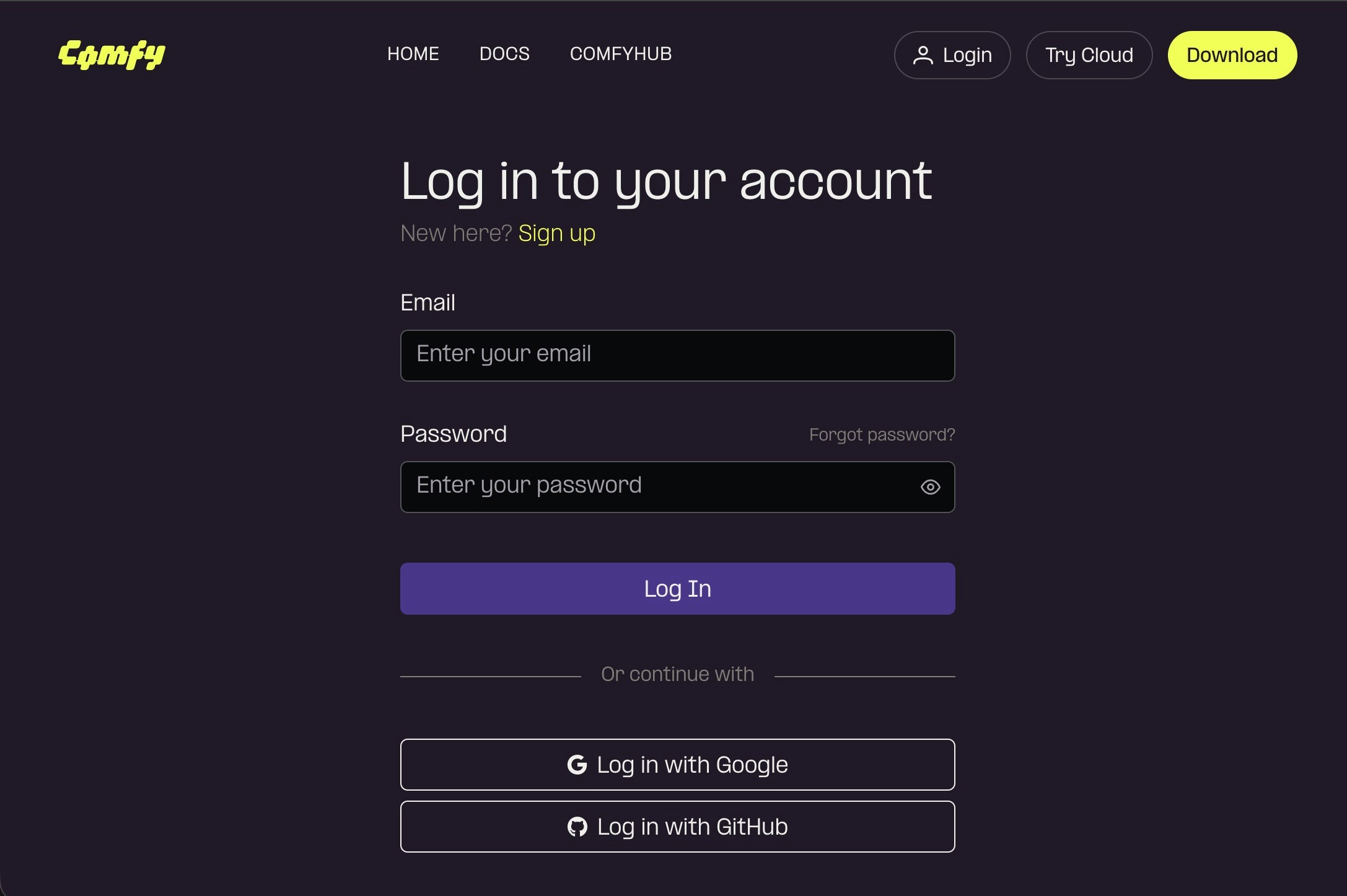
Please visit [https://platform.comfy.org/login](https://platform.comfy.org/login) and log in with the corresponding account
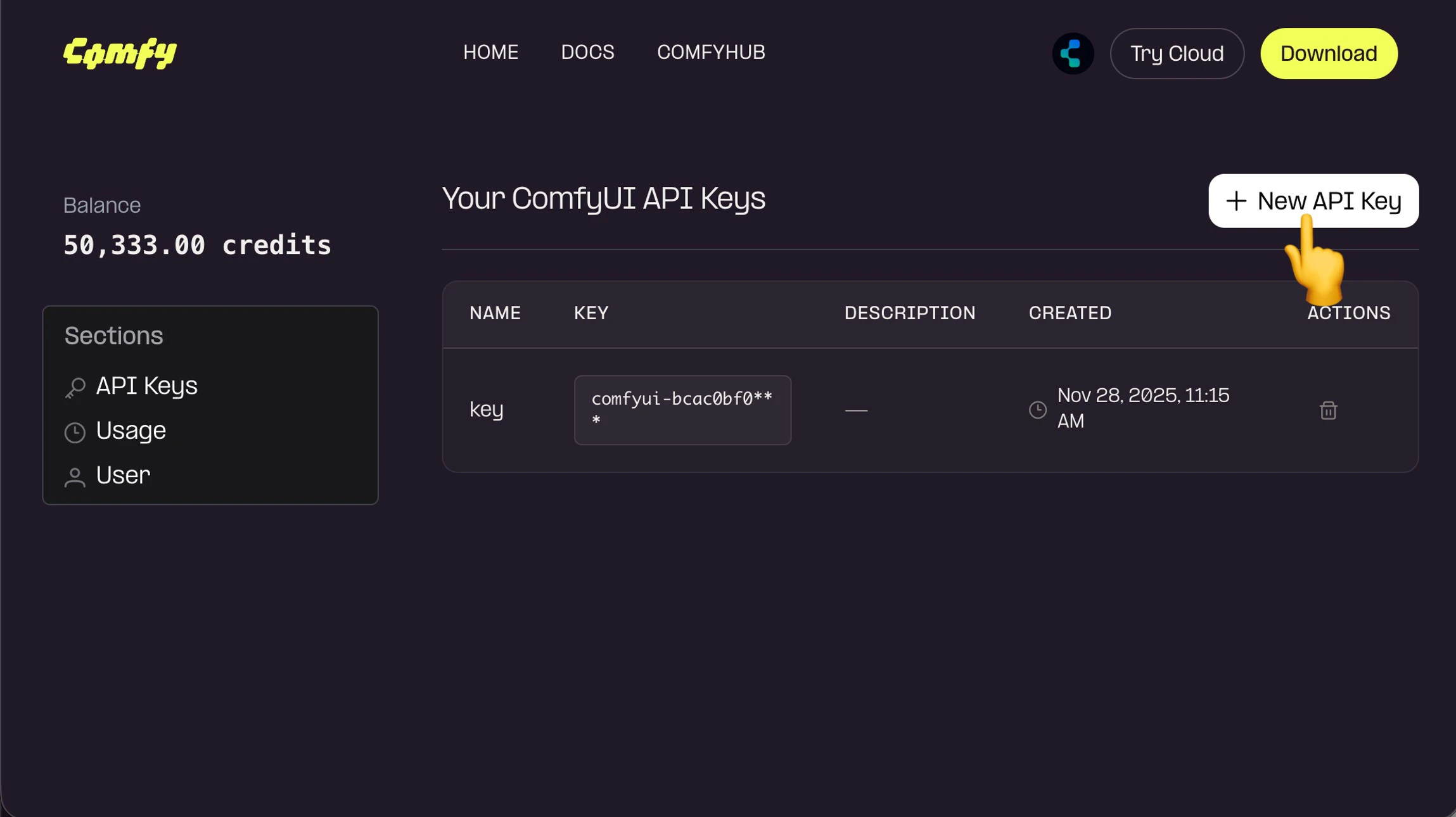
 Click `+ New` in API Keys to create an API Key
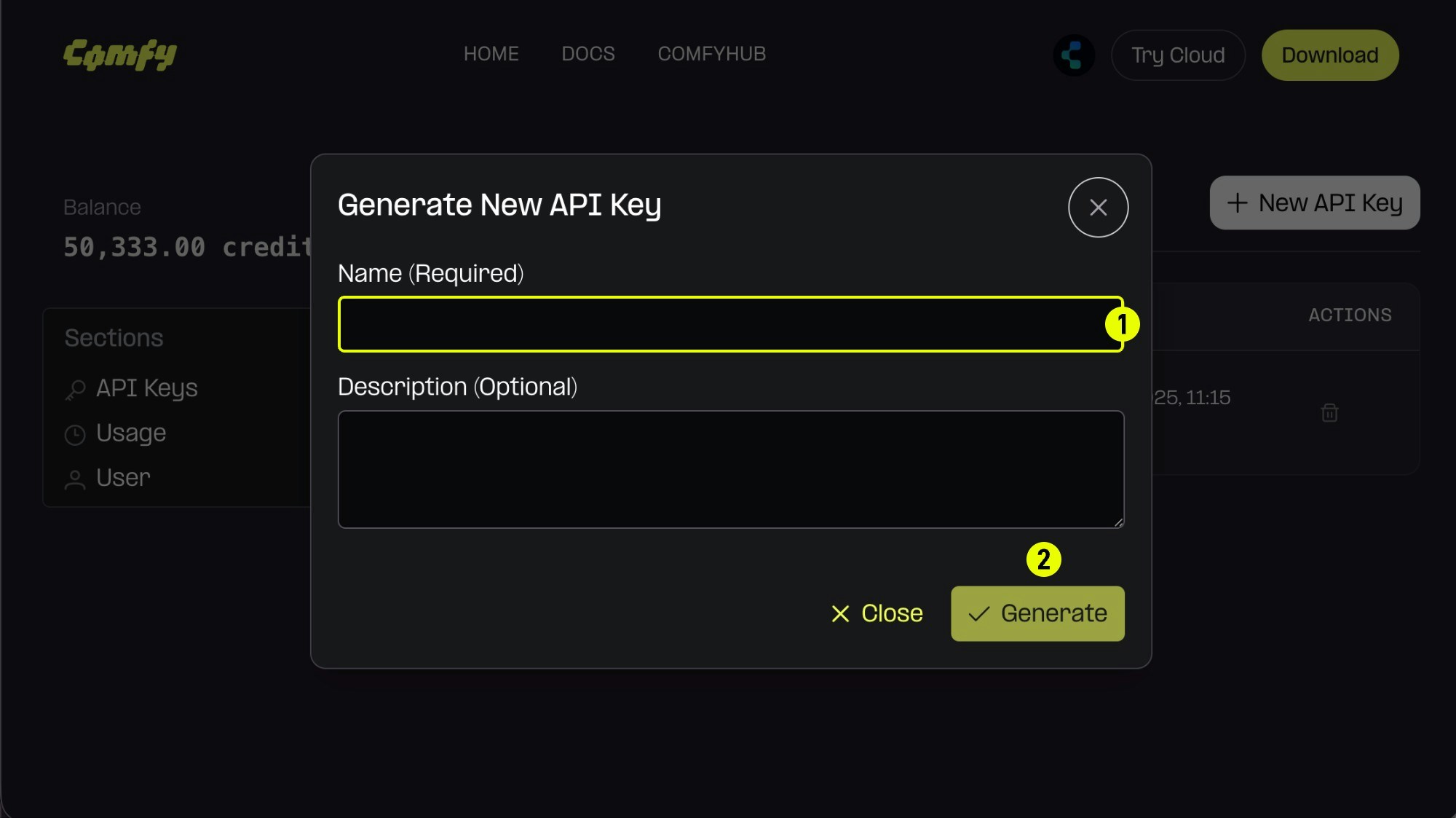 1. (Required) Enter the API Key name,
2. Click `Generate` to create
1. (Required) Enter the API Key name,
2. Click `Generate` to create
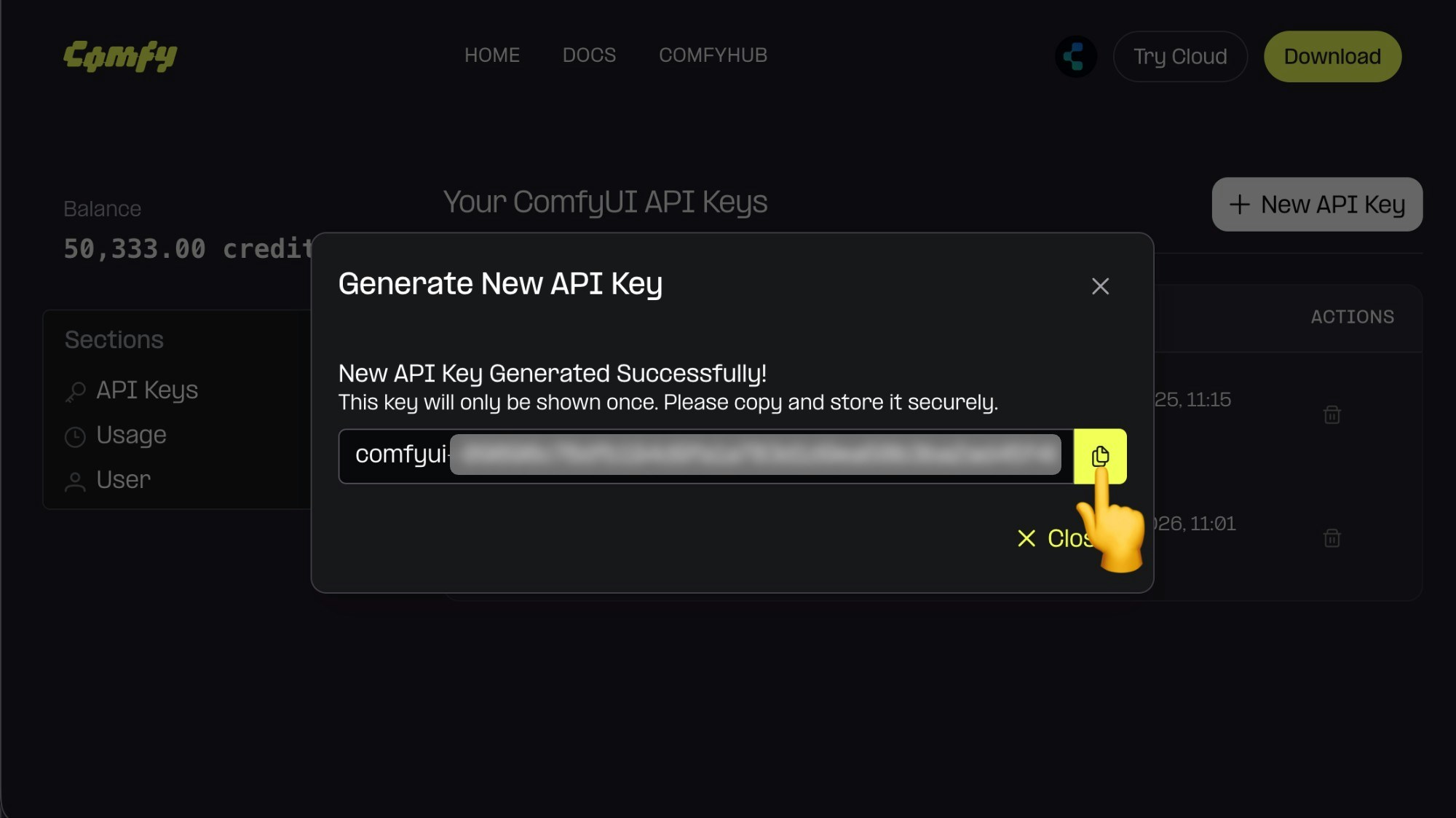 Since the API Key is only visible upon first creation, please save it immediately after creation. It cannot be viewed later, so please keep it safe.
Please note that you should not share your API Key with others. Once it leaked, you can delete it and create a new one.
## Managing your API Keys
You can view and manage all your API Keys on [platform.comfy.org](https://platform.comfy.org) after logging in.
* **View existing keys**: See the name and creation date of each key
* **Delete a key**: If a key is compromised or no longer needed, delete it immediately
* **Create additional keys**: You can have multiple API Keys for different applications
API Keys are only shown once upon creation. Save it immediately in a secure location. If you lose a key, delete it and create a new one.
## Using your API Key
Once you have an API Key, you can:
1. **Log in to ComfyUI locally** — go to **Settings → User** and select "Comfy API Key" login
2. **Call Partner Node APIs** — include the key in `extra_data.api_key_comfy_org` when sending workflows
3. **Use Cloud API** — include the key in request headers for Cloud API endpoints
For security, never share your API Key or commit it to version control.
Since the API Key is only visible upon first creation, please save it immediately after creation. It cannot be viewed later, so please keep it safe.
Please note that you should not share your API Key with others. Once it leaked, you can delete it and create a new one.
## Managing your API Keys
You can view and manage all your API Keys on [platform.comfy.org](https://platform.comfy.org) after logging in.
* **View existing keys**: See the name and creation date of each key
* **Delete a key**: If a key is compromised or no longer needed, delete it immediately
* **Create additional keys**: You can have multiple API Keys for different applications
API Keys are only shown once upon creation. Save it immediately in a secure location. If you lose a key, delete it and create a new one.
## Using your API Key
Once you have an API Key, you can:
1. **Log in to ComfyUI locally** — go to **Settings → User** and select "Comfy API Key" login
2. **Call Partner Node APIs** — include the key in `extra_data.api_key_comfy_org` when sending workflows
3. **Use Cloud API** — include the key in request headers for Cloud API endpoints
For security, never share your API Key or commit it to version control.