> ## Documentation Index
> Fetch the complete documentation index at: https://docs.comfy.org/llms.txt
> Use this file to discover all available pages before exploring further.
# macOS — Comfy Desktop
> Install and uninstall Comfy Desktop on macOS
**Comfy Desktop** is a multi-installation manager that lets you run multiple ComfyUI instances from a single launcher. This guide covers how to install and uninstall Comfy Desktop on macOS.
## System Requirements
* **OS:** macOS 13 (Ventura) or later
* **Hardware:** Apple Silicon (M1 or later)
* **Disk Space:** At least 4.85 GB recommended per installation
Download the latest installer for macOS. The page will automatically detect your platform.
## Installation
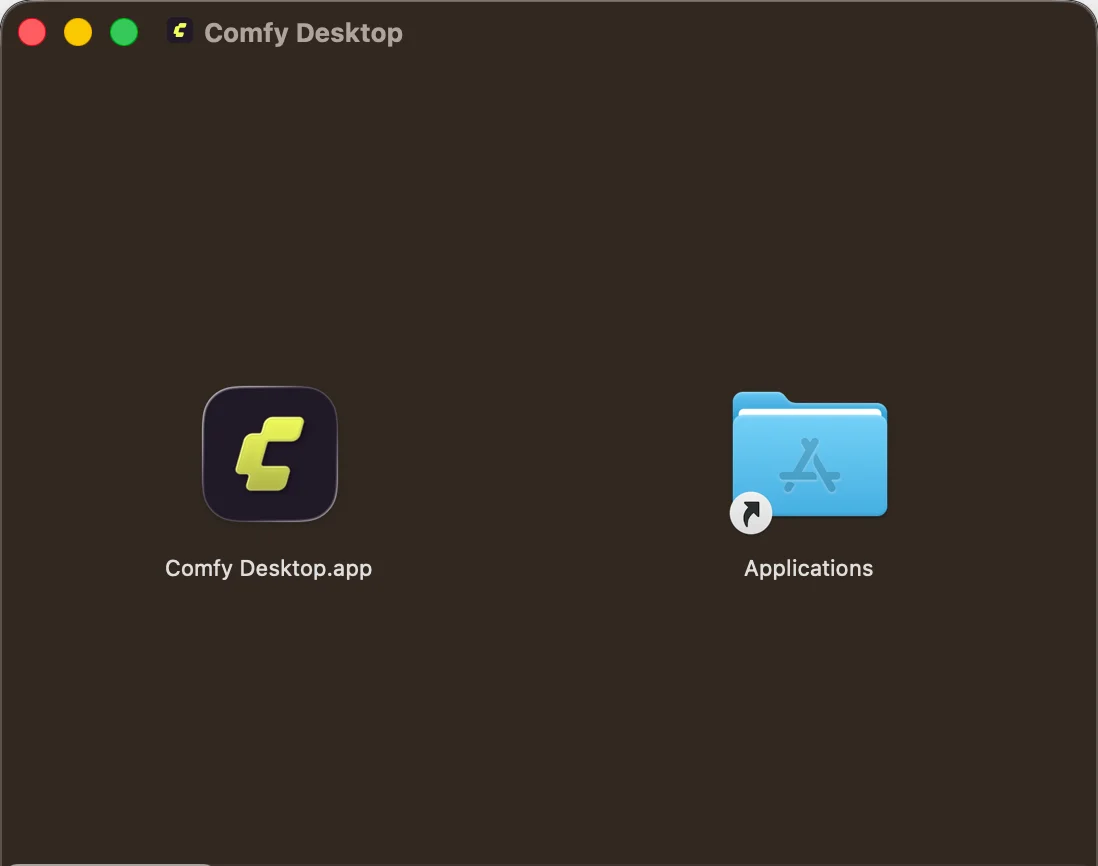
1. Open the downloaded `.dmg` file
2. Drag **Comfy Desktop** into the **Applications** folder
3. Launch it from Launchpad or Spotlight
 The first time you launch, macOS may show a security warning. Go to **System Settings → Privacy & Security** and click **Open Anyway** to allow it.
**Already using Legacy Desktop?** Comfy Desktop can automatically detect and migrate your existing installation. Your custom nodes, workflows, models, and settings are carried over — nothing is lost. The legacy installation is kept untouched as a backup.
Learn more in the [Migrate from Legacy](/installation/desktop/usage/migrate) guide.
Once installed, learn how to create instances, manage installations, and configure settings.
## Updating Comfy Desktop
Comfy Desktop automatically checks for updates and lets you manage them in two ways.
## Quick Update
When an update is available, a **Desktop Update Ready** button appears at the top of the window:
The first time you launch, macOS may show a security warning. Go to **System Settings → Privacy & Security** and click **Open Anyway** to allow it.
**Already using Legacy Desktop?** Comfy Desktop can automatically detect and migrate your existing installation. Your custom nodes, workflows, models, and settings are carried over — nothing is lost. The legacy installation is kept untouched as a backup.
Learn more in the [Migrate from Legacy](/installation/desktop/usage/migrate) guide.
Once installed, learn how to create instances, manage installations, and configure settings.
## Updating Comfy Desktop
Comfy Desktop automatically checks for updates and lets you manage them in two ways.
## Quick Update
When an update is available, a **Desktop Update Ready** button appears at the top of the window:
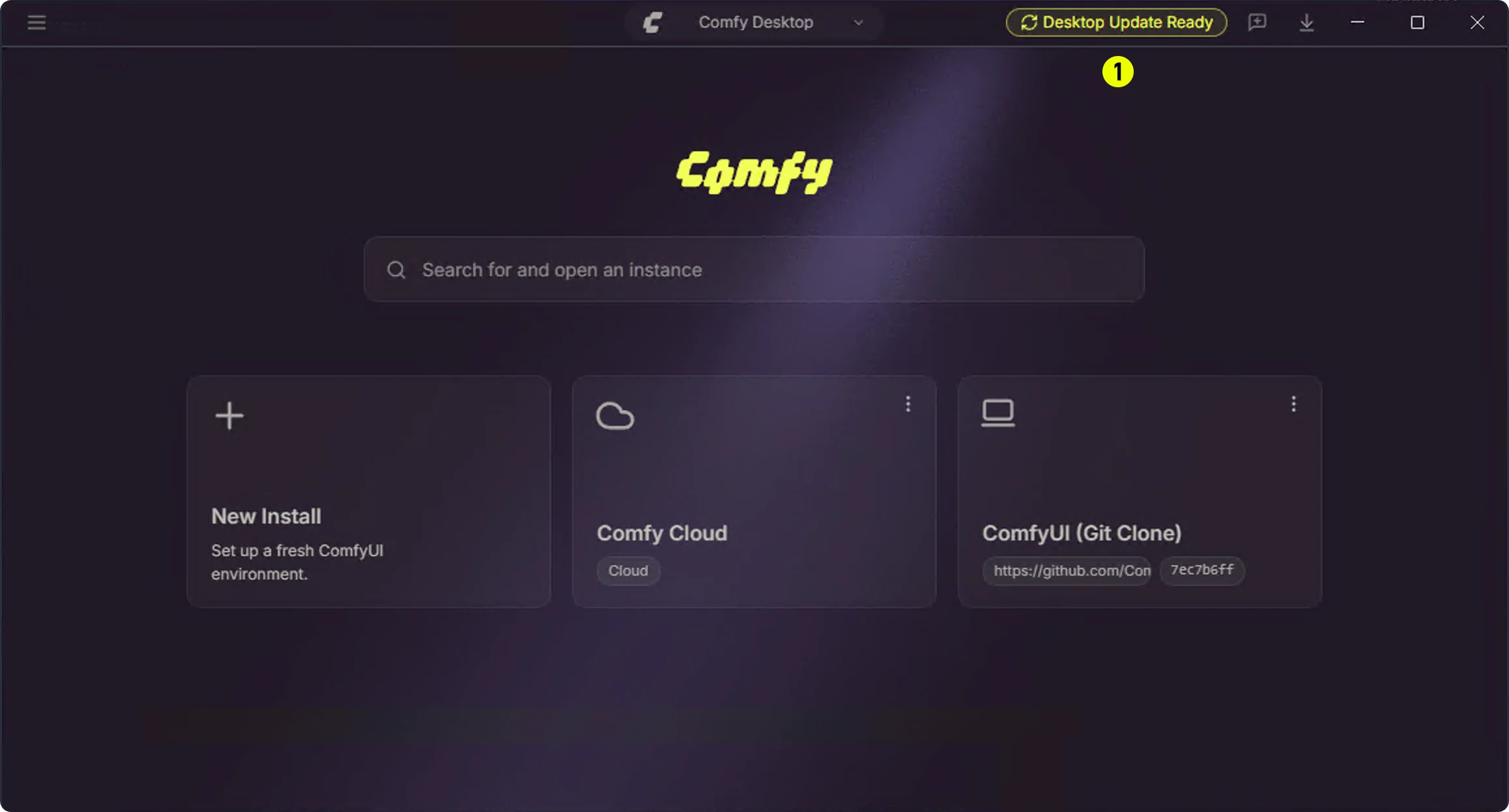 Just click the ① Desktop Update Ready button and Comfy Desktop will restart and install the update automatically.
## Manual Update via Settings
You can also check for and manage updates from the Settings panel:
Just click the ① Desktop Update Ready button and Comfy Desktop will restart and install the update automatically.
## Manual Update via Settings
You can also check for and manage updates from the Settings panel:
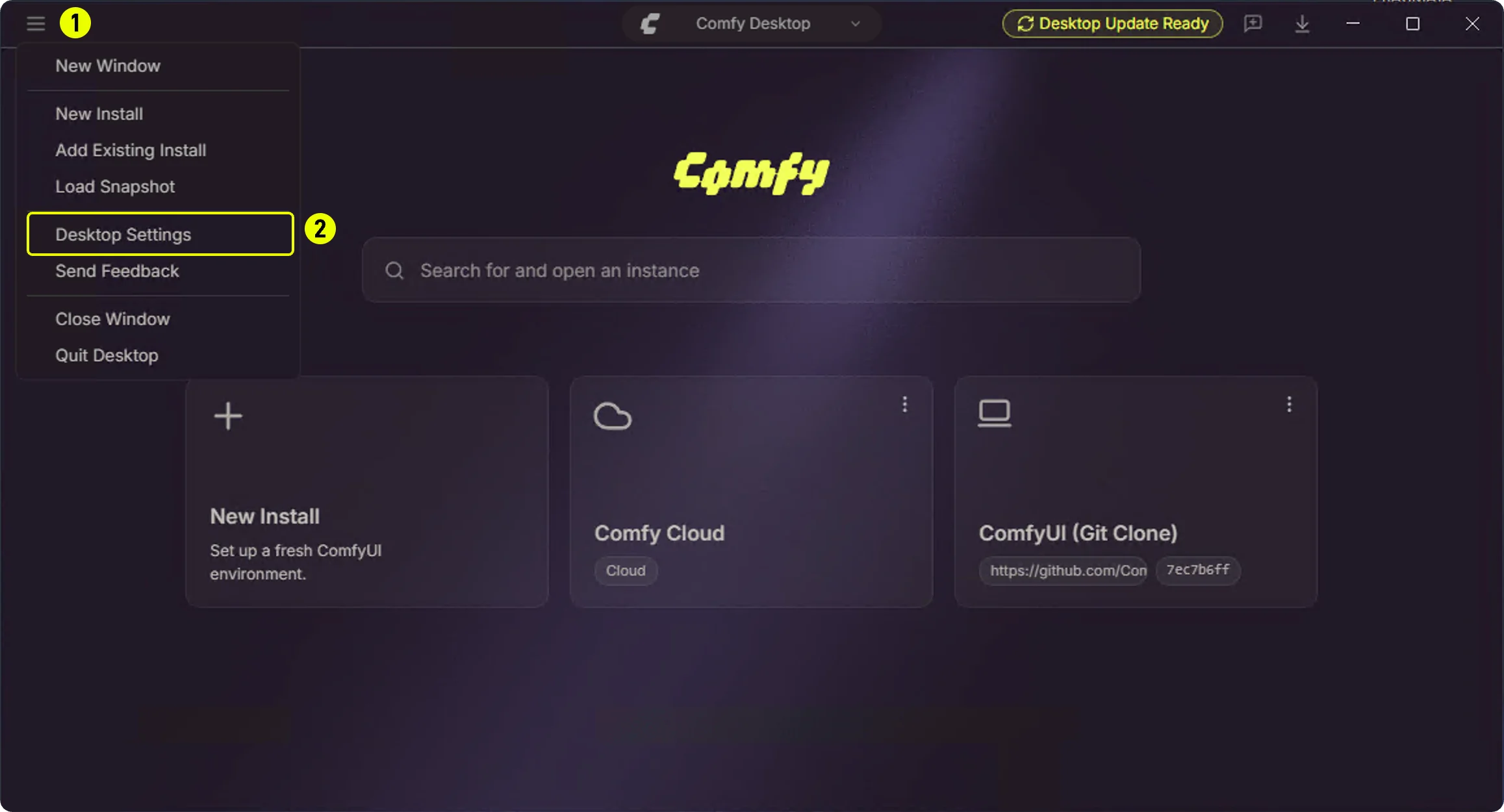 1. **①** Click the hamburger menu (top-left)
2. **②** Select **Desktop Settings**
1. **①** Click the hamburger menu (top-left)
2. **②** Select **Desktop Settings**
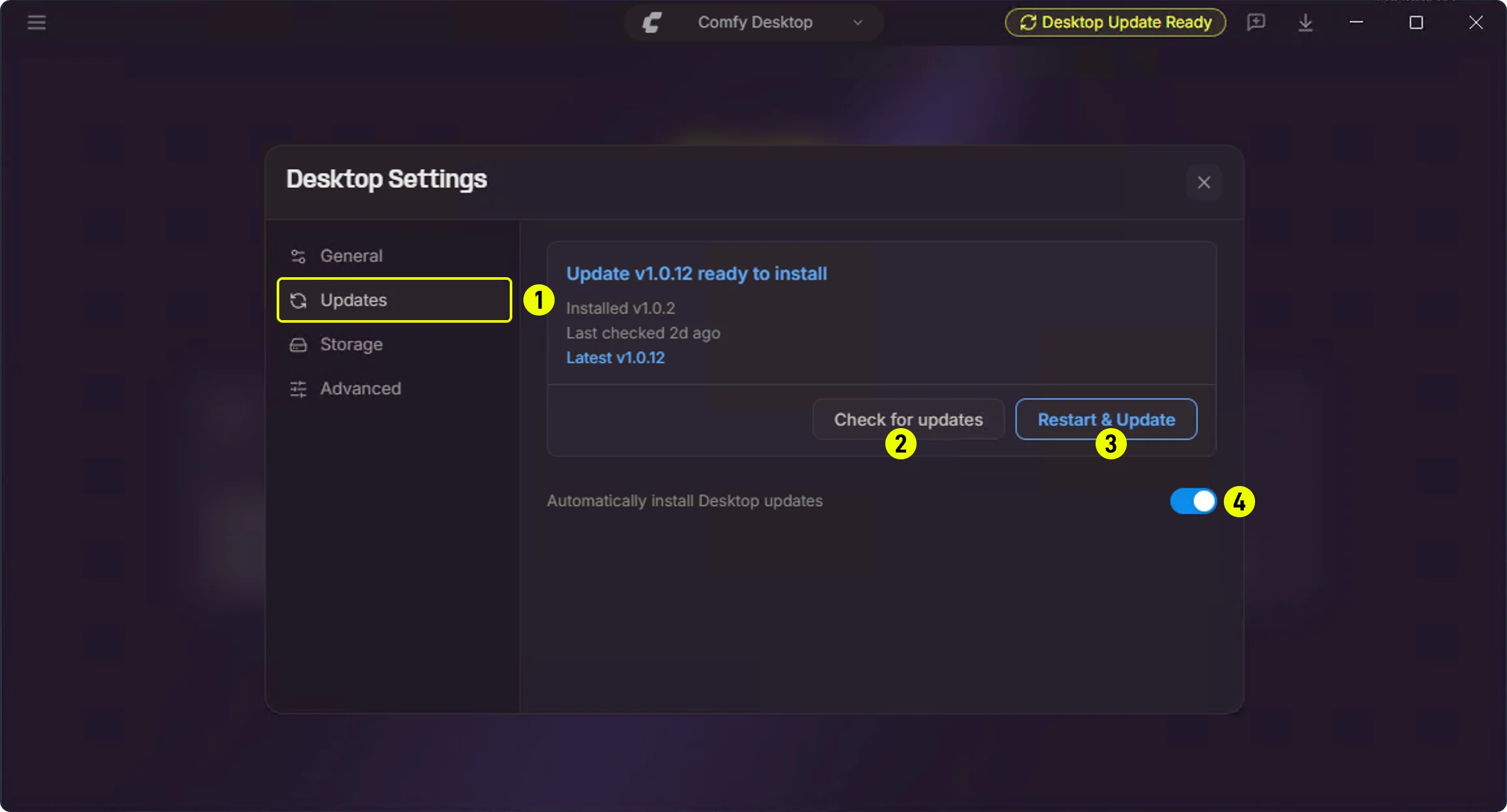 In the **Updates** panel:
1. **① Updates** — Click the sidebar Updates tab
2. **② Check for updates** — Manually check for available updates
3. **③ Restart & Update** — Appears when a new version is available; click to restart and update
4. **④ Automatically install Desktop updates** — Toggle this on/off to control automatic updates
## Uninstalling
### Remove Comfy Desktop
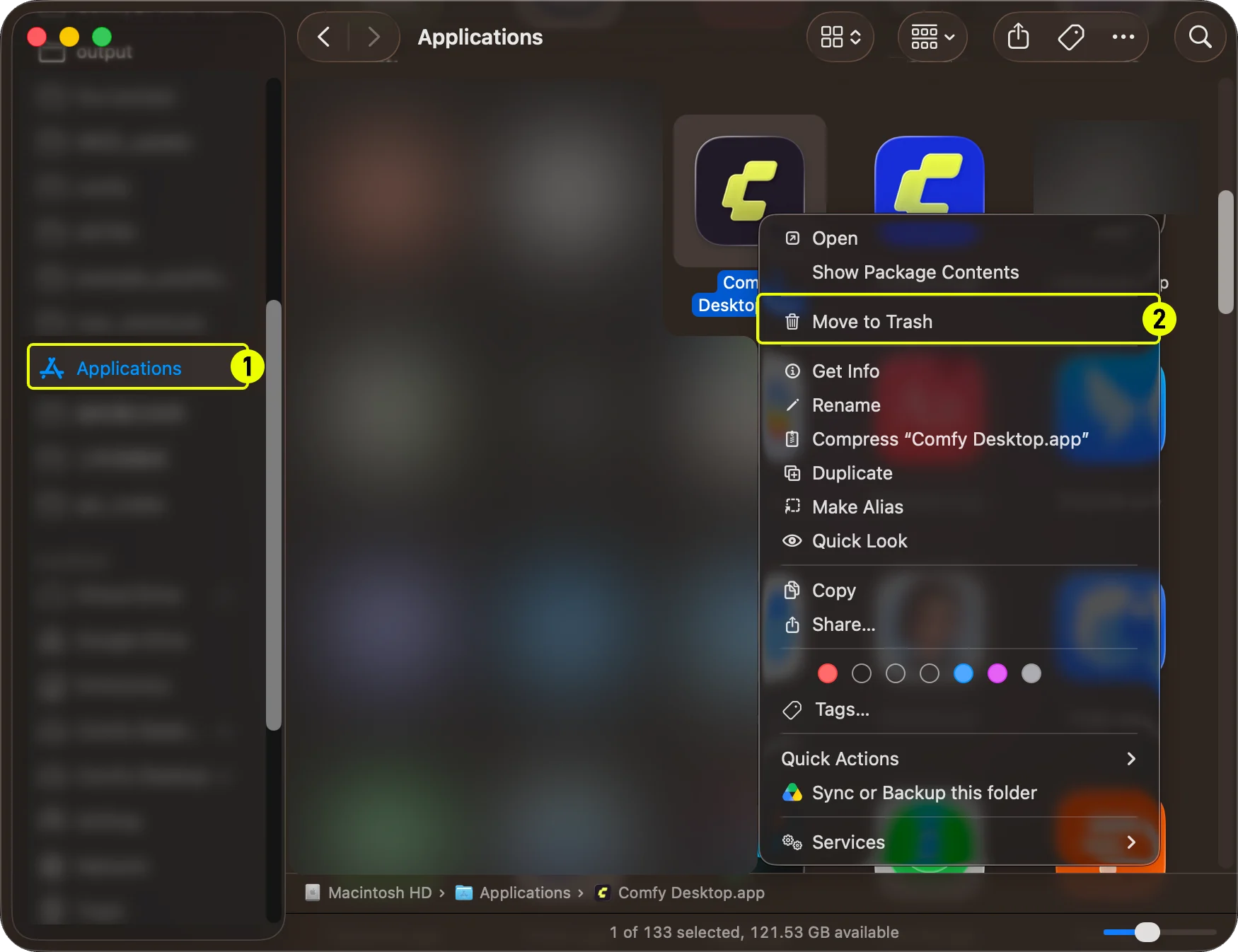
1. Open **Applications** folder in Finder
2. Right-click **Comfy Desktop** and select **Move to Trash**
In the **Updates** panel:
1. **① Updates** — Click the sidebar Updates tab
2. **② Check for updates** — Manually check for available updates
3. **③ Restart & Update** — Appears when a new version is available; click to restart and update
4. **④ Automatically install Desktop updates** — Toggle this on/off to control automatic updates
## Uninstalling
### Remove Comfy Desktop
1. Open **Applications** folder in Finder
2. Right-click **Comfy Desktop** and select **Move to Trash**
 ### What Uninstalling the App Does NOT Remove
Uninstalling Comfy Desktop only removes the launcher app itself. The following data is **not** removed and must be deleted manually if you want a complete cleanup:
| Data | Default Location | Description |
| ----------------------- | --------------------------------------------- | --------------------------------------------------------------------------------------------------------------------------- |
| Installations | `~/ComfyUI-Installs` | Each ComfyUI installation you created (can also be deleted from within the app). Custom install paths are also not removed. |
| Shared models & outputs | `~/ComfyUI-Shared` | Shared model library, input/output directories |
| App settings & registry | `~/Library/Application Support/Comfy Desktop` | Settings, installation records, logs |
The directories listed above contain your **personal ComfyUI data** — models, outputs, settings, and installations. They are **not** Comfy Desktop application files. Deleting them will permanently remove your data.
To fully remove everything:
1. **Delete the app data folder** – `~/Library/Application Support/Comfy Desktop`
2. **Delete individual installations** from within the app, or manually delete `~/ComfyUI-Installs`
3. **Delete the shared model library** at `~/ComfyUI-Shared` (only if you no longer need these files)
### What Uninstalling the App Does NOT Remove
Uninstalling Comfy Desktop only removes the launcher app itself. The following data is **not** removed and must be deleted manually if you want a complete cleanup:
| Data | Default Location | Description |
| ----------------------- | --------------------------------------------- | --------------------------------------------------------------------------------------------------------------------------- |
| Installations | `~/ComfyUI-Installs` | Each ComfyUI installation you created (can also be deleted from within the app). Custom install paths are also not removed. |
| Shared models & outputs | `~/ComfyUI-Shared` | Shared model library, input/output directories |
| App settings & registry | `~/Library/Application Support/Comfy Desktop` | Settings, installation records, logs |
The directories listed above contain your **personal ComfyUI data** — models, outputs, settings, and installations. They are **not** Comfy Desktop application files. Deleting them will permanently remove your data.
To fully remove everything:
1. **Delete the app data folder** – `~/Library/Application Support/Comfy Desktop`
2. **Delete individual installations** from within the app, or manually delete `~/ComfyUI-Installs`
3. **Delete the shared model library** at `~/ComfyUI-Shared` (only if you no longer need these files)