> ## Documentation Index
> Fetch the complete documentation index at: https://docs.comfy.org/llms.txt
> Use this file to discover all available pages before exploring further.
# Using Comfy Desktop
> Overview of Comfy Desktop — creating new installations, managing instances, and more
Comfy Desktop is the official desktop application for **ComfyUI**. It manages everything for you — installing ComfyUI, keeping it updated, and letting you run multiple independent setups side by side.
To understand the relationship: **Comfy Desktop** is the app that manages and launches **ComfyUI** instances. You don't install ComfyUI separately — Comfy Desktop handles the installation, Python environment, and dependencies for each instance automatically.
### Key Features
* **[Multi-instance management](/installation/desktop/usage/instance-management)**: run multiple ComfyUI instances side by side, each with its own version, custom nodes, and configuration
* **[Snapshots](/installation/desktop/usage/manage#snapshots-tab)**: save and restore the full state of an instance (ComfyUI version, custom nodes, Python packages), making it easy to roll back or reproduce an environment
* **[Shared storage](/installation/desktop/usage/settings#storage)**: models are shared across all instances by default, saving disk space. You can also add external model folders
* **Automatic updates**: the title-bar **Desktop Update** control updates Comfy Desktop. Use the Manage panel [Update tab](/installation/desktop/usage/manage#update-tab) to update each ComfyUI instance.
* **Cloud integration**: launch or connect to Comfy Cloud instances directly from the Chooser view
* **[Track existing installations](/installation/desktop/usage/instance-management#tracking-an-existing-installation)**: add your existing portable or git-cloned ComfyUI installations to Comfy Desktop for unified management
This guide covers how to use these features.
## Dashboard Overview
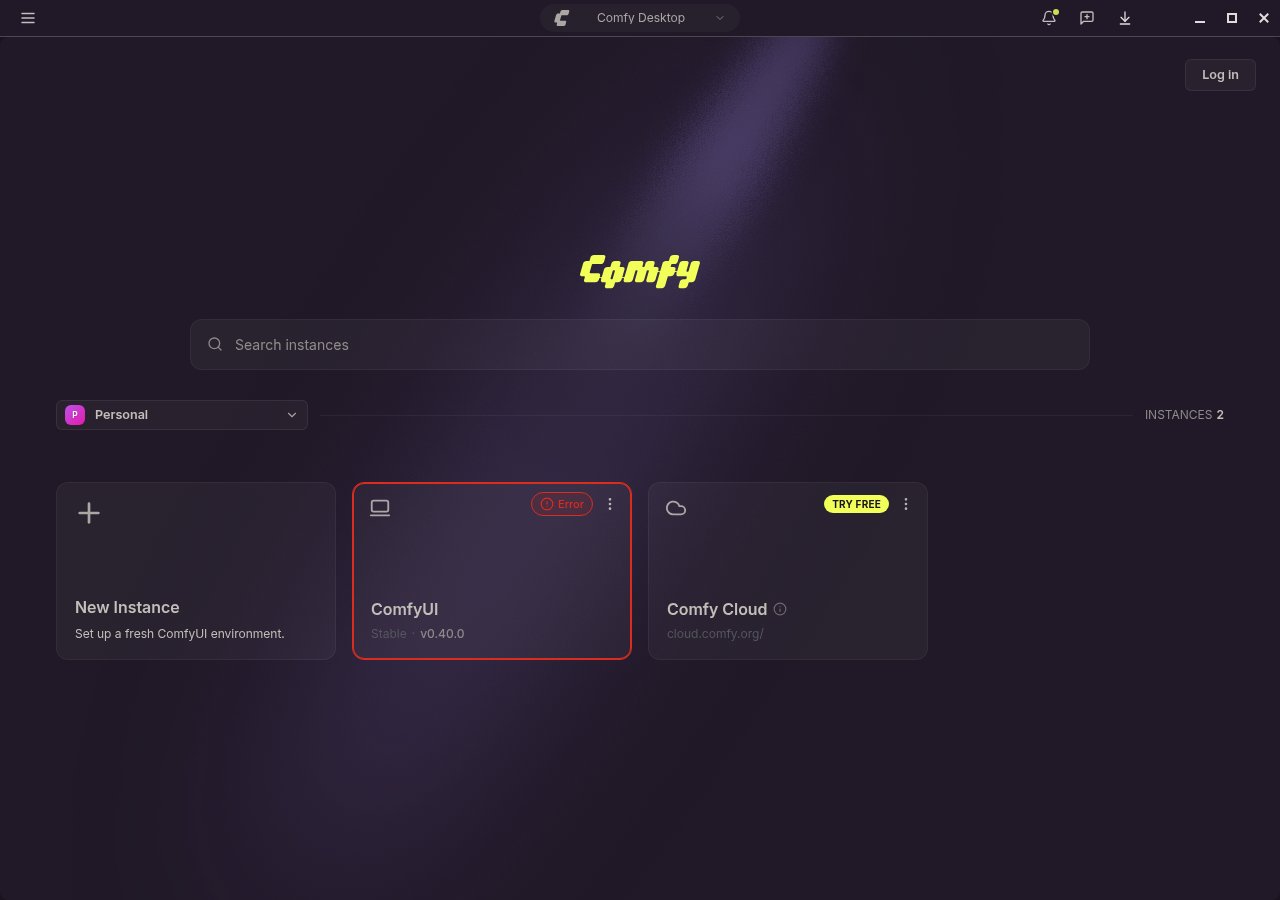
Comfy Desktop window is divided into several key areas. The image below labels the main parts of the Dashboard:
 ### App Menu
The hamburger menu (☰) in the top-left corner opens the application menu, which holds every app-level action:
### App Menu
The hamburger menu (☰) in the top-left corner opens the application menu, which holds every app-level action:
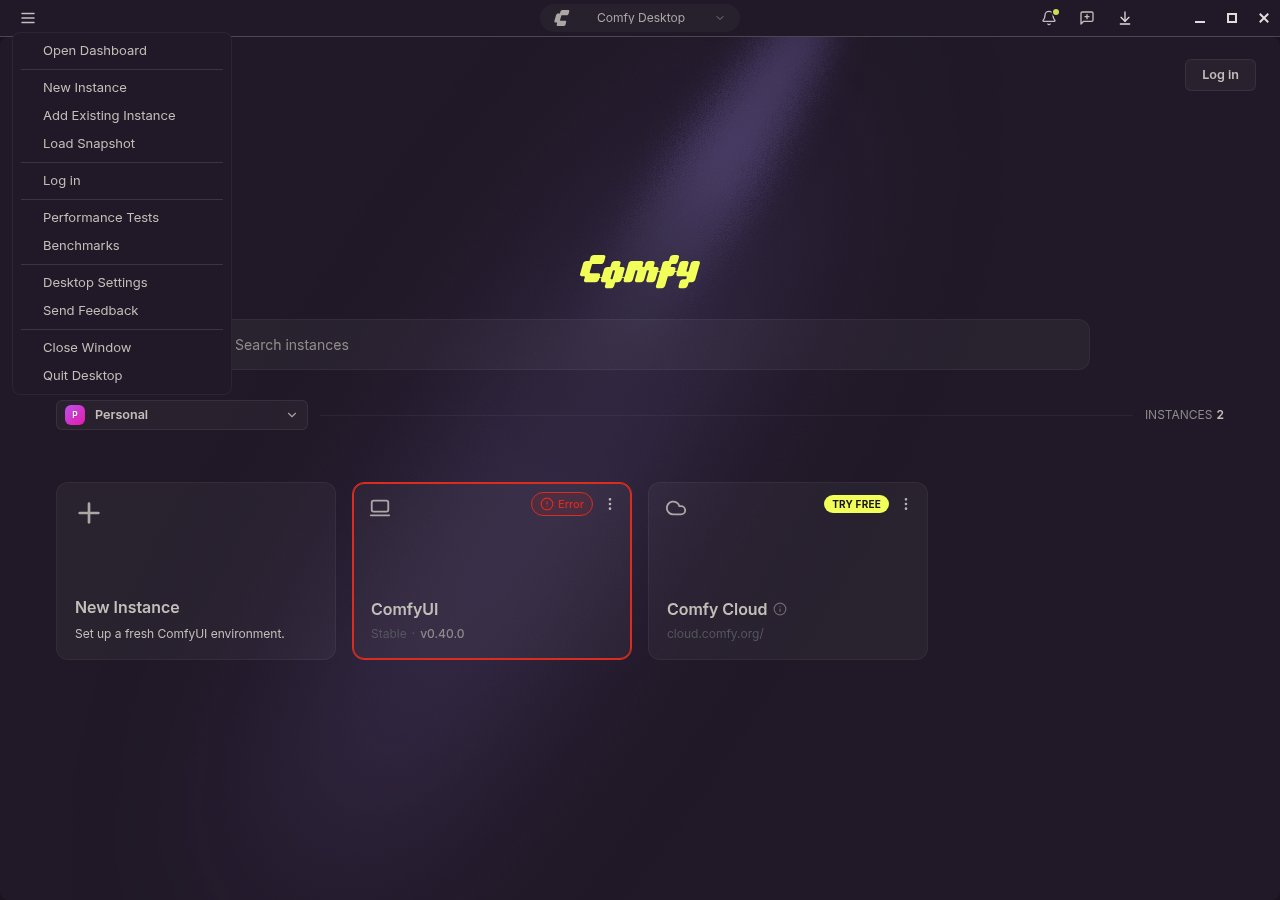 * **Open Dashboard**: opens the Dashboard in a new window. Instances that are running keep running.
* **New Instance** and **Add Existing Instance**: create a new instance, or track a ComfyUI installation you already have.
* **Load Snapshot**: create an instance from a snapshot file someone shared with you.
* **Log in**: sign in to your Comfy account. This entry only appears while you are signed out.
* **Performance Tests**: run timed workflows against an instance. See [Performance Tests and Benchmarks](/installation/desktop/usage/performance-tests).
* **Benchmarks**: compare saved performance test results across hardware, workflows, and instances.
* **Desktop Settings**: global settings for auto-updates, proxy/mirror, shared storage, and data locations.
* **Send Feedback**: open the feedback panel.
* **Close Window** and **Quit Desktop**: close the current window, or quit the app. Closing an instance window stops the ComfyUI instance it runs, and closing the last window quits Comfy Desktop.
Two entries appear only in context: **Reset Zoom (N%)** once the ComfyUI view is zoomed, and **Skip Onboarding** during the first-run setup. While the first-run setup is on screen, **Skip Onboarding** is the only entry in the menu.
On macOS the app also keeps a system menu bar with the standard app, Edit, and Window menus. Windows and Linux builds have no system menu bar.
Global settings: auto-updates, proxy/mirror, shared storage, and data locations.
Measure workflow speed on an instance, then compare runs across hardware.
### Instance Switcher
The center pill shows the name of your active ComfyUI instance. Click it to open the **Instance Picker**, a popover that lists every installed instance, shows their running status, and lets you switch between them or launch a new one. When a new ComfyUI version is available for that instance, the pill also carries an **Update** chip; click the chip to update the instance without opening the picker.
Launch, update, snapshot, and configure your installations through the Manage panel.
### Trailing Buttons
* **Open Dashboard**: opens the Dashboard in a new window. Instances that are running keep running.
* **New Instance** and **Add Existing Instance**: create a new instance, or track a ComfyUI installation you already have.
* **Load Snapshot**: create an instance from a snapshot file someone shared with you.
* **Log in**: sign in to your Comfy account. This entry only appears while you are signed out.
* **Performance Tests**: run timed workflows against an instance. See [Performance Tests and Benchmarks](/installation/desktop/usage/performance-tests).
* **Benchmarks**: compare saved performance test results across hardware, workflows, and instances.
* **Desktop Settings**: global settings for auto-updates, proxy/mirror, shared storage, and data locations.
* **Send Feedback**: open the feedback panel.
* **Close Window** and **Quit Desktop**: close the current window, or quit the app. Closing an instance window stops the ComfyUI instance it runs, and closing the last window quits Comfy Desktop.
Two entries appear only in context: **Reset Zoom (N%)** once the ComfyUI view is zoomed, and **Skip Onboarding** during the first-run setup. While the first-run setup is on screen, **Skip Onboarding** is the only entry in the menu.
On macOS the app also keeps a system menu bar with the standard app, Edit, and Window menus. Windows and Linux builds have no system menu bar.
Global settings: auto-updates, proxy/mirror, shared storage, and data locations.
Measure workflow speed on an instance, then compare runs across hardware.
### Instance Switcher
The center pill shows the name of your active ComfyUI instance. Click it to open the **Instance Picker**, a popover that lists every installed instance, shows their running status, and lets you switch between them or launch a new one. When a new ComfyUI version is available for that instance, the pill also carries an **Update** chip; click the chip to update the instance without opening the picker.
Launch, update, snapshot, and configure your installations through the Manage panel.
### Trailing Buttons
 The controls grouped on the right side of the title bar provide quick access to:
* **Desktop Update**: when a new version of Comfy Desktop is available, a pill appears here. Click to download and apply the update.
* **Reset Zoom**: a pill showing the current zoom percentage appears while the ComfyUI view is zoomed away from 100%. Click it to return to 100%.
* **What's new**: opens the announcements panel. Announcements cover new ComfyUI features and Comfy product launches, with a short video, highlights, and links out for details. The bell shows a dot while there is an announcement you have not opened, and the dot clears once you open the panel.
* **Feedback**: send feedback to the Comfy Desktop team.
* **Downloads**: opens the downloads tray. The badge shows how many downloads are running, and flags failed and unopened downloads. The tray lets you retry a failed download or cancel one that is running; select **View All Downloads** for the full list, where downloads can also be paused and resumed.
### Search
The search box lets you filter your installed instances by name, making it easy to find a specific setup when you have many.
### Chooser (Instance List)
The main area of the Dashboard, called the **Chooser**, displays all your ComfyUI instances as cards. **Click any instance card to launch or switch to that instance.**
From here you can:
* **+ New Instance**:create a new standalone ComfyUI instance.
* **Comfy Cloud**: connect to or launch a cloud instance. The card may show a **TRY FREE** pill when free Cloud runs are available.
* **Account chip** (top-right): sign in with your Comfy account. Once signed in, the chip shows your avatar and email, and a workspace switcher appears above the grid.
* **Workspace Builds**: when signed in, ComfyUI Builds published to the selected workspace can be installed from the New Instance flow. See [Workspaces and ComfyUI Builds](/installation/desktop/usage/workspaces-and-builds).
* **Existing instance cards**:each card shows the instance name, status, and type. Right-click (or click the ⋮ icon) to manage, update, snapshot, or delete the instance.
Create, rename, edit, and delete ComfyUI instances.
## Feedback and Issues
Found a bug or have a suggestion? Comfy Desktop is open source. You can report issues and check planned features here:
* **Comfy Desktop issues**: [github.com/Comfy-Org/Comfy-Desktop/issues](https://github.com/Comfy-Org/Comfy-Desktop/issues)
* **Documentation issues**: [github.com/Comfy-Org/docs/issues](https://github.com/Comfy-Org/docs/issues)
For general questions about ComfyUI, visit the [ComfyUI GitHub Discussions](https://github.com/Comfy-Org/ComfyUI/discussions) or join the [ComfyUI Discord](https://www.comfy.org/discord).
This documentation is built and hosted on [Mintlify](https://mintlify.com), a developer documentation platform.
The controls grouped on the right side of the title bar provide quick access to:
* **Desktop Update**: when a new version of Comfy Desktop is available, a pill appears here. Click to download and apply the update.
* **Reset Zoom**: a pill showing the current zoom percentage appears while the ComfyUI view is zoomed away from 100%. Click it to return to 100%.
* **What's new**: opens the announcements panel. Announcements cover new ComfyUI features and Comfy product launches, with a short video, highlights, and links out for details. The bell shows a dot while there is an announcement you have not opened, and the dot clears once you open the panel.
* **Feedback**: send feedback to the Comfy Desktop team.
* **Downloads**: opens the downloads tray. The badge shows how many downloads are running, and flags failed and unopened downloads. The tray lets you retry a failed download or cancel one that is running; select **View All Downloads** for the full list, where downloads can also be paused and resumed.
### Search
The search box lets you filter your installed instances by name, making it easy to find a specific setup when you have many.
### Chooser (Instance List)
The main area of the Dashboard, called the **Chooser**, displays all your ComfyUI instances as cards. **Click any instance card to launch or switch to that instance.**
From here you can:
* **+ New Instance**:create a new standalone ComfyUI instance.
* **Comfy Cloud**: connect to or launch a cloud instance. The card may show a **TRY FREE** pill when free Cloud runs are available.
* **Account chip** (top-right): sign in with your Comfy account. Once signed in, the chip shows your avatar and email, and a workspace switcher appears above the grid.
* **Workspace Builds**: when signed in, ComfyUI Builds published to the selected workspace can be installed from the New Instance flow. See [Workspaces and ComfyUI Builds](/installation/desktop/usage/workspaces-and-builds).
* **Existing instance cards**:each card shows the instance name, status, and type. Right-click (or click the ⋮ icon) to manage, update, snapshot, or delete the instance.
Create, rename, edit, and delete ComfyUI instances.
## Feedback and Issues
Found a bug or have a suggestion? Comfy Desktop is open source. You can report issues and check planned features here:
* **Comfy Desktop issues**: [github.com/Comfy-Org/Comfy-Desktop/issues](https://github.com/Comfy-Org/Comfy-Desktop/issues)
* **Documentation issues**: [github.com/Comfy-Org/docs/issues](https://github.com/Comfy-Org/docs/issues)
For general questions about ComfyUI, visit the [ComfyUI GitHub Discussions](https://github.com/Comfy-Org/ComfyUI/discussions) or join the [ComfyUI Discord](https://www.comfy.org/discord).
This documentation is built and hosted on [Mintlify](https://mintlify.com), a developer documentation platform.