> ## Documentation Index
> Fetch the complete documentation index at: https://docs.comfy.org/llms.txt
> Use this file to discover all available pages before exploring further.
# Managing Installations
> Launch, update, snapshot, and manage your ComfyUI installations
## The Manage Panel
The Manage panel content varies by instance type. The screenshots on this page show a **local standalone installation**. Cloud and remote instances have fewer tabs and settings.
Select **Manage** on an installation to open the settings panel.
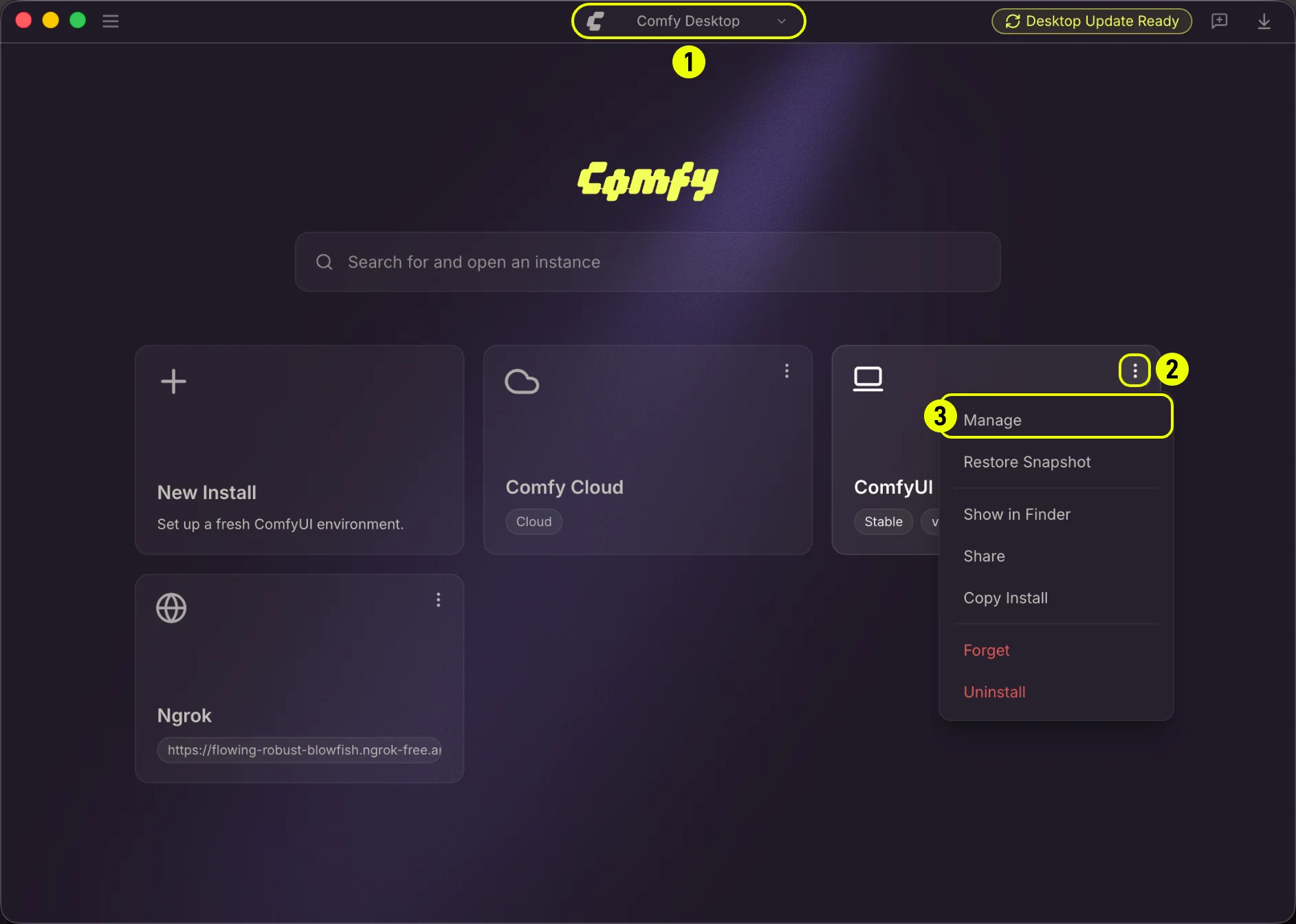 * Open the **Chooser** view (the home screen showing all your instances)
* Click the ⋮ icon on an instance card
* Select **Manage** from the context menu
The panel has six tabs:
### Update Tab
* Open the **Chooser** view (the home screen showing all your instances)
* Click the ⋮ icon on an instance card
* Select **Manage** from the context menu
The panel has six tabs:
### Update Tab
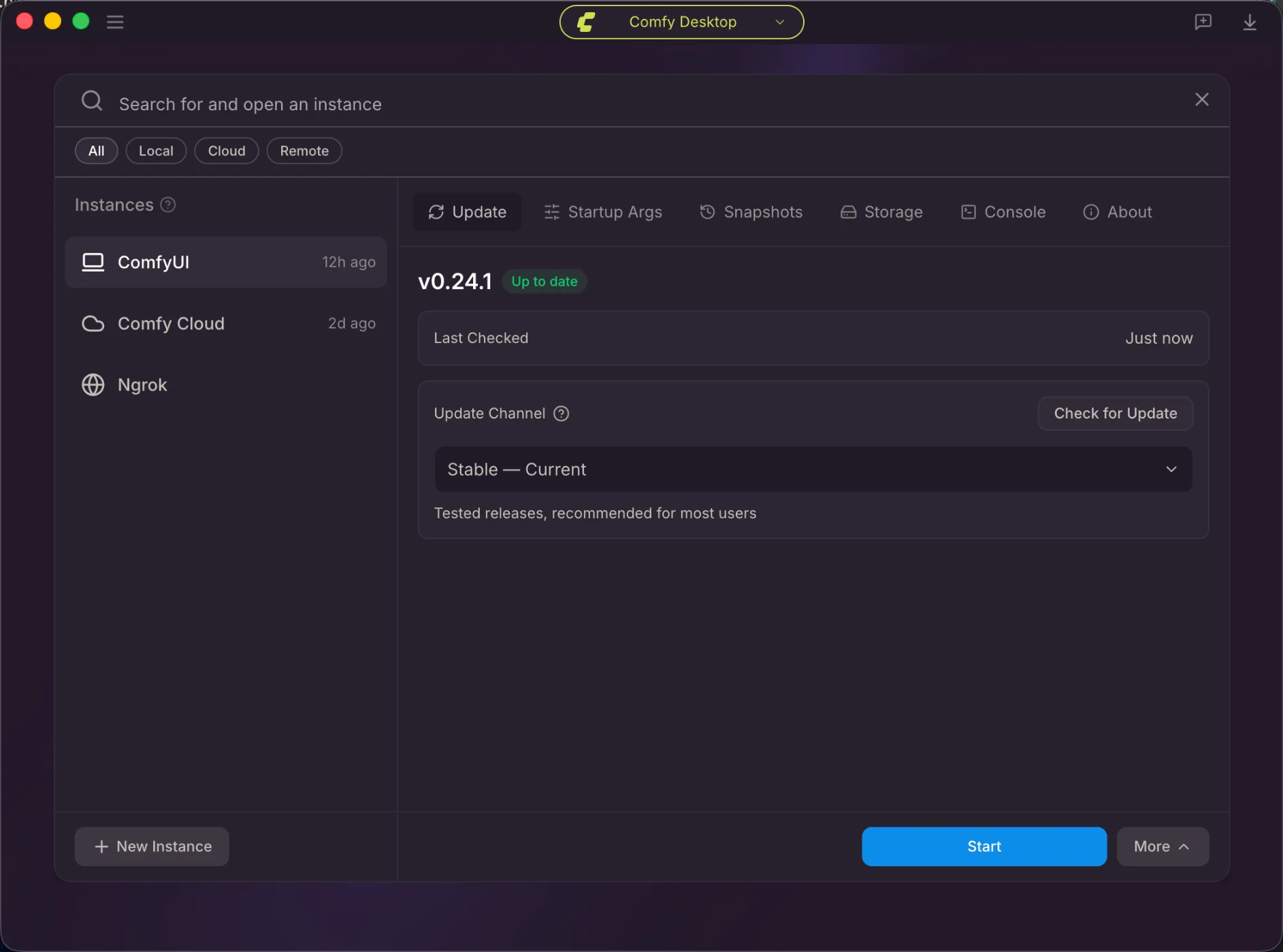 This tab shows the current version, lets you check for updates, and configure the update channel.
* **Version**:Shows the current installed version and whether it's up to date.
* **Last checked**:Displays when updates were last checked.
* **Check for update**:Manually check for a new version.
* **Update Channel**:Choose the update channel from the dropdown:
* **Stable** — Tested releases, recommended for most users. Default option.
* **Latest on GitHub** — Newest commits from the master branch.
### Startup Args Tab
This tab shows the current version, lets you check for updates, and configure the update channel.
* **Version**:Shows the current installed version and whether it's up to date.
* **Last checked**:Displays when updates were last checked.
* **Check for update**:Manually check for a new version.
* **Update Channel**:Choose the update channel from the dropdown:
* **Stable** — Tested releases, recommended for most users. Default option.
* **Latest on GitHub** — Newest commits from the master branch.
### Startup Args Tab
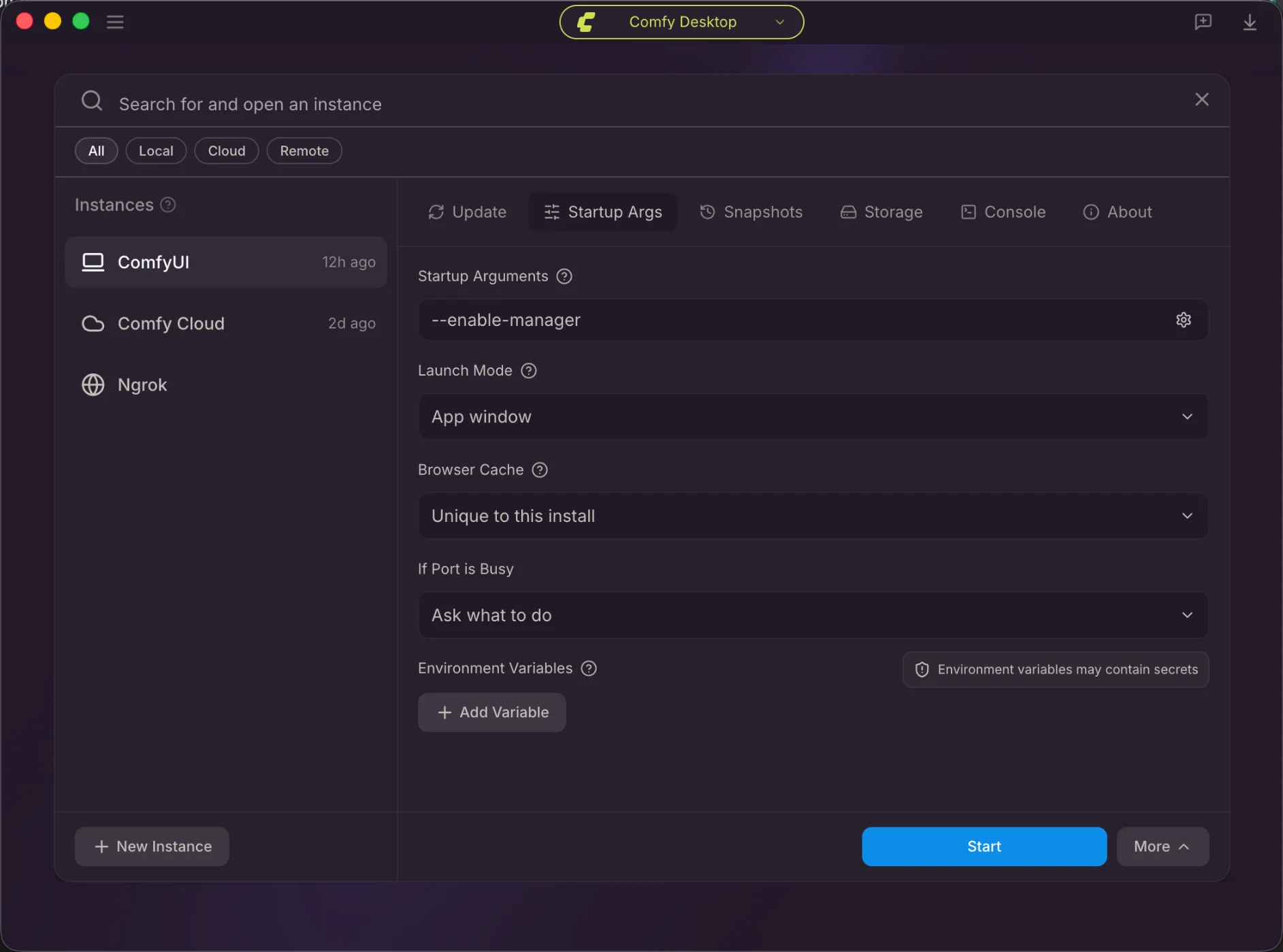 Configure startup CLI arguments, launch mode, browser cache sharing, port conflict behavior, and environment variables.
* **Startup Arguments**:Custom CLI arguments for ComfyUI (e.g., `--enable-manager`). Click the gear icon for options.
* **Launch Mode**:Choose between **App window** (embedded) or **Browser tab**.
* **Browser Cache**:**Unique to this install** or **Shared across instances**.
* **If Port is Busy**:**Ask what to do**, **Auto-select a different port**, or **Fail to launch**.
* **Environment Variables**:Add custom environment variables with the **+ Add Variable** button.
See the full list of ComfyUI startup flags available for Startup Arguments.
### Snapshots Tab
Configure startup CLI arguments, launch mode, browser cache sharing, port conflict behavior, and environment variables.
* **Startup Arguments**:Custom CLI arguments for ComfyUI (e.g., `--enable-manager`). Click the gear icon for options.
* **Launch Mode**:Choose between **App window** (embedded) or **Browser tab**.
* **Browser Cache**:**Unique to this install** or **Shared across instances**.
* **If Port is Busy**:**Ask what to do**, **Auto-select a different port**, or **Fail to launch**.
* **Environment Variables**:Add custom environment variables with the **+ Add Variable** button.
See the full list of ComfyUI startup flags available for Startup Arguments.
### Snapshots Tab
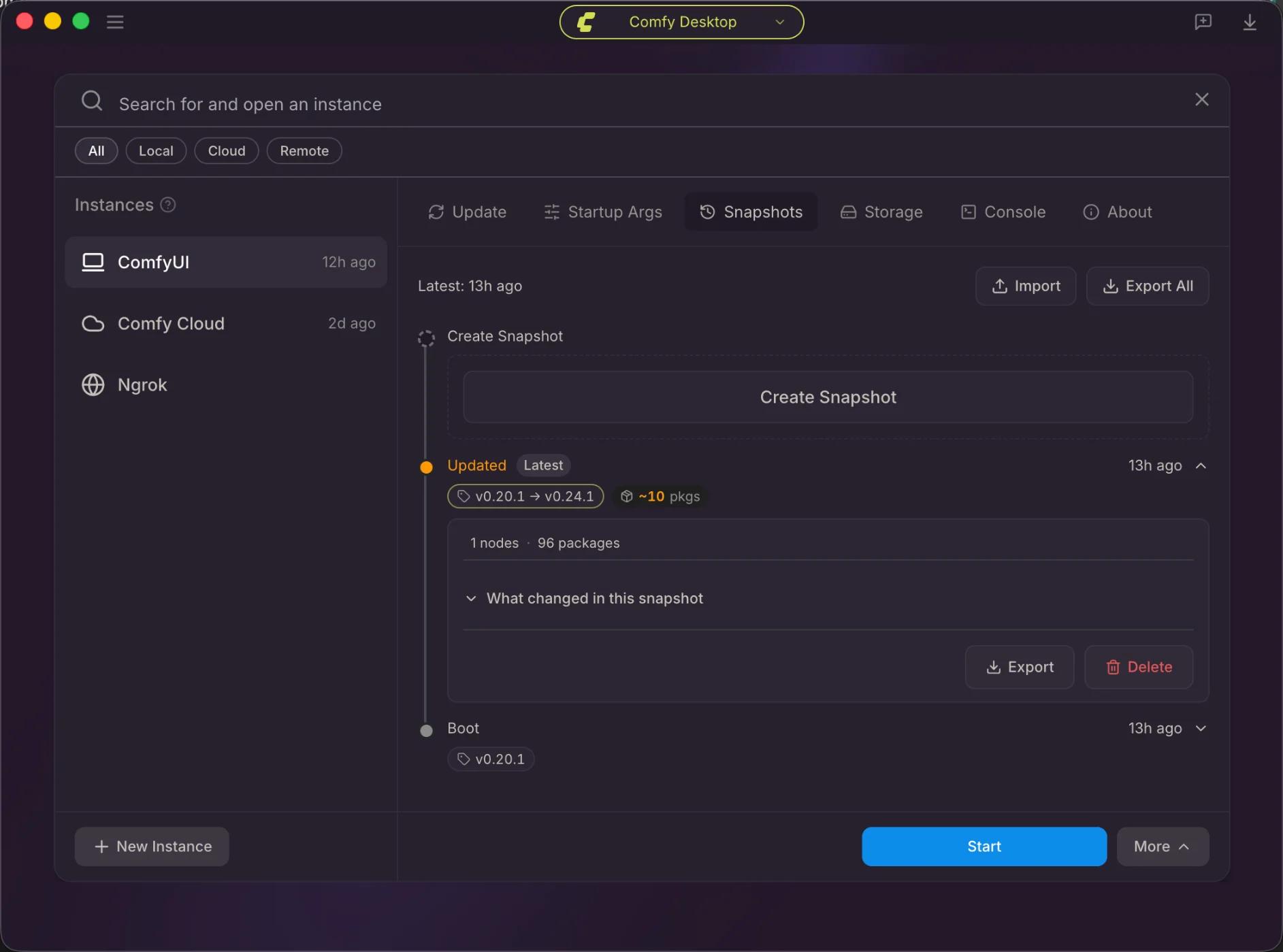 View, import, export, and create snapshots. Each entry shows version changes and package statistics.
* **Timeline**:Lists all snapshots chronologically with version changes and stats.
* **Latest**:Shows when the most recent snapshot was taken.
* **Import**:Import a snapshot from a file.
* **Export All**:Export all snapshots as a backup.
* **Create Snapshot**:Manually create a new snapshot at any time.
* Each snapshot entry shows:
* Version change (e.g., `v0.20.1 → v0.24.1`)
* Package changes
* Node and package counts
* **Export** and **Delete** buttons
Learn about automatic snapshots, comparison, and full snapshot management.
### Storage Tab
View, import, export, and create snapshots. Each entry shows version changes and package statistics.
* **Timeline**:Lists all snapshots chronologically with version changes and stats.
* **Latest**:Shows when the most recent snapshot was taken.
* **Import**:Import a snapshot from a file.
* **Export All**:Export all snapshots as a backup.
* **Create Snapshot**:Manually create a new snapshot at any time.
* Each snapshot entry shows:
* Version change (e.g., `v0.20.1 → v0.24.1`)
* Package changes
* Node and package counts
* **Export** and **Delete** buttons
Learn about automatic snapshots, comparison, and full snapshot management.
### Storage Tab
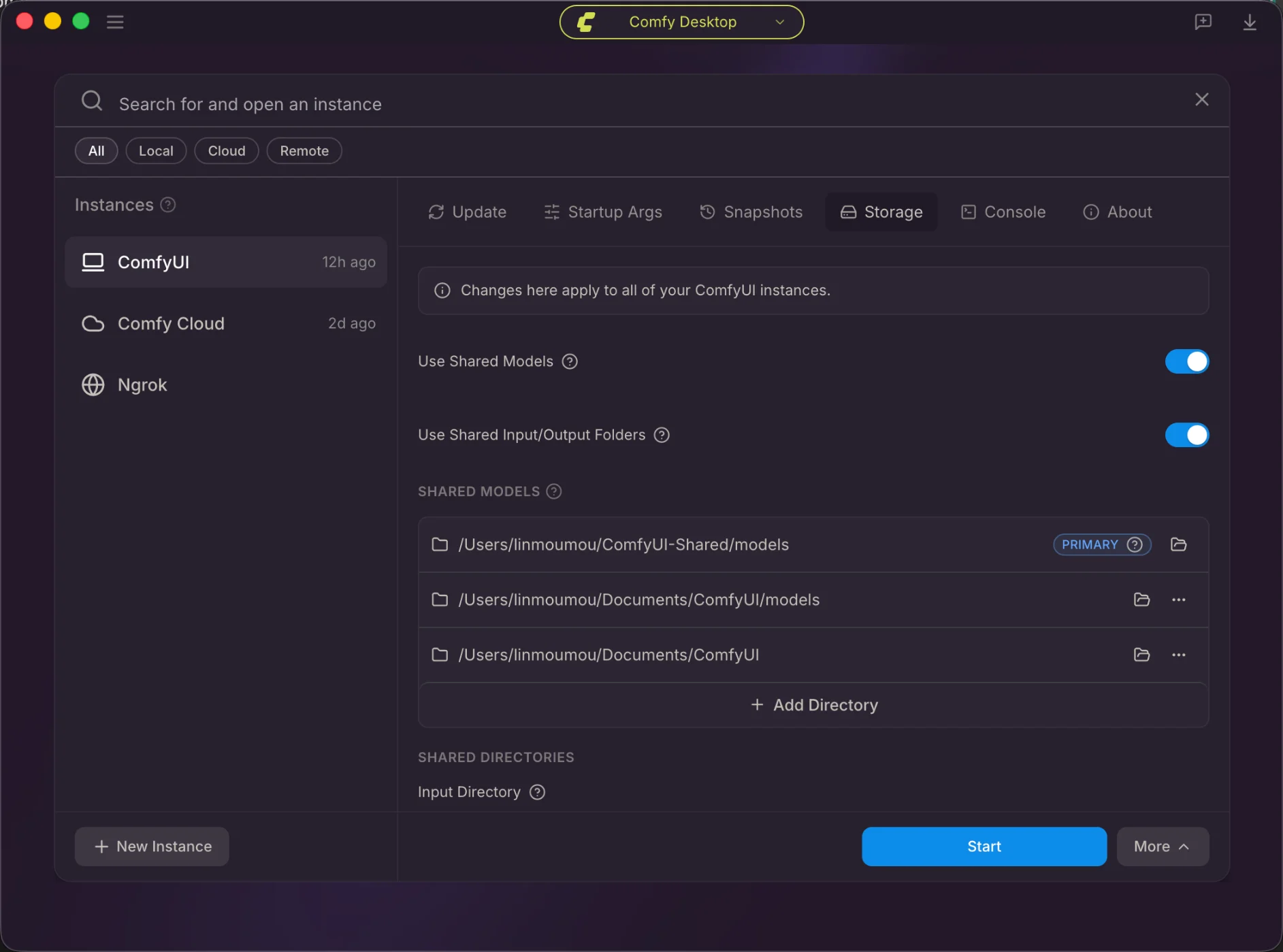 Configure shared model and input/output directory usage, and view the shared models list with Primary directory.
* **Use Shared Models**:Toggle whether this instance uses the shared model directories.
* **Use Shared Input/Output Folders**:Toggle whether this instance uses the shared input/output paths.
* **Shared Models**:Lists all shared model directories. The **Primary** directory is where new models save by default. See [Settings Storage](/installation/desktop/usage/settings#storage) for details.
* **Input Directory**:Where this instance looks for input files.
* **Output Directory**:Where this instance saves generated outputs.
### Console Tab
Configure shared model and input/output directory usage, and view the shared models list with Primary directory.
* **Use Shared Models**:Toggle whether this instance uses the shared model directories.
* **Use Shared Input/Output Folders**:Toggle whether this instance uses the shared input/output paths.
* **Shared Models**:Lists all shared model directories. The **Primary** directory is where new models save by default. See [Settings Storage](/installation/desktop/usage/settings#storage) for details.
* **Input Directory**:Where this instance looks for input files.
* **Output Directory**:Where this instance saves generated outputs.
### Console Tab
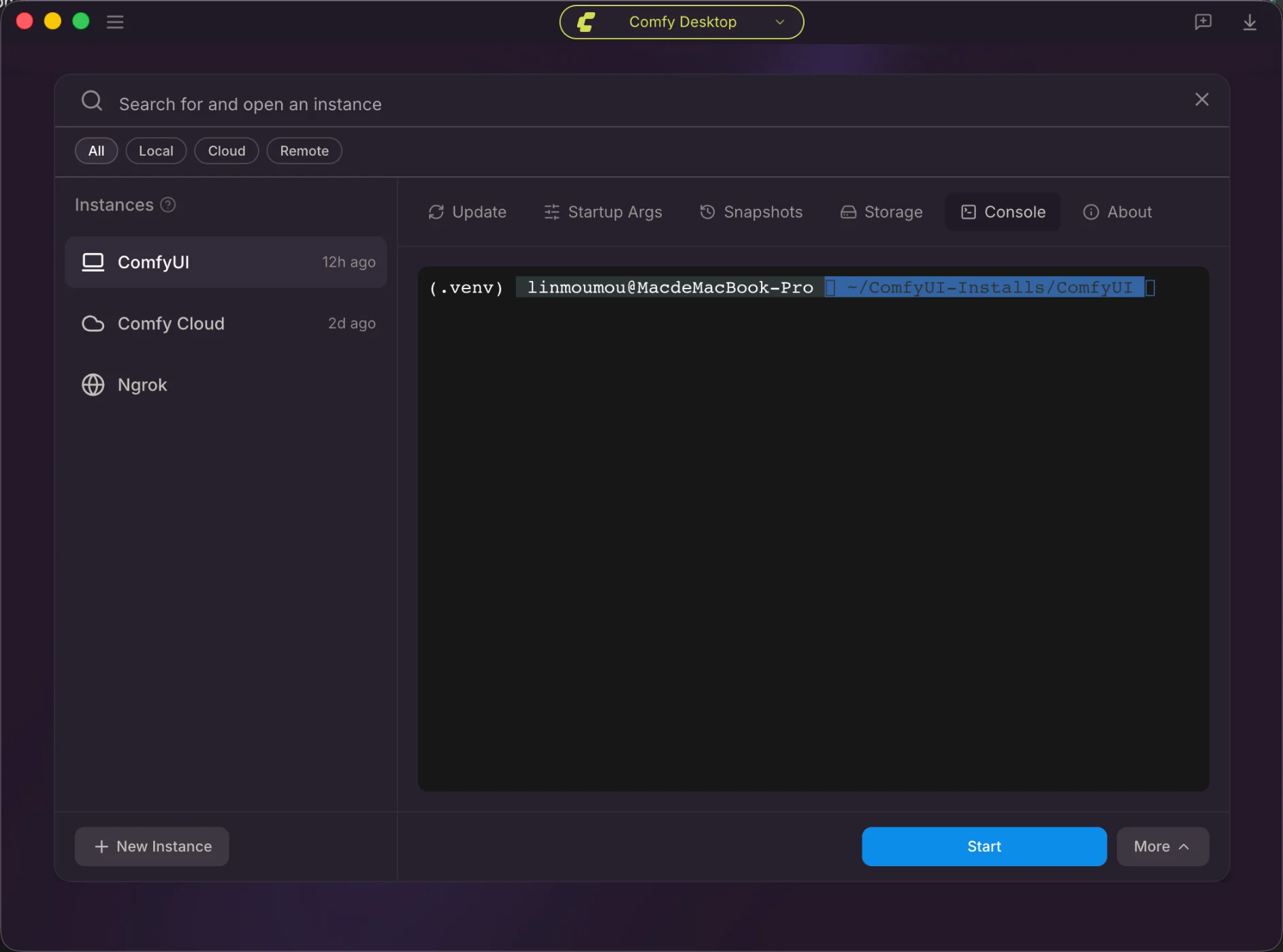 View live terminal output from the ComfyUI backend process, useful for debugging startup logs and errors.
A live terminal showing the ComfyUI backend process output.
* Useful for debugging: you can see startup logs, errors, and Python output in real time.
### About Tab
View live terminal output from the ComfyUI backend process, useful for debugging startup logs and errors.
A live terminal showing the ComfyUI backend process output.
* Useful for debugging: you can see startup logs, errors, and Python output in real time.
### About Tab
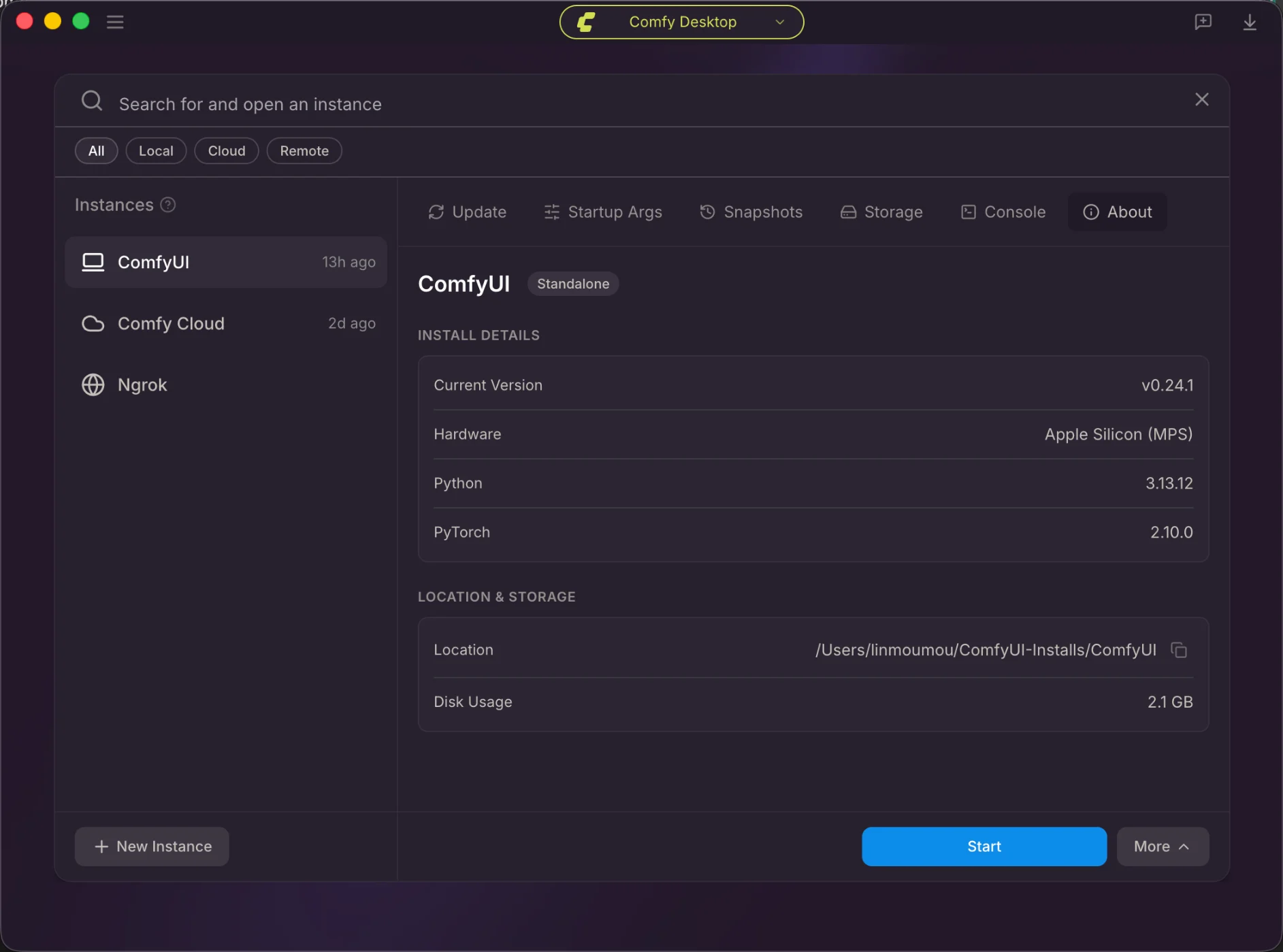 View installation details: ComfyUI version, hardware, Python and PyTorch versions, disk path, and usage.
* **Current Version**:The installed ComfyUI version.
* **Hardware**:Detected hardware (e.g., `Apple Silicon (MPS)`).
* **Python**:Bundled Python version.
* **PyTorch**:Included PyTorch version.
* **Location**:The full installation path on disk. Click the copy button to copy it.
* **Disk Usage**:How much disk space the installation uses.
## Installation Actions
Right-click an installation card (or click the ⋮ icon) to access actions. See the [Instance Management](/installation/desktop/usage/instance-management) page for a full list of actions.
View installation details: ComfyUI version, hardware, Python and PyTorch versions, disk path, and usage.
* **Current Version**:The installed ComfyUI version.
* **Hardware**:Detected hardware (e.g., `Apple Silicon (MPS)`).
* **Python**:Bundled Python version.
* **PyTorch**:Included PyTorch version.
* **Location**:The full installation path on disk. Click the copy button to copy it.
* **Disk Usage**:How much disk space the installation uses.
## Installation Actions
Right-click an installation card (or click the ⋮ icon) to access actions. See the [Instance Management](/installation/desktop/usage/instance-management) page for a full list of actions.