> ## Documentation Index
> Fetch the complete documentation index at: https://docs.comfy.org/llms.txt
> Use this file to discover all available pages before exploring further.
# Using Comfy Desktop
> Overview of Comfy Desktop — creating new installations, managing instances, and more
Comfy Desktop is the official desktop application for **ComfyUI**. It manages everything for you — installing ComfyUI, keeping it updated, and letting you run multiple independent setups side by side.
To understand the relationship: **Comfy Desktop** is the app that manages and launches **ComfyUI** instances. You don't install ComfyUI separately — Comfy Desktop handles the installation, Python environment, and dependencies for each instance automatically.
### Key Features
* **[Multi-instance management](/installation/desktop/usage/instance-management)** — run multiple ComfyUI instances side by side, each with its own version, custom nodes, and configuration
* **[Snapshots](/installation/desktop/usage/manage#snapshots-tab)** — save and restore the full state of an instance (ComfyUI version, custom nodes, Python packages), making it easy to roll back or reproduce an environment
* **[Shared storage](/installation/desktop/usage/settings#storage)** — models are shared across all instances by default, saving disk space. You can also add external model folders
* **[Automatic updates](/installation/desktop/usage/manage#update-tab)** — update Comfy Desktop itself and individual ComfyUI instances independently through the Manage panel
* **Cloud integration** — launch or connect to Comfy Cloud instances directly from the Chooser view
* **[Track existing installations](/installation/desktop/usage/instance-management#tracking-an-existing-installation)** — add your existing portable or git-cloned ComfyUI installations to Comfy Desktop for unified management
This guide covers how to use these features.
## Dashboard Overview
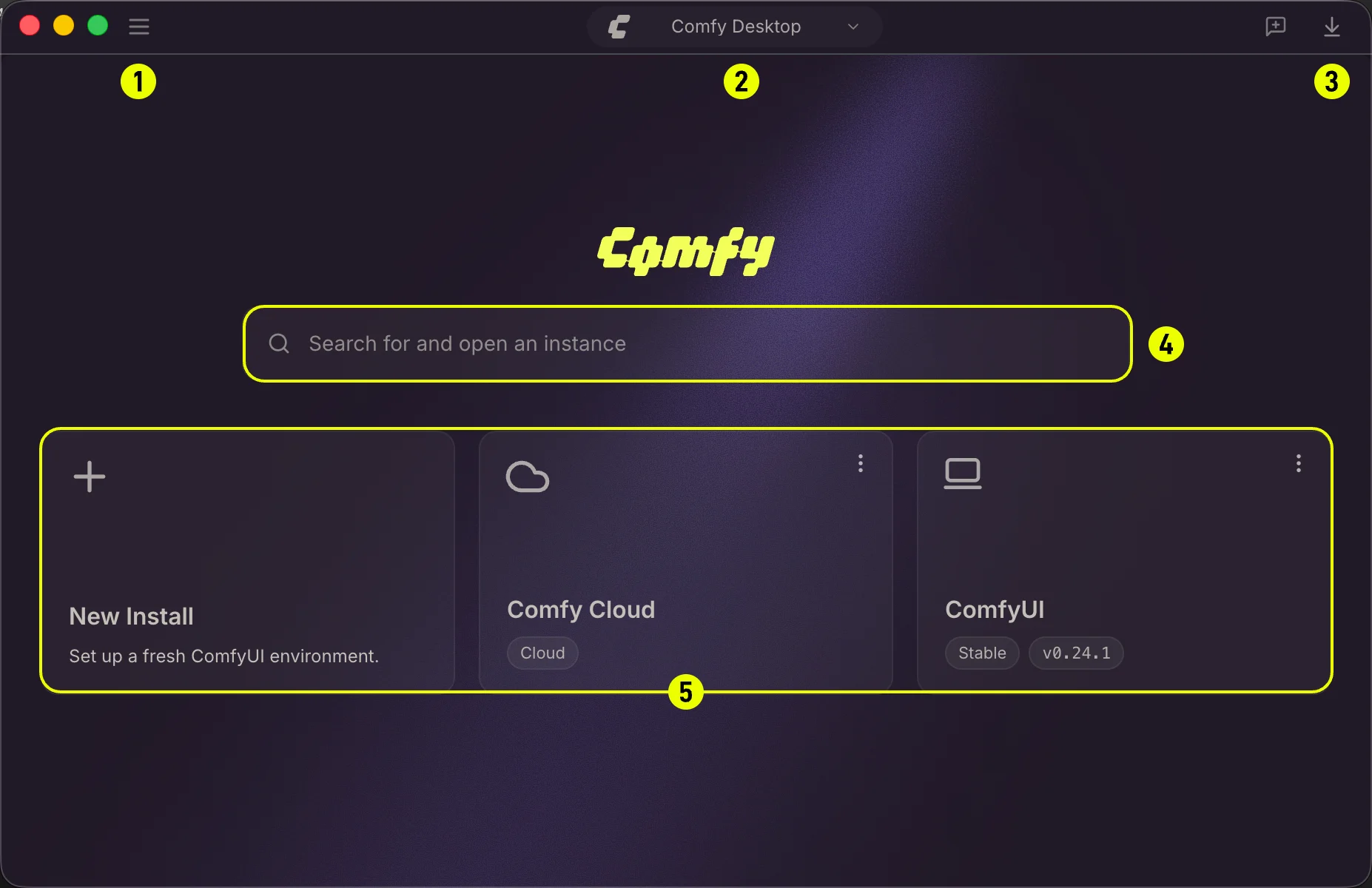
Comfy Desktop window is divided into several key areas. The image below labels the main parts of the Dashboard:
 ### App Menu
The hamburger menu (☰) in the top-left corner opens the application menu (File / Edit / View / Window / Help). Use it to open a new window, access global preferences, quit the app, or find other desktop-level controls.
Global settings: theme, auto-updates, proxy/mirror, and data locations.
### Instance Switcher
The center pill shows the name of your active ComfyUI instance. Click it to open the **Instance Picker**, a popover that lists every installed instance, shows their running status, and lets you switch between them or launch a new one.
Launch, update, snapshot, and configure your installations through the Manage panel.
### Trailing Buttons
The buttons grouped on the right side of the title bar provide quick access to:
* **Desktop Update**:when a new version of Comfy Desktop is available, a pill appears here. Click to download and apply the update.
* **Feedback**:send feedback to the Comfy Desktop team.
* **Downloads**:opens the downloads tray showing active and recent downloads.
### Search
The search box lets you filter your installed instances by name, making it easy to find a specific setup when you have many.
### Chooser (Instance List)
The main area of the Dashboard, called the **Chooser**, displays all your ComfyUI instances as cards. **Click any instance card to launch or switch to that instance.**
From here you can:
* **+ New Install**:create a new standalone ComfyUI instance.
* **Comfy Cloud**:connect to or launch a cloud instance.
* **Existing instance cards**:each card shows the instance name, status, and type. Right-click (or click the ⋮ icon) to manage, update, snapshot, or delete the instance.
Create, rename, edit, and delete ComfyUI instances.
## Feedback and Issues
Found a bug or have a suggestion? Comfy Desktop is open source. You can report issues and check planned features here:
* **Comfy Desktop issues** — [github.com/Comfy-Org/Comfy-Desktop/issues](https://github.com/Comfy-Org/Comfy-Desktop/issues)
* **Documentation issues** — [github.com/Comfy-Org/docs/issues](https://github.com/Comfy-Org/docs/issues)
For general questions about ComfyUI, visit the [ComfyUI GitHub Discussions](https://github.com/Comfy-Org/ComfyUI/discussions) or join the [ComfyUI Discord](https://www.comfy.org/discord).
### App Menu
The hamburger menu (☰) in the top-left corner opens the application menu (File / Edit / View / Window / Help). Use it to open a new window, access global preferences, quit the app, or find other desktop-level controls.
Global settings: theme, auto-updates, proxy/mirror, and data locations.
### Instance Switcher
The center pill shows the name of your active ComfyUI instance. Click it to open the **Instance Picker**, a popover that lists every installed instance, shows their running status, and lets you switch between them or launch a new one.
Launch, update, snapshot, and configure your installations through the Manage panel.
### Trailing Buttons
The buttons grouped on the right side of the title bar provide quick access to:
* **Desktop Update**:when a new version of Comfy Desktop is available, a pill appears here. Click to download and apply the update.
* **Feedback**:send feedback to the Comfy Desktop team.
* **Downloads**:opens the downloads tray showing active and recent downloads.
### Search
The search box lets you filter your installed instances by name, making it easy to find a specific setup when you have many.
### Chooser (Instance List)
The main area of the Dashboard, called the **Chooser**, displays all your ComfyUI instances as cards. **Click any instance card to launch or switch to that instance.**
From here you can:
* **+ New Install**:create a new standalone ComfyUI instance.
* **Comfy Cloud**:connect to or launch a cloud instance.
* **Existing instance cards**:each card shows the instance name, status, and type. Right-click (or click the ⋮ icon) to manage, update, snapshot, or delete the instance.
Create, rename, edit, and delete ComfyUI instances.
## Feedback and Issues
Found a bug or have a suggestion? Comfy Desktop is open source. You can report issues and check planned features here:
* **Comfy Desktop issues** — [github.com/Comfy-Org/Comfy-Desktop/issues](https://github.com/Comfy-Org/Comfy-Desktop/issues)
* **Documentation issues** — [github.com/Comfy-Org/docs/issues](https://github.com/Comfy-Org/docs/issues)
For general questions about ComfyUI, visit the [ComfyUI GitHub Discussions](https://github.com/Comfy-Org/ComfyUI/discussions) or join the [ComfyUI Discord](https://www.comfy.org/discord).