> ## Documentation Index
> Fetch the complete documentation index at: https://docs.comfy.org/llms.txt
> Use this file to discover all available pages before exploring further.
# How to Update ComfyUI
> This section provides a comprehensive guide to updating ComfyUI
While we've covered ComfyUI updates across different installation methods in various sections, this comprehensive guide consolidates all update procedures to help users clearly understand how to update ComfyUI.
## How to Update ComfyUI?
ComfyUI Portable provides convenient batch scripts for easy updates.
### Update Script Location
In the `update` folder within your portable installation directory, you'll find the following update scripts:
```
ComfyUI_windows_portable
└─ 📂update
├── update.py
├── update_comfyui.bat // Update to latest development version
├── update_comfyui_stable.bat // Update to latest stable version
└── update_comfyui_and_python_dependencies.bat // ⚠️ DANGER: Reinstalls dependencies - may cause conflicts
```
Ensure a stable internet connection during updates.
**⚠️ DANGER: Use `update_comfyui_and_python_dependencies.bat` with extreme caution!**
This script is more thorough than regular updates and will:
* ✅ Update ComfyUI code itself
* ✅ Update PyTorch (for NVIDIA GPU CUDA 12.9)
* ✅ Reinstall ALL Python dependencies
**Risks:**
* May cause dependency conflicts with your existing setup
* Can break custom nodes that rely on specific package versions
* May overwrite manually configured packages
**⚠️ Only use this script when:**
* You need to fix dependency issues
* Performing major version updates
* For daily updates, use `update_comfyui.bat` instead
**Before running this script:**
1. **Back up your entire ComfyUI installation**
2. Document any custom package versions you've installed
3. Be prepared to reinstall custom nodes if needed
Comfy Desktop features automatic updates to ensure you're always running the latest version. However, since the Desktop version is built on stable releases, feature updates may lag behind. You can also visit the [download page](https://www.comfy.org/download) to get the latest version.
### Auto-Update Settings
Ensure automatic updates are enabled in your settings:
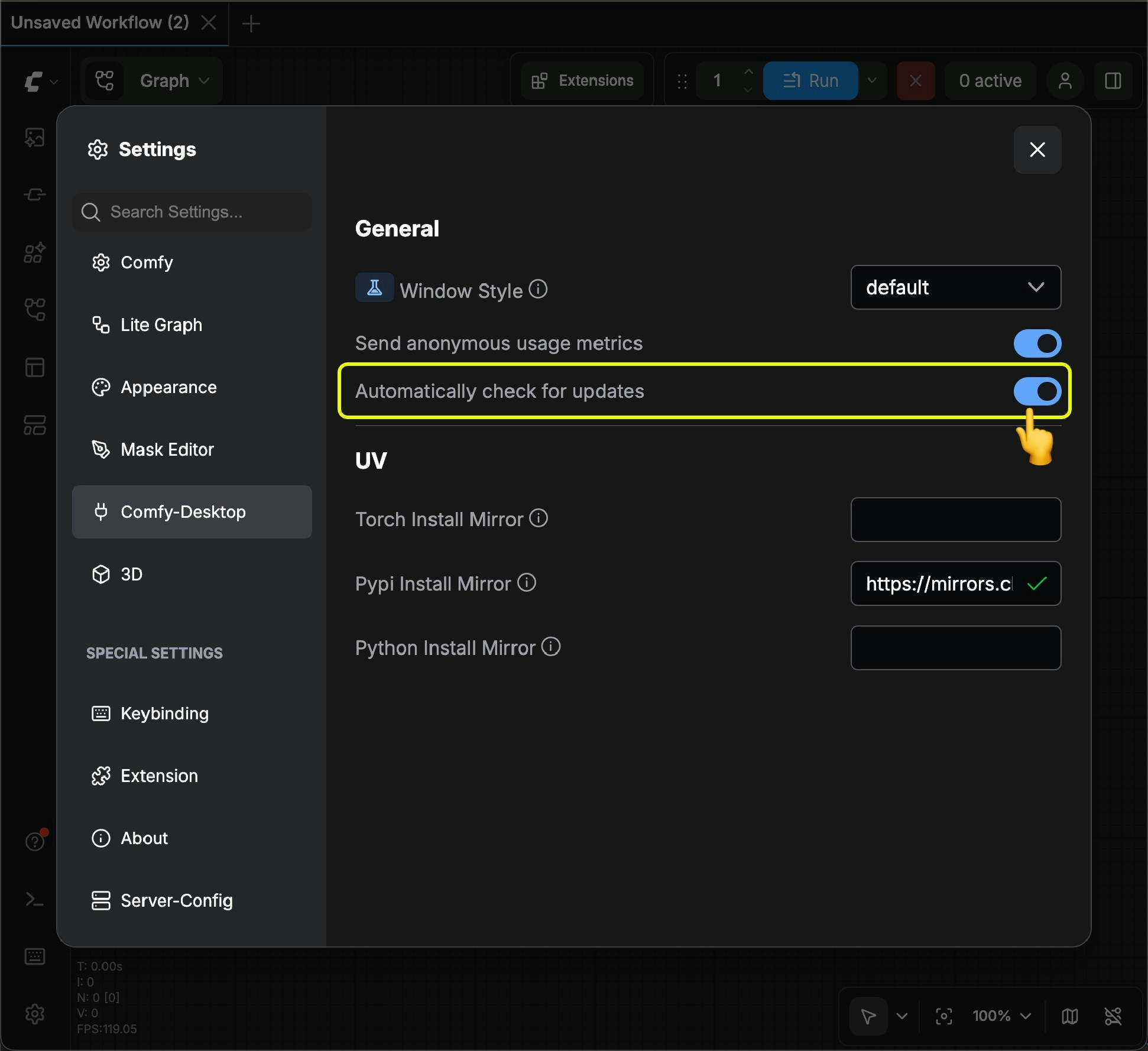 ### Manual Update Check
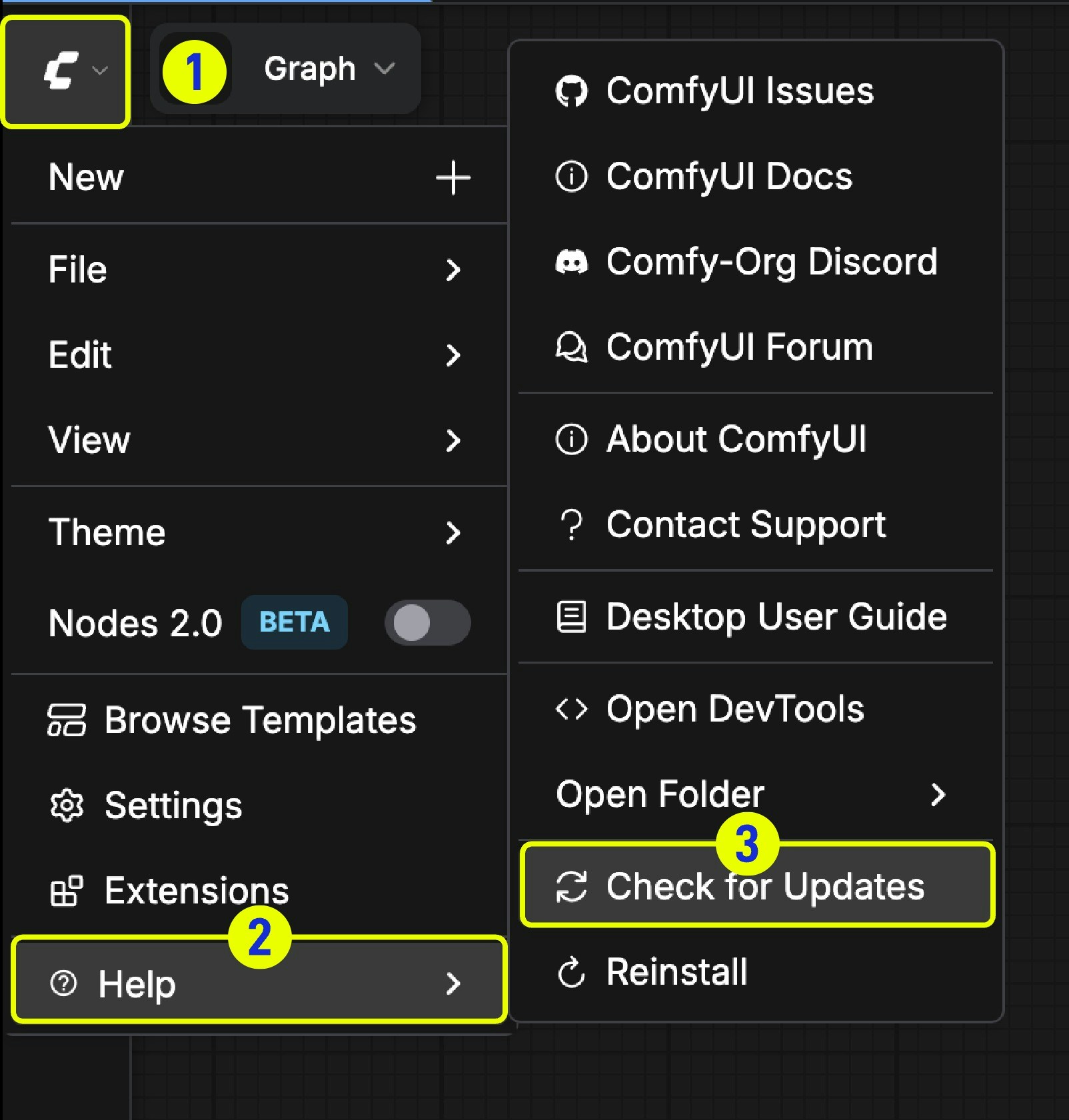
You can also manually check for available updates:
1. Click `Menu` in the menu bar
2. Select `Help`
3. Click `Check for Updates`
### Manual Update Check
You can also manually check for available updates:
1. Click `Menu` in the menu bar
2. Select `Help`
3. Click `Check for Updates`
 Desktop version automatically handles all update processes, including ComfyUI core code and dependency updates
Manually installed ComfyUI requires Git commands to complete updates.
### Pre-Update Requirements
Ensure your system has [Git](https://git-scm.com/downloads) installed and ComfyUI was installed via Git clone.
### Update Steps
First, activate ComfyUI's Python virtual environment (if using one):
```bash theme={null}
# For conda environment
conda activate comfyui
# For venv environment
# Windows
venv\Scripts\activate
# macOS/Linux
source venv/bin/activate
```
Navigate to your ComfyUI installation directory and pull the latest code:
```bash theme={null}
cd
git pull
```
Install or update ComfyUI's dependency packages:
```bash theme={null}
pip install -r requirements.txt
```
Ensure you're in ComfyUI's virtual environment to avoid contaminating the system-level Python environment
After updating, restart ComfyUI:
```bash theme={null}
python main.py
```
### Version Switching (Optional)
To switch to a specific version, use these commands:
```bash theme={null}
# View commit history
git log --oneline
# Switch to specific commit
git checkout
# Return to latest version
git checkout master
```
Regular updates are recommended for the latest features and security fixes, while stable versions are recommended for system stability
## ComfyUI Version Types
Depending on your installation method, ComfyUI offers several installation versions. The links below contain update instructions for each version.
Comfy Desktop currently supports standalone installation for **Windows and MacOS (ARM)**, currently in Beta
* Code is open source on [Github](https://github.com/Comfy-Org/desktop)
Because Desktop is always built based on the **stable release**, so the latest updates may take some time to experience for Desktop, if you want to always experience the latest version, please use the portable version or manual installation
You can choose the appropriate installation for your system and hardware below
Suitable for **Windows** version with **Nvidia** GPU
Suitable for MacOS with **Apple Silicon**
Comfy Desktop **currently has no Linux prebuilds**, please visit the [Manual Installation](/installation/manual_install) section to install ComfyUI
Portable version is a ComfyUI version that integrates an independent embedded Python environment, using the portable version you can experience the latest features, currently only supports **Windows** system
Supports **Windows** ComfyUI version running on **Nvidia GPUs** or **CPU-only**, always use the latest commits and completely portable.
Supports all system types and GPU types (Nvidia, AMD, Intel, Apple Silicon, Ascend NPU, Cambricon MLU)
## What Needs to Be Updated When Updating ComfyUI?
ComfyUI updates primarily consist of two components:
1. Update ComfyUI's core code
2. Update ComfyUI's core dependencies, including necessary Python dependencies and ComfyUI functional dependency packages
**Core Code**: New nodes, new model support, new features, etc.
**Core Dependencies**: Mainly includes ComfyUI's frontend functionality, workflow templates, node help documentation, etc.
```
comfyui-frontend-package # ComfyUI frontend functionality
comfyui-workflow-templates # ComfyUI workflow templates
comfyui-embedded-docs # ComfyUI node help documentation
comfy-kitchen # ComfyUI core utilities
comfy-aimdo # ComfyUI core utilities
```
These core dependencies are maintained in separate repositories:
* [ComfyUI\_frontend](https://github.com/Comfy-Org/ComfyUI_frontend/) - Frontend interface and interactive features
* [workflow\_templates](https://github.com/Comfy-Org/workflow_templates) - Pre-built workflow templates
* [comfyui-embedded-docs](https://github.com/Comfy-Org/embedded-docs) - Node help documentation
* [comfy-kitchen](https://github.com/Comfy-Org/comfy-kitchen) - Fast kernel library for Diffusion inference with multiple compute backends
* [comfy-aimdo](https://github.com/Comfy-Org/comfy-aimdo) - AI Model Demand Offloading Allocator
It's important to understand the difference between development (nightly) and stable (release) versions:
* **Development version (nightly)**: Latest commit code, giving you access to the newest features, but may contain potential issues
* **Stable version (release)**: Built on stable releases, usually lags behind development versions but offers higher stability. We support stable versions after features are tested and stabilized
Many users often find themselves on release versions or desktop versions during updates, but discover that needed features are only available in development versions. In such cases, check if your local `ComfyUI/requirements.txt` matches the [nightly version dependencies](https://github.com/Comfy-Org/ComfyUI/blob/master/requirements.txt) to determine if all dependencies support the latest features.
## Common Update Issues
### Missing or Outdated Frontend, Workflow Templates, Node After Updates
Users often only use the `git pull` command to update ComfyUI code but **neglect core dependency updates**, leading to the following issues:
* Missing or abnormal frontend functionality
* Cannot find newly added workflow templates
* Outdated or missing node help documentation
* New features lack corresponding frontend support
After using the `git pull` command, use the corresponding ComfyUI environment to use `pip install -r requirements.txt` to update dependencies.
If dependency updates fail, it's commonly due to network or computer permission issues. When core dependency failures occur during updates, the system falls back to older versions. You'll typically see logs like this during startup:
```
Falling back to the default frontend.
ComfyUI frontend version: xxx
```
Follow these troubleshooting steps:
1. Use `pip list` in the appropriate environment to view currently installed dependency packages. If you find version inconsistencies, use `pip install -r requirements.txt` in the ComfyUI environment to attempt dependency updates again.
2. If issues persist after updating, check your network connection. Users in mainland China may need to configure a proxy to reliably access GitHub repositories.
3. If problems continue, check computer permissions. If administrator privileges are required, run the command line with administrator rights.
### How to Properly Update Core Dependencies
**Recommended Method**: Use the `ComfyUI_windows_portable\update\update_comfyui.bat` batch script, which will update both ComfyUI code and all Python dependencies.
**Manual Dependency Update**:
If you need to manually update dependencies, use the following command:
```bash theme={null}
# Open command line in portable version directory
.\python_embeded\python.exe -m pip install -r ComfyUI\requirements.txt
```
If you use Conda to manage Python environments, activate your environment first:
```bash theme={null}
conda activate comfyui # or other environment name
```
Navigate to the ComfyUI root directory and update the code using Git:
```
cd
git pull
```
Update ComfyUI dependencies - this step is crucial, especially for the `comfyui-frontend-package`:
```
pip install -r requirements.txt
```
Desktop version usually handles dependency updates automatically. If you encounter issues:
1. **Check if auto-update** is enabled
2. **Manually trigger update**: Menu → Help → Check for Updates
3. **Reinstall desktop version** (in extreme cases)
### Core Dependency Update Troubleshooting
If core dependency updates fail, follow these troubleshooting steps:
If located in mainland China, ensure you can access PyPI or configure a domestic mirror:
```bash theme={null}
# Using Tsinghua University mirror
pip install -r requirements.txt -i https://pypi.tuna.tsinghua.edu.cn/simple
```
If batch installation fails, try installing packages individually. **First check version requirements in `ComfyUI/requirements.txt`**:
**Then install according to specified versions (use version numbers from your requirements.txt):**
```bash theme={null}
pip install comfyui-frontend-package==
pip install comfyui-workflow-templates==
pip install comfyui-embedded-docs==
pip install comfy-kitchen==
pip install comfy-aimdo==
```
It's recommended to use the exact version numbers specified in `ComfyUI/requirements.txt`. Don't upgrade to the latest versions independently, as this may cause compatibility issues.
### Why Can't I Find New Features After Updating?
This is one of the most common issues:
* If you're using the **Desktop version**, features may lag behind because the desktop version is built on stable releases
* Ensure you're using the **development version (nightly)**, not the **stable version (release)**
Additionally, ensure that corresponding dependencies have been successfully updated during the update process. If issues persist after updating, refer to the [Dependency Update Troubleshooting](#dependency-update-troubleshooting) section to diagnose problems.
### How to Switch Between Development (Nightly) and Stable (Release) Versions?
Differences between versions:
* **Characteristics**: Contains the latest commit code
* **Advantages**: Experience the latest features and improvements first
* **Risks**: May contain undiscovered bugs or unstable factors
* **Suitable for**: Developers, testers, users wanting to experience the latest features
* **Characteristics**: Tested and verified stable code
* **Advantages**: High stability, suitable for production environments
* **Disadvantages**: Feature updates have delays, may lag behind development versions by weeks or months
* **Suitable for**: Users requiring stability, production environment users
Use `update_comfyui.bat` instead of `update_comfyui_stable.bat`:
```
# Development version (latest features)
double-click: update_comfyui.bat
# Stable version
double-click: update_comfyui_stable.bat
```
```bash theme={null}
# Switch to development version
git checkout master
git pull
# Switch to latest stable version
git fetch --tags
git checkout $(git describe --tags `git rev-list --tags --max-count=1`)
```
Desktop version is typically built on stable releases and doesn't currently support version switching. If you need the latest features, we recommend:
1. Wait for desktop version updates
2. Or use portable/manual installation to experience the latest features
### What to Do When Errors Occur After Updates?
1. **Check Dependencies**: Run `pip install -r requirements.txt` to ensure all dependencies are updated
2. **Check Custom Nodes**: Some custom nodes may be incompatible with new versions
3. **Roll Back Version**: If issues are severe, you can roll back to a previous stable version
If problems occur, refer to our troubleshooting page for solutions.
Learn how to troubleshoot ComfyUI issues
### How to Stay Updated on New Features?
* **GitHub Releases**: Check [ComfyUI Releases](https://github.com/Comfy-Org/ComfyUI/releases) for stable version updates
* **GitHub Commits**: View [latest commits](https://github.com/Comfy-Org/ComfyUI/commits/master) to understand development progress
* **Community Discussion**: Follow our [blog](https://blog.comfy.org) and [Twitter](https://x.com/comfyui) for the latest updates
Desktop version automatically handles all update processes, including ComfyUI core code and dependency updates
Manually installed ComfyUI requires Git commands to complete updates.
### Pre-Update Requirements
Ensure your system has [Git](https://git-scm.com/downloads) installed and ComfyUI was installed via Git clone.
### Update Steps
First, activate ComfyUI's Python virtual environment (if using one):
```bash theme={null}
# For conda environment
conda activate comfyui
# For venv environment
# Windows
venv\Scripts\activate
# macOS/Linux
source venv/bin/activate
```
Navigate to your ComfyUI installation directory and pull the latest code:
```bash theme={null}
cd
git pull
```
Install or update ComfyUI's dependency packages:
```bash theme={null}
pip install -r requirements.txt
```
Ensure you're in ComfyUI's virtual environment to avoid contaminating the system-level Python environment
After updating, restart ComfyUI:
```bash theme={null}
python main.py
```
### Version Switching (Optional)
To switch to a specific version, use these commands:
```bash theme={null}
# View commit history
git log --oneline
# Switch to specific commit
git checkout
# Return to latest version
git checkout master
```
Regular updates are recommended for the latest features and security fixes, while stable versions are recommended for system stability
## ComfyUI Version Types
Depending on your installation method, ComfyUI offers several installation versions. The links below contain update instructions for each version.
Comfy Desktop currently supports standalone installation for **Windows and MacOS (ARM)**, currently in Beta
* Code is open source on [Github](https://github.com/Comfy-Org/desktop)
Because Desktop is always built based on the **stable release**, so the latest updates may take some time to experience for Desktop, if you want to always experience the latest version, please use the portable version or manual installation
You can choose the appropriate installation for your system and hardware below
Suitable for **Windows** version with **Nvidia** GPU
Suitable for MacOS with **Apple Silicon**
Comfy Desktop **currently has no Linux prebuilds**, please visit the [Manual Installation](/installation/manual_install) section to install ComfyUI
Portable version is a ComfyUI version that integrates an independent embedded Python environment, using the portable version you can experience the latest features, currently only supports **Windows** system
Supports **Windows** ComfyUI version running on **Nvidia GPUs** or **CPU-only**, always use the latest commits and completely portable.
Supports all system types and GPU types (Nvidia, AMD, Intel, Apple Silicon, Ascend NPU, Cambricon MLU)
## What Needs to Be Updated When Updating ComfyUI?
ComfyUI updates primarily consist of two components:
1. Update ComfyUI's core code
2. Update ComfyUI's core dependencies, including necessary Python dependencies and ComfyUI functional dependency packages
**Core Code**: New nodes, new model support, new features, etc.
**Core Dependencies**: Mainly includes ComfyUI's frontend functionality, workflow templates, node help documentation, etc.
```
comfyui-frontend-package # ComfyUI frontend functionality
comfyui-workflow-templates # ComfyUI workflow templates
comfyui-embedded-docs # ComfyUI node help documentation
comfy-kitchen # ComfyUI core utilities
comfy-aimdo # ComfyUI core utilities
```
These core dependencies are maintained in separate repositories:
* [ComfyUI\_frontend](https://github.com/Comfy-Org/ComfyUI_frontend/) - Frontend interface and interactive features
* [workflow\_templates](https://github.com/Comfy-Org/workflow_templates) - Pre-built workflow templates
* [comfyui-embedded-docs](https://github.com/Comfy-Org/embedded-docs) - Node help documentation
* [comfy-kitchen](https://github.com/Comfy-Org/comfy-kitchen) - Fast kernel library for Diffusion inference with multiple compute backends
* [comfy-aimdo](https://github.com/Comfy-Org/comfy-aimdo) - AI Model Demand Offloading Allocator
It's important to understand the difference between development (nightly) and stable (release) versions:
* **Development version (nightly)**: Latest commit code, giving you access to the newest features, but may contain potential issues
* **Stable version (release)**: Built on stable releases, usually lags behind development versions but offers higher stability. We support stable versions after features are tested and stabilized
Many users often find themselves on release versions or desktop versions during updates, but discover that needed features are only available in development versions. In such cases, check if your local `ComfyUI/requirements.txt` matches the [nightly version dependencies](https://github.com/Comfy-Org/ComfyUI/blob/master/requirements.txt) to determine if all dependencies support the latest features.
## Common Update Issues
### Missing or Outdated Frontend, Workflow Templates, Node After Updates
Users often only use the `git pull` command to update ComfyUI code but **neglect core dependency updates**, leading to the following issues:
* Missing or abnormal frontend functionality
* Cannot find newly added workflow templates
* Outdated or missing node help documentation
* New features lack corresponding frontend support
After using the `git pull` command, use the corresponding ComfyUI environment to use `pip install -r requirements.txt` to update dependencies.
If dependency updates fail, it's commonly due to network or computer permission issues. When core dependency failures occur during updates, the system falls back to older versions. You'll typically see logs like this during startup:
```
Falling back to the default frontend.
ComfyUI frontend version: xxx
```
Follow these troubleshooting steps:
1. Use `pip list` in the appropriate environment to view currently installed dependency packages. If you find version inconsistencies, use `pip install -r requirements.txt` in the ComfyUI environment to attempt dependency updates again.
2. If issues persist after updating, check your network connection. Users in mainland China may need to configure a proxy to reliably access GitHub repositories.
3. If problems continue, check computer permissions. If administrator privileges are required, run the command line with administrator rights.
### How to Properly Update Core Dependencies
**Recommended Method**: Use the `ComfyUI_windows_portable\update\update_comfyui.bat` batch script, which will update both ComfyUI code and all Python dependencies.
**Manual Dependency Update**:
If you need to manually update dependencies, use the following command:
```bash theme={null}
# Open command line in portable version directory
.\python_embeded\python.exe -m pip install -r ComfyUI\requirements.txt
```
If you use Conda to manage Python environments, activate your environment first:
```bash theme={null}
conda activate comfyui # or other environment name
```
Navigate to the ComfyUI root directory and update the code using Git:
```
cd
git pull
```
Update ComfyUI dependencies - this step is crucial, especially for the `comfyui-frontend-package`:
```
pip install -r requirements.txt
```
Desktop version usually handles dependency updates automatically. If you encounter issues:
1. **Check if auto-update** is enabled
2. **Manually trigger update**: Menu → Help → Check for Updates
3. **Reinstall desktop version** (in extreme cases)
### Core Dependency Update Troubleshooting
If core dependency updates fail, follow these troubleshooting steps:
If located in mainland China, ensure you can access PyPI or configure a domestic mirror:
```bash theme={null}
# Using Tsinghua University mirror
pip install -r requirements.txt -i https://pypi.tuna.tsinghua.edu.cn/simple
```
If batch installation fails, try installing packages individually. **First check version requirements in `ComfyUI/requirements.txt`**:
**Then install according to specified versions (use version numbers from your requirements.txt):**
```bash theme={null}
pip install comfyui-frontend-package==
pip install comfyui-workflow-templates==
pip install comfyui-embedded-docs==
pip install comfy-kitchen==
pip install comfy-aimdo==
```
It's recommended to use the exact version numbers specified in `ComfyUI/requirements.txt`. Don't upgrade to the latest versions independently, as this may cause compatibility issues.
### Why Can't I Find New Features After Updating?
This is one of the most common issues:
* If you're using the **Desktop version**, features may lag behind because the desktop version is built on stable releases
* Ensure you're using the **development version (nightly)**, not the **stable version (release)**
Additionally, ensure that corresponding dependencies have been successfully updated during the update process. If issues persist after updating, refer to the [Dependency Update Troubleshooting](#dependency-update-troubleshooting) section to diagnose problems.
### How to Switch Between Development (Nightly) and Stable (Release) Versions?
Differences between versions:
* **Characteristics**: Contains the latest commit code
* **Advantages**: Experience the latest features and improvements first
* **Risks**: May contain undiscovered bugs or unstable factors
* **Suitable for**: Developers, testers, users wanting to experience the latest features
* **Characteristics**: Tested and verified stable code
* **Advantages**: High stability, suitable for production environments
* **Disadvantages**: Feature updates have delays, may lag behind development versions by weeks or months
* **Suitable for**: Users requiring stability, production environment users
Use `update_comfyui.bat` instead of `update_comfyui_stable.bat`:
```
# Development version (latest features)
double-click: update_comfyui.bat
# Stable version
double-click: update_comfyui_stable.bat
```
```bash theme={null}
# Switch to development version
git checkout master
git pull
# Switch to latest stable version
git fetch --tags
git checkout $(git describe --tags `git rev-list --tags --max-count=1`)
```
Desktop version is typically built on stable releases and doesn't currently support version switching. If you need the latest features, we recommend:
1. Wait for desktop version updates
2. Or use portable/manual installation to experience the latest features
### What to Do When Errors Occur After Updates?
1. **Check Dependencies**: Run `pip install -r requirements.txt` to ensure all dependencies are updated
2. **Check Custom Nodes**: Some custom nodes may be incompatible with new versions
3. **Roll Back Version**: If issues are severe, you can roll back to a previous stable version
If problems occur, refer to our troubleshooting page for solutions.
Learn how to troubleshoot ComfyUI issues
### How to Stay Updated on New Features?
* **GitHub Releases**: Check [ComfyUI Releases](https://github.com/Comfy-Org/ComfyUI/releases) for stable version updates
* **GitHub Commits**: View [latest commits](https://github.com/Comfy-Org/ComfyUI/commits/master) to understand development progress
* **Community Discussion**: Follow our [blog](https://blog.comfy.org) and [Twitter](https://x.com/comfyui) for the latest updates