> ## Documentation Index
> Fetch the complete documentation index at: https://docs.comfy.org/llms.txt
> Use this file to discover all available pages before exploring further.
# Canvas Controls - Minimap, Zoom, and Focus Mode
> Use ComfyUI canvas controls and the View menu for minimap, link visibility, canvas info, zoom, fit view, Select/Hand modes, and Focus Mode.
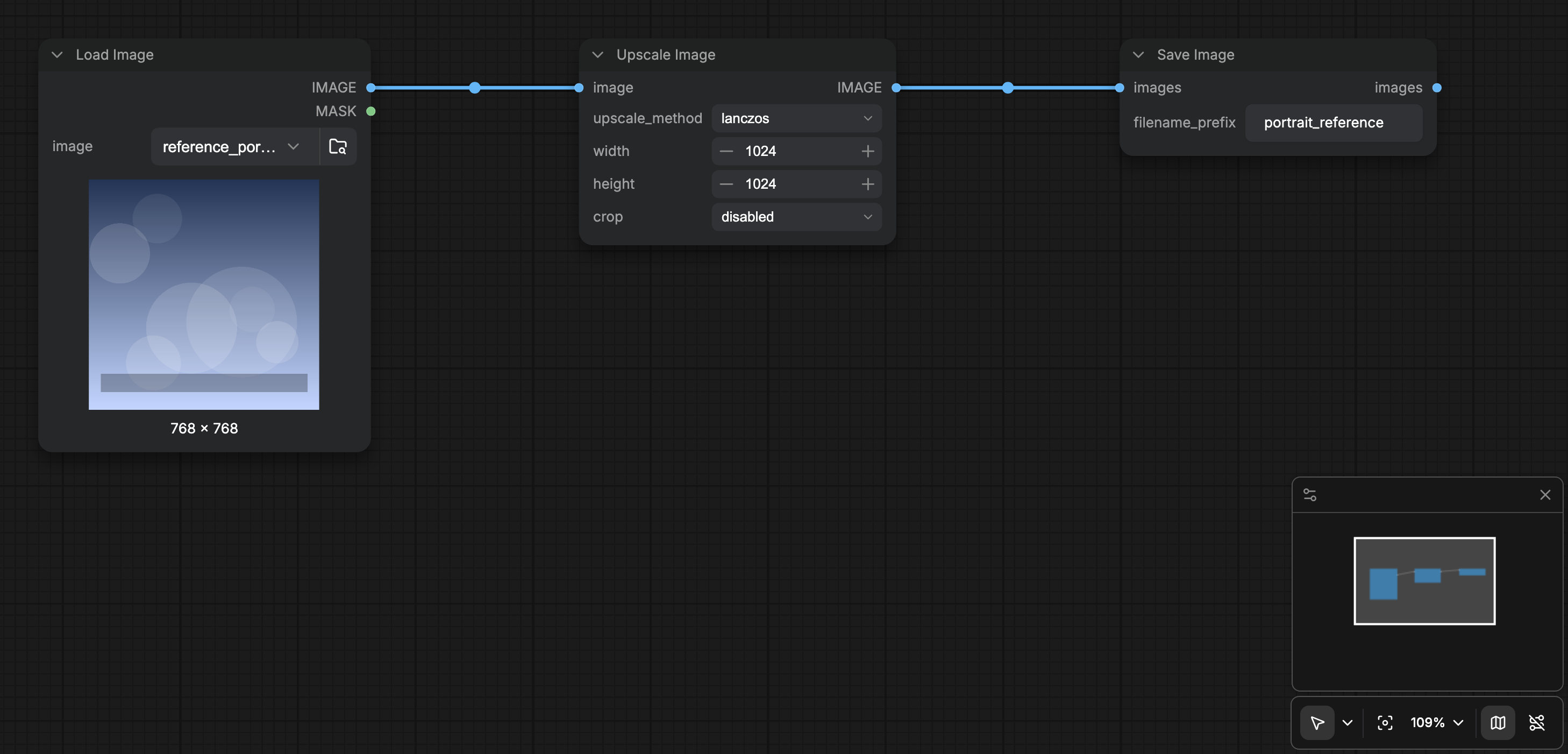
The bottom-right canvas toolbar and the **View** menu control how you move around the graph. Core View commands include toggle bottom panel, browse templates, **Focus Mode**, canvas performance info, minimap, link visibility, zoom in/out, and fit view.
 ## Canvas toolbar
When **Show graph canvas menu** (`Comfy.Graph.CanvasMenu`) is on (default), a floating toolbar sits at the bottom-right of the canvas:
| Control | What it does |
| - | - |
| **Canvas mode** | Menu to switch between **Select** (edit nodes) and **Hand** (pan-only / read-only canvas). Defaults: `v` unlocks Select, `h` locks Hand. |
| **Fit view** | Frames the graph in the viewport (`Comfy.Canvas.FitView`, default `.`). |
| **Zoom** | Opens a popover with Zoom in, Zoom out, Zoom to fit, and a percentage field (1-1000%). Default shortcuts include `Alt` + `=` / `Alt` + `-` for zoom in/out. |
| **Minimap** | Toggles the overview map (`Comfy.Canvas.ToggleMinimap`, default `Alt` + `Shift` + `M`). Persisted as `Comfy.Minimap.Visible`. |
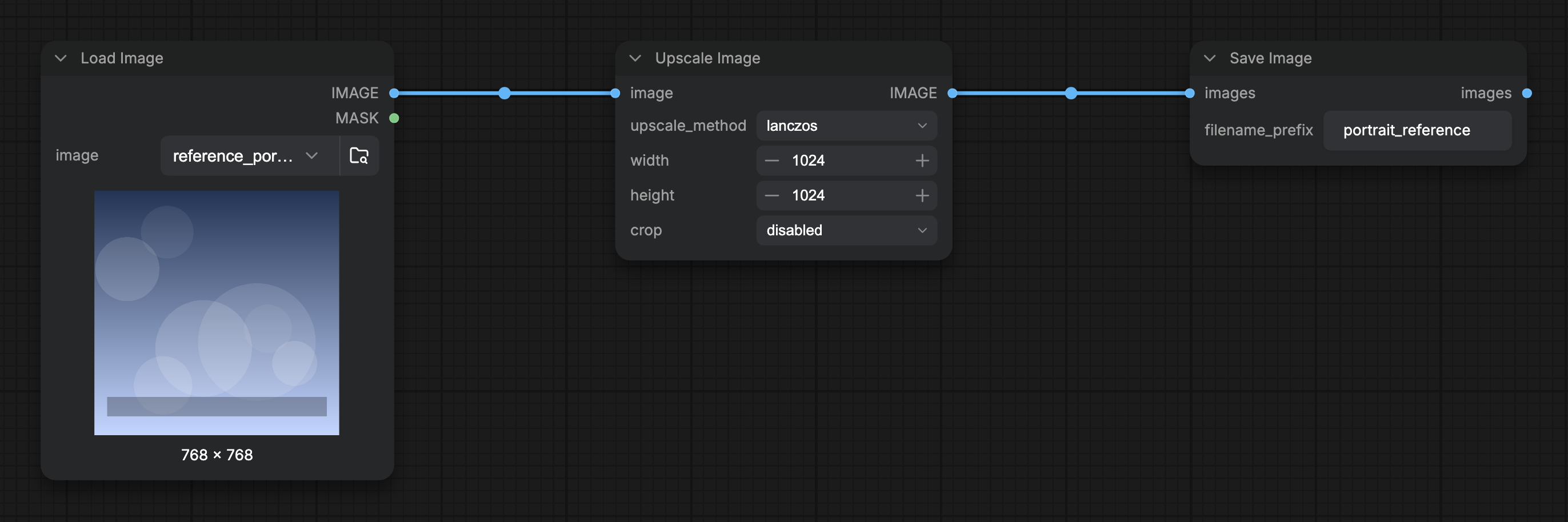
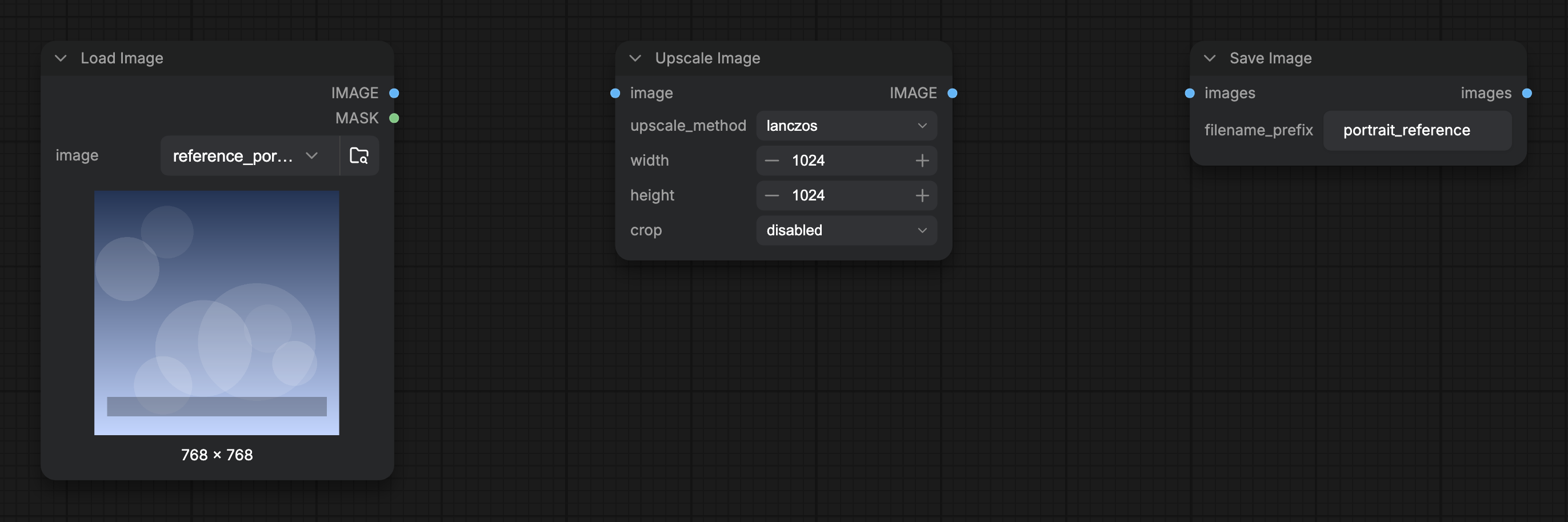
| **Link visibility** | Hides or shows connection wires by toggling hidden link render mode (`Comfy.Canvas.ToggleLinkVisibility`). |
You can hide the whole toolbar with **Show graph canvas menu** in Lite Graph / Canvas settings.
## View menu
The **View** menu registers the same navigation commands so you can run them from the menu bar or the command palette:
* Toggle Bottom Panel
* Browse Templates
* Focus Mode
* Canvas Performance (`Comfy.ToggleCanvasInfo`, toggles `Comfy.Graph.CanvasInfo`)
* Toggle Minimap
* Toggle Link Visibility
* Zoom In / Zoom Out / Fit View
## Focus Mode
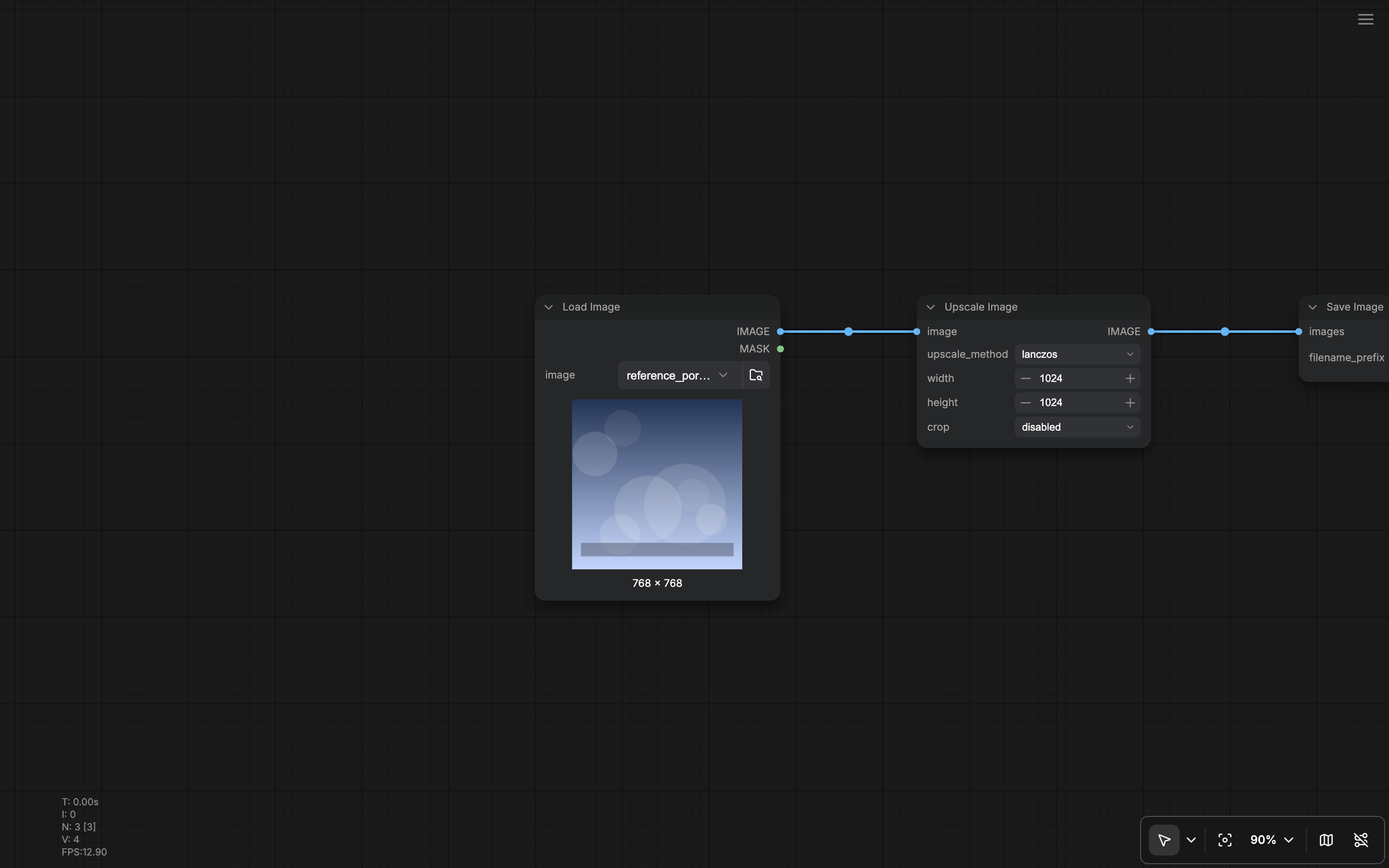
**Focus Mode** (`Workspace.ToggleFocusMode`) hides workspace chrome so you can concentrate on the graph. While it is on:
* The top menu section is hidden (new menu).
* Left/right sidebar panels and the bottom panel are not rendered in the splitter layout.
* A hamburger control appears so you can exit Focus Mode (**Show menu**).
Toggle Focus Mode again, or use the hamburger control, to restore the full workspace.
## Minimap options
Beyond show/hide, Settings under Minimap control what the map draws (node colors, links, groups, bypass state, error state). See [Lite Graph settings](/interface/settings/lite-graph) and related Appearance entries when present.
## Links and canvas globals
Link shape and whether connected links are shown are also available as quick toggles in the [Right Side Panel](/interface/right-side-panel) **Global Settings** when nothing is selected, and in full under Lite Graph settings (`Comfy.LinkRenderMode` and related options). Grid spacing and snap-to-grid live in the same Global Settings / Lite Graph areas.
## Related pages
* [Interface Overview](/interface/overview)
* [Shortcuts](/interface/shortcuts)
* [Lite Graph settings](/interface/settings/lite-graph)
* [Right Side Panel](/interface/right-side-panel) (Global Settings quick toggles)
* [Bottom Panel](/interface/bottom-panel)
This documentation is built and hosted on [Mintlify](https://mintlify.com), a developer documentation platform.
## Canvas toolbar
When **Show graph canvas menu** (`Comfy.Graph.CanvasMenu`) is on (default), a floating toolbar sits at the bottom-right of the canvas:
| Control | What it does |
| - | - |
| **Canvas mode** | Menu to switch between **Select** (edit nodes) and **Hand** (pan-only / read-only canvas). Defaults: `v` unlocks Select, `h` locks Hand. |
| **Fit view** | Frames the graph in the viewport (`Comfy.Canvas.FitView`, default `.`). |
| **Zoom** | Opens a popover with Zoom in, Zoom out, Zoom to fit, and a percentage field (1-1000%). Default shortcuts include `Alt` + `=` / `Alt` + `-` for zoom in/out. |
| **Minimap** | Toggles the overview map (`Comfy.Canvas.ToggleMinimap`, default `Alt` + `Shift` + `M`). Persisted as `Comfy.Minimap.Visible`. |
| **Link visibility** | Hides or shows connection wires by toggling hidden link render mode (`Comfy.Canvas.ToggleLinkVisibility`). |
You can hide the whole toolbar with **Show graph canvas menu** in Lite Graph / Canvas settings.
## View menu
The **View** menu registers the same navigation commands so you can run them from the menu bar or the command palette:
* Toggle Bottom Panel
* Browse Templates
* Focus Mode
* Canvas Performance (`Comfy.ToggleCanvasInfo`, toggles `Comfy.Graph.CanvasInfo`)
* Toggle Minimap
* Toggle Link Visibility
* Zoom In / Zoom Out / Fit View
## Focus Mode
**Focus Mode** (`Workspace.ToggleFocusMode`) hides workspace chrome so you can concentrate on the graph. While it is on:
* The top menu section is hidden (new menu).
* Left/right sidebar panels and the bottom panel are not rendered in the splitter layout.
* A hamburger control appears so you can exit Focus Mode (**Show menu**).
Toggle Focus Mode again, or use the hamburger control, to restore the full workspace.
## Minimap options
Beyond show/hide, Settings under Minimap control what the map draws (node colors, links, groups, bypass state, error state). See [Lite Graph settings](/interface/settings/lite-graph) and related Appearance entries when present.
## Links and canvas globals
Link shape and whether connected links are shown are also available as quick toggles in the [Right Side Panel](/interface/right-side-panel) **Global Settings** when nothing is selected, and in full under Lite Graph settings (`Comfy.LinkRenderMode` and related options). Grid spacing and snap-to-grid live in the same Global Settings / Lite Graph areas.
## Related pages
* [Interface Overview](/interface/overview)
* [Shortcuts](/interface/shortcuts)
* [Lite Graph settings](/interface/settings/lite-graph)
* [Right Side Panel](/interface/right-side-panel) (Global Settings quick toggles)
* [Bottom Panel](/interface/bottom-panel)
This documentation is built and hosted on [Mintlify](https://mintlify.com), a developer documentation platform.