> ## Documentation Index
> Fetch the complete documentation index at: https://docs.comfy.org/llms.txt
> Use this file to discover all available pages before exploring further.
# Job History - Queue and Past Runs
> When Comfy.Queue.QPOV2 is on, the Job History sidebar shows active and past ComfyUI jobs with status badges, filters, and job actions.
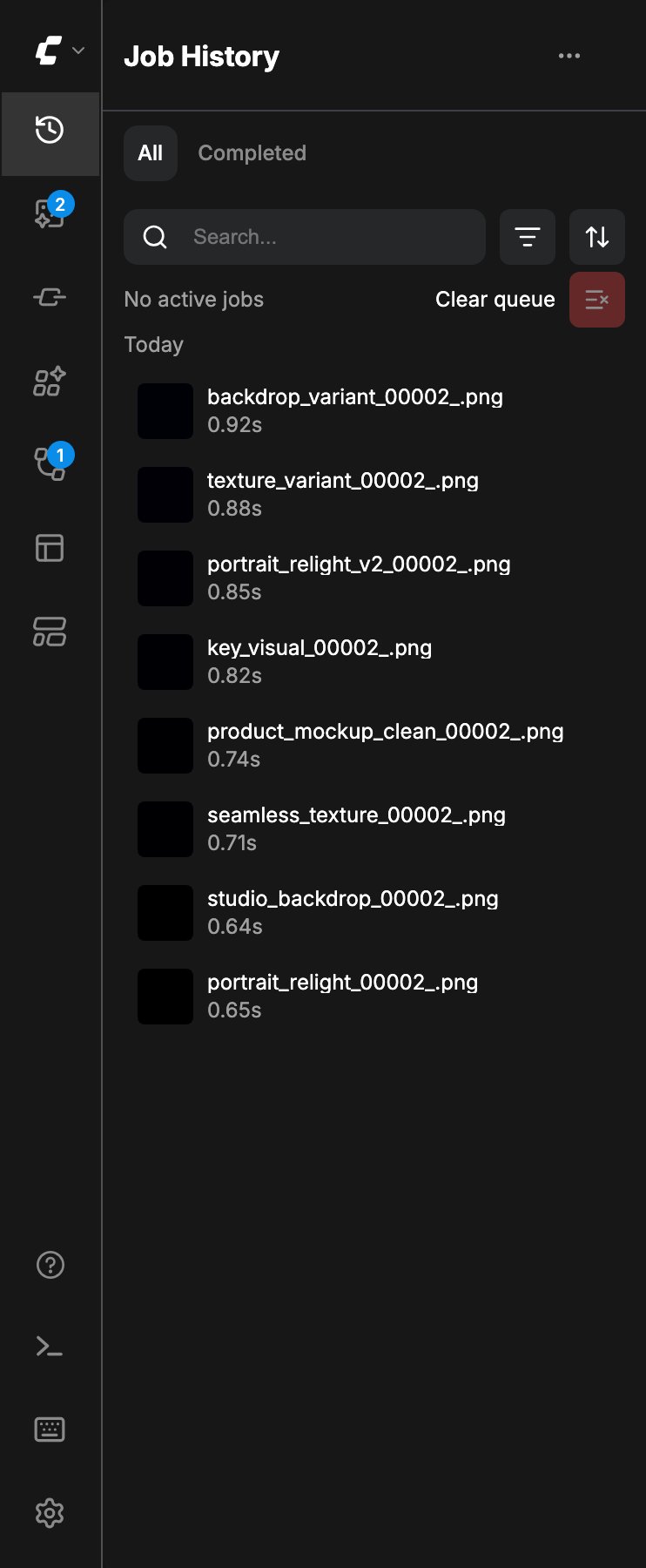
**Job History** is a left-sidebar tab that appears when the setting **Docked job history/queue panel** (`Comfy.Queue.QPOV2`) is enabled. The frontend registers it at the **top** of the sidebar (`prepend`) so you can watch active jobs and browse past runs without using the floating queue overlay.
When the setting is off, the tab is removed and the floating job-history overlay remains available instead (`Comfy.Queue.ToggleOverlay`). Run / queue controls in the top header still start jobs either way. This page is about the **sidebar** Job History surface.
 ## Turn Job History on
1. Open **Settings**.
2. Under `Comfy` → `Queue` → `Layout`, enable **Docked job history/queue panel** (`Comfy.Queue.QPOV2`).
3. The **Job History** icon appears at the top of the left sidebar.
The setting is experimental. On nightly builds it defaults to on; on other builds check the setting if you do not see the tab.
## Opening the panel
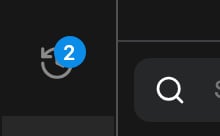
Click the **Job History** icon. While jobs are running or queued and this tab is **not** active, the icon shows a numeric badge with the active job count. Opening the tab clears the badge display for that view.
## Tabs: All, Completed, Failed
The panel header has status tabs:
* **All**: every job in history for the current filters.
* **Completed**: finished runs.
* **Failed**: only appears when at least one failed job exists in the list.
Below the tabs, a summary line shows how many jobs are running and queued (or that there are no active jobs). A **Clear queue** control cancels all pending (queued, not yet running) jobs.
## Search, filter, and sort
Use the header tools to narrow the list:
* **Search**: filter jobs by text.
* **Filter**: **All workflows** or **Current workflow**.
* **Sort**: **Most recent** or **Total generation time**.
## Job list and actions
Jobs are listed with status, progress when running, and preview thumbnails when outputs exist. From a job row or its context menu you can:
**Running or queued**
* Open as workflow in a new tab
* Copy job ID
* Cancel job
**Completed**
* Inspect asset (when a preview exists)
* Add the output to the current workflow as a loader node
* Download the preview asset
* Open as workflow in a new tab
* Export workflow
* Copy job ID
**Failed**
* Open workflow in a new tab
* Copy job ID
* Copy error message
* Report error
* Remove job from the history list
The header actions menu includes **Clear history**, which opens a confirmation dialog. Clearing history removes queue history entries; read the dialog note about how that relates to stored assets on your install.
## How this relates to Assets and Errors
Outputs from completed runs also appear in [Assets](/interface/assets) when the assets system is enabled. Workflow failures and missing resources are listed in the [Right Side Panel](/interface/right-side-panel) **Errors** tab while you fix the graph.
## Related pages
* [Interface Overview](/interface/overview)
* [Assets](/interface/assets)
* [Right Side Panel](/interface/right-side-panel)
* [Comfy settings](/interface/settings/comfy)
This documentation is built and hosted on [Mintlify](https://mintlify.com), a developer documentation platform.
## Turn Job History on
1. Open **Settings**.
2. Under `Comfy` → `Queue` → `Layout`, enable **Docked job history/queue panel** (`Comfy.Queue.QPOV2`).
3. The **Job History** icon appears at the top of the left sidebar.
The setting is experimental. On nightly builds it defaults to on; on other builds check the setting if you do not see the tab.
## Opening the panel
Click the **Job History** icon. While jobs are running or queued and this tab is **not** active, the icon shows a numeric badge with the active job count. Opening the tab clears the badge display for that view.
## Tabs: All, Completed, Failed
The panel header has status tabs:
* **All**: every job in history for the current filters.
* **Completed**: finished runs.
* **Failed**: only appears when at least one failed job exists in the list.
Below the tabs, a summary line shows how many jobs are running and queued (or that there are no active jobs). A **Clear queue** control cancels all pending (queued, not yet running) jobs.
## Search, filter, and sort
Use the header tools to narrow the list:
* **Search**: filter jobs by text.
* **Filter**: **All workflows** or **Current workflow**.
* **Sort**: **Most recent** or **Total generation time**.
## Job list and actions
Jobs are listed with status, progress when running, and preview thumbnails when outputs exist. From a job row or its context menu you can:
**Running or queued**
* Open as workflow in a new tab
* Copy job ID
* Cancel job
**Completed**
* Inspect asset (when a preview exists)
* Add the output to the current workflow as a loader node
* Download the preview asset
* Open as workflow in a new tab
* Export workflow
* Copy job ID
**Failed**
* Open workflow in a new tab
* Copy job ID
* Copy error message
* Report error
* Remove job from the history list
The header actions menu includes **Clear history**, which opens a confirmation dialog. Clearing history removes queue history entries; read the dialog note about how that relates to stored assets on your install.
## How this relates to Assets and Errors
Outputs from completed runs also appear in [Assets](/interface/assets) when the assets system is enabled. Workflow failures and missing resources are listed in the [Right Side Panel](/interface/right-side-panel) **Errors** tab while you fix the graph.
## Related pages
* [Interface Overview](/interface/overview)
* [Assets](/interface/assets)
* [Right Side Panel](/interface/right-side-panel)
* [Comfy settings](/interface/settings/comfy)
This documentation is built and hosted on [Mintlify](https://mintlify.com), a developer documentation platform.