> ## Documentation Index
> Fetch the complete documentation index at: https://docs.comfy.org/llms.txt
> Use this file to discover all available pages before exploring further.
# Layer Editor (Compositor): Combine Images as Layers in ComfyUI
> The Layer Editor composites two or more images as layers with transforms, blend modes, and opacity, then exports the result as a PSD file.
The Layer Editor is a built-in PSD-style editor for combining images into one layered composite. You open it from an image output on the canvas, stack two or more images as layers, and adjust each layer's position, size, rotation, opacity, and blend mode.
Two kinds of inputs work with it:
* **Image outputs from any node.** The editor loads the node's output images as separate layers, and you export the finished composite as a PSD file.
* **Create Layered Image.** [Create Layered Image](/built-in-nodes/ImageCompositor) stores a layered composition in an optional `compositor` input that is exclusive to this node. The editor loads the stored composition and writes your edits back to it, so the next run of the workflow uses the composition you built. Build the layer stack it composites with [Add Layer](/built-in-nodes/AddLayer) and [Layers From Bounding Boxes](/built-in-nodes/LayersFromBoundingBoxes), which produce layers rather than storing a composition.
## Open the Layer Editor
There are two ways to open the editor from the canvas:
1. **Image output preview**: hover the output preview of a node that produced more than one image, then click the layers button (**Open layer editor**) in the top right corner of the preview.
2. **Command palette**: select a single node and run **Open Layer Editor for Selected Node**.
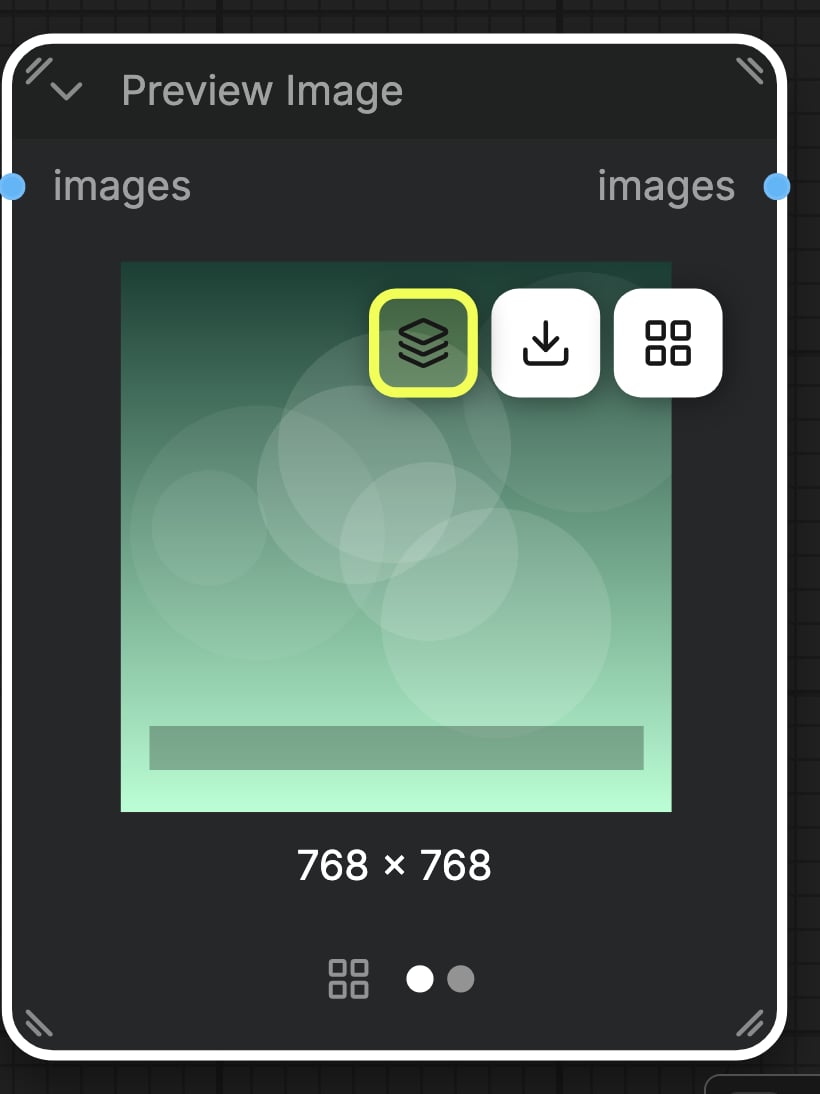 The node must have at least two output images. With fewer than two, ComfyUI reports that the layer editor needs at least two output images.
Create Layered Image also carries an **Open Compositor** button on the node itself. That path requires the workflow to have run at least once so the input images exist, otherwise ComfyUI asks you to run the workflow once to load the input images.
## Editor layout
The editor opens as a full-window dialog with four areas:
The node must have at least two output images. With fewer than two, ComfyUI reports that the layer editor needs at least two output images.
Create Layered Image also carries an **Open Compositor** button on the node itself. That path requires the workflow to have run at least once so the input images exist, otherwise ComfyUI asks you to run the workflow once to load the input images.
## Editor layout
The editor opens as a full-window dialog with four areas:
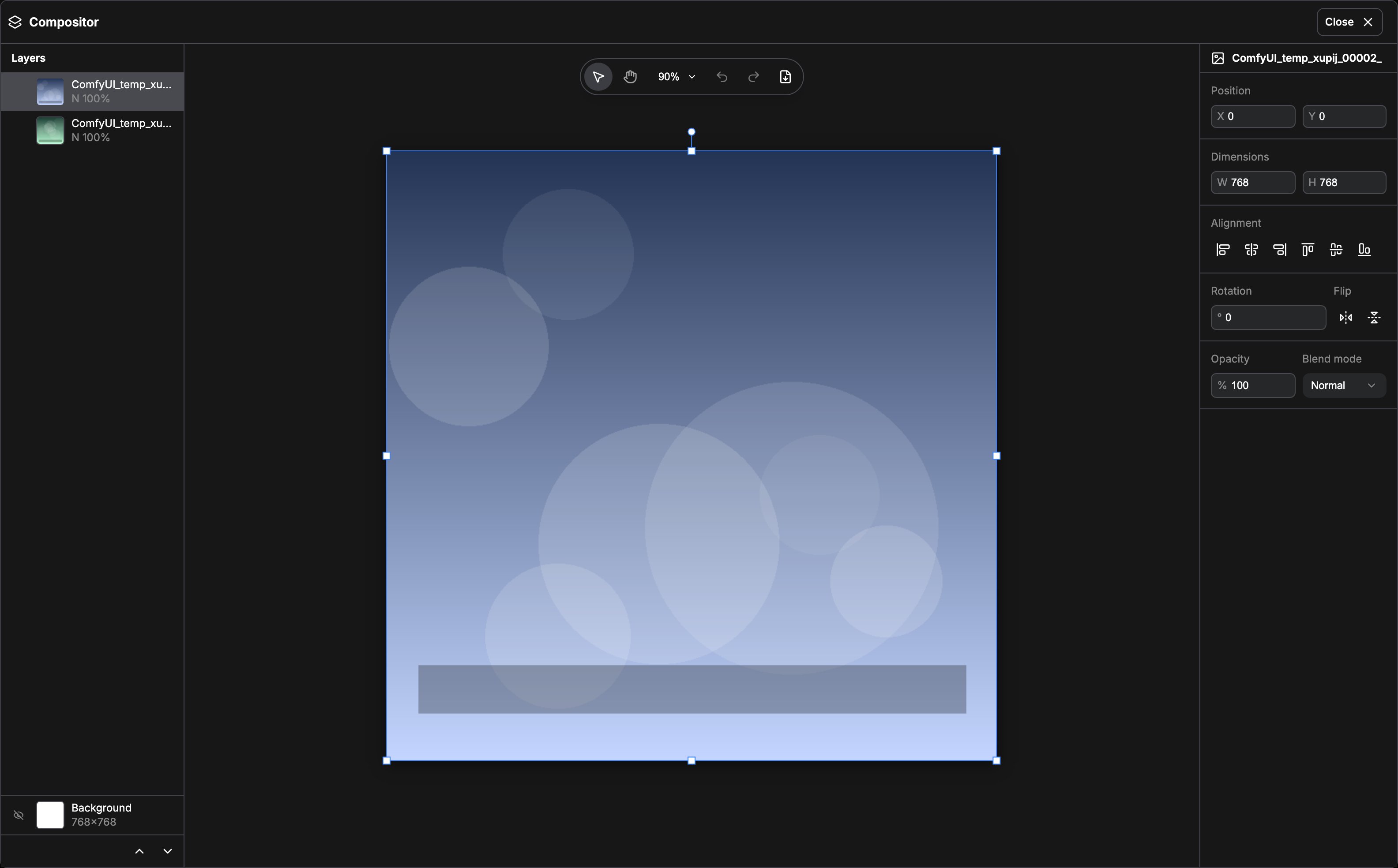 | Area | Location | Contents |
| - | - | - |
| Header | Top | Editor title, **Restore** (Create Layered Image only), and close |
| Layers panel | Left | Layer list, layer order, visibility, and the background entry |
| Canvas | Center | Live composite preview and the floating toolbar |
| Properties panel | Right | Settings for the selected layer, or for the background when nothing is selected |
## Tools and canvas controls
The toolbar sits over the canvas:
* **Select**: pick and transform layers on the canvas.
* **Hand**: pan the canvas without changing layers.
* **Zoom**: zoom presets of 25%, 50%, 100%, and 200%, plus **Fit** to fit the whole composition into the viewport.
* **Undo** and **Redo**: step through your edits.
* **Export PSD**: download the composite as a PSD file.
## Work with layers
Select a layer on the canvas or in the Layers panel, then adjust it in the properties panel:
| Property | What you can change |
| - | - |
| Position | X and Y placement of the layer on the canvas |
| Dimensions | Width and height of the layer |
| Alignment | Align left, horizontal center, right, top, vertical center, or bottom |
| Rotation | Rotate the layer |
| Flip | Flip the layer horizontally or vertically |
| Opacity | Layer opacity |
| Blend mode | How the layer blends with the layers below it |
Layers are drawn in list order. Use the move up and move down actions in the Layers panel to change which layer sits on top, and the visibility toggle to hide a layer without deleting it.
Blend modes include Normal, Multiply, Screen, Overlay, Darken, Lighten, Color Dodge, Color Burn, Hard Light, Soft Light, Difference, Exclusion, Linear Dodge, Linear Burn, Vivid Light, Pin Light, Linear Light, Hard Mix, Subtract, Divide, Grain Extract, Grain Merge, Hue, Saturation, Color, and Luminosity.
Select the **Background** entry in the Layers panel to edit the composition itself instead of a layer: canvas width and height (64 to 8192 pixels) and the background fill color (the control is labeled **Fill**).
## Save and export
Edits made on Create Layered Image are part of the workflow: the layer state is stored on the node automatically, so the composition is restored when you reopen the workflow. The node replays the stored composition when the inputs it recorded still match the current layer stack; if they no longer match, it composes from the layer properties again and marks the stored composition as stale. The **Restore** button in the header undoes every change made in the session and returns the canvas to the state loaded from the node.
**Export PSD** downloads the composition as a PSD file with its layers, which you can open in an image editor such as Photoshop. Export needs WebGL in your browser; if WebGL is unavailable, the canvas cannot render and the export fails.
## Related pages
Composite a layer stack into a single image.
Add an image to a compositor layer stack.
Build compositor layers from bounding boxes.
This documentation is built and hosted on [Mintlify](https://mintlify.com), a developer documentation platform.
| Area | Location | Contents |
| - | - | - |
| Header | Top | Editor title, **Restore** (Create Layered Image only), and close |
| Layers panel | Left | Layer list, layer order, visibility, and the background entry |
| Canvas | Center | Live composite preview and the floating toolbar |
| Properties panel | Right | Settings for the selected layer, or for the background when nothing is selected |
## Tools and canvas controls
The toolbar sits over the canvas:
* **Select**: pick and transform layers on the canvas.
* **Hand**: pan the canvas without changing layers.
* **Zoom**: zoom presets of 25%, 50%, 100%, and 200%, plus **Fit** to fit the whole composition into the viewport.
* **Undo** and **Redo**: step through your edits.
* **Export PSD**: download the composite as a PSD file.
## Work with layers
Select a layer on the canvas or in the Layers panel, then adjust it in the properties panel:
| Property | What you can change |
| - | - |
| Position | X and Y placement of the layer on the canvas |
| Dimensions | Width and height of the layer |
| Alignment | Align left, horizontal center, right, top, vertical center, or bottom |
| Rotation | Rotate the layer |
| Flip | Flip the layer horizontally or vertically |
| Opacity | Layer opacity |
| Blend mode | How the layer blends with the layers below it |
Layers are drawn in list order. Use the move up and move down actions in the Layers panel to change which layer sits on top, and the visibility toggle to hide a layer without deleting it.
Blend modes include Normal, Multiply, Screen, Overlay, Darken, Lighten, Color Dodge, Color Burn, Hard Light, Soft Light, Difference, Exclusion, Linear Dodge, Linear Burn, Vivid Light, Pin Light, Linear Light, Hard Mix, Subtract, Divide, Grain Extract, Grain Merge, Hue, Saturation, Color, and Luminosity.
Select the **Background** entry in the Layers panel to edit the composition itself instead of a layer: canvas width and height (64 to 8192 pixels) and the background fill color (the control is labeled **Fill**).
## Save and export
Edits made on Create Layered Image are part of the workflow: the layer state is stored on the node automatically, so the composition is restored when you reopen the workflow. The node replays the stored composition when the inputs it recorded still match the current layer stack; if they no longer match, it composes from the layer properties again and marks the stored composition as stale. The **Restore** button in the header undoes every change made in the session and returns the canvas to the state loaded from the node.
**Export PSD** downloads the composition as a PSD file with its layers, which you can open in an image editor such as Photoshop. Export needs WebGL in your browser; if WebGL is unavailable, the canvas cannot render and the export fails.
## Related pages
Composite a layer stack into a single image.
Add an image to a compositor layer stack.
Build compositor layers from bounding boxes.
This documentation is built and hosted on [Mintlify](https://mintlify.com), a developer documentation platform.