> ## Documentation Index
> Fetch the complete documentation index at: https://docs.comfy.org/llms.txt
> Use this file to discover all available pages before exploring further.
# Right Side Panel: Node Properties and Errors
> Use the ComfyUI right side panel to edit node parameters and settings, favorite inputs, change node state, and fix workflow errors.
The right side panel is the properties panel on the right edge of the ComfyUI workspace. It shows the parameters, info, and settings of whatever you have selected on the canvas, keeps the inputs you use most one click away, and lists workflow errors together with their fixes.
## Open and close the panel
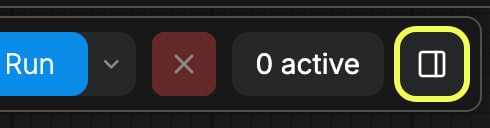
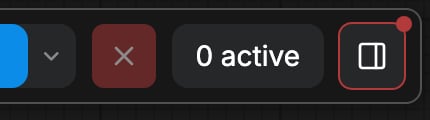
Click the panel icon in the top right control area to open the panel. The button tooltip reads **Toggle properties panel**, and when the workflow has errors while the panel is closed, the button shows a red dot so you can open the panel straight into the error list. Close the panel from the icon in its own header.
 ComfyUI remembers the panel state between sessions.
## The panel follows your selection
The title and the available tabs change with what is selected on the canvas:
| Selection | Panel title | Tabs |
| - | - | - |
| Nothing | Workflow Overview | Parameters, Nodes, Settings |
| One node | The node name | Parameters, Info, Settings, plus Errors when relevant |
| One subgraph node | The node name | Parameters, Settings, plus Errors when relevant and the Edit subgraph button |
| Multiple items | The number of selected items | Nodes, Settings, plus Errors when relevant |
Click the pencil button next to the title to rename the selected node or group. For a subgraph node, the header also shows an **Edit subgraph** button that opens the subgraph editor inside the panel.
The Errors tab appears only when the selection has relevant errors, or when nothing is selected and the workflow contains errors. You can hide the tab entirely with the **Show errors tab in side panel** setting under `Comfy` → `Error System`.
### Parameters
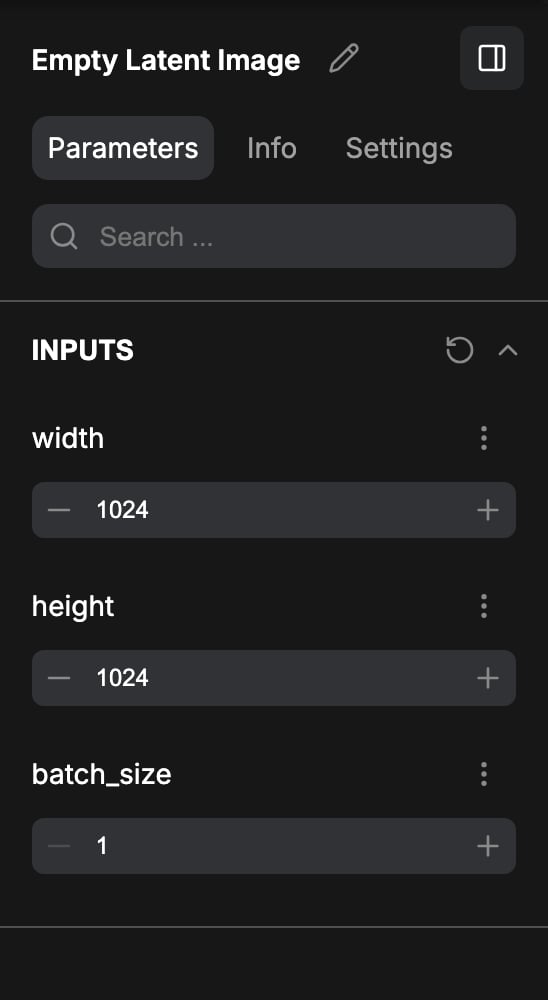
With one node selected, the **Parameters** tab lists its inputs under **INPUTS**. With several items selected, the same view is labelled **Nodes** and lists the inputs of every selected item. Both views have a search field at the top and a collapsible section per node. Inputs marked as advanced are collected in a separate **ADVANCED INPUTS** section. Every input has an actions menu with **Rename**, **Favorite**, and **Reset to default**, plus **Hide input** for inputs promoted from a subgraph. When multiple nodes are selected, each section also has a button to locate its nodes on the canvas.
ComfyUI remembers the panel state between sessions.
## The panel follows your selection
The title and the available tabs change with what is selected on the canvas:
| Selection | Panel title | Tabs |
| - | - | - |
| Nothing | Workflow Overview | Parameters, Nodes, Settings |
| One node | The node name | Parameters, Info, Settings, plus Errors when relevant |
| One subgraph node | The node name | Parameters, Settings, plus Errors when relevant and the Edit subgraph button |
| Multiple items | The number of selected items | Nodes, Settings, plus Errors when relevant |
Click the pencil button next to the title to rename the selected node or group. For a subgraph node, the header also shows an **Edit subgraph** button that opens the subgraph editor inside the panel.
The Errors tab appears only when the selection has relevant errors, or when nothing is selected and the workflow contains errors. You can hide the tab entirely with the **Show errors tab in side panel** setting under `Comfy` → `Error System`.
### Parameters
With one node selected, the **Parameters** tab lists its inputs under **INPUTS**. With several items selected, the same view is labelled **Nodes** and lists the inputs of every selected item. Both views have a search field at the top and a collapsible section per node. Inputs marked as advanced are collected in a separate **ADVANCED INPUTS** section. Every input has an actions menu with **Rename**, **Favorite**, and **Reset to default**, plus **Hide input** for inputs promoted from a subgraph. When multiple nodes are selected, each section also has a button to locate its nodes on the canvas.
 With nothing selected, the same tab shows your favorited inputs instead, so you can adjust the values you change most often without selecting a node first.
### Nodes
The Nodes tab is shown when nothing is selected. It lists every node in the workflow with its inputs, searchable and collapsible, so you can review or edit any node from one place. It is also the label the parameters view uses when several items are selected.
### Info
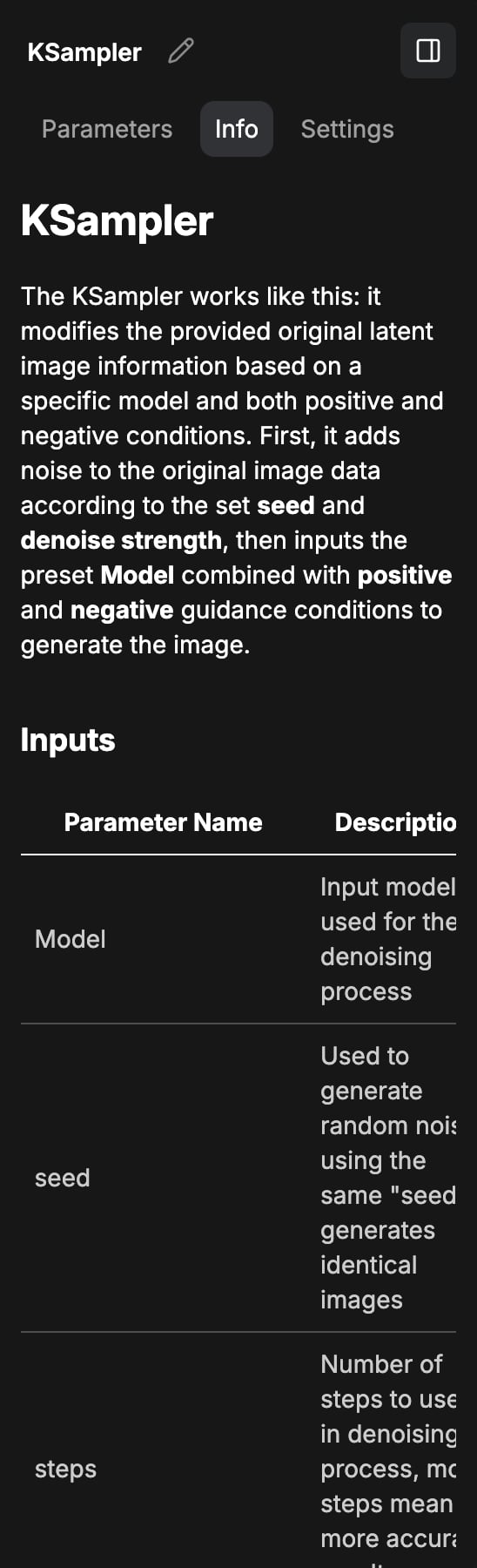
The Info tab appears for a single selected node that is not a subgraph. It shows the same [Node docs](/interface/features/node-docs) help content you get from the selection toolbox docs icon and from the help button on Nodes 2.0.
### Settings
With a selection, the Settings tab covers the selected nodes and groups:
* **Node state**: **Normal**, **Bypass**, or **Mute**.
* **Node color**: pick a color for the node.
* **Pinned**: pins the node so it stays fixed in place on the canvas.
With nothing selected, the same tab shows your favorited inputs instead, so you can adjust the values you change most often without selecting a node first.
### Nodes
The Nodes tab is shown when nothing is selected. It lists every node in the workflow with its inputs, searchable and collapsible, so you can review or edit any node from one place. It is also the label the parameters view uses when several items are selected.
### Info
The Info tab appears for a single selected node that is not a subgraph. It shows the same [Node docs](/interface/features/node-docs) help content you get from the selection toolbox docs icon and from the help button on Nodes 2.0.
### Settings
With a selection, the Settings tab covers the selected nodes and groups:
* **Node state**: **Normal**, **Bypass**, or **Mute**.
* **Node color**: pick a color for the node.
* **Pinned**: pins the node so it stays fixed in place on the canvas.
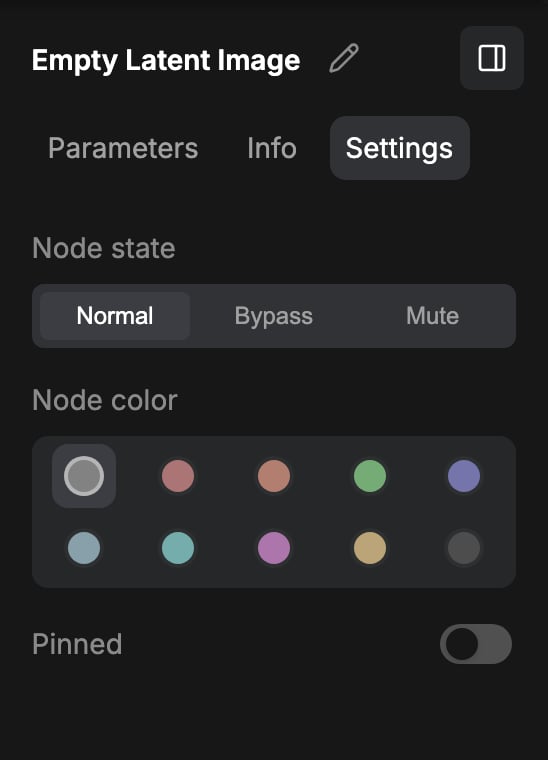 Changes apply to every item in the selection, so you can set the same state or color for a whole group at once. Groups expose the color and pin controls only.
With nothing selected, the tab is labelled **Global Settings** and gathers quick toggles that mirror the full settings dialog:
* **Nodes**: Show advanced parameters, Show toolbox on selection, Nodes 2.0.
* **Canvas**: Grid spacing, Snap nodes to grid.
* **Connection links**: Link shape, Show connected links.
* **View all settings**: opens the full settings dialog.
### Errors
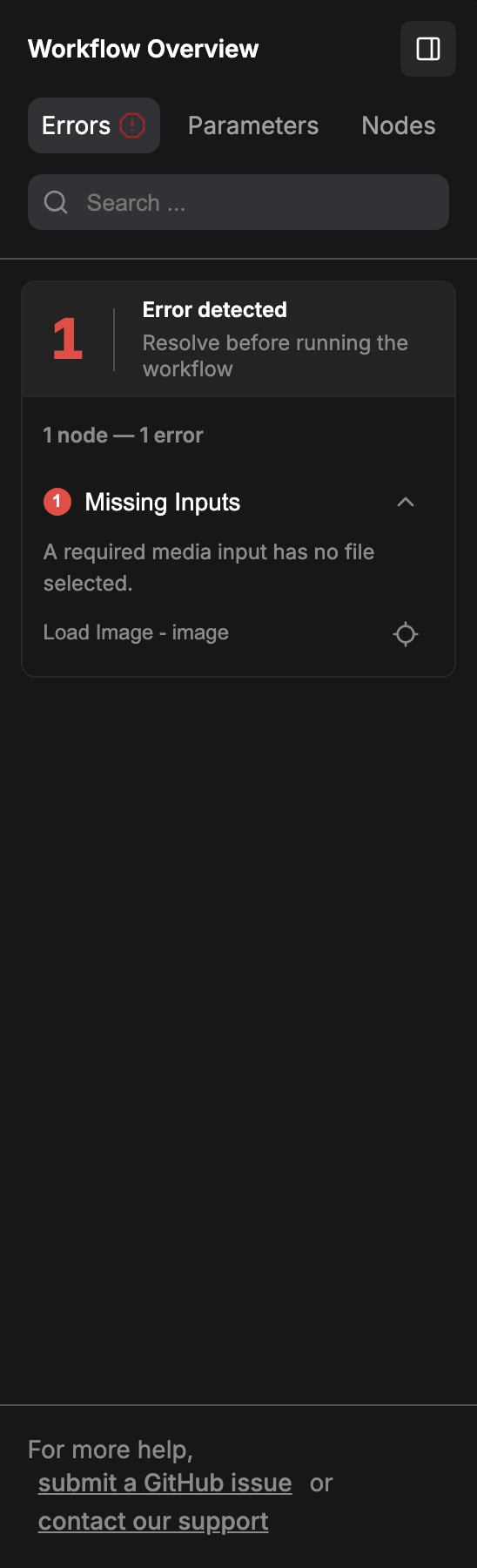
The Errors tab groups the problems that block the workflow, so you can resolve them before running:
* **Node errors**: the failing node, the error message, an **Expand** and **Collapse** control, and **Locate node on canvas**.
* **Missing node packs**: **Install All**, **Apply Changes**, and **View in Manager** when ComfyUI Manager is available.
* **Missing models**: **Download** for a single file or **Download all**, **Import** in Comfy Cloud for models you provide yourself, and a note when a model is gated on Hugging Face and needs a signed-in account with the license accepted.
* **Missing inputs**: input media that the workflow expects but cannot find.
* **Error log** and links to submit a GitHub issue or contact support.
## Favoriting inputs
Favorited inputs are the panel's shortcuts. Open the Parameters tab, click the actions menu on any input, and choose **Favorite**. Favorited inputs then appear in the panel whenever nothing is selected, where you can search and reorder them. Use **Unfavorite** in the same menu to remove one.
Changes apply to every item in the selection, so you can set the same state or color for a whole group at once. Groups expose the color and pin controls only.
With nothing selected, the tab is labelled **Global Settings** and gathers quick toggles that mirror the full settings dialog:
* **Nodes**: Show advanced parameters, Show toolbox on selection, Nodes 2.0.
* **Canvas**: Grid spacing, Snap nodes to grid.
* **Connection links**: Link shape, Show connected links.
* **View all settings**: opens the full settings dialog.
### Errors
The Errors tab groups the problems that block the workflow, so you can resolve them before running:
* **Node errors**: the failing node, the error message, an **Expand** and **Collapse** control, and **Locate node on canvas**.
* **Missing node packs**: **Install All**, **Apply Changes**, and **View in Manager** when ComfyUI Manager is available.
* **Missing models**: **Download** for a single file or **Download all**, **Import** in Comfy Cloud for models you provide yourself, and a note when a model is gated on Hugging Face and needs a signed-in account with the license accepted.
* **Missing inputs**: input media that the workflow expects but cannot find.
* **Error log** and links to submit a GitHub issue or contact support.
## Favoriting inputs
Favorited inputs are the panel's shortcuts. Open the Parameters tab, click the actions menu on any input, and choose **Favorite**. Favorited inputs then appear in the panel whenever nothing is selected, where you can search and reorder them. Use **Unfavorite** in the same menu to remove one.
 ## Related
* [Interface Overview](/interface/overview) for the workspace areas.
* [ComfyUI Settings](/interface/settings/overview) for the full settings dialog.
* [Node Docs](/interface/features/node-docs) (same help content as the Info tab).
* [Node Library](/interface/node-library).
This documentation is built and hosted on [Mintlify](https://mintlify.com), a developer documentation platform.
## Related
* [Interface Overview](/interface/overview) for the workspace areas.
* [ComfyUI Settings](/interface/settings/overview) for the full settings dialog.
* [Node Docs](/interface/features/node-docs) (same help content as the Info tab).
* [Node Library](/interface/node-library).
This documentation is built and hosted on [Mintlify](https://mintlify.com), a developer documentation platform.