> ## Documentation Index
> Fetch the complete documentation index at: https://docs.comfy.org/llms.txt
> Use this file to discover all available pages before exploring further.
# 모델 가져오기
> Civitai 및 Hugging Face의 모델을 Comfy Cloud로 가져오는 방법 알아보기
이 기능은 **컴피 클라우드**의 기능으로, 클라우드 버전에서만 사용할 수 있습니다. 컴피 클라우드에 대해 자세히 알아보려면 [컴피 클라우드](/ko/get_started/cloud)를 참조하세요.
## 개요
Comfy Cloud를 사용하면 Civitai와 Hugging Face에서 직접 모델을 가져올 수 있습니다. 이 기능은 **Creator** 이상 구독자에게 제공됩니다.
## 요구사항
* **구독**: Creator 이상 등급
* **지원되는 소스**: Civitai 및 Hugging Face
## 모델 가져오기 방법
### 1. 가져오기 기능에 액세스하기
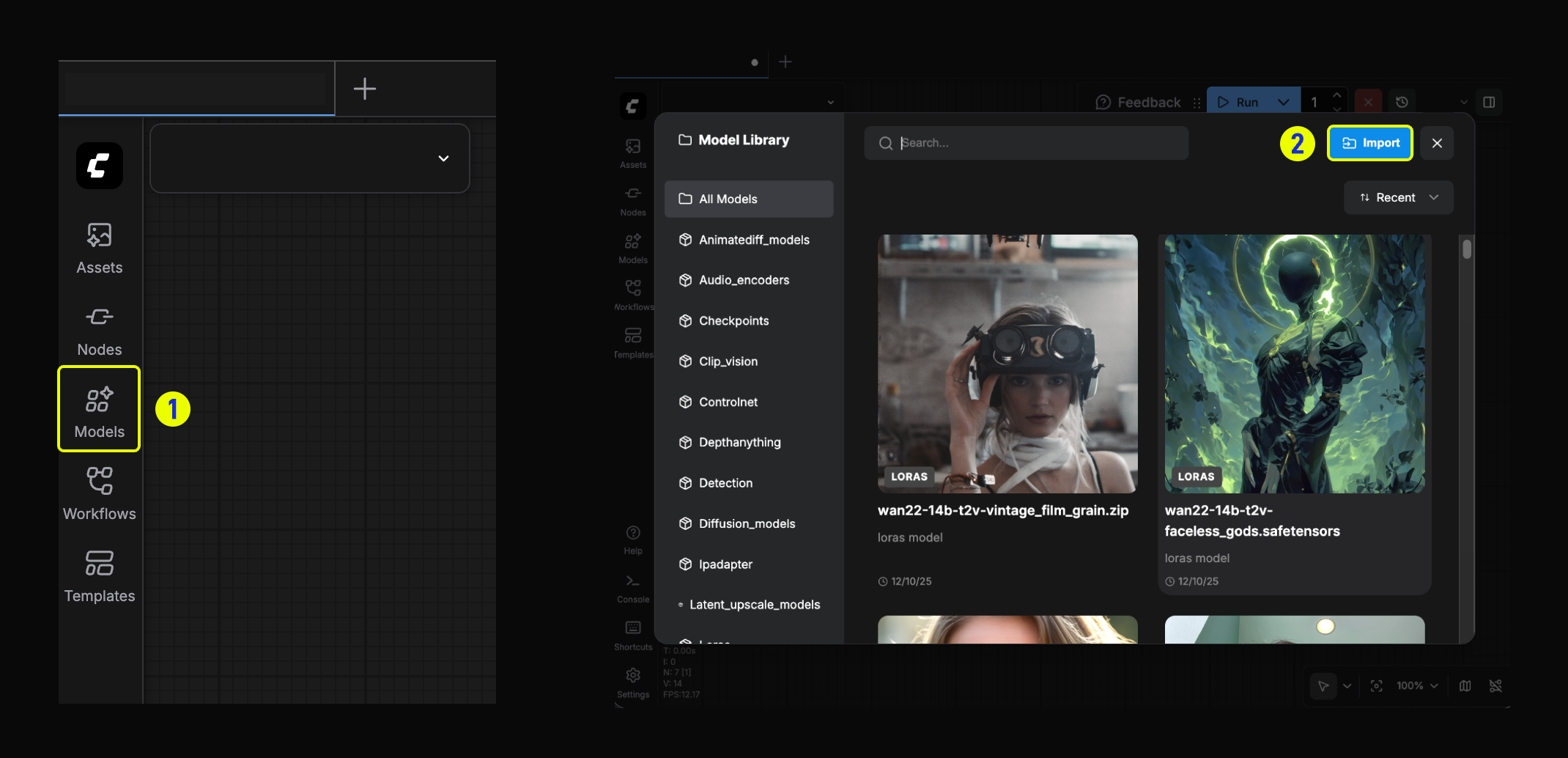 1. 왼쪽 사이드바의 **모델** 버튼을 클릭해 모델 라이브러리를 엽니다.
2. 모델 라이브러리 모달에서 **가져오기** 버튼을 클릭하세요.
### 2. 링크 붙여넣기
1. Hugging Face 또는 Civitai에서 얻은 모델 링크를 붙여넣으세요.
1. 왼쪽 사이드바의 **모델** 버튼을 클릭해 모델 라이브러리를 엽니다.
2. 모델 라이브러리 모달에서 **가져오기** 버튼을 클릭하세요.
### 2. 링크 붙여넣기
1. Hugging Face 또는 Civitai에서 얻은 모델 링크를 붙여넣으세요.
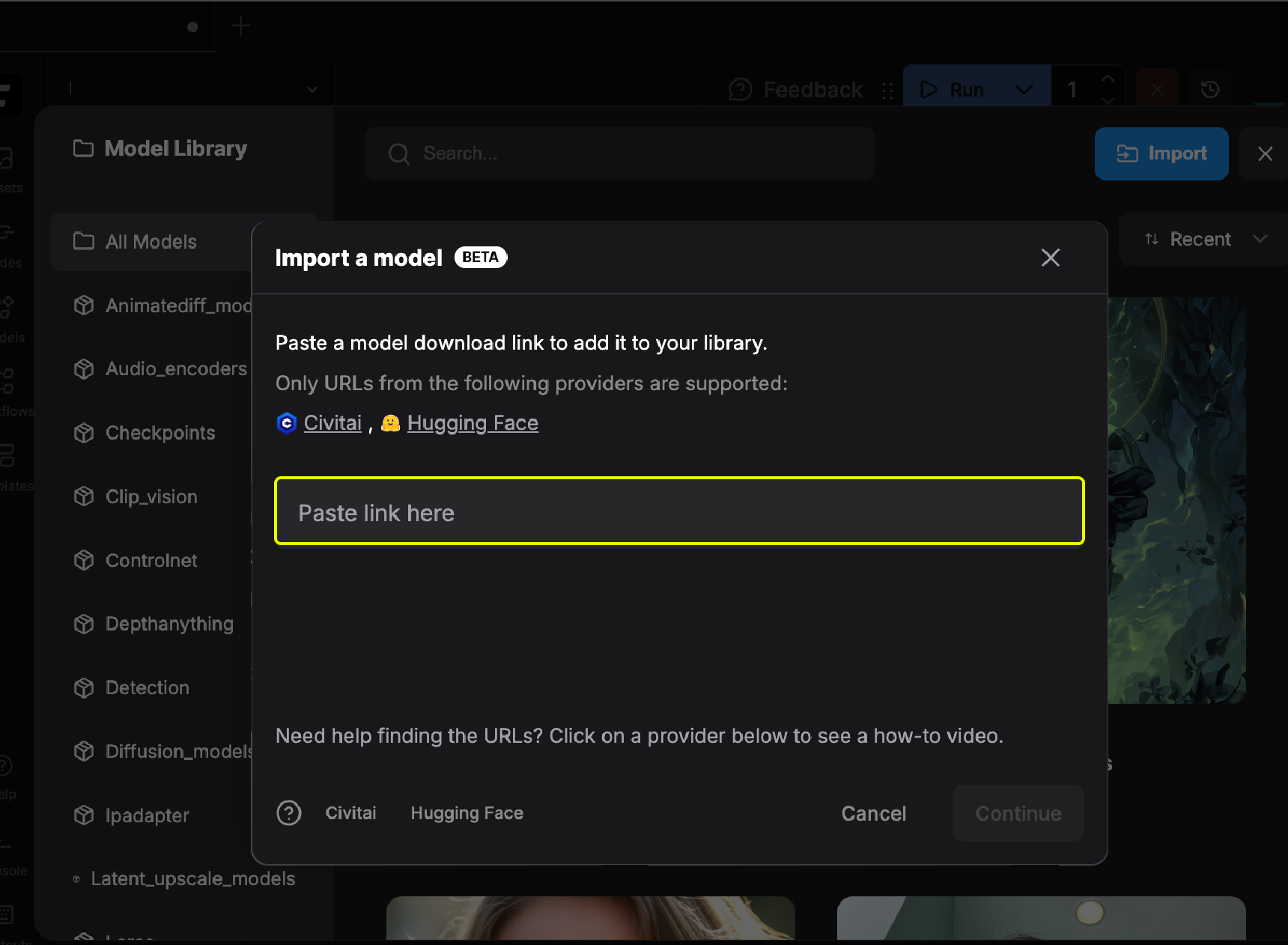 2. 링크가 유효하면 확인 표시가 나타나고, `계속` 버튼을 클릭해 진행할 수 있습니다.
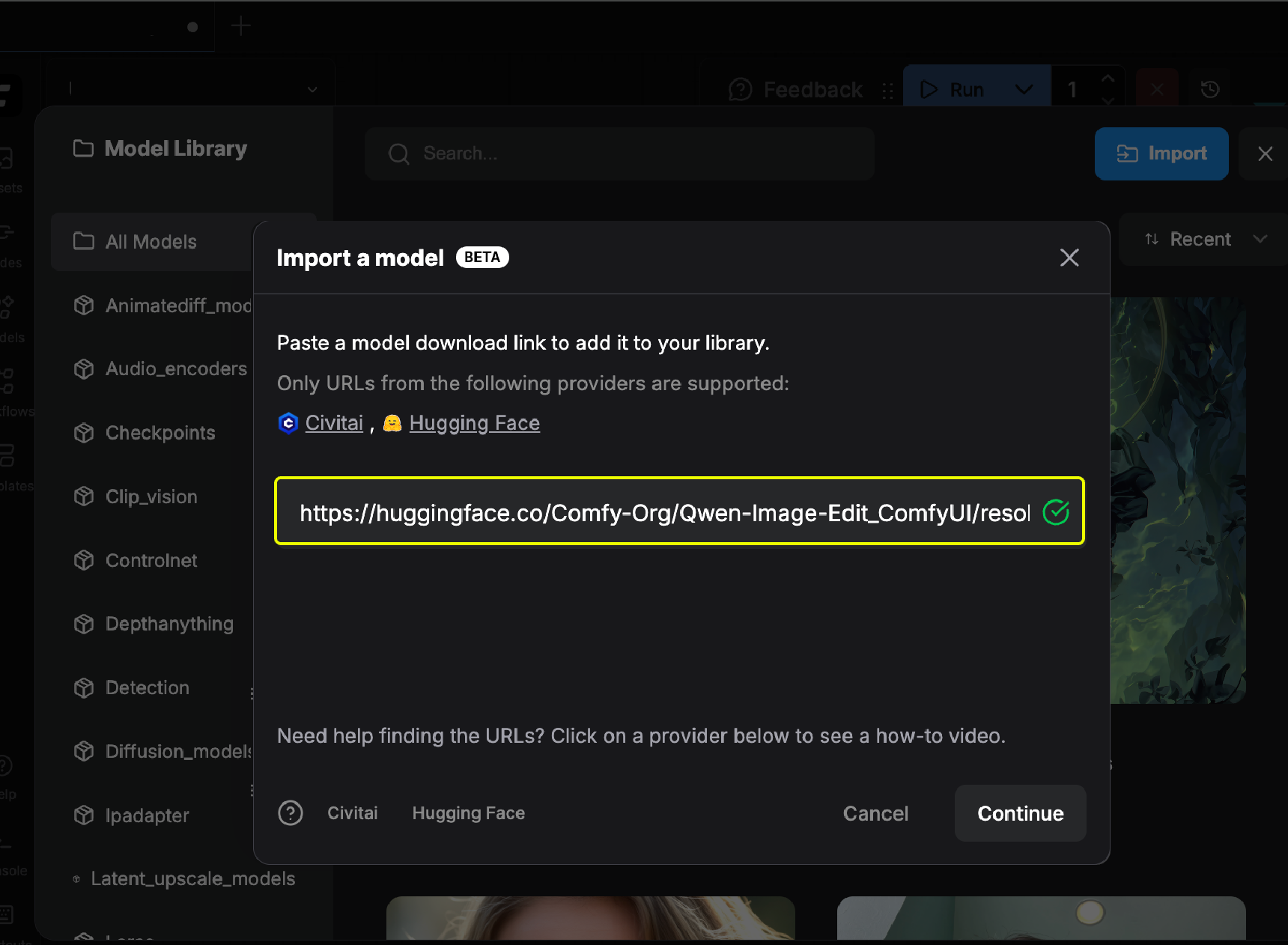 3. 모델 유형과 대상 폴더를 선택하세요.
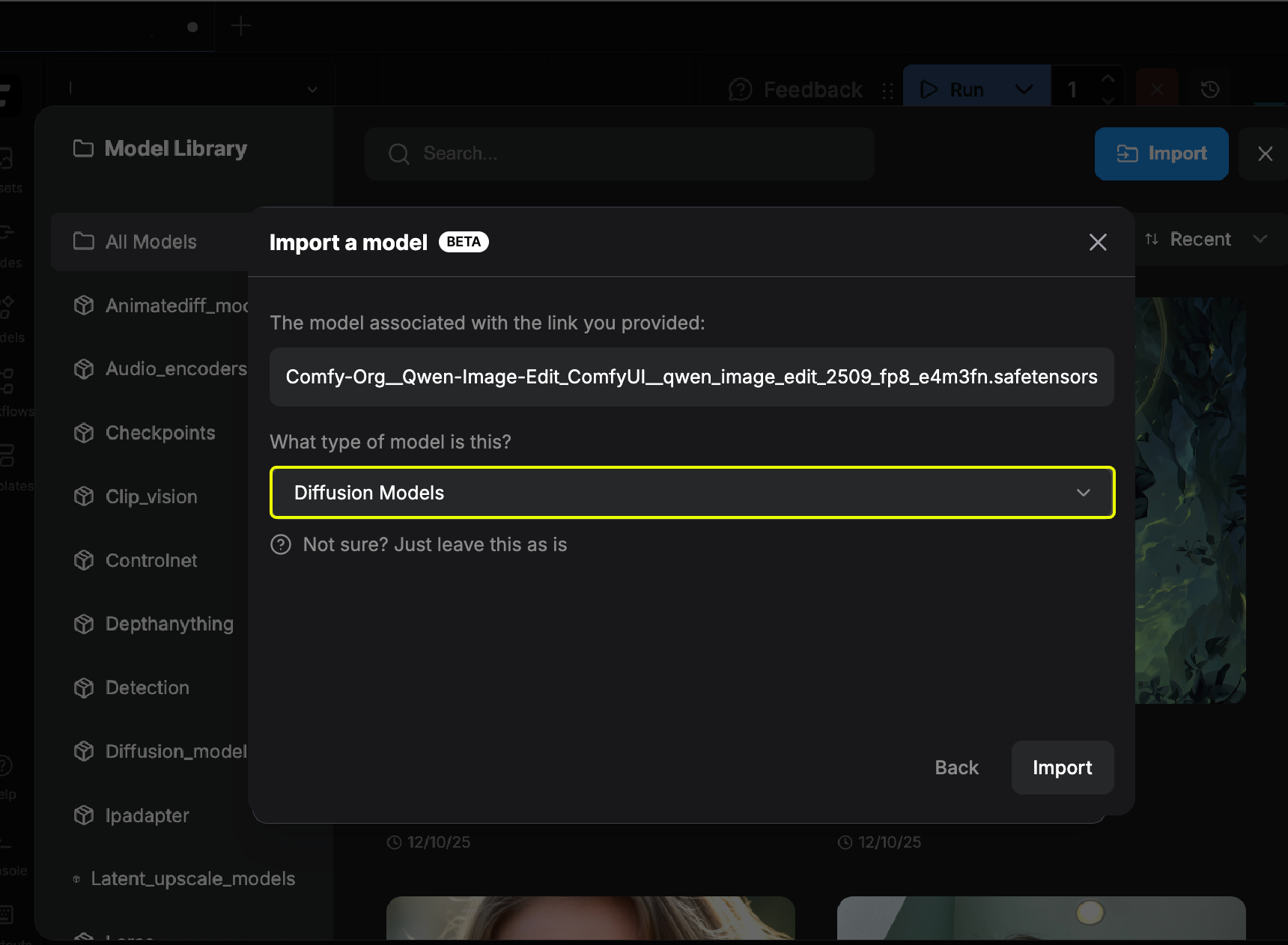 4. 모델 다운로드가 완료될 때까지 기다리세요.
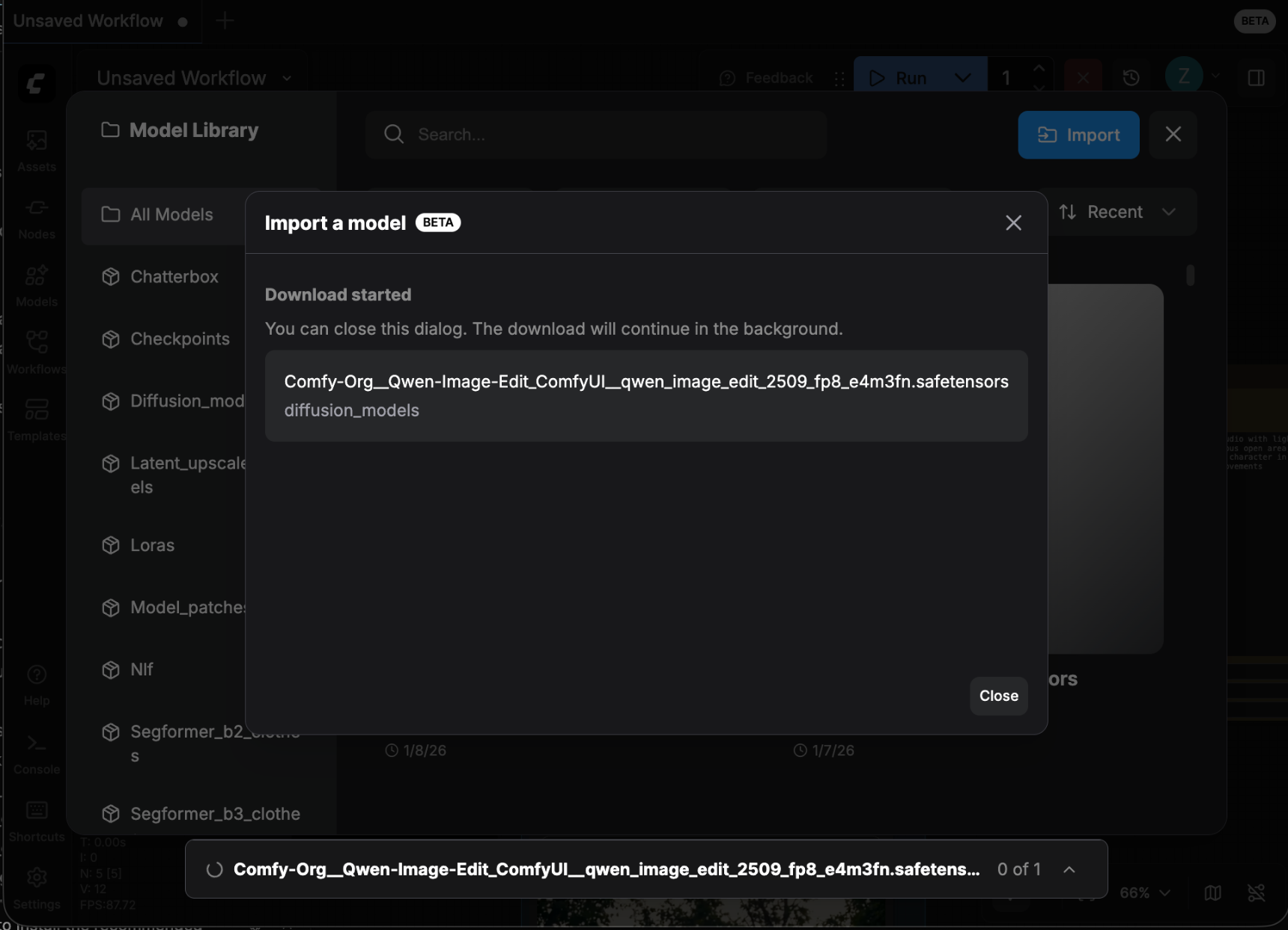 5. 다운로드가 완료되면, 모델 라이브러리에서 해당 모델을 확인할 수 있습니다.
## 가져온 모델 보기 방법
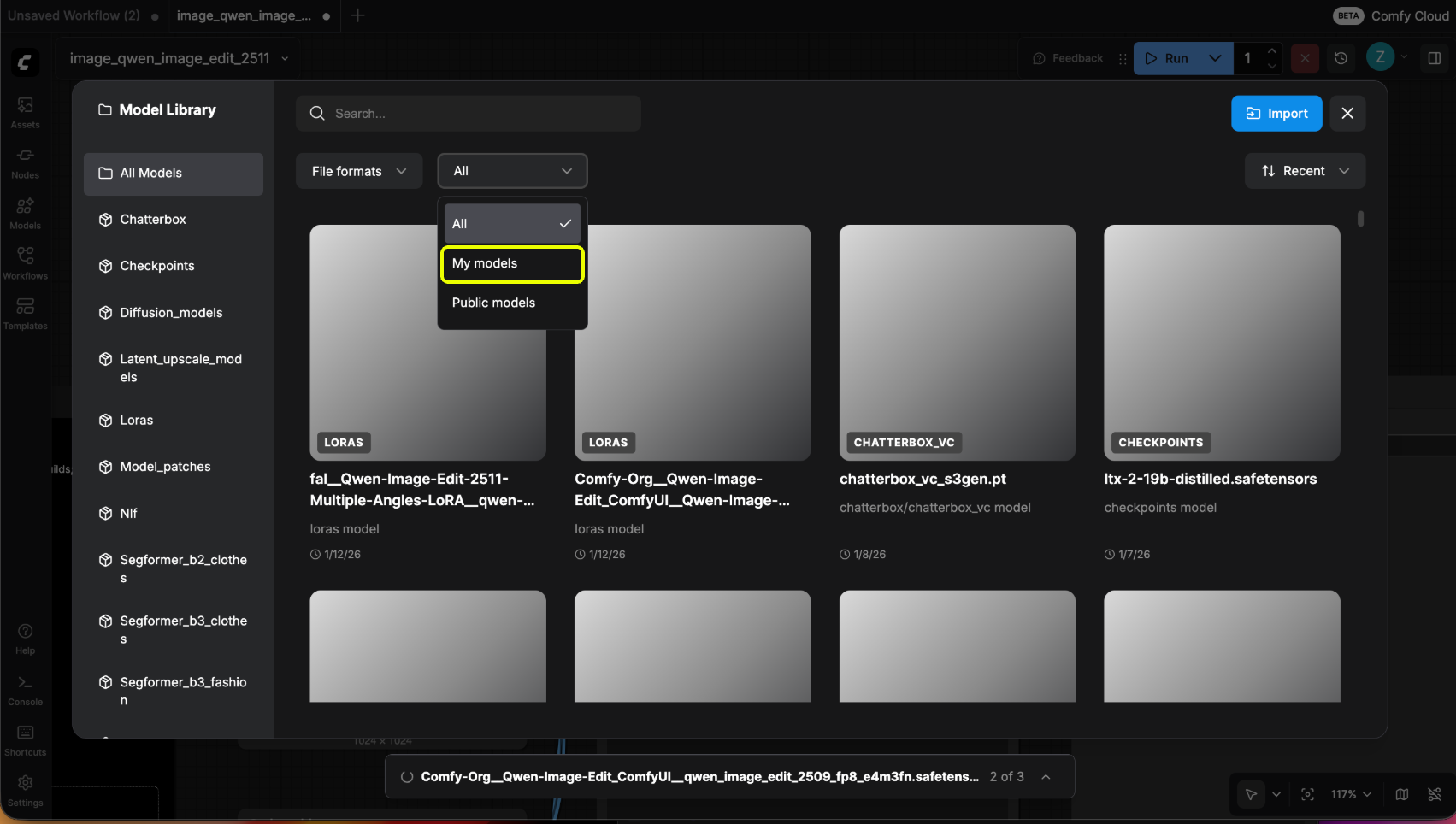
모델 라이브러리에서 드롭다운 필터에서 "내 모델"을 선택해 가져온 모델만 필터링하세요.
5. 다운로드가 완료되면, 모델 라이브러리에서 해당 모델을 확인할 수 있습니다.
## 가져온 모델 보기 방법
모델 라이브러리에서 드롭다운 필터에서 "내 모델"을 선택해 가져온 모델만 필터링하세요.
 ## 모델 가져오기 링크 얻는 방법
### 1. Civitai에서 링크 얻기
1. [Civitai](https://civitai.com/)에 접속해 가져오려는 모델을 찾으세요.
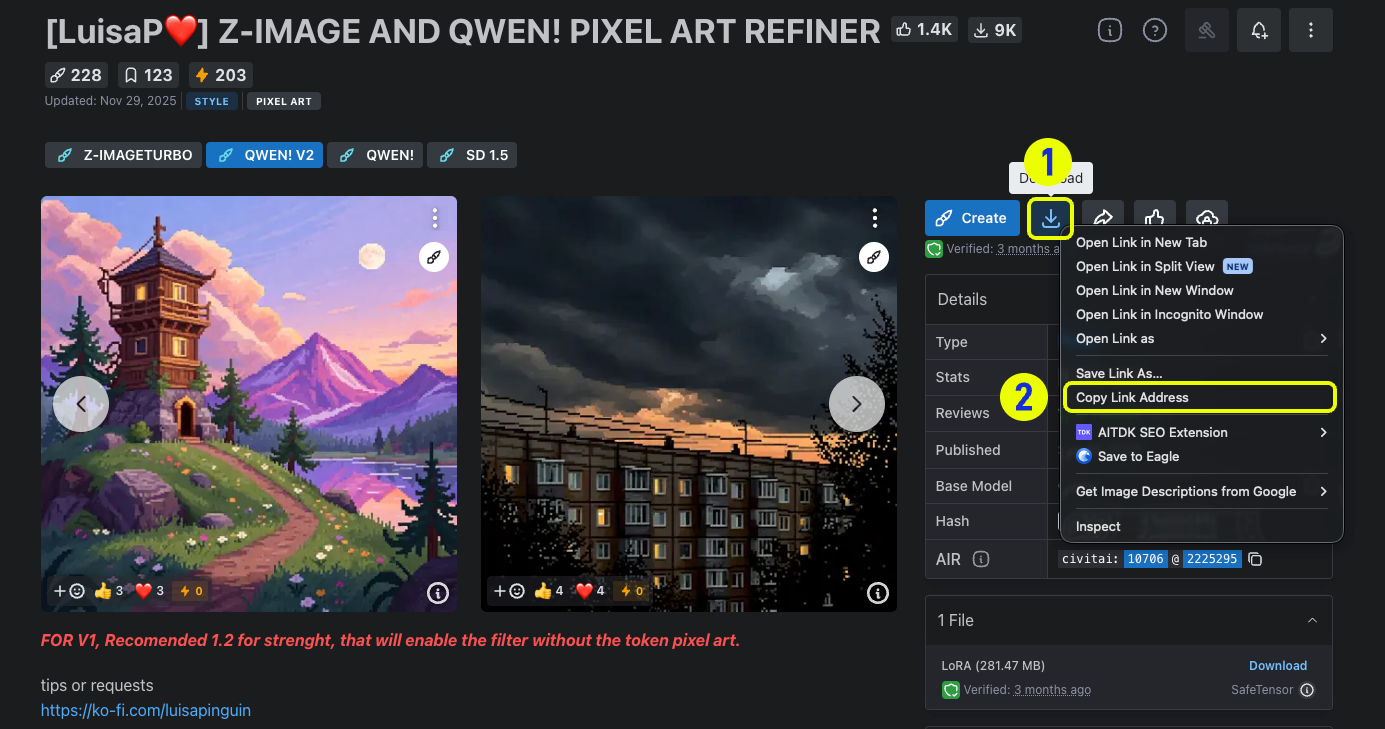
2. 다운로드 버튼을 오른쪽 클릭하고 "링크 주소 복사"를 선택해 모델 다운로드 링크를 얻으세요.
## 모델 가져오기 링크 얻는 방법
### 1. Civitai에서 링크 얻기
1. [Civitai](https://civitai.com/)에 접속해 가져오려는 모델을 찾으세요.
2. 다운로드 버튼을 오른쪽 클릭하고 "링크 주소 복사"를 선택해 모델 다운로드 링크를 얻으세요.
 ### 2. Hugging Face에서 링크 얻기
1. [Hugging Face](https://huggingface.co/)에 접속해 가져오려는 모델 리포지토리를 찾으세요.
2. 모델 파일 페이지로 이동하세요. 지원되는 형식은 보통 ".safetensor" 또는 ".sft" 파일입니다. 특정 모델 이름을 클릭해 상세 페이지로 들어가세요.
### 2. Hugging Face에서 링크 얻기
1. [Hugging Face](https://huggingface.co/)에 접속해 가져오려는 모델 리포지토리를 찾으세요.
2. 모델 파일 페이지로 이동하세요. 지원되는 형식은 보통 ".safetensor" 또는 ".sft" 파일입니다. 특정 모델 이름을 클릭해 상세 페이지로 들어가세요.
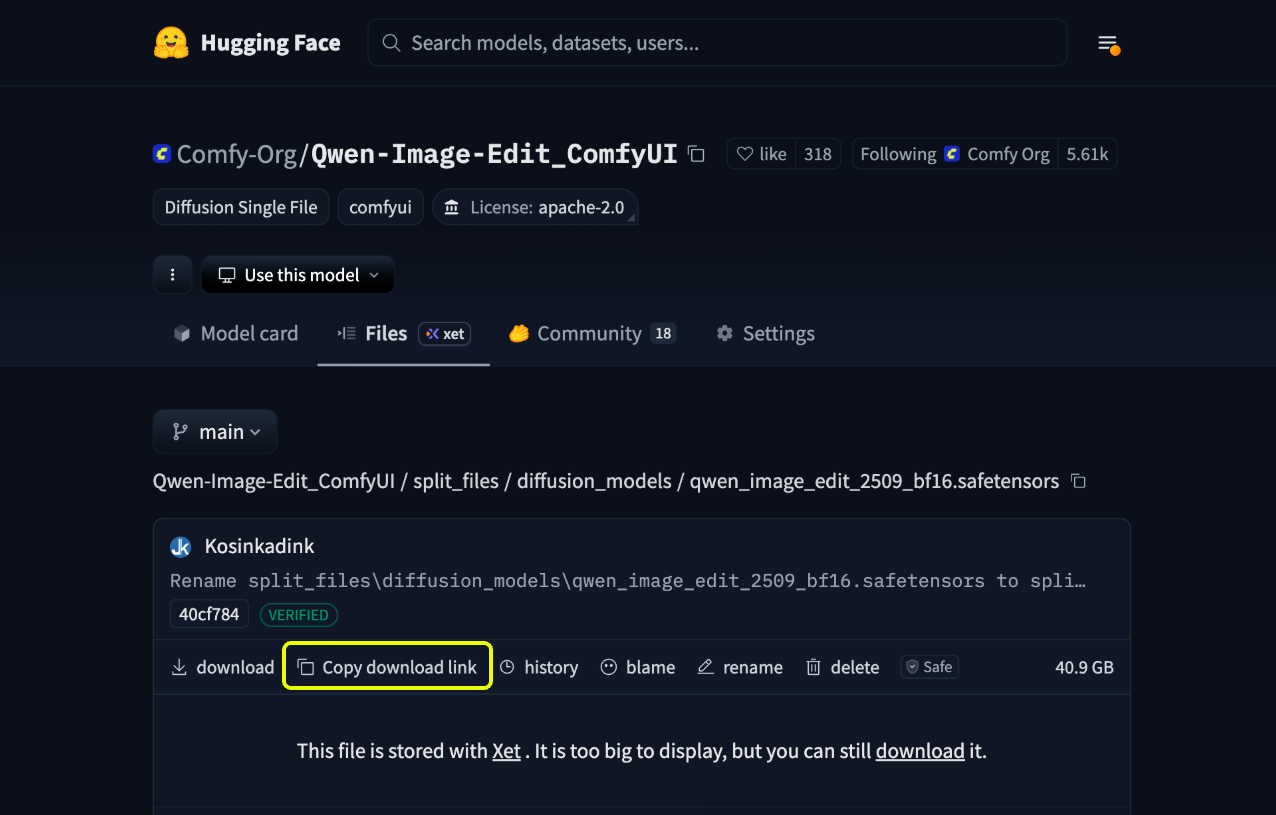
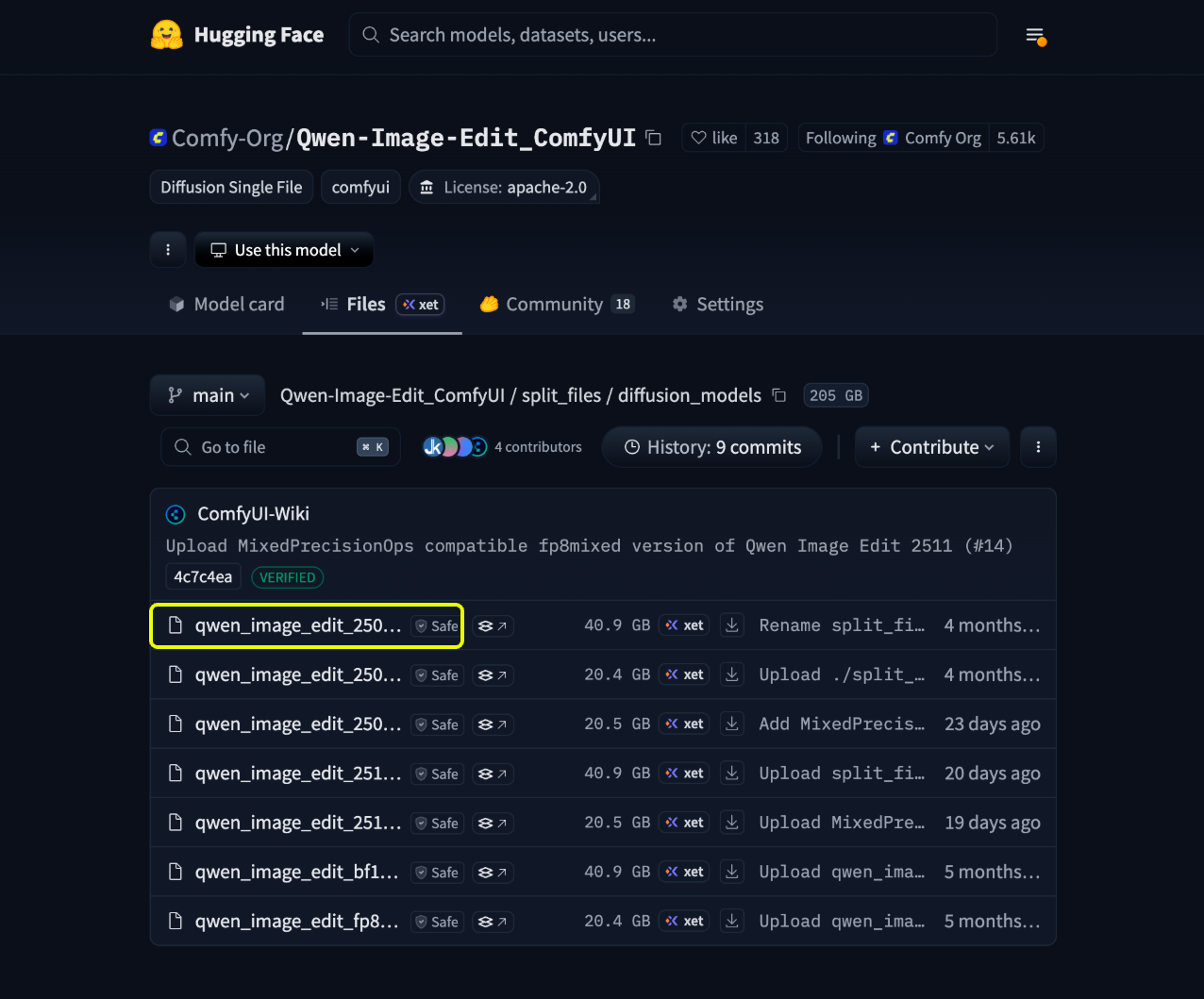 3. 상세 페이지에서 `다운로드 링크 복사` 버튼을 클릭해 모델 다운로드 링크를 얻으세요.
 ## 비공개 모델 가져오기
Hugging Face나 Civitai의 비공개 모델을 가져오려면 먼저 API 키를 설정해야 합니다.
### 1. API 키 생성하기
먼저 각 플랫폼에서 API 키를 생성해야 합니다:
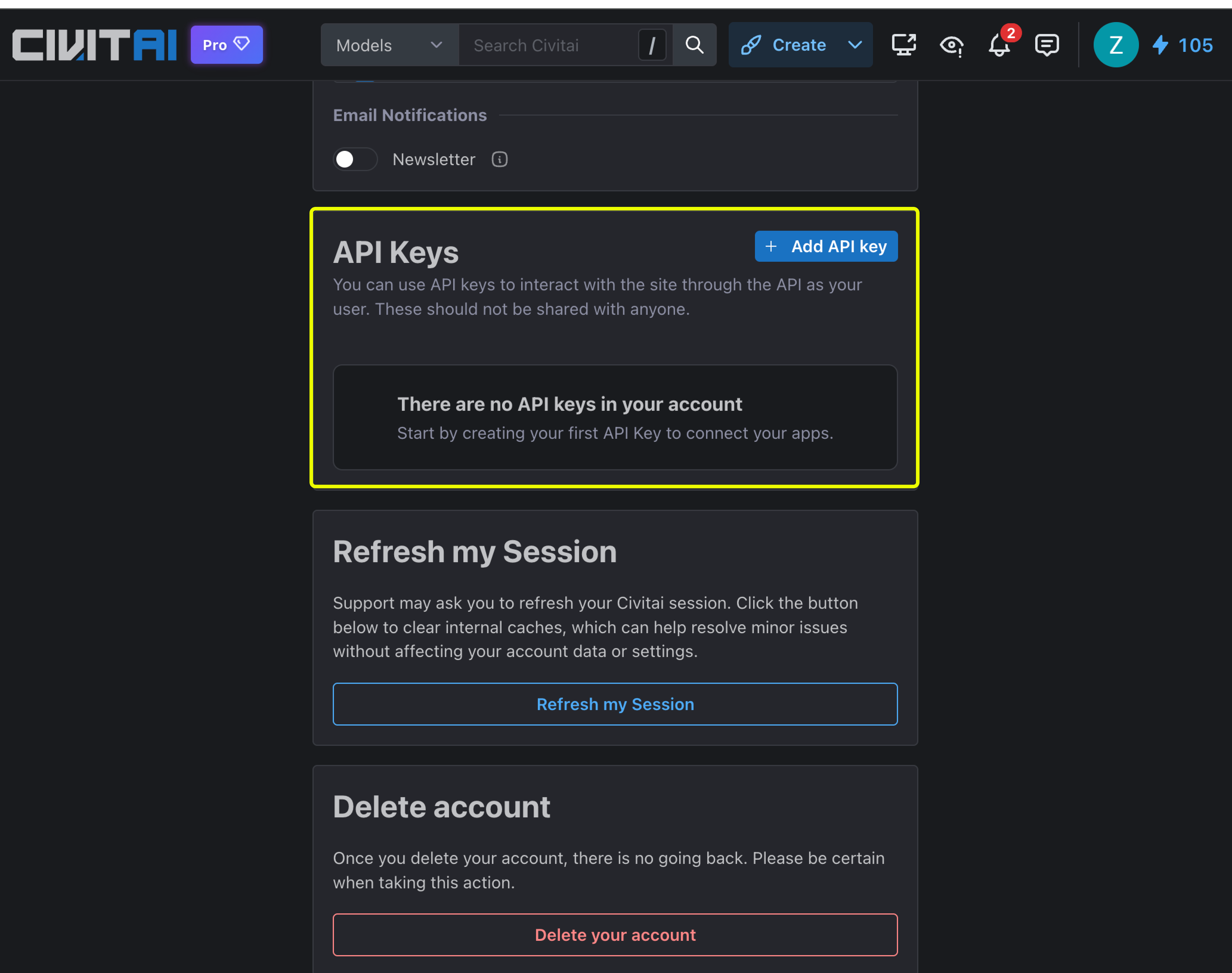
1. Civitai에 로그인해 [https://civitai.com/user/account](https://civitai.com/user/account)에 방문하세요.
2. 계정 설정에서 API 키를 생성하세요.
## 비공개 모델 가져오기
Hugging Face나 Civitai의 비공개 모델을 가져오려면 먼저 API 키를 설정해야 합니다.
### 1. API 키 생성하기
먼저 각 플랫폼에서 API 키를 생성해야 합니다:
1. Civitai에 로그인해 [https://civitai.com/user/account](https://civitai.com/user/account)에 방문하세요.
2. 계정 설정에서 API 키를 생성하세요.
 1. [https://huggingface.co/settings/tokens](https://huggingface.co/settings/tokens)에 방문하세요.
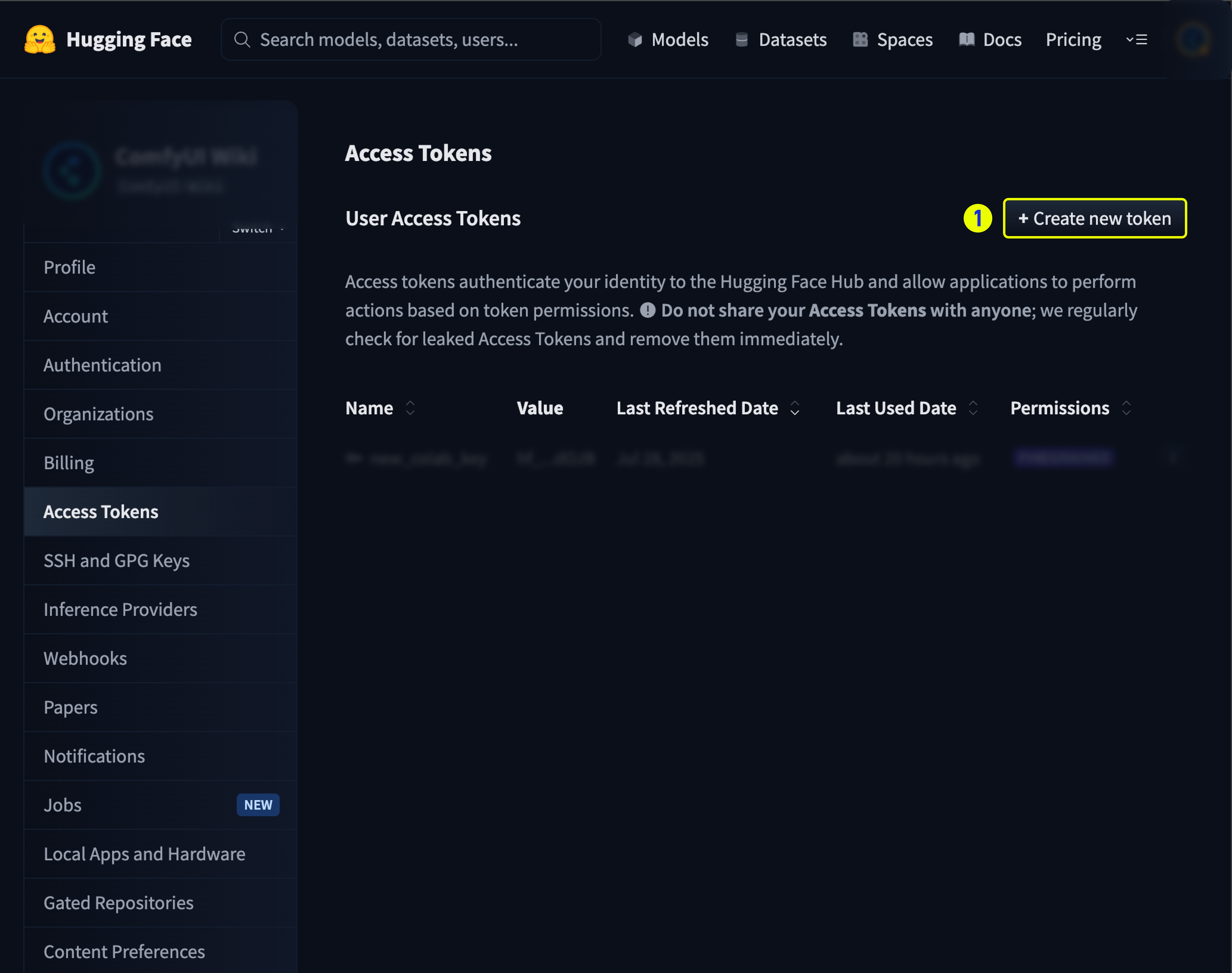
2. API 토큰을 생성하세요.
1. [https://huggingface.co/settings/tokens](https://huggingface.co/settings/tokens)에 방문하세요.
2. API 토큰을 생성하세요.
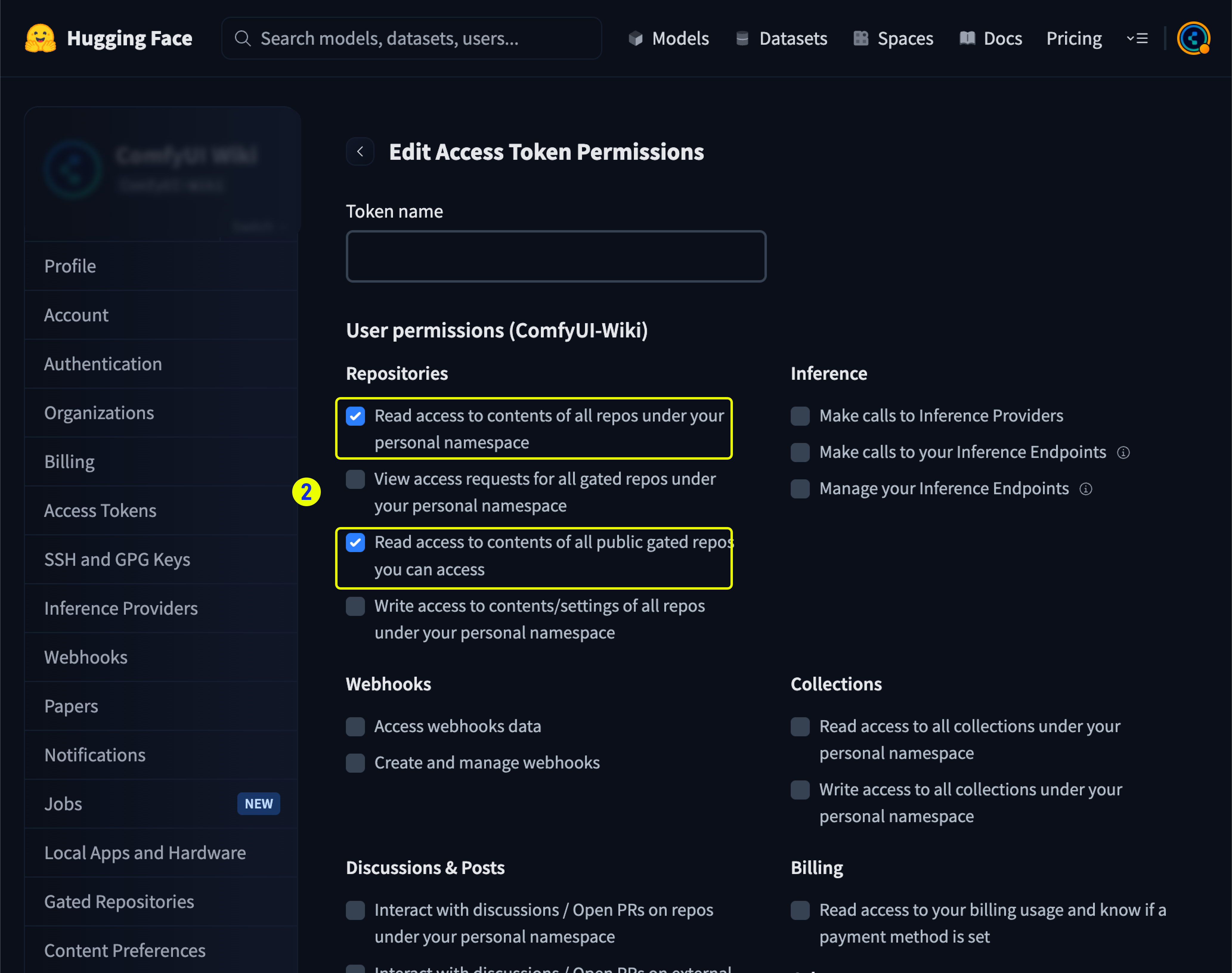
 3. 가져오려는 비공개 모델이 포함된 리포지토리에 대한 읽기 권한이 있는지 확인하세요.
 ### 2. API 키 저장하기
1. [Comfy Cloud 설정](https://cloud.comfy.org)에 접속해 **비밀번호** 섹션으로 이동하세요.
### 2. API 키 저장하기
1. [Comfy Cloud 설정](https://cloud.comfy.org)에 접속해 **비밀번호** 섹션으로 이동하세요.
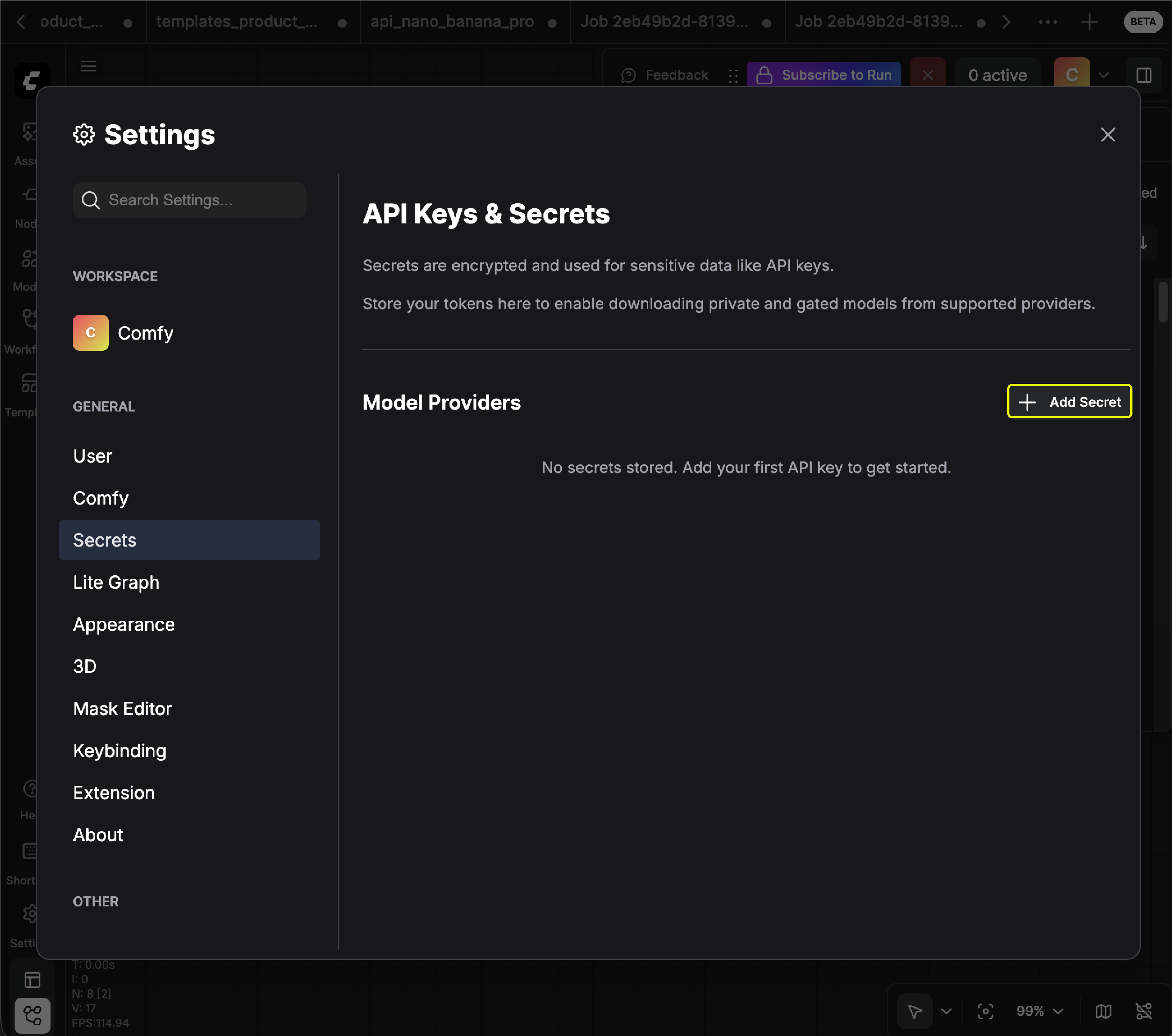 2. API 키를 추가하세요(키 이름은 원하는 대로 지정 가능):
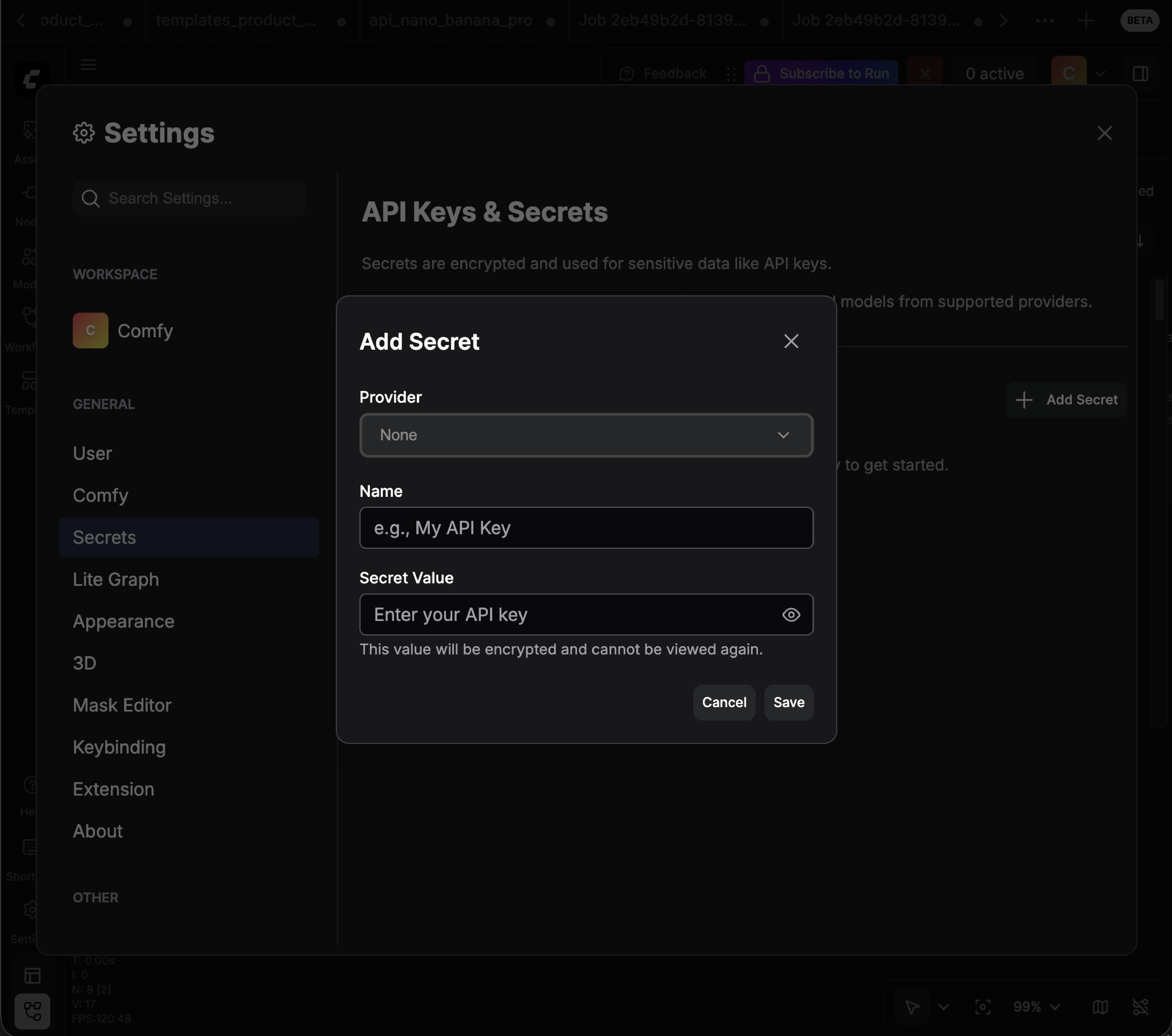 3. API 키가 가져오려는 비공개 모델에 대한 접근 권한을 가지고 있는지 확인하세요.
### 3. 비공개 모델 가져오기
API 키가 설정되면, 공개 모델과 동일한 과정으로 비공개 모델을 가져올 수 있습니다:
1. Hugging Face 또는 Civitai에서 모델 링크를 얻으세요.
2. 가져오기 모달에 링크를 붙여넣으세요.
3. 시스템은 자동으로 저장된 API 키를 사용해 비공개 모델에 접근합니다.
필요한 비공개 모델에 접근할 수 있는 권한이 있는지 확인하세요.
## FAQ
네. 지원되는 파일 형식은 **safetensor**뿐입니다. 파일 크기에 대한 제한은 사실상 없습니다(최대 100GB).
가져온 모델은 **귀하만의 비공개 모델**입니다. 귀하만이 라이브러리에서 모델을 볼 수 있습니다.
현재는 모델을 먼저 **공개 Hugging Face 또는 Civitai 리포지토리**에 업로드한 후 해당 플랫폼에서 가져와야 합니다.
아닙니다. 분할된 모델 파일을 하나의 파일로 합쳐서 업로드해야 합니다.
이 기능은 **Creator** 및 **Pro** 플랜에서만 이용 가능합니다.
아닙니다. 이 기능은 **클라우드 전용**입니다.
네. 가져온 모델은 삭제할 수 있습니다. 단, Comfy 내부 팀이 업로드한 모델은 삭제할 수 없습니다.
3. API 키가 가져오려는 비공개 모델에 대한 접근 권한을 가지고 있는지 확인하세요.
### 3. 비공개 모델 가져오기
API 키가 설정되면, 공개 모델과 동일한 과정으로 비공개 모델을 가져올 수 있습니다:
1. Hugging Face 또는 Civitai에서 모델 링크를 얻으세요.
2. 가져오기 모달에 링크를 붙여넣으세요.
3. 시스템은 자동으로 저장된 API 키를 사용해 비공개 모델에 접근합니다.
필요한 비공개 모델에 접근할 수 있는 권한이 있는지 확인하세요.
## FAQ
네. 지원되는 파일 형식은 **safetensor**뿐입니다. 파일 크기에 대한 제한은 사실상 없습니다(최대 100GB).
가져온 모델은 **귀하만의 비공개 모델**입니다. 귀하만이 라이브러리에서 모델을 볼 수 있습니다.
현재는 모델을 먼저 **공개 Hugging Face 또는 Civitai 리포지토리**에 업로드한 후 해당 플랫폼에서 가져와야 합니다.
아닙니다. 분할된 모델 파일을 하나의 파일로 합쳐서 업로드해야 합니다.
이 기능은 **Creator** 및 **Pro** 플랜에서만 이용 가능합니다.
아닙니다. 이 기능은 **클라우드 전용**입니다.
네. 가져온 모델은 삭제할 수 있습니다. 단, Comfy 내부 팀이 업로드한 모델은 삭제할 수 없습니다.