> ## Documentation Index
> Fetch the complete documentation index at: https://docs.comfy.org/llms.txt
> Use this file to discover all available pages before exploring further.
# Windows — Comfy Desktop
> Windows에서 Comfy Desktop 설치 및 제거
**Comfy Desktop**은 하나의 런처에서 여러 ComfyUI 인스턴스를 실행할 수 있는 멀티 설치 관리자입니다. 이 가이드에서는 Windows에서 Comfy Desktop을 설치하고 제거하는 방법을 다룹니다.
## 시스템 요구 사항
* **OS:** Windows 10 이상
* **아키텍처:** x64 또는 ARM64
* **GPU:** 전용 GPU(NVIDIA / AMD)를 권장하지만 필수는 아닙니다
* **디스크 공간:** 설치당 최소 4.85GB 이상 권장
Windows 최신 설치 프로그램을 다운로드하세요. 페이지가 자동으로 플랫폼을 감지합니다.
## 설치
다운로드한 `.exe` 설치 파일(NSIS 인스톨러)을 실행하고 안내에 따라 진행하세요. 설치가 끝나면 시작 메뉴나 바탕화면 바로가기를 통해 Comfy Desktop을 실행합니다.
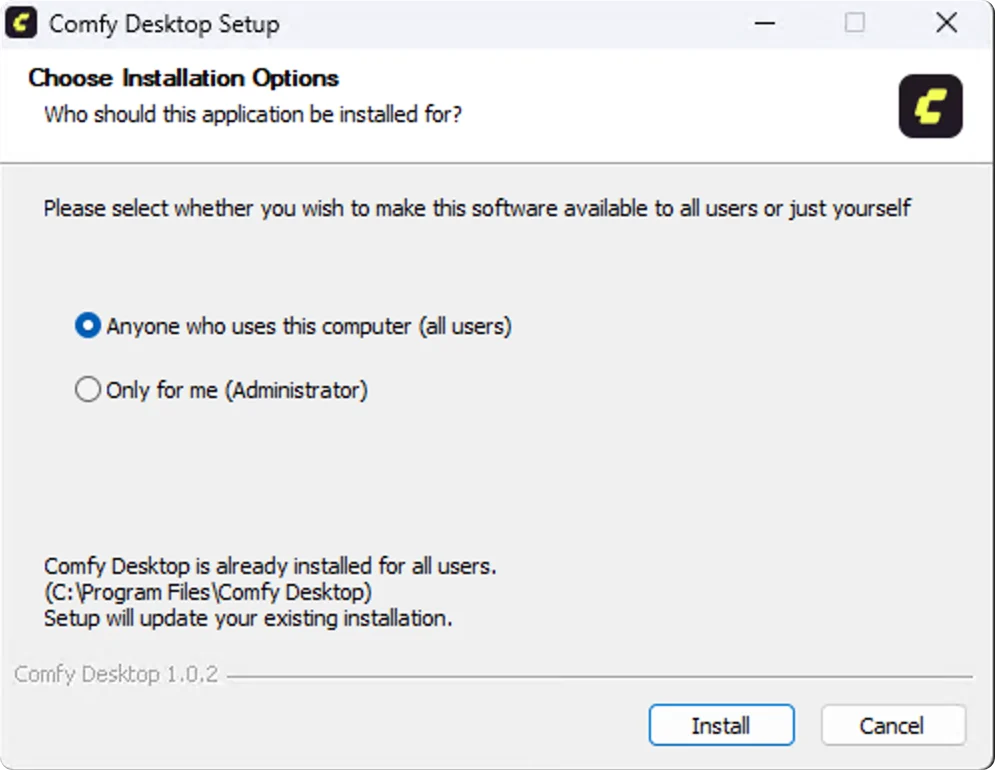 앱을 처음 열면 **시작** 화면이 나타나며, 여기서 첫 번째 설치를 생성할 수 있습니다.
**이미 Legacy Desktop을 사용 중이신가요?** Comfy Desktop은 기존 설치를 자동으로 감지하고 마이그레이션할 수 있습니다. 커스텀 노드, 워크플로, 모델, 설정이 모두 이전되며 아무것도 손실되지 않습니다. 레거시 설치는 백업으로 그대로 유지됩니다.
자세한 내용은 [레거시에서 마이그레이션](/ko/installation/desktop/usage/migrate) 가이드를 참고하세요.
설치 후에는 인스턴스 생성, 설치 관리, 설정 구성 방법을 알아보세요.
## Comfy Desktop 업데이트
Comfy Desktop은 자동으로 업데이트를 확인하며, 다음 두 가지 방법으로 관리할 수 있습니다.
## 빠른 업데이트
업데이트가 있으면 창 상단에 **Desktop Update Ready** 버튼이 표시됩니다:
앱을 처음 열면 **시작** 화면이 나타나며, 여기서 첫 번째 설치를 생성할 수 있습니다.
**이미 Legacy Desktop을 사용 중이신가요?** Comfy Desktop은 기존 설치를 자동으로 감지하고 마이그레이션할 수 있습니다. 커스텀 노드, 워크플로, 모델, 설정이 모두 이전되며 아무것도 손실되지 않습니다. 레거시 설치는 백업으로 그대로 유지됩니다.
자세한 내용은 [레거시에서 마이그레이션](/ko/installation/desktop/usage/migrate) 가이드를 참고하세요.
설치 후에는 인스턴스 생성, 설치 관리, 설정 구성 방법을 알아보세요.
## Comfy Desktop 업데이트
Comfy Desktop은 자동으로 업데이트를 확인하며, 다음 두 가지 방법으로 관리할 수 있습니다.
## 빠른 업데이트
업데이트가 있으면 창 상단에 **Desktop Update Ready** 버튼이 표시됩니다:
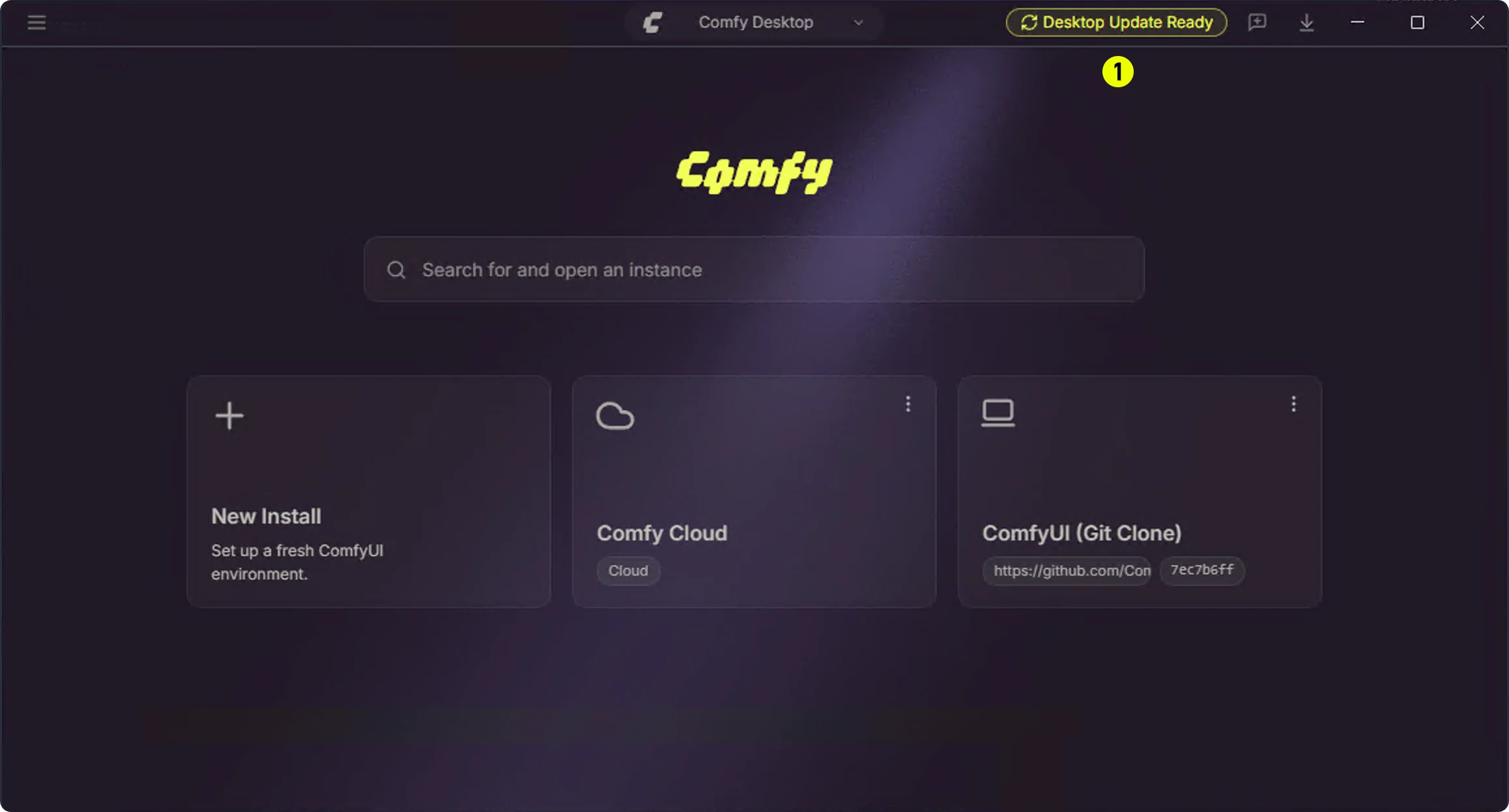 **①** **Desktop Update Ready** 버튼을 클릭하면 Comfy Desktop이 재시작되며 업데이트가 자동으로 설치됩니다.
## 설정에서 수동 업데이트
설정 패널에서도 업데이트를 확인하고 관리할 수 있습니다:
**①** **Desktop Update Ready** 버튼을 클릭하면 Comfy Desktop이 재시작되며 업데이트가 자동으로 설치됩니다.
## 설정에서 수동 업데이트
설정 패널에서도 업데이트를 확인하고 관리할 수 있습니다:
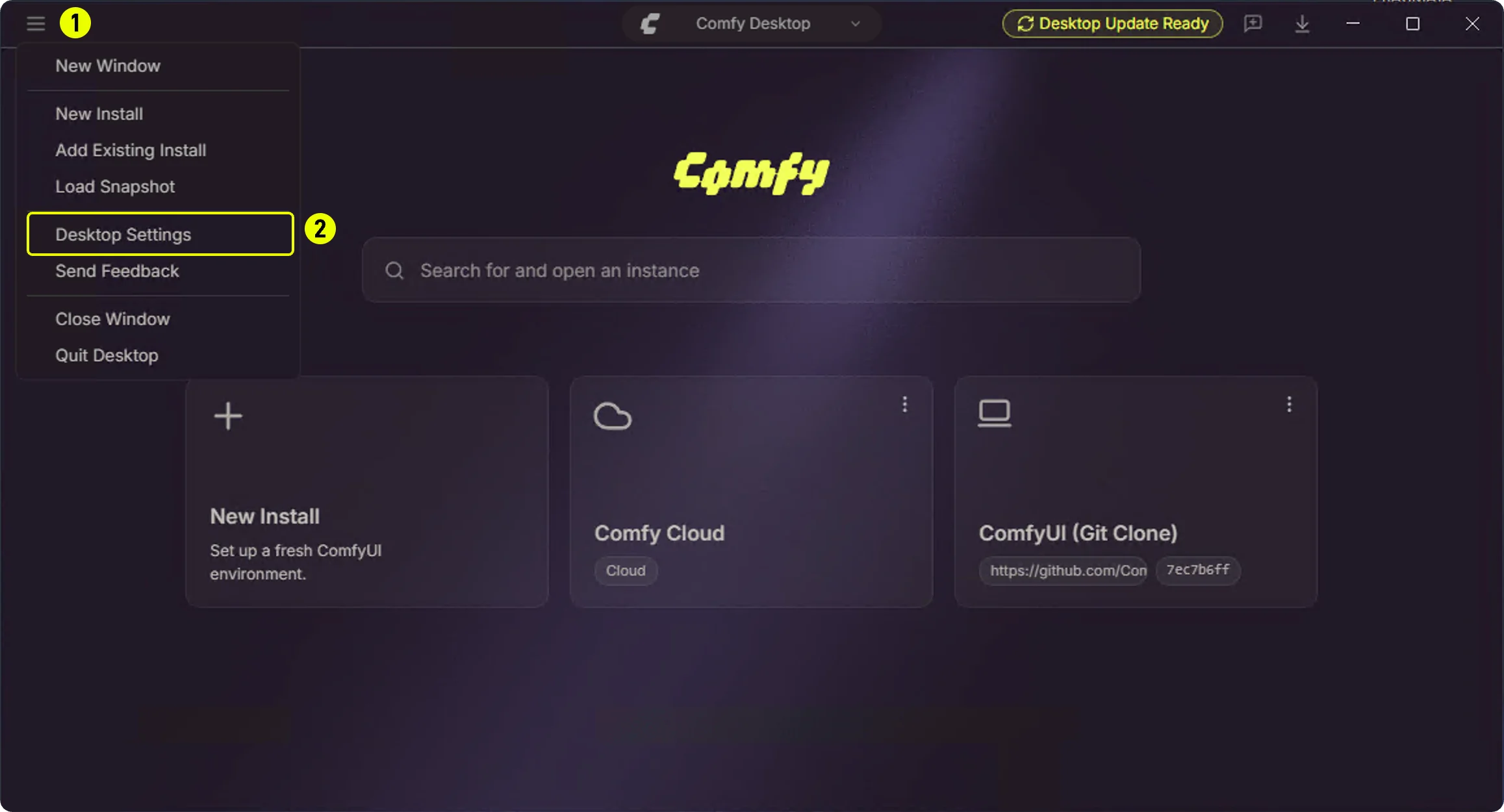 1. **①** 왼쪽 상단 햄버거 메뉴 클릭
2. **②** **Desktop Settings** 선택
1. **①** 왼쪽 상단 햄버거 메뉴 클릭
2. **②** **Desktop Settings** 선택
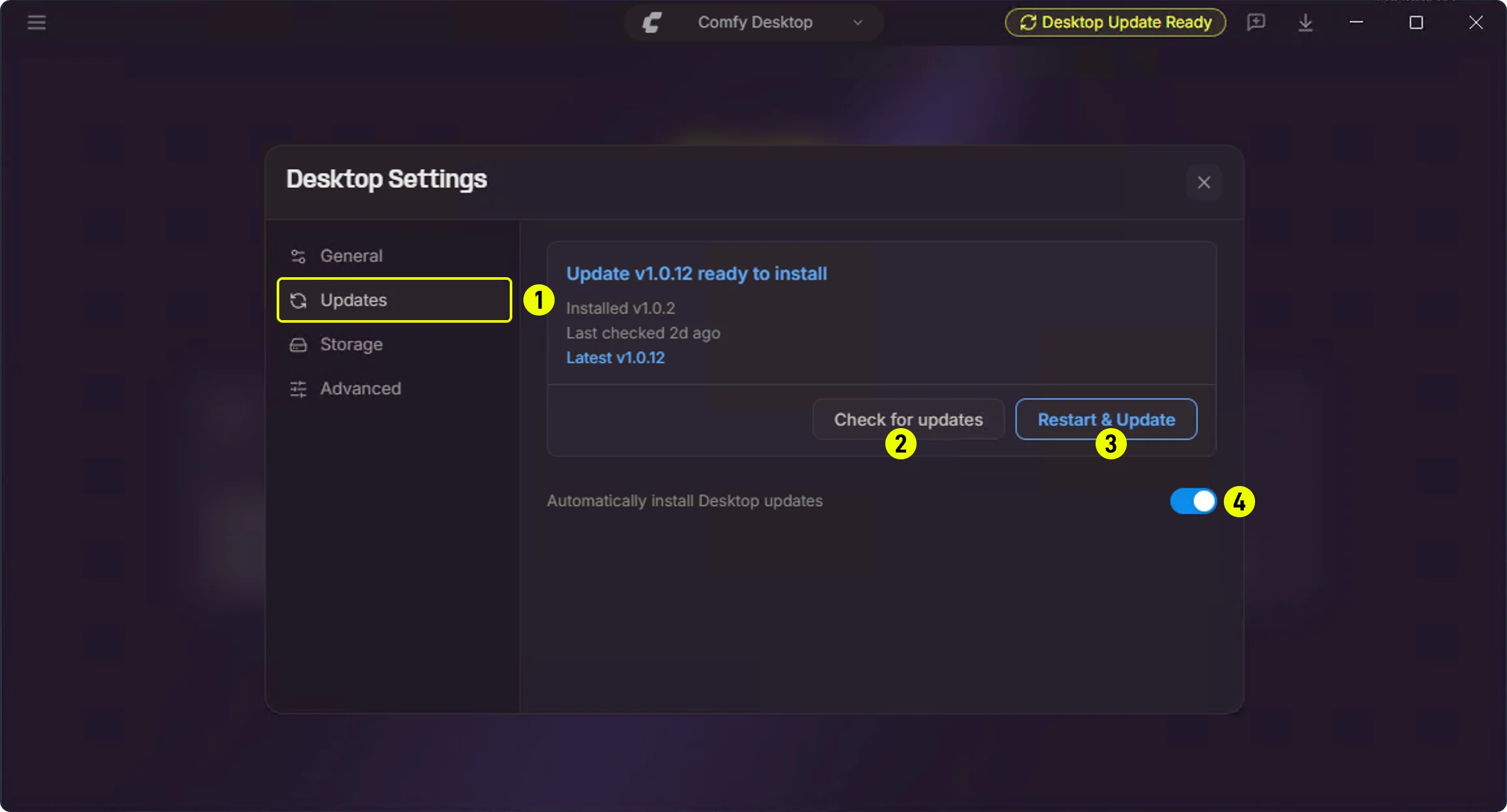 **Updates** 패널에서:
1. **① Updates** — 사이드바의 Updates 탭 클릭
2. **② Check for updates** — 수동으로 업데이트 확인
3. **③ Restart & Update** — 새 버전이 있을 때 표시되며, 클릭하면 재시작 후 업데이트
4. **④ Automatically install Desktop updates** — 자동 업데이트 설치 켜기/끄기
## 제거
### Comfy Desktop 제거
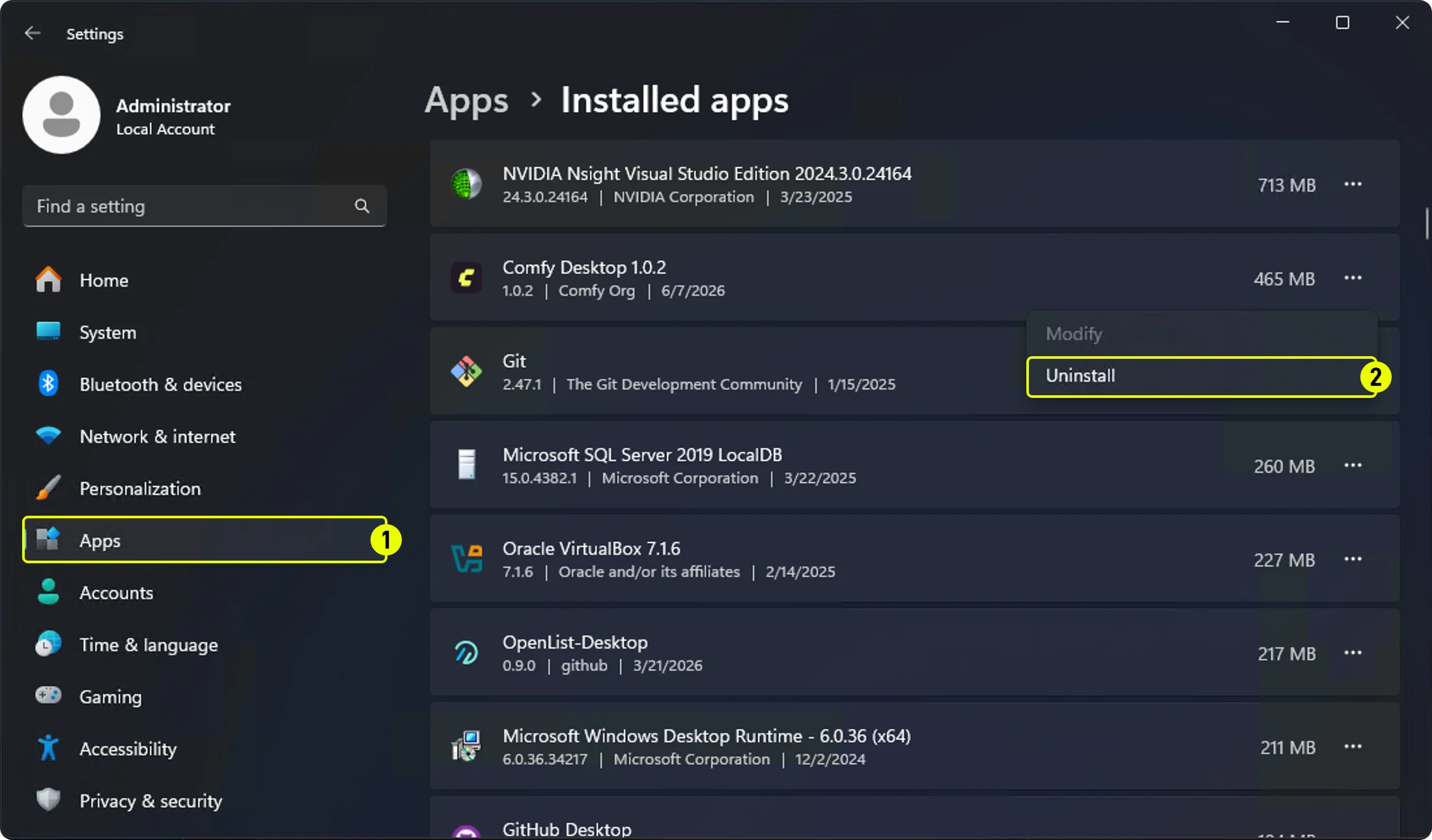
1. **설정 → 앱 → 설치된 앱**으로 이동합니다.
2. **Comfy Desktop**을 찾아 **제거**를 클릭합니다.
**Updates** 패널에서:
1. **① Updates** — 사이드바의 Updates 탭 클릭
2. **② Check for updates** — 수동으로 업데이트 확인
3. **③ Restart & Update** — 새 버전이 있을 때 표시되며, 클릭하면 재시작 후 업데이트
4. **④ Automatically install Desktop updates** — 자동 업데이트 설치 켜기/끄기
## 제거
### Comfy Desktop 제거
1. **설정 → 앱 → 설치된 앱**으로 이동합니다.
2. **Comfy Desktop**을 찾아 **제거**를 클릭합니다.
 ### 앱 제거 시 삭제되지 않는 항목
Comfy Desktop을 제거하면 앱 자체만 삭제됩니다. 다음 데이터는 **제거되지 않으므로** 완전히 정리하려면 수동으로 삭제해야 합니다.
| 데이터 | 위치 | 설명 |
| ------------ | -------------------------------- | -------------------------------------------------------- |
| 설치 | `%USERPROFILE%\ComfyUI-Installs` | 생성한 각 ComfyUI 설치(앱 내에서도 삭제 가능). 사용자 지정 설치 경로도 제거되지 않습니다. |
| 공유 모델 및 출력 | `%USERPROFILE%\ComfyUI-Shared` | 공유 모델 라이브러리, 입력/출력 디렉터리 |
| 앱 설정 및 레지스트리 | `%APPDATA%\Comfy Desktop` | 설정, 설치 기록, 로그 |
위에 나열된 디렉터리에는 **개인 ComfyUI 데이터**(모델, 출력, 설정, 설치)가 포함되어 있습니다. 이는 Comfy Desktop 애플리케이션 파일이 아닙니다. 삭제하면 데이터가 영구적으로 제거됩니다.
모든 항목을 완전히 제거하려면:
1. **앱 데이터 폴더 삭제** – `%APPDATA%\Comfy Desktop`
2. 앱 내에서 **개별 설치를 삭제**하거나 `%USERPROFILE%\ComfyUI-Installs`를 수동으로 삭제
3. `%USERPROFILE%\ComfyUI-Shared`에 있는 **공유 모델 라이브러리**를 삭제(해당 파일이 더 이상 필요하지 않은 경우)
### 앱 제거 시 삭제되지 않는 항목
Comfy Desktop을 제거하면 앱 자체만 삭제됩니다. 다음 데이터는 **제거되지 않으므로** 완전히 정리하려면 수동으로 삭제해야 합니다.
| 데이터 | 위치 | 설명 |
| ------------ | -------------------------------- | -------------------------------------------------------- |
| 설치 | `%USERPROFILE%\ComfyUI-Installs` | 생성한 각 ComfyUI 설치(앱 내에서도 삭제 가능). 사용자 지정 설치 경로도 제거되지 않습니다. |
| 공유 모델 및 출력 | `%USERPROFILE%\ComfyUI-Shared` | 공유 모델 라이브러리, 입력/출력 디렉터리 |
| 앱 설정 및 레지스트리 | `%APPDATA%\Comfy Desktop` | 설정, 설치 기록, 로그 |
위에 나열된 디렉터리에는 **개인 ComfyUI 데이터**(모델, 출력, 설정, 설치)가 포함되어 있습니다. 이는 Comfy Desktop 애플리케이션 파일이 아닙니다. 삭제하면 데이터가 영구적으로 제거됩니다.
모든 항목을 완전히 제거하려면:
1. **앱 데이터 폴더 삭제** – `%APPDATA%\Comfy Desktop`
2. 앱 내에서 **개별 설치를 삭제**하거나 `%USERPROFILE%\ComfyUI-Installs`를 수동으로 삭제
3. `%USERPROFILE%\ComfyUI-Shared`에 있는 **공유 모델 라이브러리**를 삭제(해당 파일이 더 이상 필요하지 않은 경우)