> ## Documentation Index
> Fetch the complete documentation index at: https://docs.comfy.org/llms.txt
> Use this file to discover all available pages before exploring further.
# 캔버스 컨트롤 - 미니맵, 줌, 포커스 모드
> ComfyUI 캔버스 컨트롤과 View 메뉴로 미니맵, 링크 표시, 캔버스 정보, 줌, 맞춤 보기, Select/Hand, Focus Mode를 사용합니다.
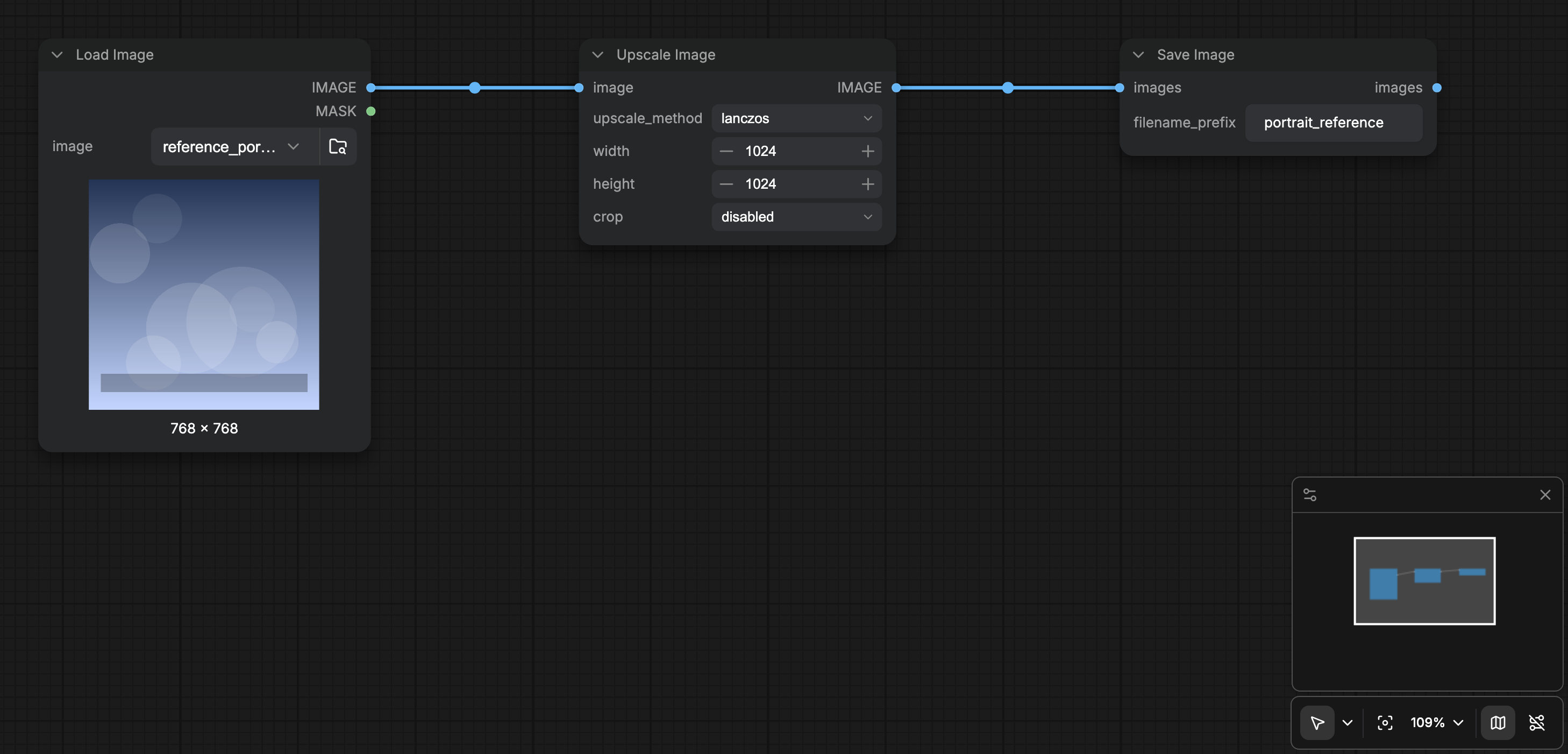
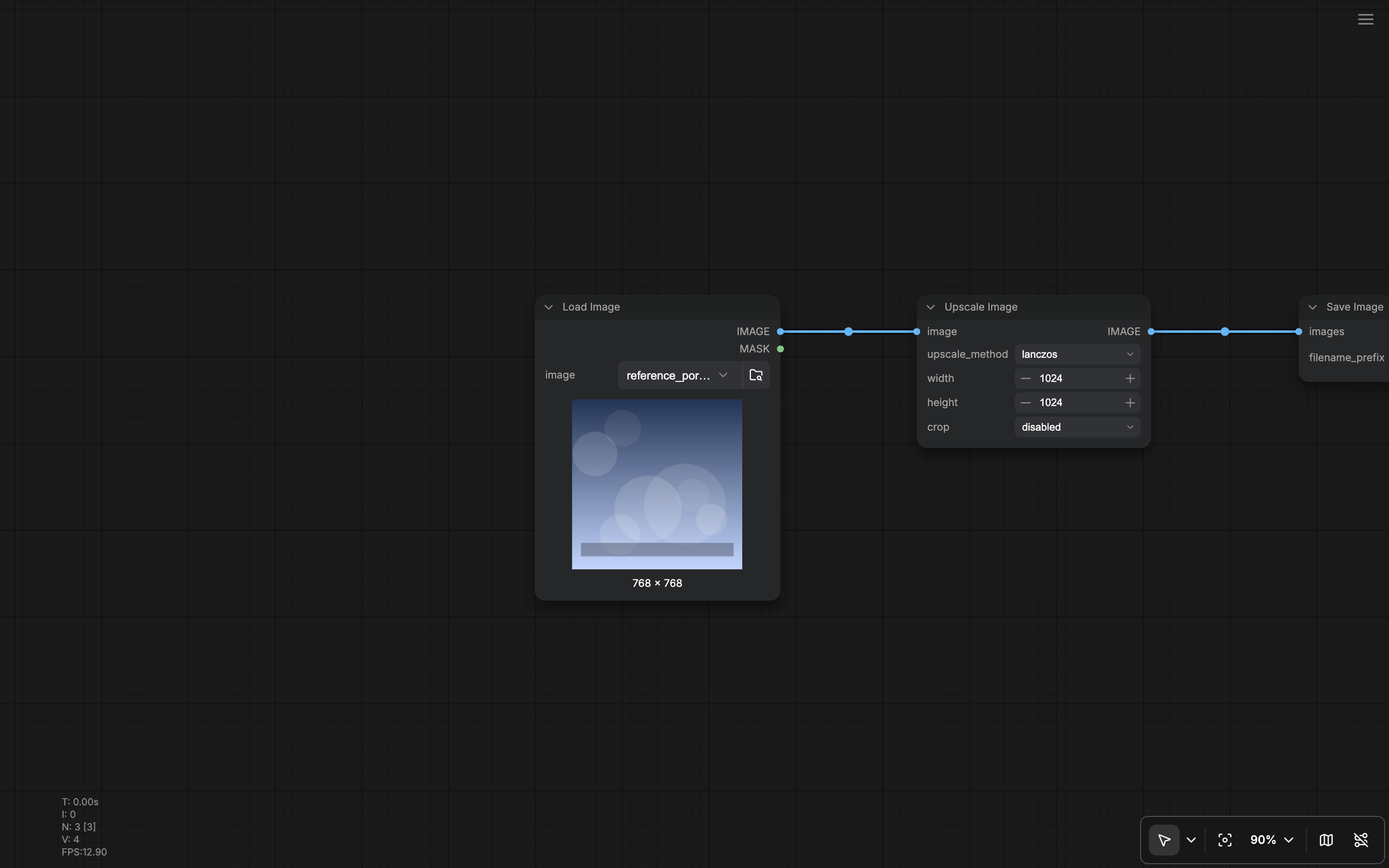
캔버스 오른쪽 아래 도구 모음과 **View** 메뉴로 그래프를 어떻게 이동할지 제어합니다. 핵심 View 명령에는 하단 패널 전환, 템플릿 탐색, **Focus Mode**, 캔버스 성능 정보, 미니맵, 링크 표시, 확대/축소, 맞춤 보기가 포함됩니다.
 ## 캔버스 도구 모음
**Show graph canvas menu**(`Comfy.Graph.CanvasMenu`)가 켜져 있으면(기본값) 캔버스 오른쪽 아래에 떠 있는 도구 모음이 있습니다.
| 컨트롤 | 역할 |
| - | - |
| **Canvas mode** | **Select**(노드 편집)와 **Hand**(팬 전용 / 읽기 전용) 전환. 기본: `v`로 Select 잠금 해제, `h`로 Hand 잠금. |
| **Fit view** | 뷰포트에 그래프를 맞춤(`Comfy.Canvas.FitView`, 기본 `.`). |
| **Zoom** | 확대, 축소, 맞춤, 퍼센트 필드(1-1000%) 팝오버. 기본 단축키에 `Alt` + `=` / `Alt` + `-`. |
| **Minimap** | 개요 맵 전환(`Comfy.Canvas.ToggleMinimap`, 기본 `Alt` + `Shift` + `M`). `Comfy.Minimap.Visible`로 유지. |
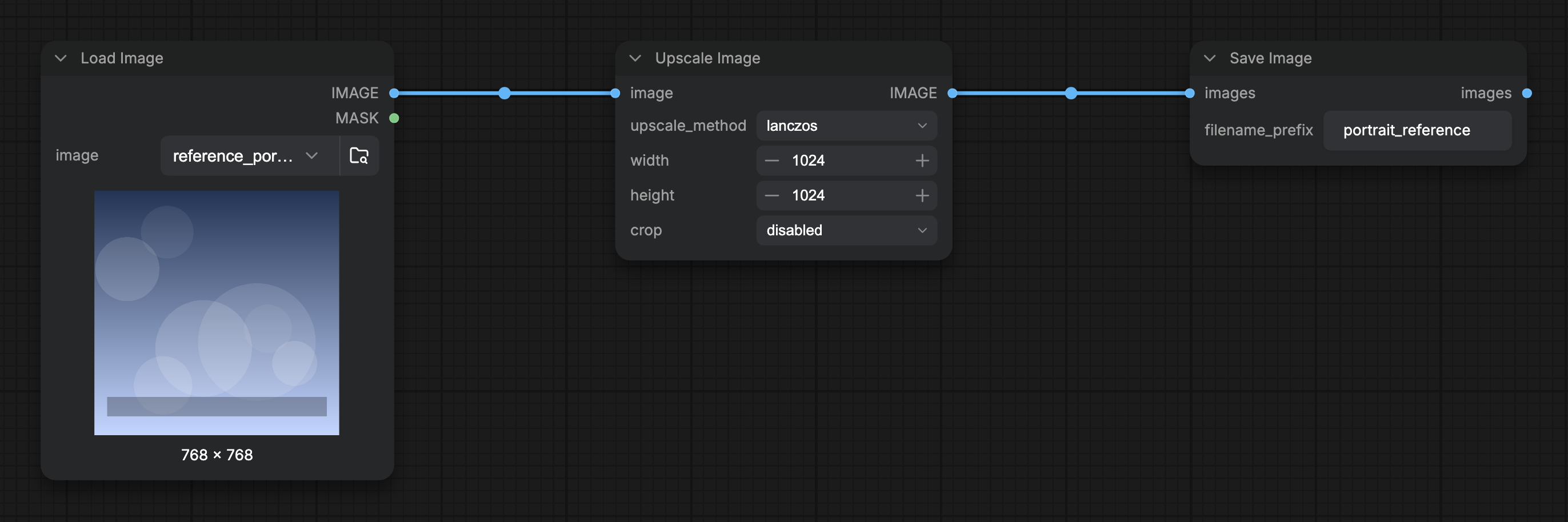
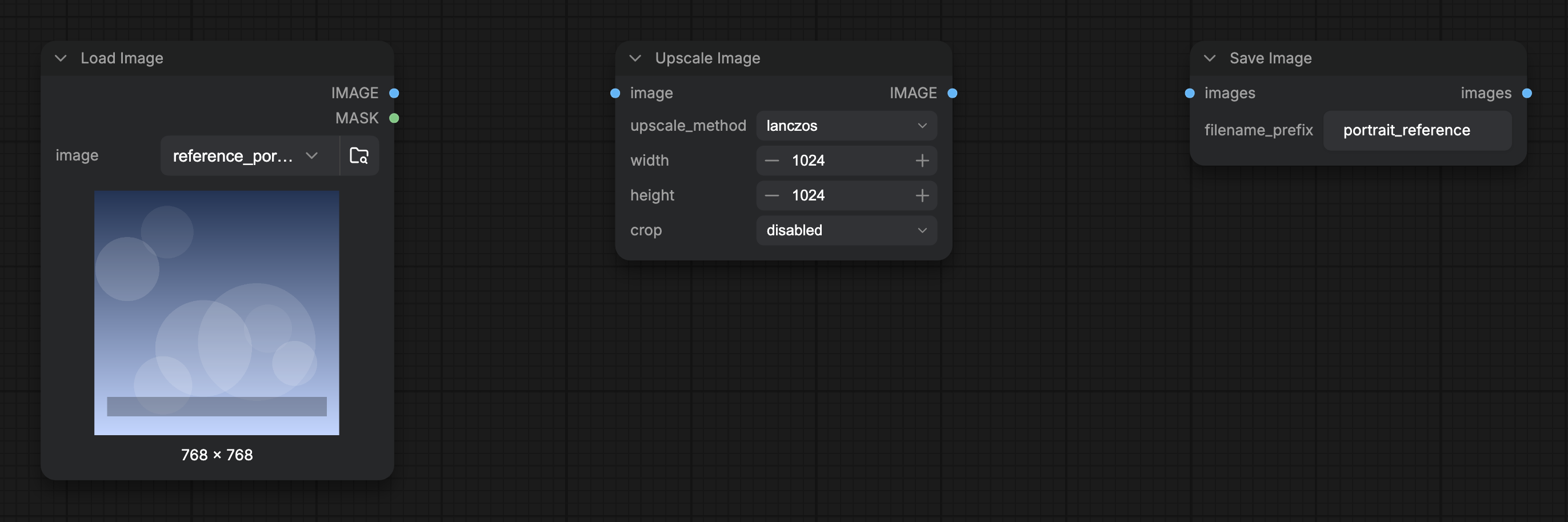
| **Link visibility** | 숨김 링크 렌더 모드를 바꿔 연결선 표시/숨김(`Comfy.Canvas.ToggleLinkVisibility`). |
Lite Graph / Canvas 설정의 **Show graph canvas menu**로 도구 모음 전체를 숨길 수 있습니다.
## View 메뉴
**View** 메뉴에 같은 탐색 명령이 등록되어 메뉴 바나 명령 팔레트에서 실행할 수 있습니다.
* Toggle Bottom Panel
* Browse Templates
* Focus Mode
* Canvas Performance(`Comfy.ToggleCanvasInfo`, `Comfy.Graph.CanvasInfo` 전환)
* Toggle Minimap
* Toggle Link Visibility
* Zoom In / Zoom Out / Fit View
## Focus Mode
**Focus Mode**(`Workspace.ToggleFocusMode`)는 워크스페이스 크롬을 숨겨 그래프에 집중하게 합니다. 켜져 있을 때:
* 상단 메뉴 구역이 숨겨집니다(새 메뉴).
* 좌우 사이드바 패널과 하단 패널이 스플리터 레이아웃에 그려지지 않습니다.
* Focus Mode를 종료하는 햄버거(**Show menu**)가 나타납니다.
Focus Mode를 다시 전환하거나 햄버거로 전체 워크스페이스를 복원합니다.
## 미니맵 옵션
표시/숨김 외에 Settings의 Minimap에서 맵에 그릴 내용(노드 색, 링크, 그룹, bypass, 오류 상태)을 제어합니다. [Lite Graph 설정](/ko/interface/settings/lite-graph)과 있으면 관련 Appearance 항목을 참고하세요.
## 링크와 캔버스 전역 옵션
링크 모양과 연결된 링크 표시 여부는 선택이 없을 때 [오른쪽 패널](/ko/interface/right-side-panel) **Global Settings** 빠른 전환과 Lite Graph 설정(`Comfy.LinkRenderMode` 등)에서도 바꿉니다. 격자 간격과 스냅도 같은 Global Settings / Lite Graph 영역에 있습니다.
## 관련 페이지
* [인터페이스 개요](/ko/interface/overview)
* [단축키](/ko/interface/shortcuts)
* [Lite Graph 설정](/ko/interface/settings/lite-graph)
* [오른쪽 패널](/ko/interface/right-side-panel)(Global Settings 빠른 전환)
* [하단 패널](/ko/interface/bottom-panel)
This documentation is built and hosted on [Mintlify](https://mintlify.com), a developer documentation platform.
## 캔버스 도구 모음
**Show graph canvas menu**(`Comfy.Graph.CanvasMenu`)가 켜져 있으면(기본값) 캔버스 오른쪽 아래에 떠 있는 도구 모음이 있습니다.
| 컨트롤 | 역할 |
| - | - |
| **Canvas mode** | **Select**(노드 편집)와 **Hand**(팬 전용 / 읽기 전용) 전환. 기본: `v`로 Select 잠금 해제, `h`로 Hand 잠금. |
| **Fit view** | 뷰포트에 그래프를 맞춤(`Comfy.Canvas.FitView`, 기본 `.`). |
| **Zoom** | 확대, 축소, 맞춤, 퍼센트 필드(1-1000%) 팝오버. 기본 단축키에 `Alt` + `=` / `Alt` + `-`. |
| **Minimap** | 개요 맵 전환(`Comfy.Canvas.ToggleMinimap`, 기본 `Alt` + `Shift` + `M`). `Comfy.Minimap.Visible`로 유지. |
| **Link visibility** | 숨김 링크 렌더 모드를 바꿔 연결선 표시/숨김(`Comfy.Canvas.ToggleLinkVisibility`). |
Lite Graph / Canvas 설정의 **Show graph canvas menu**로 도구 모음 전체를 숨길 수 있습니다.
## View 메뉴
**View** 메뉴에 같은 탐색 명령이 등록되어 메뉴 바나 명령 팔레트에서 실행할 수 있습니다.
* Toggle Bottom Panel
* Browse Templates
* Focus Mode
* Canvas Performance(`Comfy.ToggleCanvasInfo`, `Comfy.Graph.CanvasInfo` 전환)
* Toggle Minimap
* Toggle Link Visibility
* Zoom In / Zoom Out / Fit View
## Focus Mode
**Focus Mode**(`Workspace.ToggleFocusMode`)는 워크스페이스 크롬을 숨겨 그래프에 집중하게 합니다. 켜져 있을 때:
* 상단 메뉴 구역이 숨겨집니다(새 메뉴).
* 좌우 사이드바 패널과 하단 패널이 스플리터 레이아웃에 그려지지 않습니다.
* Focus Mode를 종료하는 햄버거(**Show menu**)가 나타납니다.
Focus Mode를 다시 전환하거나 햄버거로 전체 워크스페이스를 복원합니다.
## 미니맵 옵션
표시/숨김 외에 Settings의 Minimap에서 맵에 그릴 내용(노드 색, 링크, 그룹, bypass, 오류 상태)을 제어합니다. [Lite Graph 설정](/ko/interface/settings/lite-graph)과 있으면 관련 Appearance 항목을 참고하세요.
## 링크와 캔버스 전역 옵션
링크 모양과 연결된 링크 표시 여부는 선택이 없을 때 [오른쪽 패널](/ko/interface/right-side-panel) **Global Settings** 빠른 전환과 Lite Graph 설정(`Comfy.LinkRenderMode` 등)에서도 바꿉니다. 격자 간격과 스냅도 같은 Global Settings / Lite Graph 영역에 있습니다.
## 관련 페이지
* [인터페이스 개요](/ko/interface/overview)
* [단축키](/ko/interface/shortcuts)
* [Lite Graph 설정](/ko/interface/settings/lite-graph)
* [오른쪽 패널](/ko/interface/right-side-panel)(Global Settings 빠른 전환)
* [하단 패널](/ko/interface/bottom-panel)
This documentation is built and hosted on [Mintlify](https://mintlify.com), a developer documentation platform.