> ## Documentation Index
> Fetch the complete documentation index at: https://docs.comfy.org/llms.txt
> Use this file to discover all available pages before exploring further.
# ComfyUI-Manager 설치
> 다양한 설정에서 ComfyUI-Manager를 설치하는 방법
## 데스크톱 사용자
[Comfy 데스크톱](/ko/installation/desktop/windows)을 사용하고 있다면 ComfyUI-Manager가 이미 포함되어 있으며 기본적으로 활성화되어 있습니다. 추가 설치는 필요하지 않습니다.
## 휴대용 사용자
[Windows 휴대용](/ko/installation/comfyui_portable_windows) 버전을 실행하는 사용자의 경우, 새로운 ComfyUI-Manager가 ComfyUI 코어에 내장되어 있지만 이를 활성화해야 합니다.
1. 관리자 종속성 설치:
```bash theme={null}
.\python_embeded\python.exe -m pip install -r ComfyUI\manager_requirements.txt
```
2. 관리자가 활성화된 상태로 ComfyUI 실행:
```bash theme={null}
.\python_embeded\python.exe -s ComfyUI\main.py --windows-standalone-build --enable-manager
pause
```
## 수동 설치 사용자
[수동 설치](/ko/installation/manual_install)를 한 사용자의 경우, 새로운 ComfyUI-Manager가 ComfyUI 코어에 내장되어 있지만 이를 활성화해야 합니다.
1. 가상 환경 활성화:
```bash theme={null}
# Windows
venv\Scripts\activate
# Linux/macOS
source venv/bin/activate
```
2. 관리자 종속성 설치:
```bash theme={null}
pip install -r manager_requirements.txt
```
3. ComfyUI 실행 시 `--enable-manager` 플래그를 통해 관리자를 활성화:
```bash theme={null}
python main.py --enable-manager
```
### 명령줄 옵션
| 플래그 | 설명 |
| ---------------------------- | ------------------------------------------------------------ |
| `--enable-manager` | ComfyUI-Manager 활성화 |
| `--enable-manager-legacy-ui` | 새 UI 대신 레거시 관리자 UI 사용 (필요조건: `--enable-manager`) |
| `--disable-manager-ui` | 백그라운드 기능은 유지하되 관리자 UI와 엔드포인트 비활성화 (필요조건: `--enable-manager`) |
### 새 UI와 레거시 UI 간 전환
다음 버전 업데이트는 pip 설치만 지원합니다. 커스텀 노드를 통해 설치한 버전은 새 UI로의 전환이 불가능합니다.
새 UI를 사용하려면:
```bash theme={null}
python main.py --enable-manager
```
레거시 UI를 사용하려면:
```bash theme={null}
python main.py --enable-manager --enable-manager-legacy-ui
```
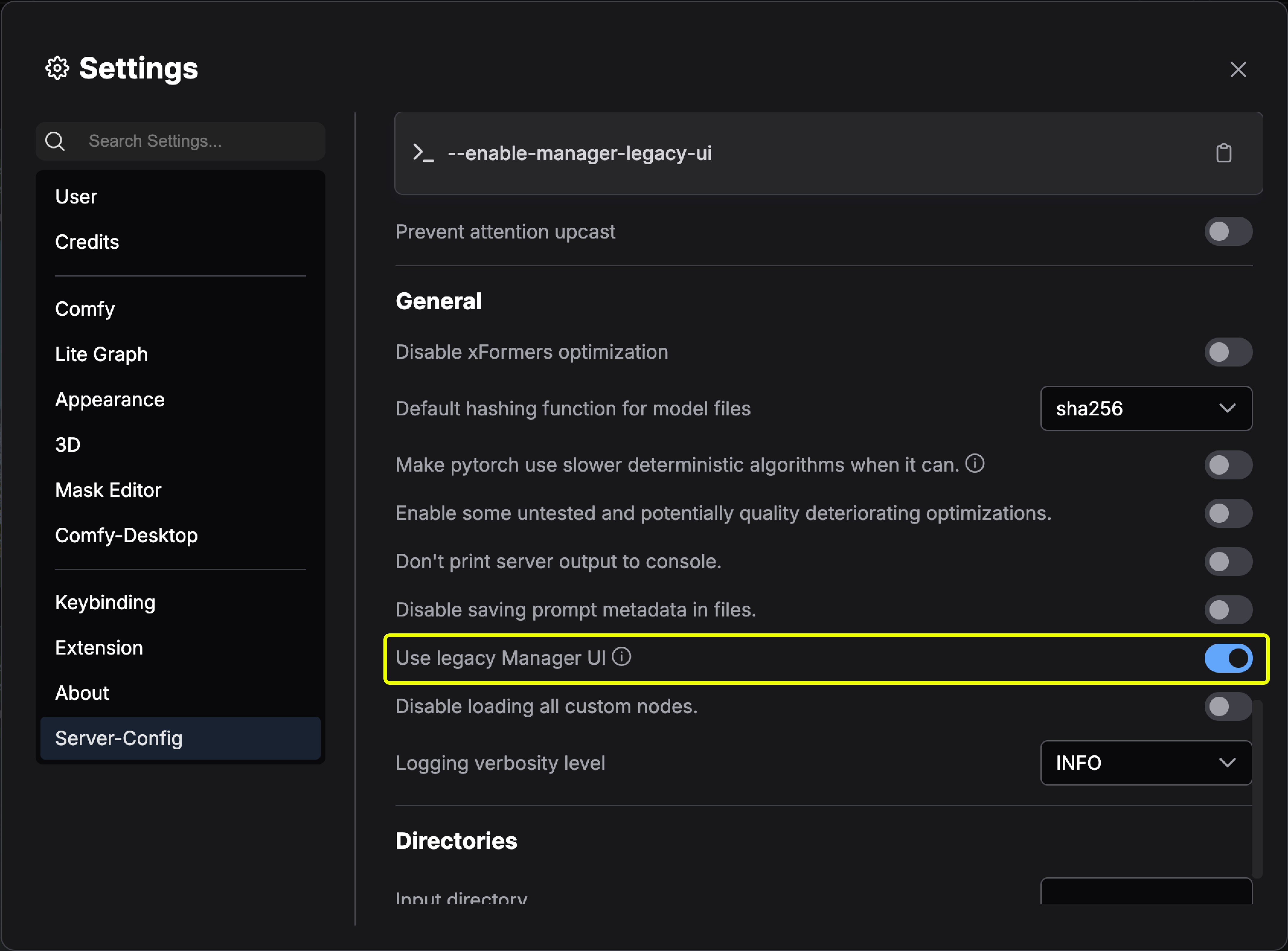
데스크톱 사용자는 **서버 설정 → UI 설정 → 레거시 관리자 인터페이스 사용**에서 레거시 UI로 전환할 수 있습니다.
 ## 레거시 설치 방법
기존 ComfyUI 설치에 ComfyUI-Manager를 추가로 설치하려면:
1. 터미널에서 `ComfyUI/custom_nodes` 디렉토리로 이동
2. 리포지토리 복제:
```bash theme={null}
git clone https://github.com/Comfy-Org/ComfyUI-Manager comfyui-manager
```
3. 관리자 종속성 설치:
```bash theme={null}
cd comfyui-manager
pip install -r requirements.txt
```
4. ComfyUI 재시작
1. [Git for Windows](https://git-scm.com/download/win) 설치 (독립형 버전, "윈도우 기본 콘솔 창 사용" 선택)
2. [install-manager-for-portable-version.bat](https://github.com/Comfy-Org/ComfyUI-Manager/raw/main/scripts/install-manager-for-portable-version.bat)를 `ComfyUI_windows_portable` 디렉토리에 다운로드
3. 배치 파일을 더블클릭해 설치
comfy-cli는 CLI에서 ComfyUI를 관리하는 다양한 기능을 제공합니다.
**사전 요구사항**: Python 3, Git
**Windows:**
```bash theme={null}
python -m venv venv
venv\Scripts\activate
pip install comfy-cli
comfy install
```
**Linux/macOS:**
```bash theme={null}
python -m venv venv
. venv/bin/activate
pip install comfy-cli
comfy install
```
참고: [comfy-cli 문서](/ko/comfy-cli/getting-started)
**사전 요구사항**: python-is-python3, python3-venv, git
1. [install-comfyui-venv-linux.sh](https://github.com/comfy-org/ComfyUI-Manager/raw/main/scripts/install-comfyui-venv-linux.sh)를 빈 설치 디렉토리에 다운로드
2. 실행:
```bash theme={null}
chmod +x install-comfyui-venv-linux.sh
./install-comfyui-venv-linux.sh
```
3. `./run_gpu.sh` 또는 `./run_cpu.sh`로 ComfyUI 실행
**설치 주의사항:**
* ComfyUI-Manager 파일은 반드시 `ComfyUI/custom_nodes/comfyui-manager` 경로에 정확히 위치해야 합니다.
* `ComfyUI/custom_nodes`에 직접 압축 해제하지 마세요 (예: `__init__.py` 같은 파일이 해당 디렉토리에 있으면 안 됩니다).
* `ComfyUI/custom_nodes/ComfyUI-Manager/ComfyUI-Manager` 또는 `ComfyUI/custom_nodes/ComfyUI-Manager-main`과 같은 경로에 설치하지 마세요.
## 레거시 설치 방법
기존 ComfyUI 설치에 ComfyUI-Manager를 추가로 설치하려면:
1. 터미널에서 `ComfyUI/custom_nodes` 디렉토리로 이동
2. 리포지토리 복제:
```bash theme={null}
git clone https://github.com/Comfy-Org/ComfyUI-Manager comfyui-manager
```
3. 관리자 종속성 설치:
```bash theme={null}
cd comfyui-manager
pip install -r requirements.txt
```
4. ComfyUI 재시작
1. [Git for Windows](https://git-scm.com/download/win) 설치 (독립형 버전, "윈도우 기본 콘솔 창 사용" 선택)
2. [install-manager-for-portable-version.bat](https://github.com/Comfy-Org/ComfyUI-Manager/raw/main/scripts/install-manager-for-portable-version.bat)를 `ComfyUI_windows_portable` 디렉토리에 다운로드
3. 배치 파일을 더블클릭해 설치
comfy-cli는 CLI에서 ComfyUI를 관리하는 다양한 기능을 제공합니다.
**사전 요구사항**: Python 3, Git
**Windows:**
```bash theme={null}
python -m venv venv
venv\Scripts\activate
pip install comfy-cli
comfy install
```
**Linux/macOS:**
```bash theme={null}
python -m venv venv
. venv/bin/activate
pip install comfy-cli
comfy install
```
참고: [comfy-cli 문서](/ko/comfy-cli/getting-started)
**사전 요구사항**: python-is-python3, python3-venv, git
1. [install-comfyui-venv-linux.sh](https://github.com/comfy-org/ComfyUI-Manager/raw/main/scripts/install-comfyui-venv-linux.sh)를 빈 설치 디렉토리에 다운로드
2. 실행:
```bash theme={null}
chmod +x install-comfyui-venv-linux.sh
./install-comfyui-venv-linux.sh
```
3. `./run_gpu.sh` 또는 `./run_cpu.sh`로 ComfyUI 실행
**설치 주의사항:**
* ComfyUI-Manager 파일은 반드시 `ComfyUI/custom_nodes/comfyui-manager` 경로에 정확히 위치해야 합니다.
* `ComfyUI/custom_nodes`에 직접 압축 해제하지 마세요 (예: `__init__.py` 같은 파일이 해당 디렉토리에 있으면 안 됩니다).
* `ComfyUI/custom_nodes/ComfyUI-Manager/ComfyUI-Manager` 또는 `ComfyUI/custom_nodes/ComfyUI-Manager-main`과 같은 경로에 설치하지 마세요.