> ## Documentation Index
> Fetch the complete documentation index at: https://docs.comfy.org/llms.txt
> Use this file to discover all available pages before exploring further.
# Managing custom nodes with ComfyUI-Manager (legacy UI)
> Install, update, and manage custom nodes with ComfyUI-Manager using the legacy interface
## ComfyUI custom node management
Learn how to install custom nodes through Manager
### Install nodes
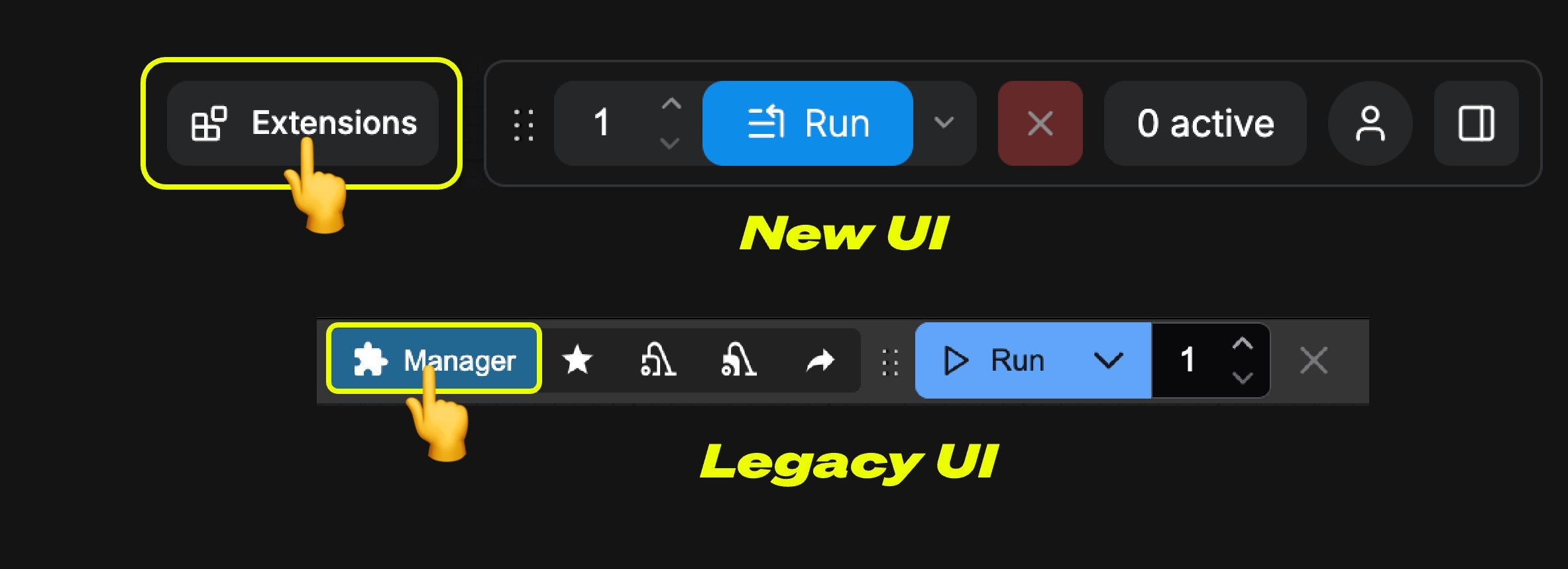
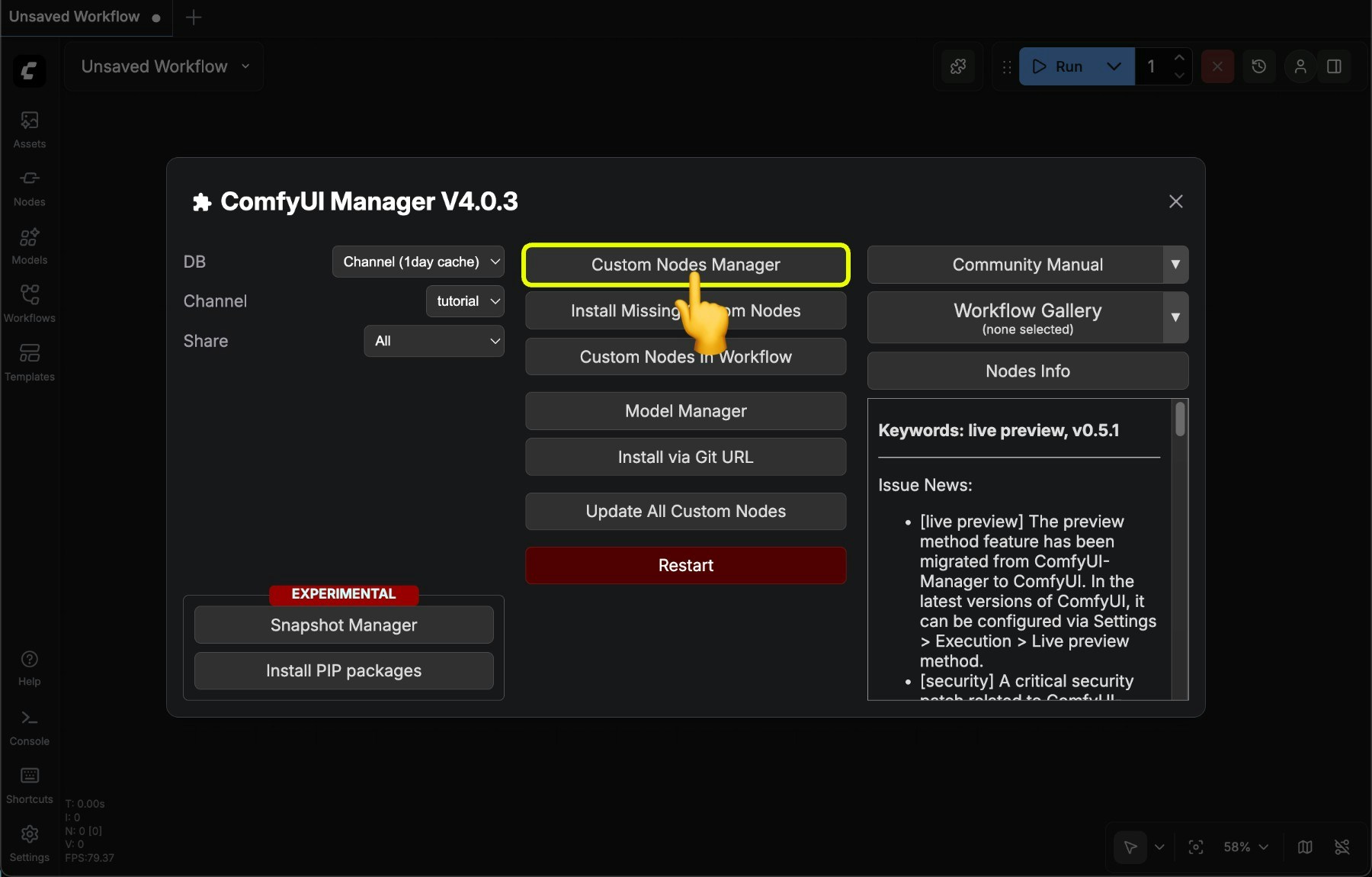
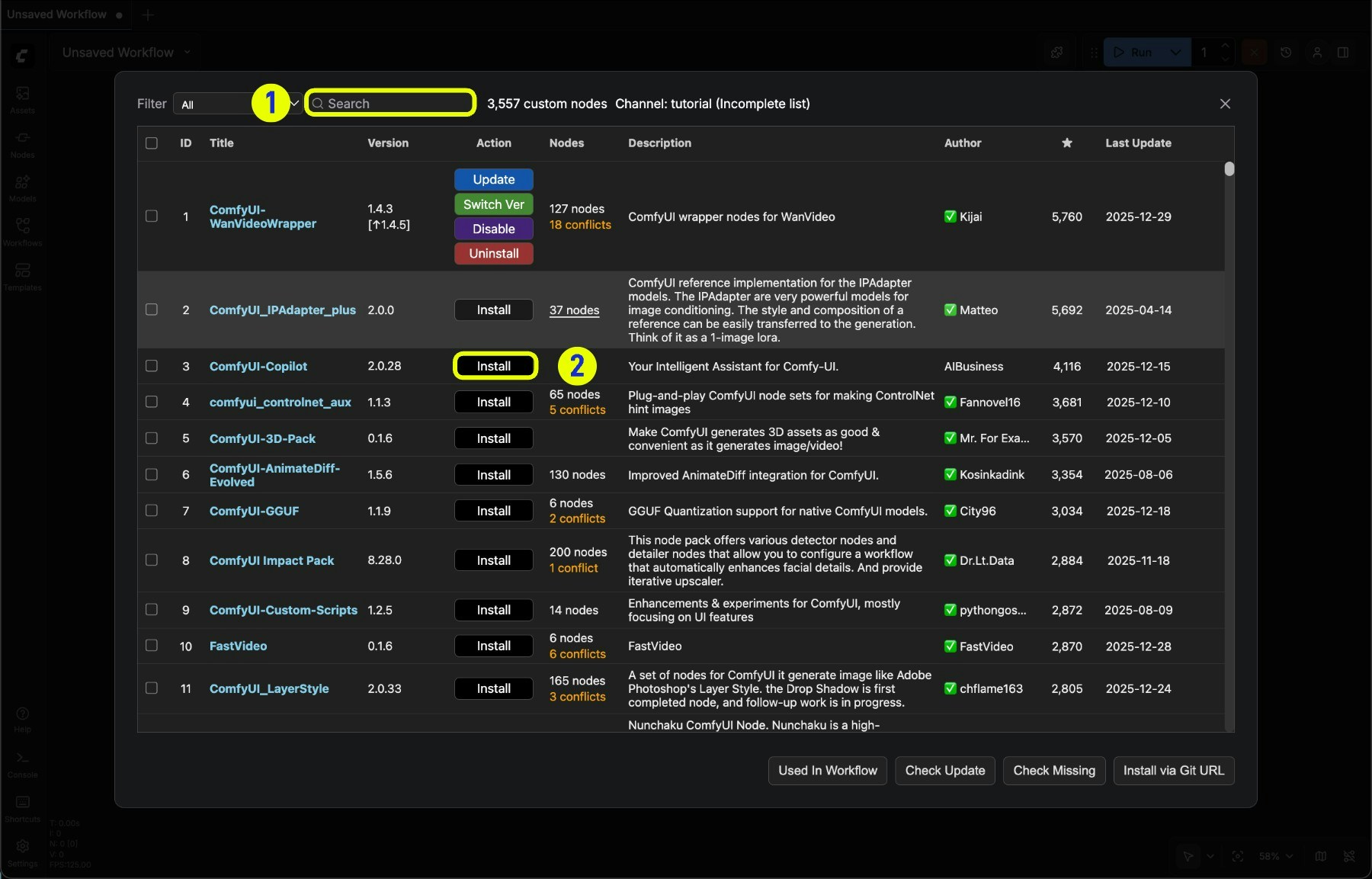
Click the **Manager** button on the main menu (top bar).
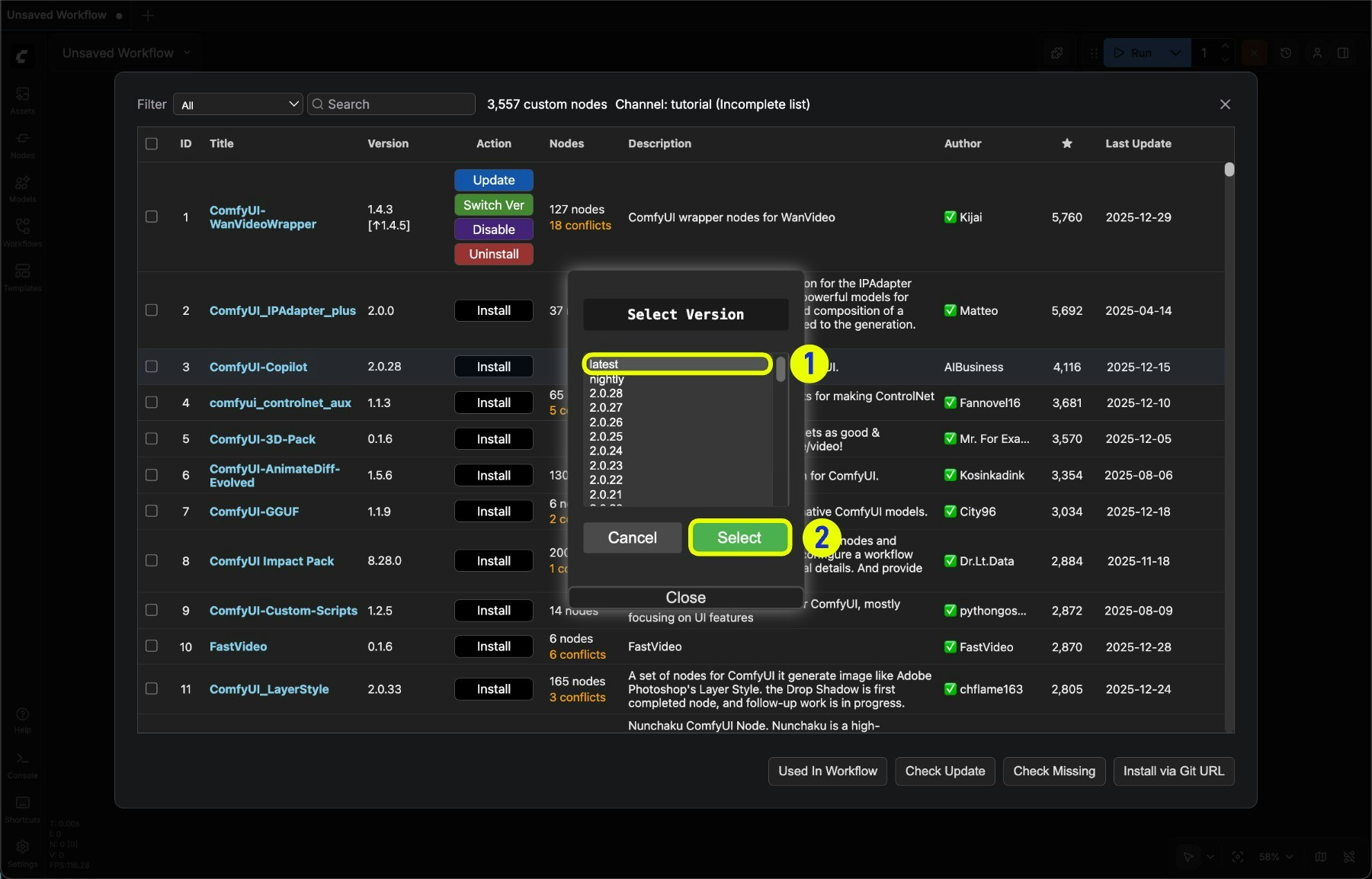 1. Prefer **latest** version if available
2. Click **Select** to install the node
* Version numbers with digits are versions published by authors to [registry](https://registry.comfy.org/), equivalent to stable releases
* nightly is the latest version updated by authors to github, equivalent to development version, usually not security scanned, with unstable factors
ComfyUI's default security settings do not allow direct installation of **nightly** versions. You can refer to [Security Policy](/manager/troubleshooting#security-policy) for details
After clicking install, Manager will automatically complete dependency installation and prompt you to restart ComfyUI after installation is complete
1. Prefer **latest** version if available
2. Click **Select** to install the node
* Version numbers with digits are versions published by authors to [registry](https://registry.comfy.org/), equivalent to stable releases
* nightly is the latest version updated by authors to github, equivalent to development version, usually not security scanned, with unstable factors
ComfyUI's default security settings do not allow direct installation of **nightly** versions. You can refer to [Security Policy](/manager/troubleshooting#security-policy) for details
After clicking install, Manager will automatically complete dependency installation and prompt you to restart ComfyUI after installation is complete
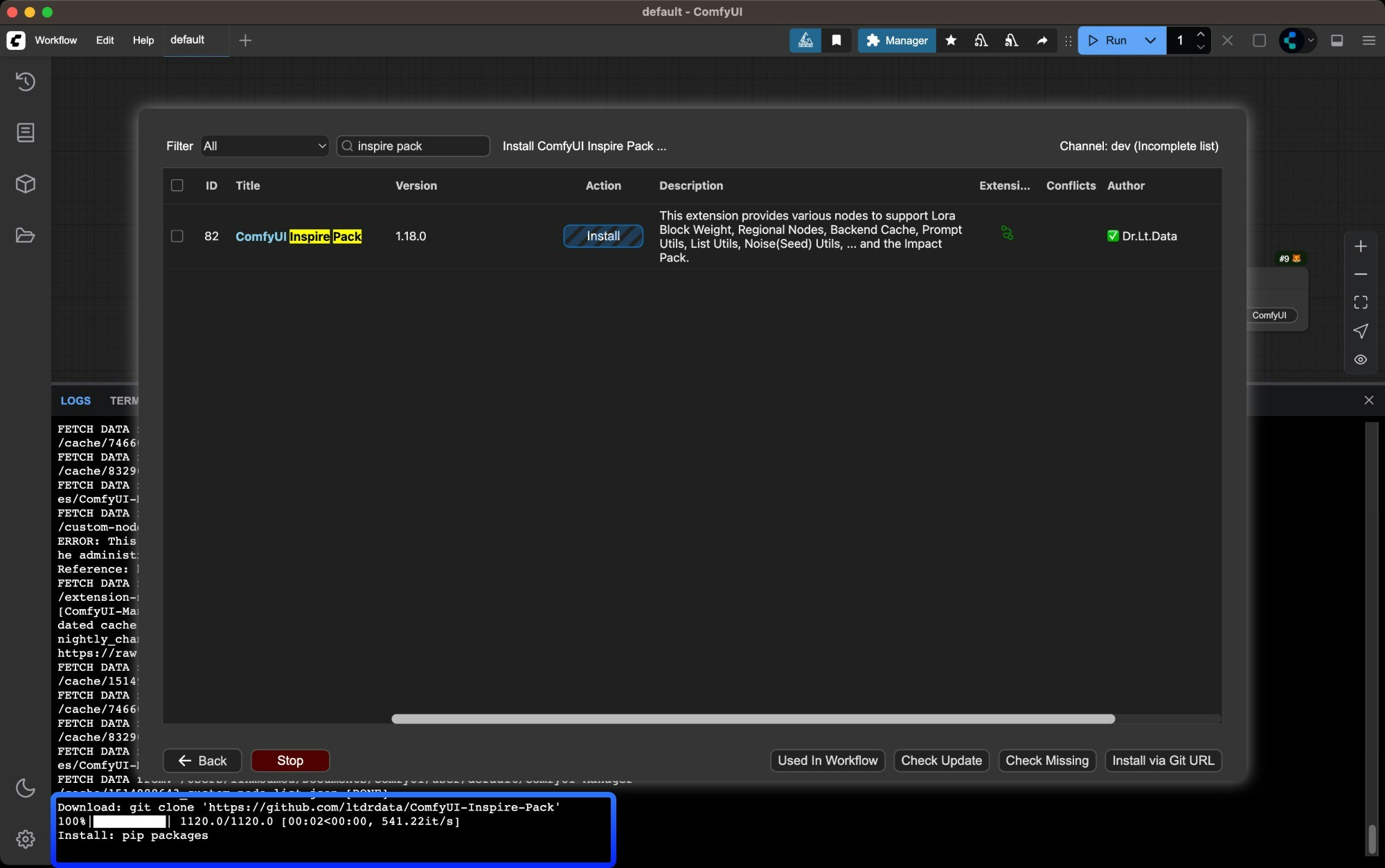
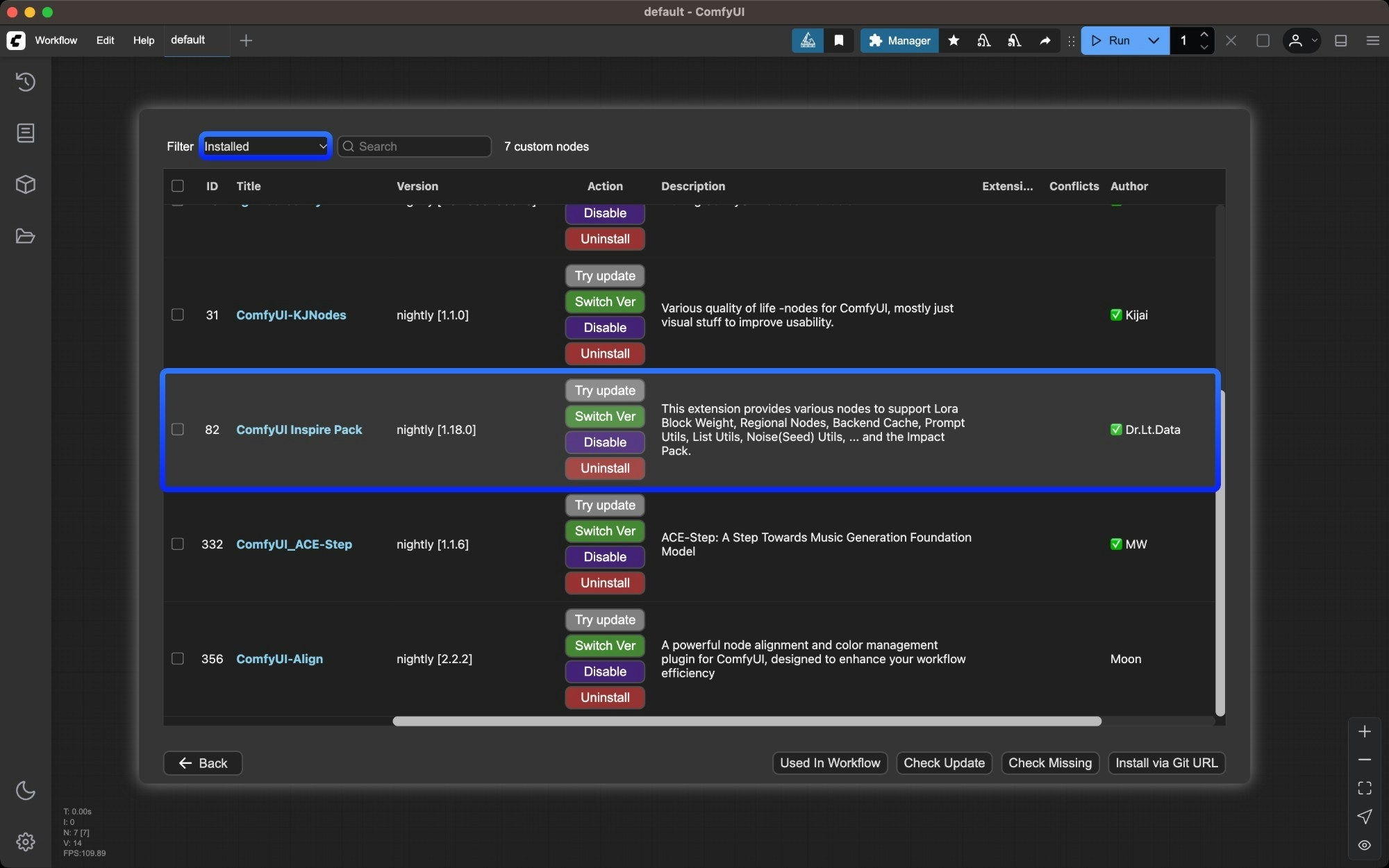
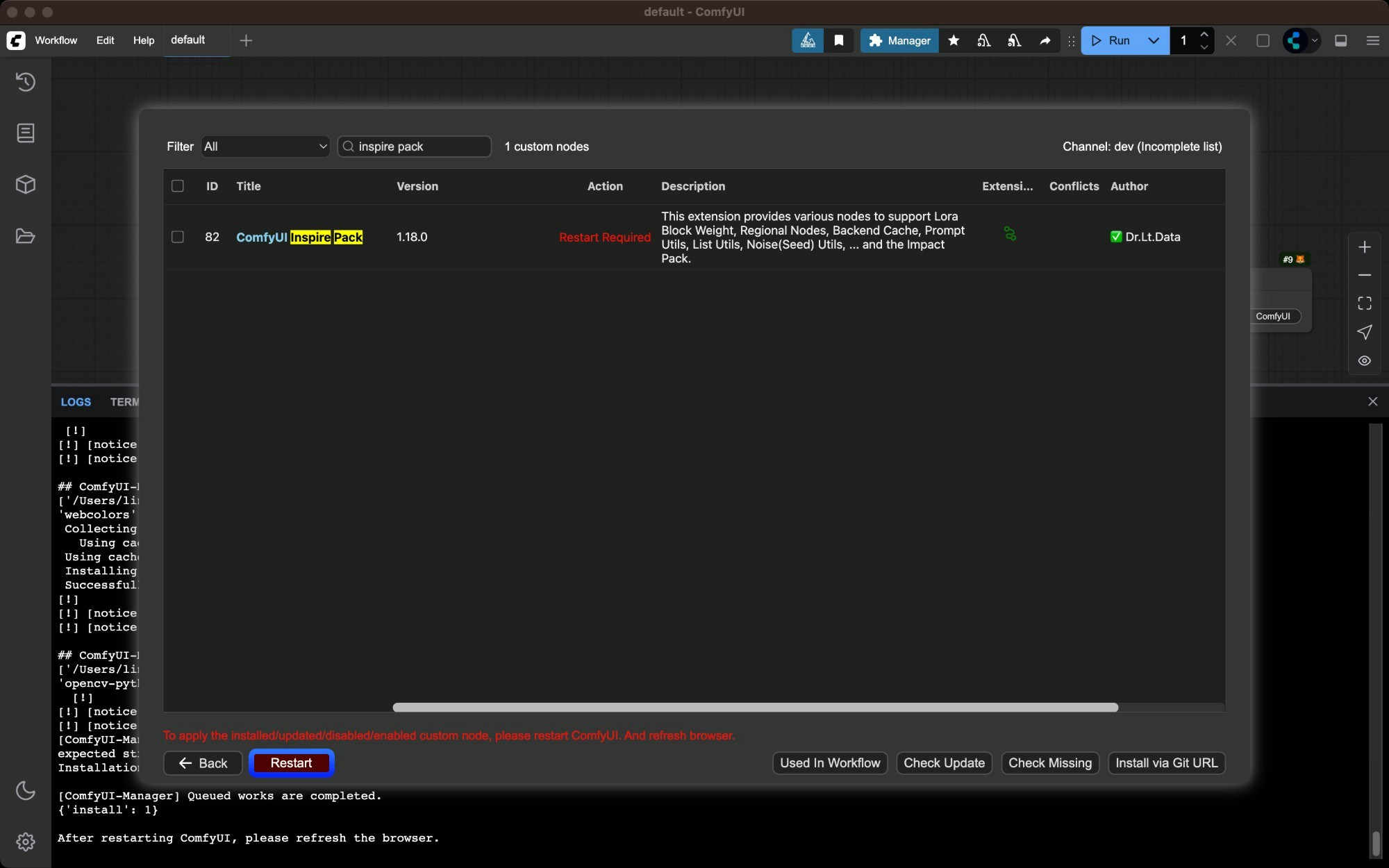 After restarting, check in ComfyUI Manager whether the corresponding plugin was installed successfully, and whether there are `import failed` error messages
 ### Install missing nodes
Missing nodes are a common situation when loading workflows. There are usually two types of missing nodes:
1. Core node missing: ComfyUI version is not the latest version, please refer to [Update ComfyUI](/installation/update_comfyui) to update ComfyUI
2. Custom node missing: Third-party custom nodes are missing, you can refer to this guide for installation
After ComfyUI-Manager is installed, if there are missing custom nodes when importing workflows, you will be alerted about the missing node information
### Install missing nodes
Missing nodes are a common situation when loading workflows. There are usually two types of missing nodes:
1. Core node missing: ComfyUI version is not the latest version, please refer to [Update ComfyUI](/installation/update_comfyui) to update ComfyUI
2. Custom node missing: Third-party custom nodes are missing, you can refer to this guide for installation
After ComfyUI-Manager is installed, if there are missing custom nodes when importing workflows, you will be alerted about the missing node information
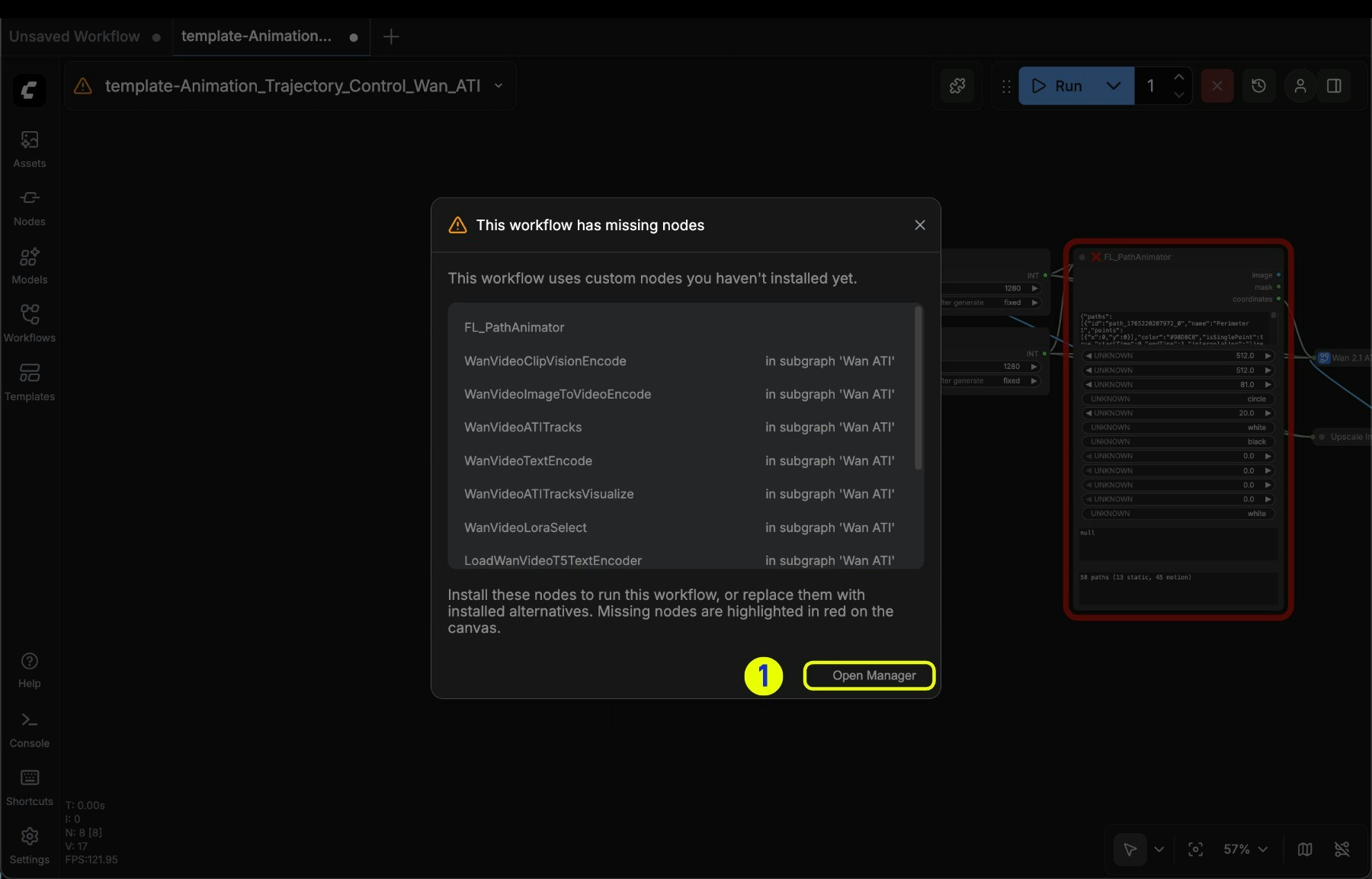 1. Click **Open Manager** to activate the corresponding option
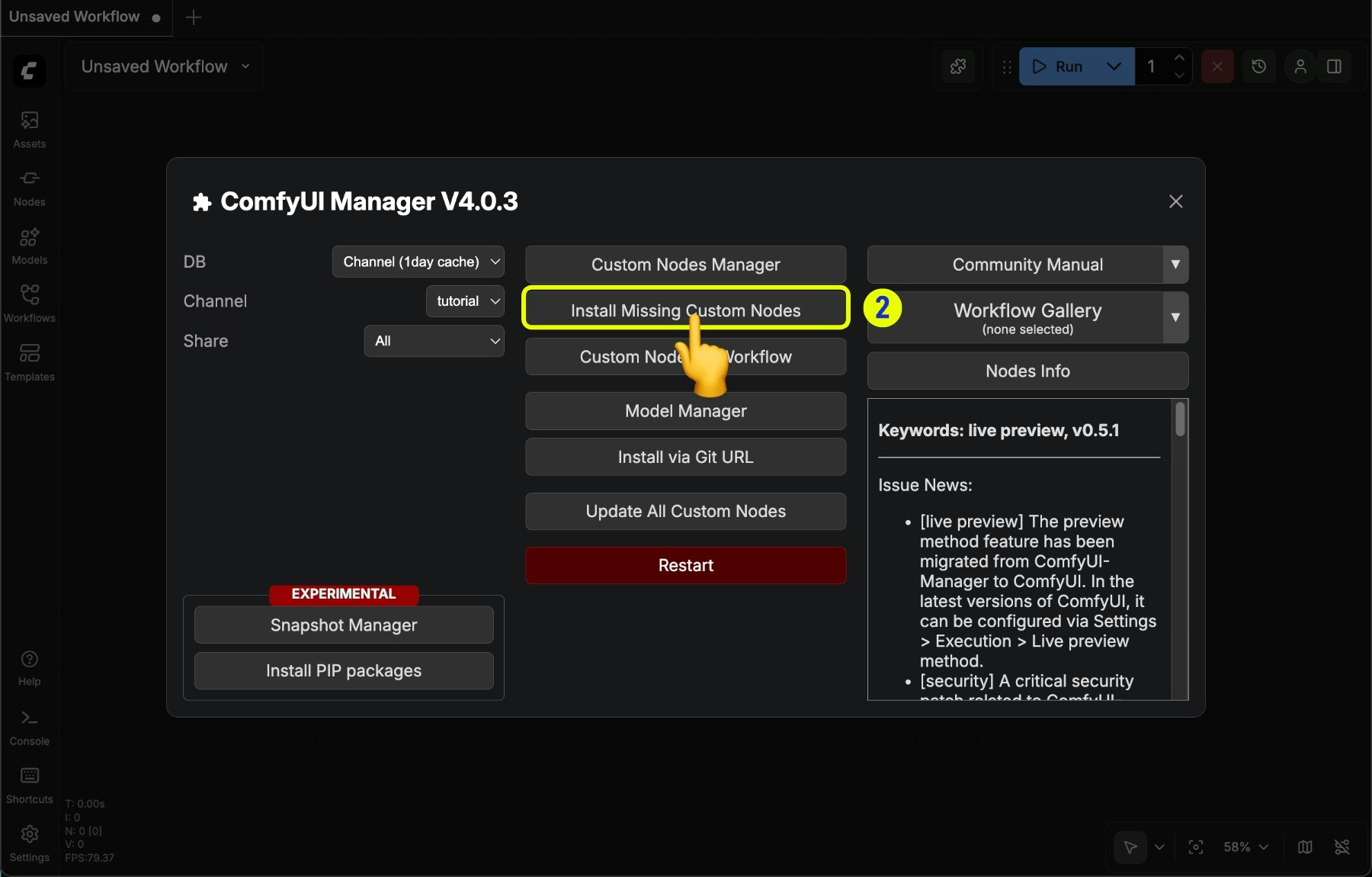 2\. Click **Install Missing Custom Nodes** in the Manager menu to enter the missing nodes list interface
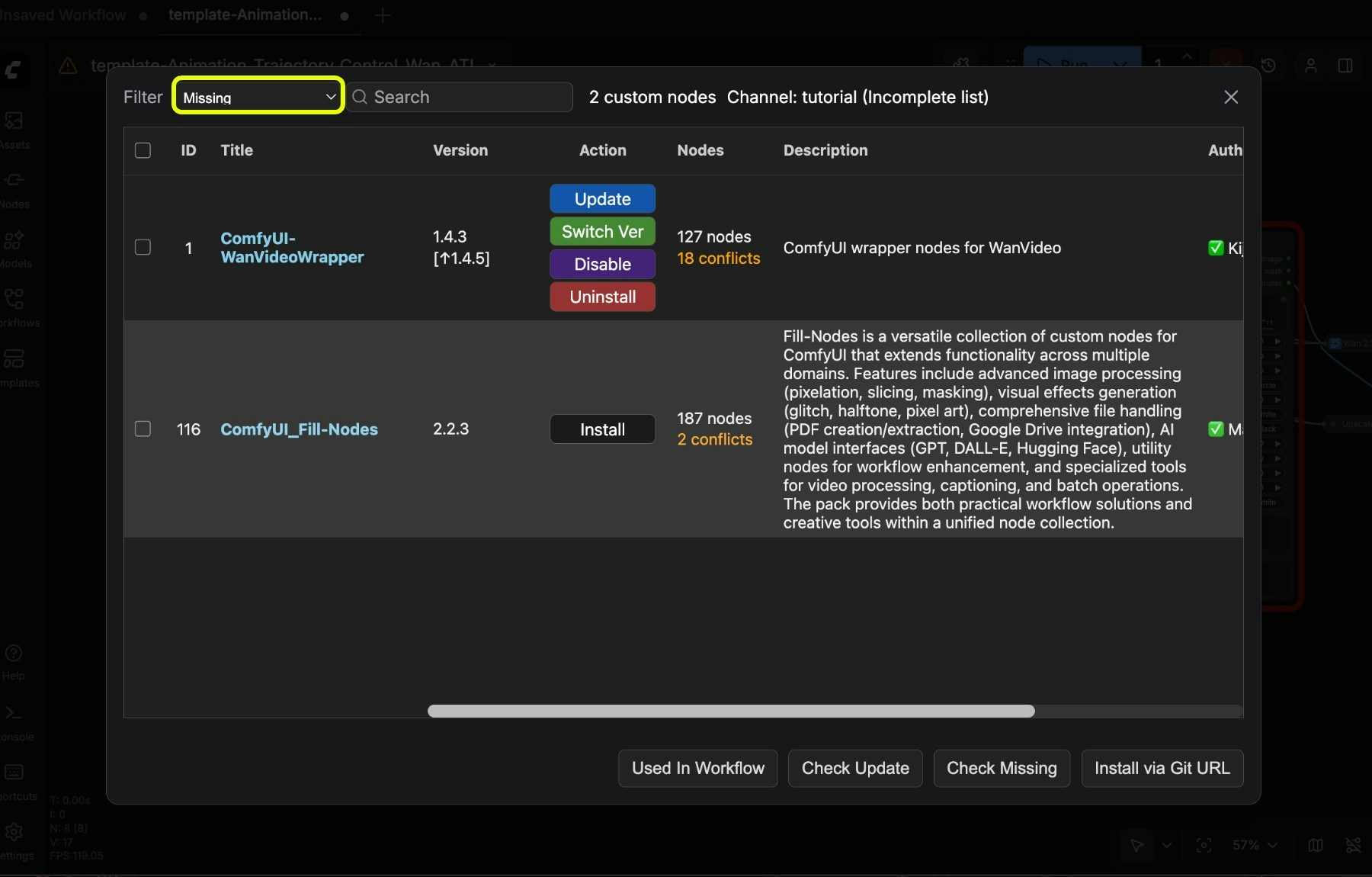 3\. View and install the corresponding nodes in the node list
If you find that the missing nodes list cannot find the corresponding node, there are usually several situations:
1. The corresponding node author has not submitted and registered the custom node to [registry](/registry/overview)
2. The corresponding node is not open source, it may be a restricted node from certain authors or limited platforms
3. The original author changed the version and deleted the corresponding node
### Update nodes
3\. View and install the corresponding nodes in the node list
If you find that the missing nodes list cannot find the corresponding node, there are usually several situations:
1. The corresponding node author has not submitted and registered the custom node to [registry](/registry/overview)
2. The corresponding node is not open source, it may be a restricted node from certain authors or limited platforms
3. The original author changed the version and deleted the corresponding node
### Update nodes
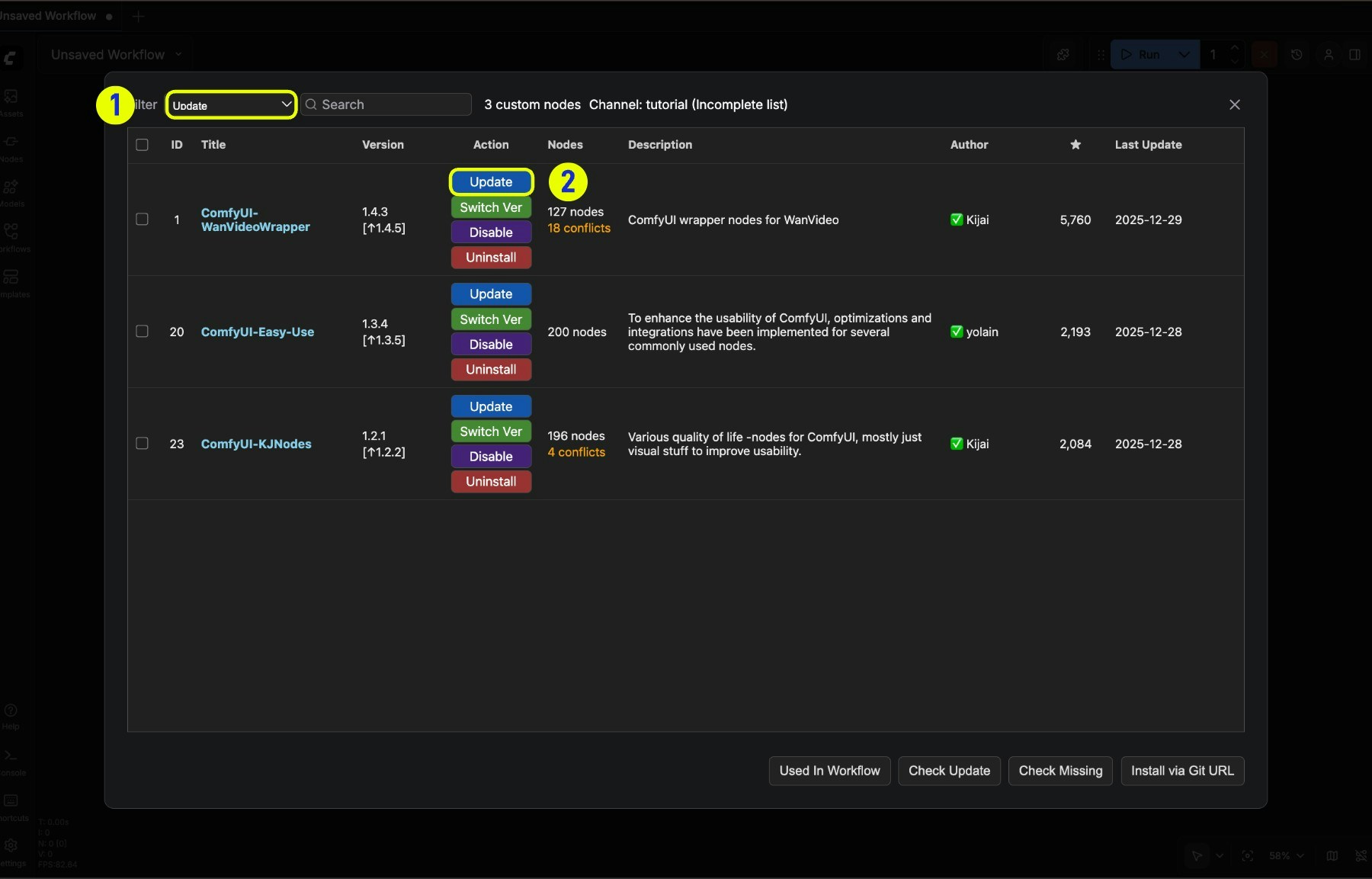 1. Switch the filter to **Update** filter to filter nodes that can be updated in the current node list
2. Click the **Update** button to update the node
### Uninstall nodes
1. Switch the filter to **Update** filter to filter nodes that can be updated in the current node list
2. Click the **Update** button to update the node
### Uninstall nodes
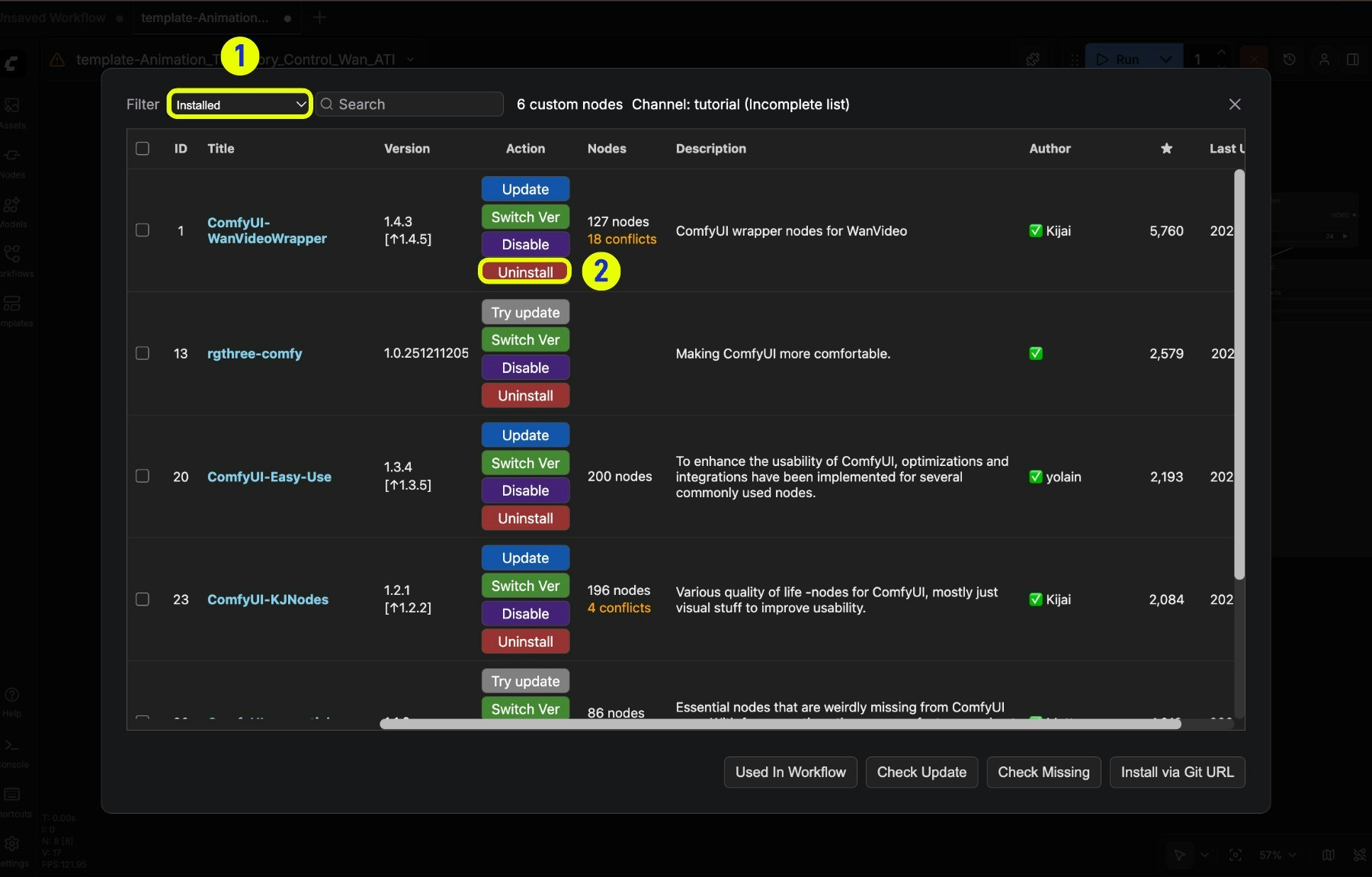 1. Select the "Installed" filter in the node list to filter installed nodes in the current node list
2. Right-click the corresponding node and select **Uninstall** to uninstall
> Uninstalling the corresponding node will not remove the corresponding dependency installation
For other methods of installing plugins, please refer to the article below
Learn how to manually install custom nodes
## Snapshot manager
Snapshots save your current installation status, allowing you to restore to a previous state.
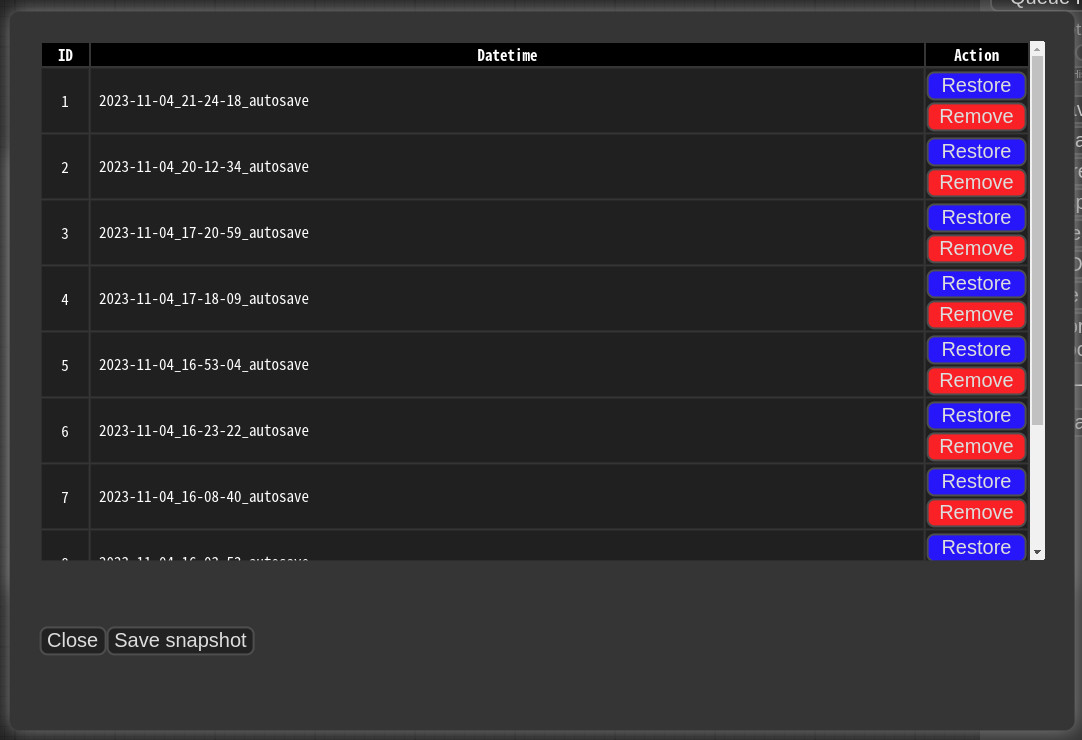
Snapshots are automatically saved when you press **Save snapshot** or use **Update All**. Snapshot files are stored in: `/default/ComfyUI-Manager/snapshots`
To restore: Open the Snapshot Manager, select a snapshot, and press **Restore**.
Restoration takes effect on the next ComfyUI startup. For custom nodes not managed by Git, snapshot support is incomplete.
1. Select the "Installed" filter in the node list to filter installed nodes in the current node list
2. Right-click the corresponding node and select **Uninstall** to uninstall
> Uninstalling the corresponding node will not remove the corresponding dependency installation
For other methods of installing plugins, please refer to the article below
Learn how to manually install custom nodes
## Snapshot manager
Snapshots save your current installation status, allowing you to restore to a previous state.

Snapshots are automatically saved when you press **Save snapshot** or use **Update All**. Snapshot files are stored in: `/default/ComfyUI-Manager/snapshots`
To restore: Open the Snapshot Manager, select a snapshot, and press **Restore**.
Restoration takes effect on the next ComfyUI startup. For custom nodes not managed by Git, snapshot support is incomplete.