> ## Documentation Index
> Fetch the complete documentation index at: https://docs.comfy.org/llms.txt
> Use this file to discover all available pages before exploring further.
# Claim My Node
## Overview
The **Claim My Node** feature allows developers to claim ownership of custom nodes in the ComfyUI Registry. This system ensures that only the rightful authors can manage and update their published nodes, providing security and accountability within the community.
## What are Unclaimed Nodes?
As we migrate from ComfyUI Manager to the Comfy Registry with new standards, many custom nodes that were previously listed in the ComfyUI Manager legacy system now appear as "unclaimed" in the registry. These are nodes that:
* Were originally published in the ComfyUI Manager legacy system
* Have been migrated to the Comfy Registry to meet the latest standards
* Are waiting for their original authors to claim ownership
We provide an easy way for developers to claim these migrated nodes, ensuring a smooth transition from the legacy system to the new registry standard while maintaining proper ownership and control.
## Getting Started
To claim your nodes:
1. **Navigate to Your Unclaimed Node Page**: Visit your unclaimed node page, Click "Claim my node!" button.
2. **Create a Publisher (if you don't have one yet)**:
* If you haven't created a publisher yet, you'll be prompted to create one. A publisher is required to claim nodes and manage them effectively.
3. **Select a Publisher**: Choose the publisher under which you want to claim the node. this step will redirect you to the claim page.
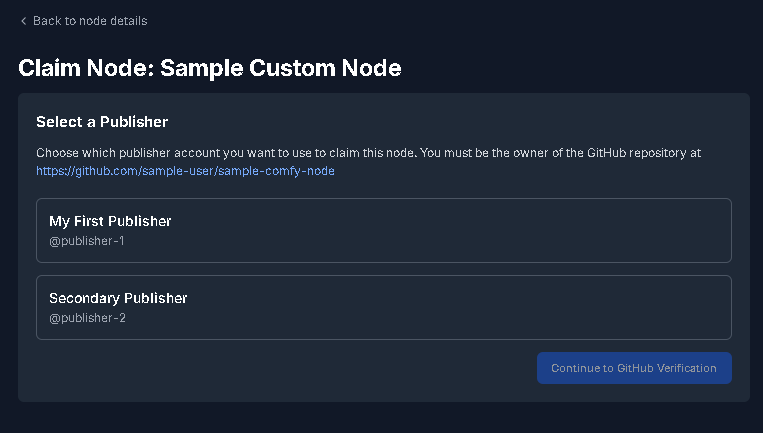 To claim the node under the chosen publisher, follow these steps:
1. **Review Node Information:**
* Check the node details, including the name, repository link, and publisher status as shown on the screen.
To claim the node under the chosen publisher, follow these steps:
1. **Review Node Information:**
* Check the node details, including the name, repository link, and publisher status as shown on the screen.
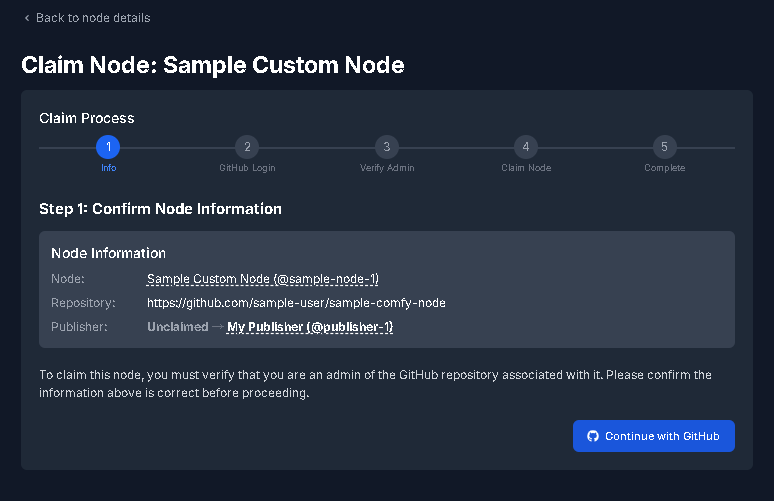 2. **GitHub Authentication:**
* Click the "Continue with GitHub" button to start the authentication process. Ensure you're logged in to the correct GitHub account with admin rights to the repository.
3. **Verify Admin Access:**
* Once logged in, the system will verify if you have admin privileges for the specified GitHub repository. This step is crucial to ensure you have the necessary permissions.
4. **Claim the Node:**
* If the verification is successful, Click "Claim" to claim the node. The publisher status will change, indicating ownership.
5. **Complete!:**
* After successfully claiming the node, you can continue on [publishing](./publishing) and managing your node as the rightful owner.
## Frequently Asked Questions
Any GitHub user can submit a claim request, but claims are verified against the original node repository and author information.
Claims are automatically approved once GitHub admin permissions to the repository are verified. This happens instantly upon submitting your claim.
Once approved, you'll have full control over your node's management, including publish versions, updates meta, deprecation, and policy settings.
No, claims are automatically validated against GitHub repository admin permissions. Only users with admin access to the original repository can successfully claim nodes.
Claims are automatically processed based on GitHub admin permissions. If you don't have admin access to the repository, the claim will be automatically denied. Contact the repository owner to request admin access if you believe you should have ownership rights.
2. **GitHub Authentication:**
* Click the "Continue with GitHub" button to start the authentication process. Ensure you're logged in to the correct GitHub account with admin rights to the repository.
3. **Verify Admin Access:**
* Once logged in, the system will verify if you have admin privileges for the specified GitHub repository. This step is crucial to ensure you have the necessary permissions.
4. **Claim the Node:**
* If the verification is successful, Click "Claim" to claim the node. The publisher status will change, indicating ownership.
5. **Complete!:**
* After successfully claiming the node, you can continue on [publishing](./publishing) and managing your node as the rightful owner.
## Frequently Asked Questions
Any GitHub user can submit a claim request, but claims are verified against the original node repository and author information.
Claims are automatically approved once GitHub admin permissions to the repository are verified. This happens instantly upon submitting your claim.
Once approved, you'll have full control over your node's management, including publish versions, updates meta, deprecation, and policy settings.
No, claims are automatically validated against GitHub repository admin permissions. Only users with admin access to the original repository can successfully claim nodes.
Claims are automatically processed based on GitHub admin permissions. If you don't have admin access to the repository, the claim will be automatically denied. Contact the repository owner to request admin access if you believe you should have ownership rights.