> ## Documentation Index
> Fetch the complete documentation index at: https://docs.comfy.org/llms.txt
> Use this file to discover all available pages before exploring further.
# Editing your payment information
> Learn how to update your payment method and billing details
You can update your payment information at any time through your account settings.
## How to edit payment information
1. Log in to your ComfyUI account and open the profile menu
2. Click **User Settings**
3. Select the **Credits** tab in the settings panel
4. Choose **Invoice History** to open the Stripe billing portal in a new tab
5. Click **Update information** and edit your billing or payment details
6. Save your changes in the Stripe portal
### Visual walkthrough
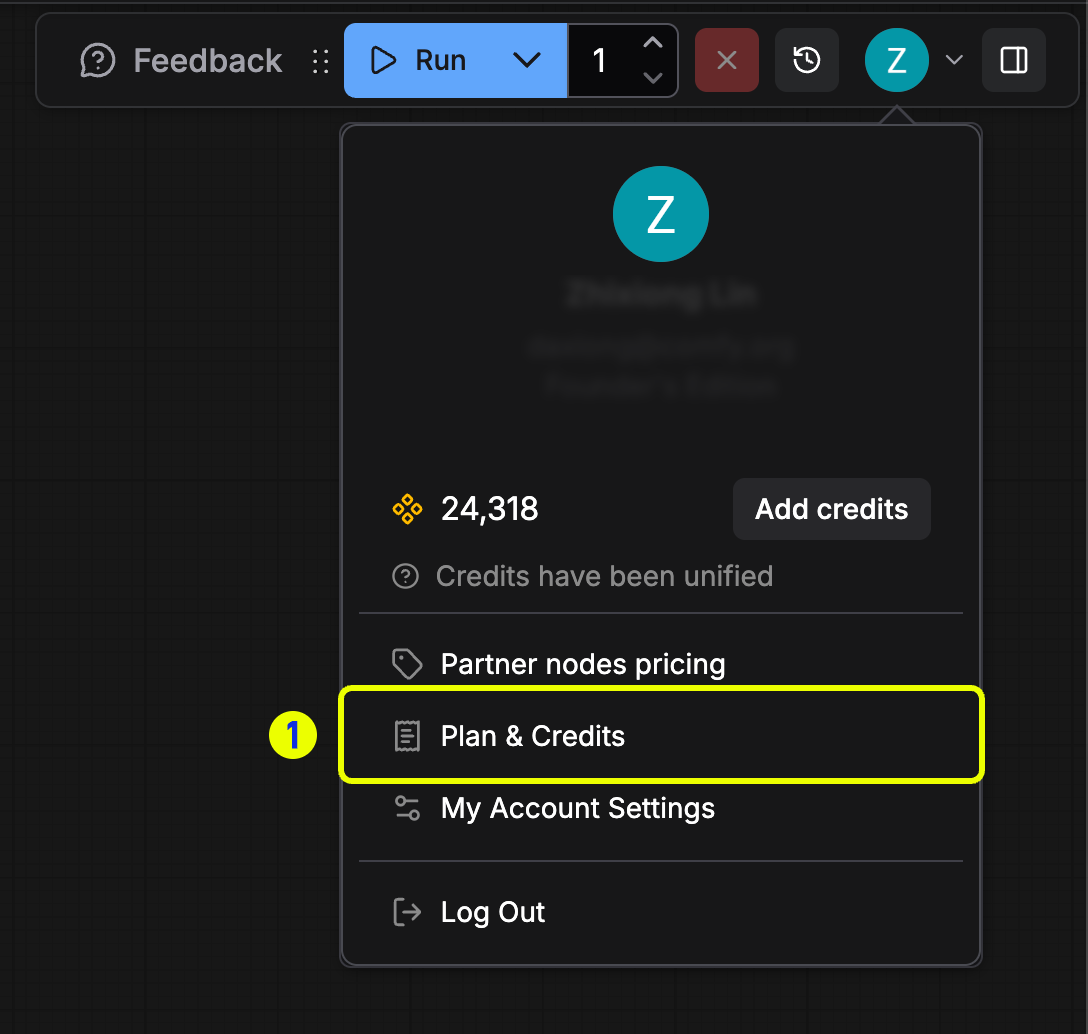 *Open the profile menu and choose **User Settings** to manage billing.*
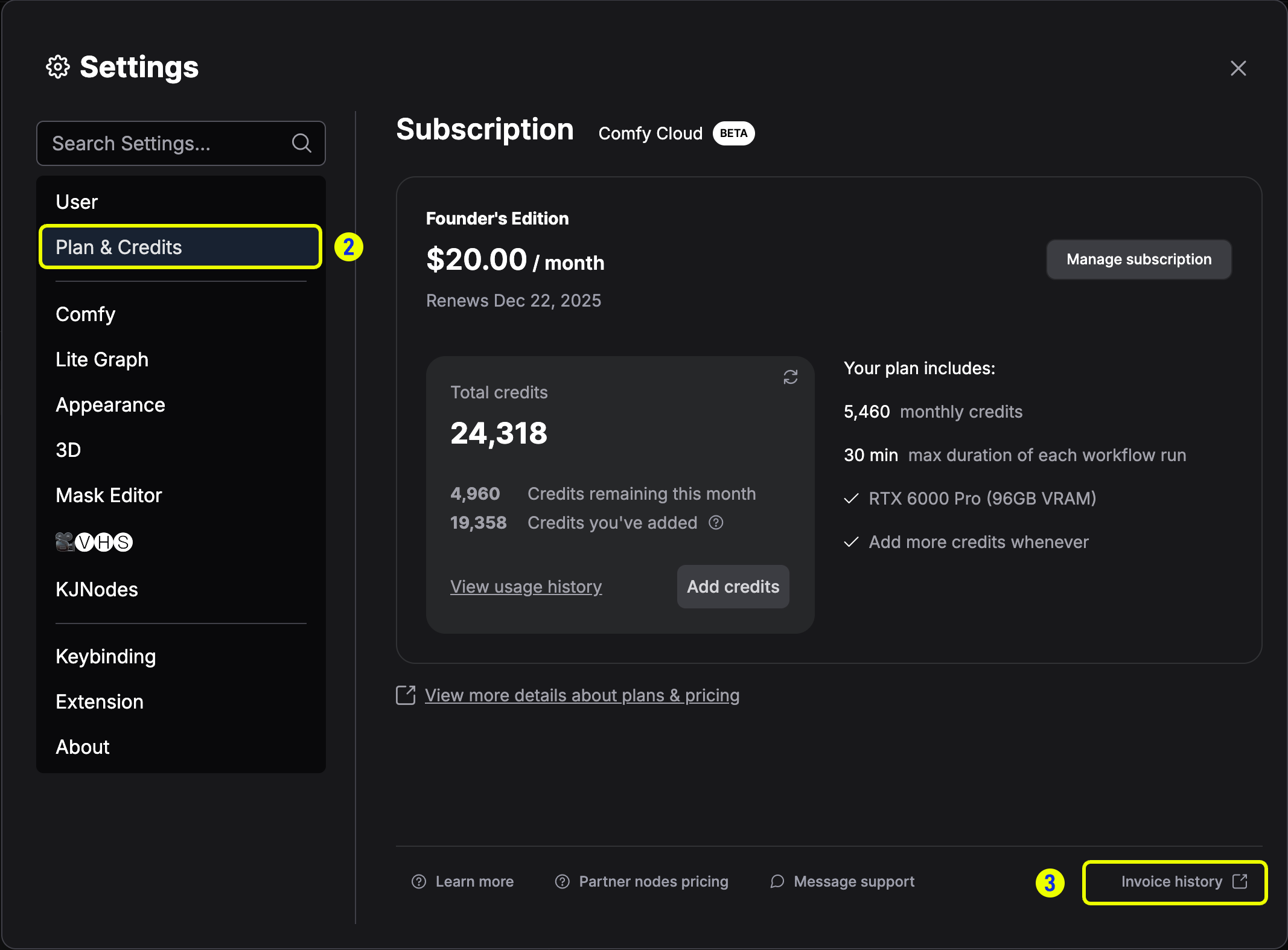 *Go to the **Credits** tab and select **Invoice History**.*
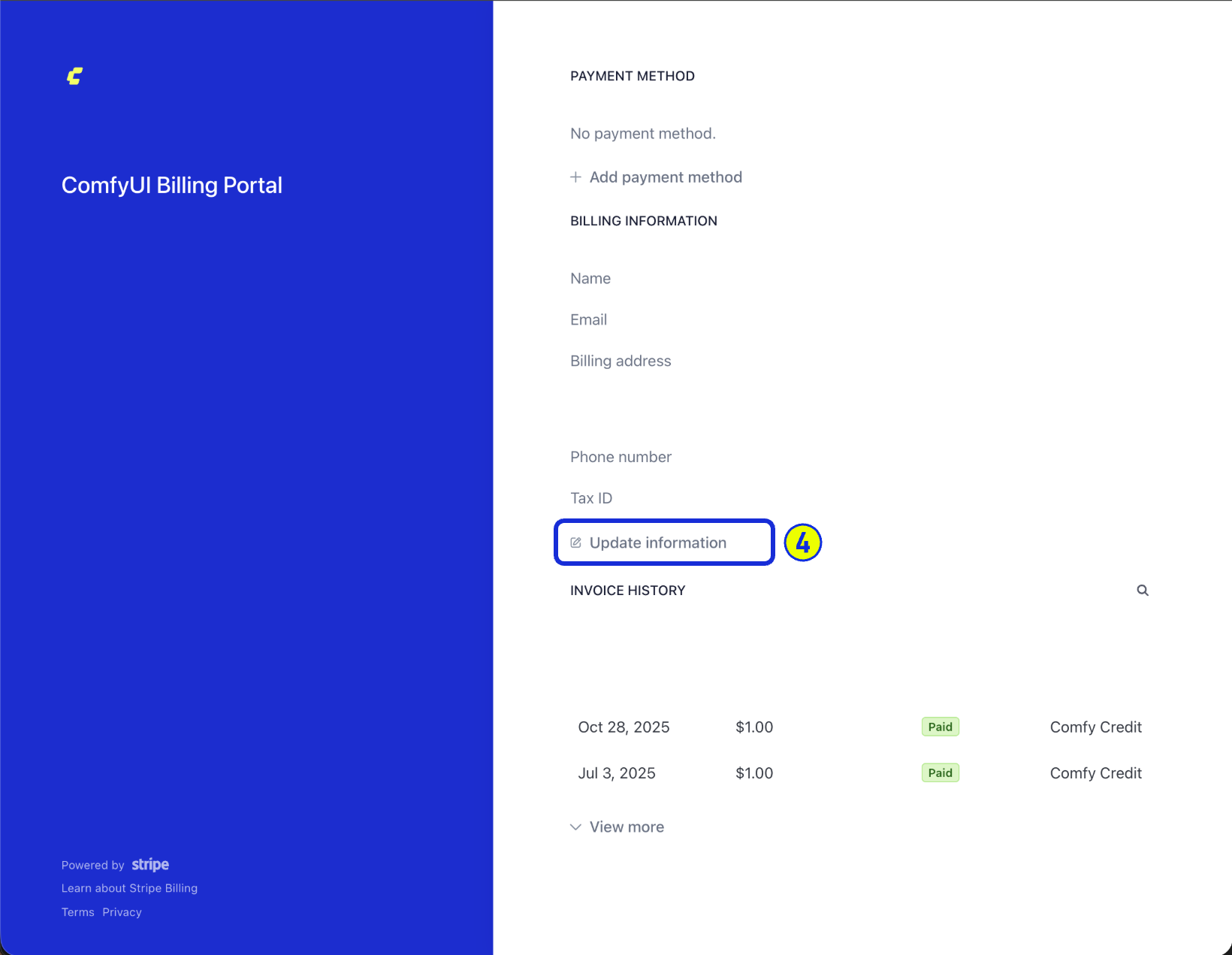 *Review the billing information fields in the Stripe portal.*
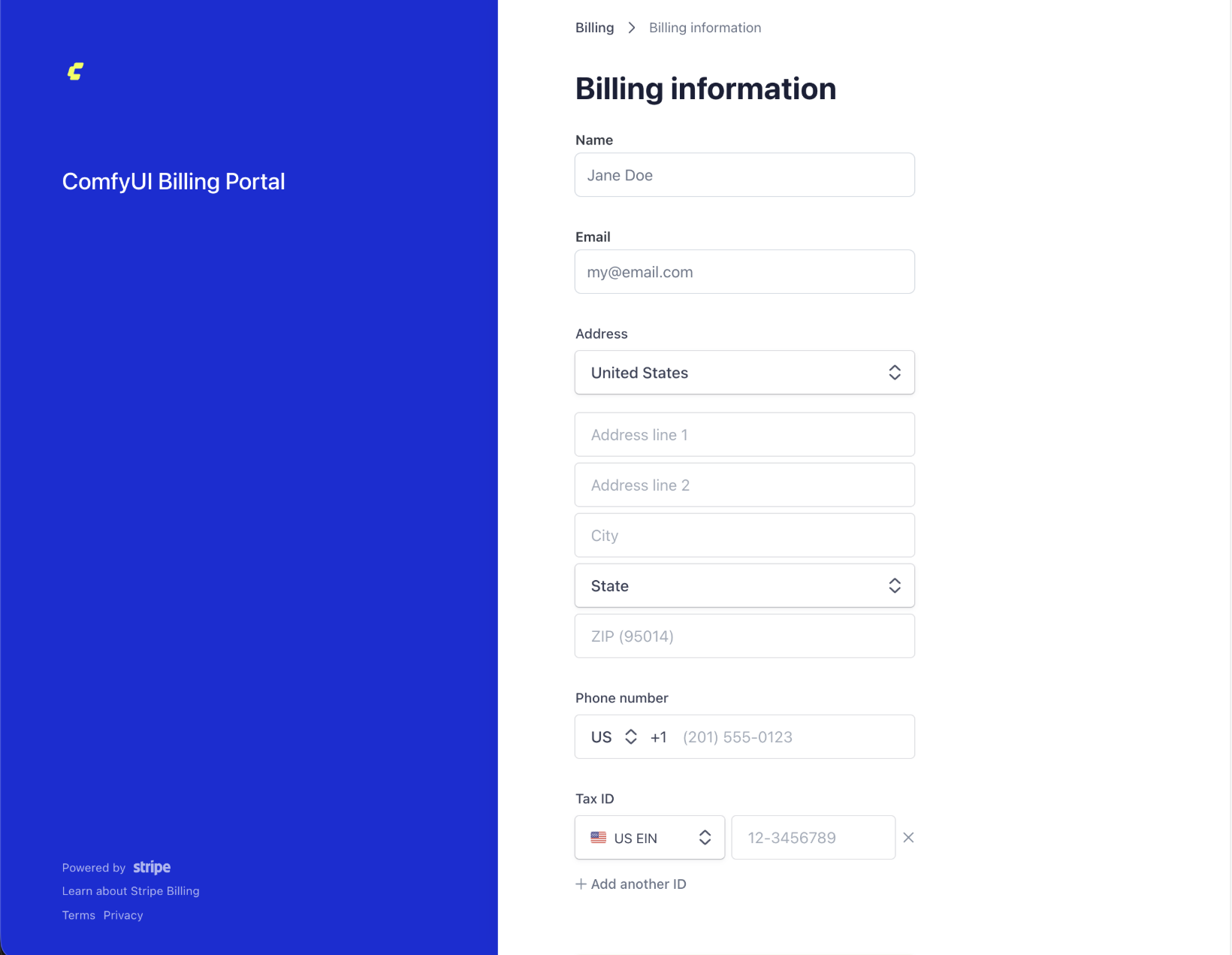 *Click **Update information** to edit payment details and save your changes.*
## What you can update
You can modify the following payment details:
* Credit or debit card number
* Card expiration date
* CVV/security code
* Billing address
* Payment method type (switch between card and digital wallet)
## When changes take effect
* Changes to your payment method take effect immediately
* Your next billing cycle will use the updated payment information
* Updates to billing details (name, address, tax ID) only apply to future invoices; existing invoices cannot be modified
* Active subscriptions will not be interrupted when you update payment details
## Important notes
* You must have an active payment method on file to maintain your subscription
* If you remove a payment method, you must add a new one before the next billing date
* Keep a copy of past invoices before making changes if you need them for record keeping
* Updating your payment information does not change your billing date or subscription plan
## Troubleshooting
If you encounter issues updating your payment information:
* Verify that all information is entered correctly
* Ensure your card has not expired
* Check that your billing address matches your card issuer's records
* Try using a different browser or clearing your cache
* Contact our [support team](https://support.comfy.org/) if problems persist
*Click **Update information** to edit payment details and save your changes.*
## What you can update
You can modify the following payment details:
* Credit or debit card number
* Card expiration date
* CVV/security code
* Billing address
* Payment method type (switch between card and digital wallet)
## When changes take effect
* Changes to your payment method take effect immediately
* Your next billing cycle will use the updated payment information
* Updates to billing details (name, address, tax ID) only apply to future invoices; existing invoices cannot be modified
* Active subscriptions will not be interrupted when you update payment details
## Important notes
* You must have an active payment method on file to maintain your subscription
* If you remove a payment method, you must add a new one before the next billing date
* Keep a copy of past invoices before making changes if you need them for record keeping
* Updating your payment information does not change your billing date or subscription plan
## Troubleshooting
If you encounter issues updating your payment information:
* Verify that all information is entered correctly
* Ensure your card has not expired
* Check that your billing address matches your card issuer's records
* Try using a different browser or clearing your cache
* Contact our [support team](https://support.comfy.org/) if problems persist