> ## Documentation Index
> Fetch the complete documentation index at: https://docs.comfy.org/llms.txt
> Use this file to discover all available pages before exploring further.
# How to Troubleshoot and Solve ComfyUI Issues
> Common ComfyUI issues, solutions, and how to report bugs effectively
We receive a lot of feedback issues, and we find that most of the issues submitted are related to custom nodes. So please ensure that you have read the [custom node troubleshooting guide](/troubleshooting/custom-node-issues) before submitting an error report to ensure that the issue is not caused by ComfyUI core issues.
Check how to troubleshoot issues caused by custom nodes.
## Common Issues & Quick Fixes
Before diving into detailed troubleshooting, try these common solutions:
### ComfyUI Won't Start
**Symptoms:** Application crashes on startup, black screen, or fails to load
**Quick fixes:**
1. **Check system requirements** - Ensure your system meets the [minimum requirements](/installation/system_requirements)
2. **Update GPU drivers** - Download latest drivers from NVIDIA/AMD/Intel
### Generation Fails or Produces Errors
**Symptoms:** "Prompt execution failed" dialog with "Show report" button, workflow stops executing
**Quick fixes:**
1. **Click "Show report"** - Read the detailed error message to identify the specific issue
2. **Check if it's a custom node issue** - [Follow our custom node troubleshooting guide](/troubleshooting/custom-node-issues)
3. **Verify model files** - See [Models documentation](/development/core-concepts/models) for model setup
4. **Check VRAM usage** - Close other applications using GPU memory
### Slow Performance
**Symptoms:** Very slow generation times, system freezing, out of memory errors
**Quick fixes:**
1. **Lower resolution/batch size** - Reduce image size or number of images
2. **Use memory optimization flags** - See performance optimization section below
3. **Close unnecessary applications** - Free up RAM and VRAM
4. **Check CPU/GPU usage** - Use Task Manager to identify bottlenecks
**Performance Optimization Commands:**
For low VRAM systems:
```bash theme={null}
# Low VRAM mode (uses cpu for text encoder)
python main.py --lowvram
# CPU mode (very slow but works with any hardware, only use as absolute last resort)
python main.py --cpu
```
For better performance:
```bash theme={null}
# Disable previews (saves VRAM and processing)
python main.py --preview-method none
# Use optimized attention mechanisms
python main.py --use-pytorch-cross-attention
python main.py --use-flash-attention
# Async weight offloading
python main.py --async-offload
```
For memory management:
```bash theme={null}
# Reserve specific VRAM amount for OS (in GB)
python main.py --reserve-vram 2
# Disable smart memory management
python main.py --disable-smart-memory
# Use different caching strategies
python main.py --cache-none # Less RAM usage, but slower
python main.py --cache-lru 10 # Cache 10 results, faster
python main.py --cache-classic # Use the old style (aggressive) caching.
```
## Installation-Specific Issues
### Desktop App Issues
For comprehensive desktop installation troubleshooting, see the [Desktop Installation Guide](/installation/desktop/windows).
* **Unsupported device**: Comfy Desktop Windows only supports NVIDIA GPUs with CUDA. Use [ComfyUI Portable](/installation/comfyui_portable_windows) or [manual installation](/installation/manual_install) for other GPUs
* **Installation fails**: Run installer as administrator, ensure at least 15GB disk space
* **Maintenance page**: Check [mirror settings](/installation/desktop/windows#mirror-settings) if downloads fail
* **Missing models**: Models are not copied during migration, only linked. Verify model paths
* **"App is damaged"**: Allow app in Security & Privacy settings
* **Performance issues**: Grant Full Disk Access in Privacy settings
* **Crashes**: Check Console app for crash reports
* **Missing libraries**: Install dependencies with package manager
* **LD\_LIBRARY\_PATH errors**: PyTorch library path issues (see below)
### Manual Installation Issues
The documentation may be slightly out of date. If an issue occurs, please manually verify whether a newer stable version of pytorch or any of the listed libraries exists. Refer to resources like the [pytorch installation matrix](https://pytorch.org/get-started/locally/) or the [ROCm website](https://rocm.docs.amd.com/projects/install-on-linux/en/develop/install/3rd-party/pytorch-install.html#using-a-wheels-package).
**Python version conflicts:**
```bash theme={null}
# Check Python version (3.9+ required, 3.12 recommended)
python --version
# Use virtual environment (recommended)
python -m venv comfyui_env
source comfyui_env/bin/activate # Linux/Mac
comfyui_env\Scripts\activate # Windows
```
**Package installation failures:**
```bash theme={null}
# Update pip first
python -m pip install --upgrade pip
# Install dependencies
pip install -r requirements.txt
# For NVIDIA GPUs (CUDA 13.0)
pip install torch torchvision torchaudio --extra-index-url https://download.pytorch.org/whl/cu130
# For AMD GPUs (Linux only - ROCm 7.2)
pip install torch torchvision torchaudio --index-url https://download.pytorch.org/whl/rocm7.2
```
### Linux-Specific Issues
**LD\_LIBRARY\_PATH errors:**
Common symptoms:
* "libcuda.so.1: cannot open shared object file"
* "libnccl.so: cannot open shared object file"
* "ImportError: libnvinfer.so.X: cannot open shared object file"
**Solutions:**
1. **Modern PyTorch installations (most common):**
```bash theme={null}
# For virtual environments with NVIDIA packages
export LD_LIBRARY_PATH=$VIRTUAL_ENV/lib/python3.12/site-packages/nvidia/nvjitlink/lib:$LD_LIBRARY_PATH
# For conda environments
export LD_LIBRARY_PATH=$CONDA_PREFIX/lib/python3.12/site-packages/nvidia/nvjitlink/lib:$LD_LIBRARY_PATH
# Or find your Python site-packages automatically
PYTHON_PATH=$(python -c "import site; print(site.getsitepackages()[0])")
export LD_LIBRARY_PATH=$PYTHON_PATH/nvidia/nvjitlink/lib:$LD_LIBRARY_PATH
# You may also need other NVIDIA libraries
export LD_LIBRARY_PATH=$PYTHON_PATH/nvidia/cuda_runtime/lib:$LD_LIBRARY_PATH
export LD_LIBRARY_PATH=$PYTHON_PATH/nvidia/cublas/lib:$LD_LIBRARY_PATH
```
2. **Find what libraries you have:**
```bash theme={null}
# Check installed NVIDIA packages
python -c "import site; import os; nvidia_path=os.path.join(site.getsitepackages()[0], 'nvidia'); print('NVIDIA libs:', [d for d in os.listdir(nvidia_path) if os.path.isdir(os.path.join(nvidia_path, d))] if os.path.exists(nvidia_path) else 'Not found')"
# Find missing libraries that PyTorch needs
python -c "import torch; print(torch.__file__)"
ldd $(python -c "import torch; print(torch.__file__.replace('__init__.py', 'lib/libtorch_cuda.so'))")
```
3. **Set permanently for your environment:**
```bash theme={null}
# For virtual environments, add to activation script
echo 'export LD_LIBRARY_PATH=$VIRTUAL_ENV/lib/python*/site-packages/nvidia/nvjitlink/lib:$LD_LIBRARY_PATH' >> $VIRTUAL_ENV/bin/activate
# For conda environments
conda env config vars set LD_LIBRARY_PATH=$CONDA_PREFIX/lib/python*/site-packages/nvidia/nvjitlink/lib:$LD_LIBRARY_PATH
# For global bashrc (adjust Python version as needed)
echo 'export LD_LIBRARY_PATH=$(python -c "import site; print(site.getsitepackages()[0])")/nvidia/nvjitlink/lib:$LD_LIBRARY_PATH' >> ~/.bashrc
```
4. **Alternative: Use ldconfig:**
```bash theme={null}
# Check current library cache
ldconfig -p | grep cuda
ldconfig -p | grep nccl
# If missing, add library paths (requires root)
sudo echo "/usr/local/cuda/lib64" > /etc/ld.so.conf.d/cuda.conf
sudo ldconfig
```
5. **Debug library loading:**
```bash theme={null}
# Verbose library loading to see what's missing
LD_DEBUG=libs python main.py 2>&1 | grep "looking for"
# Check PyTorch CUDA availability
python -c "import torch; print('CUDA available:', torch.cuda.is_available()); print('CUDA version:', torch.version.cuda)"
```
## Model-Related Issues
For comprehensive model troubleshooting including architecture mismatches, missing models, and loading errors, see the dedicated [Model Issues](/troubleshooting/model-issues) page.
## Network & API Issues
### Partner Nodes Not Working
**Symptoms:** API calls fail, timeout errors, quota exceeded
**Solutions:**
1. **Check API key validity** - Verify keys in [user settings](/interface/user)
2. **Check account credits** - Ensure sufficient [API credits](/interface/credits)
3. **Verify internet connection** - Test with other online services
4. **Check service status** - Provider may be experiencing downtime
### Connection Issues
**Symptoms:** "Failed to connect to server", timeout errors
**Solutions:**
1. **Check firewall settings** - Allow ComfyUI through firewall
2. **Try different port** - Default is 8188, try 8189 or 8190
3. **Disable VPN temporarily** - VPN may be blocking connections
4. **Check proxy settings** - Disable proxy if not required
### Frontend Issues
**"Frontend or Templates Package Not Updated":**
```bash theme={null}
# After updating ComfyUI via Git, update frontend dependencies
pip install -r requirements.txt
```
**"Can't Find Custom Node":**
* Disable node validation in ComfyUI settings
**"Error Toast About Workflow Failing Validation":**
* Disable workflow validation in settings temporarily
* Report the issue to the ComfyUI team
**Login Issues When Not on Localhost:**
* Normal login only works when accessing from localhost
* For LAN/remote access: Generate API key at [platform.comfy.org/login](https://platform.comfy.org/login)
* Use API key in login dialog or with `--api-key` command line argument
## Hardware-Specific Issues
### NVIDIA GPU Issues
**"Torch not compiled with CUDA enabled" error:**
```bash theme={null}
# First uninstall torch
pip uninstall torch
# Install stable PyTorch with CUDA 13.0
pip install torch torchvision torchaudio --extra-index-url https://download.pytorch.org/whl/cu130
# For nightly builds (might have performance improvements)
pip install --pre torch torchvision torchaudio --index-url https://download.pytorch.org/whl/nightly/cu132
# Verify CUDA support
python -c "import torch; print(torch.cuda.is_available())"
```
**GPU not detected:**
```bash theme={null}
# Check if GPU is visible
nvidia-smi
# Check driver version and CUDA compatibility
nvidia-smi --query-gpu=driver_version --format=csv
```
### AMD GPU Issues
**ROCm support (Linux only):**
```bash theme={null}
# Install stable ROCm PyTorch (7.2 at the time of writing)
pip install torch torchvision torchaudio --index-url https://download.pytorch.org/whl/rocm7.2
# For nightly builds (ROCm 7.2 at the time of writing, which might have performance improvements)
pip install --pre torch torchvision torchaudio --index-url https://download.pytorch.org/whl/nightly/rocm7.2
```
**Unsupported AMD GPUs:**
```bash theme={null}
# For RDNA2 or older (6700, 6600)
HSA_OVERRIDE_GFX_VERSION=10.3.0 python main.py
# For RDNA3 cards (7600)
HSA_OVERRIDE_GFX_VERSION=11.0.0 python main.py
```
**Performance optimization:**
```bash theme={null}
# Enable experimental memory efficient attention (no longer necessary with PyTorch 2.4)
TORCH_ROCM_AOTRITON_ENABLE_EXPERIMENTAL=1 python main.py --use-pytorch-cross-attention
# Enable tunable operations (slow first run, but faster subsequent runs)
PYTORCH_TUNABLEOP_ENABLED=1 python main.py
```
### Apple Silicon (M1/M2/M3) Issues
**MPS backend setup:**
```bash theme={null}
# Install PyTorch nightly for Apple Silicon
# Follow Apple's guide: https://developer.apple.com/metal/pytorch/
# Check MPS availability
python -c "import torch; print(torch.backends.mps.is_available())"
# Launch ComfyUI
python main.py
```
**If MPS causes issues:**
```bash theme={null}
# Force CPU mode
python main.py --cpu
# With memory optimization
python main.py --force-fp16 --cpu
```
### Intel GPU Issues
**Option 1: Native PyTorch XPU support (Windows/Linux):**
```bash theme={null}
# Install PyTorch nightly with XPU support
pip install --pre torch torchvision torchaudio --index-url https://download.pytorch.org/whl/nightly/xpu
# Launch ComfyUI
python main.py
```
**Option 2: Intel Extension for PyTorch (IPEX):**
```bash theme={null}
# For Intel Arc A-Series Graphics
conda install libuv
pip install torch==2.3.1.post0+cxx11.abi torchvision==0.18.1.post0+cxx11.abi torchaudio==2.3.1.post0+cxx11.abi intel-extension-for-pytorch==2.3.110.post0+xpu --extra-index-url https://pytorch-extension.intel.com/release-whl/stable/xpu/us/
```
## Getting Help & Reporting Bugs
### Before Reporting a Bug
1. **Check if it's a known issue:**
* Search [GitHub Issues](https://github.com/Comfy-Org/ComfyUI/issues)
* Check [ComfyUI Forum](https://forum.comfy.org/)
* Review [Discord discussions](https://discord.com/invite/comfyorg)
2. **Try basic troubleshooting:**
* Test with [default workflow](/get_started/first_generation)
* Disable all custom nodes (see [custom node troubleshooting](/troubleshooting/custom-node-issues))
* Check console/terminal for error messages
* If using comfy-cli, try updating: `comfy node update all`
### How to Report Bugs Effectively
#### For ComfyUI Core Issues
**Where to report:** [GitHub Issues](https://github.com/Comfy-Org/ComfyUI/issues)
#### For Desktop App Issues
**Where to report:** [Desktop GitHub Issues](https://github.com/Comfy-Org/desktop/issues)
#### For Frontend Issues
**Where to report:** [Frontend GitHub Issues](https://github.com/Comfy-Org/ComfyUI_frontend/issues)
#### For Custom Node Issues
**Where to report:** Contact the specific custom node developer
### Required Information
When reporting any issue, include:
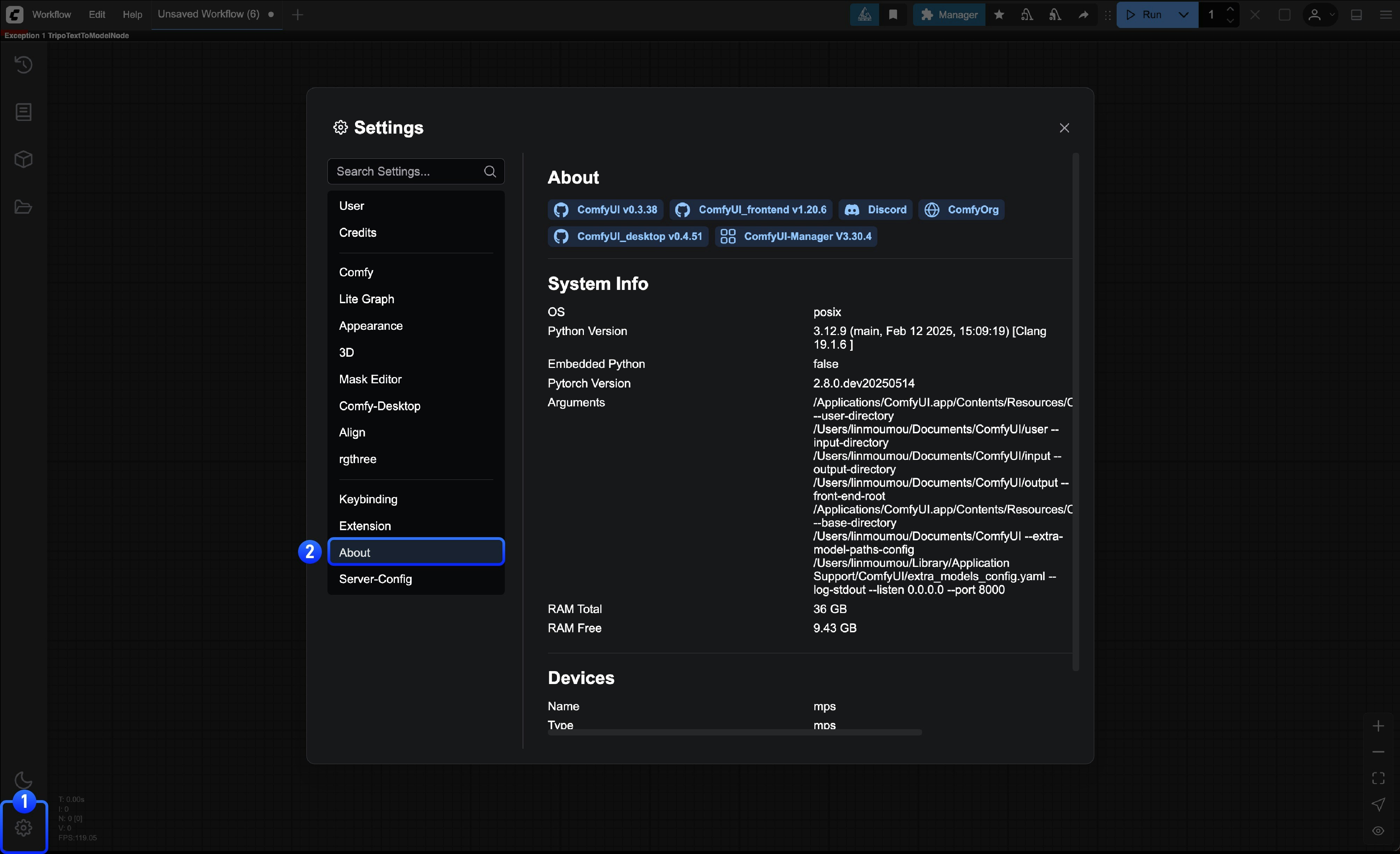
**System Information (can be found in the About page in settings):**
* Operating System (Windows 11, macOS 14.1, Ubuntu 22.04, etc.)
* ComfyUI version (check About page in settings)
* Python version: `python --version`
* PyTorch version: `python -c "import torch; print(torch.__version__)"`
* GPU model and driver version
* Installation method (Desktop, Portable, Manual, comfy-cli)
 ```bash theme={null}
# System info
systeminfo | findstr /C:"OS Name" /C:"OS Version"
# GPU info
wmic path win32_VideoController get name
# Python & PyTorch info
python --version
python -c "import torch; print(f'PyTorch: {torch.__version__}')"
python -c "import torch; print(f'CUDA Available: {torch.cuda.is_available()}')"
```
```bash theme={null}
# System info
uname -a
# GPU info (Linux)
lspci | grep VGA
# Python & PyTorch info
python --version
python -c "import torch; print(f'PyTorch: {torch.__version__}')"
python -c "import torch; print(f'CUDA Available: {torch.cuda.is_available()}')"
```
**For Desktop App issues, also include:**
* Log files from: `C:\Users\\AppData\Roaming\ComfyUI\logs` (Windows)
* Config files from: `C:\Users\\AppData\Roaming\ComfyUI` (Windows)
**Problem Details:**
* Clear description of the issue
* Steps to reproduce the problem
* Expected vs actual behavior
* Screenshots or videos if applicable
**Error Messages:**
* Full error text from console/terminal
* Browser console errors (F12 → Console tab)
* Any crash logs or error dialogs
**Additional Context:**
* List of installed custom nodes
* Workflow file (.json) that reproduces the issue
* Recent changes (new installations, updates, etc.)
## Community Resources
* **Official Forum:** [forum.comfy.org](https://forum.comfy.org/)
* **Discord:** [ComfyUI Discord Server](https://discord.com/invite/comfyorg)
* **Reddit:** [r/comfyui](https://reddit.com/r/comfyui)
* **YouTube:** [ComfyUI Tutorials](https://www.youtube.com/@comfyorg)
```bash theme={null}
# System info
systeminfo | findstr /C:"OS Name" /C:"OS Version"
# GPU info
wmic path win32_VideoController get name
# Python & PyTorch info
python --version
python -c "import torch; print(f'PyTorch: {torch.__version__}')"
python -c "import torch; print(f'CUDA Available: {torch.cuda.is_available()}')"
```
```bash theme={null}
# System info
uname -a
# GPU info (Linux)
lspci | grep VGA
# Python & PyTorch info
python --version
python -c "import torch; print(f'PyTorch: {torch.__version__}')"
python -c "import torch; print(f'CUDA Available: {torch.cuda.is_available()}')"
```
**For Desktop App issues, also include:**
* Log files from: `C:\Users\\AppData\Roaming\ComfyUI\logs` (Windows)
* Config files from: `C:\Users\\AppData\Roaming\ComfyUI` (Windows)
**Problem Details:**
* Clear description of the issue
* Steps to reproduce the problem
* Expected vs actual behavior
* Screenshots or videos if applicable
**Error Messages:**
* Full error text from console/terminal
* Browser console errors (F12 → Console tab)
* Any crash logs or error dialogs
**Additional Context:**
* List of installed custom nodes
* Workflow file (.json) that reproduces the issue
* Recent changes (new installations, updates, etc.)
## Community Resources
* **Official Forum:** [forum.comfy.org](https://forum.comfy.org/)
* **Discord:** [ComfyUI Discord Server](https://discord.com/invite/comfyorg)
* **Reddit:** [r/comfyui](https://reddit.com/r/comfyui)
* **YouTube:** [ComfyUI Tutorials](https://www.youtube.com/@comfyorg)