> ## Documentation Index
> Fetch the complete documentation index at: https://docs.comfy.org/llms.txt
> Use this file to discover all available pages before exploring further.
# ComfyUI LoRA Example
> This guide will help you understand and use a single LoRA model
**LoRA (Low-Rank Adaptation)** is an efficient technique for fine-tuning large generative models like Stable Diffusion.
It introduces trainable low-rank matrices to the pre-trained model, adjusting only a portion of parameters rather than retraining the entire model,
thus achieving optimization for specific tasks at a lower computational cost.
Compared to base models like SD1.5, LoRA models are smaller and easier to train.
 The image above compares generation with the same parameters using [dreamshaper\_8](https://civitai.com/models/4384?modelVersionId=128713) directly versus using the [blindbox\_V1Mix](https://civitai.com/models/25995/blindbox) LoRA model.
As you can see, by using a LoRA model, we can generate images in different styles without adjusting the base model.
We will demonstrate how to use a LoRA model. All LoRA variants: Lycoris, loha, lokr, locon, etc... are used in the same way.
In this example, we will learn how to load and use a LoRA model in [ComfyUI](https://github.com/Comfy-Org/ComfyUI), covering the following topics:
1. Installing a LoRA model
2. Generating images using a LoRA model
3. A simple introduction to the `Load LoRA` node
## Required Model Installation
Download the [dreamshaper\_8.safetensors](https://civitai.com/api/download/models/128713?type=Model\&format=SafeTensor\&size=pruned\&fp=fp16) file and put it in your `ComfyUI/models/checkpoints` folder.
Download the [blindbox\_V1Mix.safetensors](https://civitai.com/api/download/models/32988?type=Model\&format=SafeTensor\&size=full\&fp=fp16) file and put it in your `ComfyUI/models/loras` folder.
## LoRA Workflow File
Download the image below and **drag it into ComfyUI** to load the workflow.
The image above compares generation with the same parameters using [dreamshaper\_8](https://civitai.com/models/4384?modelVersionId=128713) directly versus using the [blindbox\_V1Mix](https://civitai.com/models/25995/blindbox) LoRA model.
As you can see, by using a LoRA model, we can generate images in different styles without adjusting the base model.
We will demonstrate how to use a LoRA model. All LoRA variants: Lycoris, loha, lokr, locon, etc... are used in the same way.
In this example, we will learn how to load and use a LoRA model in [ComfyUI](https://github.com/Comfy-Org/ComfyUI), covering the following topics:
1. Installing a LoRA model
2. Generating images using a LoRA model
3. A simple introduction to the `Load LoRA` node
## Required Model Installation
Download the [dreamshaper\_8.safetensors](https://civitai.com/api/download/models/128713?type=Model\&format=SafeTensor\&size=pruned\&fp=fp16) file and put it in your `ComfyUI/models/checkpoints` folder.
Download the [blindbox\_V1Mix.safetensors](https://civitai.com/api/download/models/32988?type=Model\&format=SafeTensor\&size=full\&fp=fp16) file and put it in your `ComfyUI/models/loras` folder.
## LoRA Workflow File
Download the image below and **drag it into ComfyUI** to load the workflow.
 Images containing workflow JSON in their metadata can be directly dragged into ComfyUI or loaded using the menu `Workflows` -> `Open (ctrl+o)`.
## Complete the Workflow Step by Step
Follow the steps in the diagram below to ensure the workflow runs correctly.

1. Ensure `Load Checkpoint` loads `dreamshaper_8.safetensors`
2. Ensure `Load LoRA` loads `blindbox_V1Mix.safetensors`
3. Click the `Queue` button, or use the shortcut `Ctrl(cmd) + Enter` to generate the image
## Load LoRA Node Introduction
Images containing workflow JSON in their metadata can be directly dragged into ComfyUI or loaded using the menu `Workflows` -> `Open (ctrl+o)`.
## Complete the Workflow Step by Step
Follow the steps in the diagram below to ensure the workflow runs correctly.

1. Ensure `Load Checkpoint` loads `dreamshaper_8.safetensors`
2. Ensure `Load LoRA` loads `blindbox_V1Mix.safetensors`
3. Click the `Queue` button, or use the shortcut `Ctrl(cmd) + Enter` to generate the image
## Load LoRA Node Introduction
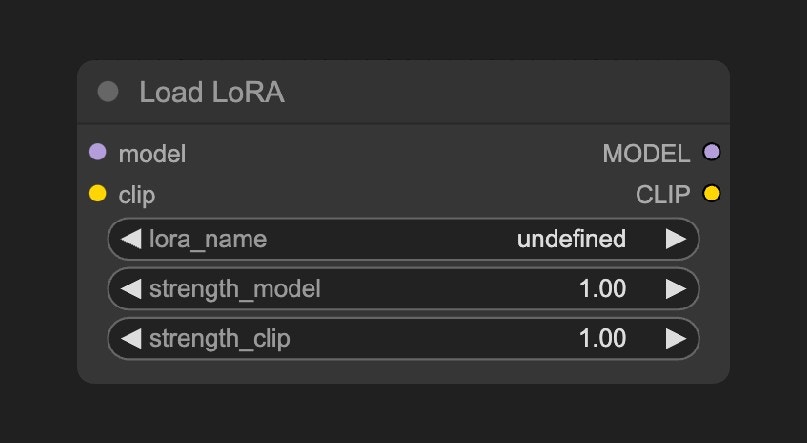 Models in the `ComfyUI\models\loras` folder will be detected by ComfyUI and can be loaded using this node.
### Input Types
| Parameter Name | Function |
| ---------------- | ------------------------------------------------------------------------------------------------------ |
| `model` | Connect to the base model |
| `clip` | Connect to the CLIP model |
| `lora_name` | Select the LoRA model to load and use |
| `strength_model` | Affects how strongly the LoRA influences the model weights; higher values make the LoRA style stronger |
| `strength_clip` | Affects how strongly the LoRA influences the CLIP text embeddings |
### Output Types
| Parameter Name | Function |
| -------------- | ---------------------------------------------------- |
| `model` | Outputs the model with LoRA adjustments applied |
| `clip` | Outputs the CLIP model with LoRA adjustments applied |
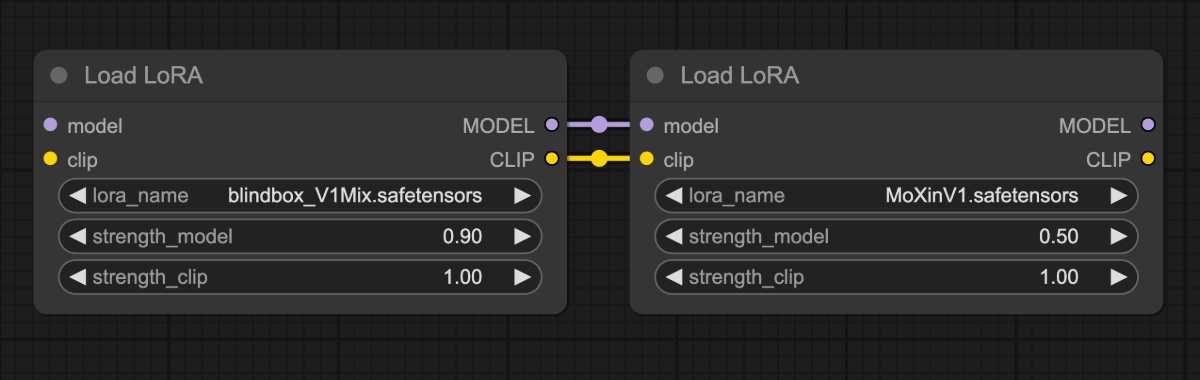
This node supports chain connections, allowing multiple `Load LoRA` nodes to be linked in series to apply multiple LoRA models. For more details, please refer to [ComfyUI Multiple LoRAs Example](/tutorials/basic/multiple-loras)
Models in the `ComfyUI\models\loras` folder will be detected by ComfyUI and can be loaded using this node.
### Input Types
| Parameter Name | Function |
| ---------------- | ------------------------------------------------------------------------------------------------------ |
| `model` | Connect to the base model |
| `clip` | Connect to the CLIP model |
| `lora_name` | Select the LoRA model to load and use |
| `strength_model` | Affects how strongly the LoRA influences the model weights; higher values make the LoRA style stronger |
| `strength_clip` | Affects how strongly the LoRA influences the CLIP text embeddings |
### Output Types
| Parameter Name | Function |
| -------------- | ---------------------------------------------------- |
| `model` | Outputs the model with LoRA adjustments applied |
| `clip` | Outputs the CLIP model with LoRA adjustments applied |
This node supports chain connections, allowing multiple `Load LoRA` nodes to be linked in series to apply multiple LoRA models. For more details, please refer to [ComfyUI Multiple LoRAs Example](/tutorials/basic/multiple-loras)
 ## Try It Yourself
1. Try modifying the prompt or adjusting different parameters of the `Load LoRA` node, such as `strength_model`, to observe changes in the generated images and become familiar with the `Load LoRA` node.
2. Visit [CivitAI](https://civitai.com/models) to download other kinds of LoRA models and try using them.
## Try It Yourself
1. Try modifying the prompt or adjusting different parameters of the `Load LoRA` node, such as `strength_model`, to observe changes in the generated images and become familiar with the `Load LoRA` node.
2. Visit [CivitAI](https://civitai.com/models) to download other kinds of LoRA models and try using them.