> ## Documentation Index
> Fetch the complete documentation index at: https://docs.comfy.org/llms.txt
> Use this file to discover all available pages before exploring further.
# ComfyUI Multiple LoRAs Example
> This guide demonstrates how to apply multiple LoRA models simultaneously in ComfyUI
In our [ComfyUI LoRA Example](/tutorials/basic/lora), we introduced how to load and use a single LoRA model, mentioning the node's chain connection capability.
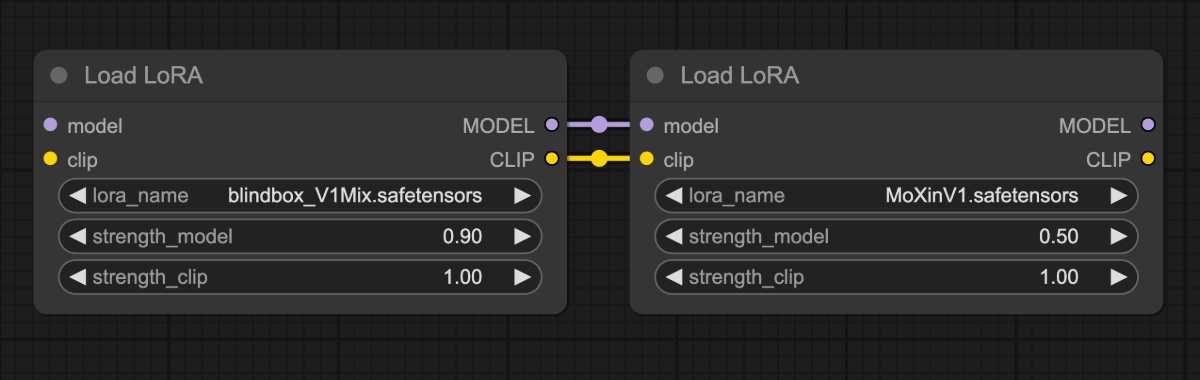 This tutorial demonstrates chaining multiple `Load LoRA` nodes to apply two LoRA models simultaneously: [blindbox\_V1Mix](https://civitai.com/models/25995?modelVersionId=32988) and [MoXinV1](https://civitai.com/models/12597?modelVersionId=14856).
The comparison below shows individual effects of these LoRAs using identical parameters:
This tutorial demonstrates chaining multiple `Load LoRA` nodes to apply two LoRA models simultaneously: [blindbox\_V1Mix](https://civitai.com/models/25995?modelVersionId=32988) and [MoXinV1](https://civitai.com/models/12597?modelVersionId=14856).
The comparison below shows individual effects of these LoRAs using identical parameters:
 By chaining multiple LoRA models, we achieve a blended style in the final output:
 ## Model Installation
Download the [dreamshaper\_8.safetensors](https://civitai.com/api/download/models/128713?type=Model\&format=SafeTensor\&size=pruned\&fp=fp16) file and put it in your `ComfyUI/models/checkpoints` folder.
Download the [blindbox\_V1Mix.safetensors](https://civitai.com/api/download/models/32988?type=Model\&format=SafeTensor\&size=full\&fp=fp16) file and put it in your `ComfyUI/models/loras` folder.
Download the [MoXinV1.safetensors](https://civitai.com/api/download/models/14856?type=Model\&format=SafeTensor\&size=full\&fp=fp16) file and put it in your `ComfyUI/models/loras` folder.
## Multi-LoRA Workflow
Download the image below and **drag it into ComfyUI** to load the workflow:

Images containing workflow JSON in their metadata can be directly dragged into ComfyUI or loaded using the menu `Workflows` -> `Open (ctrl+o)`.
## Complete the Workflow Step by Step
Follow the steps in the diagram below to ensure the workflow runs correctly.
## Model Installation
Download the [dreamshaper\_8.safetensors](https://civitai.com/api/download/models/128713?type=Model\&format=SafeTensor\&size=pruned\&fp=fp16) file and put it in your `ComfyUI/models/checkpoints` folder.
Download the [blindbox\_V1Mix.safetensors](https://civitai.com/api/download/models/32988?type=Model\&format=SafeTensor\&size=full\&fp=fp16) file and put it in your `ComfyUI/models/loras` folder.
Download the [MoXinV1.safetensors](https://civitai.com/api/download/models/14856?type=Model\&format=SafeTensor\&size=full\&fp=fp16) file and put it in your `ComfyUI/models/loras` folder.
## Multi-LoRA Workflow
Download the image below and **drag it into ComfyUI** to load the workflow:

Images containing workflow JSON in their metadata can be directly dragged into ComfyUI or loaded using the menu `Workflows` -> `Open (ctrl+o)`.
## Complete the Workflow Step by Step
Follow the steps in the diagram below to ensure the workflow runs correctly.
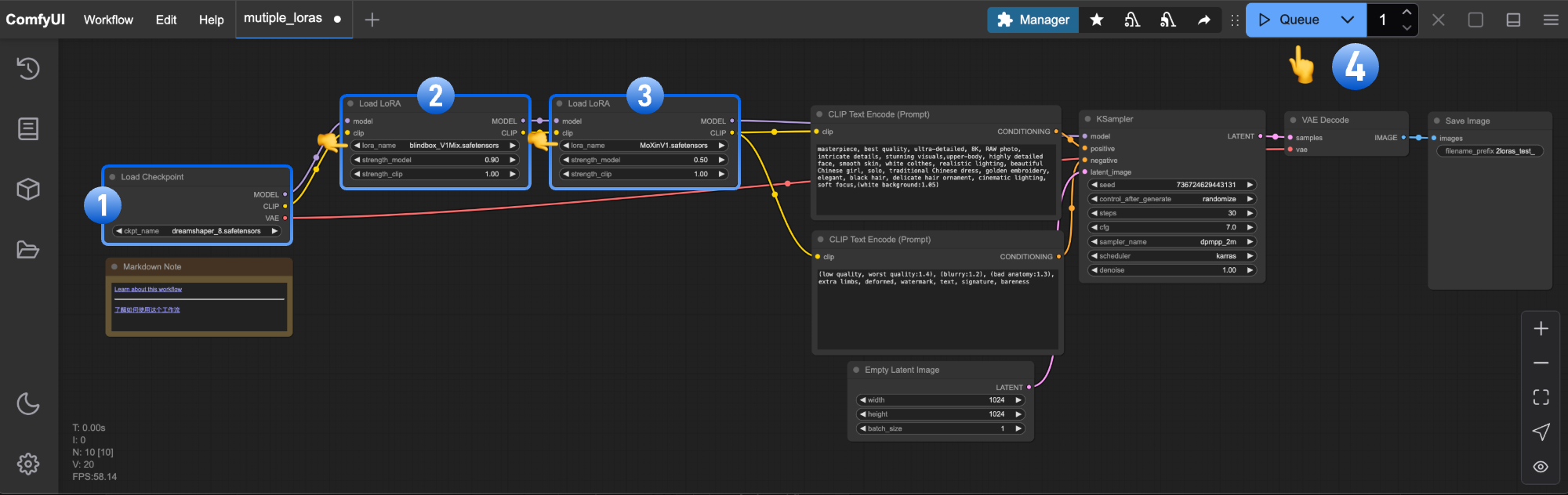 1. Ensure `Load Checkpoint` loads **dreamshaper\_8.safetensors**
2. Ensure first `Load LoRA` loads **blindbox\_V1Mix.safetensors**
3. Ensure second `Load LoRA` loads **MoXinV1.safetensors**
4. Click `Queue` or press `Ctrl/Cmd + Enter` to generate
## Try It Yourself
1. Adjust `strength_model` values in both `Load LoRA` nodes to control each LoRA's influence
2. Explore [CivitAI](https://civitai.com/models) for additional LoRAs and create custom combinations
1. Ensure `Load Checkpoint` loads **dreamshaper\_8.safetensors**
2. Ensure first `Load LoRA` loads **blindbox\_V1Mix.safetensors**
3. Ensure second `Load LoRA` loads **MoXinV1.safetensors**
4. Click `Queue` or press `Ctrl/Cmd + Enter` to generate
## Try It Yourself
1. Adjust `strength_model` values in both `Load LoRA` nodes to control each LoRA's influence
2. Explore [CivitAI](https://civitai.com/models) for additional LoRAs and create custom combinations