> ## Documentation Index
> Fetch the complete documentation index at: https://docs.comfy.org/llms.txt
> Use this file to discover all available pages before exploring further.
# ComfyUI ControlNet Usage Example
> This guide will introduce you to the basic concepts of ControlNet and demonstrate how to generate corresponding images in ComfyUI
Achieving precise control over image creation in AI image generation cannot be done with just one click.
It typically requires numerous generation attempts to produce a satisfactory image. However, the emergence of **ControlNet** has effectively addressed this challenge.
ControlNet is a conditional control generation model based on diffusion models (such as Stable Diffusion),
first proposed by [Lvmin Zhang](https://lllyasviel.github.io/) and Maneesh Agrawala et al. in 2023 in the paper [Adding Conditional Control to Text-to-Image Diffusion Models](https://arxiv.org/abs/2302.05543).
ControlNet models significantly enhance the controllability of image generation and the ability to reproduce details by introducing multimodal input conditions,
such as edge detection maps, depth maps, and pose keypoints.
These conditioning constraints make image generation more controllable, allowing multiple ControlNet models to be used simultaneously during the drawing process for better results.
Before ControlNet, we could only rely on the model to generate images repeatedly until we were satisfied with the results, which involved a lot of randomness.
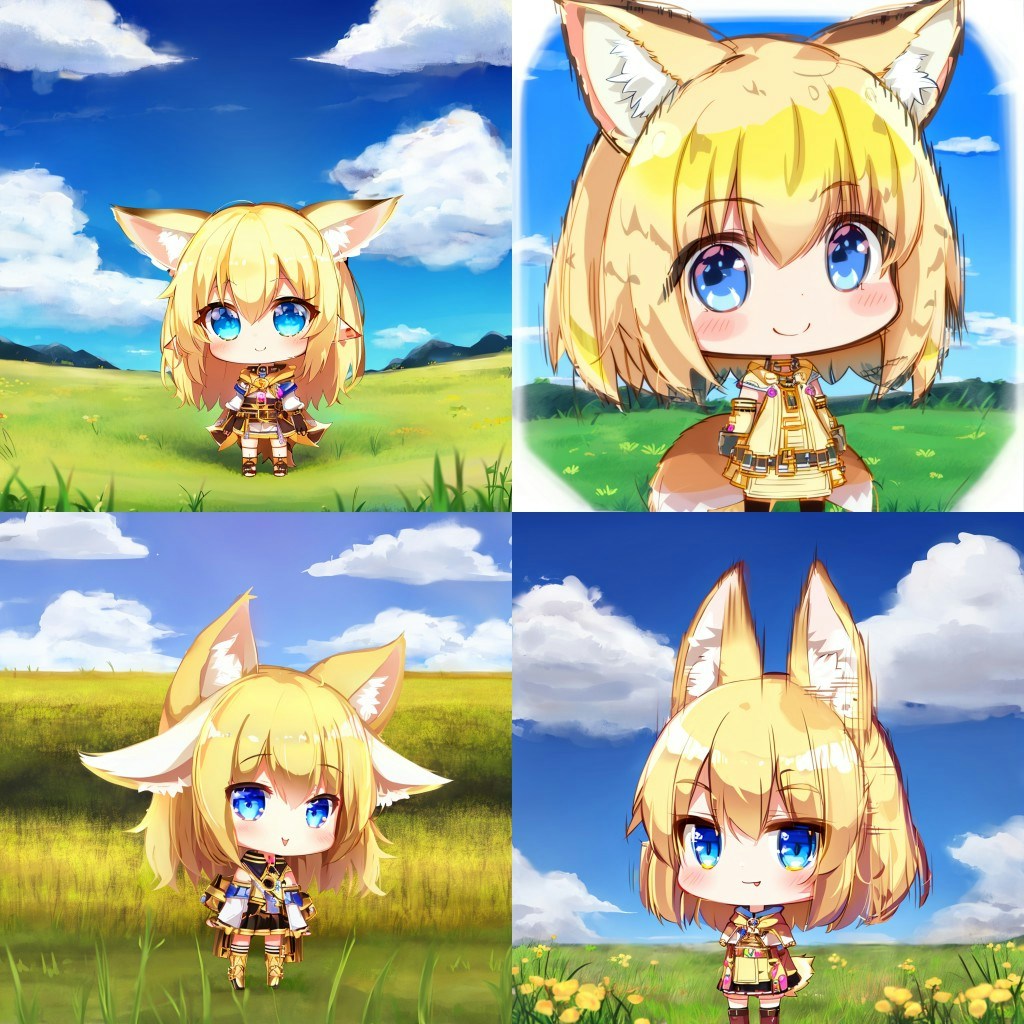 With the advent of ControlNet, we can control image generation by introducing additional conditions.
For example, we can use a simple sketch to guide the image generation process, producing images that closely align with our sketch.
With the advent of ControlNet, we can control image generation by introducing additional conditions.
For example, we can use a simple sketch to guide the image generation process, producing images that closely align with our sketch.
 In this example, we will guide you through installing and using ControlNet models in [ComfyUI](https://github.com/Comfy-Org/ComfyUI), and complete a sketch-controlled image generation example.

The workflows for other types of ControlNet V1.1 models are similar to this example. You only need to select the appropriate model and upload the corresponding reference image based on your needs.
## ControlNet Image Preprocessing Information
Different types of ControlNet models typically require different types of reference images:

> Image source: [ComfyUI ControlNet aux](https://github.com/Fannovel16/comfyui_controlnet_aux)
Since the current **Comfy Core** nodes do not include all types of **preprocessors**, in the actual examples in this documentation, we will provide pre-processed images.
However, in practical use, you may need to use custom nodes to preprocess images to meet the requirements of different ControlNet models. Below are some relevant custom nodes:
* [ComfyUI-Advanced-ControlNet](https://github.com/Kosinkadink/ComfyUI-Advanced-ControlNet)
* [ComfyUI ControlNet aux](https://github.com/Fannovel16/comfyui_controlnet_aux)
## ComfyUI ControlNet Workflow Example Explanation
### 1. ControlNet Workflow Assets
Please download the workflow image below and drag it into ComfyUI to load the workflow:

Images with workflow JSON in their metadata can be directly dragged into ComfyUI or loaded using the menu `Workflows` -> `Open (ctrl+o)`.
This image already includes download links for the corresponding models, and dragging it into ComfyUI will automatically prompt for downloads.
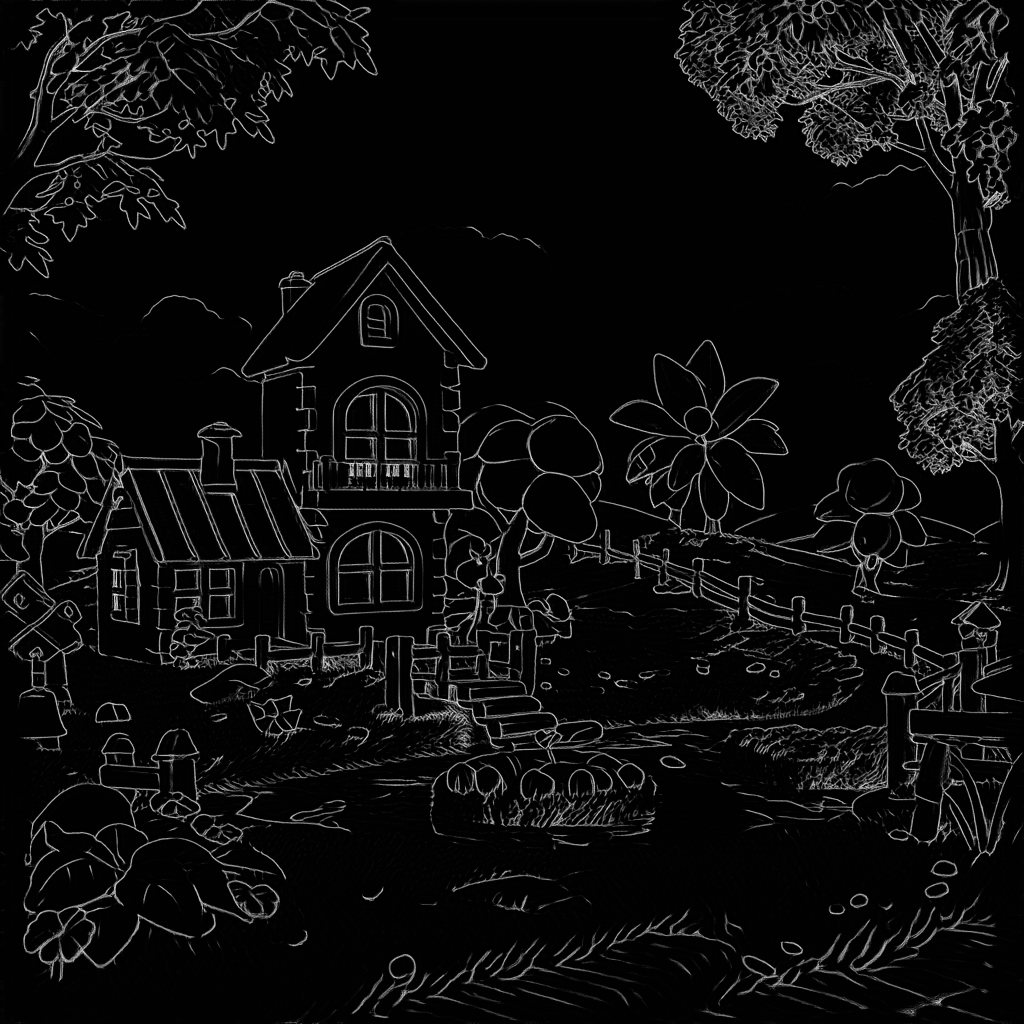
Please download the image below, which we will use as input:
### 2. Manual Model Installation
If your network cannot successfully complete the automatic download of the corresponding models, please try manually downloading the models below and placing them in the specified directories:
* [dreamCreationVirtual3DECommerce\_v10.safetensors](https://civitai.com/api/download/models/731340?type=Model\&format=SafeTensor\&size=full\&fp=fp16)
* [vae-ft-mse-840000-ema-pruned.safetensors](https://huggingface.co/stabilityai/sd-vae-ft-mse-original/resolve/main/vae-ft-mse-840000-ema-pruned.safetensors?download=true)
* [control\_v11p\_sd15\_scribble\_fp16.safetensors](https://huggingface.co/comfyanonymous/ControlNet-v1-1_fp16_safetensors/resolve/main/control_v11p_sd15_scribble_fp16.safetensors?download=true)
```
ComfyUI/
├── models/
│ ├── checkpoints/
│ │ └── dreamCreationVirtual3DECommerce_v10.safetensors
│ ├── vae/
│ │ └── vae-ft-mse-840000-ema-pruned.safetensors
│ └── controlnet/
│ └── control_v11p_sd15_scribble_fp16.safetensors
```
In this example, you could also use the VAE model embedded in dreamCreationVirtual3DECommerce\_v10.safetensors, but we're following the model author's recommendation to use a separate VAE model.
### 3. Step-by-Step Workflow Execution
In this example, we will guide you through installing and using ControlNet models in [ComfyUI](https://github.com/Comfy-Org/ComfyUI), and complete a sketch-controlled image generation example.

The workflows for other types of ControlNet V1.1 models are similar to this example. You only need to select the appropriate model and upload the corresponding reference image based on your needs.
## ControlNet Image Preprocessing Information
Different types of ControlNet models typically require different types of reference images:

> Image source: [ComfyUI ControlNet aux](https://github.com/Fannovel16/comfyui_controlnet_aux)
Since the current **Comfy Core** nodes do not include all types of **preprocessors**, in the actual examples in this documentation, we will provide pre-processed images.
However, in practical use, you may need to use custom nodes to preprocess images to meet the requirements of different ControlNet models. Below are some relevant custom nodes:
* [ComfyUI-Advanced-ControlNet](https://github.com/Kosinkadink/ComfyUI-Advanced-ControlNet)
* [ComfyUI ControlNet aux](https://github.com/Fannovel16/comfyui_controlnet_aux)
## ComfyUI ControlNet Workflow Example Explanation
### 1. ControlNet Workflow Assets
Please download the workflow image below and drag it into ComfyUI to load the workflow:

Images with workflow JSON in their metadata can be directly dragged into ComfyUI or loaded using the menu `Workflows` -> `Open (ctrl+o)`.
This image already includes download links for the corresponding models, and dragging it into ComfyUI will automatically prompt for downloads.
Please download the image below, which we will use as input:

### 2. Manual Model Installation
If your network cannot successfully complete the automatic download of the corresponding models, please try manually downloading the models below and placing them in the specified directories:
* [dreamCreationVirtual3DECommerce\_v10.safetensors](https://civitai.com/api/download/models/731340?type=Model\&format=SafeTensor\&size=full\&fp=fp16)
* [vae-ft-mse-840000-ema-pruned.safetensors](https://huggingface.co/stabilityai/sd-vae-ft-mse-original/resolve/main/vae-ft-mse-840000-ema-pruned.safetensors?download=true)
* [control\_v11p\_sd15\_scribble\_fp16.safetensors](https://huggingface.co/comfyanonymous/ControlNet-v1-1_fp16_safetensors/resolve/main/control_v11p_sd15_scribble_fp16.safetensors?download=true)
```
ComfyUI/
├── models/
│ ├── checkpoints/
│ │ └── dreamCreationVirtual3DECommerce_v10.safetensors
│ ├── vae/
│ │ └── vae-ft-mse-840000-ema-pruned.safetensors
│ └── controlnet/
│ └── control_v11p_sd15_scribble_fp16.safetensors
```
In this example, you could also use the VAE model embedded in dreamCreationVirtual3DECommerce\_v10.safetensors, but we're following the model author's recommendation to use a separate VAE model.
### 3. Step-by-Step Workflow Execution
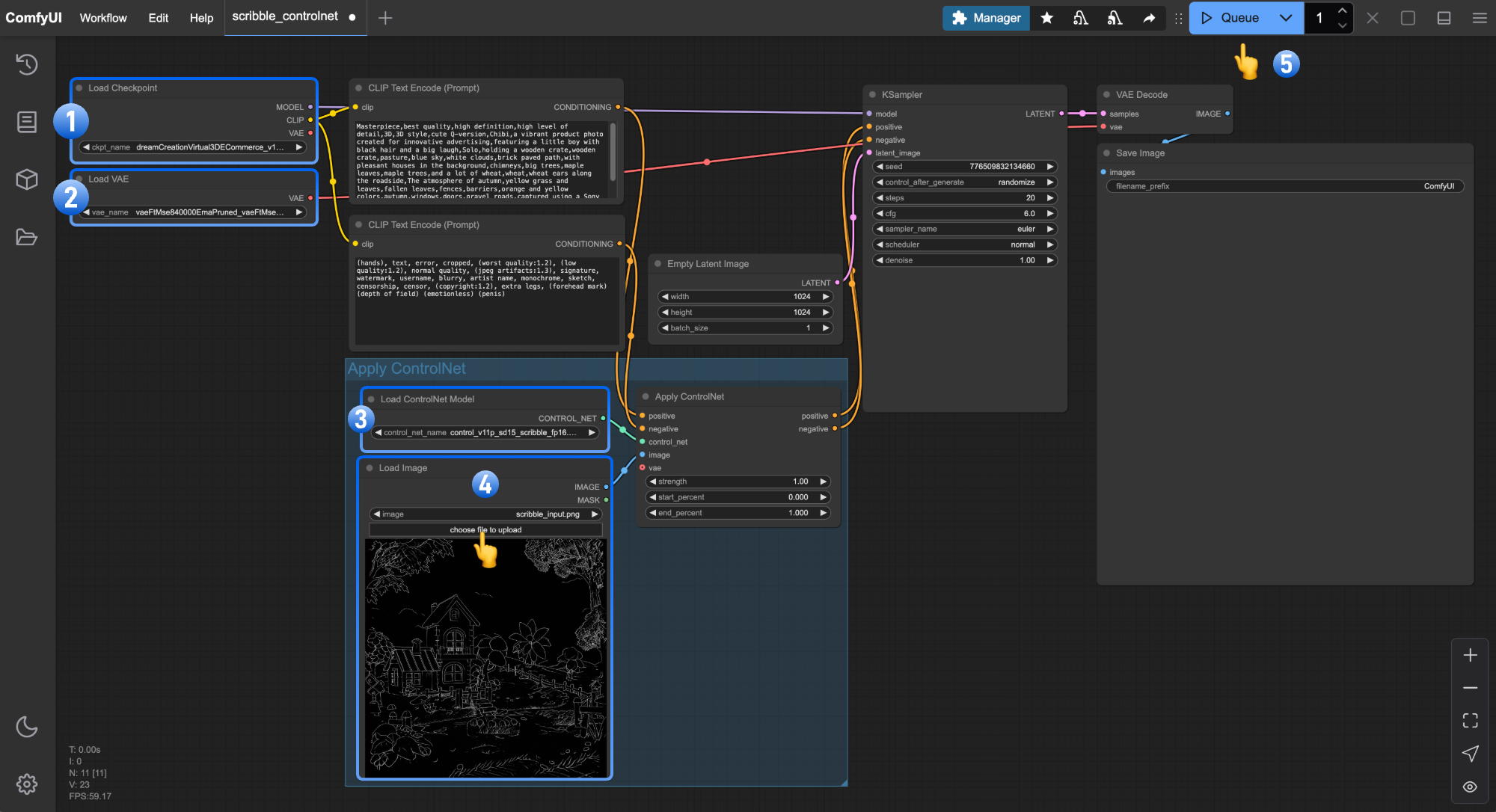 1. Ensure that `Load Checkpoint` can load **dreamCreationVirtual3DECommerce\_v10.safetensors**
2. Ensure that `Load VAE` can load **vae-ft-mse-840000-ema-pruned.safetensors**
3. Click `Upload` in the `Load Image` node to upload the input image provided earlier
4. Ensure that `Load ControlNet` can load **control\_v11p\_sd15\_scribble\_fp16.safetensors**
5. Click the `Queue` button or use the shortcut `Ctrl(cmd) + Enter` to execute the image generation
## Related Node Explanations
### Load ControlNet Node Explanation
1. Ensure that `Load Checkpoint` can load **dreamCreationVirtual3DECommerce\_v10.safetensors**
2. Ensure that `Load VAE` can load **vae-ft-mse-840000-ema-pruned.safetensors**
3. Click `Upload` in the `Load Image` node to upload the input image provided earlier
4. Ensure that `Load ControlNet` can load **control\_v11p\_sd15\_scribble\_fp16.safetensors**
5. Click the `Queue` button or use the shortcut `Ctrl(cmd) + Enter` to execute the image generation
## Related Node Explanations
### Load ControlNet Node Explanation
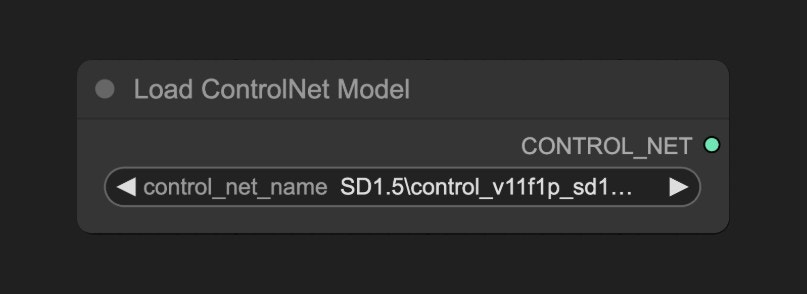 Models located in `ComfyUI\models\controlnet` will be detected by ComfyUI and can be loaded through this node.
### Apply ControlNet Node Explanation
Models located in `ComfyUI\models\controlnet` will be detected by ComfyUI and can be loaded through this node.
### Apply ControlNet Node Explanation
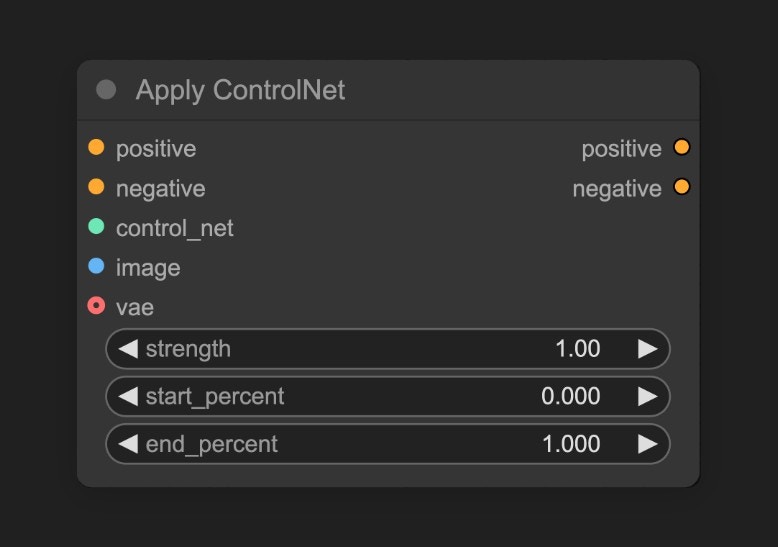 This node accepts the ControlNet model loaded by `load controlnet` and generates corresponding control conditions based on the input image.
**Input Types**
| Parameter Name | Function |
| --------------- | ------------------------------------------------------------------------------------------------------------------------------------------ |
| `positive` | Positive conditioning |
| `negative` | Negative conditioning |
| `control_net` | The ControlNet model to be applied |
| `image` | Preprocessed image used as reference for ControlNet application |
| `vae` | VAE model input |
| `strength` | Strength of ControlNet application; higher values increase ControlNet's influence on the generated image |
| `start_percent` | Determines when to start applying ControlNet as a percentage; e.g., 0.2 means ControlNet guidance begins when 20% of diffusion is complete |
| `end_percent` | Determines when to stop applying ControlNet as a percentage; e.g., 0.8 means ControlNet guidance stops when 80% of diffusion is complete |
**Output Types**
| Parameter Name | Function |
| -------------- | -------------------------------------------------- |
| `positive` | Positive conditioning data processed by ControlNet |
| `negative` | Negative conditioning data processed by ControlNet |
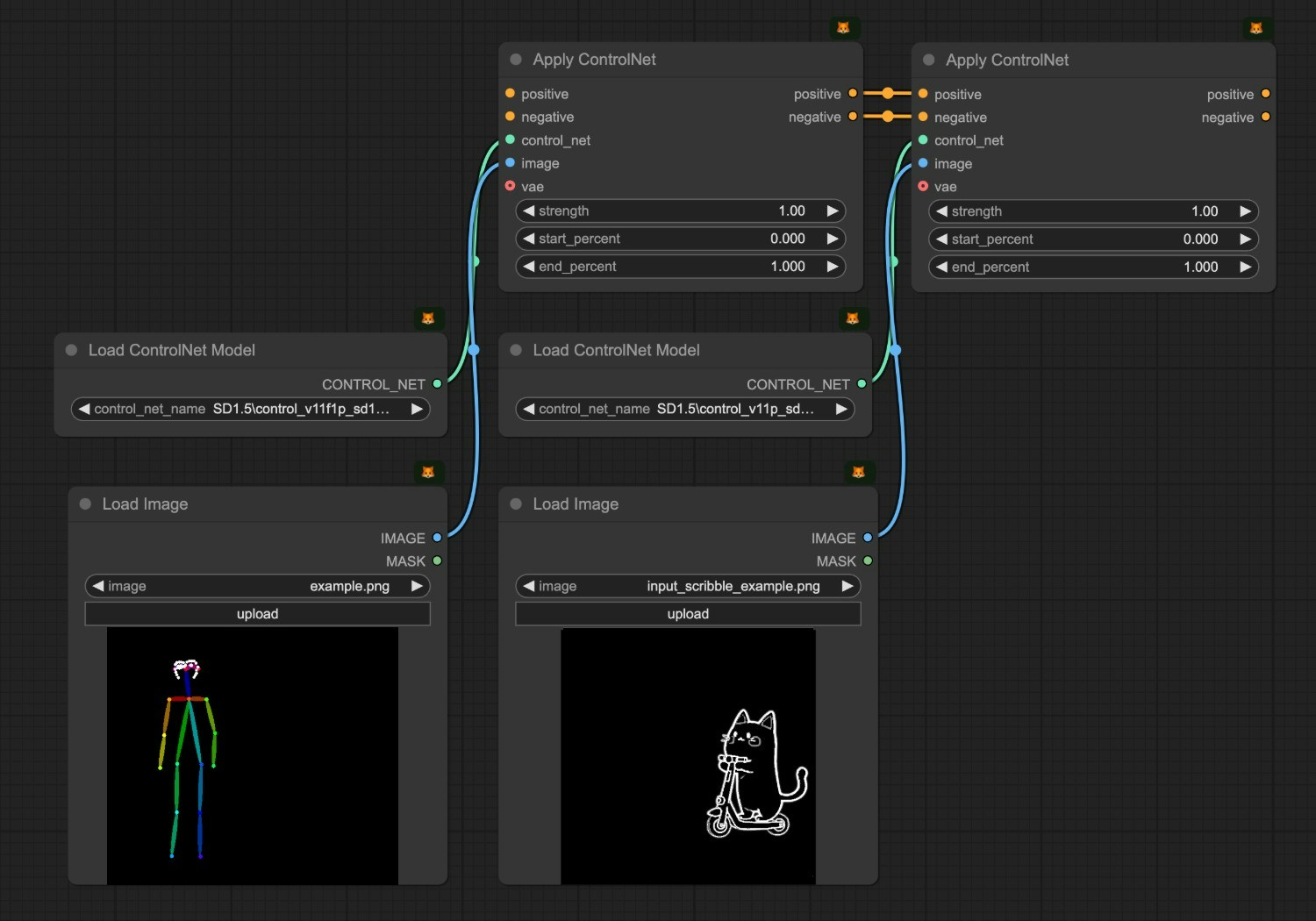
You can use chain connections to apply multiple ControlNet models, as shown in the image below. You can also refer to the [Mixing ControlNet Models](/tutorials/controlnet/mixing-controlnets) guide to learn more about combining multiple ControlNet models.
This node accepts the ControlNet model loaded by `load controlnet` and generates corresponding control conditions based on the input image.
**Input Types**
| Parameter Name | Function |
| --------------- | ------------------------------------------------------------------------------------------------------------------------------------------ |
| `positive` | Positive conditioning |
| `negative` | Negative conditioning |
| `control_net` | The ControlNet model to be applied |
| `image` | Preprocessed image used as reference for ControlNet application |
| `vae` | VAE model input |
| `strength` | Strength of ControlNet application; higher values increase ControlNet's influence on the generated image |
| `start_percent` | Determines when to start applying ControlNet as a percentage; e.g., 0.2 means ControlNet guidance begins when 20% of diffusion is complete |
| `end_percent` | Determines when to stop applying ControlNet as a percentage; e.g., 0.8 means ControlNet guidance stops when 80% of diffusion is complete |
**Output Types**
| Parameter Name | Function |
| -------------- | -------------------------------------------------- |
| `positive` | Positive conditioning data processed by ControlNet |
| `negative` | Negative conditioning data processed by ControlNet |
You can use chain connections to apply multiple ControlNet models, as shown in the image below. You can also refer to the [Mixing ControlNet Models](/tutorials/controlnet/mixing-controlnets) guide to learn more about combining multiple ControlNet models.
 You might see the `Apply ControlNet(Old)` node in some early workflows, which is an early version of the ControlNet node. It is currently deprecated and not visible by default in search and node lists.
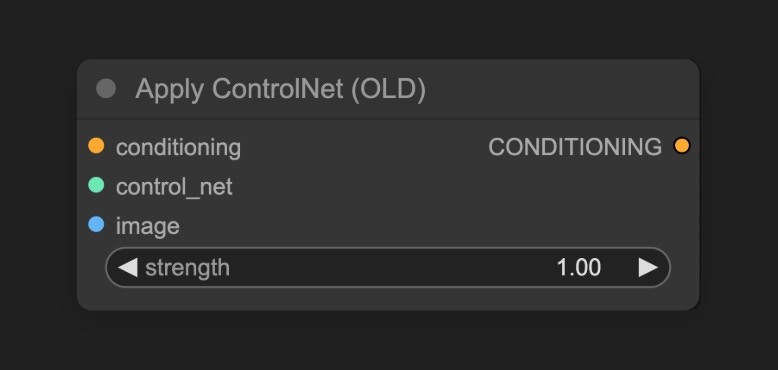 To enable it, go to **Settings** --> **comfy** --> **Node** and enable the `Show deprecated nodes in search` option. However, it's recommended to use the new node.
## Start Your Exploration
1. Try creating similar sketches, or even draw your own, and use ControlNet models to generate images to experience the benefits of ControlNet.
2. Adjust the `Control Strength` parameter in the Apply ControlNet node to control the influence of the ControlNet model on the generated image.
3. Visit the [ControlNet-v1-1\_fp16\_safetensors](https://huggingface.co/comfyanonymous/ControlNet-v1-1_fp16_safetensors/tree/main) repository to download other types of ControlNet models and try using them to generate images.
To enable it, go to **Settings** --> **comfy** --> **Node** and enable the `Show deprecated nodes in search` option. However, it's recommended to use the new node.
## Start Your Exploration
1. Try creating similar sketches, or even draw your own, and use ControlNet models to generate images to experience the benefits of ControlNet.
2. Adjust the `Control Strength` parameter in the Apply ControlNet node to control the influence of the ControlNet model on the generated image.
3. Visit the [ControlNet-v1-1\_fp16\_safetensors](https://huggingface.co/comfyanonymous/ControlNet-v1-1_fp16_safetensors/tree/main) repository to download other types of ControlNet models and try using them to generate images.