> ## Documentation Index
> Fetch the complete documentation index at: https://docs.comfy.org/llms.txt
> Use this file to discover all available pages before exploring further.
# ComfyUI Depth ControlNet Usage Example
> This guide will introduce you to the basic concepts of Depth ControlNet and demonstrate how to generate corresponding images in ComfyUI
## Introduction to Depth Maps and Depth ControlNet
A depth map is a special type of image that uses grayscale values to represent the distance between objects in a scene and the observer or camera. In a depth map, the grayscale value is inversely proportional to distance: brighter areas (closer to white) indicate objects that are closer, while darker areas (closer to black) indicate objects that are farther away.
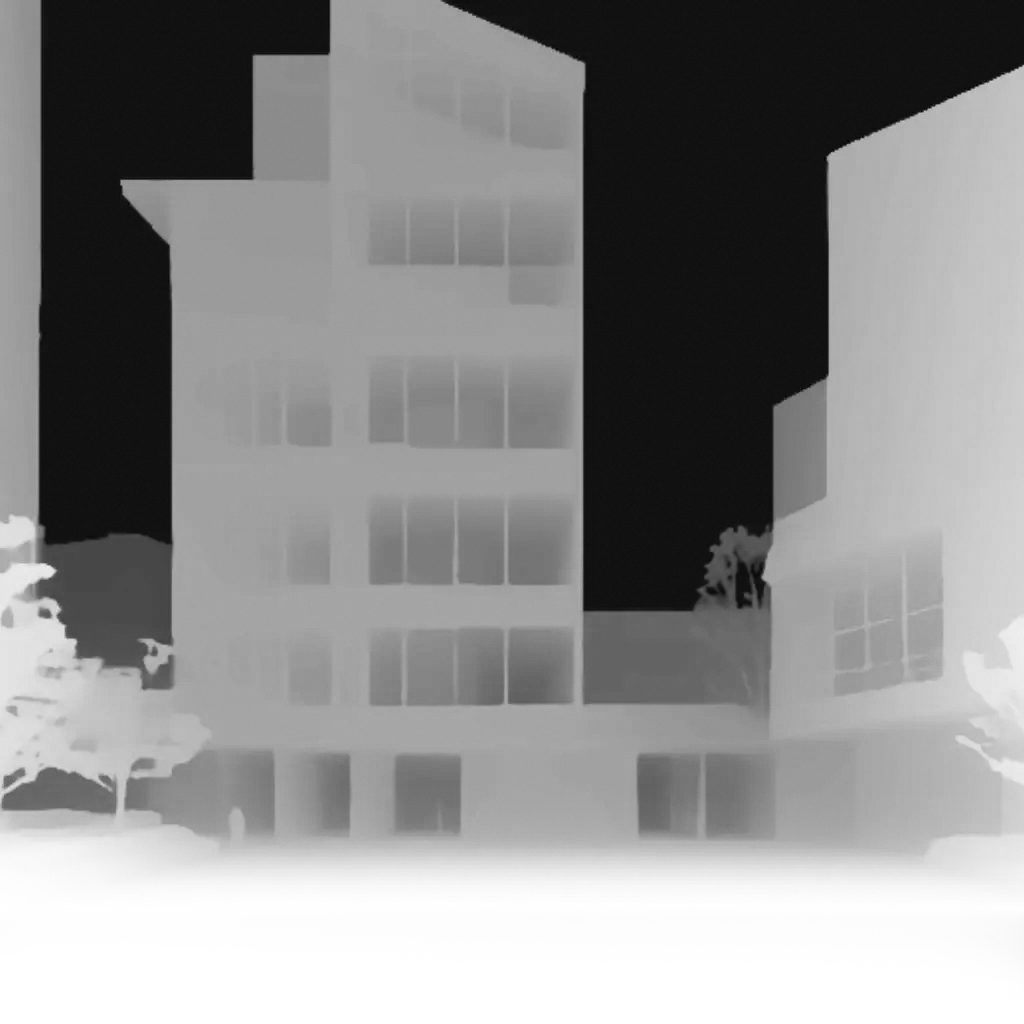
Depth ControlNet is a ControlNet model specifically trained to understand and utilize depth map information. It helps AI correctly interpret spatial relationships, ensuring that generated images conform to the spatial structure specified by the depth map, thereby enabling precise control over three-dimensional spatial layouts.
### Application Scenarios for Depth Maps with ControlNet
Depth maps have numerous applications in various scenarios:
1. **Portrait Scenes**: Control the spatial relationship between subjects and backgrounds, avoiding distortion in critical areas such as faces
2. **Landscape Scenes**: Control the hierarchical relationships between foreground, middle ground, and background
3. **Architectural Scenes**: Control the spatial structure and perspective relationships of buildings
4. **Product Showcase**: Control the separation and spatial positioning of products against their backgrounds
In this example, we will use a depth map to generate an architectural visualization scene.
## ComfyUI ControlNet Workflow Example Explanation
### 1. ControlNet Workflow Assets
Please download the workflow image below and drag it into ComfyUI to load the workflow:

Images with workflow JSON in their metadata can be directly dragged into ComfyUI or loaded using the menu `Workflows` -> `Open (ctrl+o)`.
This image already includes download links for the corresponding models, and dragging it into ComfyUI will automatically prompt for downloads.
Please download the image below, which we will use as input:

### 2. Model Installation
If your network cannot successfully complete the automatic download of the corresponding models, please try manually downloading the models below and placing them in the specified directories:
* [architecturerealmix\_v11.safetensors](https://civitai.com/api/download/models/431755?type=Model\&format=SafeTensor\&size=full\&fp=fp16)
* [control\_v11f1p\_sd15\_depth\_fp16.safetensors](https://huggingface.co/comfyanonymous/ControlNet-v1-1_fp16_safetensors/resolve/main/control_v11f1p_sd15_depth_fp16.safetensors?download=true)
```
ComfyUI/
├── models/
│ ├── checkpoints/
│ │ └── architecturerealmix_v11.safetensors
│ └── controlnet/
│ └── control_v11f1p_sd15_depth_fp16.safetensors
```
### 3. Step-by-Step Workflow Execution
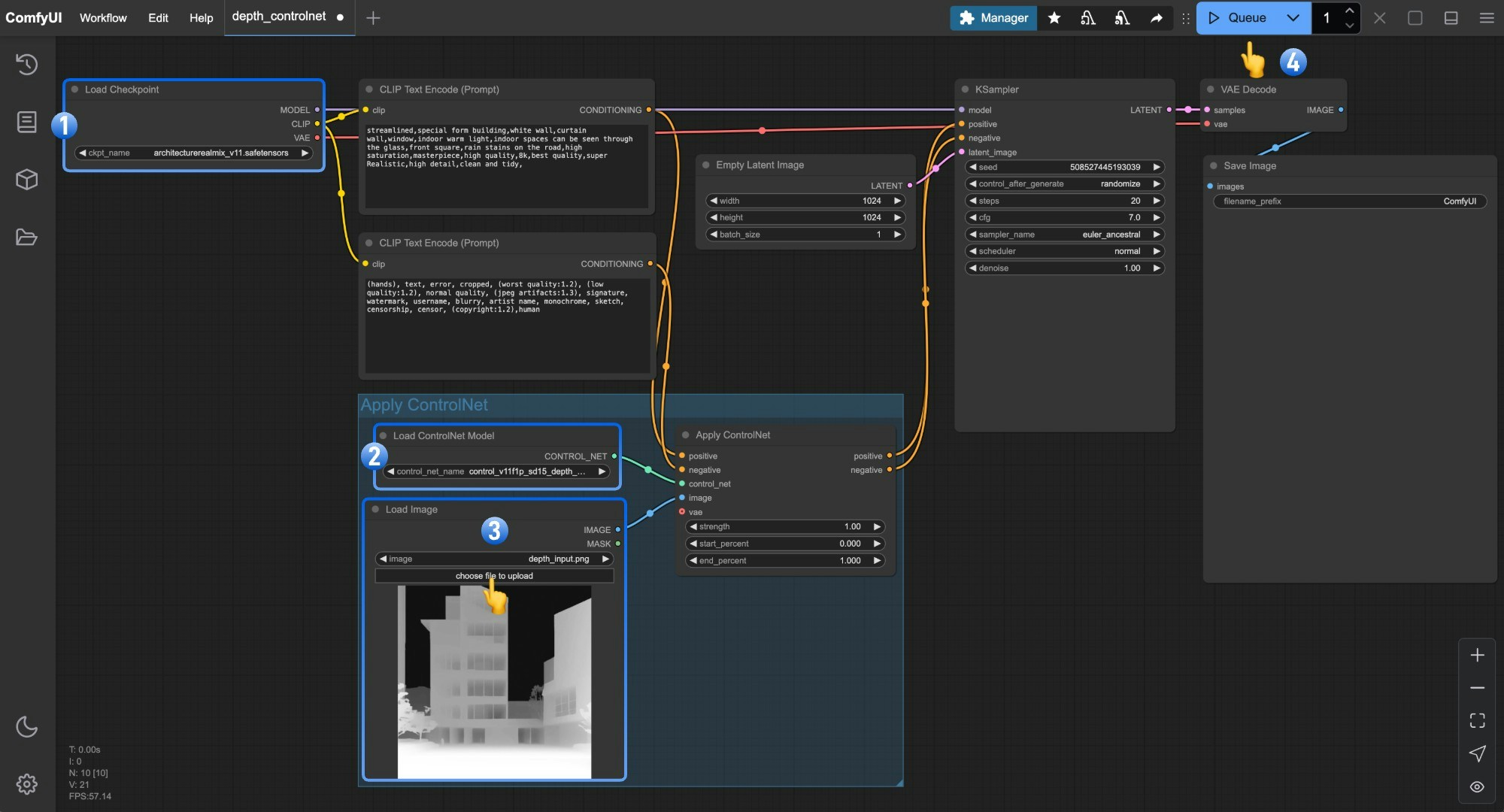 1. Ensure that `Load Checkpoint` can load **architecturerealmix\_v11.safetensors**
2. Ensure that `Load ControlNet` can load **control\_v11f1p\_sd15\_depth\_fp16.safetensors**
3. Click `Upload` in the `Load Image` node to upload the depth image provided earlier
4. Click the `Queue` button or use the shortcut `Ctrl(cmd) + Enter` to execute the image generation
## Combining Depth Control with Other Techniques
Based on different creative needs, you can combine Depth ControlNet with other types of ControlNet to achieve better results:
1. **Depth + Lineart**: Maintain spatial relationships while reinforcing outlines, suitable for architecture, products, and character design
2. **Depth + Pose**: Control character posture while maintaining correct spatial relationships, suitable for character scenes
For more information on using multiple ControlNet models together, please refer to the [Mixing ControlNet](/tutorials/controlnet/mixing-controlnets) example.
1. Ensure that `Load Checkpoint` can load **architecturerealmix\_v11.safetensors**
2. Ensure that `Load ControlNet` can load **control\_v11f1p\_sd15\_depth\_fp16.safetensors**
3. Click `Upload` in the `Load Image` node to upload the depth image provided earlier
4. Click the `Queue` button or use the shortcut `Ctrl(cmd) + Enter` to execute the image generation
## Combining Depth Control with Other Techniques
Based on different creative needs, you can combine Depth ControlNet with other types of ControlNet to achieve better results:
1. **Depth + Lineart**: Maintain spatial relationships while reinforcing outlines, suitable for architecture, products, and character design
2. **Depth + Pose**: Control character posture while maintaining correct spatial relationships, suitable for character scenes
For more information on using multiple ControlNet models together, please refer to the [Mixing ControlNet](/tutorials/controlnet/mixing-controlnets) example.