Download JSON Workflow
Run on Comfy Cloud
Use the image below as an input image. 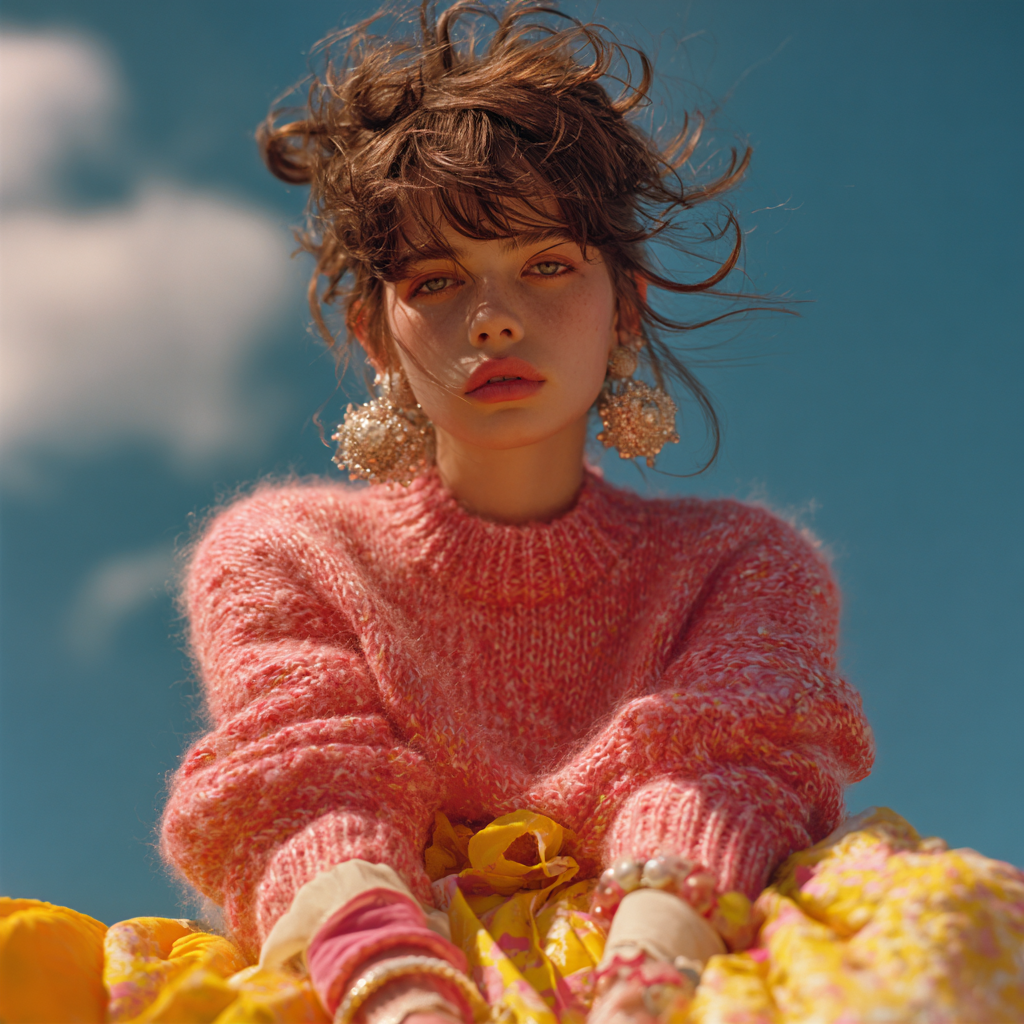 ### 2. Model links **checkpoints** * [flux1-dev-fp8.safetensors](https://huggingface.co/Comfy-Org/flux1-dev/resolve/main/flux1-dev-fp8.safetensors) **loras** * [uso-flux1-dit-lora-v1.safetensors](https://huggingface.co/Comfy-Org/USO_1.0_Repackaged/resolve/main/split_files/loras/uso-flux1-dit-lora-v1.safetensors) **model\_patches** * [uso-flux1-projector-v1.safetensors](https://huggingface.co/Comfy-Org/USO_1.0_Repackaged/resolve/main/split_files/model_patches/uso-flux1-projector-v1.safetensors) **clip\_visions** * [sigclip\_vision\_patch14\_384.safetensors](https://huggingface.co/Comfy-Org/sigclip_vision_384/resolve/main/sigclip_vision_patch14_384.safetensors) Please download all models and place them in the following directories: ``` 📂 ComfyUI/ ├── 📂 models/ │ ├── 📂 checkpoints/ │ │ └── flux1-dev-fp8.safetensors │ ├── 📂 loras/ │ │ └── uso-flux1-dit-lora-v1.safetensors │ ├── 📂 model_patches/ │ │ └── uso-flux1-projector-v1.safetensors │ ├── 📂 clip_visions/ │ │ └── sigclip_vision_patch14_384.safetensors ``` ### 3. Workflow instructions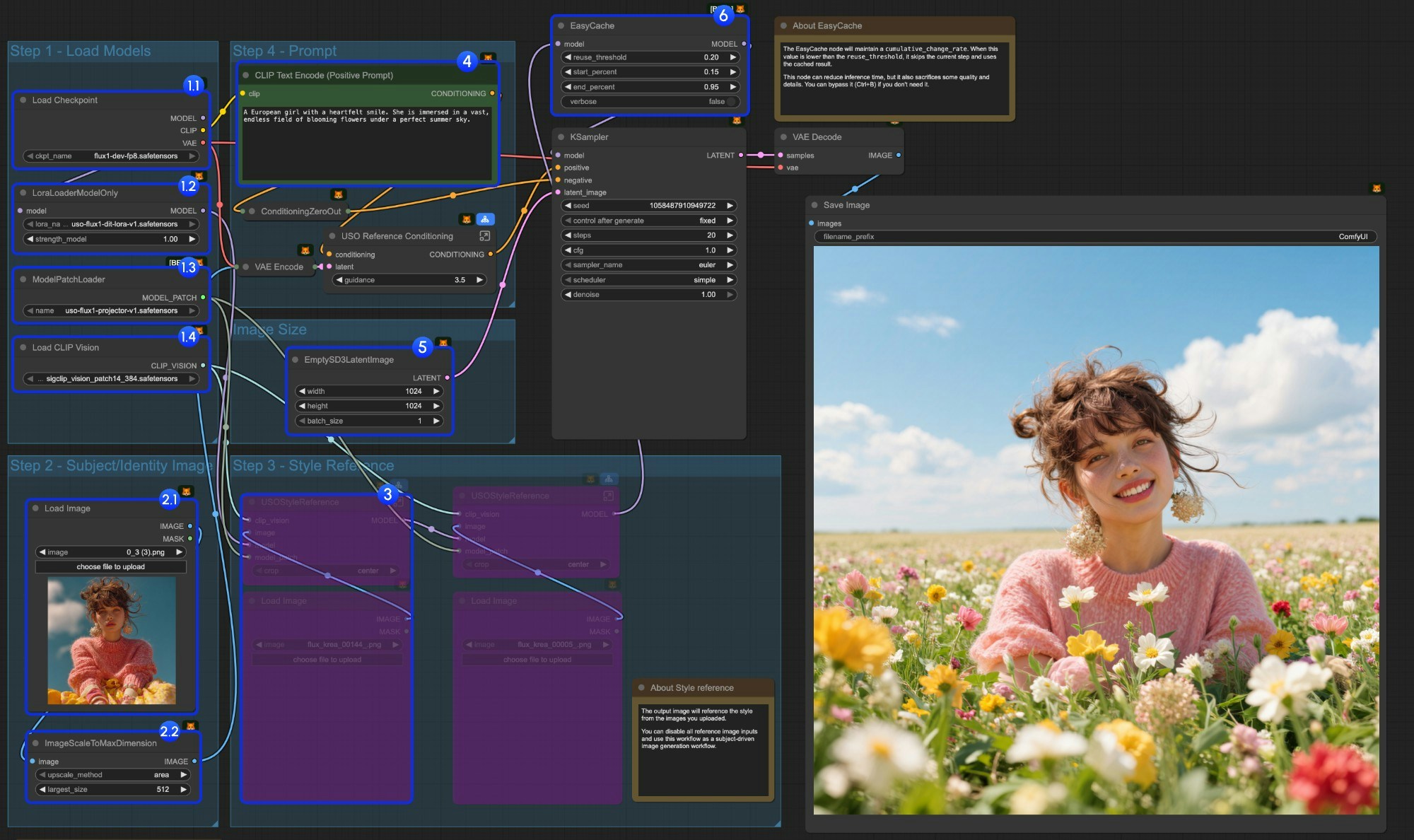 1. Load models:
* 1.1 Ensure the `Load Checkpoint` node has `flux1-dev-fp8.safetensors` loaded
* 1.2 Ensure the `LoraLoaderModelOnly` node has `dit_lora.safetensors` loaded
* 1.3 Ensure the `ModelPatchLoader` node has `projector.safetensors` loaded
* 1.4 Ensure the `Load CLIP Vision` node has `sigclip_vision_patch14_384.safetensors` loaded
2. Content Reference:
* 2.1 Click `Upload` to upload the input image we provided
* 2.2 The `ImageScaleToMaxDimension` node will scale your input image for content reference, 512px will keep more character features, but if you only use the character's head as input, the final output image often has issues like the character taking up too much space. Setting it to 1024px gives much better results.
3. In the example, we only use the `content reference` image input. If you want to use the `style reference` image input, you can use `Ctrl-B` to bypass the marked node group.
4. Write your prompt or keep default
5. Set the image size if you need
6. The EasyCache node is for inference acceleration, but it will also sacrifice some quality and details. You can bypass it (Ctrl+B) if you don't need to use it.
7. Click the `Run` button, or use the shortcut `Ctrl(Cmd) + Enter` to run the workflow
### 4. Additional Notes
1. Style reference only:
We also provide a workflow that only uses style reference in the same workflow we provided
1. Load models:
* 1.1 Ensure the `Load Checkpoint` node has `flux1-dev-fp8.safetensors` loaded
* 1.2 Ensure the `LoraLoaderModelOnly` node has `dit_lora.safetensors` loaded
* 1.3 Ensure the `ModelPatchLoader` node has `projector.safetensors` loaded
* 1.4 Ensure the `Load CLIP Vision` node has `sigclip_vision_patch14_384.safetensors` loaded
2. Content Reference:
* 2.1 Click `Upload` to upload the input image we provided
* 2.2 The `ImageScaleToMaxDimension` node will scale your input image for content reference, 512px will keep more character features, but if you only use the character's head as input, the final output image often has issues like the character taking up too much space. Setting it to 1024px gives much better results.
3. In the example, we only use the `content reference` image input. If you want to use the `style reference` image input, you can use `Ctrl-B` to bypass the marked node group.
4. Write your prompt or keep default
5. Set the image size if you need
6. The EasyCache node is for inference acceleration, but it will also sacrifice some quality and details. You can bypass it (Ctrl+B) if you don't need to use it.
7. Click the `Run` button, or use the shortcut `Ctrl(Cmd) + Enter` to run the workflow
### 4. Additional Notes
1. Style reference only:
We also provide a workflow that only uses style reference in the same workflow we provided
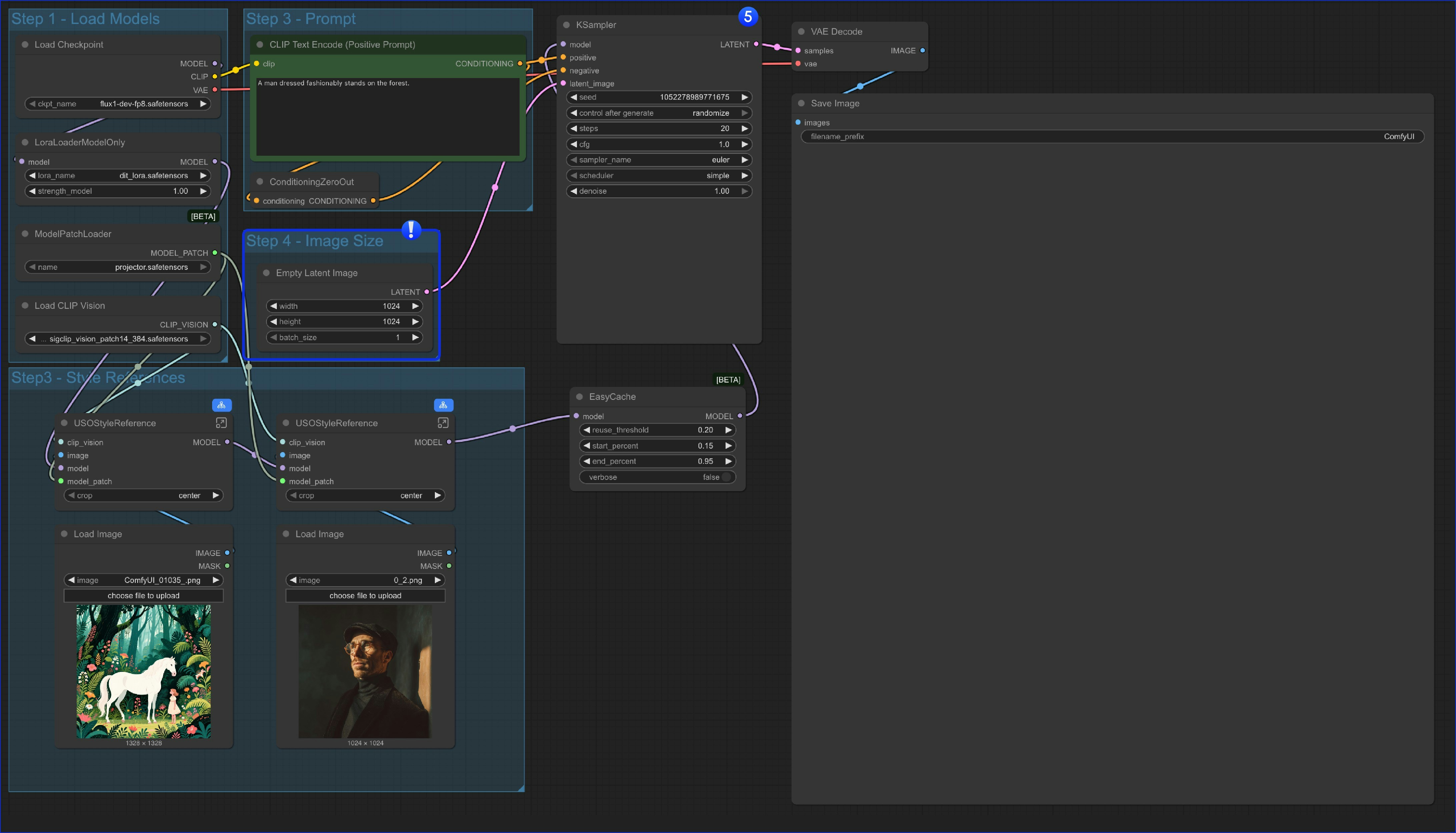 The only different is we replaced the `content reference` node and only use an `Empty Latent Image` node.
2. You can also bypass whole `Style Reference` group and use the workflow as a text to image workflow, which means this workflow has 4 variations
* Only use content (subject) reference
* Only use style reference
* Mixed content and style reference
* As a text to image workflow
The only different is we replaced the `content reference` node and only use an `Empty Latent Image` node.
2. You can also bypass whole `Style Reference` group and use the workflow as a text to image workflow, which means this workflow has 4 variations
* Only use content (subject) reference
* Only use style reference
* Mixed content and style reference
* As a text to image workflow