> ## Documentation Index
> Fetch the complete documentation index at: https://docs.comfy.org/llms.txt
> Use this file to discover all available pages before exploring further.
# ComfyUI Native HiDream-E1, E1.1 Workflow Example
> This guide will help you understand and complete the ComfyUI native HiDream-I1 text-to-image workflow example

HiDream-E1 is an interactive image editing large model officially open-sourced by HiDream-ai, built based on HiDream-I1.
It allows you to edit images using natural language. The model is released under the [MIT License](https://github.com/HiDream-ai/HiDream-E1?tab=MIT-1-ov-file), supporting use in personal projects, scientific research, and commercial applications.
In combination with the previously released [hidream-i1](/tutorials/image/hidream/hidream-i1), it enables **creative capabilities from image generation to editing**.
| Name | Update Date | Inference Steps | Resolution | HuggingFace Repository |
| --------------- | ----------- | --------------- | --------------------- | ----------------------------------------------------------------------- |
| HiDream-E1-Full | 2025-4-28 | 28 | 768x768 | 🤗 [HiDream-E1-Full](https://huggingface.co/HiDream-ai/HiDream-E1-Full) |
| HiDream-E1.1 | 2025-7-16 | 28 | Dynamic (1 Megapixel) | 🤗 [HiDream-E1.1](https://huggingface.co/HiDream-ai/HiDream-E1-1) |
[HiDream E1 - Github](https://github.com/HiDream-ai/HiDream-E1)
Make sure your ComfyUI is updated.
* [Download ComfyUI](https://www.comfy.org/download)
* [Update Guide](/installation/update_comfyui)
Workflows in this guide can be found in the [Workflow Templates](/interface/features/template).
If you can't find them in the template, your ComfyUI may be outdated. (Desktop version's update will delay sometime)
If nodes are missing when loading a workflow, possible reasons:
1. You are not using the latest ComfyUI version (Nightly version)
2. Some nodes failed to import at startup
* The Desktop is base on ComfyUI stable release, it will auto-update when there is a new Desktop stable release available.
* [Cloud](https://cloud.comfy.org) will update after ComfyUI stable release.
So, if you find any core node missing in this document, it might be because the new core nodes have not yet been released in the latest stable version. Please wait for the next stable release.
## HiDream E1 and E1.1 Workflow Related Models
All the models involved in this guide can be found [here](https://huggingface.co/Comfy-Org/HiDream-I1_ComfyUI/tree/main/split_files). Except for the Diffusion model, E1 and E1.1 use the same models.
The corresponding workflow files also include the relevant model information. You can choose to manually download and save the models, or follow the workflow prompts to download them after loading the workflow. It is recommended to use E1.1.
This model requires a large amount of VRAM to run. Please refer to the relevant sections for specific VRAM requirements.
**Diffusion Model**
You do not need to download both models. Since E1.1 is an iterative version based on E1, our tests show that its quality and performance are significantly improved compared to E1.
* [hidream\_e1\_1\_bf16.safetensors (Recommended)](https://huggingface.co/Comfy-Org/HiDream-I1_ComfyUI/resolve/main/split_files/diffusion_models/hidream_e1_1_bf16.safetensors) 34.2GB
* [hidream\_e1\_full\_bf16.safetensors](https://huggingface.co/Comfy-Org/HiDream-I1_ComfyUI/resolve/main/split_files/diffusion_models/hidream_e1_full_bf16.safetensors) 34.2GB
**Text Encoder**:
* [clip\_l\_hidream.safetensors](https://huggingface.co/Comfy-Org/HiDream-I1_ComfyUI/blob/main/split_files/text_encoders/clip_l_hidream.safetensors) 236.12MB
* [clip\_g\_hidream.safetensors](https://huggingface.co/Comfy-Org/HiDream-I1_ComfyUI/blob/main/split_files/text_encoders/clip_g_hidream.safetensors) 1.29GB
* [t5xxl\_fp8\_e4m3fn\_scaled.safetensors](https://huggingface.co/Comfy-Org/HiDream-I1_ComfyUI/blob/main/split_files/text_encoders/t5xxl_fp8_e4m3fn_scaled.safetensors) 4.8GB
* [llama\_3.1\_8b\_instruct\_fp8\_scaled.safetensors](https://huggingface.co/Comfy-Org/HiDream-I1_ComfyUI/blob/main/split_files/text_encoders/llama_3.1_8b_instruct_fp8_scaled.safetensors) 8.46GB
**VAE**
* [ae.safetensors](https://huggingface.co/Comfy-Org/HiDream-I1_ComfyUI/blob/main/split_files/vae/ae.safetensors) 319.77MB
> This is the VAE model for Flux. If you have used the Flux workflow before, you may have already downloaded this file.
Model Save Location
```
📂 ComfyUI/
├── 📂 models/
│ ├── 📂 text_encoders/
│ │ ├─── clip_l_hidream.safetensors
│ │ ├─── clip_g_hidream.safetensors
│ │ ├─── t5xxl_fp8_e4m3fn_scaled.safetensors
│ │ └─── llama_3.1_8b_instruct_fp8_scaled.safetensors
│ └── 📂 vae/
│ │ └── ae.safetensors
│ └── 📂 diffusion_models/
│ ├── hidream_e1_1_bf16.safetensors
│ └── hidream_e1_full_bf16.safetensors
```
## HiDream E1.1 ComfyUI Native Workflow Example
E1.1 is an updated version released on July 16, 2025. This version supports dynamic 1-megapixel resolution, and the workflow uses the `Scale Image to Total Pixels` node to dynamically adjust the input image to 1 million pixels.
Here are the VRAM usage references during testing:
1. A100 40GB (VRAM usage 95%): First generation: 211s, second generation: 73s
2. 4090D 24GB (VRAM usage 98%)
* Full version: Out of memory
* FP8\_e4m3fn\_fast (VRAM 98%) First generation: 120s, second generation: 91s
### 1. HiDream E1.1 Workflow and Related Materials
Download the image below and drag it into ComfyUI with the corresponding workflow and models loaded:

Download the image below as input:

### 2. Step-by-step Guide to Running the HiDream-e1 Workflow
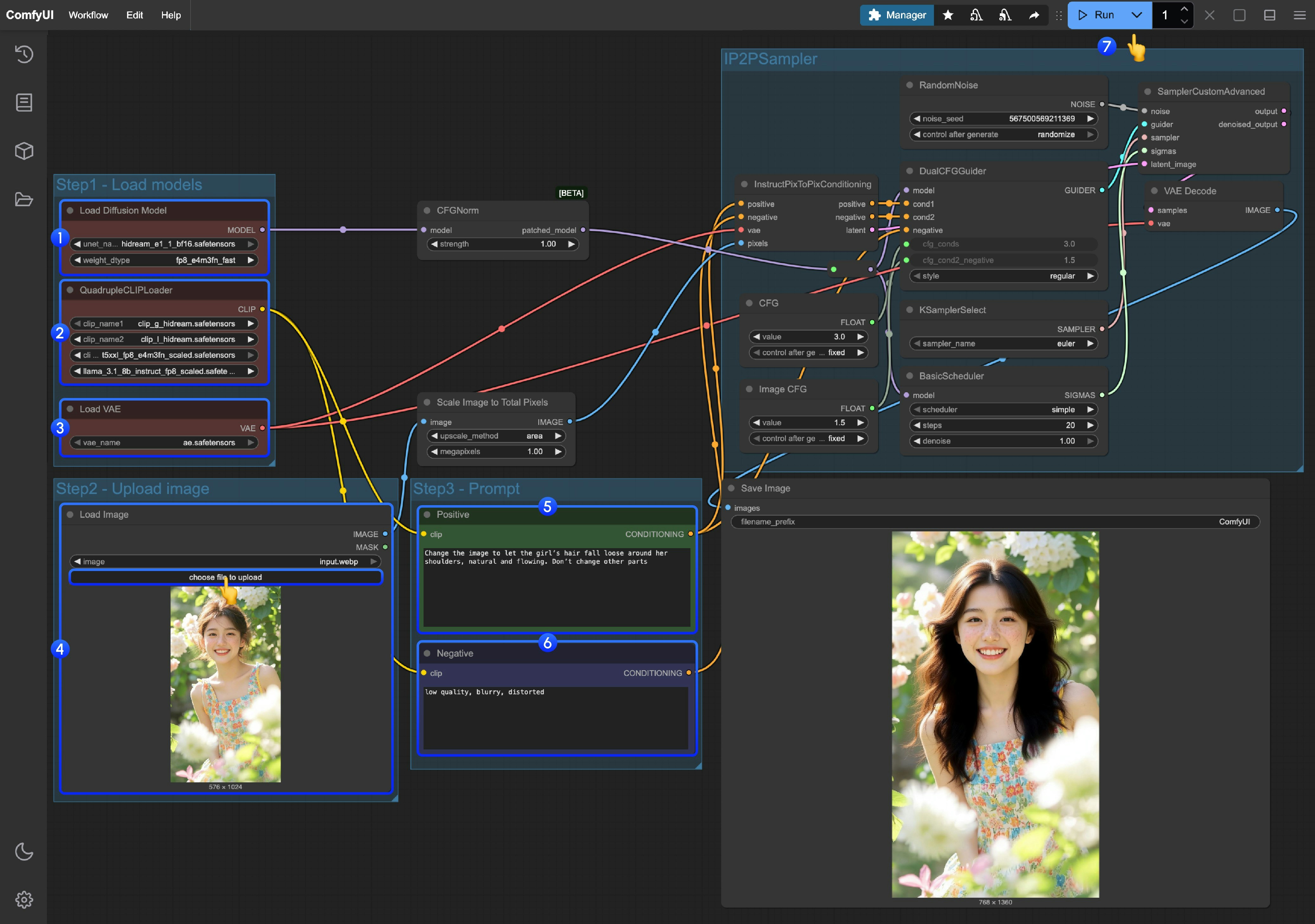 Follow these steps to run the workflow:
1. Make sure the `Load Diffusion Model` node loads the `hidream_e1_1_bf16.safetensors` model.
2. Make sure the four corresponding text encoders in `QuadrupleCLIPLoader` are loaded correctly:
* clip\_l\_hidream.safetensors
* clip\_g\_hidream.safetensors
* t5xxl\_fp8\_e4m3fn\_scaled.safetensors
* llama\_3.1\_8b\_instruct\_fp8\_scaled.safetensors
3. Make sure the `Load VAE` node uses the `ae.safetensors` file.
4. In the `Load Image` node, load the provided input or your desired image.
5. In the `Empty Text Encoder(Positive)` node, enter **the modifications you want to make to the image**.
6. In the `Empty Text Encoder(Negative)` node, enter **the content you do not want to appear in the image**.
7. Click the `Run` button, or use the shortcut `Ctrl(cmd) + Enter` to execute image generation.
### 3. Additional Notes on the Workflow
* Since HiDream E1.1 supports dynamic input with a total of 1 million pixels, the workflow uses `Scale Image to Total Pixels` to process and convert all input images, which may cause the aspect ratio to differ from the original input image.
* When using the fp16 version of the model, in actual tests, the full version ran out of memory on both A100 40GB and 4090D 24GB, so the workflow is set by default to use `fp8_e4m3fn_fast` for inference.
## HiDream E1 ComfyUI Native Workflow Example
Follow these steps to run the workflow:
1. Make sure the `Load Diffusion Model` node loads the `hidream_e1_1_bf16.safetensors` model.
2. Make sure the four corresponding text encoders in `QuadrupleCLIPLoader` are loaded correctly:
* clip\_l\_hidream.safetensors
* clip\_g\_hidream.safetensors
* t5xxl\_fp8\_e4m3fn\_scaled.safetensors
* llama\_3.1\_8b\_instruct\_fp8\_scaled.safetensors
3. Make sure the `Load VAE` node uses the `ae.safetensors` file.
4. In the `Load Image` node, load the provided input or your desired image.
5. In the `Empty Text Encoder(Positive)` node, enter **the modifications you want to make to the image**.
6. In the `Empty Text Encoder(Negative)` node, enter **the content you do not want to appear in the image**.
7. Click the `Run` button, or use the shortcut `Ctrl(cmd) + Enter` to execute image generation.
### 3. Additional Notes on the Workflow
* Since HiDream E1.1 supports dynamic input with a total of 1 million pixels, the workflow uses `Scale Image to Total Pixels` to process and convert all input images, which may cause the aspect ratio to differ from the original input image.
* When using the fp16 version of the model, in actual tests, the full version ran out of memory on both A100 40GB and 4090D 24GB, so the workflow is set by default to use `fp8_e4m3fn_fast` for inference.
## HiDream E1 ComfyUI Native Workflow Example
Run on Comfy Cloud
E1 is a model released on April 28, 2025. This model only supports 768\*768 resolution.
For reference, this workflow takes about 500s for the first run and 370s for the second run with 28 sampling steps on Google Colab L4 with 22.5GB VRAM.
### 1. HiDream-e1 workflow
Please download the image below and drag it into ComfyUI. The workflow already contains model download information, and after loading, it will prompt you to download the corresponding models.

Download this image below as input:

### 2. Complete the HiDream-e1 Workflow Step by Step
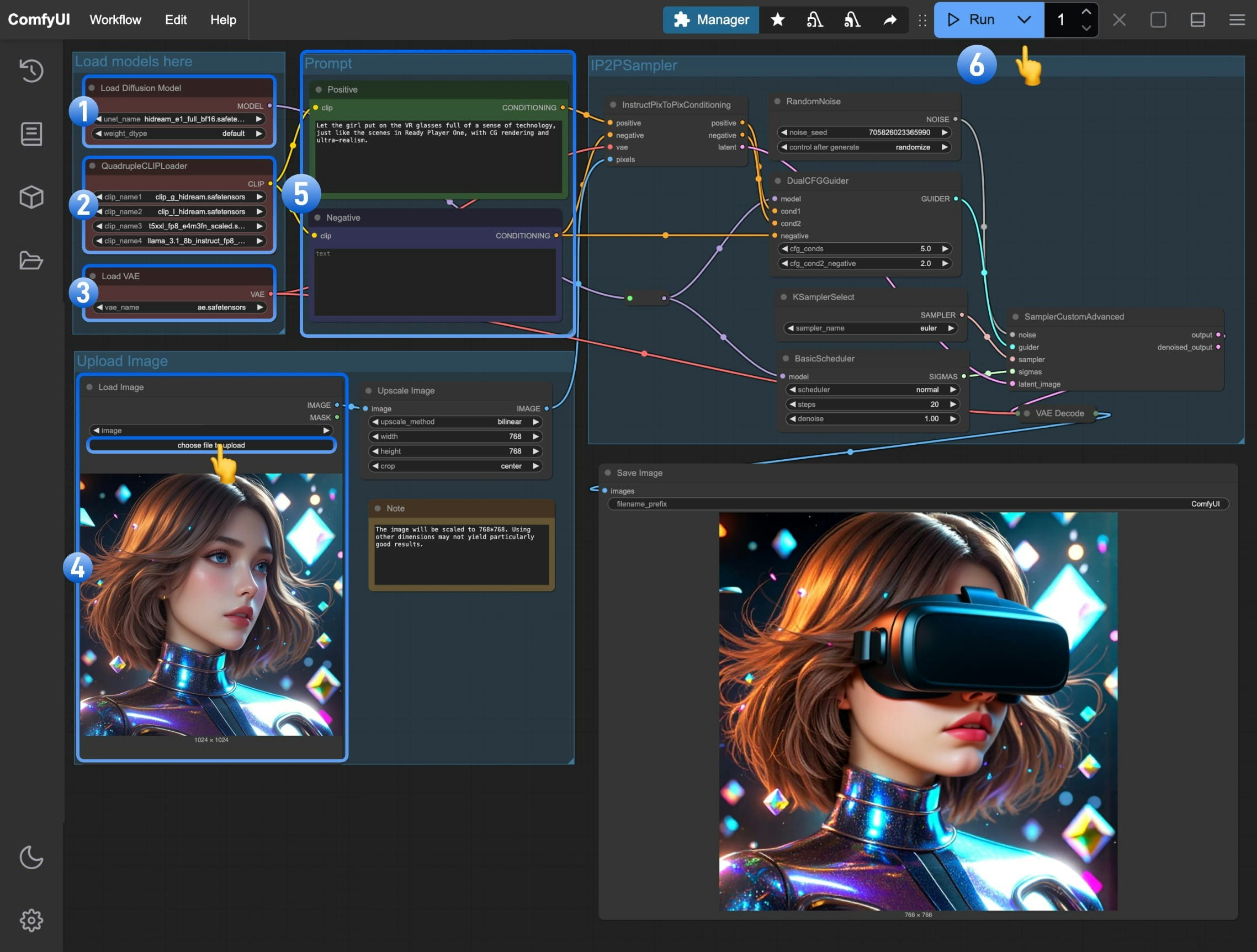 Follow these steps to complete the workflow:
1. Make sure the `Load Diffusion Model` node has loaded the `hidream_e1_full_bf16.safetensors` model
2. Ensure that the four corresponding text encoders are correctly loaded in the `QuadrupleCLIPLoader`
* clip\_l\_hidream.safetensors
* clip\_g\_hidream.safetensors
* t5xxl\_fp8\_e4m3fn\_scaled.safetensors
* llama\_3.1\_8b\_instruct\_fp8\_scaled.safetensors
3. Make sure the `Load VAE` node is using the `ae.safetensors` file
4. Load the input image we downloaded earlier in the `Load Image` node
5. (Important) Enter **the prompt for how you want to modify the image** in the `Empty Text Encoder(Positive)` node
6. Click the `Run` button, or use the shortcut `Ctrl(cmd) + Enter` to generate the image
### Additional Notes on ComfyUI HiDream-e1 Workflow
* You may need to modify the prompt multiple times or generate multiple times to get better results
* This model has difficulty maintaining consistency when changing image styles, so try to make your prompts as complete as possible
* As the model supports a resolution of 768\*768, in actual testing with other dimensions, the image performance is poor or even significantly different at other dimensions
Follow these steps to complete the workflow:
1. Make sure the `Load Diffusion Model` node has loaded the `hidream_e1_full_bf16.safetensors` model
2. Ensure that the four corresponding text encoders are correctly loaded in the `QuadrupleCLIPLoader`
* clip\_l\_hidream.safetensors
* clip\_g\_hidream.safetensors
* t5xxl\_fp8\_e4m3fn\_scaled.safetensors
* llama\_3.1\_8b\_instruct\_fp8\_scaled.safetensors
3. Make sure the `Load VAE` node is using the `ae.safetensors` file
4. Load the input image we downloaded earlier in the `Load Image` node
5. (Important) Enter **the prompt for how you want to modify the image** in the `Empty Text Encoder(Positive)` node
6. Click the `Run` button, or use the shortcut `Ctrl(cmd) + Enter` to generate the image
### Additional Notes on ComfyUI HiDream-e1 Workflow
* You may need to modify the prompt multiple times or generate multiple times to get better results
* This model has difficulty maintaining consistency when changing image styles, so try to make your prompts as complete as possible
* As the model supports a resolution of 768\*768, in actual testing with other dimensions, the image performance is poor or even significantly different at other dimensions