Run on Comfy Cloud
#### 1. Model File Download Please select the appropriate version based on your hardware. Click the link and download the corresponding model file to save it to the `ComfyUI/models/diffusion_models/` folder. * FP8 version: [hidream\_i1\_full\_fp8.safetensors](https://huggingface.co/Comfy-Org/HiDream-I1_ComfyUI/resolve/main/split_files/diffusion_models/hidream_i1_full_fp8.safetensors?download=true) requires more than 16GB of VRAM * Full version: [hidream\_i1\_full\_f16.safetensors](https://huggingface.co/Comfy-Org/HiDream-I1_ComfyUI/resolve/main/split_files/diffusion_models/hidream_i1_full_fp16.safetensors?download=true) requires more than 27GB of VRAM #### 2. Workflow File Download Please download the image below and drag it into ComfyUI to load the corresponding workflow  #### 3. Complete the Workflow Step by Step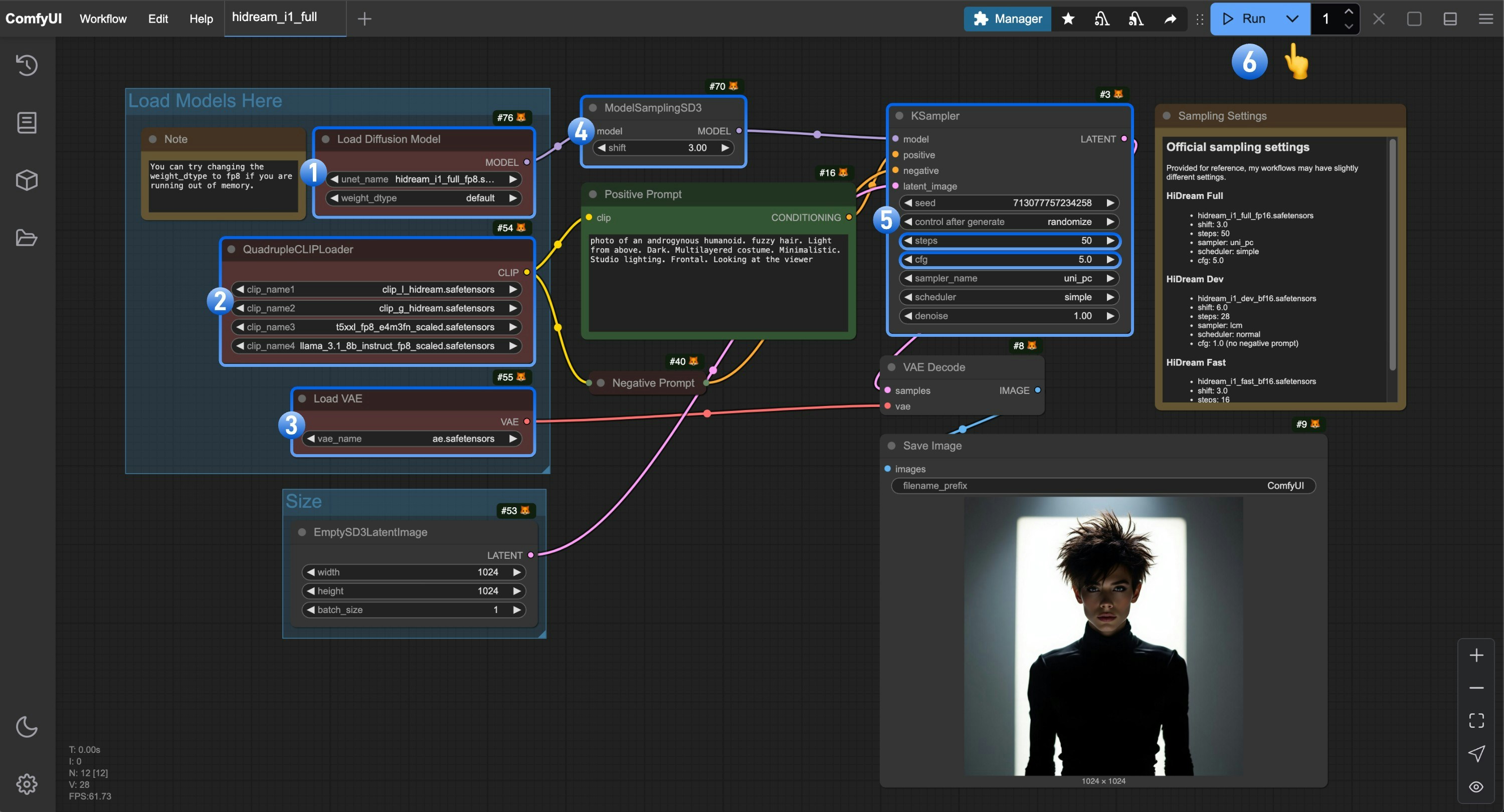 Complete the workflow execution step by step
1. Make sure the `Load Diffusion Model` node is using the `hidream_i1_full_fp8.safetensors` file
2. Make sure the four corresponding text encoders in `QuadrupleCLIPLoader` are loaded correctly
* clip\_l\_hidream.safetensors
* clip\_g\_hidream.safetensors
* t5xxl\_fp8\_e4m3fn\_scaled.safetensors
* llama\_3.1\_8b\_instruct\_fp8\_scaled.safetensors
3. Make sure the `Load VAE` node is using the `ae.safetensors` file
4. For the **full** version, you need to set the `shift` parameter in `ModelSamplingSD3` to `3.0`
5. For the `Ksampler` node, you need to make the following settings
* Set `steps` to `50`
* Set `cfg` to `5.0`
* (Optional) Set `sampler` to `lcm`
* (Optional) Set `scheduler` to `normal`
6. Click the `Run` button, or use the shortcut `Ctrl(cmd) + Enter` to execute the image generation
### HiDream-I1 Dev Version Workflow
Complete the workflow execution step by step
1. Make sure the `Load Diffusion Model` node is using the `hidream_i1_full_fp8.safetensors` file
2. Make sure the four corresponding text encoders in `QuadrupleCLIPLoader` are loaded correctly
* clip\_l\_hidream.safetensors
* clip\_g\_hidream.safetensors
* t5xxl\_fp8\_e4m3fn\_scaled.safetensors
* llama\_3.1\_8b\_instruct\_fp8\_scaled.safetensors
3. Make sure the `Load VAE` node is using the `ae.safetensors` file
4. For the **full** version, you need to set the `shift` parameter in `ModelSamplingSD3` to `3.0`
5. For the `Ksampler` node, you need to make the following settings
* Set `steps` to `50`
* Set `cfg` to `5.0`
* (Optional) Set `sampler` to `lcm`
* (Optional) Set `scheduler` to `normal`
6. Click the `Run` button, or use the shortcut `Ctrl(cmd) + Enter` to execute the image generation
### HiDream-I1 Dev Version Workflow
Run on Comfy Cloud
#### 1. Model File Download Please select the appropriate version based on your hardware, click the link and download the corresponding model file to save to the `ComfyUI/models/diffusion_models/` folder. * FP8 version: [hidream\_i1\_dev\_fp8.safetensors](https://huggingface.co/Comfy-Org/HiDream-I1_ComfyUI/resolve/main/split_files/diffusion_models/hidream_i1_dev_fp8.safetensors?download=true) requires more than 16GB of VRAM * Full version: [hidream\_i1\_dev\_bf16.safetensors](https://huggingface.co/Comfy-Org/HiDream-I1_ComfyUI/resolve/main/split_files/diffusion_models/hidream_i1_dev_bf16.safetensors?download=true) requires more than 27GB of VRAM #### 2. Workflow File Download Please download the image below and drag it into ComfyUI to load the corresponding workflow  #### 3. Complete the Workflow Step by Step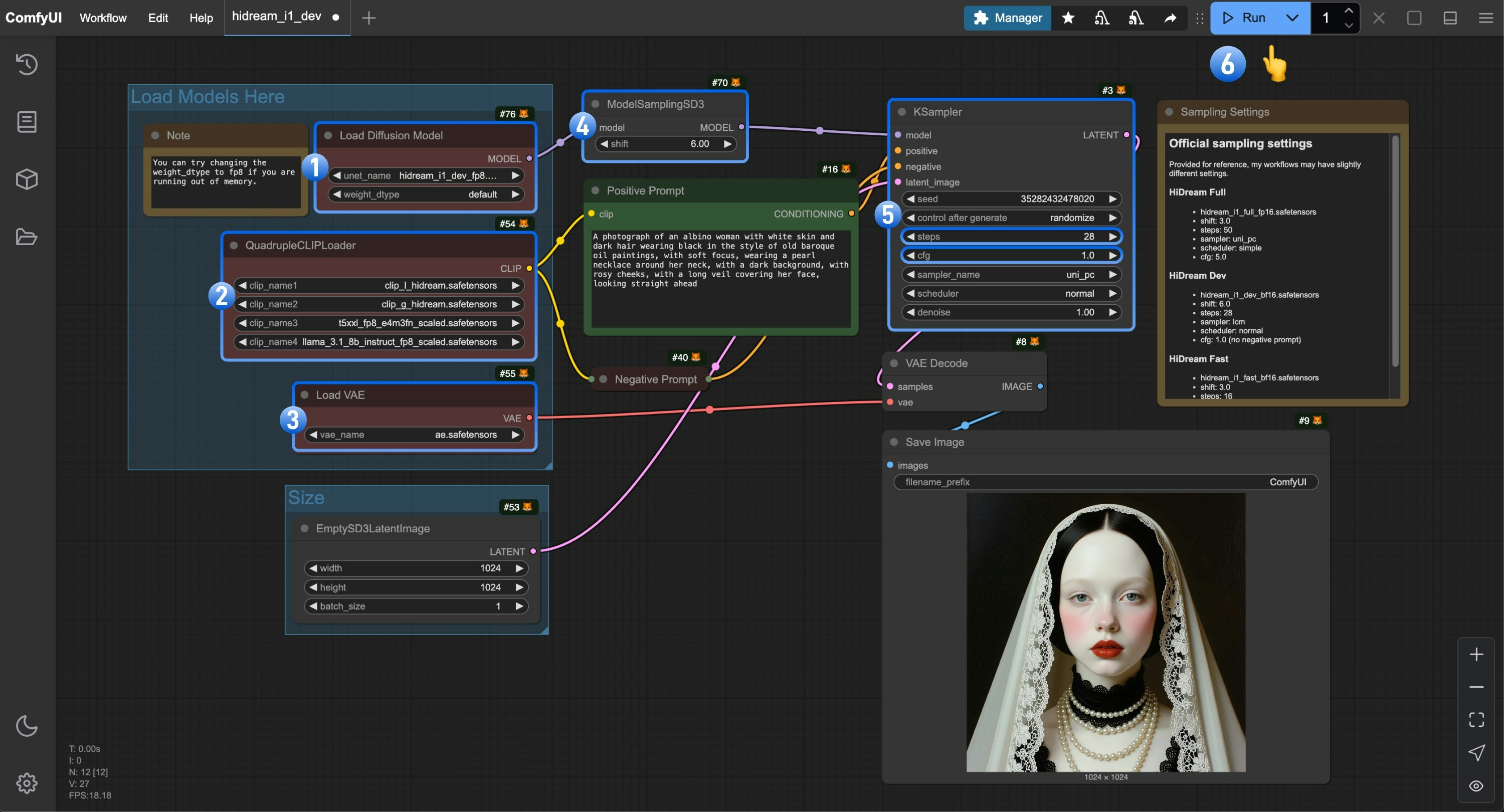 Complete the workflow execution step by step
1. Make sure the `Load Diffusion Model` node is using the `hidream_i1_dev_fp8.safetensors` file
2. Make sure the four corresponding text encoders in `QuadrupleCLIPLoader` are loaded correctly
* clip\_l\_hidream.safetensors
* clip\_g\_hidream.safetensors
* t5xxl\_fp8\_e4m3fn\_scaled.safetensors
* llama\_3.1\_8b\_instruct\_fp8\_scaled.safetensors
3. Make sure the `Load VAE` node is using the `ae.safetensors` file
4. For the **dev** version, you need to set the `shift` parameter in `ModelSamplingSD3` to `6.0`
5. For the `Ksampler` node, you need to make the following settings
* Set `steps` to `28`
* (Important) Set `cfg` to `1.0`
* (Optional) Set `sampler` to `lcm`
* (Optional) Set `scheduler` to `normal`
6. Click the `Run` button, or use the shortcut `Ctrl(cmd) + Enter` to execute the image generation
### HiDream-I1 Fast Version Workflow
Complete the workflow execution step by step
1. Make sure the `Load Diffusion Model` node is using the `hidream_i1_dev_fp8.safetensors` file
2. Make sure the four corresponding text encoders in `QuadrupleCLIPLoader` are loaded correctly
* clip\_l\_hidream.safetensors
* clip\_g\_hidream.safetensors
* t5xxl\_fp8\_e4m3fn\_scaled.safetensors
* llama\_3.1\_8b\_instruct\_fp8\_scaled.safetensors
3. Make sure the `Load VAE` node is using the `ae.safetensors` file
4. For the **dev** version, you need to set the `shift` parameter in `ModelSamplingSD3` to `6.0`
5. For the `Ksampler` node, you need to make the following settings
* Set `steps` to `28`
* (Important) Set `cfg` to `1.0`
* (Optional) Set `sampler` to `lcm`
* (Optional) Set `scheduler` to `normal`
6. Click the `Run` button, or use the shortcut `Ctrl(cmd) + Enter` to execute the image generation
### HiDream-I1 Fast Version Workflow
Run on Comfy Cloud
#### 1. Model File Download Please select the appropriate version based on your hardware, click the link and download the corresponding model file to save to the `ComfyUI/models/diffusion_models/` folder. * FP8 version: [hidream\_i1\_fast\_fp8.safetensors](https://huggingface.co/Comfy-Org/HiDream-I1_ComfyUI/resolve/main/split_files/diffusion_models/hidream_i1_fast_fp8.safetensors?download=true) requires more than 16GB of VRAM * Full version: [hidream\_i1\_fast\_bf16.safetensors](https://huggingface.co/Comfy-Org/HiDream-I1_ComfyUI/resolve/main/split_files/diffusion_models/hidream_i1_fast_bf16.safetensors?download=true) requires more than 27GB of VRAM #### 2. Workflow File Download Please download the image below and drag it into ComfyUI to load the corresponding workflow  #### 3. Complete the Workflow Step by Step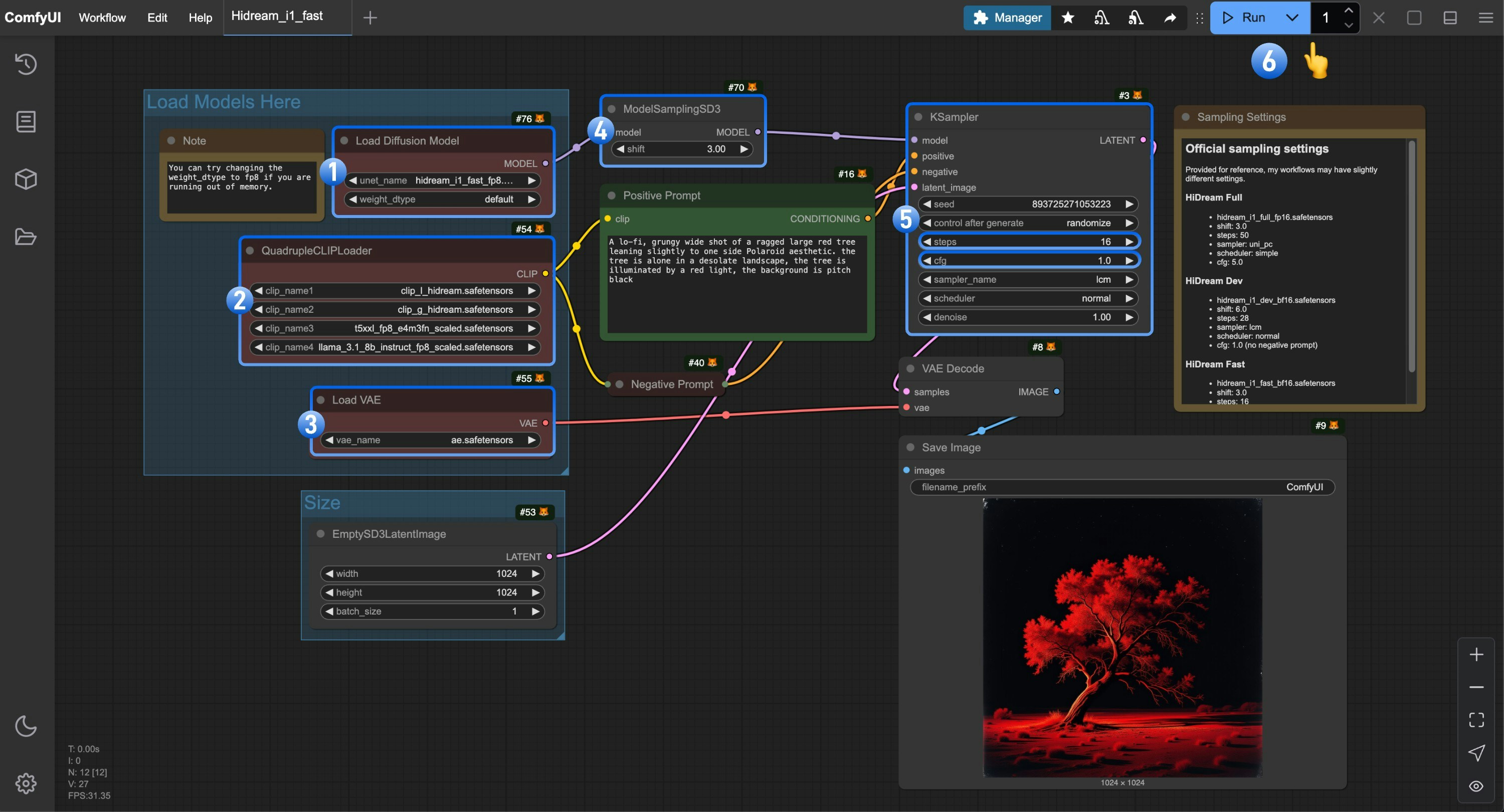 Complete the workflow execution step by step
1. Make sure the `Load Diffusion Model` node is using the `hidream_i1_fast_fp8.safetensors` file
2. Make sure the four corresponding text encoders in `QuadrupleCLIPLoader` are loaded correctly
* clip\_l\_hidream.safetensors
* clip\_g\_hidream.safetensors
* t5xxl\_fp8\_e4m3fn\_scaled.safetensors
* llama\_3.1\_8b\_instruct\_fp8\_scaled.safetensors
3. Make sure the `Load VAE` node is using the `ae.safetensors` file
4. For the **fast** version, you need to set the `shift` parameter in `ModelSamplingSD3` to `3.0`
5. For the `Ksampler` node, you need to make the following settings
* Set `steps` to `16`
* (Important) Set `cfg` to `1.0`
* (Optional) Set `sampler` to `lcm`
* (Optional) Set `scheduler` to `normal`
6. Click the `Run` button, or use the shortcut `Ctrl(cmd) + Enter` to execute the image generation
## Other Related Resources
### GGUF Version Models
* [HiDream-I1-Full-gguf](https://huggingface.co/city96/HiDream-I1-Full-gguf)
* [HiDream-I1-Dev-gguf](https://huggingface.co/city96/HiDream-I1-Dev-gguf)
You need to use the “Unet Loader (GGUF)” node in City96's [ComfyUI-GGUF](https://github.com/city96/ComfyUI-GGUF) to replace the “Load Diffusion Model” node.
### NF4 Version Models
* [HiDream-I1-nf4](https://github.com/hykilpikonna/HiDream-I1-nf4)
* Use the [ComfyUI-HiDream-Sampler](https://github.com/SanDiegoDude/ComfyUI-HiDream-Sampler) node to use the NF4 version model.
Complete the workflow execution step by step
1. Make sure the `Load Diffusion Model` node is using the `hidream_i1_fast_fp8.safetensors` file
2. Make sure the four corresponding text encoders in `QuadrupleCLIPLoader` are loaded correctly
* clip\_l\_hidream.safetensors
* clip\_g\_hidream.safetensors
* t5xxl\_fp8\_e4m3fn\_scaled.safetensors
* llama\_3.1\_8b\_instruct\_fp8\_scaled.safetensors
3. Make sure the `Load VAE` node is using the `ae.safetensors` file
4. For the **fast** version, you need to set the `shift` parameter in `ModelSamplingSD3` to `3.0`
5. For the `Ksampler` node, you need to make the following settings
* Set `steps` to `16`
* (Important) Set `cfg` to `1.0`
* (Optional) Set `sampler` to `lcm`
* (Optional) Set `scheduler` to `normal`
6. Click the `Run` button, or use the shortcut `Ctrl(cmd) + Enter` to execute the image generation
## Other Related Resources
### GGUF Version Models
* [HiDream-I1-Full-gguf](https://huggingface.co/city96/HiDream-I1-Full-gguf)
* [HiDream-I1-Dev-gguf](https://huggingface.co/city96/HiDream-I1-Dev-gguf)
You need to use the “Unet Loader (GGUF)” node in City96's [ComfyUI-GGUF](https://github.com/city96/ComfyUI-GGUF) to replace the “Load Diffusion Model” node.
### NF4 Version Models
* [HiDream-I1-nf4](https://github.com/hykilpikonna/HiDream-I1-nf4)
* Use the [ComfyUI-HiDream-Sampler](https://github.com/SanDiegoDude/ComfyUI-HiDream-Sampler) node to use the NF4 version model.