> ## Documentation Index
> Fetch the complete documentation index at: https://docs.comfy.org/llms.txt
> Use this file to discover all available pages before exploring further.
# Seedance 2.0 Real Human - Verified real person video generation
> Generate videos featuring real people in Seedance 2.0 with identity consistency, native audio-video sync, and a one-time ByteDance liveness verification in ComfyUI
 **Seedance 2.0 Real Human** is available directly inside ComfyUI. You can upload a portrait through a ComfyUI workflow, complete a one-time verification, and then generate videos featuring that real person with a consistent identity and authentic facial expressions — without leaving ComfyUI.
With Real Human support in ComfyUI, you are no longer limited to virtual characters. Seedance 2.0's controllability and native audio-video sync now extend to real people, with identity and performance held together across a full clip, using the same node-based workflows you already use for other Seedance 2.0 generations.
To use the Partner Nodes, you need to ensure that you are logged in properly and using a permitted network environment. Please refer to the [Partner Nodes Overview](/tutorials/partner-nodes/overview) section of the documentation to understand the specific requirements for using the Partner Nodes.
Make sure your ComfyUI is updated.
* [Download ComfyUI](https://www.comfy.org/download)
* [Update Guide](/installation/update_comfyui)
Workflows in this guide can be found in the [Workflow Templates](/interface/features/template).
If you can't find them in the template, your ComfyUI may be outdated. (Desktop version's update will delay sometime)
If nodes are missing when loading a workflow, possible reasons:
1. You are not using the latest ComfyUI version (Nightly version)
2. Some nodes failed to import at startup
* The Desktop is base on ComfyUI stable release, it will auto-update when there is a new Desktop stable release available.
* [Cloud](https://cloud.comfy.org) will update after ComfyUI stable release.
So, if you find any core node missing in this document, it might be because the new core nodes have not yet been released in the latest stable version. Please wait for the next stable release.
## Video guide
Watch the full walkthrough covering verification and both Seedance 2.0 Real Human workflows end to end in ComfyUI.
## What's different
* **Real people, cinematic control** — Direct camera moves, lighting, and scene changes while keeping the subject believable
* **Identity consistency** — Facial features and overall appearance remain stable across motion, camera moves, and transitions
* **Native audio-video sync** — Video and audio (dialogue, ambient, music) are generated together with more reliable lip-sync and expressions
* **Multi-reference directing** — Mix text with up to **9 images**, **3 videos**, and **3 audio clips** to lock in look, motion, and rhythm
## How verification works in ComfyUI
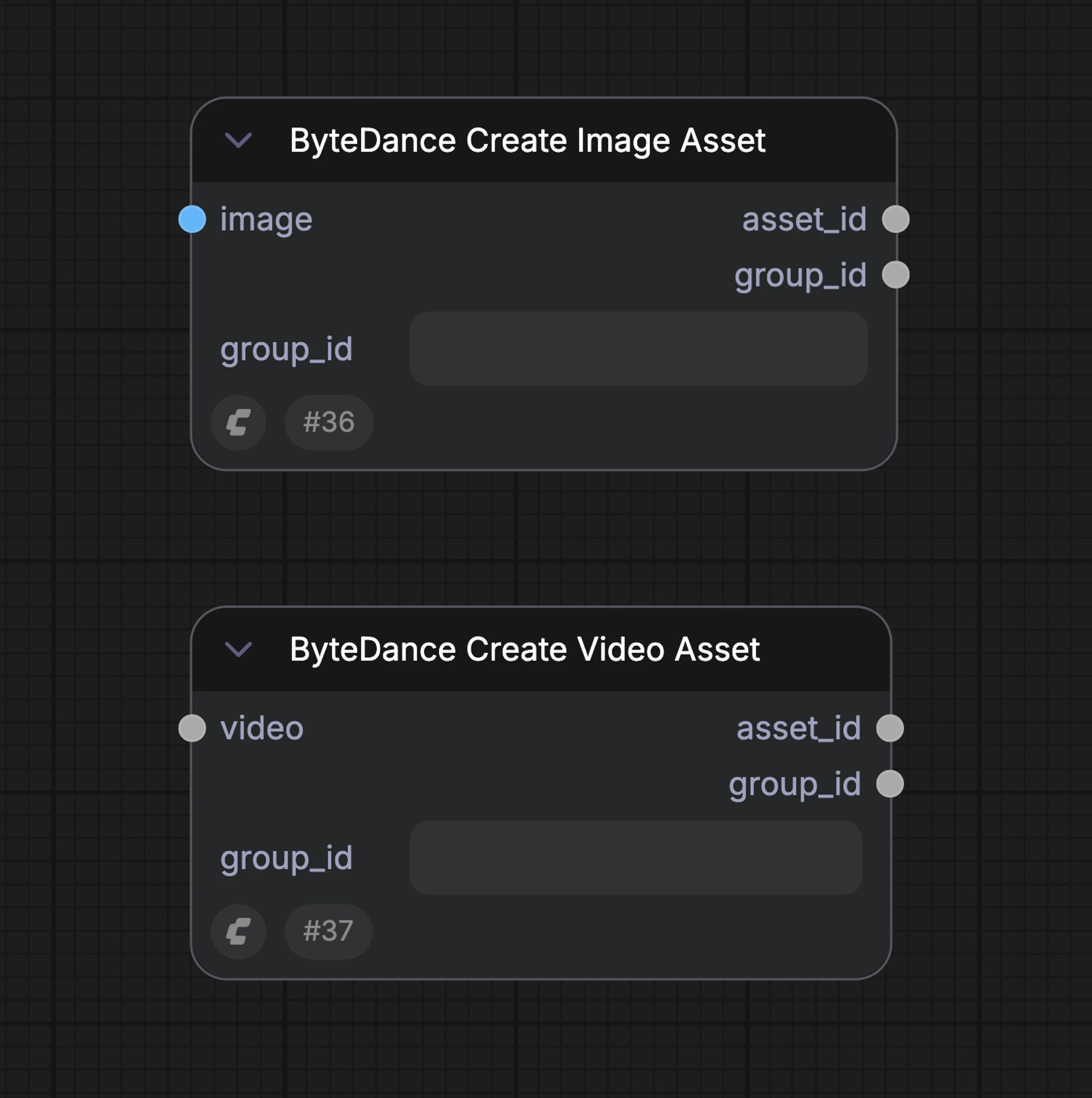
Verification is required before any real person can appear in a Seedance 2.0 generation. It prevents impersonation and unauthorized use of someone's likeness and is handled by ByteDance, which complies with emerging AI transparency regulations. The entire flow is driven from ComfyUI through the **ByteDance Create Image/Video Asset** node — you only need to leave ComfyUI briefly to complete the liveness check on your phone or browser.
**Seedance 2.0 Real Human** is available directly inside ComfyUI. You can upload a portrait through a ComfyUI workflow, complete a one-time verification, and then generate videos featuring that real person with a consistent identity and authentic facial expressions — without leaving ComfyUI.
With Real Human support in ComfyUI, you are no longer limited to virtual characters. Seedance 2.0's controllability and native audio-video sync now extend to real people, with identity and performance held together across a full clip, using the same node-based workflows you already use for other Seedance 2.0 generations.
To use the Partner Nodes, you need to ensure that you are logged in properly and using a permitted network environment. Please refer to the [Partner Nodes Overview](/tutorials/partner-nodes/overview) section of the documentation to understand the specific requirements for using the Partner Nodes.
Make sure your ComfyUI is updated.
* [Download ComfyUI](https://www.comfy.org/download)
* [Update Guide](/installation/update_comfyui)
Workflows in this guide can be found in the [Workflow Templates](/interface/features/template).
If you can't find them in the template, your ComfyUI may be outdated. (Desktop version's update will delay sometime)
If nodes are missing when loading a workflow, possible reasons:
1. You are not using the latest ComfyUI version (Nightly version)
2. Some nodes failed to import at startup
* The Desktop is base on ComfyUI stable release, it will auto-update when there is a new Desktop stable release available.
* [Cloud](https://cloud.comfy.org) will update after ComfyUI stable release.
So, if you find any core node missing in this document, it might be because the new core nodes have not yet been released in the latest stable version. Please wait for the next stable release.
## Video guide
Watch the full walkthrough covering verification and both Seedance 2.0 Real Human workflows end to end in ComfyUI.
## What's different
* **Real people, cinematic control** — Direct camera moves, lighting, and scene changes while keeping the subject believable
* **Identity consistency** — Facial features and overall appearance remain stable across motion, camera moves, and transitions
* **Native audio-video sync** — Video and audio (dialogue, ambient, music) are generated together with more reliable lip-sync and expressions
* **Multi-reference directing** — Mix text with up to **9 images**, **3 videos**, and **3 audio clips** to lock in look, motion, and rhythm
## How verification works in ComfyUI
Verification is required before any real person can appear in a Seedance 2.0 generation. It prevents impersonation and unauthorized use of someone's likeness and is handled by ByteDance, which complies with emerging AI transparency regulations. The entire flow is driven from ComfyUI through the **ByteDance Create Image/Video Asset** node — you only need to leave ComfyUI briefly to complete the liveness check on your phone or browser.
 ### First run (verification required)
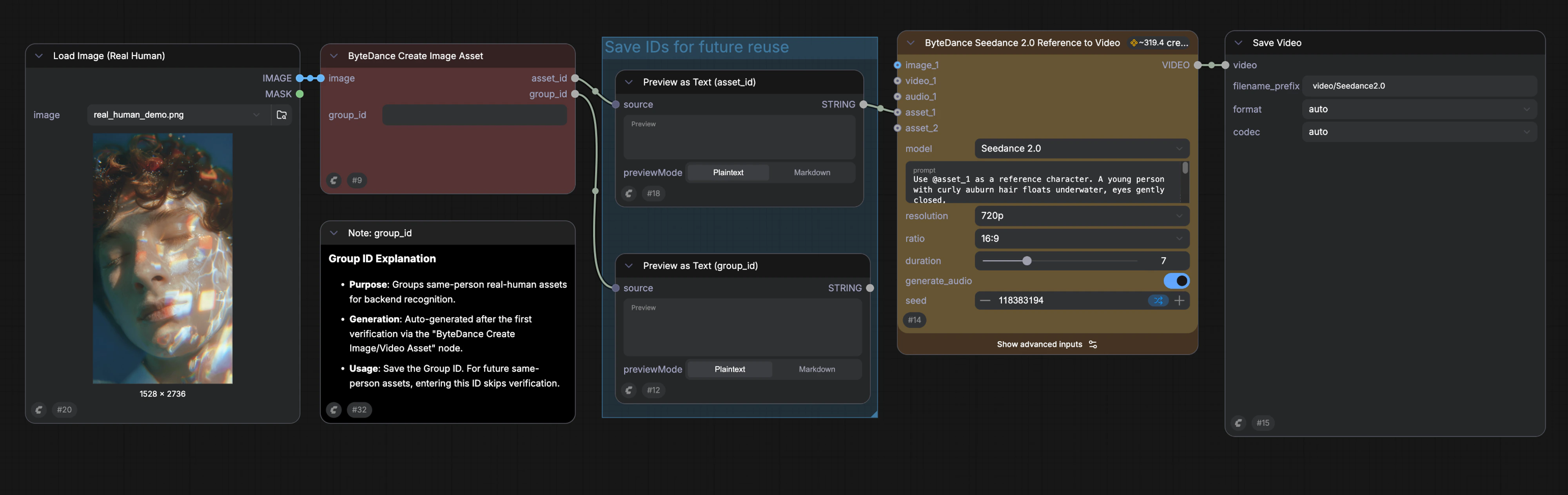
1. In ComfyUI, add the **ByteDance Create Image/Video Asset** node to your workflow and upload a portrait image
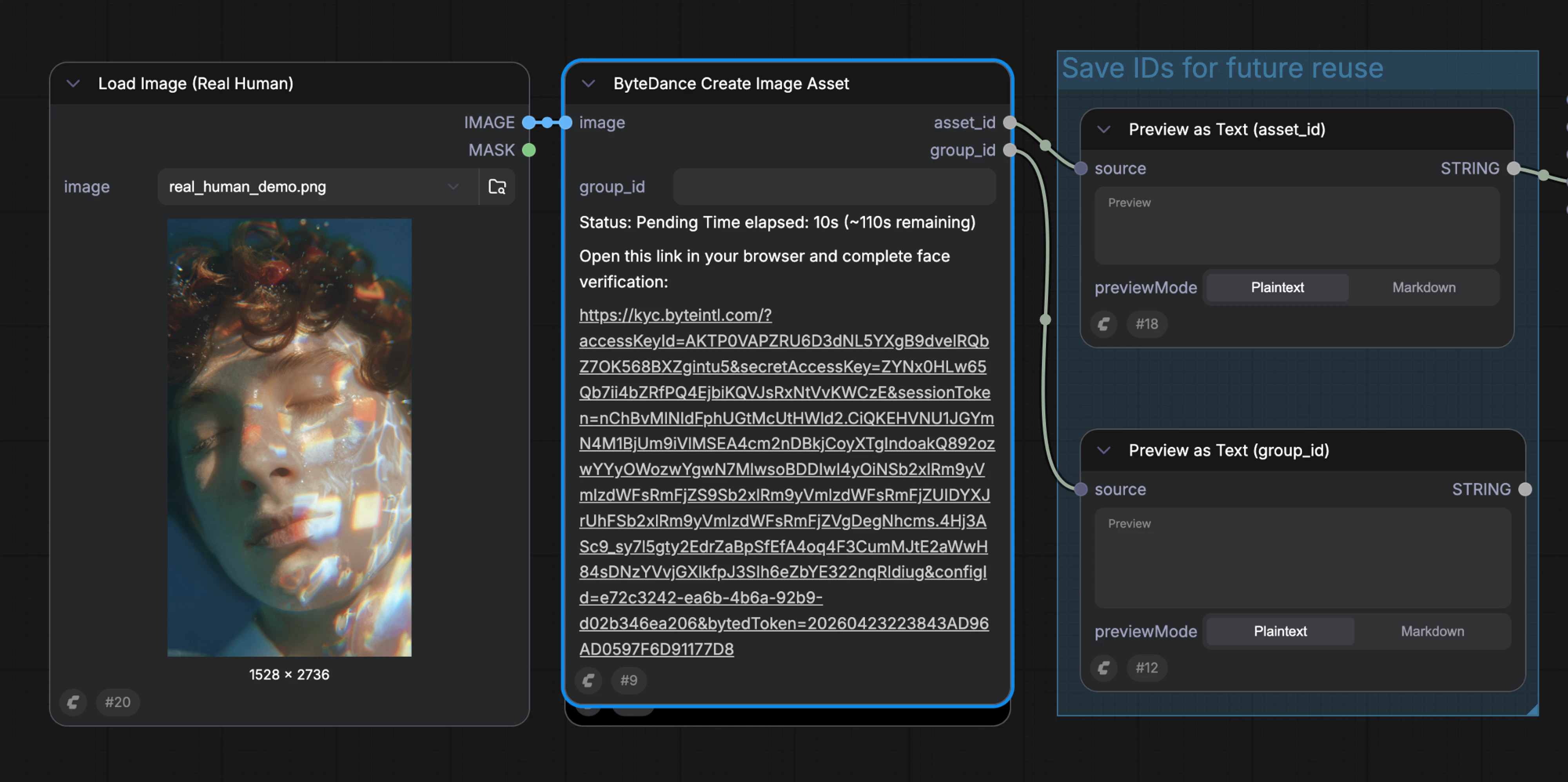
2. Run the workflow — ComfyUI returns a verification link from ByteDance
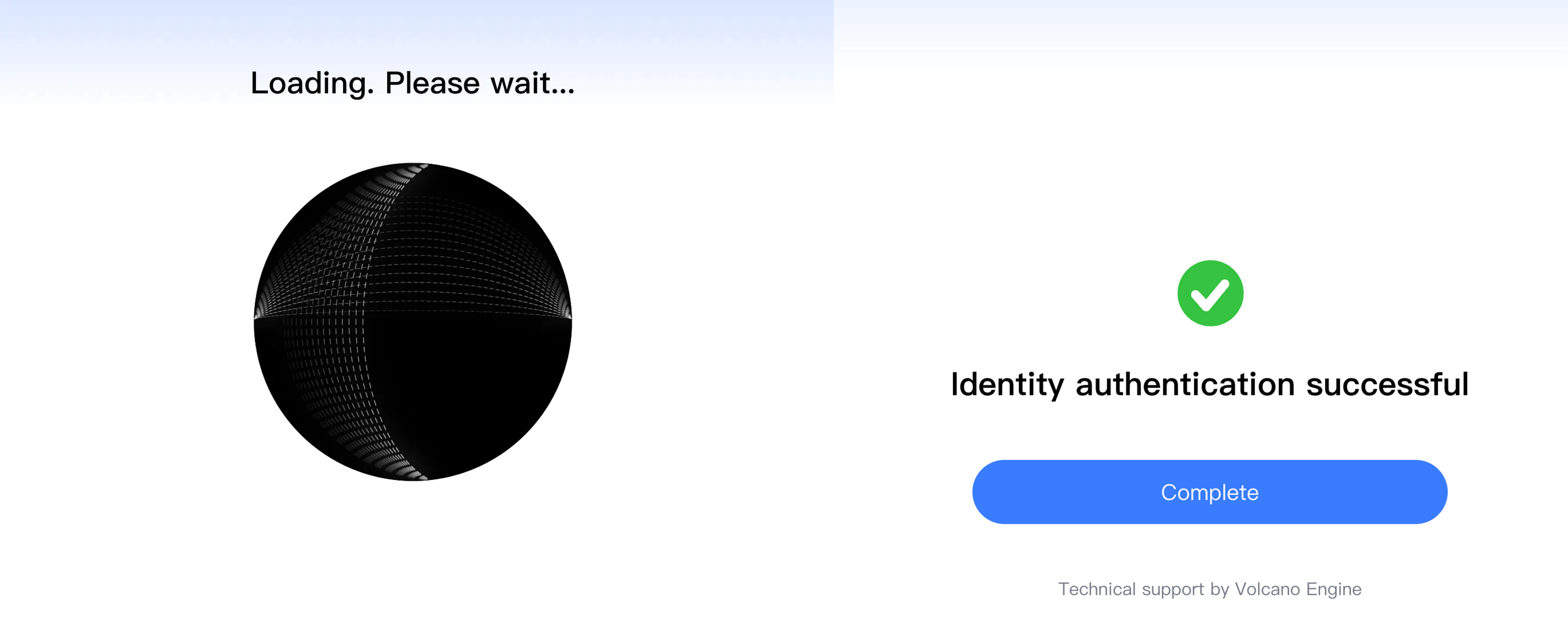
3. Open the link on your phone or browser and complete the liveness check (less than 1 minute)
4. Once verification passes, return to ComfyUI — the node output now contains the verified asset
#### Verification flow screenshots
**Step 1 — Upload and run to start verification**
### First run (verification required)
1. In ComfyUI, add the **ByteDance Create Image/Video Asset** node to your workflow and upload a portrait image
2. Run the workflow — ComfyUI returns a verification link from ByteDance
3. Open the link on your phone or browser and complete the liveness check (less than 1 minute)
4. Once verification passes, return to ComfyUI — the node output now contains the verified asset
#### Verification flow screenshots
**Step 1 — Upload and run to start verification**
 **Step 2 — Get the verification link**
 **Step 3 — Complete liveness check in the H5 page**
 **Step 4 — Return to ComfyUI and save IDs (no extra credits)**
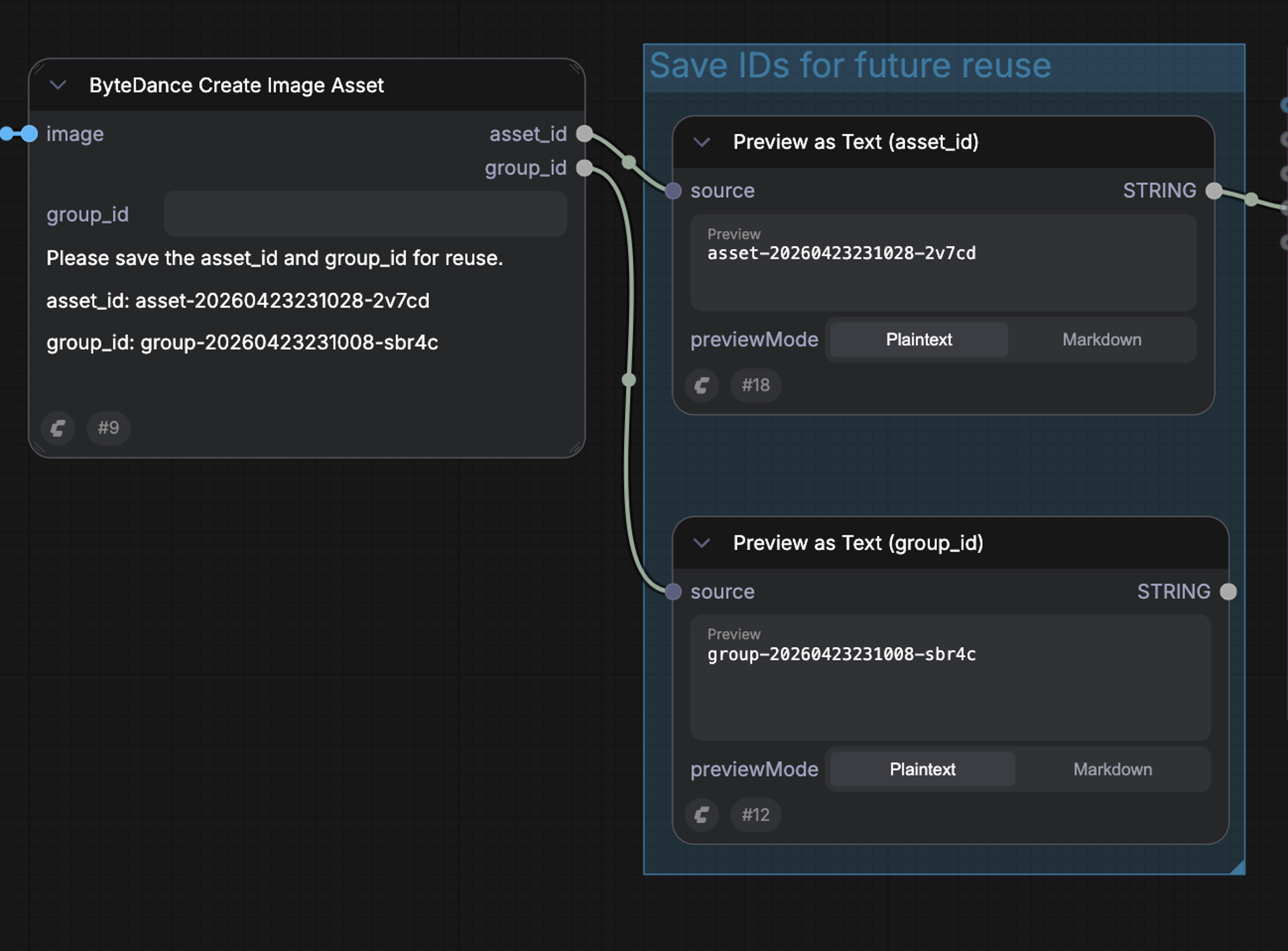 After real human verification passes, the node exposes two IDs you can use in downstream Seedance 2.0 video nodes:
* **Group ID** — represents the verified person. Save this so you can reuse the same identity later without re-verifying
* **Asset ID** — represents this specific image. Wire it into a Seedance 2.0 video generation node to produce a video of the verified person; it can be reused across multiple workflows
### Future uploads (no verification)
1. In ComfyUI, upload a new photo or video of the same person with the **ByteDance Create Image/Video Asset** node
2. Enter the saved **Group ID** in the node
3. On run, ByteDance compares facial features against the original verification
4. If it matches, the new asset is activated automatically and returned to ComfyUI, ready to feed into Seedance 2.0 video generation
#### Skipping verification with an existing Group ID
If you've already completed verification once, you can often skip the liveness step for new uploads of the same person by providing the existing **Group ID**. If ByteDance recognizes the new image as the same person, verification is bypassed.
After real human verification passes, the node exposes two IDs you can use in downstream Seedance 2.0 video nodes:
* **Group ID** — represents the verified person. Save this so you can reuse the same identity later without re-verifying
* **Asset ID** — represents this specific image. Wire it into a Seedance 2.0 video generation node to produce a video of the verified person; it can be reused across multiple workflows
### Future uploads (no verification)
1. In ComfyUI, upload a new photo or video of the same person with the **ByteDance Create Image/Video Asset** node
2. Enter the saved **Group ID** in the node
3. On run, ByteDance compares facial features against the original verification
4. If it matches, the new asset is activated automatically and returned to ComfyUI, ready to feed into Seedance 2.0 video generation
#### Skipping verification with an existing Group ID
If you've already completed verification once, you can often skip the liveness step for new uploads of the same person by providing the existing **Group ID**. If ByteDance recognizes the new image as the same person, verification is bypassed.
 ## Available workflows
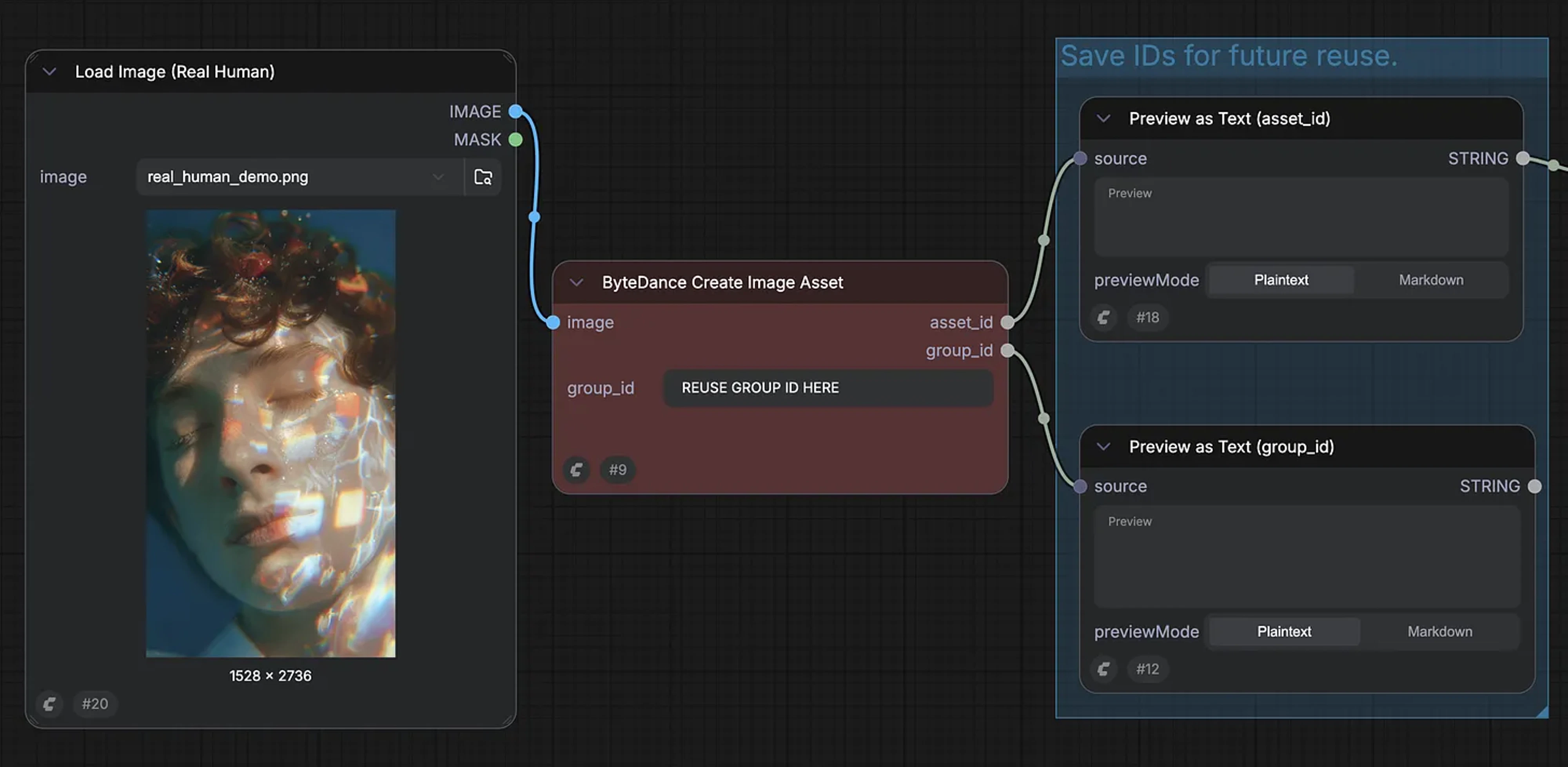
Two prebuilt Seedance 2.0 Real Human templates are available in ComfyUI. Both wire the **ByteDance Create Image/Video Asset** node into a Seedance 2.0 video generation node so verification and generation happen in a single run.
### Seedance 2.0 Real Human reference-to-video
Use a verified portrait (plus optional additional reference images, videos, or audio) to drive a Seedance 2.0 video with a consistent real-person identity.
Get the Seedance 2.0 Real Human Reference-to-Video workflow file.
### Seedance 2.0 Real Human first-last-frame to video
Provide a verified starting frame and ending frame to generate the video between them while preserving the real person's identity.
Get the Seedance 2.0 Real Human First-Last-Frame-to-Video workflow file.
## Available workflows
Two prebuilt Seedance 2.0 Real Human templates are available in ComfyUI. Both wire the **ByteDance Create Image/Video Asset** node into a Seedance 2.0 video generation node so verification and generation happen in a single run.
### Seedance 2.0 Real Human reference-to-video
Use a verified portrait (plus optional additional reference images, videos, or audio) to drive a Seedance 2.0 video with a consistent real-person identity.
Get the Seedance 2.0 Real Human Reference-to-Video workflow file.
### Seedance 2.0 Real Human first-last-frame to video
Provide a verified starting frame and ending frame to generate the video between them while preserving the real person's identity.
Get the Seedance 2.0 Real Human First-Last-Frame-to-Video workflow file.