> ## Documentation Index
> Fetch the complete documentation index at: https://docs.comfy.org/llms.txt
> Use this file to discover all available pages before exploring further.
# Clarity AI Crystal Upscaler in ComfyUI: Faithful Upscaling
> Upscale images with Clarity AI's Crystal Upscaler in ComfyUI: faithful detail restoration up to 100 megapixels, with scale factor and creativity controls.
**Clarity AI Crystal Upscaler** is a high-fidelity image upscaler in ComfyUI. Instead of inventing new content, it re-renders the image at a larger size while staying close to the original: faces, skin, and fine texture come back sharp, and the structure of the picture is preserved. It is built for portraits, product shots, and print-ready enlargements where faithful detail matters more than a creative reinterpretation.
In ComfyUI the model runs through the **Clarity AI Crystal Upscale** partner node. It is a cloud API node: it needs a Comfy account with credits and downloads no local model. You take one image in and get one upscaled image out, alongside a side-by-side comparison. See [Partner Node pricing](/tutorials/partner-nodes/pricing) for the per-megapixel rate.
Output is capped at 100 megapixels and 65535 pixels per side. The node multiplies the input width and height by the `scale_factor`, so a smaller source or a lower factor is how you stay inside the limit.
## Available workflows
### Image Upscale
Upscale a single image and compare the result against the original. The template loads a source image, upscales it at 2x, and shows an `ImageCompare` view of the input and the output.
 Open in Comfy Cloud
Download JSON or search "Clarity AI: Crystal Upscaler" in Template Library
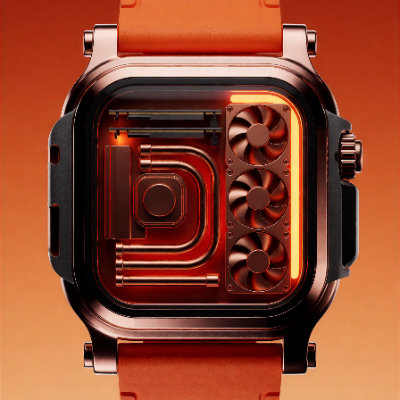
**Input material**
Load into the `LoadImage` node that feeds the Clarity AI Crystal Upscale node
### Workflow overview
The template uses four nodes:
* **LoadImage**: provides the source image
* **ClarityCrystalUpscaleNode**: the core node, configured with the `crystal-upscaler` model
* **SaveImageAdvanced**: saves the upscaled output as PNG
* **ImageCompare**: shows the upscaled result next to the original
### Steps to run
1. **Load an image**: upload or select your source image in the **LoadImage** node
2. **Select the model**: keep `crystal-upscaler` on the **Clarity AI Crystal Upscale** node
3. **Set the scale factor**: choose how much to enlarge the image, from 1x to 200x
4. **Set creativity**: `0` stays closest to the original; higher values let the model reconstruct more detail
5. **Click Queue** or press `Ctrl+Enter` to generate
## Node controls
| Control | Values | Effect |
| - | - | - |
| `image` | one image | Source image. The node takes exactly one image; a batch is rejected |
| `scale_factor` | 1.0 to 200.0, default 2.0 | Multiplies the input width and height. Output is capped at 100 megapixels and 65535 pixels per side |
| `creativity` | 0 to 10, default 0 | `0` preserves the original most closely. Higher values let the model reconstruct more detail instead of strictly following the source. Has no effect when the shorter side of the image is 256 pixels or less |
## Tips
* **Start at 2x and raise the factor only if you need it**. The factor multiplies both sides of the image, so a large factor can push the output past 100 megapixels or 65535 pixels per side and fail the run.
* **Set `creativity` to 0 for product and archival shots**. It stays closest to the source; raise it only when you want the model to rebuild texture the source no longer contains.
* **Small inputs ignore `creativity`**. Images whose shorter side is 256 pixels or less use the same result regardless of the setting.
* **Check the comparison view**. The template pairs the output with the input, so you can judge whether the added detail is faithful before committing to a large render.
## Get started
1. Update ComfyUI to the latest version
2. Go to Template Library, search for `Clarity AI: Crystal Upscaler`
This documentation is built and hosted on [Mintlify](https://mintlify.com), a developer documentation platform.
Open in Comfy Cloud
Download JSON or search "Clarity AI: Crystal Upscaler" in Template Library
**Input material**
Load into the `LoadImage` node that feeds the Clarity AI Crystal Upscale node
### Workflow overview
The template uses four nodes:
* **LoadImage**: provides the source image
* **ClarityCrystalUpscaleNode**: the core node, configured with the `crystal-upscaler` model
* **SaveImageAdvanced**: saves the upscaled output as PNG
* **ImageCompare**: shows the upscaled result next to the original
### Steps to run
1. **Load an image**: upload or select your source image in the **LoadImage** node
2. **Select the model**: keep `crystal-upscaler` on the **Clarity AI Crystal Upscale** node
3. **Set the scale factor**: choose how much to enlarge the image, from 1x to 200x
4. **Set creativity**: `0` stays closest to the original; higher values let the model reconstruct more detail
5. **Click Queue** or press `Ctrl+Enter` to generate
## Node controls
| Control | Values | Effect |
| - | - | - |
| `image` | one image | Source image. The node takes exactly one image; a batch is rejected |
| `scale_factor` | 1.0 to 200.0, default 2.0 | Multiplies the input width and height. Output is capped at 100 megapixels and 65535 pixels per side |
| `creativity` | 0 to 10, default 0 | `0` preserves the original most closely. Higher values let the model reconstruct more detail instead of strictly following the source. Has no effect when the shorter side of the image is 256 pixels or less |
## Tips
* **Start at 2x and raise the factor only if you need it**. The factor multiplies both sides of the image, so a large factor can push the output past 100 megapixels or 65535 pixels per side and fail the run.
* **Set `creativity` to 0 for product and archival shots**. It stays closest to the source; raise it only when you want the model to rebuild texture the source no longer contains.
* **Small inputs ignore `creativity`**. Images whose shorter side is 256 pixels or less use the same result regardless of the setting.
* **Check the comparison view**. The template pairs the output with the input, so you can judge whether the added detail is faithful before committing to a large render.
## Get started
1. Update ComfyUI to the latest version
2. Go to Template Library, search for `Clarity AI: Crystal Upscaler`
This documentation is built and hosted on [Mintlify](https://mintlify.com), a developer documentation platform.