> ## Documentation Index
> Fetch the complete documentation index at: https://docs.comfy.org/llms.txt
> Use this file to discover all available pages before exploring further.
# Fish Audio: Text to Speech, Voice Cloning, and Speech to Text in ComfyUI
> Run Fish Audio TTS, voice cloning, and speech to text workflows in ComfyUI: template walkthroughs, node setup, and Cloud links
Fish Audio is a speech AI service covering text to speech, voice cloning, and speech to text. In ComfyUI it ships as four partner nodes: Text to Speech, Speech to Text, Voice Selector, and Instant Voice Clone. This page walks through the ready-made workflow templates and how to connect the nodes. For the full inline tag reference (emotions, tone, pauses, phonemes), see the [Fish Audio prompt guide](/tutorials/partner-nodes/fishaudio/prompt-guide).
To use the Partner Nodes, you need to ensure that you are logged in properly and using a permitted network environment. Please refer to the [Partner Nodes Overview](/tutorials/partner-nodes/overview) section of the documentation to understand the specific requirements for using the Partner Nodes.
Make sure your ComfyUI is updated.
* [Download ComfyUI](https://www.comfy.org/download)
* [Update Guide](/installation/update_comfyui)
Workflows in this guide can be found in the [Workflow Templates](/interface/features/template).
If you can't find them in the template, your ComfyUI may be outdated.
If nodes are missing when loading a workflow, possible reasons:
1. You are not using the latest ComfyUI version (Nightly version)
2. Some nodes failed to import at startup
* [Cloud](https://cloud.comfy.org) will update after ComfyUI stable release.
So, if you find any core node missing in this document, it might be because the new core nodes have not yet been released in the latest stable version. Please wait for the next stable release.
## Use Fish Audio in ComfyUI
The Fish Audio partner nodes are available in the node menu under `partner/audio/Fish Audio`. Four nodes cover the workflow:
* **Fish Audio Text to Speech**: converts text to speech, outputs `AUDIO`
* **Fish Audio Speech to Text**: transcribes audio to text, outputs `text`, `language_code`, and `segments_json`
* **Fish Audio Voice Selector**: selects one of the preset voices, or connects any fish.audio voice model through `custom` (the ID in `https://fish.audio/m//`), outputs `voice`
* **Fish Audio Instant Voice Clone**: creates a private cloned voice from recordings, outputs `voice`
### Choosing a model
The `model` parameter on the Text to Speech node offers two options:
* `s2.1-pro` (recommended): supports multiple speakers through an autogrow list of 0 to 5 voice inputs
* `s1` (legacy): accepts a single optional voice input and uses the parenthesis emotion tag syntax described in the prompt guide
### Connecting voices
The `voice` output of the Voice Selector or the Instant Voice Clone connects to the Text to Speech node. The input name depends on the model: `s2.1-pro` (recommended) exposes the growable `voices` input (up to 5 voice slots), while `s1` has a single optional `voice` input. With one connected voice, the node passes it internally as `reference_id`. With two or more, the text must mark speakers with `@Voice1`, `@Voice2`, and so on, and every connected voice must appear in the text at least once or the node raises an error. See [Multi-speaker dialogue](/tutorials/partner-nodes/fishaudio/prompt-guide#multi-speaker-dialogue) in the prompt guide.
### Voice cloning limits
The Instant Voice Clone node accepts 1 to 20 recordings, recommends 10 to 30 seconds per clip, and validates that the total duration stays under 270 seconds. The `enhance_audio_quality` option is enabled by default. For recording tips, see [Voice cloning quality](/tutorials/partner-nodes/fishaudio/prompt-guide#voice-cloning-quality) in the prompt guide.
### Account and pricing
The nodes require signing in to a ComfyUI account and are billed per use. Reference prices from the nodes: text to speech is about $21.45 per 1M bytes of text, speech to text is $0.00858 per minute, and voice cloning is free.
## Available workflows
Three ready-made templates cover the main Fish Audio flows: text to speech, voice clone to speech, and speech to text. Open them from the Template Library in ComfyUI, or run them directly on Comfy Cloud. The voice clone and speech to text templates require ComfyUI 0.34.0 or newer.
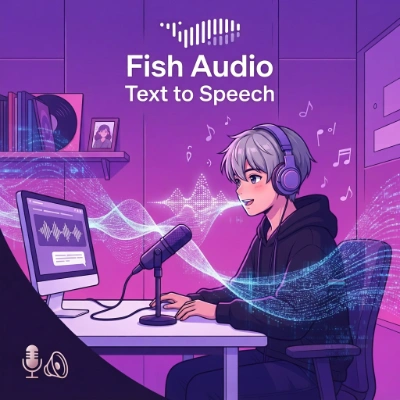
Fish Audio: Text to Speech
Generate speech from your script with a preset voice. Write your text with the inline tags from the [prompt guide](/tutorials/partner-nodes/fishaudio/prompt-guide), then pick another preset in the Voice Selector or connect a cloned voice.
 Open in Comfy Cloud
Download JSON or search "Fish Audio: Text to Speech" in Template Library
**Input materials**
Upload this file to the matching `LoadAudio` node:
`LoadAudio` node 11 · `fish_audio_example.mp3`
Open in Comfy Cloud
Download JSON or search "Fish Audio: Text to Speech" in Template Library
**Input materials**
Upload this file to the matching `LoadAudio` node:
`LoadAudio` node 11 · `fish_audio_example.mp3`
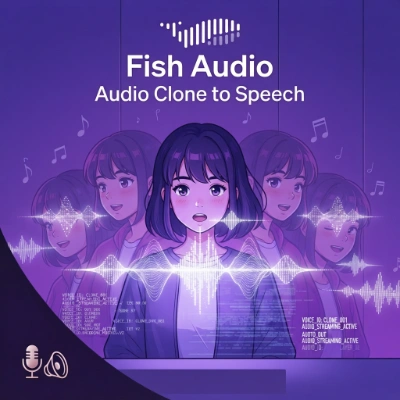
Fish Audio: Voice Clone to Speech
Clone a voice from a short recording, then use it to speak any script. Record 2 to 3 clips of 15 to 20 seconds, upload them through the `LoadAudio` node (or record directly in the `RecordAudio` node), and connect the Instant Voice Clone output to the Text to Speech node. For recording tips, see [Voice cloning quality](/tutorials/partner-nodes/fishaudio/prompt-guide#voice-cloning-quality) in the prompt guide.
 Open in Comfy Cloud
Download JSON or search "Fish Audio: Voice Clone to Speech" in Template Library
**Input materials**
Upload this file to the matching `LoadAudio` node:
`LoadAudio` node 11 · `api_fishaudio_voice_clone_tts_fish_audio_example.mp3`
Open in Comfy Cloud
Download JSON or search "Fish Audio: Voice Clone to Speech" in Template Library
**Input materials**
Upload this file to the matching `LoadAudio` node:
`LoadAudio` node 11 · `api_fishaudio_voice_clone_tts_fish_audio_example.mp3`
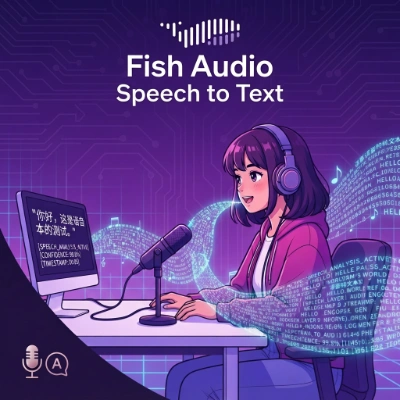
Fish Audio: Speech to Text
Transcribe an audio clip to text. Language is detected automatically across 80+ languages, and enabling `precise_timestamps` returns per-segment start and end times as JSON, which is handy for subtitles.
 Open in Comfy Cloud
Download JSON or search "Fish Audio: Speech to Text" in Template Library
**Input materials**
Upload this file to the matching `LoadAudio` node:
`LoadAudio` node 11 · `fish_audio_example.mp3`
## Get started
1. Update ComfyUI to the latest version
2. Open a workflow template above, or add the Fish Audio nodes from the node menu under `partner/audio/Fish Audio`
3. Sign in to your ComfyUI account when prompted
4. Write your script with the inline tags from the [prompt guide](/tutorials/partner-nodes/fishaudio/prompt-guide)
5. Run the workflow and preview or save the audio
Open in Comfy Cloud
Download JSON or search "Fish Audio: Speech to Text" in Template Library
**Input materials**
Upload this file to the matching `LoadAudio` node:
`LoadAudio` node 11 · `fish_audio_example.mp3`
## Get started
1. Update ComfyUI to the latest version
2. Open a workflow template above, or add the Fish Audio nodes from the node menu under `partner/audio/Fish Audio`
3. Sign in to your ComfyUI account when prompted
4. Write your script with the inline tags from the [prompt guide](/tutorials/partner-nodes/fishaudio/prompt-guide)
5. Run the workflow and preview or save the audio