> ## Documentation Index
> Fetch the complete documentation index at: https://docs.comfy.org/llms.txt
> Use this file to discover all available pages before exploring further.
# Ideogram 4.5 in ComfyUI: Text to Image and Edit
> Run the Ideogram 4.5 partner nodes in ComfyUI for text to image, image edit, and precise edit that keeps untouched pixels identical
**Ideogram 4.5** is the newer model in the family and Ideogram's most precise edit model: it changes only what the prompt asks for, so repeated edits keep colors, textures, and details in place. It ships in ComfyUI as three partner nodes that are billed per image through the same Comfy account as the rest of the partner nodes. Ideogram 4.0 keeps its own page: [Ideogram 4.0 in ComfyUI](/tutorials/partner-nodes/ideogram/ideogram-v4).
To use the Partner Nodes, you need to ensure that you are logged in properly and using a permitted network environment. Please refer to the [Partner Nodes Overview](/tutorials/partner-nodes/overview) section of the documentation to understand the specific requirements for using the Partner Nodes.
Make sure your ComfyUI is updated.
* [Download ComfyUI](https://www.comfy.org/download)
* [Update Guide](/installation/update_comfyui)
Workflows in this guide can be found in the [Workflow Templates](/interface/features/template).
If you can't find them in the template, your ComfyUI may be outdated.
If nodes are missing when loading a workflow, possible reasons:
1. You are not using the latest ComfyUI version (Nightly version)
2. Some nodes failed to import at startup
* [Cloud](https://cloud.comfy.org) will update after ComfyUI stable release.
So, if you find any core node missing in this document, it might be because the new core nodes have not yet been released in the latest stable version. Please wait for the next stable release.
## Text to Image
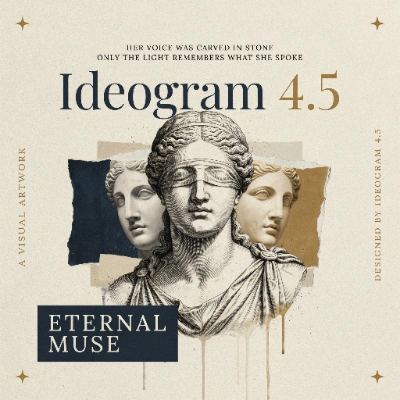
Generate an image from a text prompt, at a canvas size and quality tier you choose.
 Open in Comfy Cloud
Download JSON or search "Ideogram 4.5: Text to Image" in Template Library
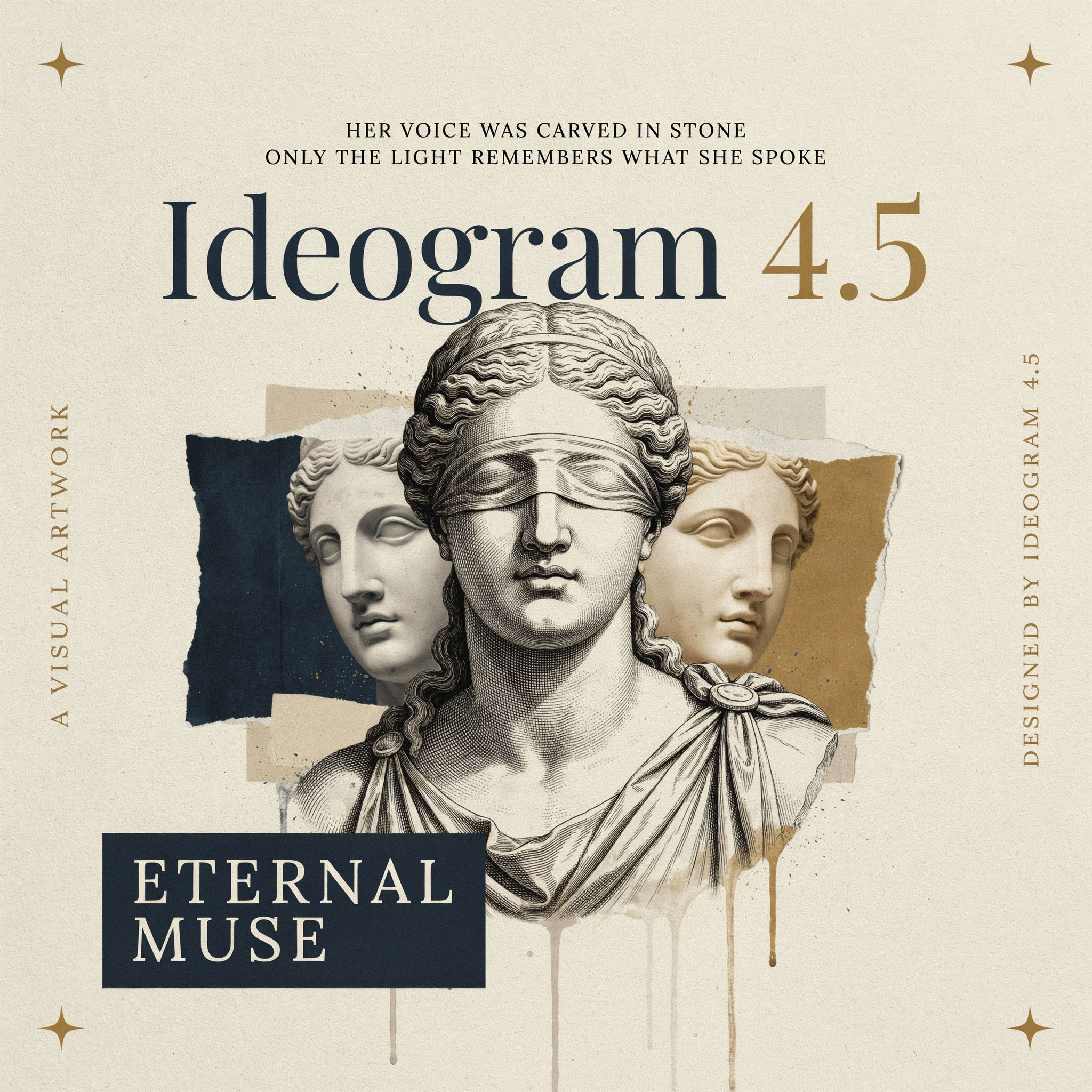
The **Ideogram 4.5 Text to Image** node takes:
| Input | Values | Effect |
| - | - | - |
| `prompt` | up to 10000 characters | The image description. A structured JSON caption works here too, for example a `final_prompt` from an earlier run |
| `size` | `auto` or a 1K or 2K preset | `auto` lets the model pick a canvas that suits the prompt. Presets cover both 1K and 2K and run from `1:1` to `23:9`, for example `(2K) 2048x2048 (1:1)` and `(1K) 1280x720 (16:9)` |
| `quality` | `low`, `medium` (default), `high` | Higher tiers cost more and take longer |
| `magic_prompt` | `auto` (default), `on`, `off` | Rewrites the prompt into a detailed structured caption before generating. `off` keeps your wording as literal as possible |
| `seed` | integer | Text to image is not reproducible from the seed alone, because the prompt is rewritten on every run |
The node also outputs `final_prompt`, the structured caption the image was generated from. To reproduce an image, feed that caption back with `magic_prompt` set to `off` and the same seed.
## Image Edit
Edit or combine up to five images with one instruction. `image_1` is the image being edited; images 2 to 5 supply design, material, or color references. Address them in the prompt as `@Image1`, `@Image2`, and so on.
Open in Comfy Cloud
Download JSON or search "Ideogram 4.5: Text to Image" in Template Library

The **Ideogram 4.5 Text to Image** node takes:
| Input | Values | Effect |
| - | - | - |
| `prompt` | up to 10000 characters | The image description. A structured JSON caption works here too, for example a `final_prompt` from an earlier run |
| `size` | `auto` or a 1K or 2K preset | `auto` lets the model pick a canvas that suits the prompt. Presets cover both 1K and 2K and run from `1:1` to `23:9`, for example `(2K) 2048x2048 (1:1)` and `(1K) 1280x720 (16:9)` |
| `quality` | `low`, `medium` (default), `high` | Higher tiers cost more and take longer |
| `magic_prompt` | `auto` (default), `on`, `off` | Rewrites the prompt into a detailed structured caption before generating. `off` keeps your wording as literal as possible |
| `seed` | integer | Text to image is not reproducible from the seed alone, because the prompt is rewritten on every run |
The node also outputs `final_prompt`, the structured caption the image was generated from. To reproduce an image, feed that caption back with `magic_prompt` set to `off` and the same seed.
## Image Edit
Edit or combine up to five images with one instruction. `image_1` is the image being edited; images 2 to 5 supply design, material, or color references. Address them in the prompt as `@Image1`, `@Image2`, and so on.
 Open in Comfy Cloud
Download JSON or search "Ideogram 4.5: Image Edit" in Template Library

**Input material**
Load into the `image_1` slot on the Ideogram 4.5 Edit node
The template builds its instruction with a **Build JSON Prompt** node, so you can mark a region of the image and caption it, for example "remove it". Turn on [Nodes 2.0](/interface/nodes-2) if the editor does not appear.
The **Ideogram 4.5 Edit** node adds:
| Input | Values | Effect |
| - | - | - |
| `size` | `auto` (default), `source`, a preset, or `custom` | `auto` picks a canvas of about 2K from the images and the prompt. `source` keeps the size of `image_1`. A preset with a different aspect ratio recomposes the scene. `custom` uses the `width` and `height` below |
| `width`, `height` | 256 to 4608, step 32 | Used only when `size` is `custom`. The two dimensions together must stay within 4194304 pixels (2048x2048) and within an aspect ratio of 6:1 |
| `quality` | `very_low`, `low`, `medium` (default), `high` | Higher tiers cost more and take longer |
| `seed` | integer | The same images, prompt, settings, and seed give the same result |
Up to five images can be connected in total. Inputs above roughly 4 MP are scaled down before they are uploaded, and each image must sit between 1:6 and 6:1.
Edit re-renders the whole image, so it can shift the framing and the untouched areas along with the edit. Use Precise Edit when the rest of the picture has to stay exactly as it is.
## Precise Edit
Change only what the prompt asks for. Untouched pixels stay identical and the output keeps the size of `image_1`. Accepts up to four reference images beyond the image being edited.
Open in Comfy Cloud
Download JSON or search "Ideogram 4.5: Image Edit" in Template Library
**Input material**
Load into the `image_1` slot on the Ideogram 4.5 Edit node
The template builds its instruction with a **Build JSON Prompt** node, so you can mark a region of the image and caption it, for example "remove it". Turn on [Nodes 2.0](/interface/nodes-2) if the editor does not appear.
The **Ideogram 4.5 Edit** node adds:
| Input | Values | Effect |
| - | - | - |
| `size` | `auto` (default), `source`, a preset, or `custom` | `auto` picks a canvas of about 2K from the images and the prompt. `source` keeps the size of `image_1`. A preset with a different aspect ratio recomposes the scene. `custom` uses the `width` and `height` below |
| `width`, `height` | 256 to 4608, step 32 | Used only when `size` is `custom`. The two dimensions together must stay within 4194304 pixels (2048x2048) and within an aspect ratio of 6:1 |
| `quality` | `very_low`, `low`, `medium` (default), `high` | Higher tiers cost more and take longer |
| `seed` | integer | The same images, prompt, settings, and seed give the same result |
Up to five images can be connected in total. Inputs above roughly 4 MP are scaled down before they are uploaded, and each image must sit between 1:6 and 6:1.
Edit re-renders the whole image, so it can shift the framing and the untouched areas along with the edit. Use Precise Edit when the rest of the picture has to stay exactly as it is.
## Precise Edit
Change only what the prompt asks for. Untouched pixels stay identical and the output keeps the size of `image_1`. Accepts up to four reference images beyond the image being edited.
 Open in Comfy Cloud
Download JSON or search "Ideogram 4.5: Precise Edit" in Template Library

**Input material**
Load into the `image_1` slot on the Ideogram 4.5 Precise Edit node
Precise Edit shares the reference slots, `@Image1` addressing, `quality`, and `seed` controls with Edit. It has no size control, because the output always matches the size of `image_1`. The template draws its instruction with the **Build JSON Prompt** node as well.
Use it for product recolors, material swaps, and touch-ups that must leave the lighting, background, and framing of the rest of the photo alone.
This documentation is built and hosted on [Mintlify](https://mintlify.com), a developer documentation platform.
Open in Comfy Cloud
Download JSON or search "Ideogram 4.5: Precise Edit" in Template Library
**Input material**
Load into the `image_1` slot on the Ideogram 4.5 Precise Edit node
Precise Edit shares the reference slots, `@Image1` addressing, `quality`, and `seed` controls with Edit. It has no size control, because the output always matches the size of `image_1`. The template draws its instruction with the **Build JSON Prompt** node as well.
Use it for product recolors, material swaps, and touch-ups that must leave the lighting, background, and framing of the rest of the photo alone.
This documentation is built and hosted on [Mintlify](https://mintlify.com), a developer documentation platform.