> ## Documentation Index
> Fetch the complete documentation index at: https://docs.comfy.org/llms.txt
> Use this file to discover all available pages before exploring further.
# Kling 2.6 Motion Control Workflow in ComfyUI
> How to run the Kling 2.6 Motion Control workflow in ComfyUI, locally or on Comfy Cloud
This guide shows how to run the Kling 2.6 Motion Control workflow in ComfyUI. For what the model is and what it does best, see the [Kling 2.6 Motion Control overview](/tutorials/partner-nodes/kling/kling-motion-control).
To use the Partner Nodes, you need to ensure that you are logged in properly and using a permitted network environment. Please refer to the [Partner Nodes Overview](/tutorials/partner-nodes/overview) section of the documentation to understand the specific requirements for using the Partner Nodes.
Make sure your ComfyUI is updated.
* [Download ComfyUI](https://www.comfy.org/download)
* [Update Guide](/installation/update_comfyui)
Workflows in this guide can be found in the [Workflow Templates](/interface/features/template).
If you can't find them in the template, your ComfyUI may be outdated.
If nodes are missing when loading a workflow, possible reasons:
1. You are not using the latest ComfyUI version (Nightly version)
2. Some nodes failed to import at startup
* [Cloud](https://cloud.comfy.org) will update after ComfyUI stable release.
So, if you find any core node missing in this document, it might be because the new core nodes have not yet been released in the latest stable version. Please wait for the next stable release.
## Character orientation modes
The `character_orientation` parameter determines how the model interprets spatial information and constrains output duration:
| Mode | Description | Max Duration |
| ------- | -------------------------------------------------------------------------------------------------------------------------------------------------- | ------------ |
| `video` | Output character orientation matches the reference video. Best for complex full-body performances like dance sequences and elaborate choreography. | 30 seconds |
| `image` | Output character orientation matches the reference image. Best for portrait animations with camera movement like pans, tilts, and tracking shots. | 10 seconds |
## Model tiers
| Tier | Resolution | Best For |
| ------------ | ---------- | ------------------------------------------------------------------------------------------------------------- |
| **Standard** | 720p | Simple animations, social media content, memes, and quick tests. Faster and more credit-efficient. |
| **Pro** | 1080p | Complex choreography, intricate hand movements, professional marketing assets, and broadcast-quality content. |
Kling2.6: Motion Control
Apply precise character actions and expressions from a reference video to your character image with synchronized motion control.
 Open in Comfy Cloud
Download JSON or search "Kling2.6: Motion Control" in Template Library
**Input materials**
Upload these files to the matching `LoadImage` and `LoadVideo` nodes:
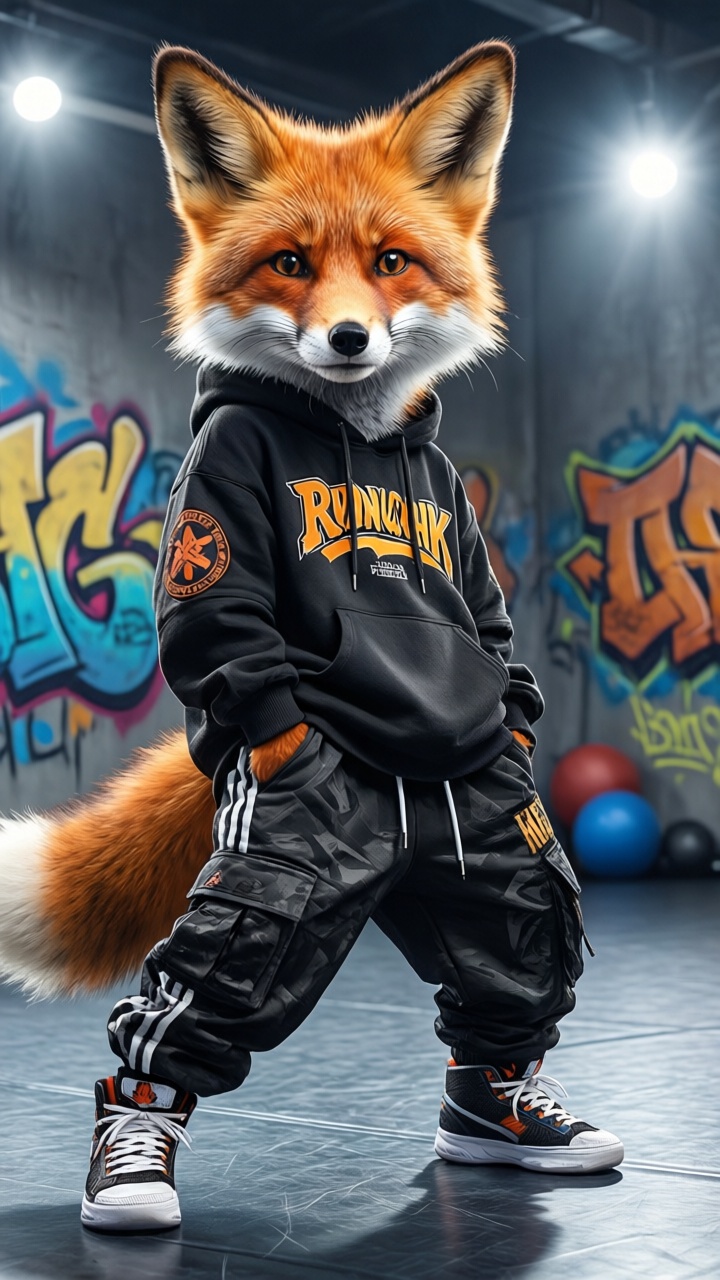
`LoadImage` node 11 · `streetwear_fox.jpg`
`LoadVideo` node 2 · `street_dancer.mp4`
## Input requirements
* **Image formats**: JPG, PNG, WEBP, GIF, AVIF (max 10MB)
* **Video formats**: MP4, MOV, WEBM, M4V, GIF (max 100MB)
* **Video duration**: 3-30 seconds depending on orientation mode
* **Minimum resolution**: 720px width and height
* **Subject visibility**: Character must clearly show head, shoulders, and torso
## Tips for better results
* **Match aspect ratios**: Ensure your character image and reference video have similar aspect ratios (e.g., both 16:9 or both 9:16) to prevent awkward stretching or cropping.
* **Clean backgrounds**: Use reference videos with simple or static backgrounds for best motion extraction. High-contrast videos where the actor's silhouette is distinct work best.
* **Clear character angles**: If your reference video shows rotation, use 3D-style characters or realistic photos that handle rotation better. Flat 2D cartoons may struggle with back views.
* **Visible limbs**: Ensure the character's limbs are visible in the source image. If a character has hands in pockets but the motion requires waving, the AI will hallucinate hands, often leading to artifacts.
* **Leave breathing room**: Leave negative space around the subject. If the character will dance or move arms wide, they need space within the frame to avoid clipping.
* **Framing alignment**: Match the framing between your image and reference video. Use a close-up reference for face animations, or a full-body reference for walking/dancing sequences.
Open in Comfy Cloud
Download JSON or search "Kling2.6: Motion Control" in Template Library
**Input materials**
Upload these files to the matching `LoadImage` and `LoadVideo` nodes:
`LoadImage` node 11 · `streetwear_fox.jpg`
`LoadVideo` node 2 · `street_dancer.mp4`
## Input requirements
* **Image formats**: JPG, PNG, WEBP, GIF, AVIF (max 10MB)
* **Video formats**: MP4, MOV, WEBM, M4V, GIF (max 100MB)
* **Video duration**: 3-30 seconds depending on orientation mode
* **Minimum resolution**: 720px width and height
* **Subject visibility**: Character must clearly show head, shoulders, and torso
## Tips for better results
* **Match aspect ratios**: Ensure your character image and reference video have similar aspect ratios (e.g., both 16:9 or both 9:16) to prevent awkward stretching or cropping.
* **Clean backgrounds**: Use reference videos with simple or static backgrounds for best motion extraction. High-contrast videos where the actor's silhouette is distinct work best.
* **Clear character angles**: If your reference video shows rotation, use 3D-style characters or realistic photos that handle rotation better. Flat 2D cartoons may struggle with back views.
* **Visible limbs**: Ensure the character's limbs are visible in the source image. If a character has hands in pockets but the motion requires waving, the AI will hallucinate hands, often leading to artifacts.
* **Leave breathing room**: Leave negative space around the subject. If the character will dance or move arms wide, they need space within the frame to avoid clipping.
* **Framing alignment**: Match the framing between your image and reference video. Use a close-up reference for face animations, or a full-body reference for walking/dancing sequences.