> ## Documentation Index
> Fetch the complete documentation index at: https://docs.comfy.org/llms.txt
> Use this file to discover all available pages before exploring further.
# Kling Virtual Try-On in ComfyUI: Dress a Person in Any Garment
> Dress a person photo in any garment with the Kling Virtual Try-On partner node in ComfyUI, keeping the face and pose in a single cloud API workflow.
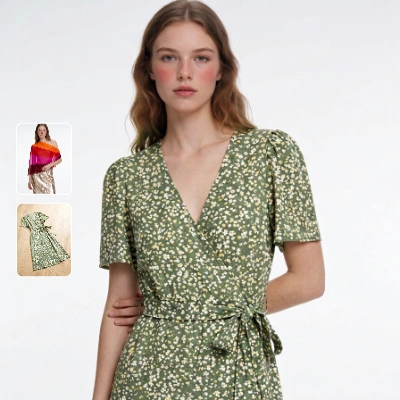
**Kling Virtual Try-On** is a partner node in ComfyUI that puts a piece of clothing onto a person in a photo. You connect two images, a photo of a person and a photo of the garment, and the node returns the same person wearing the item with the face and body preserved. It accepts product photos, flat lays, mannequin shots, and on-model photos.
In ComfyUI the model runs through the **Kling Virtual Try-On** partner node. It is a cloud API node: it needs a Comfy account with credits and downloads no local model. You take two images in and get one image out, alongside a side-by-side comparison. See [Partner Node pricing](/tutorials/partner-nodes/pricing) for the per-run rate.
The result matches the size of the person image, capped at 2048 pixels on the longest side. Images larger than that are downscaled before the run.
## Available workflows
### Virtual Try-On
Dress a person in a garment and compare the result against the original person image. The template loads a person photo and a garment photo, runs the try-on at full 2048px fidelity, and shows an `ImageCompare` view of the input person and the output.
 Open in Comfy Cloud
Download JSON or search "Kling: Virtual Try On" in Template Library
**Input materials**
Load into the person `LoadImage` node that feeds the Kling Virtual Try-On node
Load into the garment `LoadImage` node that feeds the Kling Virtual Try-On node
### Workflow overview
The template uses five functional nodes, plus a `MarkdownNote` that lists the input assets:
* **LoadImage** (person): provides the photo of the person
* **LoadImage** (garment): provides the clothing to put on
* **KlingTryOnNode**: the core node that combines the two images
* **SaveImageAdvanced** and **ImageCompare**: save the result and show it next to the person image
### Steps to run
1. **Load the person photo**: upload or select a photo of one person in the person **LoadImage** node
2. **Load the garment**: upload or select the clothing in the garment **LoadImage** node
3. **Set `keep_pose`**: leave it on to hold the pose, or turn it off to let the pose adapt for a better presentation
4. **Click Queue** or press `Ctrl+Enter` to generate
## Node controls
| Control | Values | Effect |
| - | - | - |
| `person_image` | one image | Photo of one person, ideally front-facing or a three-quarter view. Images with a side over 2048px are downscaled first |
| `garment_image` | one image | The clothing to put on: product photo, flat lay, mannequin, or on-model photo. An on-model photo can carry over the rest of that outfit. Clothing only; shoes, bags, and accessories are not supported |
| `keep_pose` | on (default), off | Advanced. Turn off to let the pose change for a better outfit presentation |
| `seed` | integer | Controls whether the node re-runs. Results are non-deterministic regardless of the seed |
## Tips
* **Use a clean, front-facing person photo**. The node works best when the subject faces the camera or is turned about three-quarters toward it.
* **Clothing only**. Shoes, bags, and accessories are not supported; connect the garment itself.
* **An on-model garment photo carries more than the item**. When the garment image is an on-model shot, the rest of that outfit can come along, which helps when you want a complete look.
* **The result keeps the person image size**. The output is the same shape as the person photo, capped at 2048 pixels on the longest side.
* **Expect variation between runs**. The seed does not lock the result; the same settings can still produce a different take.
## Get started
1. Update ComfyUI to the latest version
2. Go to Template Library, search for `Kling: Virtual Try On`
This documentation is built and hosted on [Mintlify](https://mintlify.com), a developer documentation platform.
Open in Comfy Cloud
Download JSON or search "Kling: Virtual Try On" in Template Library
**Input materials**
Load into the person `LoadImage` node that feeds the Kling Virtual Try-On node
Load into the garment `LoadImage` node that feeds the Kling Virtual Try-On node
### Workflow overview
The template uses five functional nodes, plus a `MarkdownNote` that lists the input assets:
* **LoadImage** (person): provides the photo of the person
* **LoadImage** (garment): provides the clothing to put on
* **KlingTryOnNode**: the core node that combines the two images
* **SaveImageAdvanced** and **ImageCompare**: save the result and show it next to the person image
### Steps to run
1. **Load the person photo**: upload or select a photo of one person in the person **LoadImage** node
2. **Load the garment**: upload or select the clothing in the garment **LoadImage** node
3. **Set `keep_pose`**: leave it on to hold the pose, or turn it off to let the pose adapt for a better presentation
4. **Click Queue** or press `Ctrl+Enter` to generate
## Node controls
| Control | Values | Effect |
| - | - | - |
| `person_image` | one image | Photo of one person, ideally front-facing or a three-quarter view. Images with a side over 2048px are downscaled first |
| `garment_image` | one image | The clothing to put on: product photo, flat lay, mannequin, or on-model photo. An on-model photo can carry over the rest of that outfit. Clothing only; shoes, bags, and accessories are not supported |
| `keep_pose` | on (default), off | Advanced. Turn off to let the pose change for a better outfit presentation |
| `seed` | integer | Controls whether the node re-runs. Results are non-deterministic regardless of the seed |
## Tips
* **Use a clean, front-facing person photo**. The node works best when the subject faces the camera or is turned about three-quarters toward it.
* **Clothing only**. Shoes, bags, and accessories are not supported; connect the garment itself.
* **An on-model garment photo carries more than the item**. When the garment image is an on-model shot, the rest of that outfit can come along, which helps when you want a complete look.
* **The result keeps the person image size**. The output is the same shape as the person photo, capped at 2048 pixels on the longest side.
* **Expect variation between runs**. The seed does not lock the result; the same settings can still produce a different take.
## Get started
1. Update ComfyUI to the latest version
2. Go to Template Library, search for `Kling: Virtual Try On`
This documentation is built and hosted on [Mintlify](https://mintlify.com), a developer documentation platform.