> ## Documentation Index
> Fetch the complete documentation index at: https://docs.comfy.org/llms.txt
> Use this file to discover all available pages before exploring further.
# Krea 3 in ComfyUI: Text to Image and Image Editing
> Run Krea 3 in ComfyUI through Partner Nodes: generate an image from a text prompt, or edit a photo with plain-language instructions and up to 8 reference images.
Krea 3 is the hosted image model from [Krea](https://www.krea.ai). It is built for instruction-driven editing: you describe what should change and what should stay the same, and the model returns the edited image. Connect no image and it generates from text instead.
Krea 3 runs in ComfyUI as a Partner Node, so there are no weights to download and nothing runs on your own GPU. The node sends your prompt and your reference images to Krea's servers and returns the finished image to your workflow.
## What Krea 3 is good at
* **Instruction-driven edits**: write the change in plain language ("replace the green car with an orange one") and Krea 3 returns the whole image, keeping what you did not ask to change
* **Text to image from the same node**: leave the image inputs empty and the node generates from the prompt alone
* **Up to 8 reference images**: connect them in the order you want to address them, then mention them in the prompt as `@Image1`, `@Image2`, and so on
* **Two thinking modes**: `fast` is the default and the recommended setting, while `high` plans complex edits in more detail and takes longer
* **Precise edits**: turn on `precise_edit` to keep everything outside the edited area unchanged
* **Resolution control**: 1K or 2K output, with `auto` aspect ratio following the first reference image
To use the Partner Nodes, you need to ensure that you are logged in properly and using a permitted network environment. Please refer to the [Partner Nodes Overview](/tutorials/partner-nodes/overview) section of the documentation to understand the specific requirements for using the Partner Nodes.
Make sure your ComfyUI is updated.
* [Download ComfyUI](https://www.comfy.org/download)
* [Update Guide](/installation/update_comfyui)
Workflows in this guide can be found in the [Workflow Templates](/interface/features/template).
If you can't find them in the template, your ComfyUI may be outdated.
If nodes are missing when loading a workflow, possible reasons:
1. You are not using the latest ComfyUI version (Nightly version)
2. Some nodes failed to import at startup
* [Cloud](https://cloud.comfy.org) will update after ComfyUI stable release.
So, if you find any core node missing in this document, it might be because the new core nodes have not yet been released in the latest stable version. Please wait for the next stable release.
Krea 3 text to image workflow
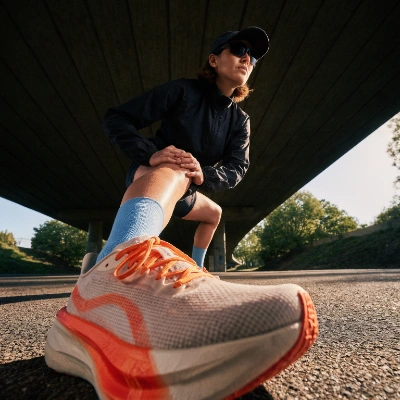
Generate an image from a prompt alone. The Krea 3 Image node has no image connected, so it uses the prompt and the aspect ratio setting.
 Open in Comfy Cloud
Download JSON or search "Krea 3" in Template Library
1. Write your prompt in the **Krea 3 Image** node. The shipped example is a single detailed sentence describing the subject, the lighting, and the framing
2. Set `aspect_ratio`. Keep it on `auto` to follow the prompt, or pick one of the ten supported ratios
3. Pick `resolution`: the template ships with `1K`, and `2K` gives a larger canvas at a higher cost
4. Leave `thinking_mode` on `fast`, or switch to `high` when the prompt describes a complex scene
5. Click **Queue**. The image is saved by the `SaveImageAdvanced` node to `ComfyUI/output/`
Open in Comfy Cloud
Download JSON or search "Krea 3" in Template Library
1. Write your prompt in the **Krea 3 Image** node. The shipped example is a single detailed sentence describing the subject, the lighting, and the framing
2. Set `aspect_ratio`. Keep it on `auto` to follow the prompt, or pick one of the ten supported ratios
3. Pick `resolution`: the template ships with `1K`, and `2K` gives a larger canvas at a higher cost
4. Leave `thinking_mode` on `fast`, or switch to `high` when the prompt describes a complex scene
5. Click **Queue**. The image is saved by the `SaveImageAdvanced` node to `ComfyUI/output/`
Krea 3 image edit workflow
Edit an existing image from an instruction prompt. The reference image is connected to the Krea 3 Image node, and the prompt describes the result you want.
 Open in Comfy Cloud
Download JSON or search "Krea 3" in Template Library
**Input materials**
Upload this file to the `LoadImage` node, or use your own image:
`LoadImage` node · `wide_format_digital_render.png`
Open in Comfy Cloud
Download JSON or search "Krea 3" in Template Library
**Input materials**
Upload this file to the `LoadImage` node, or use your own image:
`LoadImage` node · `wide_format_digital_render.png`
 1. Load the image you want to edit in the `LoadImage` node and connect it to the **Krea 3 Image** node
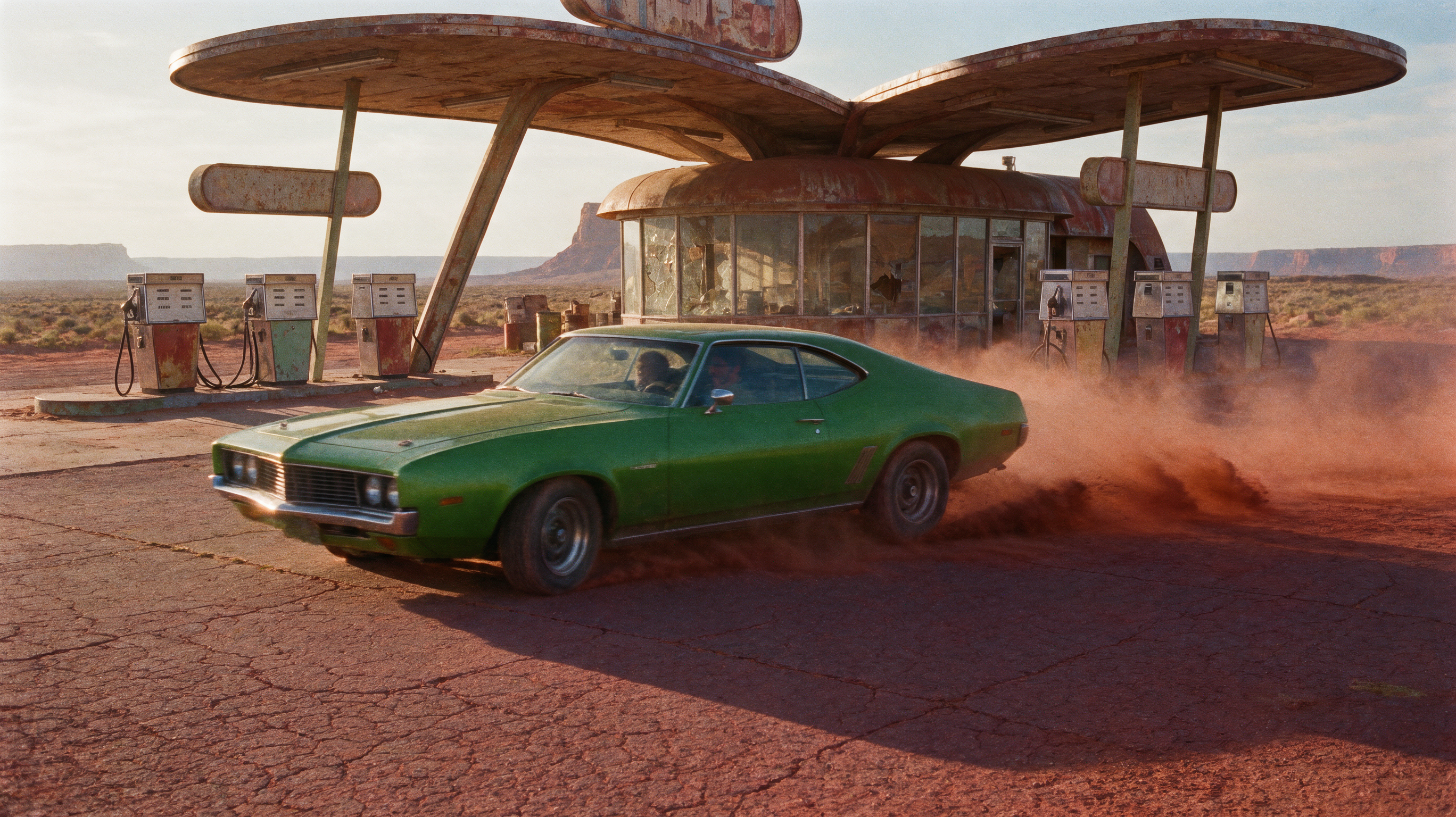
2. Write the edit as an instruction. The shipped example replaces the green car in the scene with an orange one and lists what must stay unchanged: composition, background, building, dust, lighting, and perspective
3. Turn on `precise_edit` if everything outside the edited area must be preserved. It needs at least one reference image
4. Adjust `aspect_ratio` and `resolution` for the output canvas
5. Click **Queue** and compare the input with the result
**More reference images**
The node accepts up to 8 images. Add them in the order you want to refer to them, then mention each one in the prompt as `@Image1`, `@Image2`, and so on.
## Krea 3 node parameters
The **Krea 3 Image** node (`Krea3ImageNode`) exposes the following settings:
* `image_1` ... `image_8`: up to 8 reference images, numbered in connection order. Leave them empty for text to image
* `prompt`: the instruction or the scene description. Refer to references as `@Image1`, `@Image2`, and so on
* `aspect_ratio`: `auto`, or one of `1:1`, `4:5`, `3:4`, `2:3`, `9:16`, `5:4`, `4:3`, `3:2`, `16:9`, `21:9`. `auto` follows the first reference image, or the prompt when no image is connected
* `resolution`: `1K` or `2K` output
* `thinking_mode`: `fast` is recommended, `high` plans complex edits in more detail and takes longer
* `precise_edit`: keeps everything outside the edited area unchanged. It needs at least one reference image
* `seed`: seed for the request. Krea rewrites the prompt before generating, so the same seed does not reproduce the same image
## Notes and limits
* **Prompt rewriting**: Krea rewrites your prompt before it generates, which is why a repeated seed does not repeat an image
* **Reference size**: each reference is scaled to the output pixel budget before it is uploaded, so the 2K setting keeps more reference detail than 1K
* **Billing**: Krea 3 is a Partner Node, so every run is billed to your Comfy account. See [Partner Nodes pricing](/tutorials/partner-nodes/pricing) for rates and [Concurrency limits](/tutorials/partner-nodes/concurrency-limits) for how many requests you can have in flight
* **Version**: the Krea 3 Image node ships with ComfyUI [PR #17067](https://github.com/comfyanonymous/ComfyUI/pull/17067), and the two templates are part of the template library from `workflow_templates` 0.11.84
This documentation is built and hosted on [Mintlify](https://mintlify.com), a developer documentation platform.
1. Load the image you want to edit in the `LoadImage` node and connect it to the **Krea 3 Image** node
2. Write the edit as an instruction. The shipped example replaces the green car in the scene with an orange one and lists what must stay unchanged: composition, background, building, dust, lighting, and perspective
3. Turn on `precise_edit` if everything outside the edited area must be preserved. It needs at least one reference image
4. Adjust `aspect_ratio` and `resolution` for the output canvas
5. Click **Queue** and compare the input with the result
**More reference images**
The node accepts up to 8 images. Add them in the order you want to refer to them, then mention each one in the prompt as `@Image1`, `@Image2`, and so on.
## Krea 3 node parameters
The **Krea 3 Image** node (`Krea3ImageNode`) exposes the following settings:
* `image_1` ... `image_8`: up to 8 reference images, numbered in connection order. Leave them empty for text to image
* `prompt`: the instruction or the scene description. Refer to references as `@Image1`, `@Image2`, and so on
* `aspect_ratio`: `auto`, or one of `1:1`, `4:5`, `3:4`, `2:3`, `9:16`, `5:4`, `4:3`, `3:2`, `16:9`, `21:9`. `auto` follows the first reference image, or the prompt when no image is connected
* `resolution`: `1K` or `2K` output
* `thinking_mode`: `fast` is recommended, `high` plans complex edits in more detail and takes longer
* `precise_edit`: keeps everything outside the edited area unchanged. It needs at least one reference image
* `seed`: seed for the request. Krea rewrites the prompt before generating, so the same seed does not reproduce the same image
## Notes and limits
* **Prompt rewriting**: Krea rewrites your prompt before it generates, which is why a repeated seed does not repeat an image
* **Reference size**: each reference is scaled to the output pixel budget before it is uploaded, so the 2K setting keeps more reference detail than 1K
* **Billing**: Krea 3 is a Partner Node, so every run is billed to your Comfy account. See [Partner Nodes pricing](/tutorials/partner-nodes/pricing) for rates and [Concurrency limits](/tutorials/partner-nodes/concurrency-limits) for how many requests you can have in flight
* **Version**: the Krea 3 Image node ships with ComfyUI [PR #17067](https://github.com/comfyanonymous/ComfyUI/pull/17067), and the two templates are part of the template library from `workflow_templates` 0.11.84
This documentation is built and hosted on [Mintlify](https://mintlify.com), a developer documentation platform.