> ## Documentation Index
> Fetch the complete documentation index at: https://docs.comfy.org/llms.txt
> Use this file to discover all available pages before exploring further.
# Krea 2 Text to Image Workflows in ComfyUI
> How to run the Krea 2 text-to-image and style reference workflows in ComfyUI, locally or on Comfy Cloud
This guide shows how to run the Krea 2 Text to Image workflows in ComfyUI. For what the model is and what it does best, see the [Krea 2 Text to Image overview](/tutorials/partner-nodes/krea2/krea2-t2i).
To use the Partner Nodes, you need to ensure that you are logged in properly and using a permitted network environment. Please refer to the [Partner Nodes Overview](/tutorials/partner-nodes/overview) section of the documentation to understand the specific requirements for using the Partner Nodes.
Make sure your ComfyUI is updated.
* [Download ComfyUI](https://www.comfy.org/download)
* [Update Guide](/installation/update_comfyui)
Workflows in this guide can be found in the [Workflow Templates](/interface/features/template).
If you can't find them in the template, your ComfyUI may be outdated.
If nodes are missing when loading a workflow, possible reasons:
1. You are not using the latest ComfyUI version (Nightly version)
2. Some nodes failed to import at startup
* [Cloud](https://cloud.comfy.org) will update after ComfyUI stable release.
So, if you find any core node missing in this document, it might be because the new core nodes have not yet been released in the latest stable version. Please wait for the next stable release.
## Krea 2 Image Node Documentation
Check the following documentation for detailed node parameter settings:
* [Krea 2 Image Node](/built-in-nodes/Krea2ImageNode)
* [Krea 2 Style Reference Node](/built-in-nodes/Krea2StyleReferenceNode)
## Krea 2 Text to Image Workflow
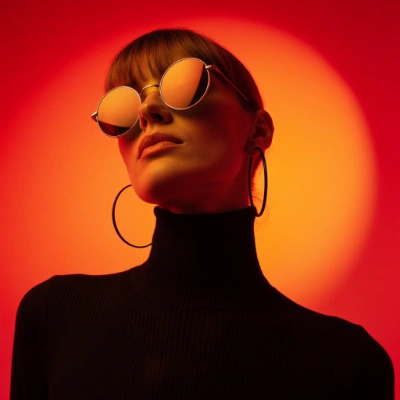 Open in Comfy Cloud
Download JSON or search "Krea2" in Template Library
1. **Enter your prompt**: type a text description in the **Krea2ImageNode**
2. **Select a model variant**: choose between **Krea 2 Medium** (illustrations) or **Krea 2 Large** (photorealism)
3. **Adjust parameters**: set aspect ratio, resolution, creativity level, and seed
4. **Click Queue**: press `Ctrl+Enter` or click the Queue button to generate
5. **View result**: the generated image appears in the **SaveImage** node, saved to `ComfyUI/output/`
## Krea 2 Style Reference Workflow
Open in Comfy Cloud
Download JSON or search "Krea2" in Template Library
1. **Enter your prompt**: type a text description in the **Krea2ImageNode**
2. **Select a model variant**: choose between **Krea 2 Medium** (illustrations) or **Krea 2 Large** (photorealism)
3. **Adjust parameters**: set aspect ratio, resolution, creativity level, and seed
4. **Click Queue**: press `Ctrl+Enter` or click the Queue button to generate
5. **View result**: the generated image appears in the **SaveImage** node, saved to `ComfyUI/output/`
## Krea 2 Style Reference Workflow
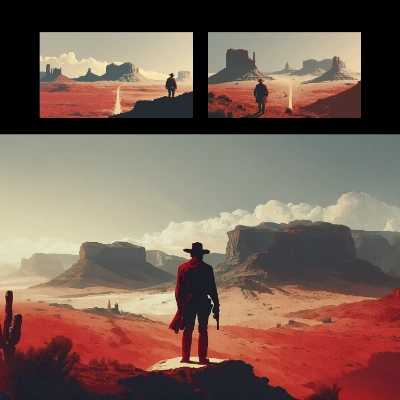 The Style Reference workflow adds an extra step: upload one or more reference images that define the aesthetic style, mood, and visual direction. The generated image will match your prompt while applying the style from your reference images.
Open in Comfy Cloud
Download JSON or search "Krea 2: Style Reference" in Template Library
1. **Upload reference images**: use the **LoadImage** nodes to load style reference images (supports up to 10)
2. **Enter your prompt**: describe the scene you want in the **Krea2ImageNode**
3. **Select a model variant**: choose between Medium and Large
4. **Adjust style strength**: modify the style reference strength in the **Krea2StyleReferenceNode** nodes
5. **Click Queue**: press `Ctrl+Enter` to generate
6. **View result**: the generated image appears in the **SaveImage** node
## Additional Notes
* The Krea 2 Image node supports up to **10 style reference images** simultaneously
* The `moodboard_id` parameter requires a valid UUID from a Krea moodboard on [Krea's website](https://www.krea.ai)
The Style Reference workflow adds an extra step: upload one or more reference images that define the aesthetic style, mood, and visual direction. The generated image will match your prompt while applying the style from your reference images.
Open in Comfy Cloud
Download JSON or search "Krea 2: Style Reference" in Template Library
1. **Upload reference images**: use the **LoadImage** nodes to load style reference images (supports up to 10)
2. **Enter your prompt**: describe the scene you want in the **Krea2ImageNode**
3. **Select a model variant**: choose between Medium and Large
4. **Adjust style strength**: modify the style reference strength in the **Krea2StyleReferenceNode** nodes
5. **Click Queue**: press `Ctrl+Enter` to generate
6. **View result**: the generated image appears in the **SaveImage** node
## Additional Notes
* The Krea 2 Image node supports up to **10 style reference images** simultaneously
* The `moodboard_id` parameter requires a valid UUID from a Krea moodboard on [Krea's website](https://www.krea.ai)