> ## Documentation Index
> Fetch the complete documentation index at: https://docs.comfy.org/llms.txt
> Use this file to discover all available pages before exploring further.
# Luma Text to Video Workflow in ComfyUI
> How to run the Luma Text to Video workflow in ComfyUI, locally or on Comfy Cloud
This guide shows how to run the Luma Text to Video workflow in ComfyUI. For what the model is and what it does best, see the [Luma Text to Video overview](/tutorials/partner-nodes/luma/luma-text-to-video).
To use the Partner Nodes, you need to ensure that you are logged in properly and using a permitted network environment. Please refer to the [Partner Nodes Overview](/tutorials/partner-nodes/overview) section of the documentation to understand the specific requirements for using the Partner Nodes.
Make sure your ComfyUI is updated.
* [Download ComfyUI](https://www.comfy.org/download)
* [Update Guide](/installation/update_comfyui)
Workflows in this guide can be found in the [Workflow Templates](/interface/features/template).
If you can't find them in the template, your ComfyUI may be outdated.
If nodes are missing when loading a workflow, possible reasons:
1. You are not using the latest ComfyUI version (Nightly version)
2. Some nodes failed to import at startup
* [Cloud](https://cloud.comfy.org) will update after ComfyUI stable release.
So, if you find any core node missing in this document, it might be because the new core nodes have not yet been released in the latest stable version. Please wait for the next stable release.
## Text to Video Workflow with Luma Partner Nodes
The Luma Text to Video node requires text prompts to describe the video content. In this guide, we've created examples using `prompt` and `luma_concepts` to showcase Luma AI's excellent video generation capabilities.
### 1. Download the Workflow
The workflow information is included in the metadata of the video below. Download and drag it into ComfyUI to load the workflow.

### 2. Follow the Steps
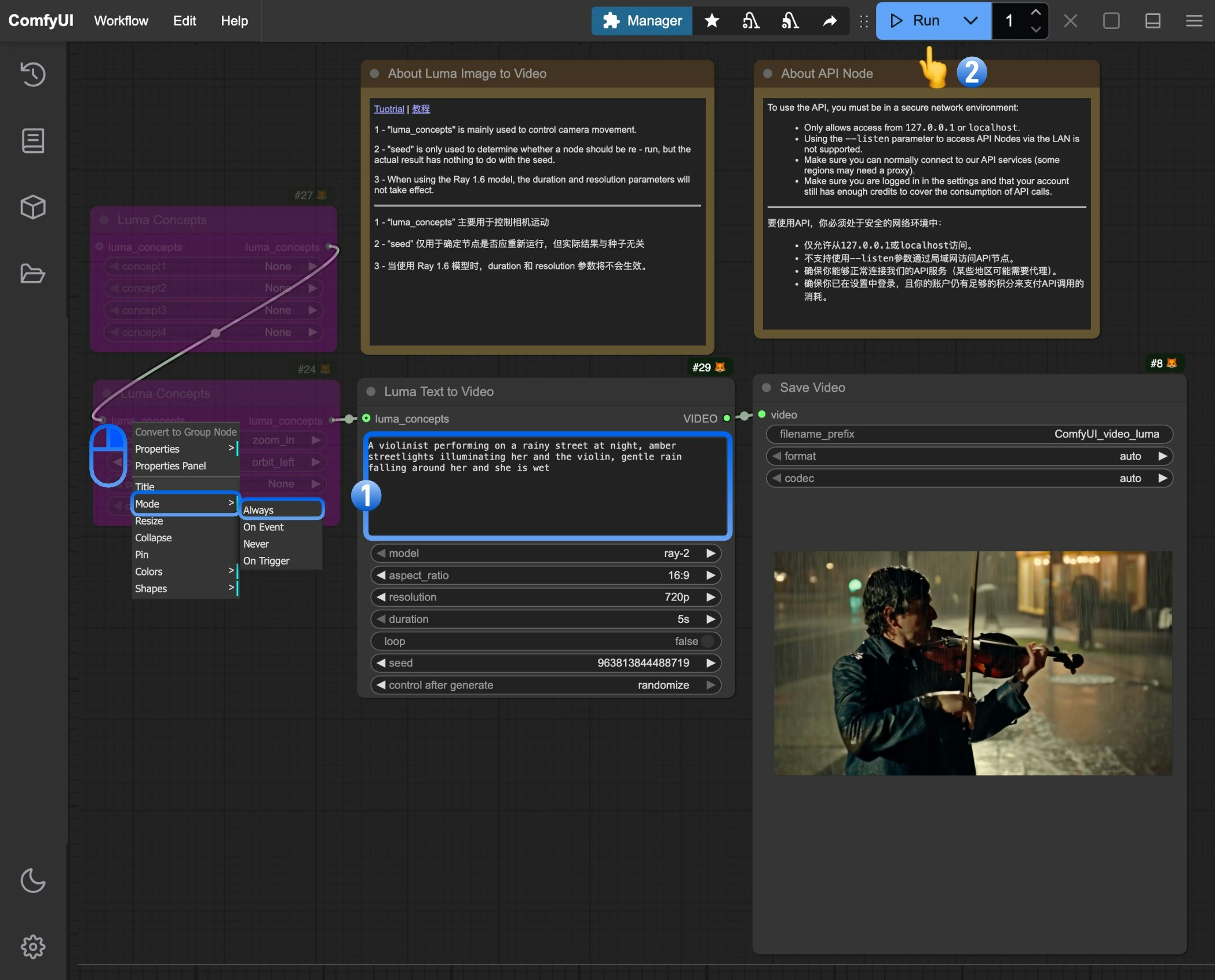 Follow these basic steps to run the workflow:
1. Write your prompt in the `Luma Text to Video` node to describe the video content you want
2. Click the `Run` button or use the shortcut `Ctrl(cmd) + Enter` to generate the video
3. After the API returns results, you can view the generated video in the `Save Video` node. The video will also be saved to the `ComfyUI/output/` directory
> (Optional) Modify the `Luma Concepts` node to control camera movements and add professional cinematography
### 3. Additional Notes
* **Writing Prompts**: Describe scenes, subjects, actions, and mood in detail for best results
* **Luma Concepts**: Mainly used for camera control to create professional video shots
* **Seed Parameter**: Only determines if the node should rerun, doesn't affect generation results
* **Model Selection**: Different video models have different features, adjustable via the model parameter
* **Resolution and Duration**: Adjust output video resolution and length using these parameters
* **Ray 1.6 Model Note**: Duration and resolution parameters don't work when using the Ray 1.6 model
Follow these basic steps to run the workflow:
1. Write your prompt in the `Luma Text to Video` node to describe the video content you want
2. Click the `Run` button or use the shortcut `Ctrl(cmd) + Enter` to generate the video
3. After the API returns results, you can view the generated video in the `Save Video` node. The video will also be saved to the `ComfyUI/output/` directory
> (Optional) Modify the `Luma Concepts` node to control camera movements and add professional cinematography
### 3. Additional Notes
* **Writing Prompts**: Describe scenes, subjects, actions, and mood in detail for best results
* **Luma Concepts**: Mainly used for camera control to create professional video shots
* **Seed Parameter**: Only determines if the node should rerun, doesn't affect generation results
* **Model Selection**: Different video models have different features, adjustable via the model parameter
* **Resolution and Duration**: Adjust output video resolution and length using these parameters
* **Ray 1.6 Model Note**: Duration and resolution parameters don't work when using the Ray 1.6 model