> ## Documentation Index
> Fetch the complete documentation index at: https://docs.comfy.org/llms.txt
> Use this file to discover all available pages before exploring further.
# OpenAI GPT-Image-2 Node
> Learn how to use the OpenAI GPT-Image-2 Partner node to generate images in ComfyUI
OpenAI GPT-Image-2 (`gpt-image-2`) is OpenAI's newest image model, available in ComfyUI through Partner Nodes. It is the first OpenAI image model that *reasons* before it generates: instead of one-shot sampling, the model plans the composition, checks its work, and iterates.
This node supports:
* Text-to-image generation with strong handling of dense text, UI elements, iconography, infographics, maps, slides, and manga panels
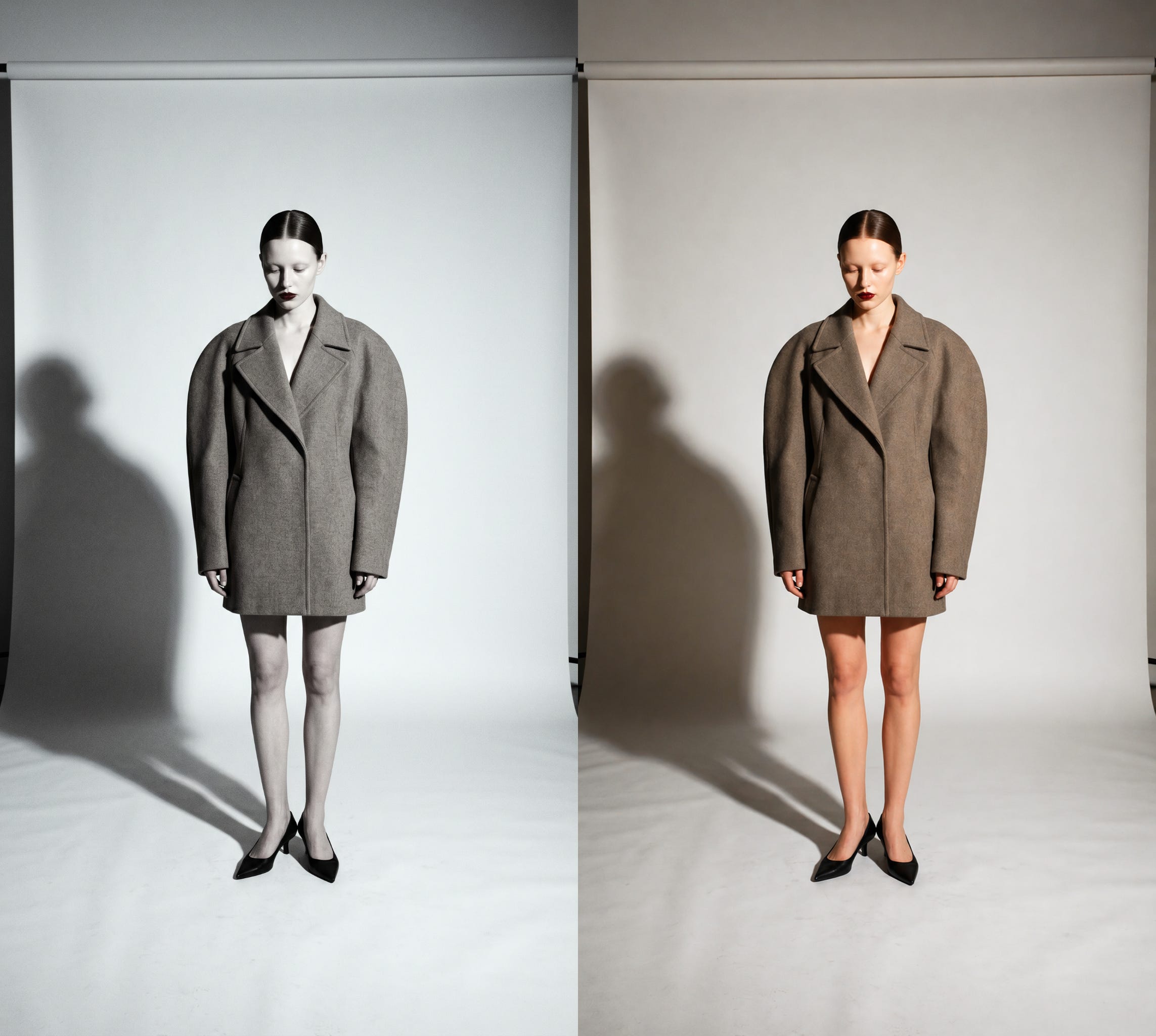
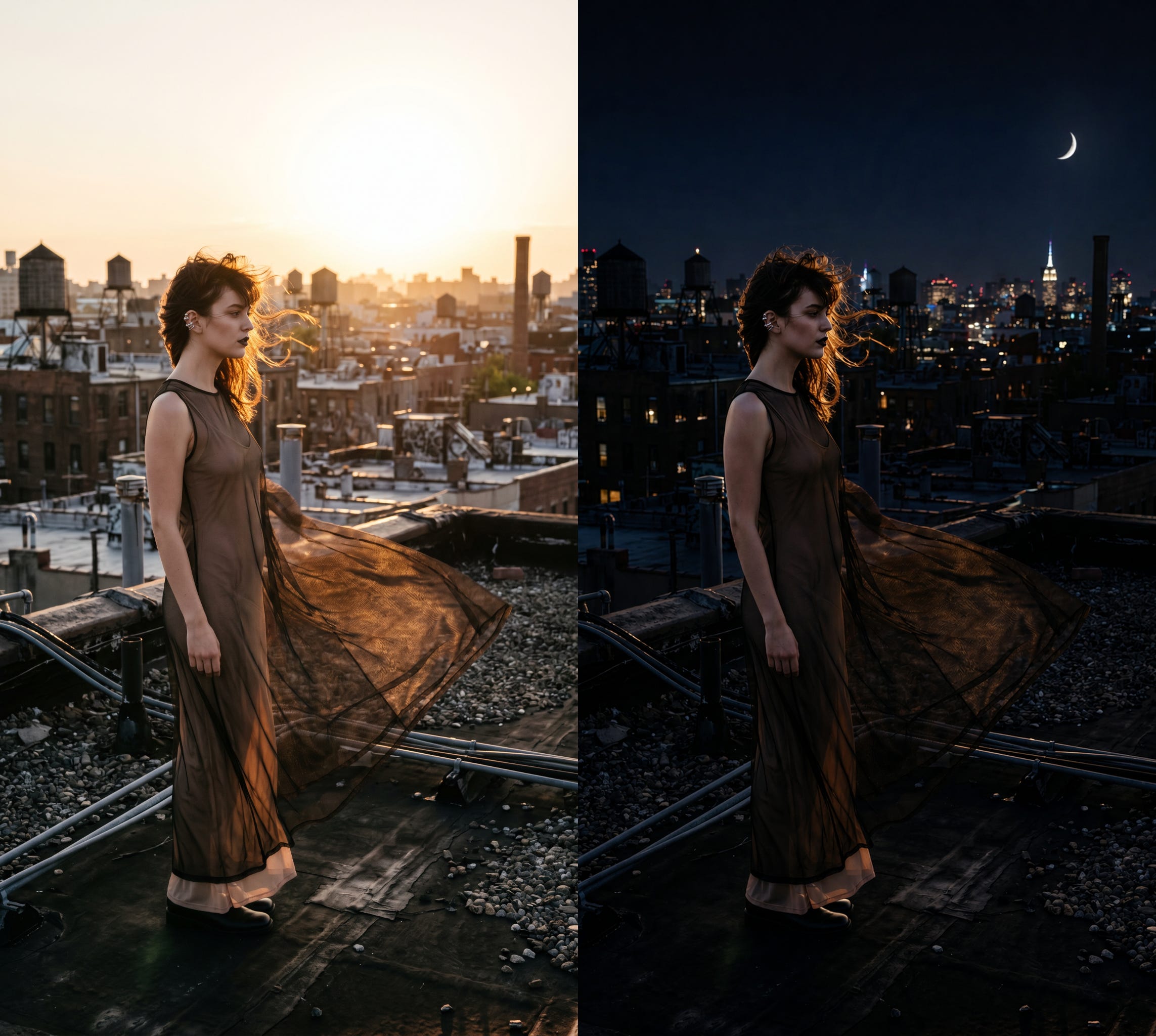
* Image editing with high structural fidelity at up to 2K resolution
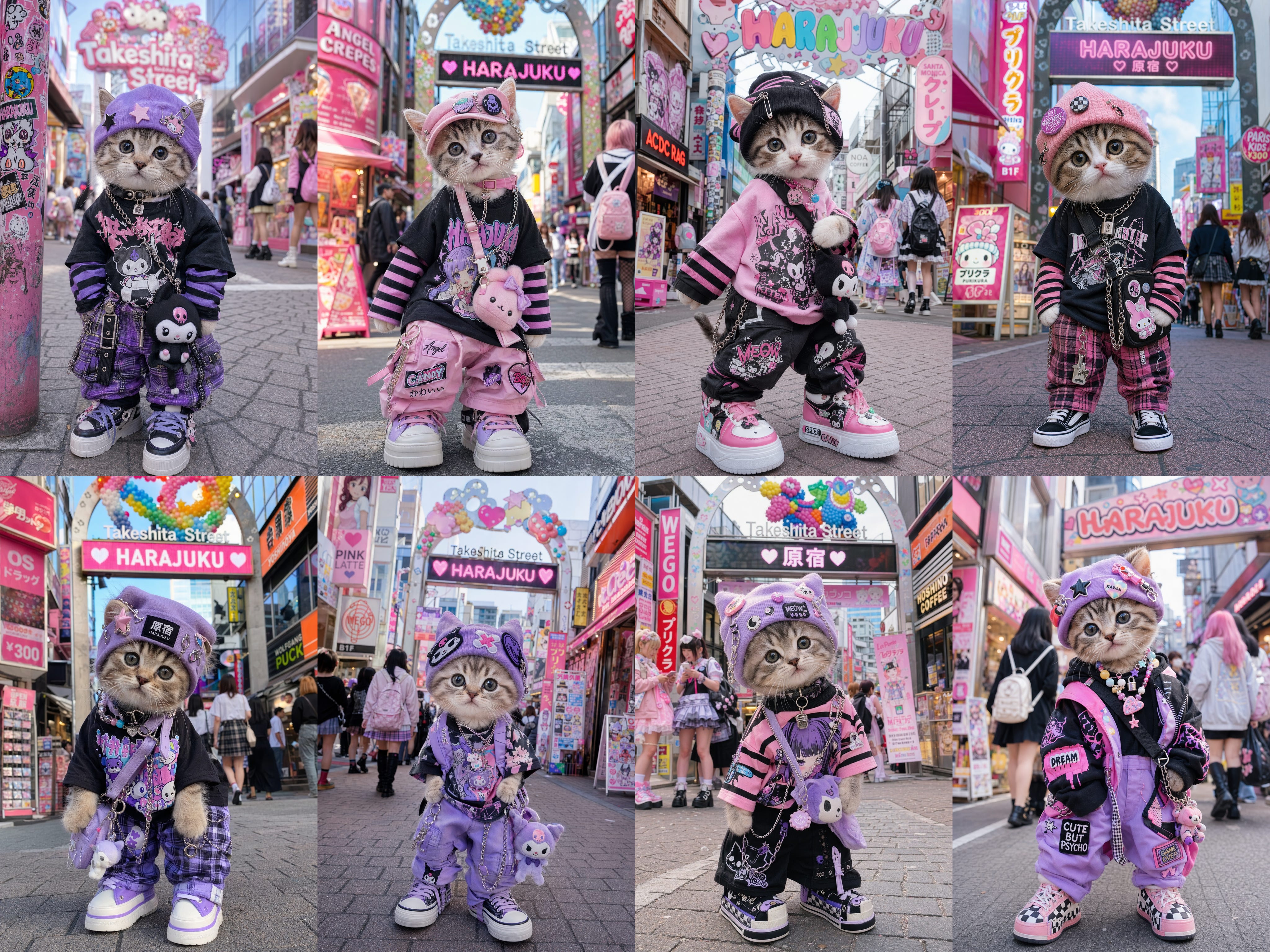
* Up to 8 consistent images from a single prompt, preserving character and object continuity
## Node Overview
GPT-Image-2 is selected as a `model` option on the **OpenAI GPT Image 1.5** node in the Node Library. The node calls OpenAI's image generation API synchronously and returns images that match the description.
To use the Partner Nodes, you need to ensure that you are logged in properly and using a permitted network environment. Please refer to the [Partner Nodes Overview](/tutorials/partner-nodes/overview) section of the documentation to understand the specific requirements for using the Partner Nodes.
Make sure your ComfyUI is updated.
* [Download ComfyUI](https://www.comfy.org/download)
* [Update Guide](/installation/update_comfyui)
Workflows in this guide can be found in the [Workflow Templates](/interface/features/template).
If you can't find them in the template, your ComfyUI may be outdated. (Desktop version's update will delay sometime)
If nodes are missing when loading a workflow, possible reasons:
1. You are not using the latest ComfyUI version (Nightly version)
2. Some nodes failed to import at startup
* The Desktop is base on ComfyUI stable release, it will auto-update when there is a new Desktop stable release available.
* [Cloud](https://cloud.comfy.org) will update after ComfyUI stable release.
So, if you find any core node missing in this document, it might be because the new core nodes have not yet been released in the latest stable version. Please wait for the next stable release.
## Getting Started
1. Update ComfyUI to the latest version (v0.19.4 or later), or use [Comfy Cloud](https://links.comfy.org/4u4o7Pv).
2. In the Node Library, search for **OpenAI GPT Image 1.5** and add the node.
3. Set the `model` field to `gpt-image-2`.
## Available workflows
### Text to image (T2I)
Generate an image from a text prompt with GPT-Image-2's reasoning-driven composition.
Try the Text-to-Image workflow instantly on Comfy Cloud.
Download the workflow JSON.

### Image edit
Edit an input image with high structural fidelity at up to 2K resolution.
Try the Image Edit workflow instantly on Comfy Cloud.
Download the workflow JSON.
## Key Capabilities
### Reasoning-driven generation
GPT-Image-2 plans the composition before rendering. This makes it well suited for prompts that have historically broken image models — for example, a poster with a seven-item bulleted list in 11pt Helvetica, centered — and produces clean output for dense text, small UI elements, iconography, infographics, maps, and slides.
### Image editing that preserves what matters
GPT-Image-2 handles targeted edits with structural fidelity, keeping everything outside the edit zone pixel-stable while applying the requested change cleanly at up to 2K resolution. Use it for tasks like colorizing black-and-white photos or shifting a scene from noon to dusk without warping faces, geometry, or fine detail.
### Up to eight consistent images per prompt
The model can return up to **eight distinct images from a single prompt** while preserving character and object continuity across the series. This is useful for storyboarding, reference sheets, character turnarounds, and product variants without seed-locking or prompt gymnastics. Feed the batch straight into a `Save Image` node or chain it into a video workflow downstream.
## Hybrid Pipelines
GPT-Image-2 slots naturally into hybrid pipelines: use it for the text-heavy hero frame, then hand off to your local models for upscaling, stylization, or video generation — the best model for each step, in one graph.