> ## Documentation Index
> Fetch the complete documentation index at: https://docs.comfy.org/llms.txt
> Use this file to discover all available pages before exploring further.
# Qwen Image 3.0 Pro - Advanced AI Image Generation
> Generate information-dense images with ultra-long prompts, precise small-text rendering, and multi-image editing using Qwen Image 3.0 Pro in ComfyUI
Qwen Image 3.0 Pro is Alibaba's third-generation image generation model, built around useful output: infographics, documents, and instruction-based editing rather than pure aesthetics. It is positioned as a tool for creating dense, information-rich visuals in a single pass, with the tagline "Rich Content, Authentic Details, Deep Knowledge."
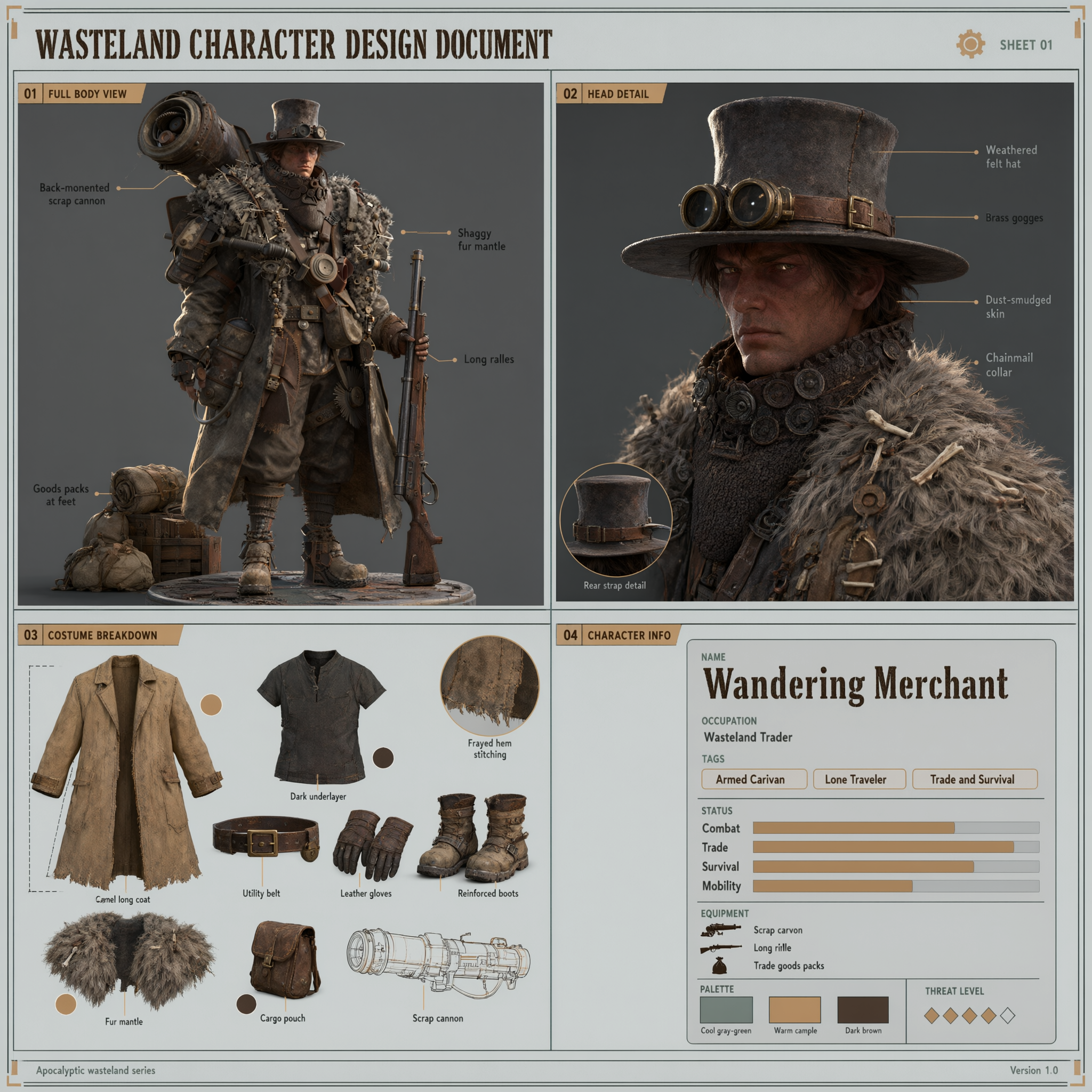
The model accepts prompts of up to 4,500 tokens, roughly 4.5 times the input length of the previous generation. It uses that budget to compose newspaper pages, multi-panel infographics, academic papers with legible math notation, and other high-density layouts without compressing the brief into a few sentences. It also renders legible small text down to about 10 pixels across 12 languages and 20+ fonts, and integrates world knowledge for tasks like weather maps and live-stream interface replication.
To use the Partner Nodes, you need to ensure that you are logged in properly and using a permitted network environment. Please refer to the [Partner Nodes Overview](/tutorials/partner-nodes/overview) section of the documentation to understand the specific requirements for using the Partner Nodes.
Make sure your ComfyUI is updated.
* [Download ComfyUI](https://www.comfy.org/download)
* [Update Guide](/installation/update_comfyui)
Workflows in this guide can be found in the [Workflow Templates](/interface/features/template).
If you can't find them in the template, your ComfyUI may be outdated.
If nodes are missing when loading a workflow, possible reasons:
1. You are not using the latest ComfyUI version (Nightly version)
2. Some nodes failed to import at startup
* [Cloud](https://cloud.comfy.org) will update after ComfyUI stable release.
So, if you find any core node missing in this document, it might be because the new core nodes have not yet been released in the latest stable version. Please wait for the next stable release.
## Key capabilities
* **Ultra-long prompts**: Accepts up to 4,500 tokens of instructions for detailed, information-dense compositions
* **Dense, practical layouts**: Generates full newspaper pages, multi-panel infographics, and academic documents with formulas in one pass
* **Small text rendering**: Produces legible text down to roughly 10px across 12 languages and 20+ fonts
* **World-knowledge integration**: Generates content grounded in real-world information, such as weather maps for named cities
* **Instruction-based editing**: Edits up to 3 reference images with targeted changes to objects, styles, or regions
* **Batch generation**: Generates 1 to 6 images per run
## Qwen Image 3.0 Pro text-to-image workflow
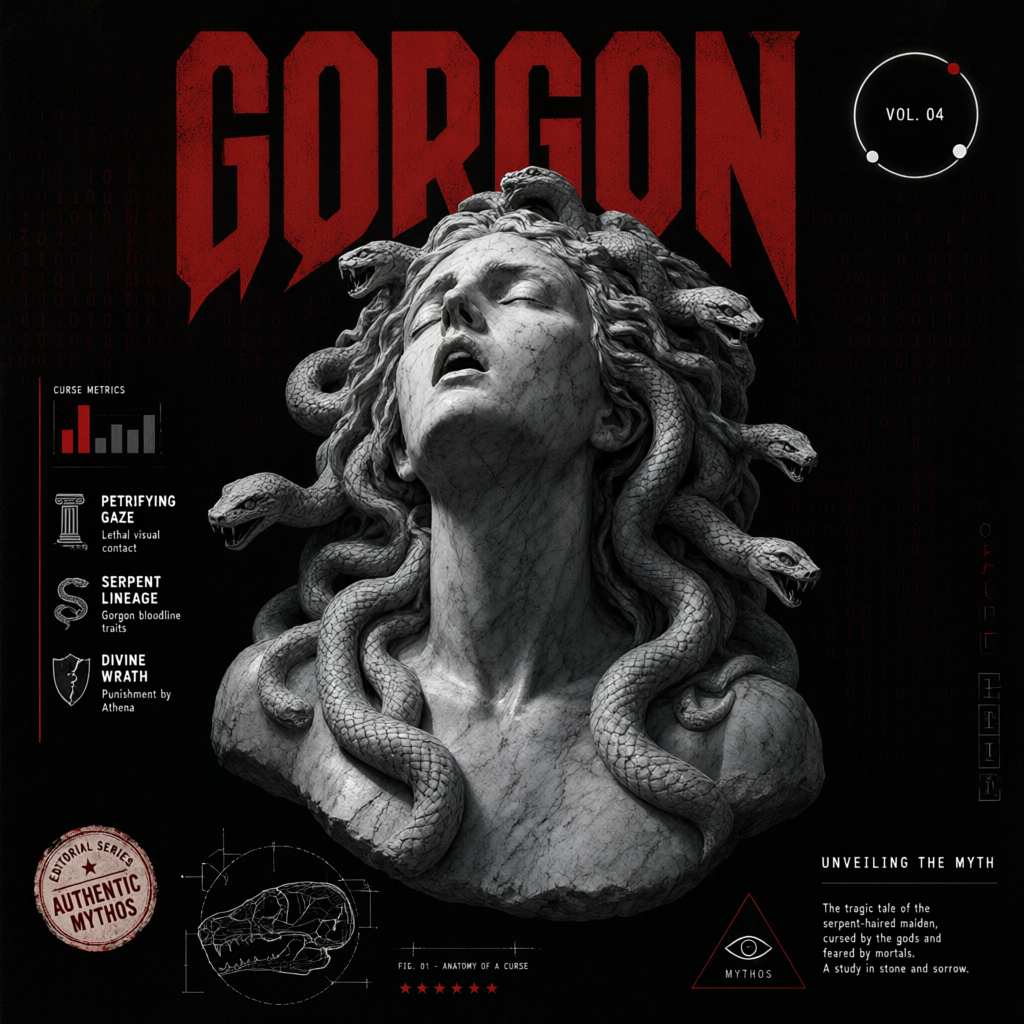
Generate a detailed image from a text prompt, with Qwen Image 3.0 Pro handling layout, typography, and composition.
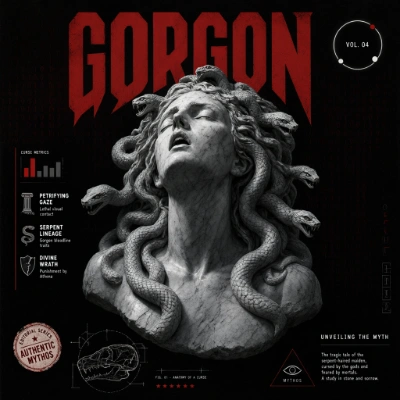 Open in Comfy Cloud
Download JSON or search "Qwen Image 3.0 Pro" in Template Library
## Qwen Image 3.0 Pro image edit workflow
Edit existing images with text instructions. Combine up to 3 reference images, change objects, swap styles, or recompose scenes while preserving the original structure.
Open in Comfy Cloud
Download JSON or search "Qwen Image 3.0 Pro" in Template Library

## Qwen Image 3.0 Pro image edit workflow
Edit existing images with text instructions. Combine up to 3 reference images, change objects, swap styles, or recompose scenes while preserving the original structure.
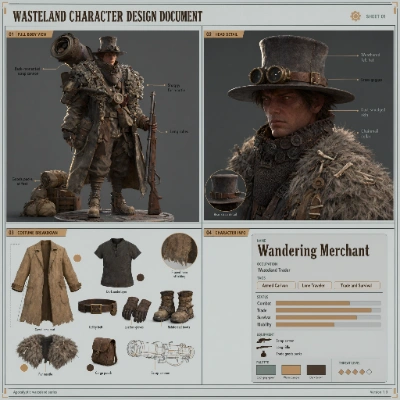 Open in Comfy Cloud
Download JSON or search "Qwen Image 3.0 Pro" in Template Library
Open in Comfy Cloud
Download JSON or search "Qwen Image 3.0 Pro" in Template Library
Input materials
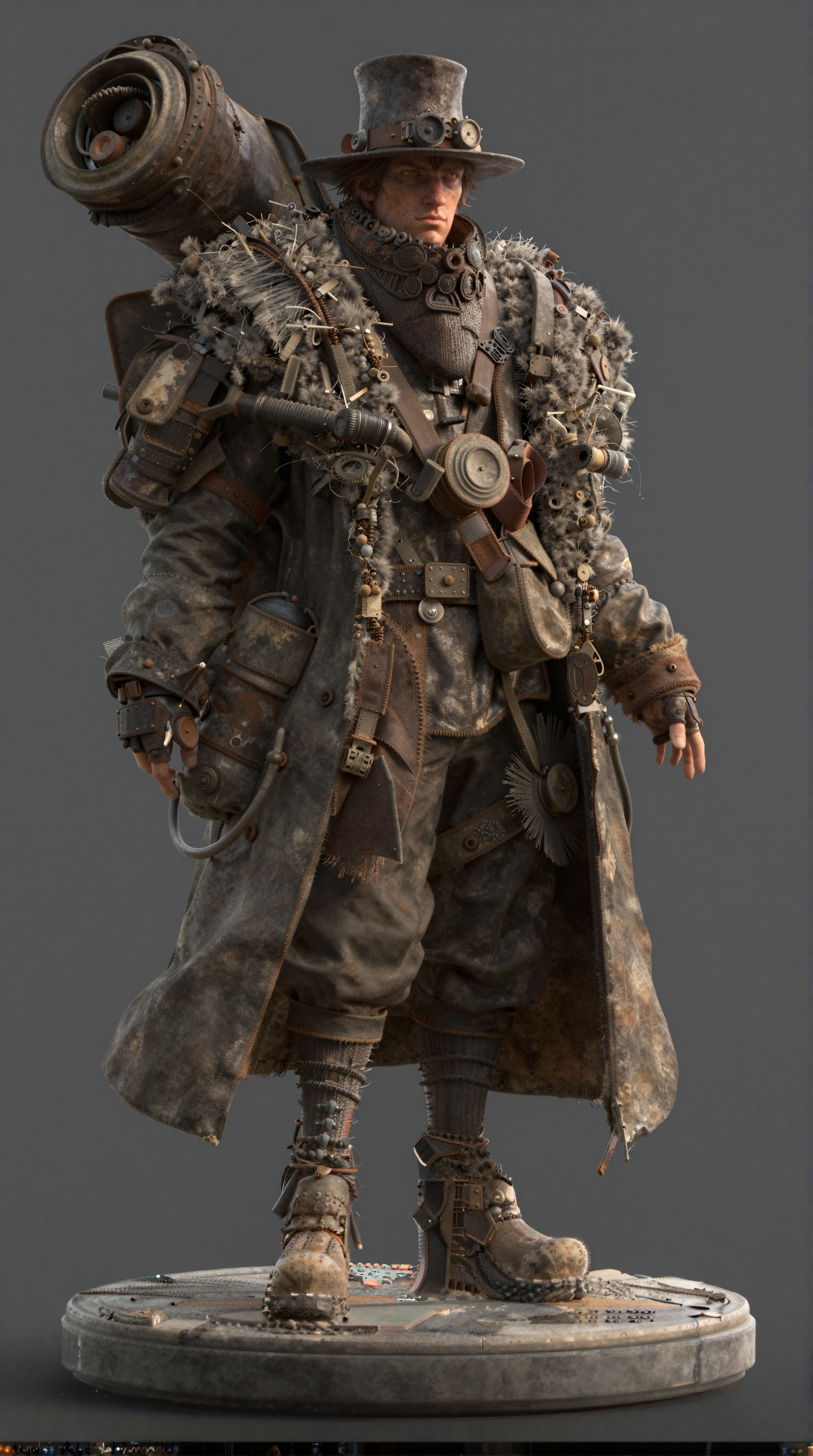
Download this sample input image to try the workflow:
Download sample input image
## Get started
1. Update ComfyUI to the latest version
2. Go to Template Library, search for `Qwen Image 3.0 Pro`