> ## Documentation Index
> Fetch the complete documentation index at: https://docs.comfy.org/llms.txt
> Use this file to discover all available pages before exploring further.
# Runway API Node Image Generation ComfyUI Official Example
> This article will introduce how to use Runway nodes in ComfyUI for text-to-image and reference-to-image generation
Runway is a company focused on generative AI, providing powerful image generation capabilities. Its models support features such as style transfer, image extension, and detail control. Currently, ComfyUI has integrated the Runway API, allowing you to directly use the related nodes in ComfyUI for image generation.
In this guide, we will walk you through the following workflows:
* Text-to-image
* Reference-to-image
To use the API nodes, you need to ensure that you are logged in properly and using a permitted network environment. Please refer to the [API Nodes Overview](/tutorials/partner-nodes/overview) section of the documentation to understand the specific requirements for using the API nodes.
Make sure your ComfyUI is updated.
* [Download ComfyUI](https://www.comfy.org/download)
* [Update Guide](/installation/update_comfyui)
Workflows in this guide can be found in the [Workflow Templates](/interface/features/template).
If you can't find them in the template, your ComfyUI may be outdated. (Desktop version's update will delay sometime)
If nodes are missing when loading a workflow, possible reasons:
1. You are not using the latest ComfyUI version (Nightly version)
2. Some nodes failed to import at startup
* The Desktop is base on ComfyUI stable release, it will auto-update when there is a new Desktop stable release available.
* [Cloud](https://cloud.comfy.org) will update after ComfyUI stable release.
So, if you find any core node missing in this document, it might be because the new core nodes have not yet been released in the latest stable version. Please wait for the next stable release.
## Runway Image Text-to-Image Workflow
### 1. Workflow File Download
The image below contains workflow information in its `metadata`. Please download and drag it into ComfyUI to load the corresponding workflow.

### 2. Complete the Workflow Execution Step by Step
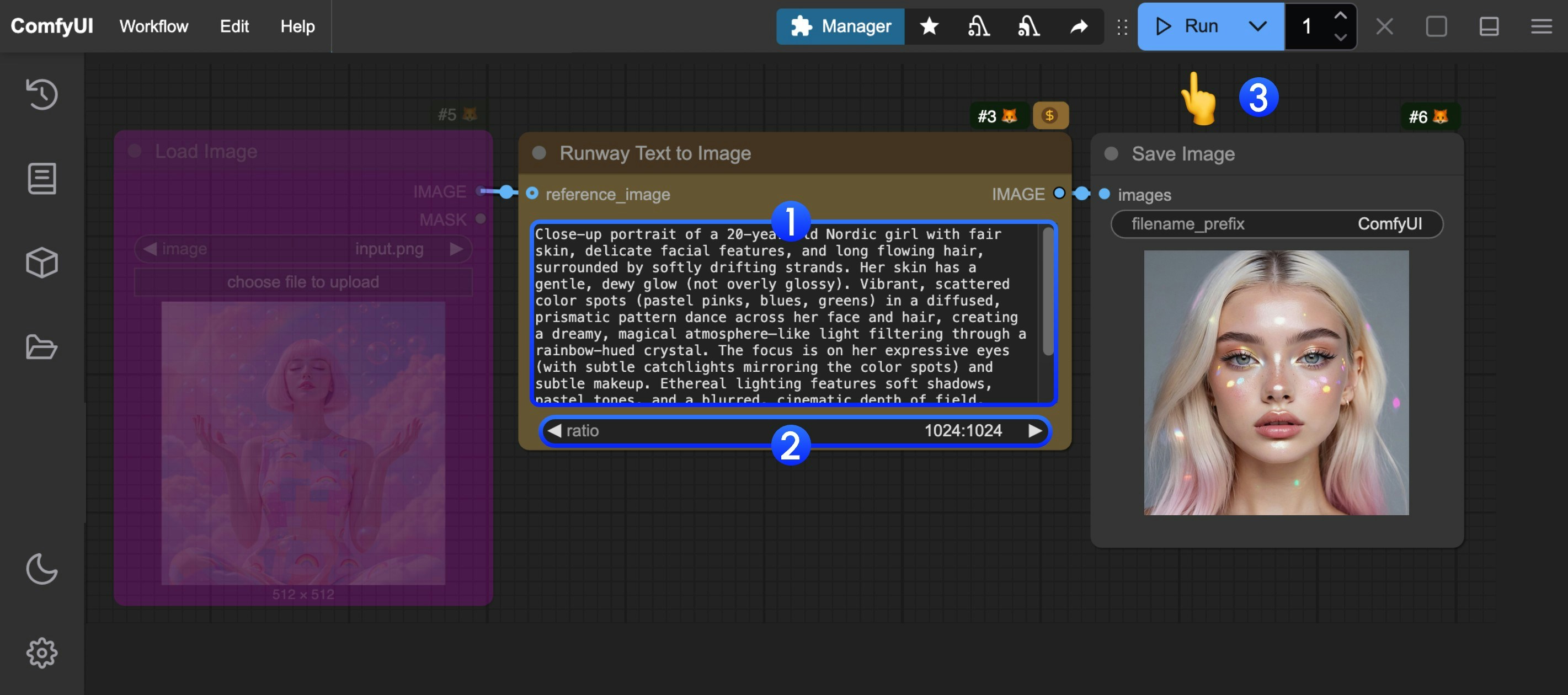 You can refer to the numbers in the image to complete the basic text-to-image workflow execution:
1. In the `Runway Text to Image` node, input your prompt in the `prompt` field
2. (Optional) Adjust the `ratio` setting to set different output aspect ratios
3. Click the `Run` button, or use the shortcut `Ctrl(cmd) + Enter` to execute image generation.
4. After waiting for the API to return results, you can view the generated image in the `Save Image` node (right-click to save). The corresponding image will also be saved to the `ComfyUI/output/` directory.
## Runway Image Reference-to-Image Workflow
### 1. Workflow and Input Image Download
The image below contains workflow information in its `metadata`. Please download and drag it into ComfyUI to load the corresponding workflow.

Download the image below for input

### 2. Complete the Workflow Execution Step by Step
You can refer to the numbers in the image to complete the basic text-to-image workflow execution:
1. In the `Runway Text to Image` node, input your prompt in the `prompt` field
2. (Optional) Adjust the `ratio` setting to set different output aspect ratios
3. Click the `Run` button, or use the shortcut `Ctrl(cmd) + Enter` to execute image generation.
4. After waiting for the API to return results, you can view the generated image in the `Save Image` node (right-click to save). The corresponding image will also be saved to the `ComfyUI/output/` directory.
## Runway Image Reference-to-Image Workflow
### 1. Workflow and Input Image Download
The image below contains workflow information in its `metadata`. Please download and drag it into ComfyUI to load the corresponding workflow.

Download the image below for input

### 2. Complete the Workflow Execution Step by Step
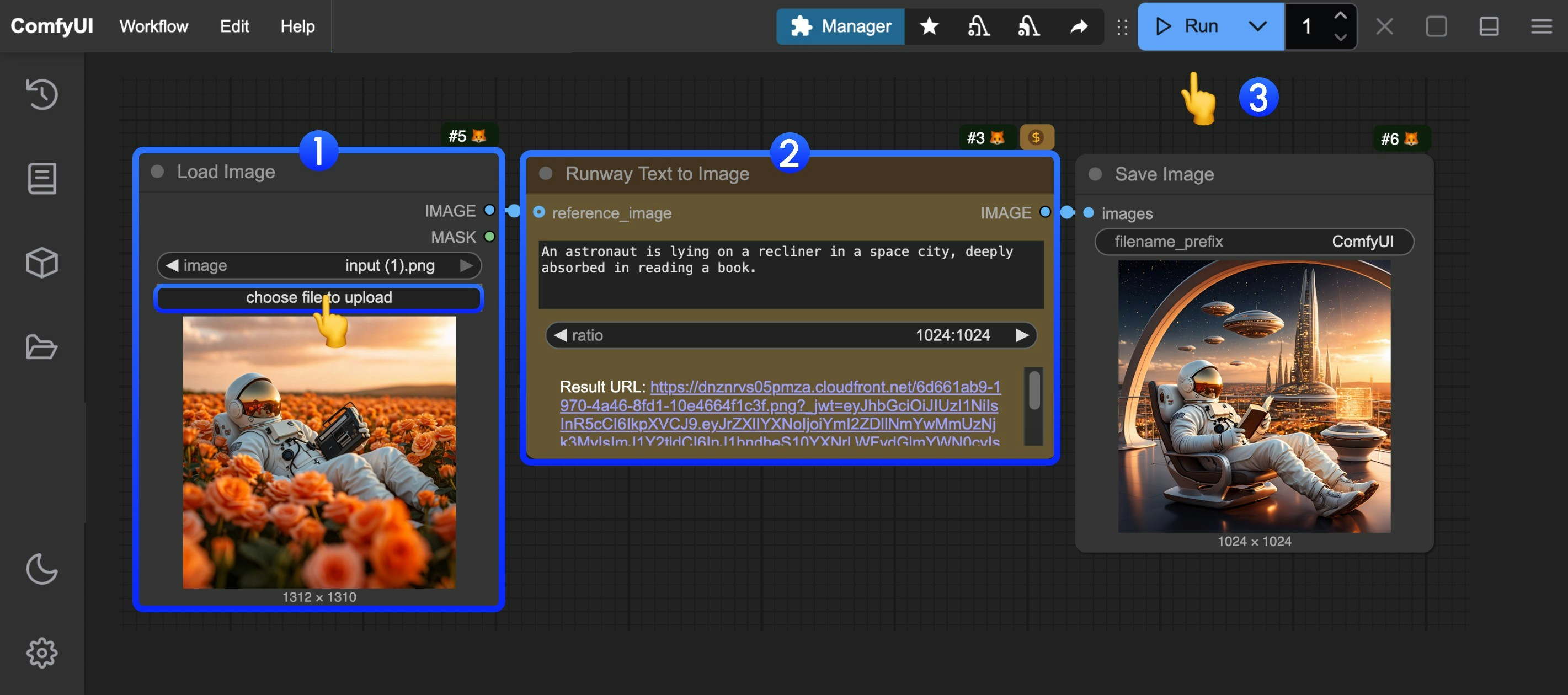 You can refer to the numbers in the image to complete the basic reference-to-image workflow execution:
1. In the `Load Image` node, load the provided input image
2. In the `Runway Text to Image` node, input your prompt in the `prompt` field and adjust dimensions
3. Click the `Run` button, or use the shortcut `Ctrl(cmd) + Enter` to execute image generation.
4. After waiting for the API to return results, you can view the generated image in the `Save Image` node (right-click to save). The corresponding image will also be saved to the `ComfyUI/output/` directory.
Built with [Mintlify](https://mintlify.com).
You can refer to the numbers in the image to complete the basic reference-to-image workflow execution:
1. In the `Load Image` node, load the provided input image
2. In the `Runway Text to Image` node, input your prompt in the `prompt` field and adjust dimensions
3. Click the `Run` button, or use the shortcut `Ctrl(cmd) + Enter` to execute image generation.
4. After waiting for the API to return results, you can view the generated image in the `Save Image` node (right-click to save). The corresponding image will also be saved to the `ComfyUI/output/` directory.
Built with [Mintlify](https://mintlify.com).