> ## Documentation Index
> Fetch the complete documentation index at: https://docs.comfy.org/llms.txt
> Use this file to discover all available pages before exploring further.
# Runway Video Generation Workflow in ComfyUI
> How to run the Runway Gen4 turbo image-to-video workflow in ComfyUI, locally or on Comfy Cloud
This guide shows how to run the Runway video generation workflow in ComfyUI. For what the models are and what they do best, see the [Runway Video Generation overview](/tutorials/partner-nodes/runway/video-generation).
**End of life (EOL)**: **Runway Gen3a Turbo** and **Runway First-Last-Frame to Video** reached end of life on **July 30, 2026**. Runway retired Gen-3 Alpha Turbo on that date. The related Partner Nodes (`RunwayImageToVideoNodeGen3a`, `RunwayFirstLastFrameNode`) and workflow templates are deprecated and no longer supported.
### Retired workflows and replacements
| Removed template | Suggested replacement |
| :-------------------------------------- | :----------------------------------------------------------------------------------------------------------------------------------------------------------------- |
| `api_runway_gen3a_turbo_image_to_video` | [`api_runway_gen4_turo_image_to_video`](https://github.com/Comfy-Org/workflow_templates/blob/main/templates/api_runway_gen4_turo_image_to_video.json) (Gen4 Turbo) |
| `api_runway_first_last_frame` | [Kling 3.0 FLF2V](/tutorials/partner-nodes/kling/kling-3-0) (`api_kling_v3_flf2v`) or other first-last-frame templates |
To use the Partner Nodes, you need to ensure that you are logged in properly and using a permitted network environment. Please refer to the [Partner Nodes Overview](/tutorials/partner-nodes/overview) section of the documentation to understand the specific requirements for using the Partner Nodes.
Make sure your ComfyUI is updated.
* [Download ComfyUI](https://www.comfy.org/download)
* [Update Guide](/installation/update_comfyui)
Workflows in this guide can be found in the [Workflow Templates](/interface/features/template).
If you can't find them in the template, your ComfyUI may be outdated.
If nodes are missing when loading a workflow, possible reasons:
1. You are not using the latest ComfyUI version (Nightly version)
2. Some nodes failed to import at startup
* [Cloud](https://cloud.comfy.org) will update after ComfyUI stable release.
So, if you find any core node missing in this document, it might be because the new core nodes have not yet been released in the latest stable version. Please wait for the next stable release.
## Gen4 turbo Image-to-Video Workflow
### 1. Workflow File Download
The video below contains workflow information in its `metadata`. Please download and drag it into ComfyUI to load the corresponding workflow.
Download Json Format Workflow File
Download the image below as input image

### 2. Complete the Workflow Execution Step by Step
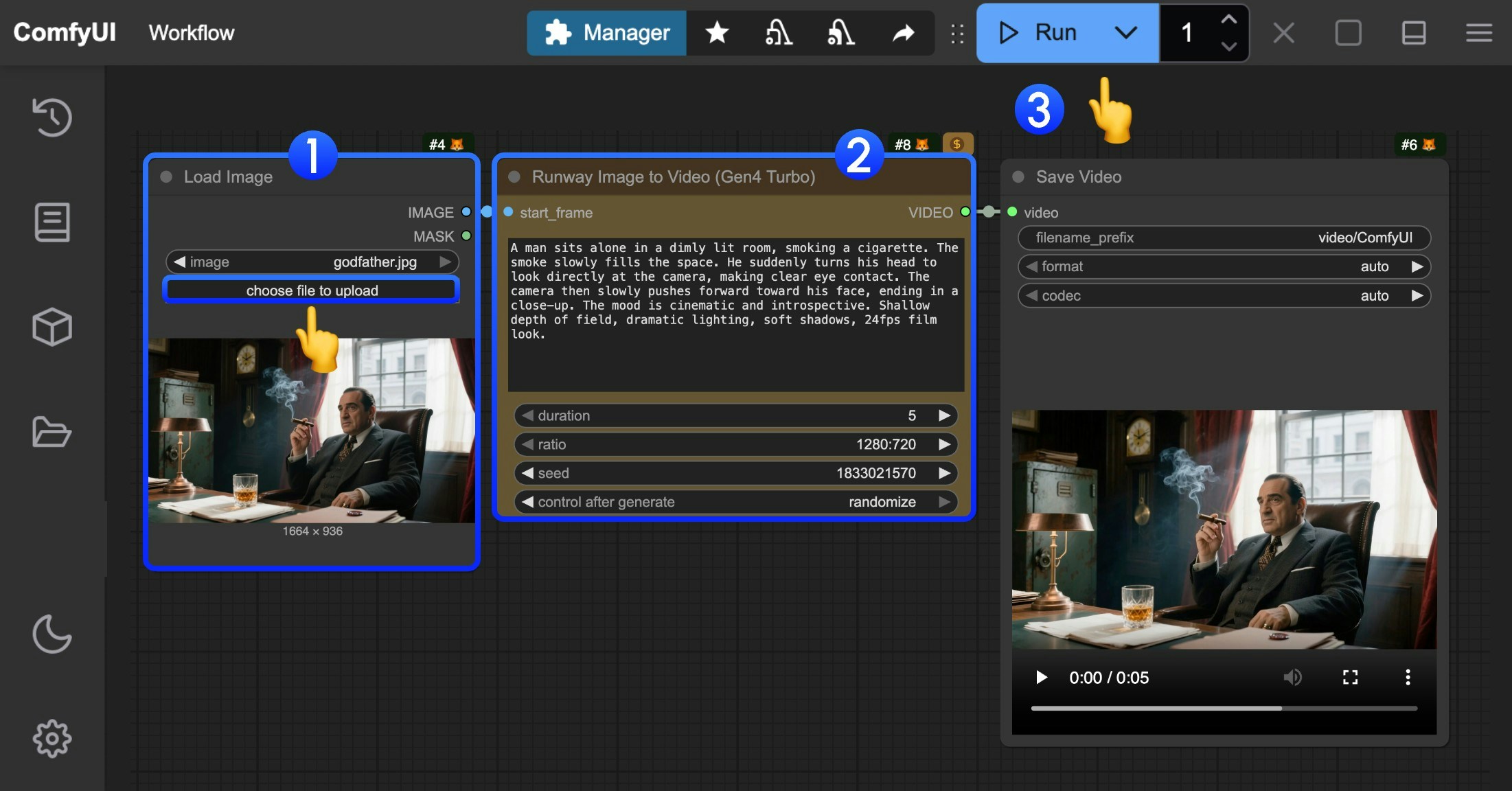 You can refer to the numbers in the image to complete the basic image-to-video workflow execution:
1. In the `Load Image` node, load the provided input image
2. In the `Runway Gen4 turbo` node, set the `prompt` to describe video content, modify the `duration` parameter to set video length, modify the `ratio` parameter to set video aspect ratio
3. Click the `Run` button, or use the shortcut `Ctrl(cmd) + Enter` to execute video generation.
4. After waiting for the API to return results, you can view the generated video in the `Save Video` node (right-click to save). The corresponding video will also be saved to the `ComfyUI/output/` directory.
You can refer to the numbers in the image to complete the basic image-to-video workflow execution:
1. In the `Load Image` node, load the provided input image
2. In the `Runway Gen4 turbo` node, set the `prompt` to describe video content, modify the `duration` parameter to set video length, modify the `ratio` parameter to set video aspect ratio
3. Click the `Run` button, or use the shortcut `Ctrl(cmd) + Enter` to execute video generation.
4. After waiting for the API to return results, you can view the generated video in the `Save Video` node (right-click to save). The corresponding video will also be saved to the `ComfyUI/output/` directory.