> ## Documentation Index
> Fetch the complete documentation index at: https://docs.comfy.org/llms.txt
> Use this file to discover all available pages before exploring further.
# Stability AI Stable Audio 2.5 API Node ComfyUI Official workflow example
> This article will introduce how to use Stability AI Stable Audio 2.5 Partner node's text-to-audio, audio-to-audio and audio-inpainting capabilities in ComfyUI
The Stability AI Stable Audio 2.5 Partner node allows you to use Stability AI's latest audio generation model to create high-quality music through text prompts, audio transformations, and audio inpainting capabilities.
Stable Audio 2.5 is designed for enterprise use, featuring improved musical structure, better prompt adherence, and the ability to generate minutes-long compositions in seconds. The model offers three main workflows: **Text-to-Audio** for generating music from descriptions, **Audio-to-Audio** for transforming existing audio into new compositions, and **Audio Inpainting** for completing or extending existing tracks.
Trained exclusively on licensed audio, Stable Audio 2.5 is commercially safe and perfect for advertisers, game studios, and content creators who need professional-quality audio generation with enterprise-grade reliability.
To use the API nodes, you need to ensure that you are logged in properly and using a permitted network environment. Please refer to the [API Nodes Overview](/tutorials/partner-nodes/overview) section of the documentation to understand the specific requirements for using the API nodes.
Make sure your ComfyUI is updated.
* [Download ComfyUI](https://www.comfy.org/download)
* [Update Guide](/installation/update_comfyui)
Workflows in this guide can be found in the [Workflow Templates](/interface/features/template).
If you can't find them in the template, your ComfyUI may be outdated. (Desktop version's update will delay sometime)
If nodes are missing when loading a workflow, possible reasons:
1. You are not using the latest ComfyUI version (Nightly version)
2. Some nodes failed to import at startup
* The Desktop is base on ComfyUI stable release, it will auto-update when there is a new Desktop stable release available.
* [Cloud](https://cloud.comfy.org) will update after ComfyUI stable release.
So, if you find any core node missing in this document, it might be because the new core nodes have not yet been released in the latest stable version. Please wait for the next stable release.
## Text-to-Audio Workflow
For text-to-audio, you can generate audio through text prompts. You need to describe the music you want to generate.
Download JSON Workflow
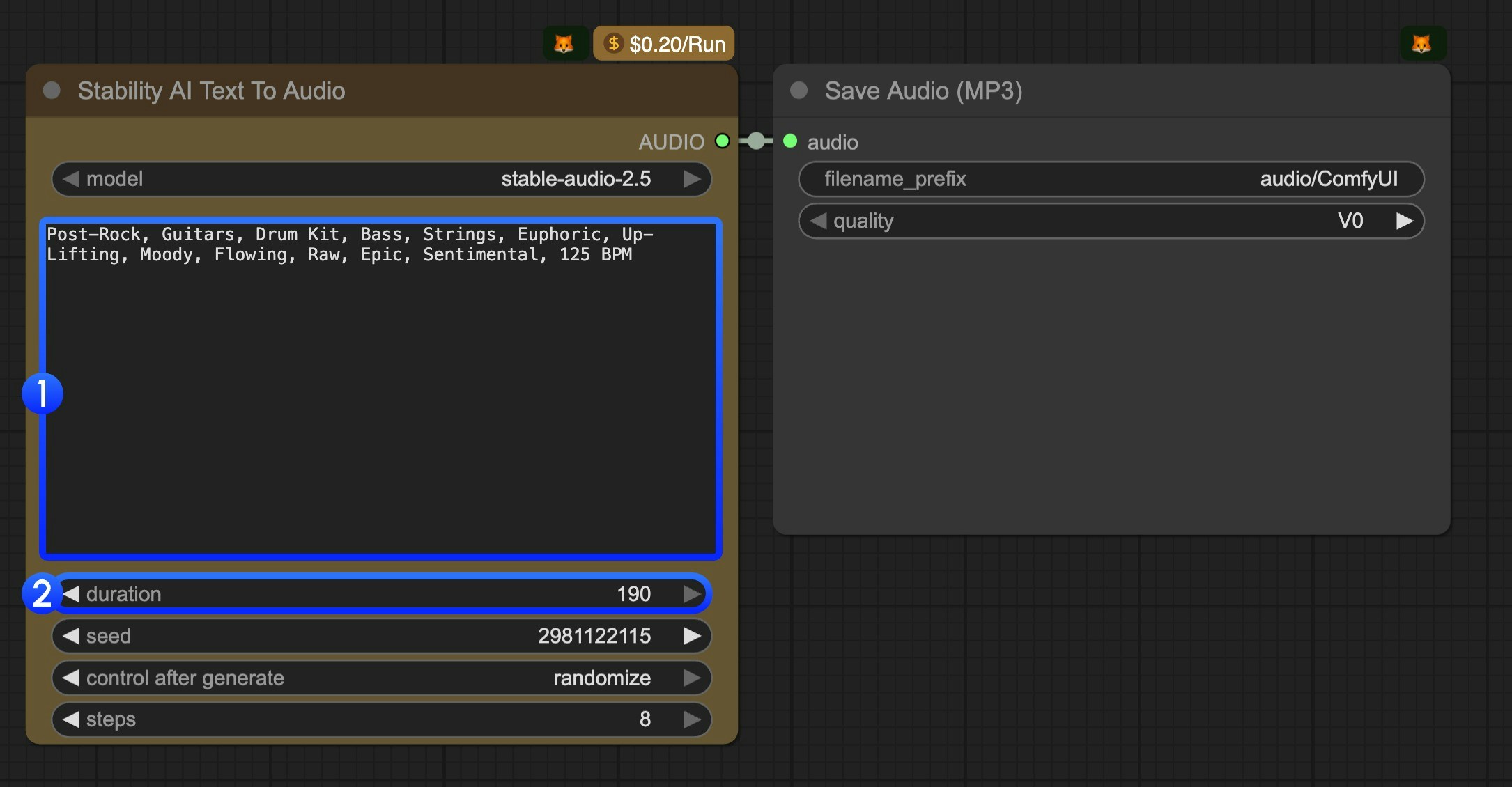 1. Modify the text prompt. You should use keywords to describe the music you want to generate.
2. (Optional) Modify the `duration` parameter. It's `190` by default.
3. Click the `Run` button or use the shortcut `Ctrl(cmd) + Enter` to execute the audio generation. The audio will be saved to the `ComfyUI/output/audio` directory.
## Audio-to-Audio Workflow
Audio-to-audio is basically music re-sampling. You can use it to generate new music from a given piece of music, or you can just hum a melody, and then the model will generate new music based on the input audio.
1. Modify the text prompt. You should use keywords to describe the music you want to generate.
2. (Optional) Modify the `duration` parameter. It's `190` by default.
3. Click the `Run` button or use the shortcut `Ctrl(cmd) + Enter` to execute the audio generation. The audio will be saved to the `ComfyUI/output/audio` directory.
## Audio-to-Audio Workflow
Audio-to-audio is basically music re-sampling. You can use it to generate new music from a given piece of music, or you can just hum a melody, and then the model will generate new music based on the input audio.
Download JSON Workflow
Download Input Audio
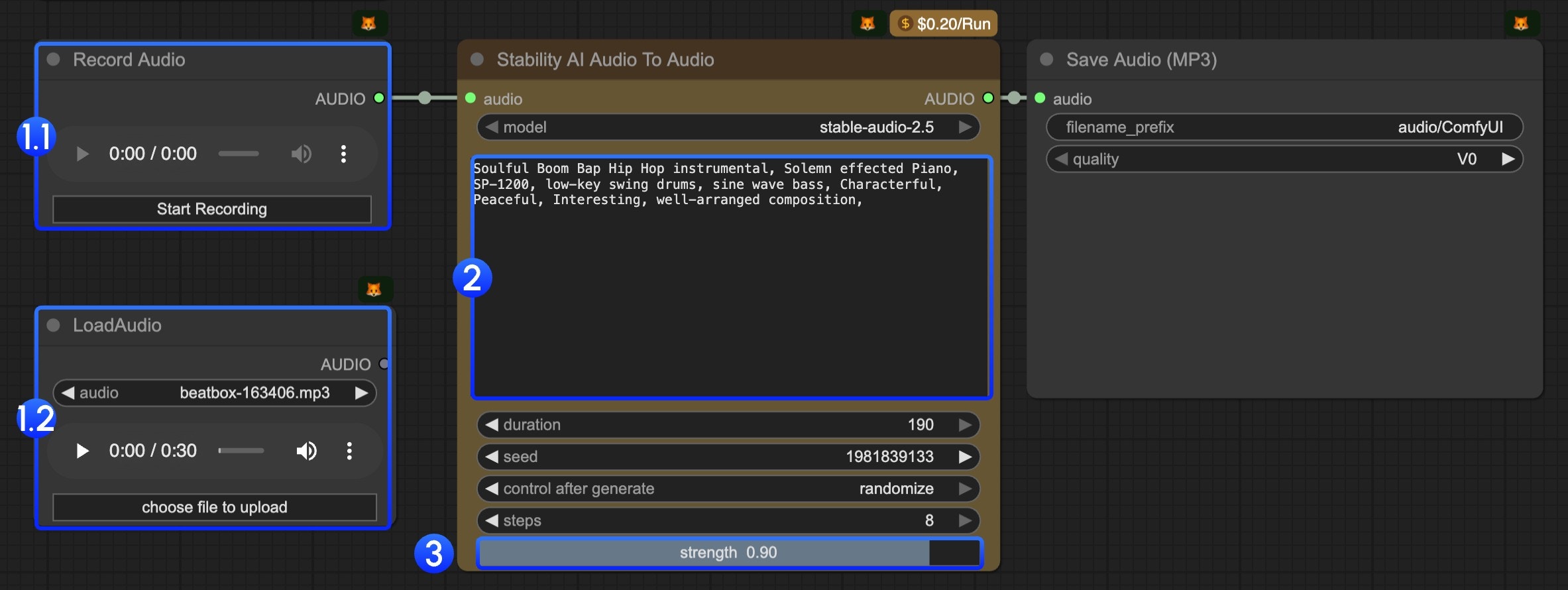 1. In this workflow, we have provided two nodes for you to input the audio(at least 6 seconds) you want to edit:
* 1.1 `Record Audio` node: You can use it to record any of your music ideas, such as a hummed melody. It should be at least 6 seconds.
* 1.2 `LoadAudio` node: You can use it to upload audio that you want to be used in this workflow.
2. Modify the text prompt. You should use keywords to describe the music you want to generate.
3. The `strength` parameter is used to control the difference from the original audio. The lower the value, the more similar the generated audio will be to the original audio.
4. Click the `Run` button or use the shortcut `Ctrl(cmd) + Enter` to execute the audio generation. The audio will be saved to the `ComfyUI/output/audio` directory.
## Audio Inpainting Workflow
Audio inpainting is used to complete or extend existing tracks. You can use it to complete the missing part of music or extend the music to a longer duration.
You need to set where you want to start and end the inpainting.
1. In this workflow, we have provided two nodes for you to input the audio(at least 6 seconds) you want to edit:
* 1.1 `Record Audio` node: You can use it to record any of your music ideas, such as a hummed melody. It should be at least 6 seconds.
* 1.2 `LoadAudio` node: You can use it to upload audio that you want to be used in this workflow.
2. Modify the text prompt. You should use keywords to describe the music you want to generate.
3. The `strength` parameter is used to control the difference from the original audio. The lower the value, the more similar the generated audio will be to the original audio.
4. Click the `Run` button or use the shortcut `Ctrl(cmd) + Enter` to execute the audio generation. The audio will be saved to the `ComfyUI/output/audio` directory.
## Audio Inpainting Workflow
Audio inpainting is used to complete or extend existing tracks. You can use it to complete the missing part of music or extend the music to a longer duration.
You need to set where you want to start and end the inpainting.
Download JSON Workflow
Download Input Audio
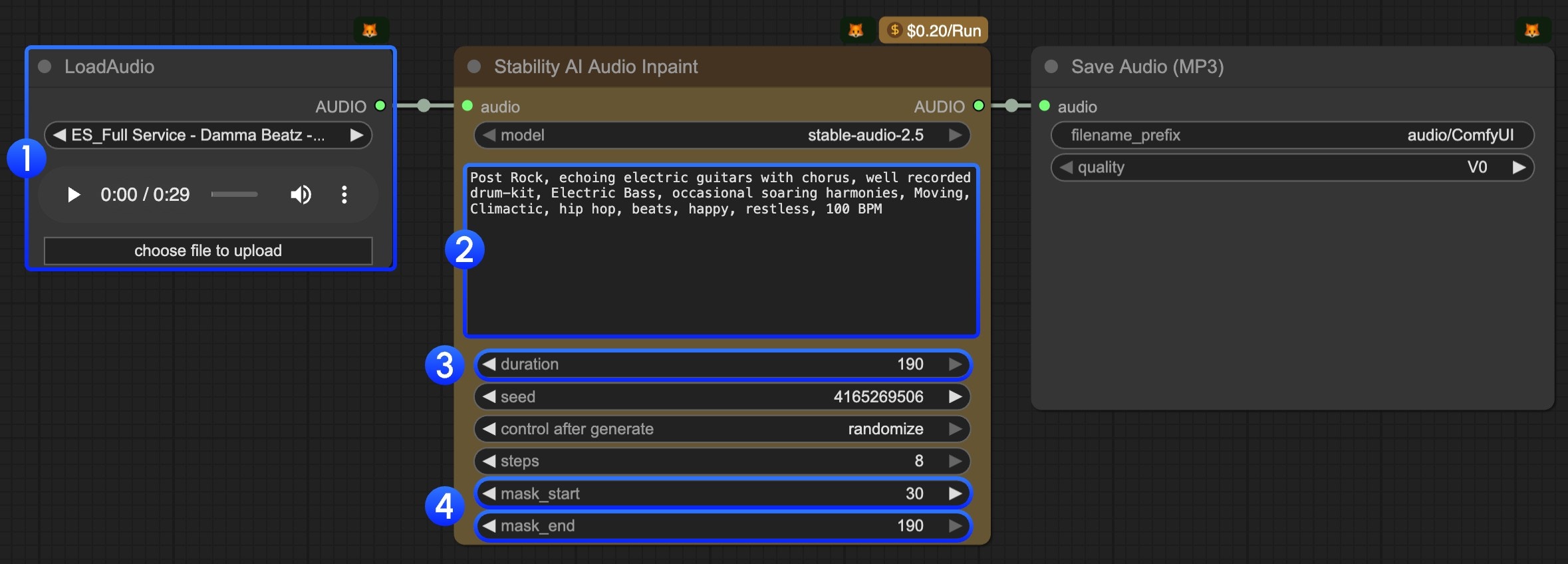 1. Upload audio to the `LoadAudio` node.
2. Modify the text prompt. You should use keywords to describe the music you want to generate.
3. (Optional) Modify the `duration` parameter. It's `190` by default.
4. (Important) Modify the `mask_start` and `mask_end` parameters. You need to set where you want to start and end the inpainting.
5. Click the `Run` button or use the shortcut `Ctrl(cmd) + Enter` to execute the audio generation. The audio will be saved to the `ComfyUI/output/audio` directory.
Built with [Mintlify](https://mintlify.com).
1. Upload audio to the `LoadAudio` node.
2. Modify the text prompt. You should use keywords to describe the music you want to generate.
3. (Optional) Modify the `duration` parameter. It's `190` by default.
4. (Important) Modify the `mask_start` and `mask_end` parameters. You need to set where you want to start and end the inpainting.
5. Click the `Run` button or use the shortcut `Ctrl(cmd) + Enter` to execute the audio generation. The audio will be saved to the `ComfyUI/output/audio` directory.
Built with [Mintlify](https://mintlify.com).