> ## Documentation Index
> Fetch the complete documentation index at: https://docs.comfy.org/llms.txt
> Use this file to discover all available pages before exploring further.
# Tencent Hunyuan Image 3.5 Preview in ComfyUI: Text to Image and Edit Workflows
> Generate and edit images with Tencent Hunyuan Image 3.5 Preview in ComfyUI: multilingual text rendering, up to 5 reference images, and 4K output upscaled from 2K.
Tencent Hunyuan Image 3.5 Preview is Tencent's preview image model, available in ComfyUI through Partner Nodes. It generates images from text and edits existing images from an instruction, with a focus on multilingual text rendering, photorealism, and consistency between a reference image and the edited result.
Compared with earlier Hunyuan image models, HY Image 3.5 Preview strengthens three areas: multilingual text rendering and typesetting for advertising, infographics, and UI design; photorealism and stylistic range across cinematic, comic, commercial photography, and illustration; and editing consistency that preserves the key traits of people and products across background, outfit, and style changes.
Two workflows are available. `Tencent HY Image: Text to Image` generates an image from a prompt, and `Tencent HY Image: Edit` edits or combines up to five reference images. Both run on Tencent's servers through Comfy API, so no model downloads or local GPU are required.
## What HY Image 3.5 Preview is good at
* **Multilingual text and typesetting**: renders legible text for posters, infographics, and UI mockups instead of plain scene images
* **Photorealistic range**: covers cinematic stills, comic art, commercial photography, and illustration from short prompts
* **Editing consistency**: keeps the defining traits of people and products stable when you change the background, outfit, or style
* **Up to 5 reference images**: combine several images in one edit and reference each one in the prompt
* **Output up to 4K**: renders up to 2K natively and upscales 4K output from a 2K render
To use the Partner Nodes, you need to ensure that you are logged in properly and using a permitted network environment. Please refer to the [Partner Nodes Overview](/tutorials/partner-nodes/overview) section of the documentation to understand the specific requirements for using the Partner Nodes.
Make sure your ComfyUI is updated.
* [Download ComfyUI](https://www.comfy.org/download)
* [Update Guide](/installation/update_comfyui)
Workflows in this guide can be found in the [Workflow Templates](/interface/features/template).
If you can't find them in the template, your ComfyUI may be outdated.
If nodes are missing when loading a workflow, possible reasons:
1. You are not using the latest ComfyUI version (Nightly version)
2. Some nodes failed to import at startup
* [Cloud](https://cloud.comfy.org) will update after ComfyUI stable release.
So, if you find any core node missing in this document, it might be because the new core nodes have not yet been released in the latest stable version. Please wait for the next stable release.
## Tencent HY Image 3.5 Preview text to image workflow
Generate one image from a text prompt. The model rewrites and expands the prompt before rendering, so short prompts work.
Open in Comfy Cloud
Download JSON or search "HY Image 3.5" in Template Library
### Steps to run the workflow
1. Edit the `prompt` in the `Tencent HY Image: Text to Image` node
2. (Optional) Set `aspect_ratio` to control the output shape. With `auto` the model picks the aspect ratio from the prompt, and `auto` is not available at 4K
3. (Optional) Change `resolution` from the default `2K`. `1K` is about 1024x1024 and `2K` is about 2048x2048 pixels. `4K` output is rendered at 2K and then upscaled by the model
4. (Optional) Switch `resolution` to `custom` to set an exact `width` and `height` instead. Both must be multiples of 16 and the total area can be up to 4096x4096. Above roughly a 6:1 ratio the model starts repeating the subject
5. Click `Run` or press `Ctrl(cmd) + Enter` to generate the image
6. View the result in the `Save Image` node
## Tencent HY Image 3.5 Preview image edit workflow
Edit or combine up to five reference images from a text instruction. Use it to change a background, swap an outfit, restyle a product shot, or merge several references into one image while keeping the subject's defining traits.
 Open in Comfy Cloud
Download JSON or search "HY Image 3.5" in Template Library
Open in Comfy Cloud
Download JSON or search "HY Image 3.5" in Template Library
Input materials
Download this sample input image to try the workflow:
Download sample input image

### Steps to run the workflow
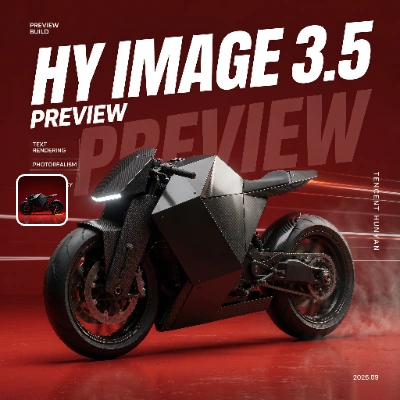
1. Upload the sample image into the `Load Image` node that is already connected to the `Tencent HY Image: Edit` node. The downloaded workflow refers to the file by name (`futuristic_brutalist_motorcycle.png`), so that node stays empty until you upload it. To edit your own images instead, connect 1 to 5 images to the `images` input of the `Tencent HY Image: Edit` node
2. Write the editing instruction in `prompt`. Reference the inputs in order as `@Image1`, `@Image2`, and so on. A batched input counts once per image
3. (Optional) Set `aspect_ratio` and `resolution`. With `auto`, the output follows the aspect ratio of the first reference image. `4K` output is rendered at 2K and then upscaled by the model
4. (Optional) Set `reference_detail` to `high` to let the model see references at up to 2048x2048 pixels instead of 1024x1024. This preserves small text and fine detail better but takes longer
5. Click `Run` or press `Ctrl(cmd) + Enter` to generate the image
6. View the result in the `Save Image` node
### Prompting tips
* Describe the edit and the parts that must stay unchanged separately, for example `@Image1 change the background to a night market, keep the subject and jacket unchanged`
* Number references in the order they are connected. The numbering in the prompt has to match the input order
* `watermark` sits in the node's advanced options and is off by default. Turn it on to add an AI-generated watermark to the output
## Get started
1. Update ComfyUI to the latest version, or use [Comfy Cloud](https://cloud.comfy.org/?utm_source=docs\&utm_medium=referral\&utm_campaign=hy-image-3-5)
2. Go to Template Library and search for `HY Image 3.5`
3. Open the text to image or image edit workflow and run it