> ## Documentation Index
> Fetch the complete documentation index at: https://docs.comfy.org/llms.txt
> Use this file to discover all available pages before exploring further.
# ComfyUI Hunyuan Video Examples
> This guide shows how to use Hunyuan Text-to-Video and Image-to-Video workflows in ComfyUI
Hunyuan Video series is developed and open-sourced by [Tencent](https://huggingface.co/tencent), featuring a hybrid architecture that supports both [Text-to-Video](https://github.com/Tencent/HunyuanVideo) and [Image-to-Video](https://github.com/Tencent/HunyuanVideo-I2V) generation with a parameter scale of 13B.
Technical features:
* **Core Architecture:** Uses a DiT (Diffusion Transformer) architecture similar to Sora, effectively fusing text, image, and motion information to improve consistency, quality, and alignment between generated video frames. A unified full-attention mechanism enables multi-view camera transitions while ensuring subject consistency.
* **3D VAE:** The custom 3D VAE compresses videos into a compact latent space, making image-to-video generation more efficient.
* **Superior Image-Video-Text Alignment:** Utilizing MLLM text encoders that excel in both image and video generation, better following text instructions, capturing details, and performing complex reasoning.
You can learn more through the official repositories: [Hunyuan Video](https://github.com/Tencent/HunyuanVideo) and [Hunyuan Video-I2V](https://github.com/Tencent/HunyuanVideo-I2V).
This guide will walk you through setting up both **Text-to-Video** and **Image-to-Video** workflows in ComfyUI.
The workflow images in this tutorial contain metadata with model download information.
Simply drag them into ComfyUI or use the menu `Workflows` -> `Open (ctrl+o)` to load the corresponding workflow, which will prompt you to download the required models.
Alternatively, this guide provides direct model links if automatic downloads fail or you are not using the Desktop version. All models are available [here](https://huggingface.co/Comfy-Org/HunyuanVideo_repackaged/tree/main/split_files) for download.
Make sure your ComfyUI is updated.
* [Download ComfyUI](https://www.comfy.org/download)
* [Update Guide](/installation/update_comfyui)
Workflows in this guide can be found in the [Workflow Templates](/interface/features/template).
If you can't find them in the template, your ComfyUI may be outdated. (Desktop version's update will delay sometime)
If nodes are missing when loading a workflow, possible reasons:
1. You are not using the latest ComfyUI version (Nightly version)
2. Some nodes failed to import at startup
* The Desktop is base on ComfyUI stable release, it will auto-update when there is a new Desktop stable release available.
* [Cloud](https://cloud.comfy.org) will update after ComfyUI stable release.
So, if you find any core node missing in this document, it might be because the new core nodes have not yet been released in the latest stable version. Please wait for the next stable release.
## Common Models for All Workflows
The following models are used in both Text-to-Video and Image-to-Video workflows. Please download and save them to the specified directories:
* [clip\_l.safetensors](https://huggingface.co/Comfy-Org/HunyuanVideo_repackaged/resolve/main/split_files/text_encoders/clip_l.safetensors?download=true)
* [llava\_llama3\_fp8\_scaled.safetensors](https://huggingface.co/Comfy-Org/HunyuanVideo_repackaged/resolve/main/split_files/text_encoders/llava_llama3_fp8_scaled.safetensors?download=true)
* [hunyuan\_video\_vae\_bf16.safetensors](https://huggingface.co/Comfy-Org/HunyuanVideo_repackaged/resolve/main/split_files/vae/hunyuan_video_vae_bf16.safetensors?download=true)
Storage location:
```
ComfyUI/
├── models/
│ ├── text_encoders/
│ │ ├── clip_l.safetensors
│ │ └── llava_llama3_fp8_scaled.safetensors
│ ├── vae/
│ │ └── hunyuan_video_vae_bf16.safetensors
```
## Hunyuan Text-to-Video Workflow
Hunyuan Text-to-Video was open-sourced in December 2024, supporting 5-second short video generation through natural language descriptions in both Chinese and English.
### 1. Workflow
Download the image below and drag it into ComfyUI to load the workflow:
### 2. Manual Models Installation
Download [hunyuan\_video\_t2v\_720p\_bf16.safetensors](https://huggingface.co/Comfy-Org/HunyuanVideo_repackaged/resolve/main/split_files/diffusion_models/hunyuan_video_t2v_720p_bf16.safetensors?download=true) and save it to the `ComfyUI/models/diffusion_models` folder.
Ensure you have all these model files in the correct locations:
```
ComfyUI/
├── models/
│ ├── text_encoders/
│ │ ├── clip_l.safetensors // Shared model
│ │ └── llava_llama3_fp8_scaled.safetensors // Shared model
│ ├── vae/
│ │ └── hunyuan_video_vae_bf16.safetensors // Shared model
│ └── diffusion_models/
│ └── hunyuan_video_t2v_720p_bf16.safetensors // T2V model
```
### 3. Steps to Run the Workflow
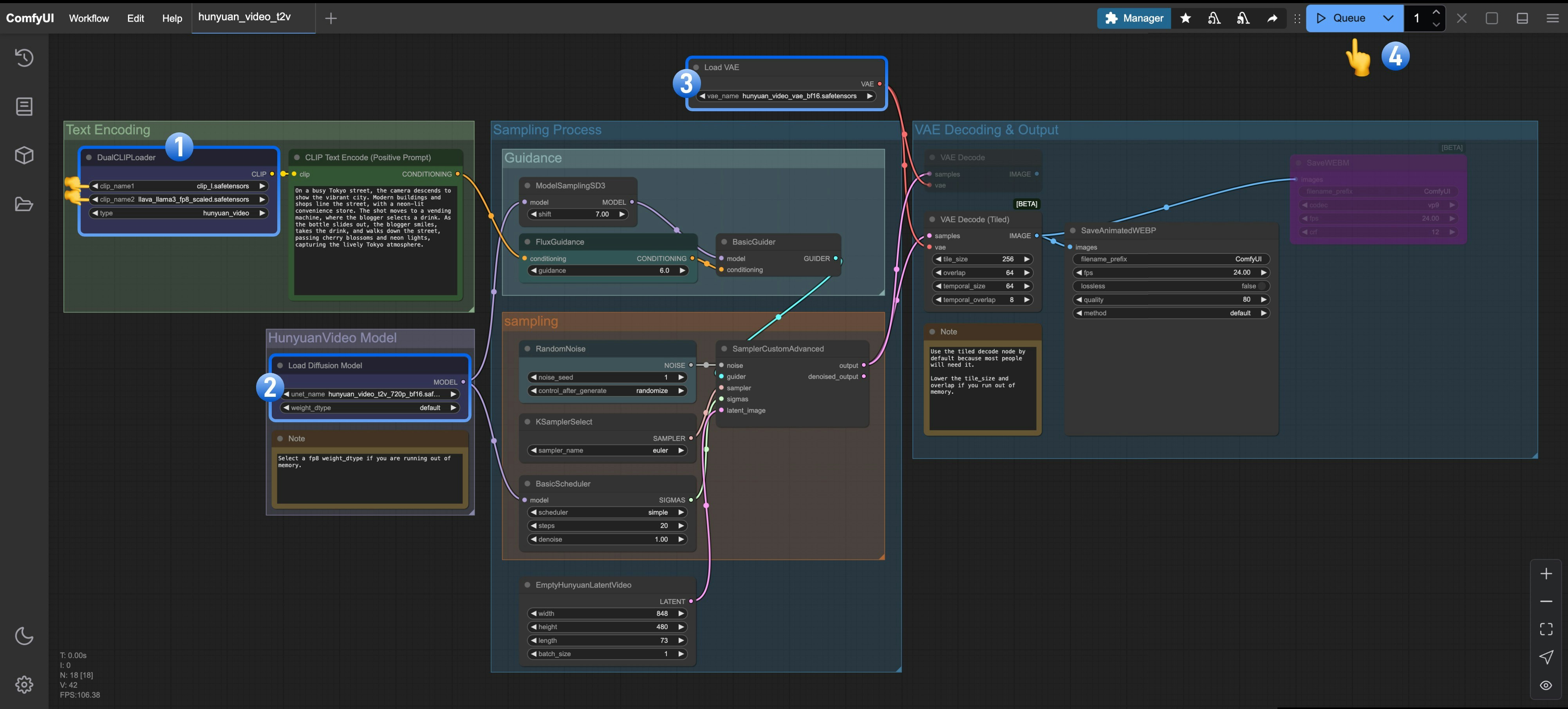 1. Ensure the `DualCLIPLoader` node has loaded these models:
* clip\_name1: clip\_l.safetensors
* clip\_name2: llava\_llama3\_fp8\_scaled.safetensors
2. Ensure the `Load Diffusion Model` node has loaded `hunyuan_video_t2v_720p_bf16.safetensors`
3. Ensure the `Load VAE` node has loaded `hunyuan_video_vae_bf16.safetensors`
4. Click the `Queue` button or use the shortcut `Ctrl(cmd) + Enter` to run the workflow
When the `length` parameter in the `EmptyHunyuanLatentVideo` node is set to 1, the model can generate a static image.
## Hunyuan Image-to-Video Workflow
Hunyuan Image-to-Video model was open-sourced on March 6, 2025, based on the HunyuanVideo framework. It transforms static images into smooth, high-quality videos and also provides LoRA training code to customize special video effects like hair growth, object transformation, etc.
Currently, the Hunyuan Image-to-Video model has two versions:
* v1 "concat": Better motion fluidity but less adherence to the image guidance
* v2 "replace": Updated the day after v1, with better image guidance but seemingly less dynamic compared to v1
1. Ensure the `DualCLIPLoader` node has loaded these models:
* clip\_name1: clip\_l.safetensors
* clip\_name2: llava\_llama3\_fp8\_scaled.safetensors
2. Ensure the `Load Diffusion Model` node has loaded `hunyuan_video_t2v_720p_bf16.safetensors`
3. Ensure the `Load VAE` node has loaded `hunyuan_video_vae_bf16.safetensors`
4. Click the `Queue` button or use the shortcut `Ctrl(cmd) + Enter` to run the workflow
When the `length` parameter in the `EmptyHunyuanLatentVideo` node is set to 1, the model can generate a static image.
## Hunyuan Image-to-Video Workflow
Hunyuan Image-to-Video model was open-sourced on March 6, 2025, based on the HunyuanVideo framework. It transforms static images into smooth, high-quality videos and also provides LoRA training code to customize special video effects like hair growth, object transformation, etc.
Currently, the Hunyuan Image-to-Video model has two versions:
* v1 "concat": Better motion fluidity but less adherence to the image guidance
* v2 "replace": Updated the day after v1, with better image guidance but seemingly less dynamic compared to v1
v1 "concat"

v2 "replace"

### Shared Model for v1 and v2 Versions
Download the following file and save it to the `ComfyUI/models/clip_vision` directory:
* [llava\_llama3\_vision.safetensors](https://huggingface.co/Comfy-Org/HunyuanVideo_repackaged/resolve/main/split_files/clip_vision/llava_llama3_vision.safetensors?download=true)
### V1 "concat" Image-to-Video Workflow
#### 1. Workflow and Asset
Download the workflow image below and drag it into ComfyUI to load the workflow:

Download the image below, which we'll use as the starting frame for the image-to-video generation:

#### 2. Related models manual installation
* [hunyuan\_video\_image\_to\_video\_720p\_bf16.safetensors](https://huggingface.co/Comfy-Org/HunyuanVideo_repackaged/resolve/main/split_files/diffusion_models/hunyuan_video_image_to_video_720p_bf16.safetensors?download=true)
Ensure you have all these model files in the correct locations:
```
ComfyUI/
├── models/
│ ├── clip_vision/
│ │ └── llava_llama3_vision.safetensors // I2V shared model
│ ├── text_encoders/
│ │ ├── clip_l.safetensors // Shared model
│ │ └── llava_llama3_fp8_scaled.safetensors // Shared model
│ ├── vae/
│ │ └── hunyuan_video_vae_bf16.safetensors // Shared model
│ └── diffusion_models/
│ └── hunyuan_video_image_to_video_720p_bf16.safetensors // I2V v1 "concat" version model
```
#### 3. Steps to Run the Workflow
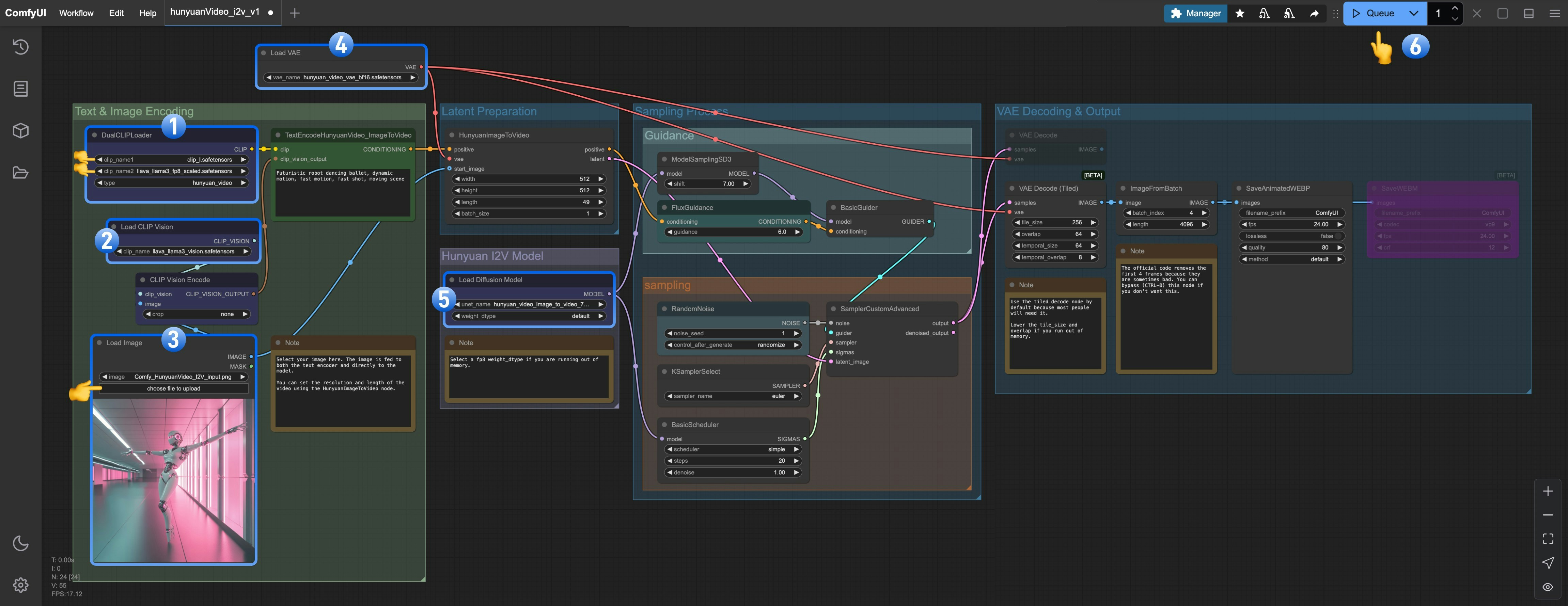 1. Ensure that `DualCLIPLoader` has loaded these models:
* clip\_name1: clip\_l.safetensors
* clip\_name2: llava\_llama3\_fp8\_scaled.safetensors
2. Ensure that `Load CLIP Vision` has loaded `llava_llama3_vision.safetensors`
3. Ensure that `Load Image Model` has loaded `hunyuan_video_image_to_video_720p_bf16.safetensors`
4. Ensure that `Load VAE` has loaded `vae_name: hunyuan_video_vae_bf16.safetensors`
5. Ensure that `Load Diffusion Model` has loaded `hunyuan_video_image_to_video_720p_bf16.safetensors`
6. Click the `Queue` button or use the shortcut `Ctrl(cmd) + Enter` to run the workflow
### v2 "replace" Image-to-Video Workflow
The v2 workflow is essentially the same as the v1 workflow. You just need to download the **replace** model and use it in the `Load Diffusion Model` node.
#### 1. Workflow and Asset
Download the workflow image below and drag it into ComfyUI to load the workflow:

Download the image below, which we'll use as the starting frame for the image-to-video generation:

#### 2. Related models manual installation
* [hunyuan\_video\_v2\_replace\_image\_to\_video\_720p\_bf16.safetensors](https://huggingface.co/Comfy-Org/HunyuanVideo_repackaged/resolve/main/split_files/diffusion_models/hunyuan_video_v2_replace_image_to_video_720p_bf16.safetensors?download=true)
Ensure you have all these model files in the correct locations:
```
ComfyUI/
├── models/
│ ├── clip_vision/
│ │ └── llava_llama3_vision.safetensors // I2V shared model
│ ├── text_encoders/
│ │ ├── clip_l.safetensors // Shared model
│ │ └── llava_llama3_fp8_scaled.safetensors // Shared model
│ ├── vae/
│ │ └── hunyuan_video_vae_bf16.safetensors // Shared model
│ └── diffusion_models/
│ └── hunyuan_video_v2_replace_image_to_video_720p_bf16.safetensors // V2 "replace" version model
```
#### 3. Steps to Run the Workflow
1. Ensure that `DualCLIPLoader` has loaded these models:
* clip\_name1: clip\_l.safetensors
* clip\_name2: llava\_llama3\_fp8\_scaled.safetensors
2. Ensure that `Load CLIP Vision` has loaded `llava_llama3_vision.safetensors`
3. Ensure that `Load Image Model` has loaded `hunyuan_video_image_to_video_720p_bf16.safetensors`
4. Ensure that `Load VAE` has loaded `vae_name: hunyuan_video_vae_bf16.safetensors`
5. Ensure that `Load Diffusion Model` has loaded `hunyuan_video_image_to_video_720p_bf16.safetensors`
6. Click the `Queue` button or use the shortcut `Ctrl(cmd) + Enter` to run the workflow
### v2 "replace" Image-to-Video Workflow
The v2 workflow is essentially the same as the v1 workflow. You just need to download the **replace** model and use it in the `Load Diffusion Model` node.
#### 1. Workflow and Asset
Download the workflow image below and drag it into ComfyUI to load the workflow:

Download the image below, which we'll use as the starting frame for the image-to-video generation:

#### 2. Related models manual installation
* [hunyuan\_video\_v2\_replace\_image\_to\_video\_720p\_bf16.safetensors](https://huggingface.co/Comfy-Org/HunyuanVideo_repackaged/resolve/main/split_files/diffusion_models/hunyuan_video_v2_replace_image_to_video_720p_bf16.safetensors?download=true)
Ensure you have all these model files in the correct locations:
```
ComfyUI/
├── models/
│ ├── clip_vision/
│ │ └── llava_llama3_vision.safetensors // I2V shared model
│ ├── text_encoders/
│ │ ├── clip_l.safetensors // Shared model
│ │ └── llava_llama3_fp8_scaled.safetensors // Shared model
│ ├── vae/
│ │ └── hunyuan_video_vae_bf16.safetensors // Shared model
│ └── diffusion_models/
│ └── hunyuan_video_v2_replace_image_to_video_720p_bf16.safetensors // V2 "replace" version model
```
#### 3. Steps to Run the Workflow
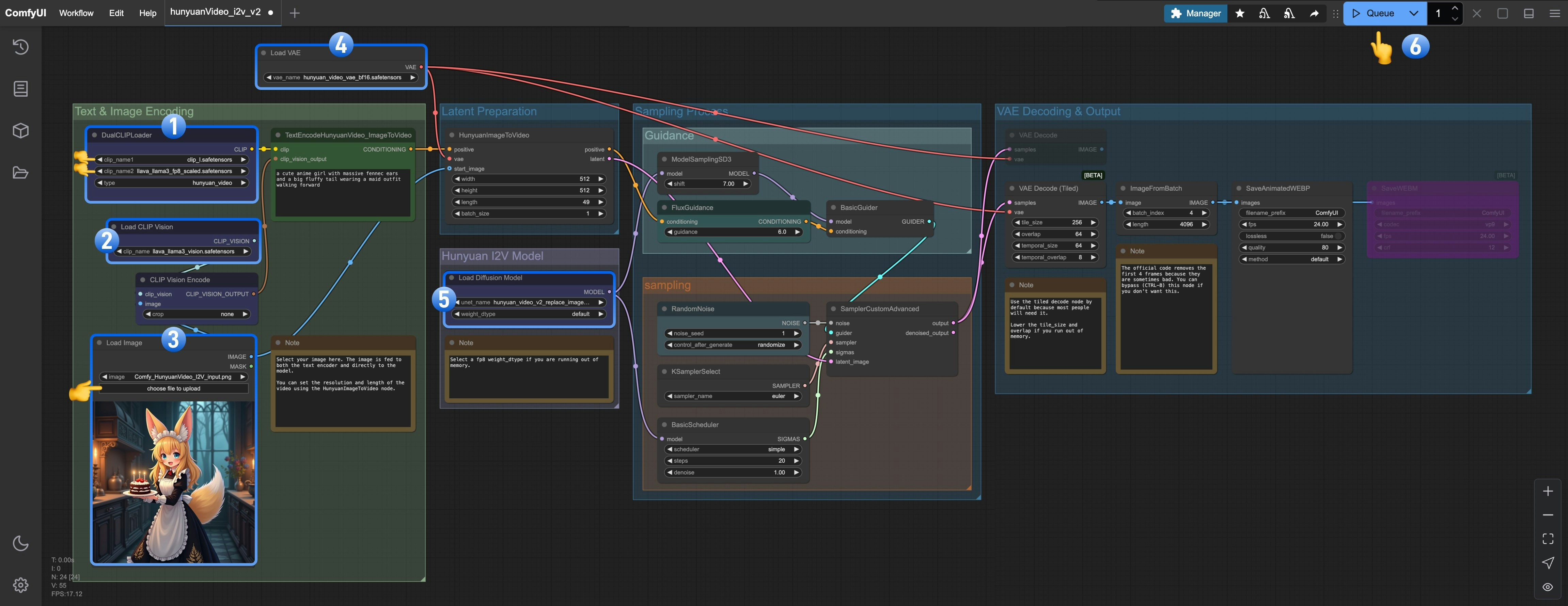 1. Ensure the `DualCLIPLoader` node has loaded these models:
* clip\_name1: clip\_l.safetensors
* clip\_name2: llava\_llama3\_fp8\_scaled.safetensors
2. Ensure the `Load CLIP Vision` node has loaded `llava_llama3_vision.safetensors`
3. Ensure the `Load Image Model` node has loaded `hunyuan_video_image_to_video_720p_bf16.safetensors`
4. Ensure the `Load VAE` node has loaded `hunyuan_video_vae_bf16.safetensors`
5. Ensure the `Load Diffusion Model` node has loaded `hunyuan_video_v2_replace_image_to_video_720p_bf16.safetensors`
6. Click the `Queue` button or use the shortcut `Ctrl(cmd) + Enter` to run the workflow
## Try it yourself
Here are some images and prompts we provide. Based on that content or make an adjustment to create your own video.
1. Ensure the `DualCLIPLoader` node has loaded these models:
* clip\_name1: clip\_l.safetensors
* clip\_name2: llava\_llama3\_fp8\_scaled.safetensors
2. Ensure the `Load CLIP Vision` node has loaded `llava_llama3_vision.safetensors`
3. Ensure the `Load Image Model` node has loaded `hunyuan_video_image_to_video_720p_bf16.safetensors`
4. Ensure the `Load VAE` node has loaded `hunyuan_video_vae_bf16.safetensors`
5. Ensure the `Load Diffusion Model` node has loaded `hunyuan_video_v2_replace_image_to_video_720p_bf16.safetensors`
6. Click the `Queue` button or use the shortcut `Ctrl(cmd) + Enter` to run the workflow
## Try it yourself
Here are some images and prompts we provide. Based on that content or make an adjustment to create your own video.
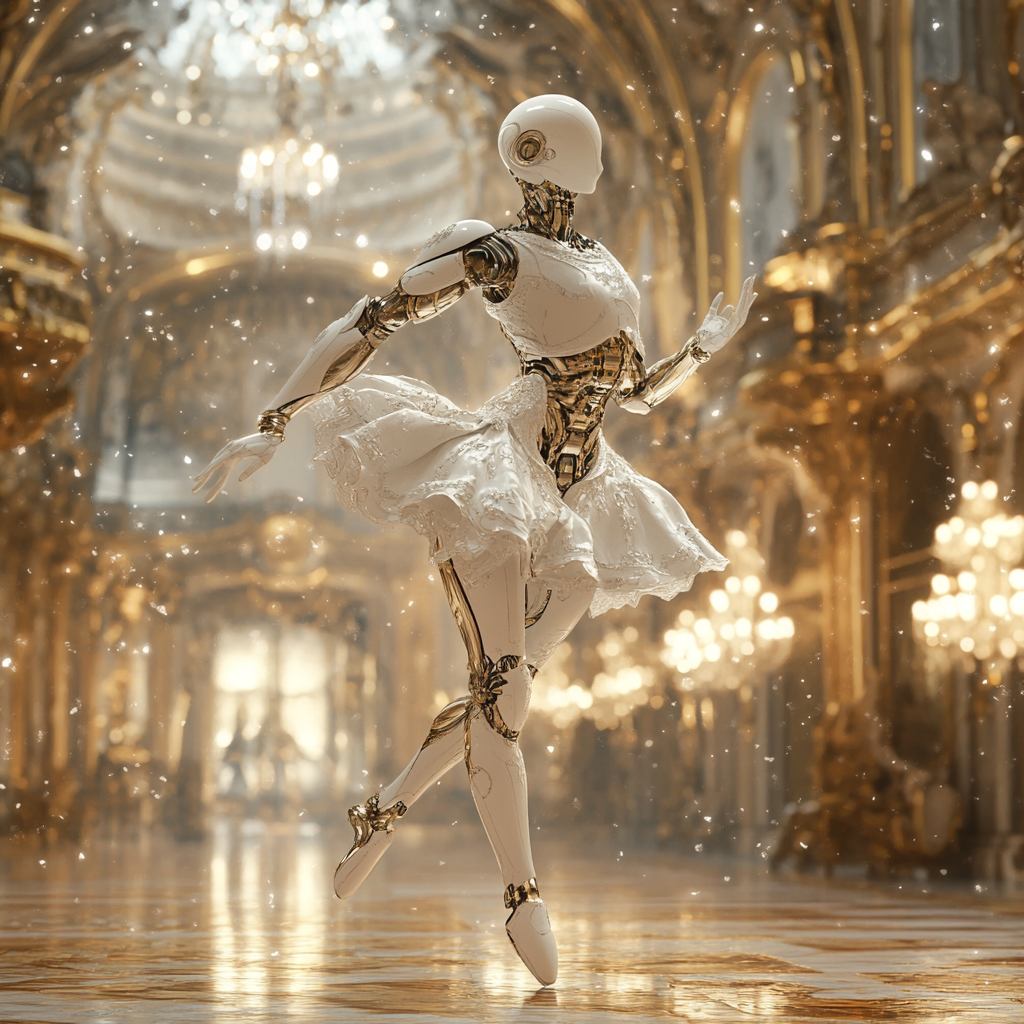 ```
Futuristic robot dancing ballet, dynamic motion, fast motion, fast shot, moving scene
```
***
```
Futuristic robot dancing ballet, dynamic motion, fast motion, fast shot, moving scene
```
***
 ```
Samurai waving sword and hitting the camera. camera angle movement, zoom in, fast scene, super fast, dynamic
```
***
```
Samurai waving sword and hitting the camera. camera angle movement, zoom in, fast scene, super fast, dynamic
```
***
 ```
flying car fastly moving and flying through the city
```
***
```
flying car fastly moving and flying through the city
```
***
 ```
cyberpunk car race in night city, dynamic, super fast, fast shot
```
```
cyberpunk car race in night city, dynamic, super fast, fast shot
```