> ## Documentation Index
> Fetch the complete documentation index at: https://docs.comfy.org/llms.txt
> Use this file to discover all available pages before exploring further.
# ComfyUI Wan2.1 Fun Camera Official Examples
> This guide demonstrates how to use Wan2.1 Fun Camera in ComfyUI for video generation
## About Wan2.1 Fun Camera
**Wan2.1 Fun Camera** is a video generation project launched by the Alibaba team, focusing on controlling video generation effects through camera motion.
**Model Weights Download**:
* [14B Version](https://huggingface.co/alibaba-pai/Wan2.1-Fun-V1.1-14B-Control-Camera)
* [1.3B Version](https://huggingface.co/alibaba-pai/Wan2.1-Fun-V1.1-1.3B-Control-Camera)
**Code Repository**: [VideoX-Fun](https://github.com/aigc-apps/VideoX-Fun)
**ComfyUI now natively supports the Wan2.1 Fun Camera model**.
Make sure your ComfyUI is updated.
* [Download ComfyUI](https://www.comfy.org/download)
* [Update Guide](/installation/update_comfyui)
Workflows in this guide can be found in the [Workflow Templates](/interface/features/template).
If you can't find them in the template, your ComfyUI may be outdated. (Desktop version's update will delay sometime)
If nodes are missing when loading a workflow, possible reasons:
1. You are not using the latest ComfyUI version (Nightly version)
2. Some nodes failed to import at startup
* The Desktop is base on ComfyUI stable release, it will auto-update when there is a new Desktop stable release available.
* [Cloud](https://cloud.comfy.org) will update after ComfyUI stable release.
So, if you find any core node missing in this document, it might be because the new core nodes have not yet been released in the latest stable version. Please wait for the next stable release.
## Model Installation
These models only need to be installed once. Additionally, model download information is included in the corresponding workflow images, so you can choose your preferred way to download the models.
All of the following models can be found at [Wan\_2.1\_ComfyUI\_repackaged](https://huggingface.co/Comfy-Org/Wan_2.1_ComfyUI_repackaged)
**Diffusion Models** choose either 1.3B or 14B:
* [wan2.1\_fun\_camera\_v1.1\_1.3B\_bf16.safetensors](https://huggingface.co/Comfy-Org/Wan_2.1_ComfyUI_repackaged/resolve/main/split_files/diffusion_models/wan2.1_fun_camera_v1.1_1.3B_bf16.safetensors)
* [wan2.1\_fun\_camera\_v1.1\_14B\_bf16.safetensors](https://huggingface.co/Comfy-Org/Wan_2.1_ComfyUI_repackaged/resolve/main/split_files/diffusion_models/wan2.1_fun_camera_v1.1_14B_bf16.safetensors)
If you've used Wan2.1 related models before, you should already have the following models. If not, please download them:
**Text Encoders** choose one:
* [umt5\_xxl\_fp16.safetensors](https://huggingface.co/Comfy-Org/Wan_2.1_ComfyUI_repackaged/resolve/main/split_files/text_encoders/umt5_xxl_fp16.safetensors)
* [umt5\_xxl\_fp8\_e4m3fn\_scaled.safetensors](https://huggingface.co/Comfy-Org/Wan_2.1_ComfyUI_repackaged/resolve/main/split_files/text_encoders/umt5_xxl_fp8_e4m3fn_scaled.safetensors)
**VAE**
* [wan\_2.1\_vae.safetensors](https://huggingface.co/Comfy-Org/Wan_2.1_ComfyUI_repackaged/resolve/main/split_files/vae/wan_2.1_vae.safetensors)
**CLIP Vision**
* [clip\_vision\_h.safetensors](https://huggingface.co/Comfy-Org/Wan_2.1_ComfyUI_repackaged/resolve/main/split_files/clip_vision/clip_vision_h.safetensors)
File Storage Location:
```
📂 ComfyUI/
├── 📂 models/
│ ├── 📂 diffusion_models/
│ │ ├── wan2.1_fun_camera_v1.1_1.3B_bf16.safetensors # 1.3B version
│ │ └── wan2.1_fun_camera_v1.1_14B_bf16.safetensors # 14B version
│ ├── 📂 text_encoders/
│ │ └── umt5_xxl_fp8_e4m3fn_scaled.safetensors
│ ├── 📂 vae/
│ │ └── wan_2.1_vae.safetensors
│ └── 📂 clip_vision/
│ └── clip_vision_h.safetensors
```
## ComfyUI Wan2.1 Fun Camera 1.3B Native Workflow Example
### 1. Workflow Related Files Download
#### 1.1 Workflow File
Download the video below and drag it into ComfyUI to load the corresponding workflow:
Download Json Workflow File
If you want to use the 14B version, simply replace the model file with the 14B version, but please be aware of the VRAM requirements.
#### 1.2 Input Image Download
Please download the image below, which we will use as the starting frame:

### 2. Complete the Workflow Step by Step
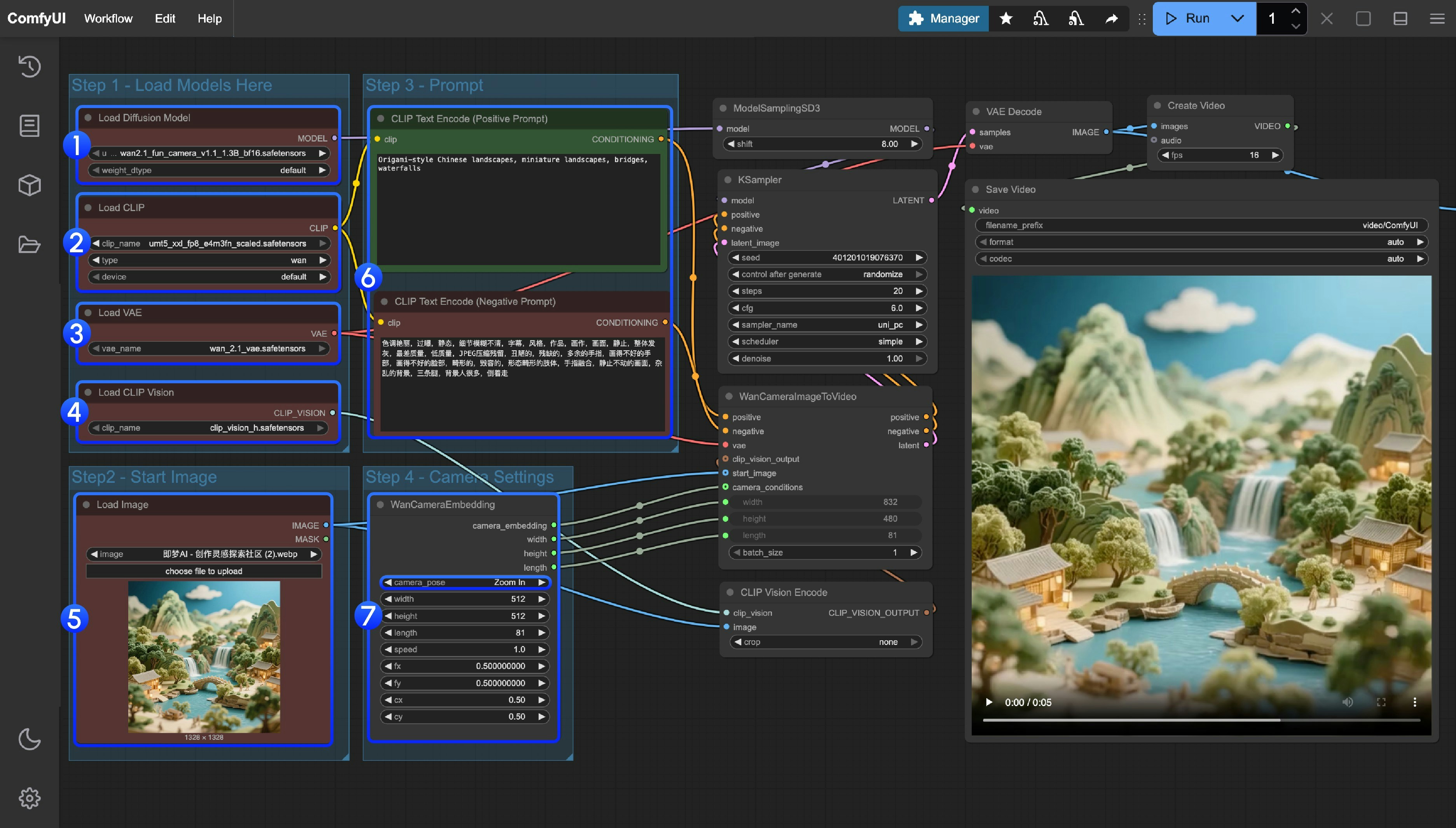 1. Ensure the correct version of model file is loaded:
* 1.3B version: `wan2.1_fun_camera_v1.1_1.3B_bf16.safetensors`
* 14B version: `wan2.1_fun_camera_v1.1_14B_bf16.safetensors`
2. Ensure the `Load CLIP` node has loaded `umt5_xxl_fp8_e4m3fn_scaled.safetensors`
3. Ensure the `Load VAE` node has loaded `wan_2.1_vae.safetensors`
4. Ensure the `Load CLIP Vision` node has loaded `clip_vision_h.safetensors`
5. Upload the starting frame to the `Load Image` node
6. Modify the Prompt if you're using your own input image
7. Set camera motion in the `WanCameraEmbedding` node
8. Click the `Run` button or use the shortcut `Ctrl(cmd) + Enter` to execute generation
## ComfyUI Wan2.1 Fun Camera 14B Workflow and Input Image
1. Ensure the correct version of model file is loaded:
* 1.3B version: `wan2.1_fun_camera_v1.1_1.3B_bf16.safetensors`
* 14B version: `wan2.1_fun_camera_v1.1_14B_bf16.safetensors`
2. Ensure the `Load CLIP` node has loaded `umt5_xxl_fp8_e4m3fn_scaled.safetensors`
3. Ensure the `Load VAE` node has loaded `wan_2.1_vae.safetensors`
4. Ensure the `Load CLIP Vision` node has loaded `clip_vision_h.safetensors`
5. Upload the starting frame to the `Load Image` node
6. Modify the Prompt if you're using your own input image
7. Set camera motion in the `WanCameraEmbedding` node
8. Click the `Run` button or use the shortcut `Ctrl(cmd) + Enter` to execute generation
## ComfyUI Wan2.1 Fun Camera 14B Workflow and Input Image
Download Json Workflow File
**Input Image**

## Performance Reference
**1.3B Version**:
* 512×512 resolution on RTX 4090 takes about 72 seconds to generate 81 frames
**14B Version**:
* RTX4090 24GB VRAM may experience insufficient memory when generating 512×512 resolution, and memory issues have also occurred on A100 when using larger sizes