> ## Documentation Index
> Fetch the complete documentation index at: https://docs.comfy.org/llms.txt
> Use this file to discover all available pages before exploring further.
# ComfyUI Wan2.1 Fun Control Video Examples
> This guide demonstrates how to use Wan2.1 Fun Control in ComfyUI to generate videos with control videos
## About Wan2.1-Fun-Control
**Wan2.1-Fun-Control** is an open-source video generation and control project developed by Alibaba team.
It introduces innovative Control Codes mechanisms combined with deep learning and multimodal conditional inputs to generate high-quality videos that conform to preset control conditions. The project focuses on precisely guiding generated video content through multimodal control conditions.
Currently, the Fun Control model supports various control conditions, including **Canny (line art), Depth, OpenPose (human posture), MLSD (geometric edges), and trajectory control.**
The model also supports multi-resolution video prediction with options for 512, 768, and 1024 resolutions at 16 frames per second, generating videos up to 81 frames (approximately 5 seconds) in length.
Model versions:
* **1.3B** Lightweight: Suitable for local deployment and quick inference with **lower VRAM requirements**
* **14B** High-performance: Model size reaches 32GB+, offering better results but **requiring higher VRAM**
Here are the relevant code repositories:
* [Wan2.1-Fun-1.3B-Control](https://huggingface.co/alibaba-pai/Wan2.1-Fun-1.3B-Control)
* [Wan2.1-Fun-14B-Control](https://huggingface.co/alibaba-pai/Wan2.1-Fun-14B-Control)
* Code repository: [VideoX-Fun](https://github.com/aigc-apps/VideoX-Fun)
ComfyUI now **natively supports** the Wan2.1 Fun Control model. Before starting this tutorial, please update your ComfyUI to ensure you're using a version after [this commit](https://github.com/Comfy-Org/ComfyUI/commit/3661c833bcc41b788a7c9f0e7bc48524f8ee5f82).
In this guide, we'll provide two workflows:
1. A workflow using only native Comfy Core nodes
2. A workflow using custom nodes
Due to current limitations in native nodes for video support, the native-only workflow ensures users can complete the process without installing custom nodes.
However, we've found that providing a good user experience for video generation is challenging without custom nodes, so we're providing both workflow versions in this guide.
Make sure your ComfyUI is updated.
* [Download ComfyUI](https://www.comfy.org/download)
* [Update Guide](/installation/update_comfyui)
Workflows in this guide can be found in the [Workflow Templates](/interface/features/template).
If you can't find them in the template, your ComfyUI may be outdated. (Desktop version's update will delay sometime)
If nodes are missing when loading a workflow, possible reasons:
1. You are not using the latest ComfyUI version (Nightly version)
2. Some nodes failed to import at startup
* The Desktop is base on ComfyUI stable release, it will auto-update when there is a new Desktop stable release available.
* [Cloud](https://cloud.comfy.org) will update after ComfyUI stable release.
So, if you find any core node missing in this document, it might be because the new core nodes have not yet been released in the latest stable version. Please wait for the next stable release.
## Model Installation
You only need to install these models once. The workflow images also contain model download information, so you can choose your preferred download method.
The following models can be found at [Wan\_2.1\_ComfyUI\_repackaged](https://huggingface.co/Comfy-Org/Wan_2.1_ComfyUI_repackaged) and [Wan2.1-Fun](https://huggingface.co/collections/alibaba-pai/wan21-fun-67e4fb3b76ca01241eb7e334)
Click the corresponding links to download. If you've used Wan-related workflows before, you only need to download the **Diffusion models**.
**Diffusion models** - choose 1.3B or 14B. The 14B version has a larger file size (32GB) and higher VRAM requirements:
* [wan2.1\_fun\_control\_1.3B\_bf16.safetensors](https://huggingface.co/Comfy-Org/Wan_2.1_ComfyUI_repackaged/resolve/main/split_files/diffusion_models/wan2.1_fun_control_1.3B_bf16.safetensors?download=true)
* [Wan2.1-Fun-14B-Control](https://huggingface.co/alibaba-pai/Wan2.1-Fun-14B-Control/blob/main/diffusion_pytorch_model.safetensors?download=true): Rename to `Wan2.1-Fun-14B-Control.safetensors` after downloading
**Text encoders** - choose one of the following models (fp16 precision has a larger size and higher performance requirements):
* [umt5\_xxl\_fp16.safetensors](https://huggingface.co/Comfy-Org/Wan_2.1_ComfyUI_repackaged/resolve/main/split_files/text_encoders/umt5_xxl_fp16.safetensors?download=true)
* [umt5\_xxl\_fp8\_e4m3fn\_scaled.safetensors](https://huggingface.co/Comfy-Org/Wan_2.1_ComfyUI_repackaged/resolve/main/split_files/text_encoders/umt5_xxl_fp8_e4m3fn_scaled.safetensors?download=true)
**VAE**
* [wan\_2.1\_vae.safetensors](https://huggingface.co/Comfy-Org/Wan_2.1_ComfyUI_repackaged/resolve/main/split_files/vae/wan_2.1_vae.safetensors?download=true)
**CLIP Vision**
* [clip\_vision\_h.safetensors](https://huggingface.co/Comfy-Org/Wan_2.1_ComfyUI_repackaged/resolve/main/split_files/clip_vision/clip_vision_h.safetensors?download=true)
File storage location:
```
📂 ComfyUI/
├── 📂 models/
│ ├── 📂 diffusion_models/
│ │ └── wan2.1_fun_control_1.3B_bf16.safetensors
│ ├── 📂 text_encoders/
│ │ └─── umt5_xxl_fp8_e4m3fn_scaled.safetensors
│ └── 📂 vae/
│ │ └── wan_2.1_vae.safetensors
│ └── 📂 clip_vision/
│ └── clip_vision_h.safetensors
```
## ComfyUI Native Workflow
In this workflow, we use videos converted to **WebP format** since the `Load Image` node doesn't currently support mp4 format. We also use **Canny Edge** to preprocess the original video.
Because many users encounter installation failures and environment issues when installing custom nodes, this version of the workflow uses only native nodes to ensure a smoother experience.
Thanks to our powerful ComfyUI authors who provide feature-rich nodes. If you want to directly check the related version, see [Workflow Using Custom Nodes](#workflow-using-custom-nodes).
### 1. Workflow File Download
#### 1.1 Workflow File

Download the image below and drag it into ComfyUI to load the workflow:
#### 1.2 Input Images and Videos Download
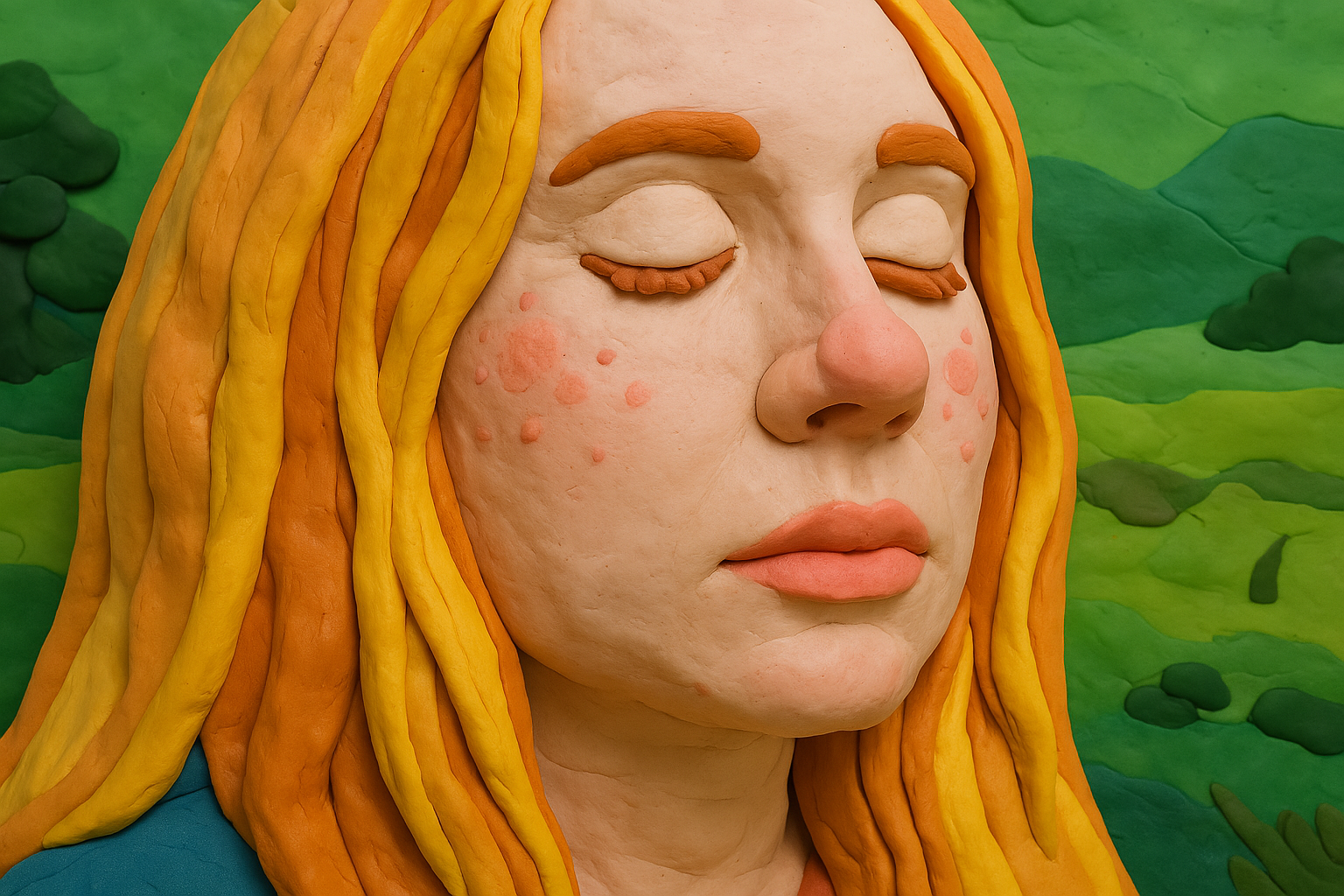

Please download the following image and video for input:
### 2. Complete the Workflow Step by Step
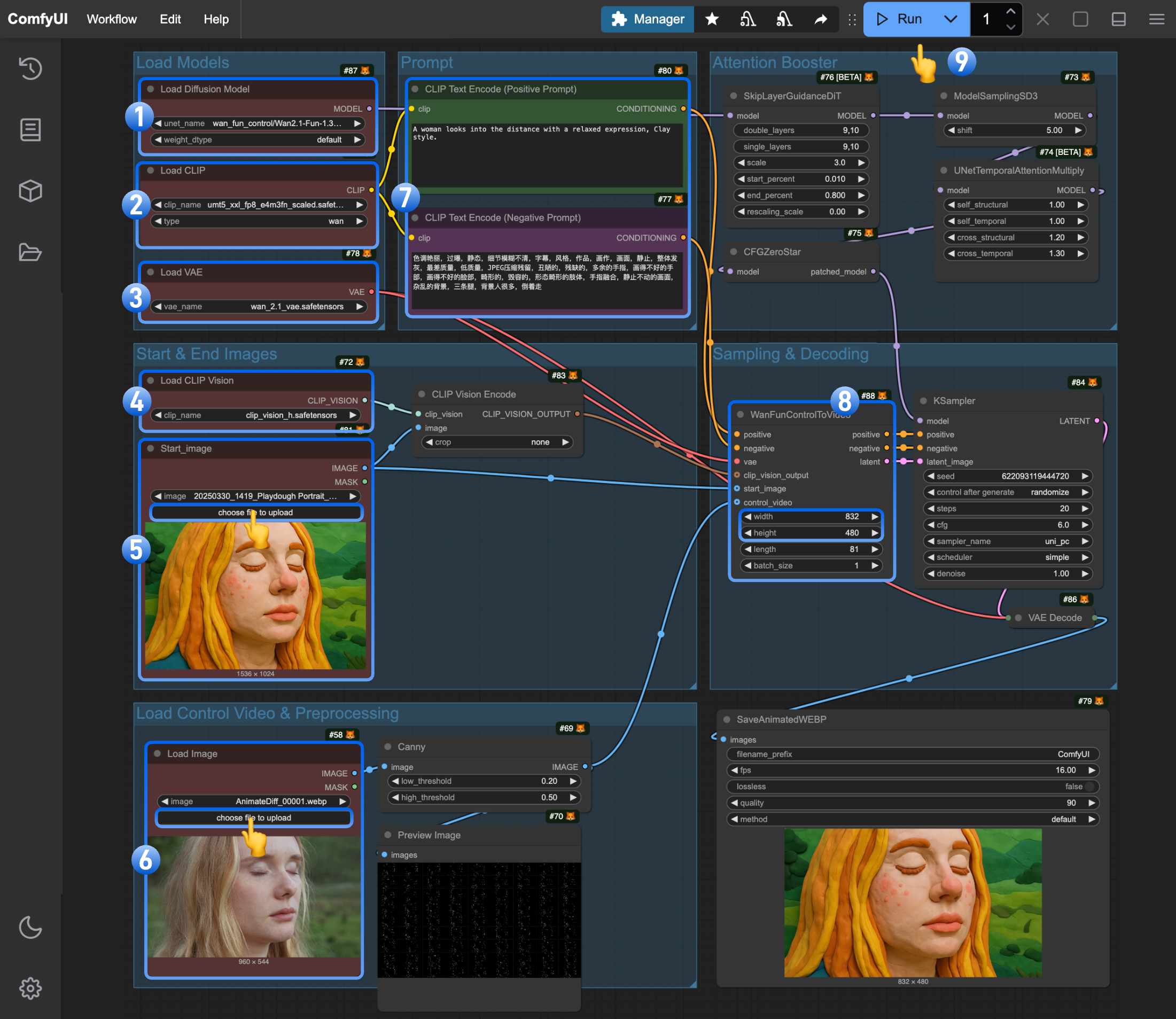 1. Ensure the `Load Diffusion Model` node has loaded `wan2.1_fun_control_1.3B_bf16.safetensors`
2. Ensure the `Load CLIP` node has loaded `umt5_xxl_fp8_e4m3fn_scaled.safetensors`
3. Ensure the `Load VAE` node has loaded `wan_2.1_vae.safetensors`
4. Ensure the `Load CLIP Vision` node has loaded `clip_vision_h.safetensors`
5. Upload the starting frame to the `Load Image` node (renamed to `Start_image`)
6. Upload the control video to the second `Load Image` node. Note: This node currently doesn't support mp4, only WebP videos
7. (Optional) Modify the prompt (both English and Chinese are supported)
8. (Optional) Adjust the video size in `WanFunControlToVideo`, avoiding overly large dimensions
9. Click the `Run` button or use the shortcut `Ctrl(cmd) + Enter` to execute video generation
### 3. Usage Notes
* Since we need to input the same number of frames as the control video into the `WanFunControlToVideo` node, if the specified frame count exceeds the actual control video frames, the excess frames may display scenes not conforming to control conditions. We'll address this issue in the [Workflow Using Custom Nodes](#workflow-using-custom-nodes)
* Avoid setting overly large dimensions, as this can make the sampling process very time-consuming. Try generating smaller images first, then upscale
* Use your imagination to build upon this workflow by adding text-to-image or other types of workflows to achieve direct text-to-video generation or style transfer
* Use tools like [ComfyUI-comfyui\_controlnet\_aux](https://github.com/Fannovel16/comfyui_controlnet_aux) for richer control options
## Workflow Using Custom Nodes
We'll need to install the following two custom nodes:
* [ComfyUI-VideoHelperSuite](https://github.com/Kosinkadink/ComfyUI-VideoHelperSuite)
* [ComfyUI-comfyui\_controlnet\_aux](https://github.com/Fannovel16/comfyui_controlnet_aux)
You can use [ComfyUI Manager](https://github.com/Comfy-Org/ComfyUI-Manager) to install missing nodes or follow the installation instructions for each custom node package.
### 1. Workflow File Download
#### 1.1 Workflow File
Download the image below and drag it into ComfyUI to load the workflow:

Due to the large size of video files, you can also click [here](https://raw.githubusercontent.com/Comfy-Org/example_workflows/main/wan2.1_fun_control/wan2.1_fun_control_use_custom_nodes.json) to download the workflow file in JSON format.
#### 1.2 Input Images and Videos Download
Please download the following image and video for input:

### 2. Complete the Workflow Step by Step
1. Ensure the `Load Diffusion Model` node has loaded `wan2.1_fun_control_1.3B_bf16.safetensors`
2. Ensure the `Load CLIP` node has loaded `umt5_xxl_fp8_e4m3fn_scaled.safetensors`
3. Ensure the `Load VAE` node has loaded `wan_2.1_vae.safetensors`
4. Ensure the `Load CLIP Vision` node has loaded `clip_vision_h.safetensors`
5. Upload the starting frame to the `Load Image` node (renamed to `Start_image`)
6. Upload the control video to the second `Load Image` node. Note: This node currently doesn't support mp4, only WebP videos
7. (Optional) Modify the prompt (both English and Chinese are supported)
8. (Optional) Adjust the video size in `WanFunControlToVideo`, avoiding overly large dimensions
9. Click the `Run` button or use the shortcut `Ctrl(cmd) + Enter` to execute video generation
### 3. Usage Notes
* Since we need to input the same number of frames as the control video into the `WanFunControlToVideo` node, if the specified frame count exceeds the actual control video frames, the excess frames may display scenes not conforming to control conditions. We'll address this issue in the [Workflow Using Custom Nodes](#workflow-using-custom-nodes)
* Avoid setting overly large dimensions, as this can make the sampling process very time-consuming. Try generating smaller images first, then upscale
* Use your imagination to build upon this workflow by adding text-to-image or other types of workflows to achieve direct text-to-video generation or style transfer
* Use tools like [ComfyUI-comfyui\_controlnet\_aux](https://github.com/Fannovel16/comfyui_controlnet_aux) for richer control options
## Workflow Using Custom Nodes
We'll need to install the following two custom nodes:
* [ComfyUI-VideoHelperSuite](https://github.com/Kosinkadink/ComfyUI-VideoHelperSuite)
* [ComfyUI-comfyui\_controlnet\_aux](https://github.com/Fannovel16/comfyui_controlnet_aux)
You can use [ComfyUI Manager](https://github.com/Comfy-Org/ComfyUI-Manager) to install missing nodes or follow the installation instructions for each custom node package.
### 1. Workflow File Download
#### 1.1 Workflow File
Download the image below and drag it into ComfyUI to load the workflow:

Due to the large size of video files, you can also click [here](https://raw.githubusercontent.com/Comfy-Org/example_workflows/main/wan2.1_fun_control/wan2.1_fun_control_use_custom_nodes.json) to download the workflow file in JSON format.
#### 1.2 Input Images and Videos Download
Please download the following image and video for input:

### 2. Complete the Workflow Step by Step
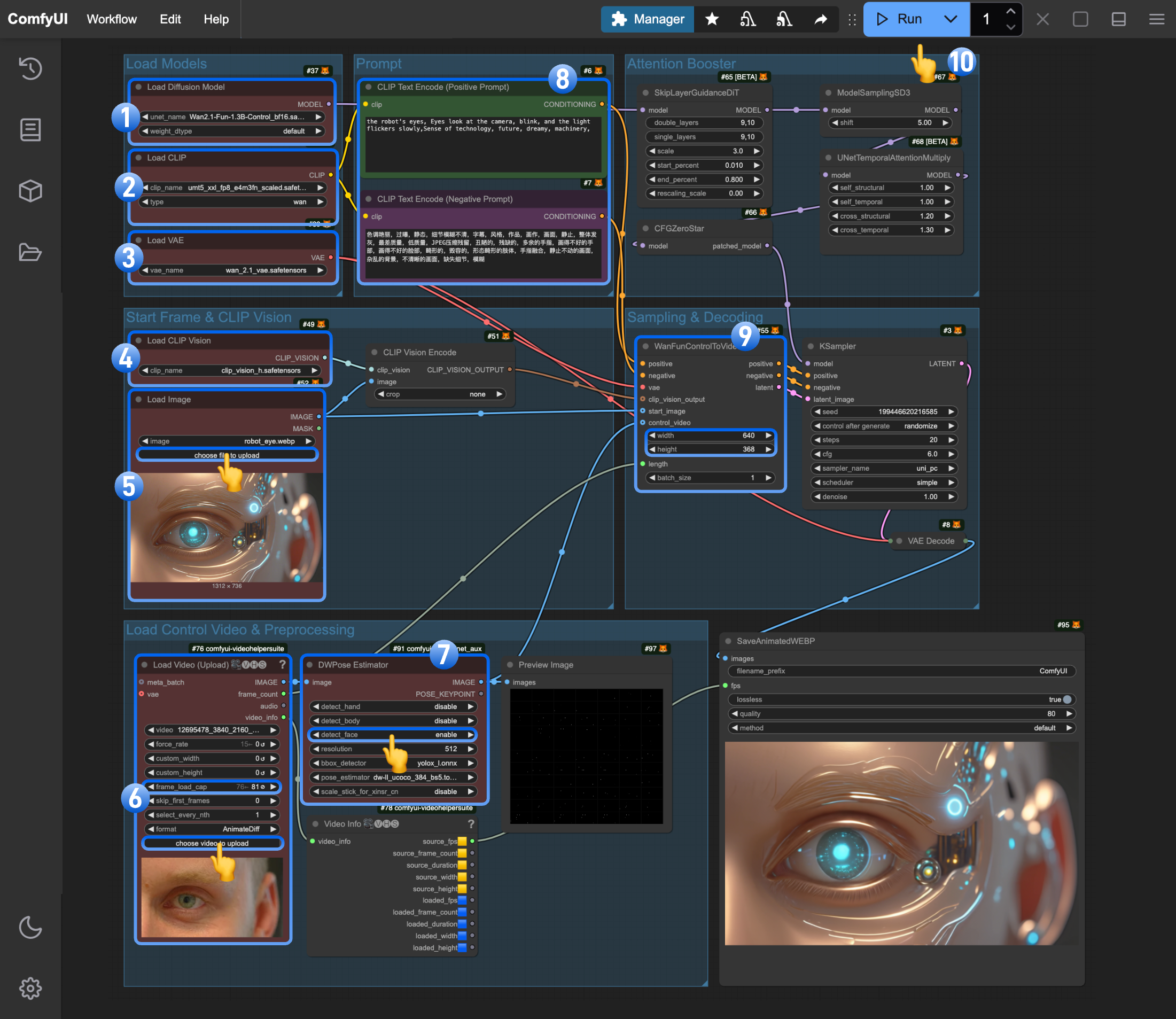 > The model part is essentially the same. If you've already experienced the native-only workflow, you can directly upload the corresponding images and run it.
1. Ensure the `Load Diffusion Model` node has loaded `wan2.1_fun_control_1.3B_bf16.safetensors`
2. Ensure the `Load CLIP` node has loaded `umt5_xxl_fp8_e4m3fn_scaled.safetensors`
3. Ensure the `Load VAE` node has loaded `wan_2.1_vae.safetensors`
4. Ensure the `Load CLIP Vision` node has loaded `clip_vision_h.safetensors`
5. Upload the starting frame to the `Load Image` node
6. Upload an mp4 format video to the `Load Video(Upload)` custom node. Note that the workflow has adjusted the default `frame_load_cap`
7. For the current image, the `DWPose Estimator` only uses the `detect_face` option
8. (Optional) Modify the prompt (both English and Chinese are supported)
9. (Optional) Adjust the video size in `WanFunControlToVideo`, avoiding overly large dimensions
10. Click the `Run` button or use the shortcut `Ctrl(cmd) + Enter` to execute video generation
### 3. Workflow Notes
Thanks to the ComfyUI community authors for their custom node packages:
* This example uses `Load Video(Upload)` to support mp4 videos
* The `video_info` obtained from `Load Video(Upload)` allows us to maintain the same `fps` for the output video
* You can replace `DWPose Estimator` with other preprocessors from the `ComfyUI-comfyui_controlnet_aux` node package
* Prompts support multiple languages
## Usage Tips
> The model part is essentially the same. If you've already experienced the native-only workflow, you can directly upload the corresponding images and run it.
1. Ensure the `Load Diffusion Model` node has loaded `wan2.1_fun_control_1.3B_bf16.safetensors`
2. Ensure the `Load CLIP` node has loaded `umt5_xxl_fp8_e4m3fn_scaled.safetensors`
3. Ensure the `Load VAE` node has loaded `wan_2.1_vae.safetensors`
4. Ensure the `Load CLIP Vision` node has loaded `clip_vision_h.safetensors`
5. Upload the starting frame to the `Load Image` node
6. Upload an mp4 format video to the `Load Video(Upload)` custom node. Note that the workflow has adjusted the default `frame_load_cap`
7. For the current image, the `DWPose Estimator` only uses the `detect_face` option
8. (Optional) Modify the prompt (both English and Chinese are supported)
9. (Optional) Adjust the video size in `WanFunControlToVideo`, avoiding overly large dimensions
10. Click the `Run` button or use the shortcut `Ctrl(cmd) + Enter` to execute video generation
### 3. Workflow Notes
Thanks to the ComfyUI community authors for their custom node packages:
* This example uses `Load Video(Upload)` to support mp4 videos
* The `video_info` obtained from `Load Video(Upload)` allows us to maintain the same `fps` for the output video
* You can replace `DWPose Estimator` with other preprocessors from the `ComfyUI-comfyui_controlnet_aux` node package
* Prompts support multiple languages
## Usage Tips
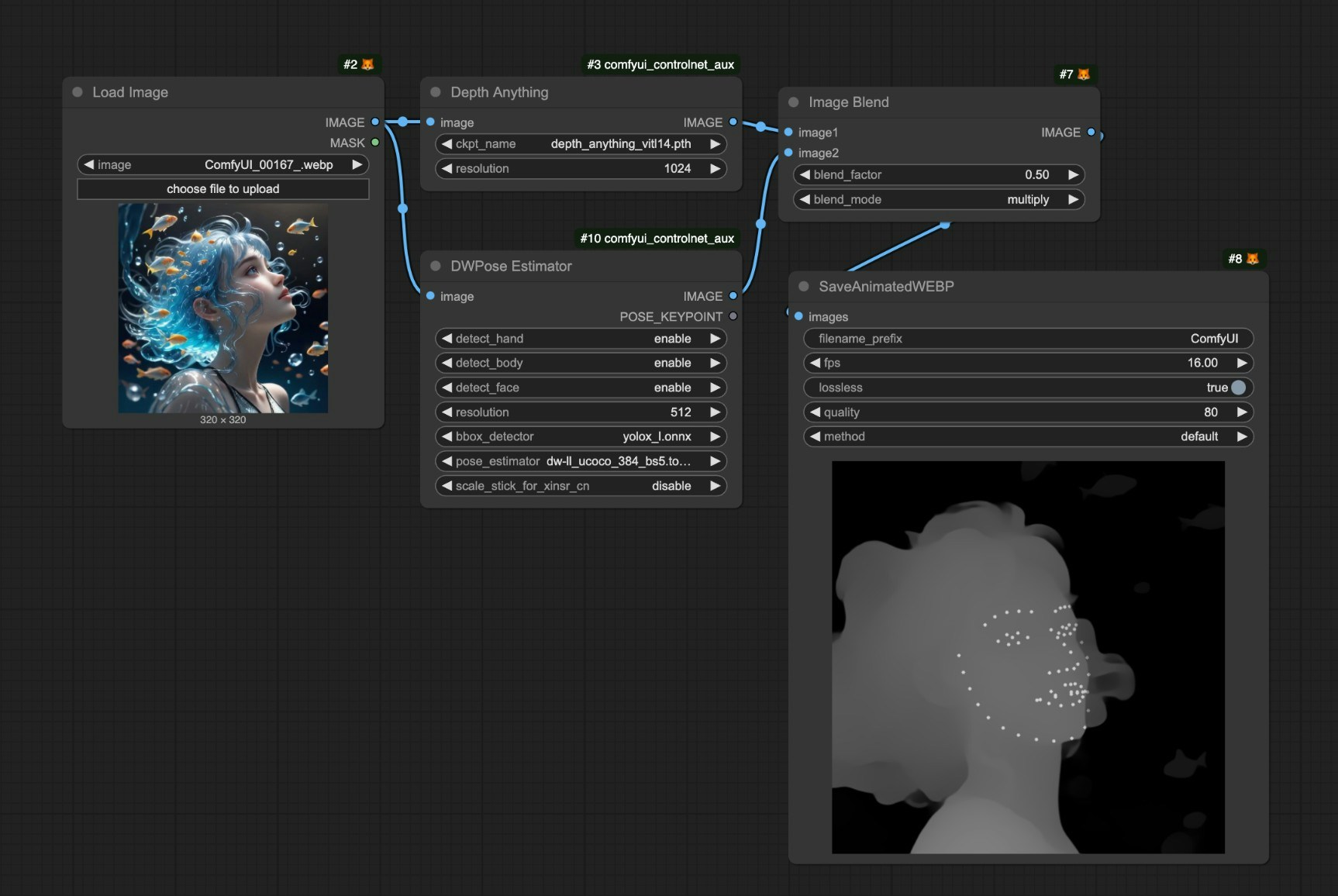 * A useful tip is that you can combine multiple image preprocessing techniques and then use the `Image Blend` node to achieve the goal of applying multiple control methods simultaneously.
* You can use the `Video Combine` node from `ComfyUI-VideoHelperSuite` to save videos in mp4 format
* We use `SaveAnimatedWEBP` because we currently don't support embedding workflow into **mp4** and some other custom nodes may not support embedding workflow too. To preserve the workflow in the video, we choose `SaveAnimatedWEBP` node.
* In the `WanFunControlToVideo` node, `control_video` is not mandatory, so sometimes you can skip using a control video, first generate a very small video size like 320x320, and then use them as control video input to achieve consistent results.
* [ComfyUI-WanVideoWrapper](https://github.com/kijai/ComfyUI-WanVideoWrapper)
* [ComfyUI-KJNodes](https://github.com/kijai/ComfyUI-KJNodes)
* A useful tip is that you can combine multiple image preprocessing techniques and then use the `Image Blend` node to achieve the goal of applying multiple control methods simultaneously.
* You can use the `Video Combine` node from `ComfyUI-VideoHelperSuite` to save videos in mp4 format
* We use `SaveAnimatedWEBP` because we currently don't support embedding workflow into **mp4** and some other custom nodes may not support embedding workflow too. To preserve the workflow in the video, we choose `SaveAnimatedWEBP` node.
* In the `WanFunControlToVideo` node, `control_video` is not mandatory, so sometimes you can skip using a control video, first generate a very small video size like 320x320, and then use them as control video input to achieve consistent results.
* [ComfyUI-WanVideoWrapper](https://github.com/kijai/ComfyUI-WanVideoWrapper)
* [ComfyUI-KJNodes](https://github.com/kijai/ComfyUI-KJNodes)